Multi Blend File Merger - Batch Import With Into One Project
 Salman Naseem



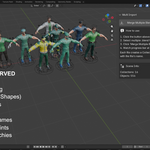
🚀 Installation (3 Easy Steps)
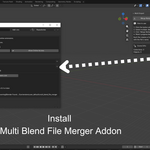
Step 1: Install the Addon
Open Blender
Go to Edit → Preferences → Add-ons
Click Install…
Select multi_blend_file_merger.zip
Click Install Add-on
Step 2: Enable It
Search for Multi Blend File Merger
Enable the addon by checking the box ✅
Close the Preferences window
Step 3: Verify Installation
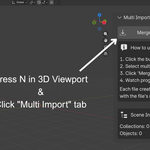
Press N in the 3D Viewport
Look for the Multi Import tab
If it appears → you’re ready to go! ✅
💡 How to Use (5 Simple Steps)
Basic Usage
Press N → Open the Multi Import tab
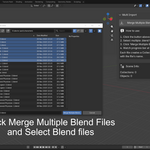
Click Merge Multiple Blend Files
Select your
.blendfiles
(Use Ctrl / Cmd for multiple selection)Click Merge Multiple Blend Files again
Watch the progress bar → Done! 🎉
How Files Are Organized
Before Import
Character_01.blend
Character_02.blend
Props.blend
Environment.blend
After Import
Scene Collection
├── Character_01
├── Character_02
├── Props
└── Environment
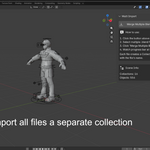
Each file becomes its own collection—clean and organized.
⚡ Quick Tips
Selecting Multiple Files
Method 1: Select Individual Files
Click first file
Hold Ctrl (Windows/Linux) or Cmd (Mac)
Click additional files
Method 2: Select a Range
Click first file
Hold Shift
Click last file
Method 3: Select All
Press A in the file browser
Watching the Import Progress
Progress Bar
Appears at the bottom of Blender
Fills as files import
Example:████████░░ 65%
Console (Optional)
Windows: Window → Toggle System Console
Shows detailed logs:
[1/10] Importing: Character_01.blend
🔧 Common Issues & Fixes
❌ “No files selected”
Cause: No files were highlighted
Fix: Click files to select them before merging
❌ “Failed to merge any files”
Cause: Source files don’t contain collections
Fix:
Open the source
.blendSelect objects
Right-click → Move to Collection → New Collection
Save and try again
❌ Can’t find the “Multi Import” tab
Cause: Sidebar hidden or addon disabled
Fix:
Press N to show sidebar
Make sure you’re in 3D Viewport
Confirm addon is enabled in Preferences
📋 Checklist Before Importing
✅ Save your current project
✅ Ensure source files use collections
✅ Pack textures
(File → External Data → Pack Resources)
✅ Use clear file names (used as collection names)
✅ Close source files before importing
💼 Example Workflow
Scenario: Import 10 Character Files
Open Blender (new or existing project)
Press N → Open Multi Import
Click Merge Multiple Blend Files
Navigate to character folder
Select all 10 files (Shift + Click)
Click Merge Multiple Blend Files
Wait 10–30 seconds
Check Outliner → 10 new collections appear
⚡ Time Saved:
Instead of importing one-by-one for 10–15 minutes, everything is done in seconds.
🎯 What Gets Preserved
Everything stays intact during import:
✅ Armatures & Rigging
✅ Shape Keys (Blend Shapes)
✅ Materials & Textures
✅ Animations & Keyframes
✅ Modifiers
✅ Constraints
✅ Parent–Child Relationships
💯 No data loss.
⚠️ Important Notes
Import Only Addon
What this addon DOES:
✅ Imports multiple .blend files into your current project
What it DOES NOT do:
❌ Export files
Need exporting?
👉 Check out the Export Each addon — the perfect companion for this importer.
📊 Live Scene Statistics
The panel displays real-time stats:
Collections: 25
Objects: 347
Automatically updates after every import.
Have questions about this product?
Login to message
| Blender Extension Compatible | Yes |
| Sales | 10+ |
| Published | 9 months ago |
| Blender Version | 3.0 - 5.2 |
| Extension Type | Add-on |
| Render Engine Used | Cycles, Eevee |
| License | GPL |

Discover more products like this
multiple files import multiple Multi Blend File Merger batch-import Import-Export bulk import merge blend files asset management collection import team workflow