Music Ball
 phamduyson



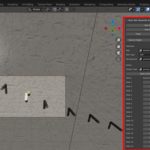

Music Ball Addon for Blender
Overview
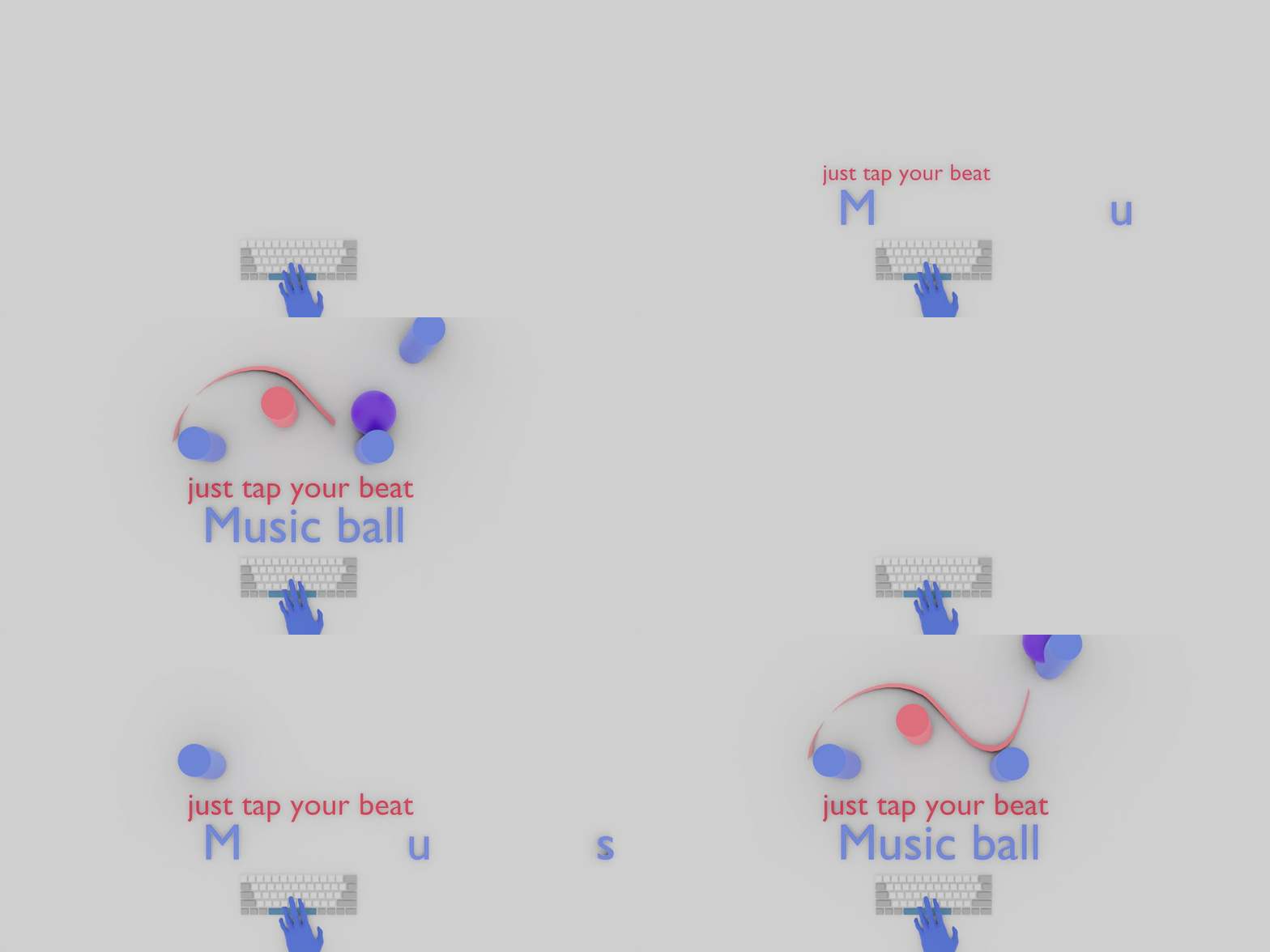
The Music Ball Addon is a fun Blender tool to create music visuals by tapping along to your favorite songs. Just press the Spacebar in time with the beats, and watch a ball bounce from tube to tube, turning your rhythm into glowing, bouncy animations. No audio files needed—play your music and let your taps do the magic! It adds smooth motion, impact glows, a following camera, a simple background, and lights to make it pop. Perfect for quick music videos, beat visuals, or rhythmic fun.
Features:
• Beat-Tapping Magic: Hit Spacebar on each beat to place a tube—creates a chain of bounces that match your song's groove, with a touch of randomness for a lively feel.
• Bouncy Motion: The ball arcs naturally between tubes, with adjustable height for punchy or chill vibes.
• Impact Fun: Ball squishes on hits, and tubes light up with a warm glow burst—like fireworks for every beat.
• Smart Camera: Follows the action with a cool angle to keep everything in view.
• Easy Setup: Adds a background and lights that fit your sequence automatically.
• Quick Tweaks: Change colors for the ball, tubes, or background anytime.
• Live Preview: See your beats animate right away as you tap.
Installation
1. Download the addon file (music_ball.zip).
2. In Blender, go to Edit > Preferences > Add-ons.
3. Click Install... and select the music_ball.zip file.
4. Enable the addon by checking the box next to "Music Ball".
Usage
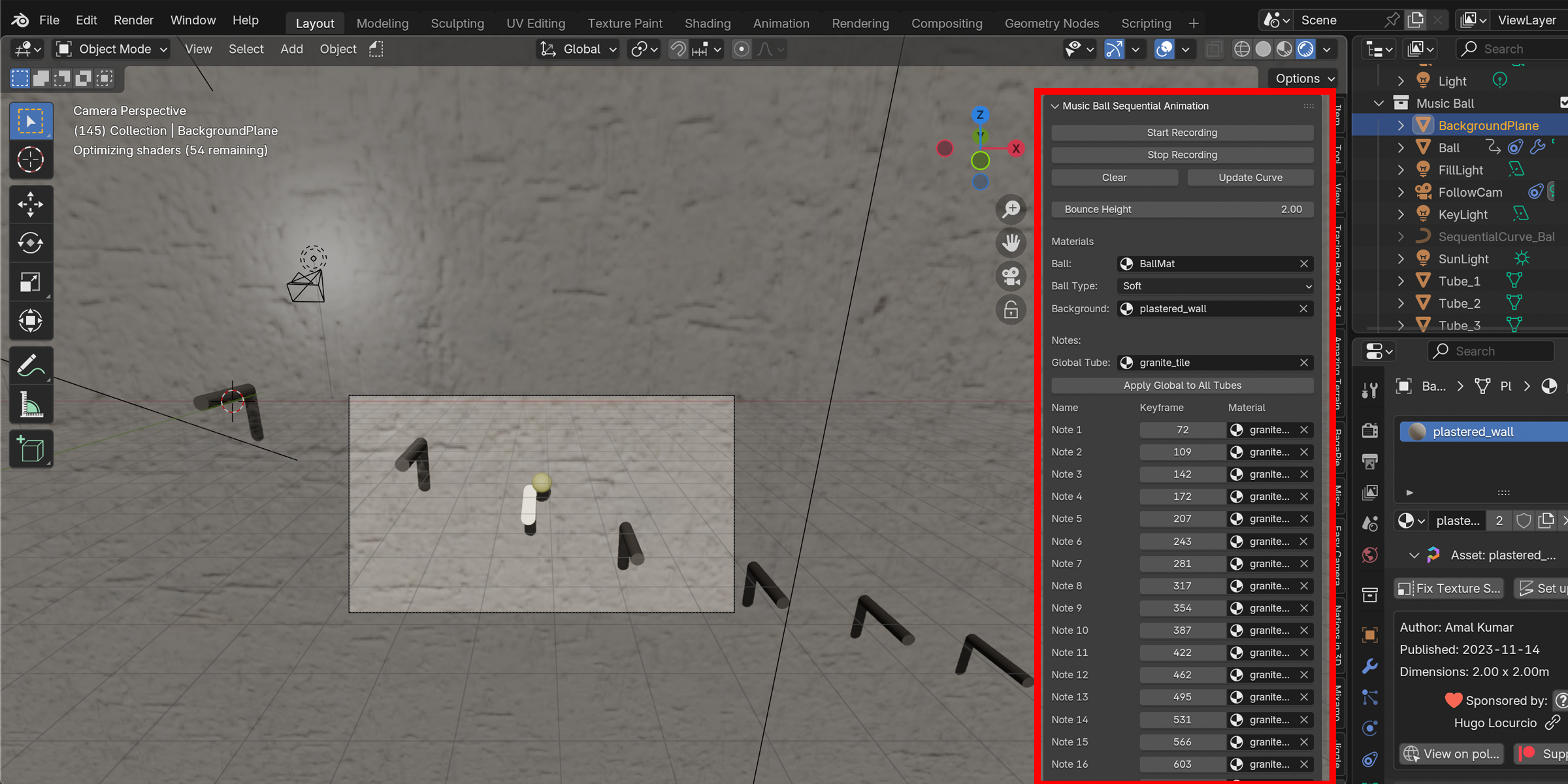
- In the 3D Viewport, go to the Music Ball tab in the sidebar (press N to show it).
- Click Start Recording.
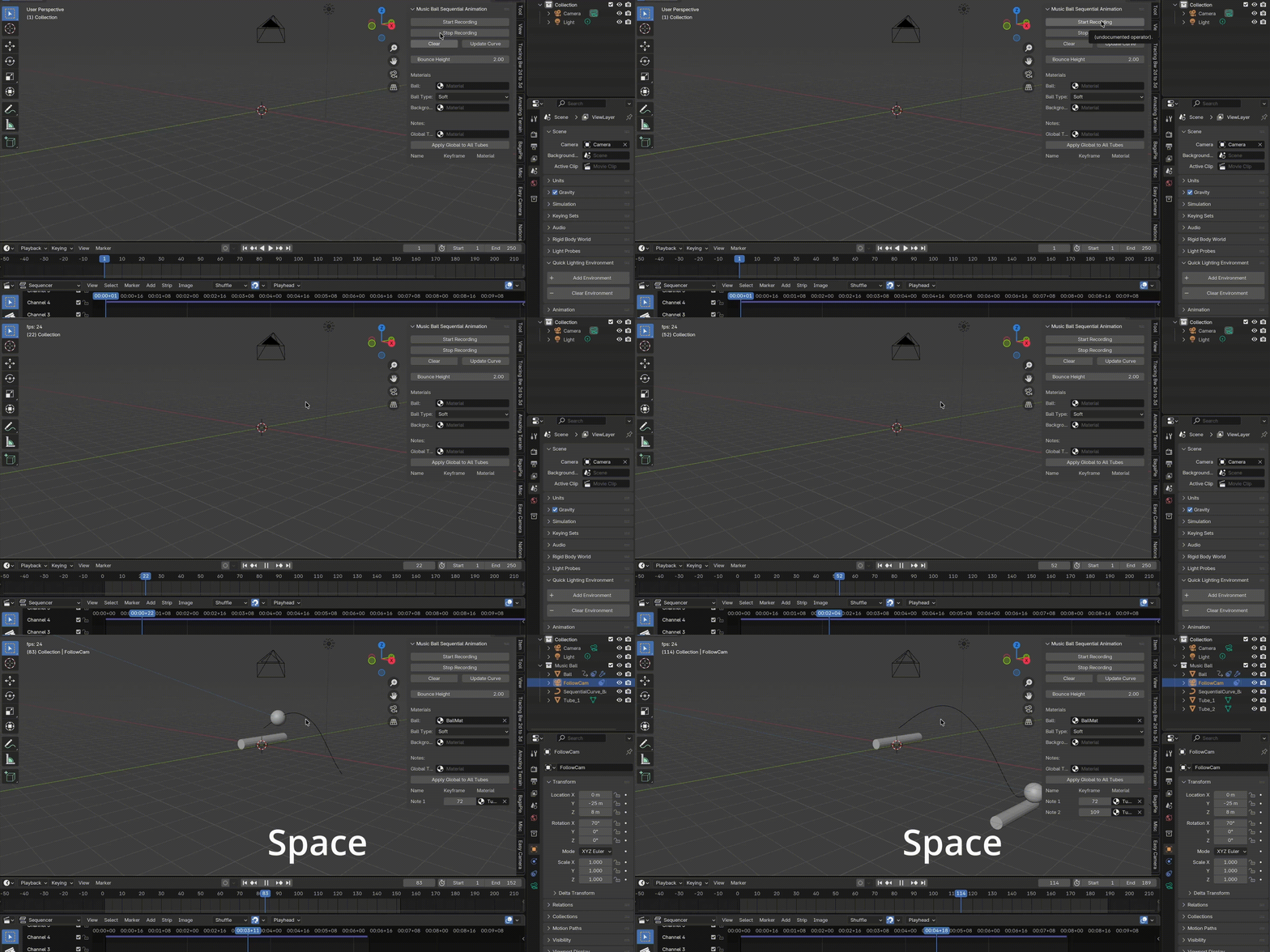
- Playback starts—you can play your favorite song from anywhere to listen, and press Spacebar on the beats to add tubes.
- Click Stop Recording when you finish.
Customize It
• Colors: Swap materials for the ball, background, or tubes—do it individually or apply the same look everywhere for a unified vibe.
• Update curve: Update the motion if you move tubes.
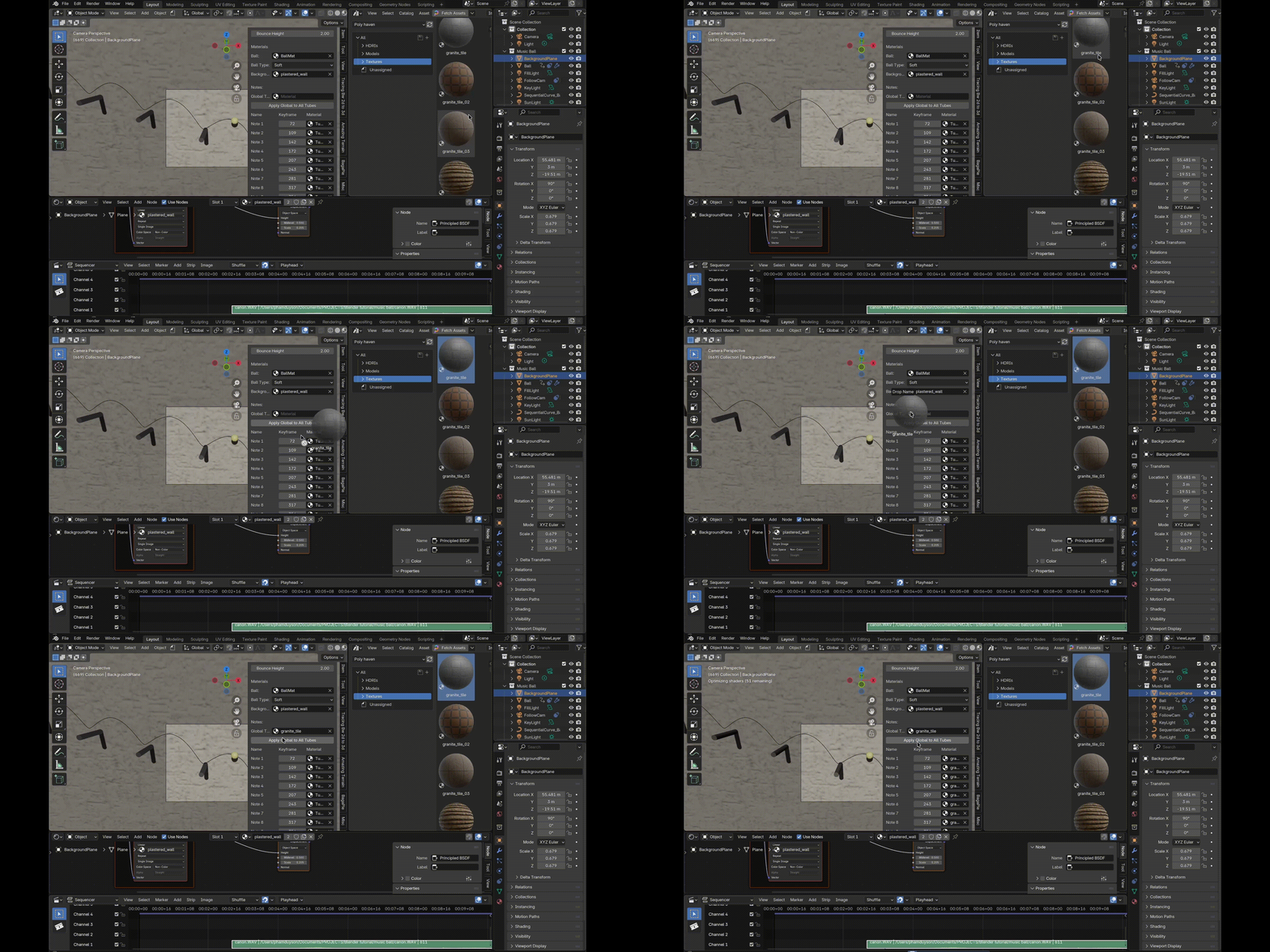
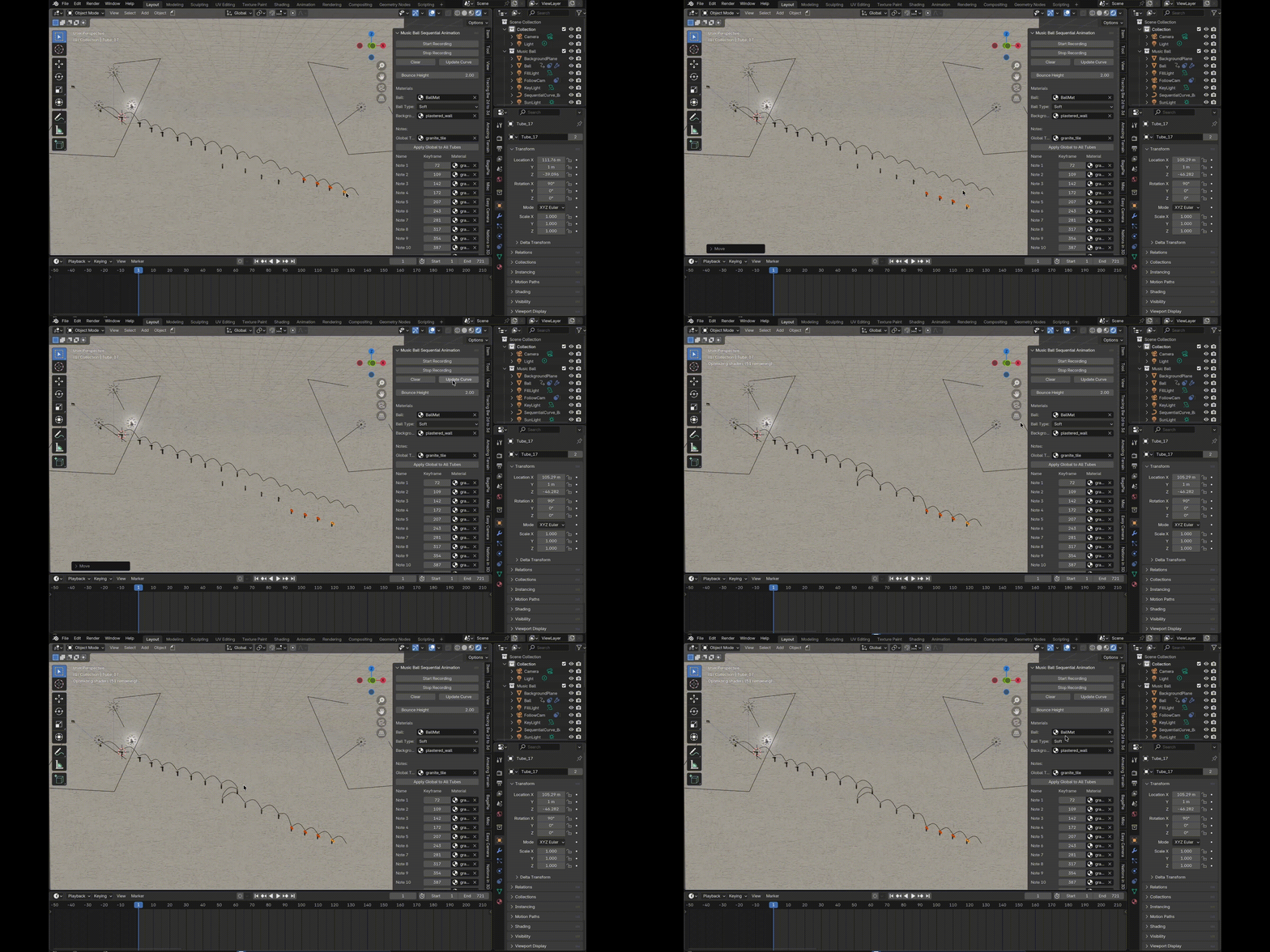
• Clear All: Wipe the slate clean to start over.
Play It Back
• After rendering the animation, you can sync it with your music using any video editing software, or just use Blender's built-in video sequencer for easy audio fitting.
Remove It
1. Go to Edit > Preferences > Add-ons.
2. Find "Music Ball", uncheck to disable.
3. Click Remove.
Help
Got questions or ideas? Email [email protected] with your Blender version and what happened.
License
Released under the GPL License.
Have questions about this product?
Login to message
| Sales | 10+ |
| Dev Fund Contributor | |
| Published | about 1 year ago |
| Blender Version | 4.5 |
| Extension Type | N/A |
| Render Engine Used | Cycles, Eevee |
| License | GPL |