Mv Low Poly Painter (Automated Uv System)
 MV - Blender Addons


MV Low Poly Painter — Documentation
The addon is found in:
3D Viewport → Sidebar / N-Panel → MVPainter
The main panel is called MV Low Poly Painter.
Installation
-
Open Blender.
-
Go to Edit → Preferences → Add-ons.
-
Click Install.
-
Select the MV Low Poly Painter
.zip file.
-
Enable the addon.
-
Open the 3D Viewport.
-
Press N to open the sidebar.
-
Go to the MVPainter tab.
.zip file.
Quick Start
-
Select a mesh object.
-
Open the MVPainter tab in the 3D Viewport sidebar.
-
Click New.
-
Choose your UV atlas size.
-
Add colours to your palette.
-
Enter Edit Mode on your mesh.
-
Select the faces you want to paint.
-
Click the brush / assign colour button beside a colour slot.
-
Save your library when finished.
Basic Workflow
1. Select a Mesh Object
Most tools require an active mesh object.
If no mesh is selected, the addon may show warnings such as:
“Select a mesh object first.”
Select the mesh you want to paint before creating a setup, adding colours, or assigning colours to faces.
2. Create a Painter Setup
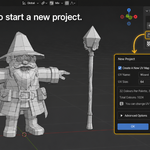
Click New in the panel header to create a new painter setup.
This prepares the selected object for MV Low Poly Painter. Depending on the options used, the setup process can:
- create a UV atlas image
- create or apply the required material
- prepare mesh data for colour assignment
- reset or initialise addon data
- set viewport shading
- optionally open a UV window
This is the fastest way to prepare a mesh for low-poly painting.
3. Create and Manage Palettes
A palette is a collection of colour slots stored inside your painter library.
You can:
- create new palettes
- rename palettes
- switch between palettes
- reorder palettes
- delete palettes
- view all palettes in an expanded list
The addon can store multiple palettes on the active object or inside a shared profile.
4. Add Colours
Use New Colour or the add-slot button to add colours to the active palette.
Each colour slot can store:
- colour value
- label / name
- hex value
- UV atlas coordinates
- linked mesh assignment data
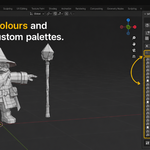
Colour slots are shown in the palette list. From there, you can edit colours, rename them, delete them, organise them, and assign them to selected faces.
If the active palette does not contain any visible colours, the panel will show a prompt with a New Colour button.
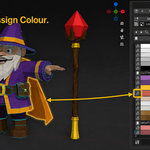
5. Paint Faces
MV Low Poly Painter assigns colours by using the UV atlas.
To paint faces:
- Select your mesh.
- Enter Edit Mode.
- Select the faces you want to colour.
- Choose a colour slot.
- Click the brush / assign button.
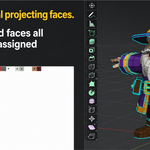
The addon then handles the atlas work for you. It places the colour into the UV image and moves the selected face UVs to the matching colour block.
This allows many colours to be managed through a single atlas image instead of many separate materials.
Colour Libraries
MV Low Poly Painter lets you save and load your colour libraries so they can be reused across projects.
The panel header includes:
- Save — saves the current library / project data
- Load — loads a saved library / project
Saved libraries can be used to keep your workflow consistent across multiple Blender files.
Profiles and Shared Libraries
The addon supports shared libraries through Profiles.
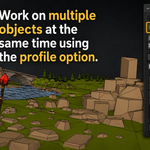
A profile allows multiple mesh objects to share the same palette data and UV atlas image. This is useful when painting several objects that should use the same colour library.
Create a Shared Profile
Click New Profile to create a shared profile from the active object.
You can optionally copy the current library and UV image into the new profile.
Assign a Profile to Another Mesh
Use the profile selector in the panel header to assign an existing profile to the active mesh.
Once assigned, the mesh can use the same colour library and UV image as the profile.
Clear a Profile
Use the X button beside the profile selector to remove the shared profile from the active mesh.
The object will return to using its own local painter data.
Palettes
Each library can contain multiple palettes.
Palette tools allow you to:
- create a palette
- rename the active palette
- move to the previous or next palette
- reorder palettes
- delete the active palette
- delete all palettes from the active object using the relevant Ctrl-delete behaviour
- expand the palette list
- select palettes directly from a menu
Palettes are useful for organising colours by asset, material type, theme, character, environment, or project.
For example:
- Character
- Clothing
- Skin
- Hair
- Props
- Environment
- Rocks
- Grass
- UI Colours
Colour Slots
Each palette contains colour slots.
A colour slot represents one colour in the UV atlas.
The colour slot list supports:
- assigning / plotting a colour
- editing the colour directly
- renaming the slot
- deleting the slot
- inserting a slot above another slot
- using label rows to visually organise groups of colours
Label rows are useful for separating colour groups inside a palette, such as clothing, skin, metal, shadows, highlights, or environment colours.
Gradients
MV Low Poly Painter also includes a Gradient Library.
Gradients are stored separately from standard colour slots and use their own atlas region.
Each gradient can store:
- label
- start colour
- end colour
- UV coordinates
- internal gradient ID
The gradient tools allow you to:
- create gradient entries
- rename gradients
- plot gradients to the atlas
- conform selected mesh data to a gradient
- delete gradients
The Gradient Library is marked as beta, so it should be treated as an experimental feature.
Import Options
MV Low Poly Painter includes tools for importing external palette data.
Import from Color Hunt
You can paste a Color Hunt palette URL into the import popup.
The addon reads the palette colours from the link and adds them to the active palette.
Import from .hex File
You can also import colours from a .hex file.
The addon reads valid 6-digit hex colours and adds them to the current palette.
Example valid hex values:
FFCC00
2E86AB
A23B72
F18F01
UV Atlas Behaviour
MV Low Poly Painter creates and manages a UV image used as the colour atlas.
The atlas is where colour blocks and gradients are stored. Mesh faces are then assigned to specific atlas coordinates.
Important details:
- the atlas is a square image
- the default image name base is UVImage
- the default / common atlas size is 1024 × 1024
- atlas size can be chosen during setup
- standard colour blocks use small atlas regions
- images can be stored per object or shared through a profile
- shared profiles can sync the same UV image across multiple linked meshes
When a shared profile is used, the addon updates linked mesh objects and refreshes material image nodes so they continue using the correct atlas image.
Exporting
MV Low Poly Painter includes an Export UV option.
This lets you export the UV atlas image used by the colour library and material setup.
Exporting the atlas is useful for:
- backing up your colour library image
- using the texture in another file
- checking the generated atlas
- including the atlas in an asset package
- transferring the painted setup to another workflow
Troubleshooting
“Select a mesh object first.”
Most tools require an active mesh object.
Select the mesh you want to work on, then try again.
“No active palette.”
You need to create or select a palette before adding colours or importing palette data.
Create a new palette, or load a saved library that contains palettes.
“No UV image available.”
The addon needs a UV atlas image before it can assign atlas-based colours.
Create a new painter setup, enable UV image creation, or assign a valid profile that already has a UV image.
Colours are not appearing on the mesh
Check that:
- the object has a valid painter setup
- the correct material is applied
- the UV atlas image exists
- the mesh has UV data
- the faces were selected in Edit Mode
- the colour was plotted / assigned
- the object is using the correct profile, if profiles are enabled
Shared profile is not updating another object
Make sure the other object is assigned to the same profile.
The addon is designed to share the palette library and UV image between linked profile objects, but each object still needs to be assigned to the correct profile.
Palette import did not add colours
Check that:
- an active palette exists
-
the
.hexfile contains valid 6-digit hex values - the Color Hunt URL is valid
- the selected object has a valid painter setup
Recommended Workflow
For the cleanest workflow:
- Create or select your low-poly mesh.
- Click New to create a painter setup.
- Choose an atlas size.
- Create palettes for different colour groups.
- Add label rows to organise your colours.
- Add colour slots.
- Enter Edit Mode.
- Select faces and assign colours.
- Save your library.
- Reuse the saved palette in future projects.
Have questions about this product?
Login to message
| Dev Fund Contributor | |
| Published | 5 months ago |
| Blender Version | 3.6 - 5.1 |
| Extension Type | N/A |
| Render Engine Used | Cycles, Eevee |
| License | GPL |
