 JESUS
JESUS



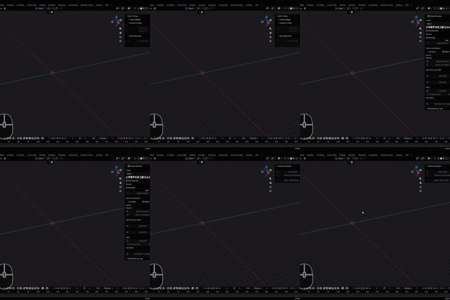
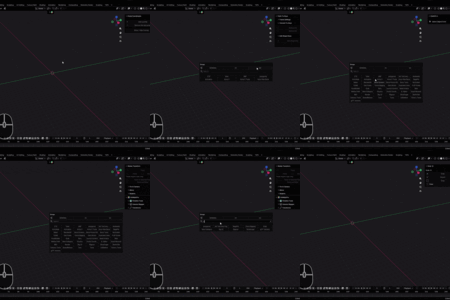
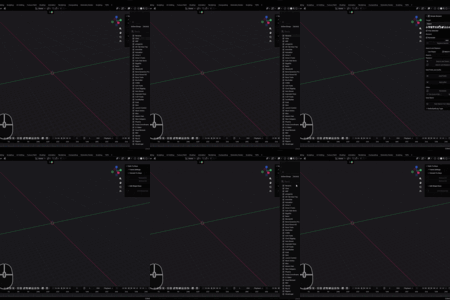
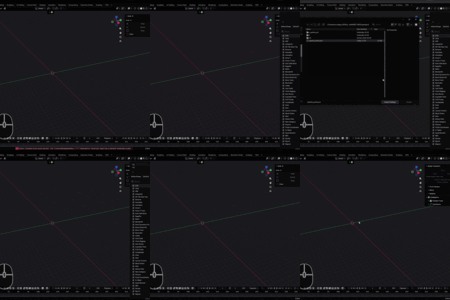
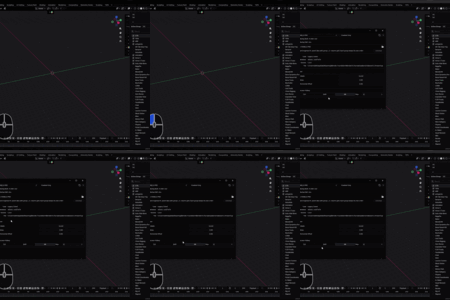
N PANELS PRO — User Guide (EN)
How to use it (step by step)
Setup
- ✔️ Install the ZIP (Edit > Preferences > Add-ons > Install) and enable N PANELS PRO.
- ✔️ In the 3D View header, use the clock icon (popover) to open the main panel. If hidden, show the N-panel.
- ✔️ Press Refresh once after install; updates run automatically afterwards.
Tabs: rename & reorder
- Select the GENERAL group (Active Group).
- Edit “Display Name” to rename a tab.
- Use the arrows (▲/▼ or bars) to reorder; changes apply automatically.
Groups
- Create with Add Group, name it, and select it in Active Group.
- Inside the group, enable/disable tabs and reorder them with the group arrows.
- Switch between GENERAL and your groups via the “Groups” header button or the popover list.
Quick search / Quick access
- ✔️ Show Addons: header magnifier. Live-filter tabs; click to open instantly.
- ✔️ Quick Access (hotkey): default is Alt + Q. Press it to open the 6-column grid, live-filter, and click to open.
- ✔️ Change the quick-access hotkey in Preferences > N PANELS PRO (Ctrl/Shift/Alt + key).
Export / Import presets
- Export Settings to save names, order, groups, and visibility to JSON.
- Import Settings to load a JSON and restore your layout.
- After import, the add-on refreshes and applies automatically.
Header & layout tips
- ✔️ Adjust Popover Width to widen/narrow the popover.
- ✔️ Adjust Popups Horizontal Offset to shift header buttons if needed.
- ✔️ Changes (rename/order/visibility) apply automatically; if you don’t see them, toggle groups or reopen the popover.
N PANELS PRO — Guía de Uso (ES)
Cómo usarlo (paso a paso)
Configuración
- ✔️ Instala el ZIP (Editar > Preferencias > Add-ons > Install) y activa N PANELS PRO.
- ✔️ En el header de Vista 3D, usa el ícono de reloj (popover) para abrir el panel principal. Si no lo ves, muestra el N-panel.
- ✔️ Pulsa Refresh una vez tras instalar; después se actualizará automáticamente.
Pestañas: renombrar y reordenar
- Selecciona el grupo GENERAL (Active Group).
- Edita “Display Name” para renombrar la pestaña.
- Usa las flechas (▲/▼ o barras) para reordenar; los cambios se aplican automáticamente.
Grupos
- Crea con Add Group, nómbralo y selecciónalo en Active Group.
- Dentro del grupo, activa/desactiva pestañas y ordénalas con las flechas del grupo.
- Cambia entre GENERAL y tus grupos con el botón “Groups” del header o la lista del popover.
Búsqueda rápida / Acceso rápido
- ✔️ Show Addons: botón del header con lupa. Filtra en vivo y abre al instante.
- ✔️ Quick Access (atajo): por defecto es Alt + Q. Ábrelo, filtra en vivo en la cuadrícula de 6 columnas y haz clic para abrir.
- ✔️ Cambia el atajo en Preferencias > N PANELS PRO (Ctrl/Shift/Alt + tecla).
Exportar / Importar presets
- Export Settings para guardar nombres, orden, grupos y visibilidad en JSON.
- Import Settings para cargar un JSON y restaurar tu layout.
- Tras importar, el add-on se refresca y aplica automáticamente.
Header y ajustes
- ✔️ Ajusta Popover Width para el ancho del popover.
- ✔️ Ajusta Popups Horizontal Offset si necesitas desplazar los botones del header.
- ✔️ Los cambios (nombre/orden/visibilidad) se aplican solos; si no los ves, cambia de grupo o reabre el popover.
$17.77$12.44
Have questions about this product?
Login to message
| Sales | 10+ |
| Published | 9 months ago |
| Blender Version | 3.5 - 5.1 |
| Extension Type | N/A |
| License | GPL |
Discover more products like this
2026-new easy serch top clean panel n-panels Easy Workflow Panel n-panels pro Clean Panels app-interface n panels