 Neatmesh
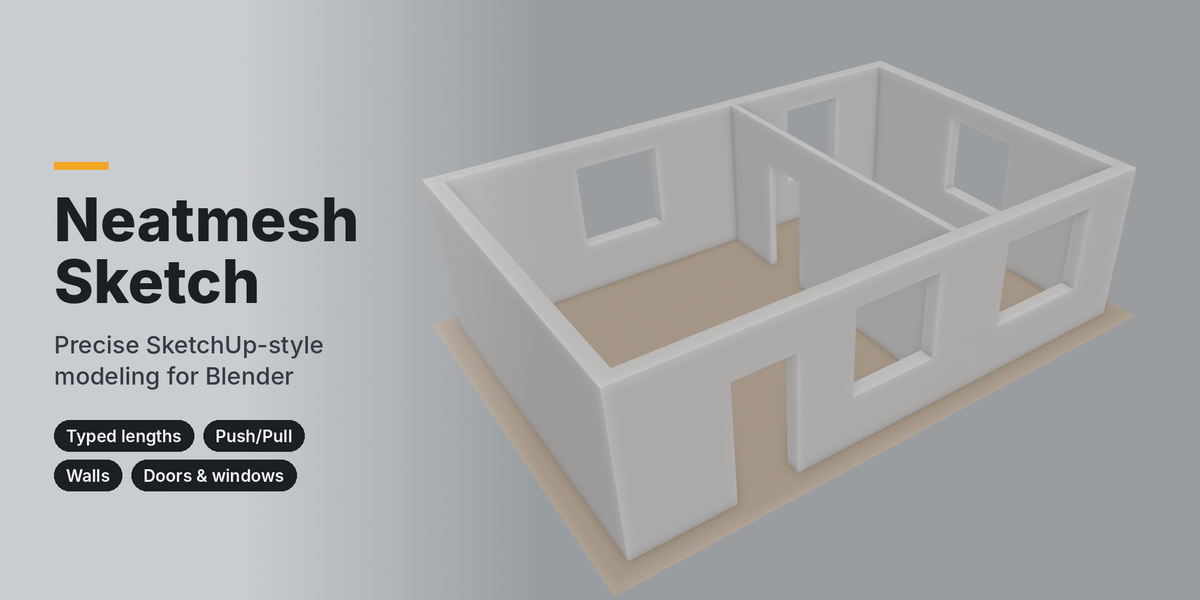
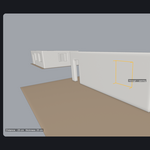
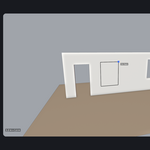
Draw buildings in Blender the way you would in SketchUp — with exact sizes, from the keyboard, without fighting the mesh.
Neatmesh Sketch adds six precise drawing tools to the 3D Viewport. Draw lines and rectangles with snapping, type exact lengths, push and pull faces, build walls with thickness in one go, and cut doors and windows straight through them. Everything stays a clean, ordinary Blender mesh — no modifiers, no booleans, nothing hidden.
Why Neatmesh Sketch
-
Exact sizes, typed as you go. Type
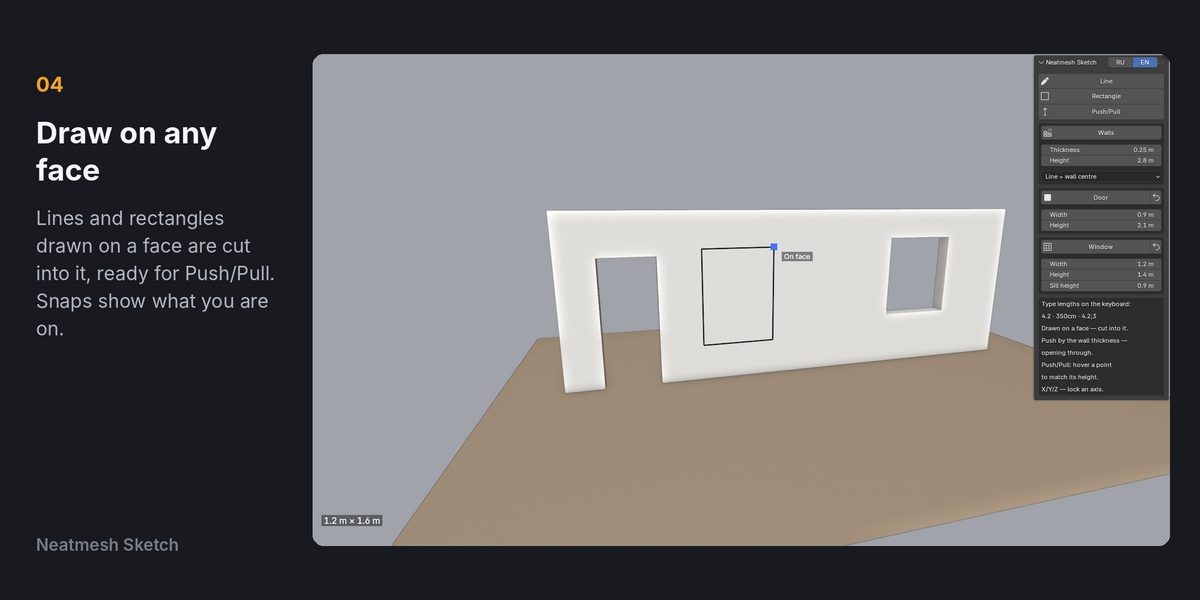
4.2,350cmor4.2;3while drawing and press Enter — no going back to fix numbers. - Draw on any face. A line or rectangle drawn on a face is cut into that face, ready to Push/Pull.
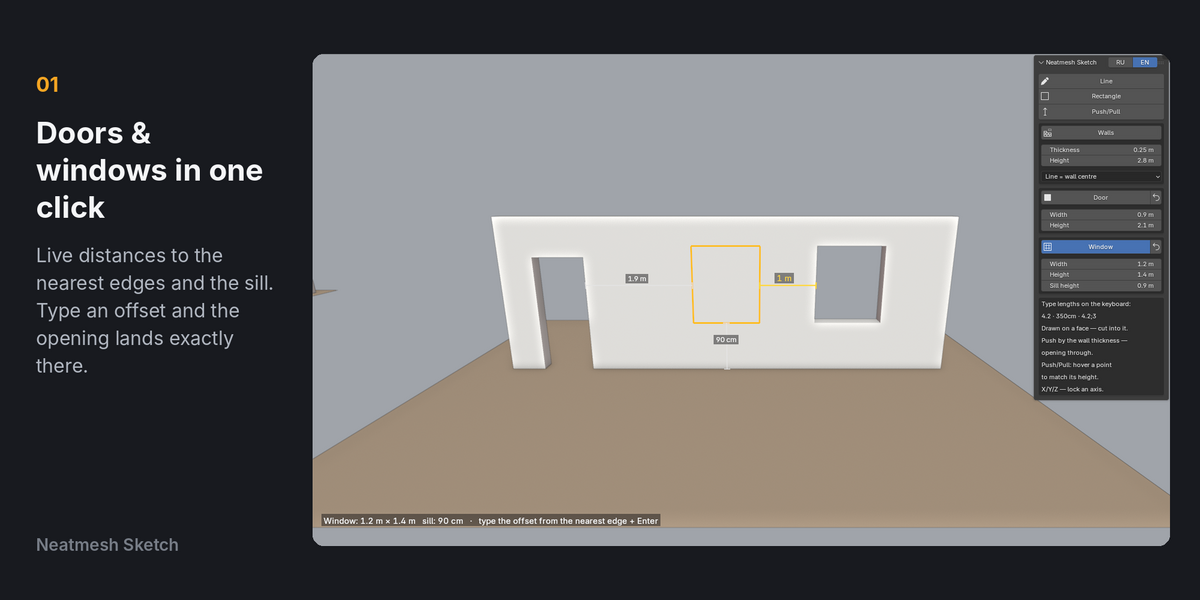
- Openings in one click. Hover a wall with the Door or Window tool, see live distances to the nearest edges, click — the opening is cut through the whole wall, with clean jambs.
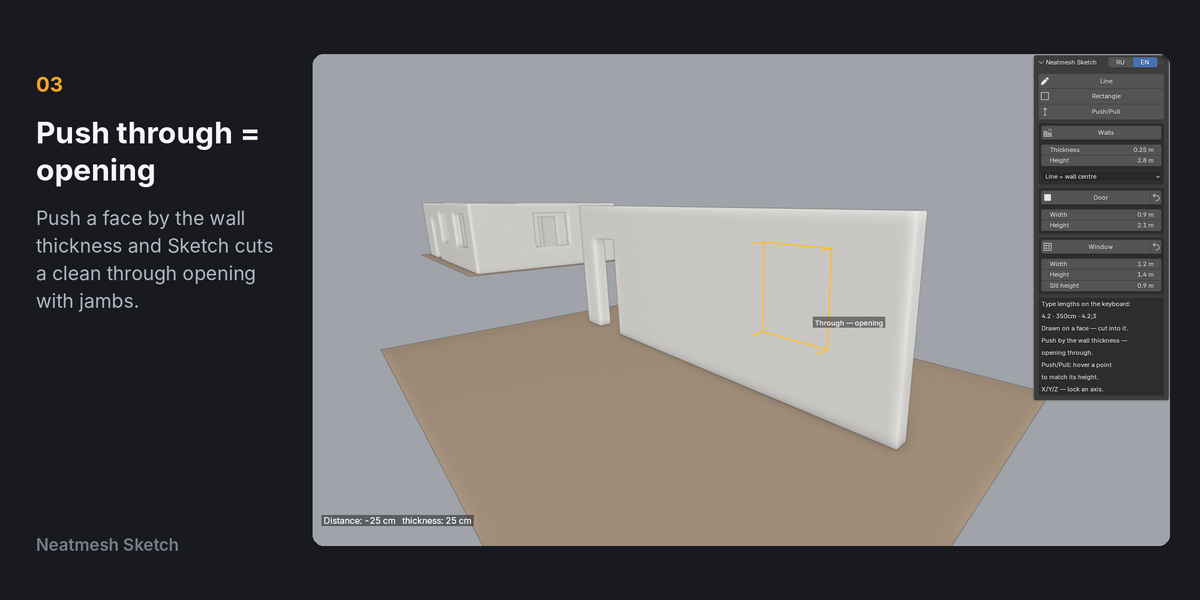
- Push through = opening. Push a face by exactly the wall thickness and it becomes a through opening.
- Robust on real walls. Several openings in one wall, doors at floor level, rotated and scaled objects — the mesh stays closed and clean.
- No setup. Install, open the Sketch tab in the N-panel, draw.
Tools
- Line — lines with snapping to endpoints, midpoints, edges, faces and axes. Close the loop to get a face.
-
Rectangle — by two corners or by typed size (
4.2;3). - Push/Pull — pull or push a face. Hover a point while dragging to match its height. Push by the wall thickness to cut through.
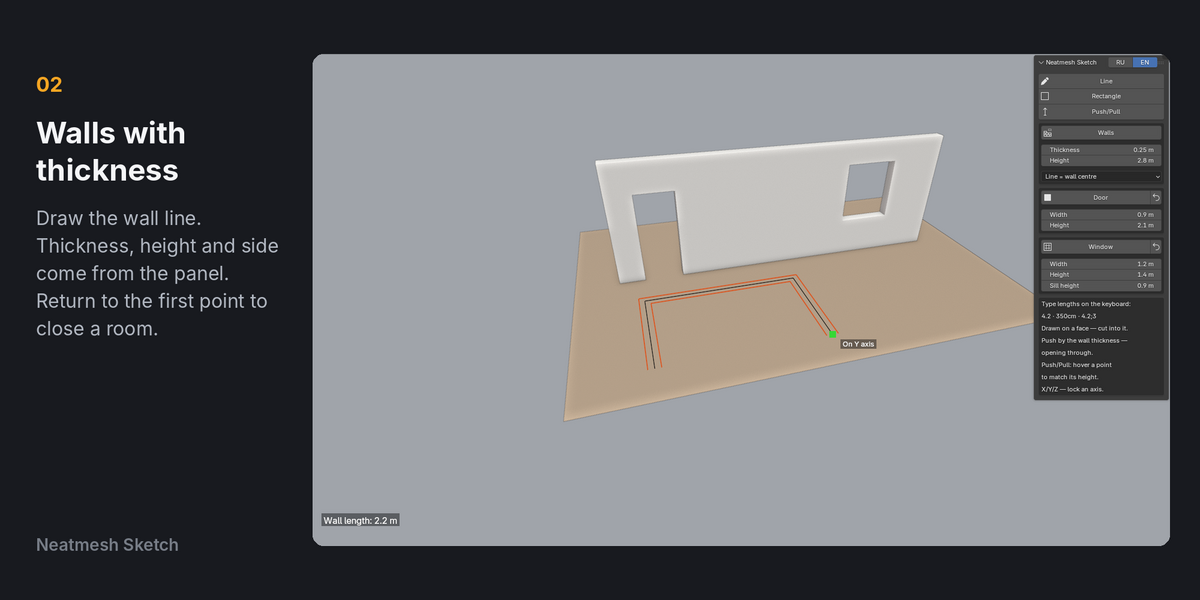
- Walls — walls with thickness and height along a line. The line can be the wall centre, its left or its right side. Return to the first point to close a room.
- Door — width and height in the panel; one click cuts it through the wall.
- Window — width, height and sill height in the panel; one click cuts it through the wall.
Details
- Live dimensions for doors and windows: distance to the nearest edge on the left and right, and sill height.
- Type an offset from the nearest edge (for example
0.6) and press Enter to place an opening exactly. - X / Y / Z keys lock an axis while drawing.
- Reset buttons return door and window sizes to standard values.
- Uses your scene units; you can also type units directly (
350cm,1200mm). - Full Undo (Ctrl+Z) for every action.
- Interface in English and Russian (switch in the panel header).
Compatibility
- Blender 4.2 LTS and newer (tested on 4.2 LTS, 4.5 LTS, 5.1 and 5.2).
- Installed as a Blender Extension (drag-and-drop the .zip).
- Pure Python. No internet connection, accounts or external libraries.
Good to know
- Openings are placed on vertical faces (walls).
- If an object has modifiers that change its mesh, apply or disable them before using Push/Pull or openings on it.
- Walls are ordinary meshes, not parametric BIM objects: once an opening is cut, change it with the usual Blender tools or Undo.