Nebulalink I/O – Smart Import/Export Pipeline For Blender
 Anvil Interactive Solutions


NebulaLink I/O — Documentation
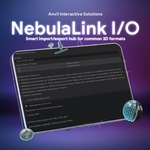
Unified Import/Export Hub for Blender
Version: 1.0.0
Publisher: Anvil Interactive Solutions
License: MIT
Supported Formats: OBJ, FBX, glTF/GLB
Supported Blender Versions: 3.0+ (optimized for 4.x & 5.x)
1. Overview
NebulaLink I/O is a high-performance, artist-friendly import/export system built to replace Blender’s fragmented file pipeline with a single smart, preset-driven workflow.
It automatically:
-
Detects the correct file handler (OBJ/FBX/glTF).
-
Applies post-import cleanup (normals, bone roll, material normalization).
-
Performs pre-export validation (scale, transforms, UV checks).
-
Fixes common issues that break Unity, Unreal, and WebGL pipelines.
-
Writes JSON diagnostic reports for asset history & debugging.
NebulaLink I/O is designed for solo artists, technical directors, and full studios seeking a clean, predictable pipeline.
2. Key Features
Unified Import/Export
-
One operator per workflow: Import (Auto) and Export (Auto)
-
Automatically determines proper settings based on file extension
-
Better errors, better diagnostics, better consistency
Smart Presets
-
General (default)
-
Unreal Character (unit scale 0.01, bone roll fixes, material normalization)
-
Unity Static Mesh
-
WebGL Low Poly
Each preset controls:
-
Unit scale expectations
-
Auto scale apply
-
Normal recalculation
-
Material safety rewiring
-
Bone roll cleanup
-
Format-specific FBX/glTF options
Advanced Import Controls
Selective object filtering during import:
-
Meshes
-
Armatures
-
Cameras
-
Lights
-
Empties
-
Other object types (curves, volumes, etc.)
Lets you strip out unwanted junk from game engine exports, DCC tools, or CAD files.
Advanced Export Pipeline
-
Preflight warnings for:
-
Non-uniform scale
-
Non-identity rotation
-
Missing UVs
-
-
Automatic fixes based on preset
-
Material normalization (Principled → Output pipeline rebuild)
-
Two-stage logging (Blender + JSON report)
Fixers System
NebulaLink includes several fix modules that run automatically:
-
Unit Scale Fixer
-
Apply Scale Fixer
-
Normals Fixer
-
Mesh Sanity Fixer
-
Material Normalize Fixer
-
Bone Roll Fixer
This ensures data is always consistent before hitting the game engine.
Blender UI Integration
Appears in:
-
View3D → Sidebar → NebulaLink I/O
-
File → Import → NebulaLink I/O (Auto)
-
File → Export → NebulaLink I/O (Auto)
Diagnostics System
Every import/export:
-
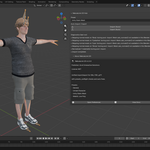
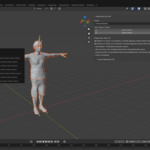
Stores messages in the NebulaLink panel
-
Generates a JSON report beside the target file (optional)
3. Installation Guide
Install via ZIP
-
Download the addon ZIP from Superhive.
-
In Blender, go to:
Edit → Preferences → Add-ons → Install -
Select the ZIP.
-
Enable NebulaLink I/O in the addon list.
-
Optional:
Open the add-on preferences to configure default preset, logs, and export paths.
There is no need to unzip the file — Blender handles that automatically.
4. Add-On Preferences
Find under:
Edit → Preferences → Add-ons → NebulaLink I/O
Settings:
| Setting | Description |
|---|---|
| Default Preset | Used for Import/Export when no manual override exists. |
| Write JSON Reports | Saves diagnostic logs as JSON files next to imports/exports. |
| Enable Preflight Warnings | Warns user about UVs, transforms, bad scale, etc. |
| Log Level | Verbose / Warnings Only / Errors Only |
| Remember Last Export Path | Saves previous export directory. |
| Default Export Path | Fallback directory for exports. |
| Show First Run Hint | Toggle welcome pop-ups. |
5. Importing With NebulaLink
Access via:
-
File → Import → NebulaLink I/O (Auto)
-
N-Panel → NebulaLink I/O → Import (Auto)
Import Options
Before running the operator, you can toggle which object types to keep:
-
Meshes
-
Armatures
-
Cameras
-
Lights
-
Empties
-
Other object types
This is extremely useful for:
-
Cleaning up disorganized source files
-
Removing cameras/lights from Maya/Max exports
-
Extracting only meshes for Unity/Unreal
Import Steps
-
Click Import (Auto)
-
Choose file (OBJ, FBX, glTF/GLB)
-
NebulaLink imports, prunes filtered objects, and auto-fixes:
-
normals
-
bone rolls (if enabled)
-
materials
-
-
Diagnostics appear in the sidebar
6. Exporting With NebulaLink
Access via:
-
File → Export → NebulaLink I/O (Auto)
-
N-Panel → NebulaLink I/O → Export (Auto)
Export Behavior
-
Exports selected objects
-
Applies preflight checks
-
Applies preset-based fixes
-
Writes JSON reports if enabled
Supports:
-
OBJ
-
FBX
-
glTF / GLB
Format-specific additions (per preset)
Example (FBX):
-
Apply unit scale
-
Bake animation (Unreal preset)
-
Remove leaf bones
Example (glTF):
-
Toggle texture embedding
-
Toggle normals export
7. JSON Report System
For every import/export, NebulaLink can generate a .json report containing:
-
Operation type (import/export)
-
Target file
-
NebulaLink version
-
Preset name
-
Blender version
-
Timestamp
-
Message log (INFO/WARNING/ERROR)
Useful for:
-
Production tracking
-
Automated build pipelines
-
Large team handoff documentation
-
Asset troubleshooting
8. Seat Licensing Overview
NebulaLink I/O uses pricing variants to define seat counts.
Each purchase tier corresponds to a maximum number of allowable users.
Seat Tiers
| License Type | Seats | Intended Use |
|---|---|---|
| Standard License | 1 user | Individual creators / freelancers |
| Studio License (2–5 Users) | Up to 5 users | Small studios, startups |
| Studio License (6–14 Users) | Up to 14 users | Mid-sized art/tech teams |
| Studio License (15–50 Users) | Up to 50 users | Large studios, enterprise teams |
Seat License Rules
-
A seat equals a single person using the addon.
-
All users under a studio license must belong to the same company or studio.
-
Granted seats allow installation on multiple machines per user (home + work OK).
-
Redistribution outside your studio or team is not permitted.
-
If your team grows beyond your seat tier, upgrade pricing applies.
License Enforcement
Superhive does not enforce seats automatically; compliance is contractual.
Seat details are included:
-
On the product page
-
Within the variant description
-
Inside the included
LICENSE_SEATS.txt
I can generate this file for you if you’d like.
9. Troubleshooting
❓ Import says “No handler for file extension”
File extension not supported (e.g., .blend, .dae, .usd).
NebulaLink currently supports:
-
OBJ
-
FBX
-
glTF / GLB
❓ “Failed to recalc normals” warnings
Some meshes (especially from CAD or InstaLOD pipelines) have:
-
No normal data
-
Non-manifold geometry
-
Corrupt topology
NebulaLink will skip these safely.
❓ “Non-uniform scale” warnings
Indicates the mesh has different X/Y/Z scale.
This can break:
-
Unreal skinning
-
Unity physics
-
glTF exporters
Fix: Apply transforms (Ctrl+A → Scale).
❓ Bone roll fixes not applying
Bone roll auto-fix runs after import, not pre-export.
Only activates if preset enables auto_fix_bone_roll.
❓ Addon fails to load (registration errors)
Caused by old Blender cache or partial installs.
Fix:
-
Disable addon
-
Remove NebulaLink ZIP from
scripts/addons -
Restart Blender
-
Reinstall clean version
10. Frequently Asked Questions
Q: Does NebulaLink support animation export?
Yes — all Blender animation data supported by FBX/glTF is preserved.
Q: Can I export multiple objects as multiple files?
Feature is planned for v1.2 (Batch Export).
Q: Does it support Rigify rigs?
Yes — the Unreal Character preset is optimized for game-ready skeletons.
Q: Does it modify my materials?
Only if preset enables material normalization.
It never deletes nodes.
Q: Can I use NebulaLink in Blender 5.x?
Yes — fully compatible.
Q: Can studios automate the workflow?
Yes — all operators are scriptable:
11. Support & Contact
For bug reports, feature requests, and studio inquiries:
Publisher: Anvil Interactive Solutions
Support Email: [email protected]
Superhive Contact: Use the “Contact Creator” button on the product page
Enterprise users (50+ seats) may request custom builds or pipeline integration support.
12. Changelog
1.0.0 – Public Release
-
Full import/export pipeline
-
Preset system
-
Fixer registry
-
Import filtering
-
JSON diagnostics
-
Menu integration
-
Full UX panel
-
Studio seat licensing
-
$15
License for one individual user.
-
$50
Up to 5 users in one studio or company.
-
$100
6–14 users in one studio or company.
-
$200
15–50 users in one studio or company.
Have questions about this product?
Login to message
| Dev Fund Contributor | |
| Published | 9 months ago |
| Blender Version | 4.4 - 5.0 |
| Extension Type | N/A |
| Render Engine Used | Arnold, Blender-Internal, Cycles, Eevee |
| License | Mit |