 kaleab












NebulaPro v2.0 – EXR Nebula & Space
Environment Manager
Overview
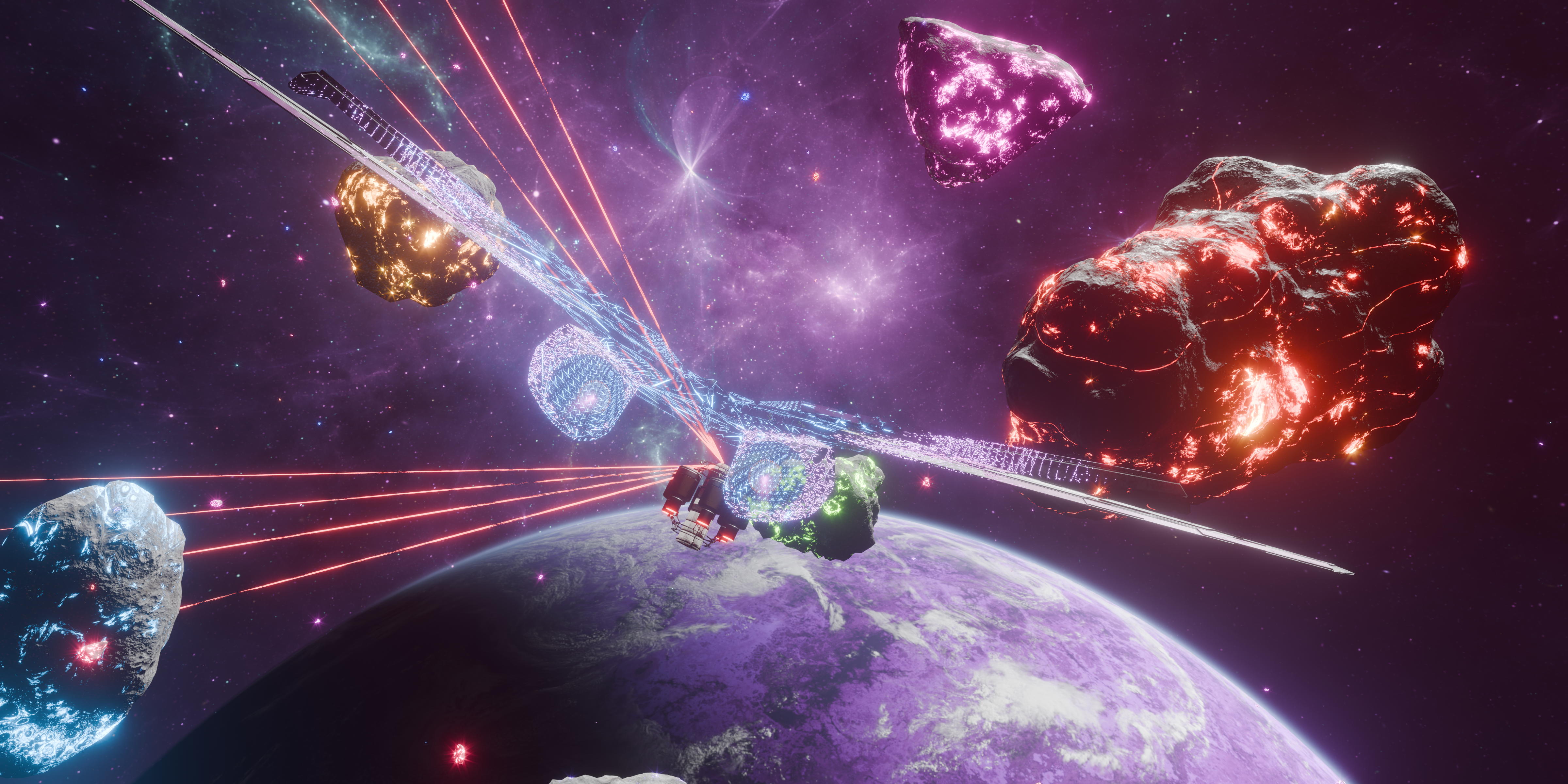
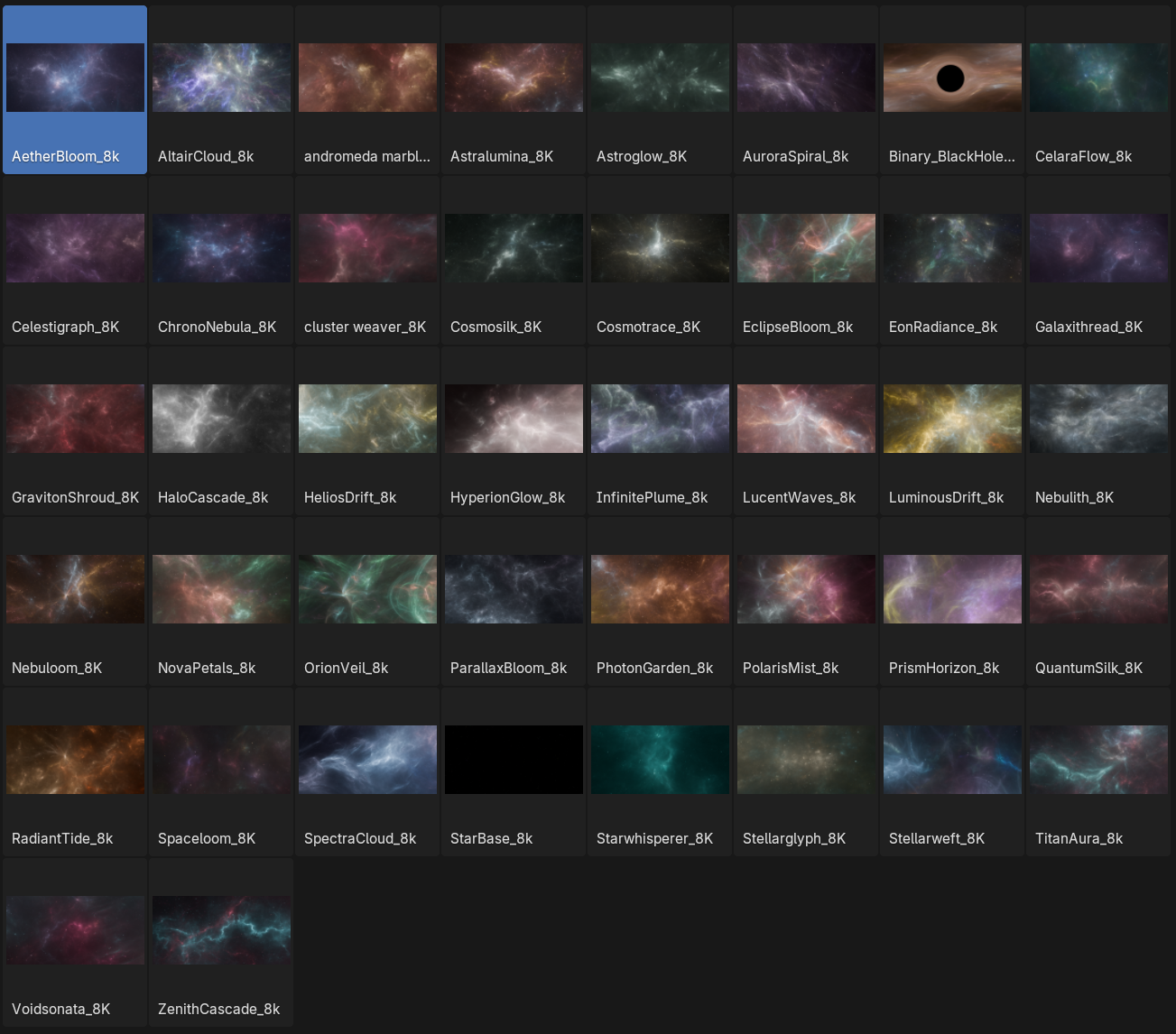
NebulaPro v2.0 is a Blender addon designed for artists, VFX ,and motion designers who require high-quality, physically accurate space environments. Built around OpenEXR-based nebula textures, it delivers cinematic lighting, flexible multilayer composition, and real-time controls, all within the World Properties panel.

Key Features
1. Dual-Layer Nebula System
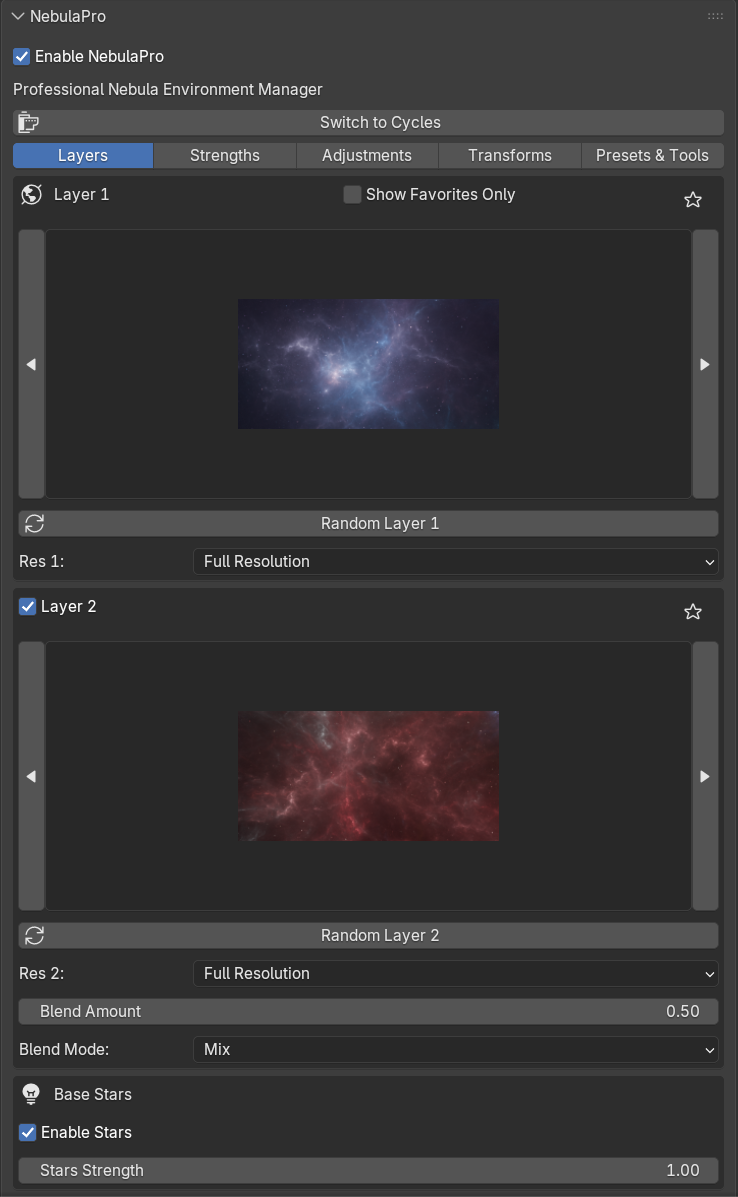
NebulaPro supports a dual-layer architecture, allowing users to blend two distinct EXR nebulae into a single
environment.
• Layer 1 (Primary) – The main nebula texture, forming the base of the environment.
• Layer 2 (Secondary) – An optional additional nebula that can be mixed, added, or screen-blended for
complex, multi-dimensional cloud formations.
• Blend Modes – Choose from Mix, Add, Screen, Overlay, or Multiply to control how the two layers
interact visually.
• Per-Layer Blend Amount – Independently adjust the contribution of the second layer for seamless
compositing.
This system allows for rich, layered skies without the need for external compositing software.

2. Intelligent EXR Downscaling & Memory Management
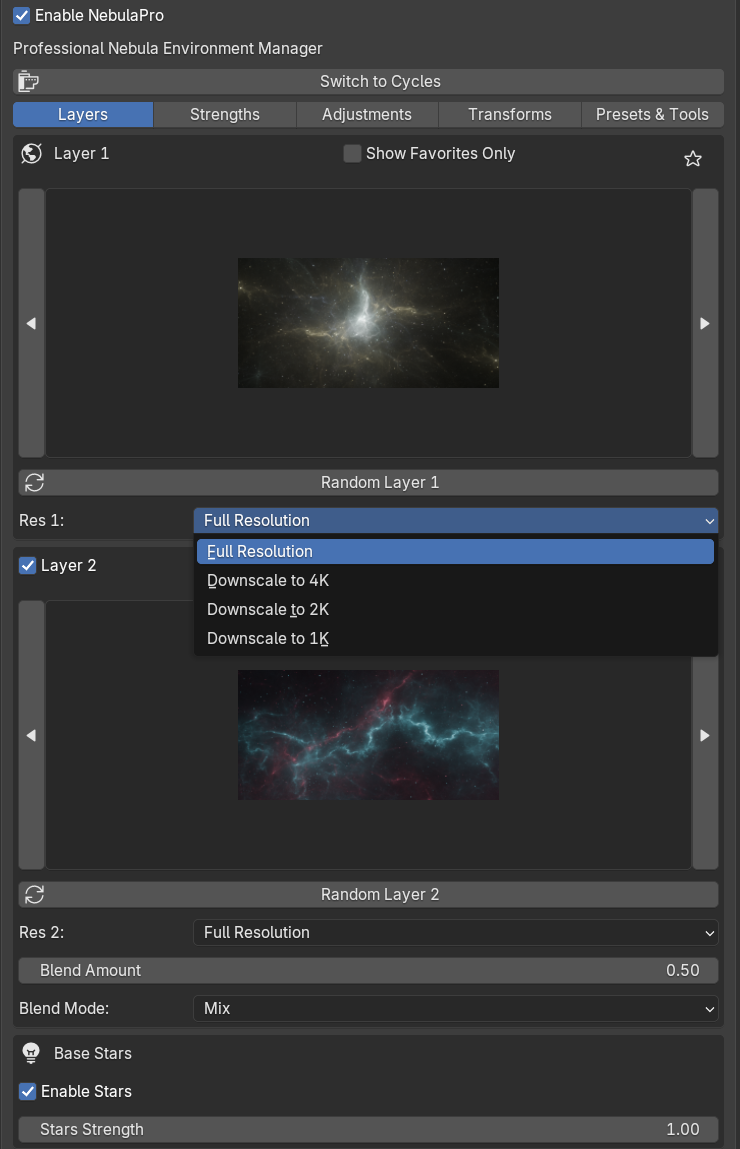
High-resolution EXR files can be resource-intensive. NebulaPro includes a downscaling engine that
automatically resizes textures to a user-defined resolution, significantly reducing VRAM and RAM usage.
• Resolution Options: Full Resolution (original), 4K, 2K, 1K
• Caching System – Resized textures are cached locally to avoid repeated processing.
• Automatic Image Cleanup – Unused EXR data is freed from memory when layers are disabled or
changed, preventing memory bloat.
• GPU Buffer Management – Explicit VRAM freeing (buffers_free, gl_free) ensures stable performance
even in complex scenes.
This makes NebulaPro suitable for both high-end production workstations and lower-spec machines.

3. Base Stars Layer

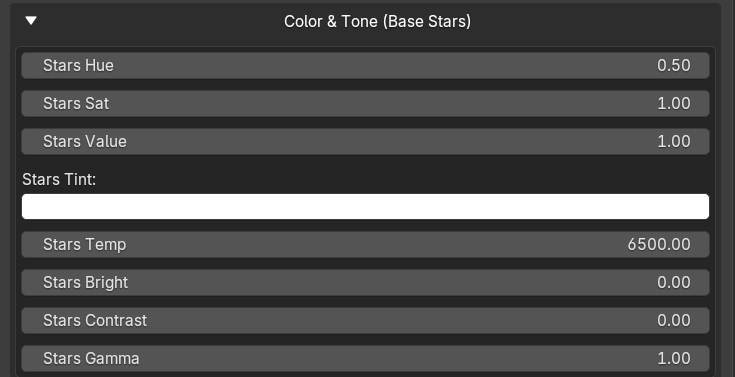
A dedicated star field layer is available, using a high-quality 8K EXR star map.
• Independent Toggle – Enable or disable stars separately from the nebula layers.
• Strength Control – Adjust the overall visibility of the star field.
• Full Color Adjustments – Hue, saturation, value, brightness, contrast, gamma, tint, and temperature
controls for the stars, allowing artistic matching with the nebulae.
The star layer is fully transformable (rotation) and integrates seamlessly with the main lighting system.
4. Illumination Modes – Additive vs. Mix
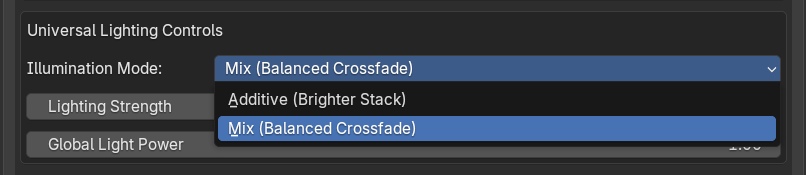
A unique feature of NebulaPro is its dual-mode illumination system, which separates how nebula textures
affect background visibility versus scene lighting.
• Additive Mode – Light from each layer adds directly on top of the other, creating brighter, more
energetic lighting. Ideal for high-contrast, emissive-looking nebulae.
• Mix Mode – Light contributions are blended in a balanced crossfade, offering more subtle, atmospheric
illumination.
This distinction gives artists precise control over how the environment lights 3D objects versus how it appears
as a backdrop.
5. Light Angle Offset
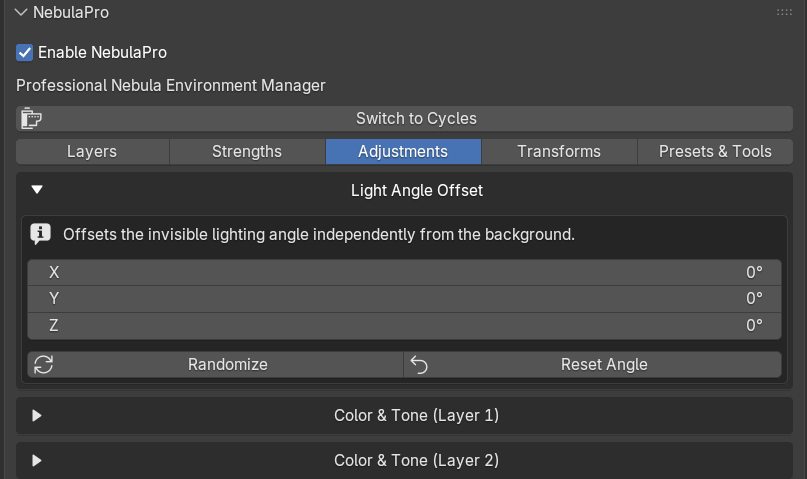
A powerful yet often-overlooked feature is the Light Angle Offset.
• Allows the lighting direction of the environment to be rotated independently from the visible
background.
• Perfect for matching the light direction to the scene’s key light without having to rotate the entire
world.
• Includes Randomize and Reset operators for quick experimentation.
This is particularly useful in product visualization, cinematic lighting, and when integrating CG elements into a
nebula background.
6. Strength Panel – Layer Power & Global Light Boost
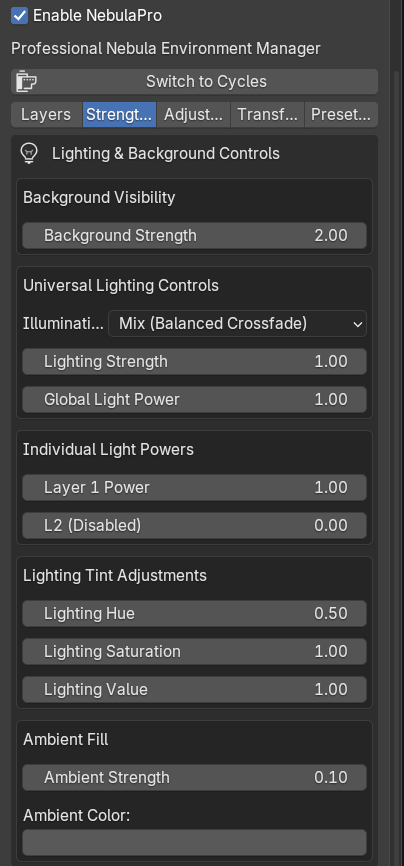
The Strength Panel centralizes control over the intensity and impact of the environment.
Control Function
Background Strength Adjusts the brightness of the visible nebula (background).
Lighting Strength Controls the intensity of light emitted by the environment onto 3D objects.
Layer 1 Power Multiplies the lighting contribution of the primary nebula layer.
Layer 2 Power Multiplies the lighting contribution of the secondary layer (if enabled).
Control Function
Global Light Power A master multiplier that boosts overall scene lighting from both layers.
This structure allows for fine-tuning of the highlight response, by boosting layer powers, you can emphasize
the brightest parts of the EXR data, creating a more dramatic, realistic glow on objects.
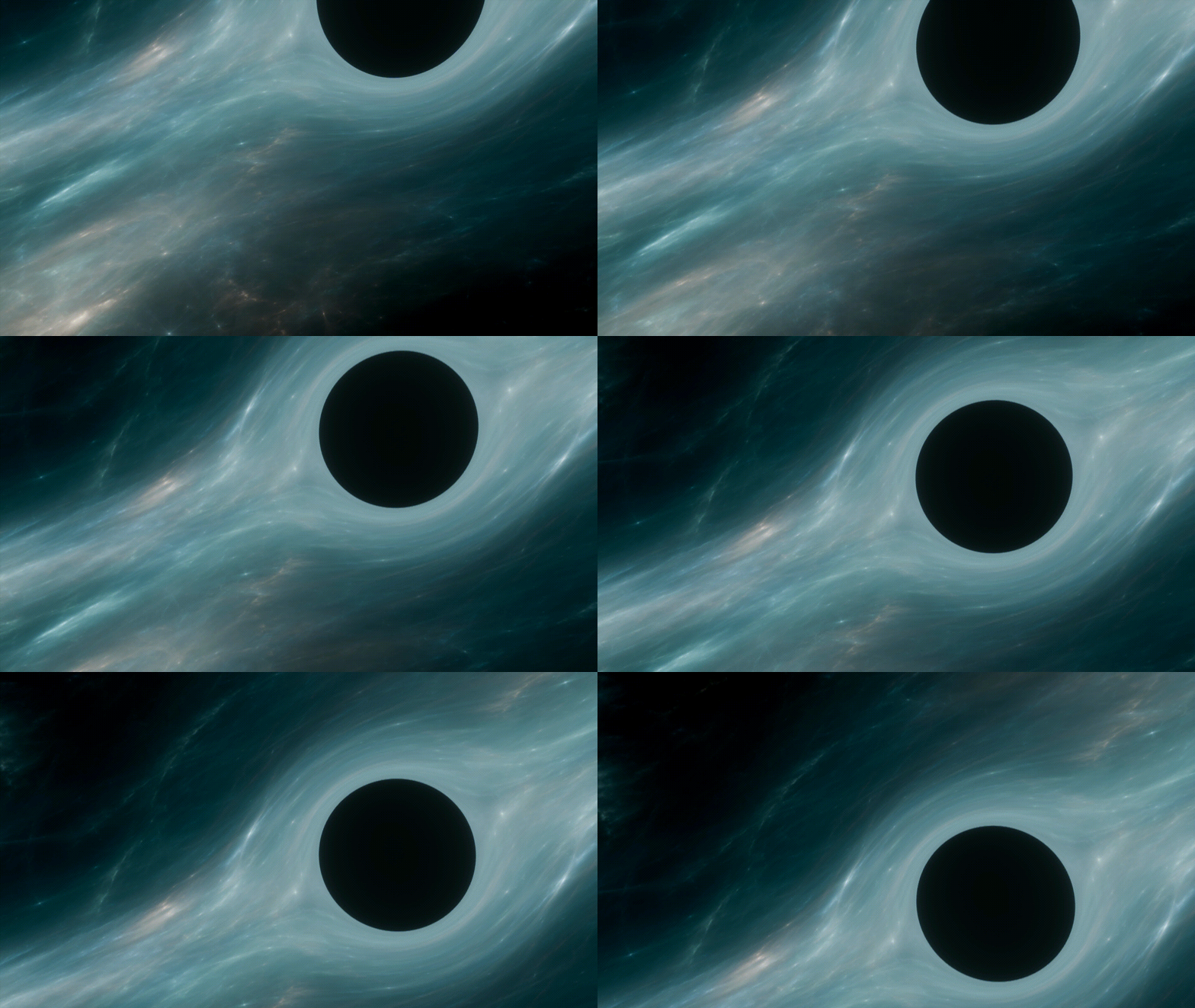
7. Per-Layer Color Adjustments
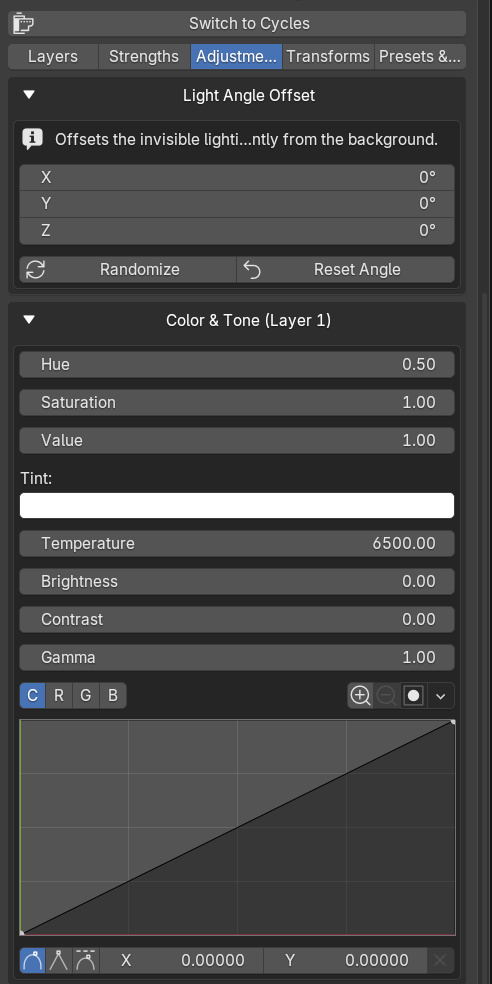
Each nebula layer (and the star layer) has its own complete set of color controls:
• Hue, Saturation, Value
• Brightness & Contrast
• Gamma
• Tint (RGB color overlay)
• Temperature (blackbody simulation, 1000K – 20000K)
• RGB Curve – For precise color grading (Layer 1 and Layer 2 only)
All adjustments are animatable, supporting keyframed color changes over time.
8. Transformations & Lock Lighting Feature
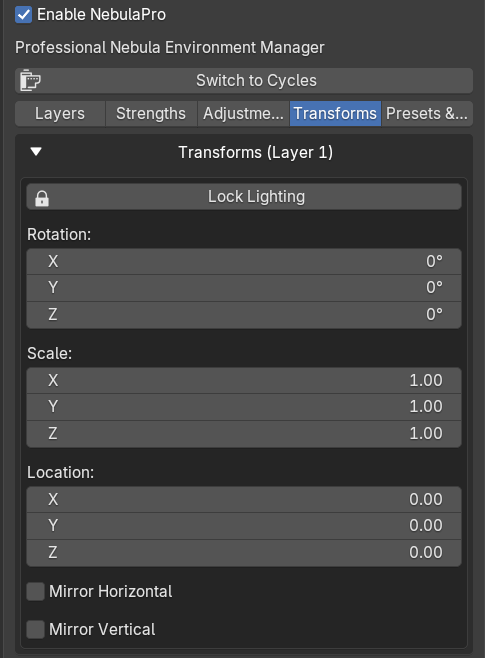
Each layer can be independently transformed:
• Rotation (Euler)
• Scale (XYZ)
• Location (XYZ offset)
• Mirror Horizontal / Vertical
A key innovation is the Lock Lighting toggle:
• When enabled, the lighting contribution of that layer remains fixed, even if you rotate or scale the
visible background.
• This decouples the visual placement of the nebula from its light-emitting direction, preserving
consistent illumination while you frame the shot.
• Separate lock controls are provided for Layer 1 and Layer 2.
9. Favorites System & Preset Management
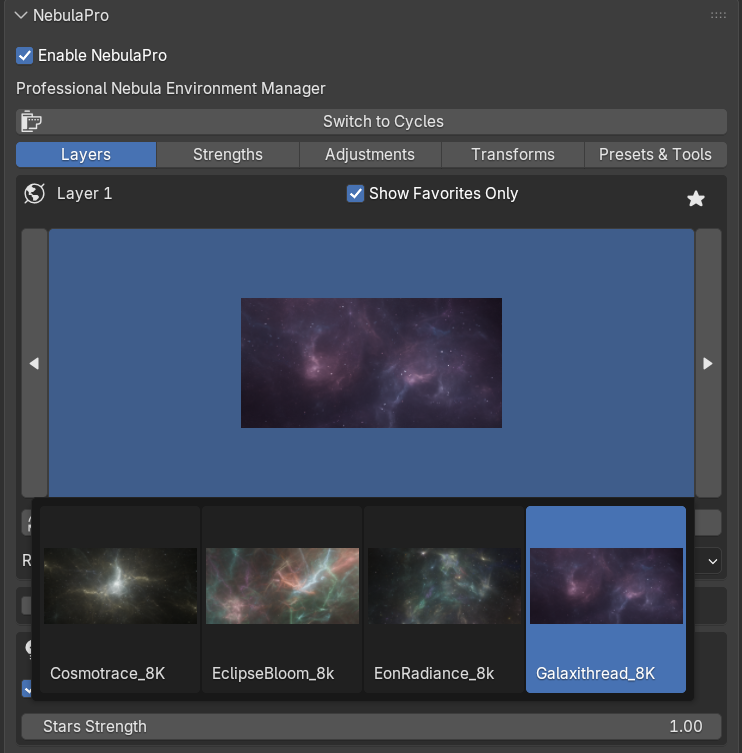
NebulaPro includes a Favorites system for quick access to frequently used nebulae:
• Toggle favorites for Layer 1 and Layer 2 independently.
• Filter the thumbnail browser to show only favorited items.
• All favorites are saved per Blender session.
Preset Management allows you to save and load entire environment configurations:
• Save current settings (including chosen EXRs, blend modes, colors, strengths, and transformations) as a
named preset.
• Presets are stored as JSON files and can be shared across projects.
• Load and delete presets directly from the UI.
10. Performance & Workflow Optimizations
• Frame Change Handler – Only updates the node tree when transformations actually change, reducing
unnecessary recalculations during animation playback.
• Smart Node Value Setting – Avoids constant depsgraph evaluations by checking for actual value
changes before updating sockets.
• Cycles MIS Optimization – Automatically adjusts sample_map_resolution based on the downscaling
setting and enables/disables sample_as_light depending on lighting strength.
• Eevee / Cycles Switching – One-click buttons to switch render engines and automatically re-apply the
environment.