 DevBud Games


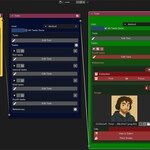
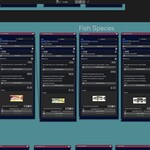
🧩 NodePlanner – Visual Task Management Inside Blender
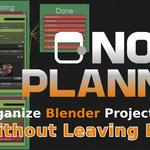
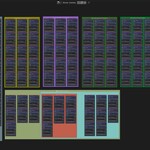
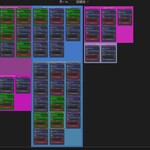
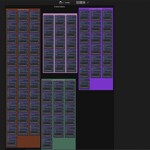
NodePlanner is a powerful and intuitive Blender add-on that brings project and task management directly into your 3D workflow using a custom node-based editor. Whether you're a solo creator or working with a team, NodePlanner helps you visually organize, plan, and track tasks from start to finish—all without ever leaving Blender. 🧡
✨ Key Features
-
🧠 Node-based task planning inside Blender
-
✅ Checkbox-based task tracking with live progress feedback
-
📦 Link tasks to objects, collections, or text
-
📝 Note-sharing system with read/unread states for teams
-
🔄 Sync support using GitHub or cloud-sharing apps like Google Drive
🛠️ Getting Started – Step-by-Step Guide
🔹 Step 1: Install & Initial Setup
-
Install NodePlanner through Blender's Add-ons menu:
Edit > Preferences > Add-ons > Install, then enable the add-on after installation. -
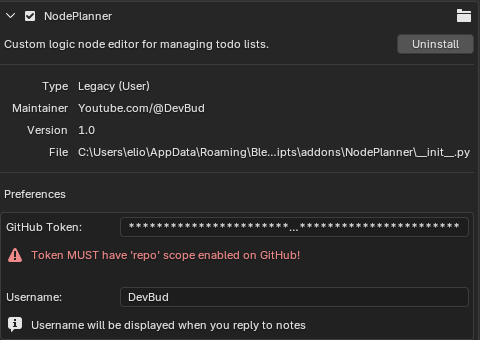
(Optional – For Team Collaboration)
If you plan to use the Sync feature with others:-
Go to the NodePlanner Add-on Preferences.
-
Enter your GitHub Token (for push/pull functionality).
-
Set a User Name—this doesn’t have to be your GitHub name. Use any name your team can recognize.
-
Click “Save Preferences” to apply the changes.
-
-
Open a new editor window and switch the editor type to NodePlanner Editor from the dropdown menu.
-
In the NodePlanner Panel, click “Add Node Tree” to create your first task board.
Give your task board a name and assign it a color to help visually distinguish it.
💡 Use separate node trees to manage different phases of your project like Modeling, Animation, Lighting, etc.
🔹 Step 2: Add a Task Node
The Task Node is the heart of your planning system. Here’s what you can do with it:
-
Name your task node (e.g., “Environment Setup”)
- Click on "Edit Text" and Give a name to the Task Node

- Click on "Edit Text" and Give a name to the Task Node
-
Add tasks using the Add Task button

-
Track progress using built-in checkboxes
Each task can be one of the following types:
-
🧾 Text Task – A basic to-do item
-
🎯 Object Reference – Linked to a 3D object in your Blender scene
-
📁 Collection Reference – Points to a collection in your project
✅ As you complete tasks and check them off, the node’s completion percentage updates automatically in the NodePlanner Panel.
🔹 Step 3: Add a Note Node
Note Nodes allow you to leave messages or reminders—either for yourself or your collaborators.
-
Add general notes or comments
-
Leave feedback or instructions for team members
-
Use the Read/Unread toggle to notify others of new information


-
Both users can contribute to the same note in shared workflows
📢 Great for leaving reminders like “Check lighting before render” or “Revisit texture settings.”
🔹 Step 4: Manage Your Node Trees
From the NodePlanner Panel, you can manage your node trees efficiently:
-
🔄 Switch between different task boards
-
🗂️ Rearrange or reorder node trees
-
🗑️ Delete old or unused trees
-
📊 View an at-a-glance progress percentage for each board
Every node tree gives you a visual roadmap of your project—helping you stay focused, on track, and in control of even complex workflows.
🔹 Step 5: Sync (Optional for Teams)
🛑 Skip this section if you’re working solo.
If you're part of a team or working across multiple devices, NodePlanner’s Sync feature lets you push and pull node tree updates just like Git:
You can sync to:
-
🗃️ A GitHub Repository
-
☁️ A Shared Local Folder synced with apps like:
-
Google Drive
-
OneDrive
-
Dropbox
- etc.
-
To use sync:
-
Ensure your cloud storage app is running and syncing the folder on your machine.
-
Or set up a GitHub repo and push/pull directly from NodePlanner.
-
Use the sync buttons to update or retrieve changes from your shared task board.
🔁 Think of it as version control for your task management—especially useful when working with a remote team.
🎯 Why Use NodePlanner?
✅ Keep all your task management inside Blender
📎 Link actionable items directly to scene elements
📊 Monitor task completion in real time
🤝 Collaborate with team members across machines
🎬 Great for game dev, animation, environment design, and complex scenes
