 Bookyakuno



Batch rename object data such as vertex groups and shape keys, as well as bones and various data types
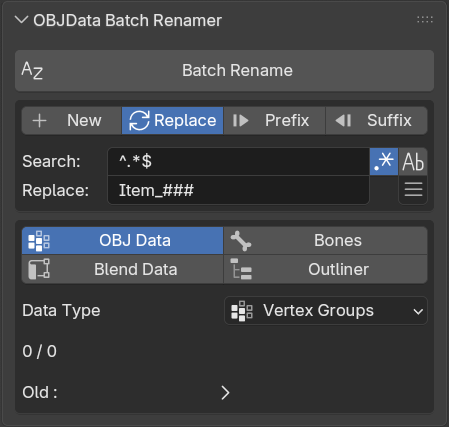
Rename function
-
Rename type
New: Overwrites the existing name with the new name.
Replace: [Find] The content that matches the string will be replaced with the [Replace] string.
Prefix: Adds a string of characters to the beginning of a line.
Suffix: Adds a string of characters to the end of a line.
-
Use regular expressions
Use regular expressions in your search string.
There is an option to distinguish between uppercase and lowercase letters.
-
Preview before execution
The result is counted as "number of hits / number of search results".
Check the processed text before execution.
Regular Expression
Saving and using the original string
You can save the search string and use it in the replacement string.
Parentheses () are used to save search results, and \1 is used to make them available in the replacement string.
If you want to use multiple parentheses, use \2, \3, and so on, one for each.
Search string: "bone_(arm).L"
Replacement string: "New_\1_L"
Result: "New_arm_L"
Various Modes
OBJ data
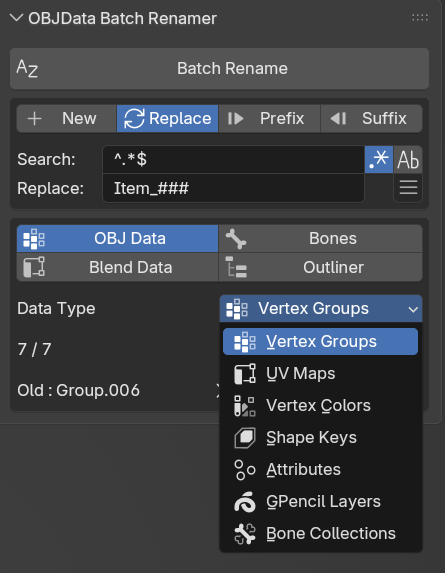
Renames the items in the object data.
The following data types are supported:
Apex group
UV map
Vertex Color
-
Shape Keys
attribute
Grease pencil layer
Bone Collection
Bones
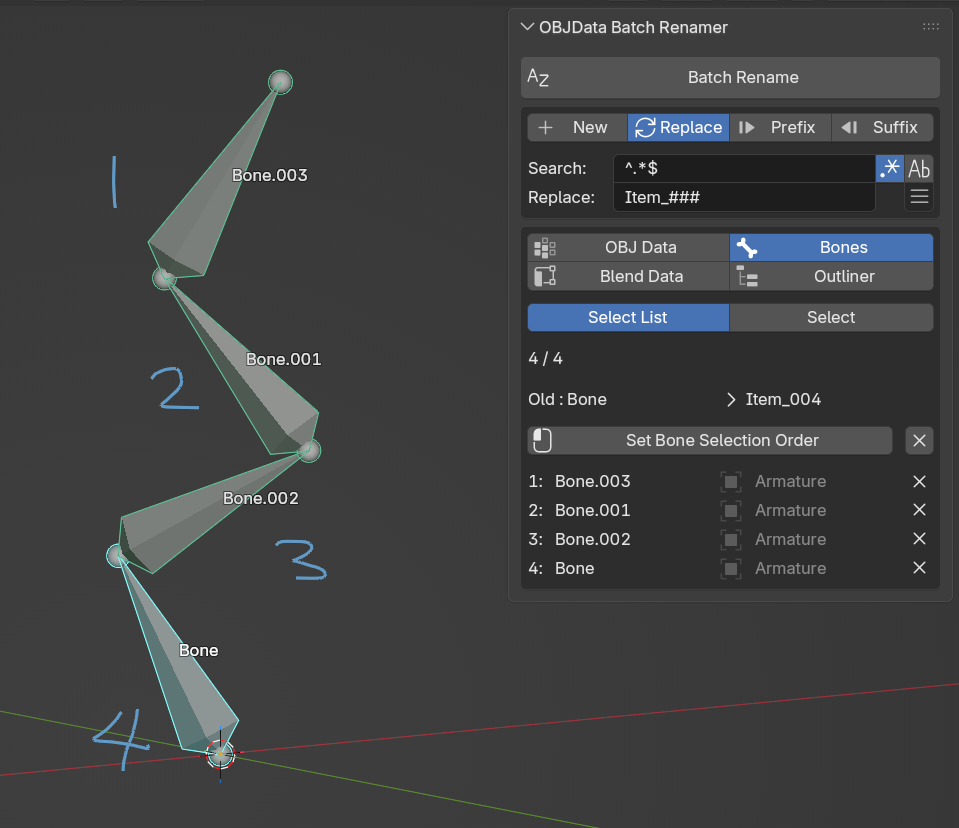
By recording the order in which bones are selected, you can set numbered bone names in the intended order.
Select the bones using the "Set Bone Selection Order" function and register the information in the add-on's selection list.
Then, perform the renaming based on that information.
Blend data
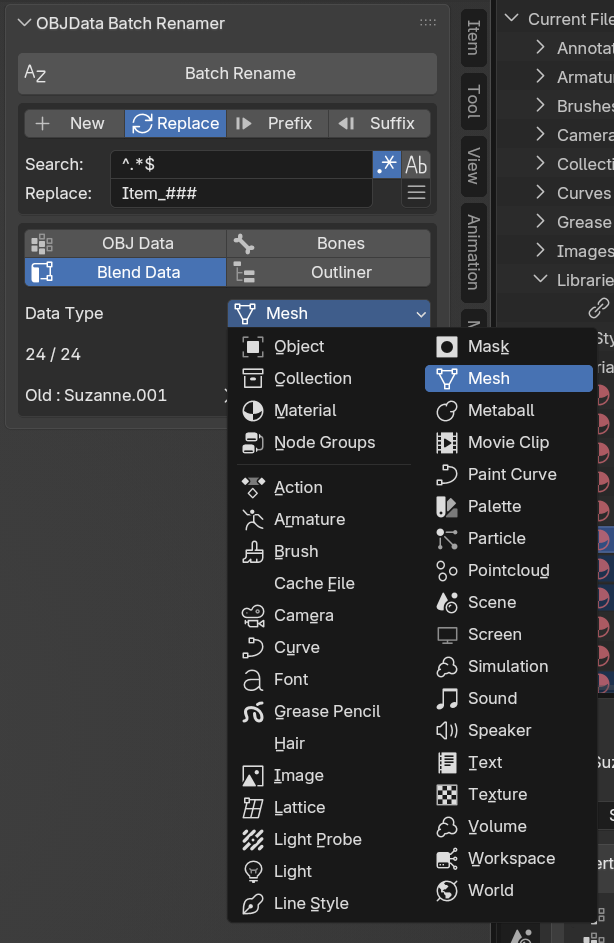
This renames items within the Blend file by data type.
Caution is advised as this process handles all data.
Outliner
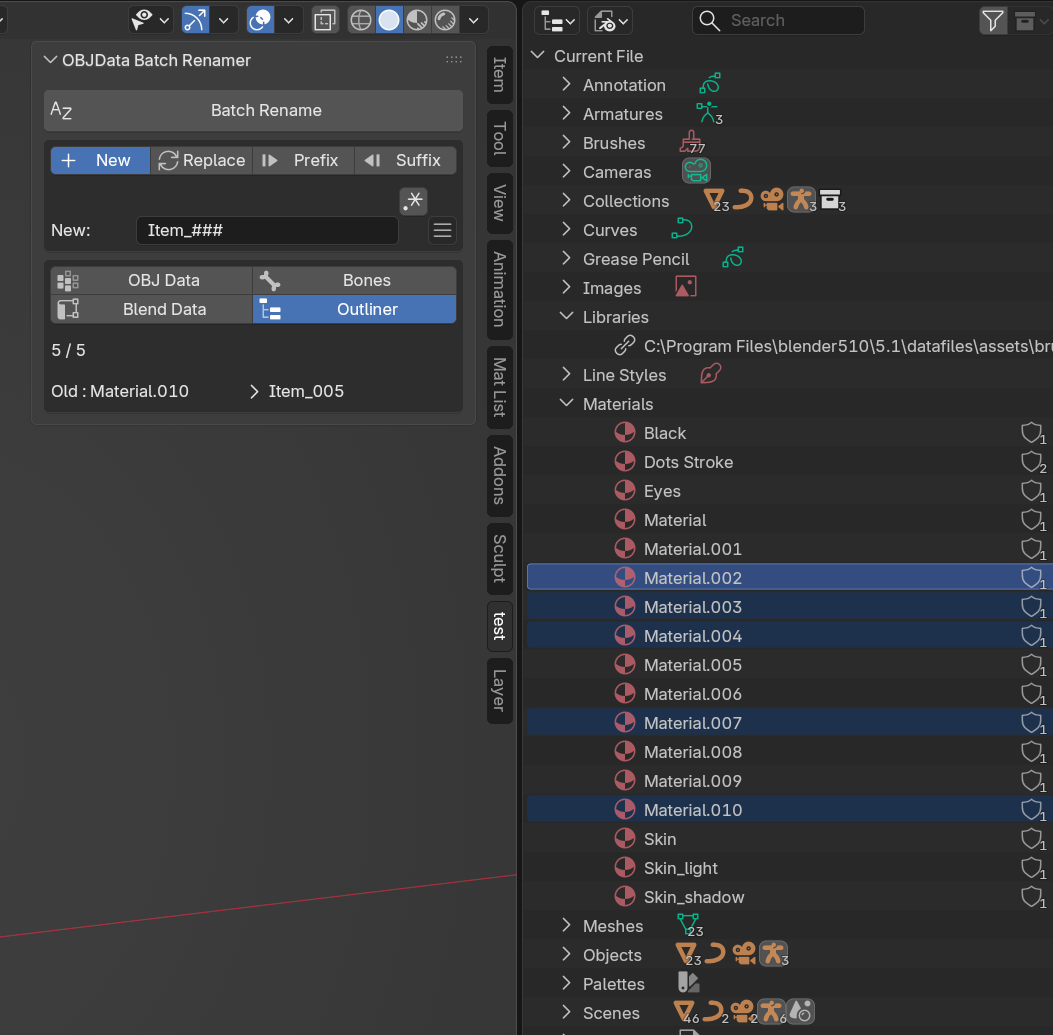
By using the Outliner's selection information, you can rename items within any Blend data.
This makes it easier to rename only the items you intend to rename compared to batch renaming by the [Blend Data] type.
Display the outliner when using it.
You need to have the Outliner displayed in Blender.
By setting the Outliner's [View Mode] to Blender File, you can view all the data within Blender.
Menu
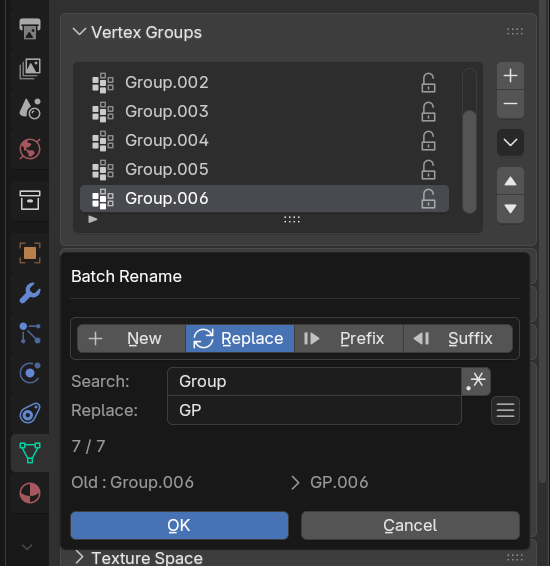
-
3D View > Sidebar (N) > OBJData Batch Renamer
You can change the tab category from "Addons" in the add-on settings.
(Leave the name blank if you want to hide it.)
-
Top bar > Edit > Bulk rename
A menu similar to the panel menu will be displayed.
-
Property Editor > Object Data >
Other MenusA "Bulk Rename" menu will be added to the bottom of the "Other" menu.
You can perform the renaming process using the pop-up menu shown below.