OddHabitat - Procedural Fantasy World Generator for Blender
 Procedural Picnic
Install
- In Blender: Edit > Preferences > Get Extensions.
- Open the arrow menu (top right) > Install from Disk… and pick
oddhabitat-1.1.0.zip. - In the 3D view press N and open the OddHabitat tab.
Quick start
- Open a finished world: pick one from the list and press Open.
- Or make your own: choose a Theme, the map size and what it contains, then press Generate World. Each World Number gives a different world.
- Paint: open Paint the World, pick a brush and drag on the ground.
- Edit: click a building to change it. The one you are editing is outlined in gold. Show zooms to it.
- Picture: in Lighting, Mood & Life press Frame the Shot, then Render.
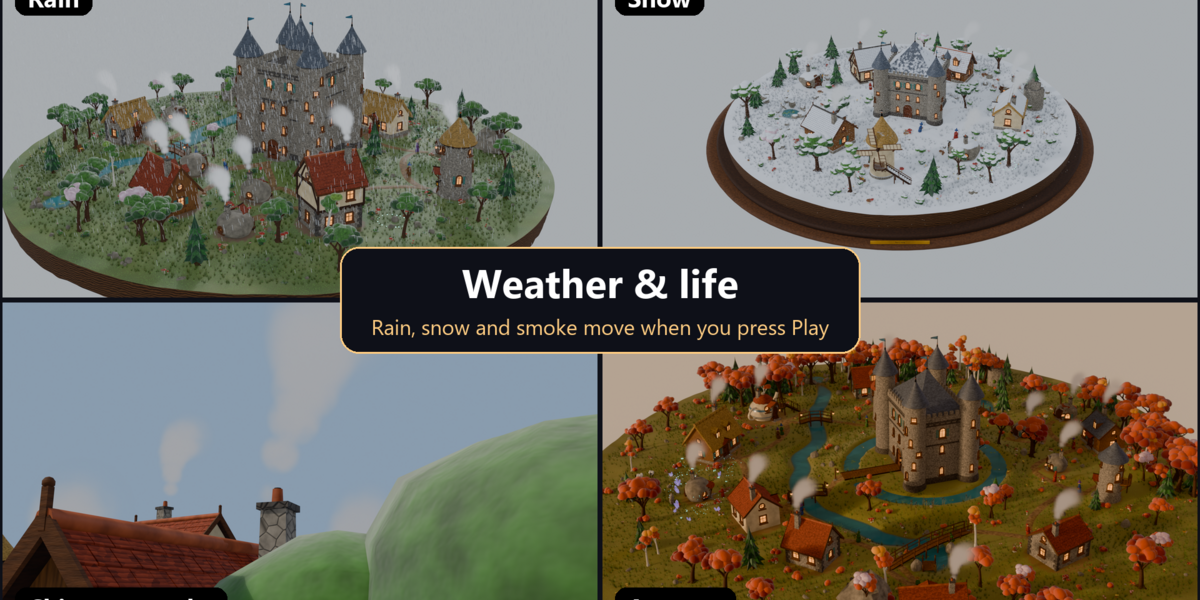
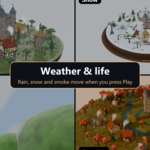
- Life: press Play on the timeline to see villagers walk, smoke rise and snow or rain fall.
The sidebar starts simple. Show All Settings at the top reveals every option.
Paint the World
- Road: a road that follows the ground, with bridges over water.
- Forest: a dense wood.
- Water: drag for a river (it runs downhill), click for a pond. A big brush makes a lake.
- Village: a street with houses on both sides.
- Magic: crystals, glowing mushrooms, fireflies and a fairy ring.
- Mountain: a rocky, snowy mountain. Drag for a range.
- Hill: gentle green hills.
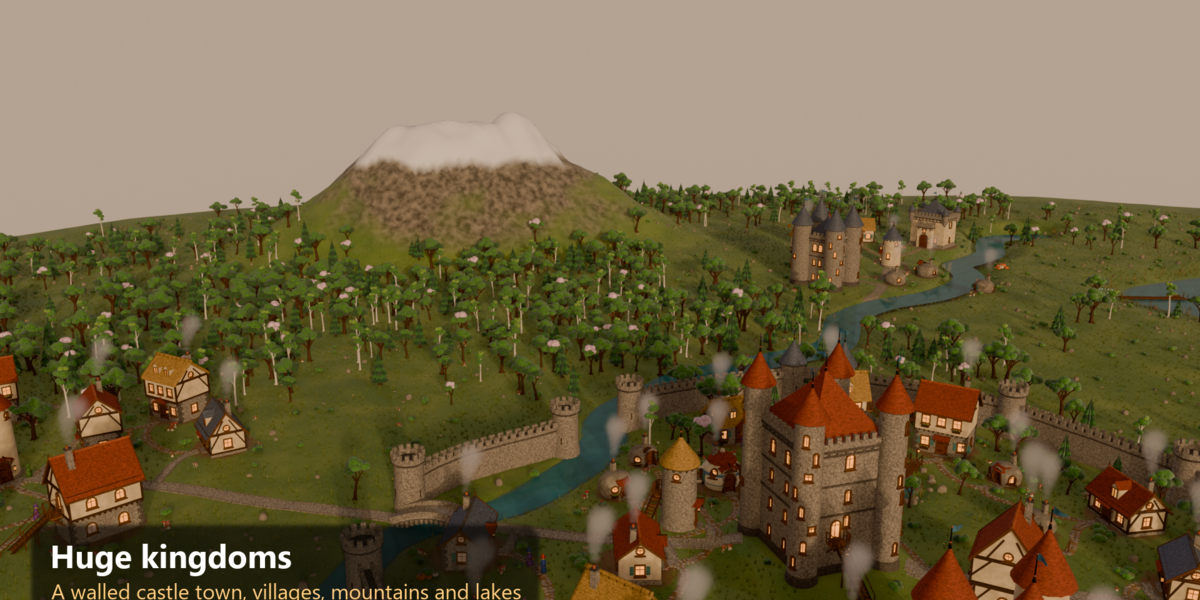
- Wall: a town wall with towers. Paths through it get a gate.
- Eraser: removes what you brush over: part of a road or river, a hill (brush its middle), a building, or the plants there.
Keys while painting: [ ] brush size, 1-9 switch brush, Ctrl+Z undo, Esc stop.
Editing a building
- Trade: tavern, bakery, market, smithy, library, farm or wizard. The building gets a new name, a shop sign, goods by the door and a fitting number of floors.
- Floors: houses 1-4, towers 1-6, teapots 1-4, rock homes 1-3.
- Shape buttons turn it into a house, tower, castle, teapot or rock home.
- Doors & Windows: size and amount. Click one window or door to edit only that one.
- Settings that have no effect right now are greyed out, with the reason shown.
- Make Plain Mesh turns a building into normal geometry you can sculpt.
Other panels
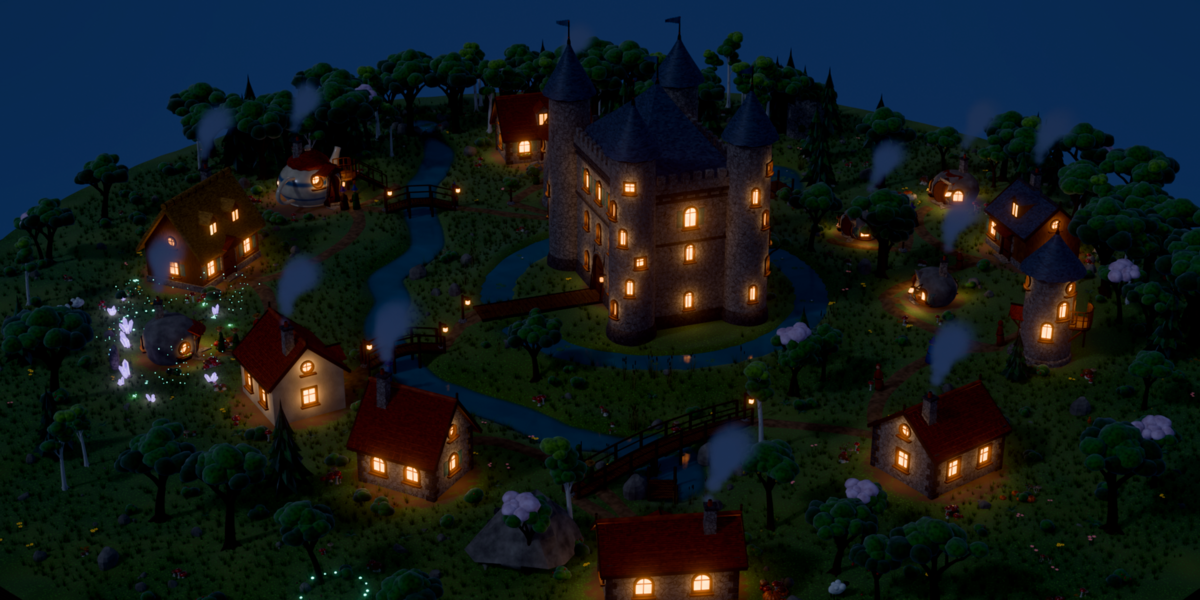
- Lighting, Mood & Life: day, golden hour, misty, moonlit night or enchanted. Villagers and animals, seasons (pick one, or Whole Year), snow and rain.
- Ground, Water & Plants: ground size and shape, hills, mountains, ponds, trees and grass.
- Paths & Bridges: click one building, Shift+click another, then press Path.
- Props: fill spots like wells, carts and benches with your own .glb models.
- Settings & Help: Rebuild Everything, Export World (GLB, FBX, OBJ) and a short help text.
Tips
- Your own objects are never changed. OddHabitat only rebuilds what it made.
- Big kingdoms take a minute or more to build. For many changes at once, turn off Update While Editing (Settings & Help), then press Rebuild Everything.
- Type a number larger than a slider’s range to go beyond it.
Troubleshooting
- No OddHabitat tab: check that the add-on is enabled in Preferences > Get Extensions, then press N.
- A change does nothing: check the gold outline. It shows which building you are editing.
- Something looks broken: press Rebuild Everything in Settings & Help.
Support
Something not working? Message me through Superhive with your Blender version and what you did.
Have questions about this product?
Login to message
| Blender Extension Compatible | Yes |
| Published | about 8 hours ago |
| Blender Version | 5.0 - 5.2 |
| Extension Type | Add-on |
| Render Engine Used | Cycles, Eevee |
| License | GPL |
Discover more products like this
terrain procedural medieval world generator stylized fantasy environment kingdom village Castle diorama landscape