 SwordPen
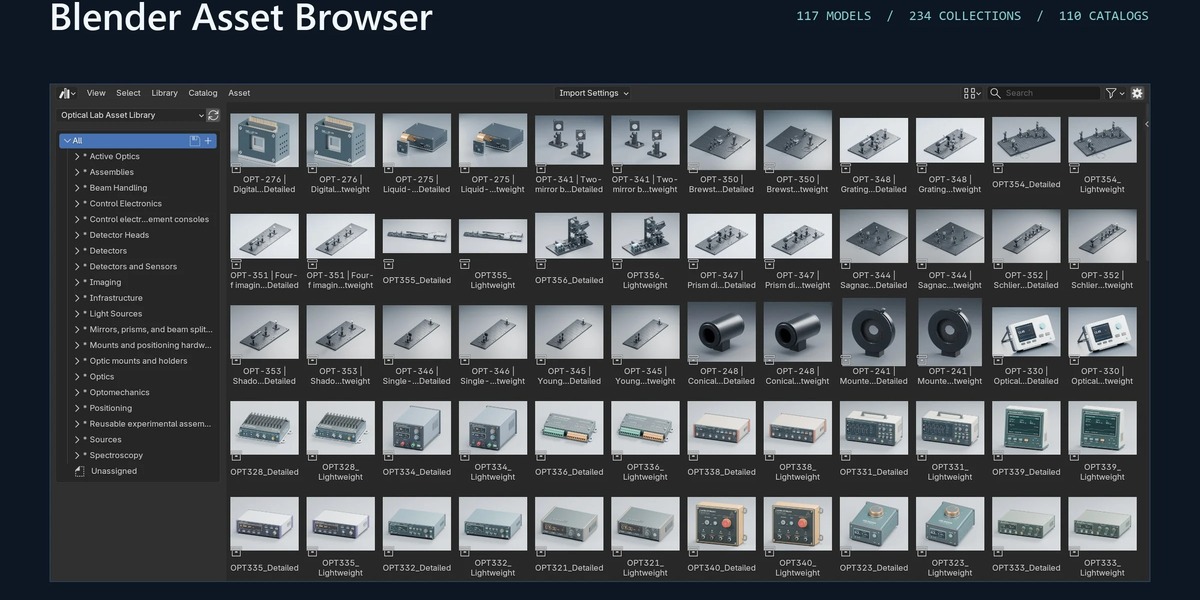
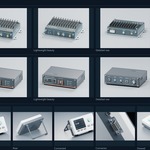
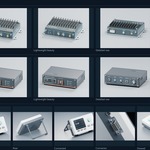
Install the Optical Lab Asset Library
- Extract
Optical-Lab-Asset-Library-3.55.zipto a folder you plan to keep. Leaveblender_assets.cats.txtalongside the model folders. - In Blender, go to Edit → Preferences → Asset Libraries. Click +, choose Add Local Asset Library, and select the extracted Optical Lab Asset Library folder that contains
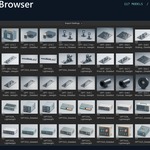
blender_assets.cats.txt. Save your preferences if Blender is set to save them manually. - Open the Asset Browser and select Optical Lab Asset Library from the library dropdown.
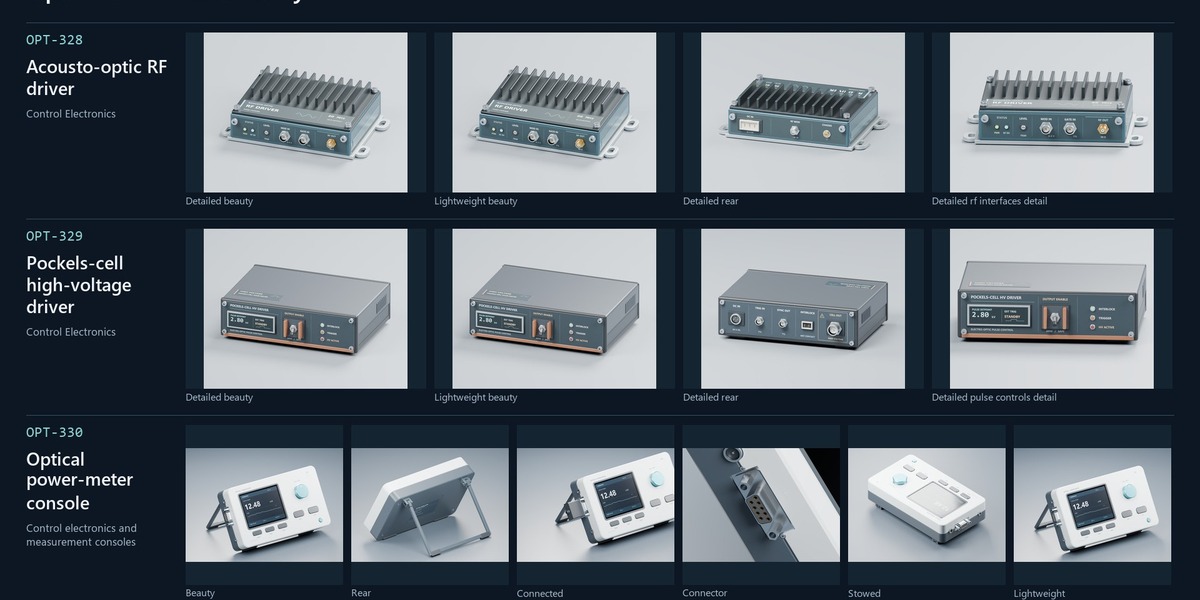
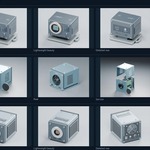
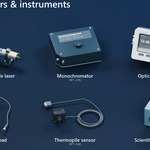
- Browse the catalogs or search by name or model ID. Try
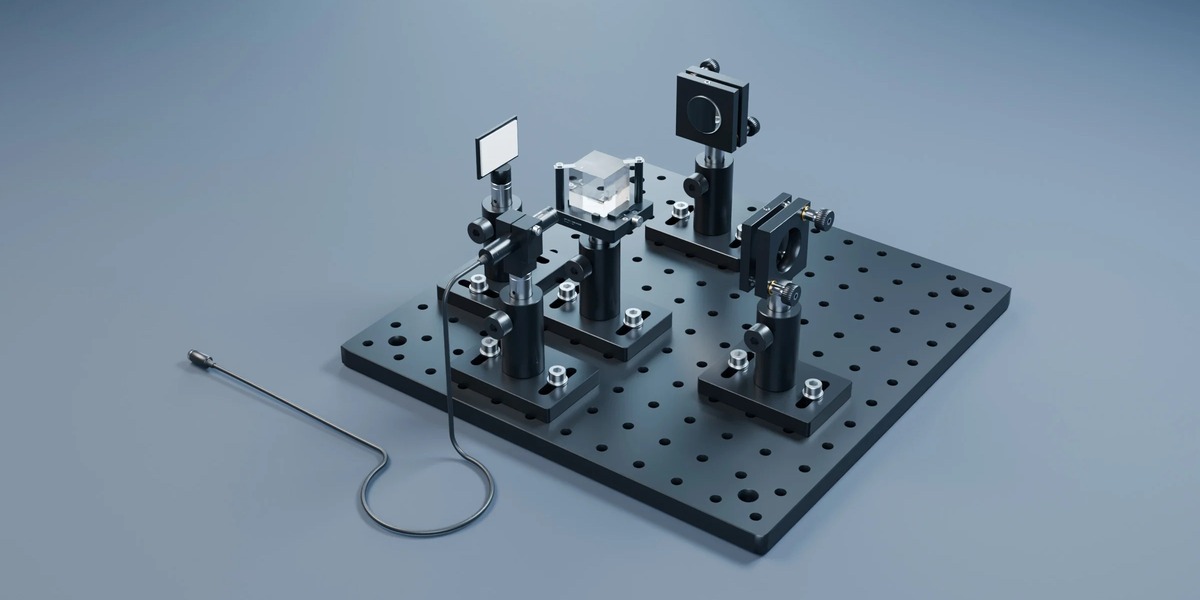
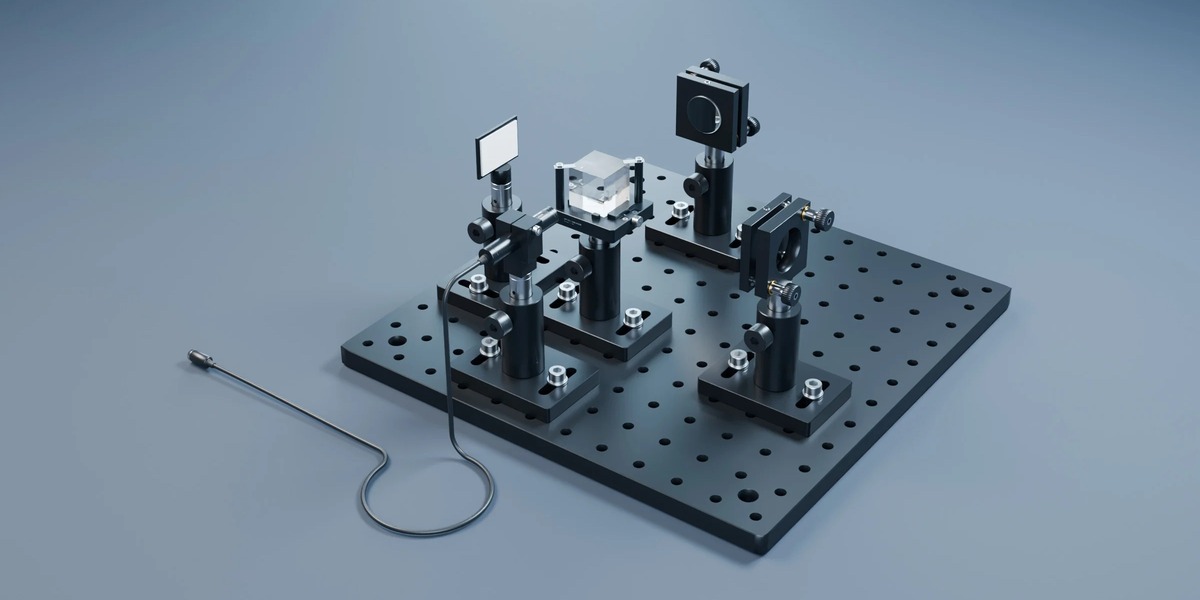
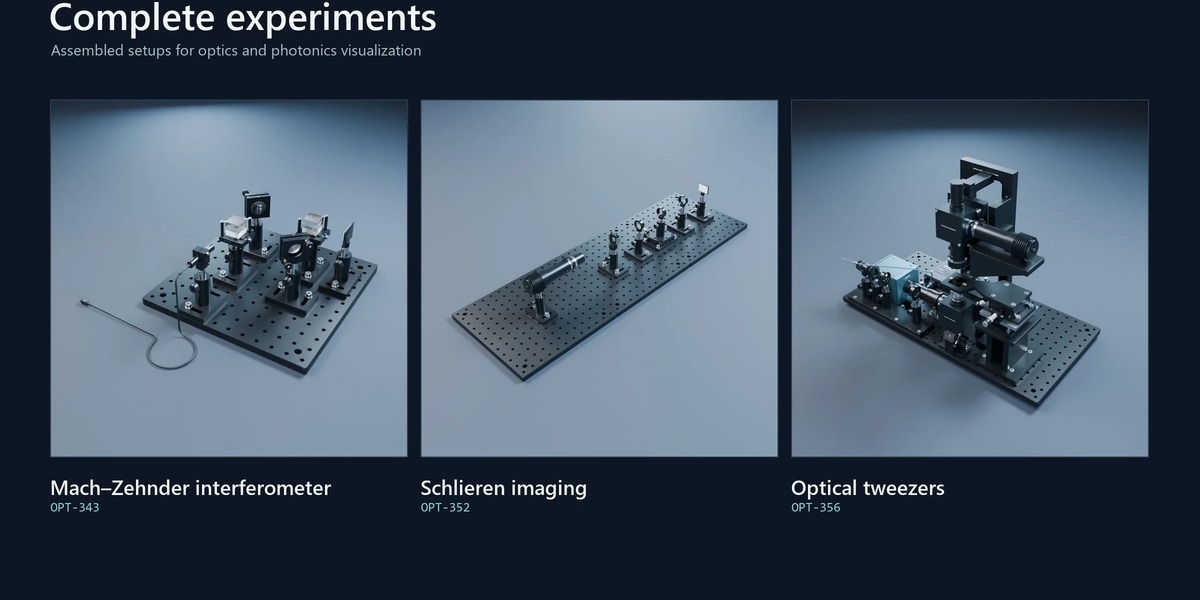
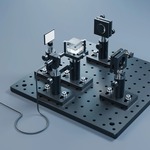
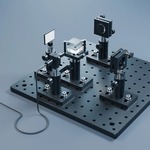
OPT-342to find the Michelson interferometer. Drag the Detailed or Lightweight collection into the 3D Viewport.
Choose a model variant
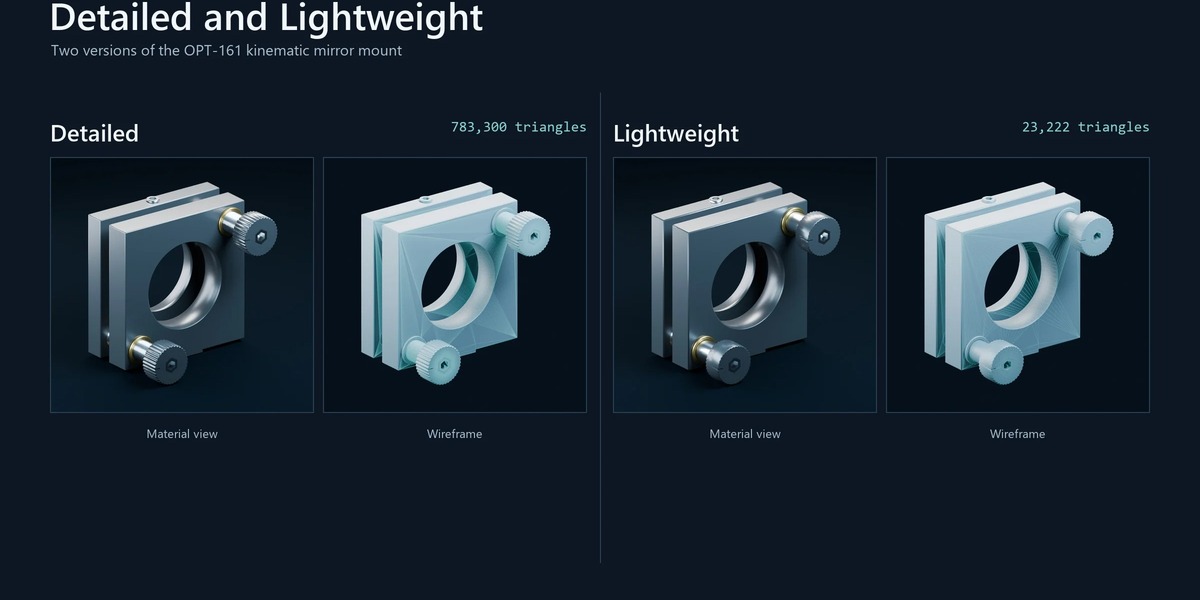
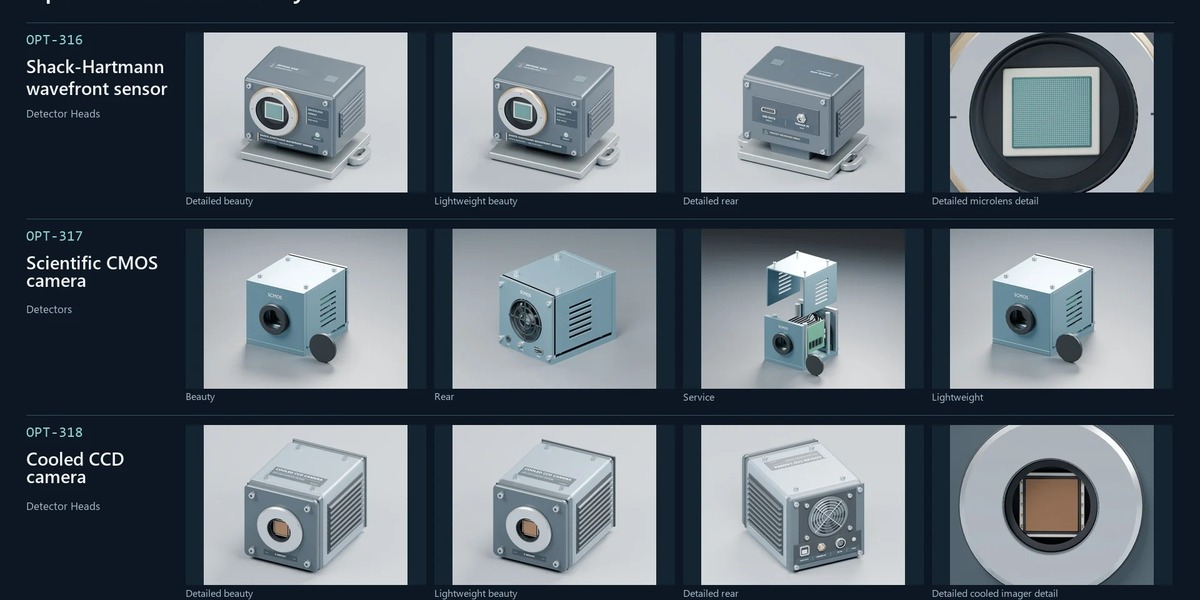
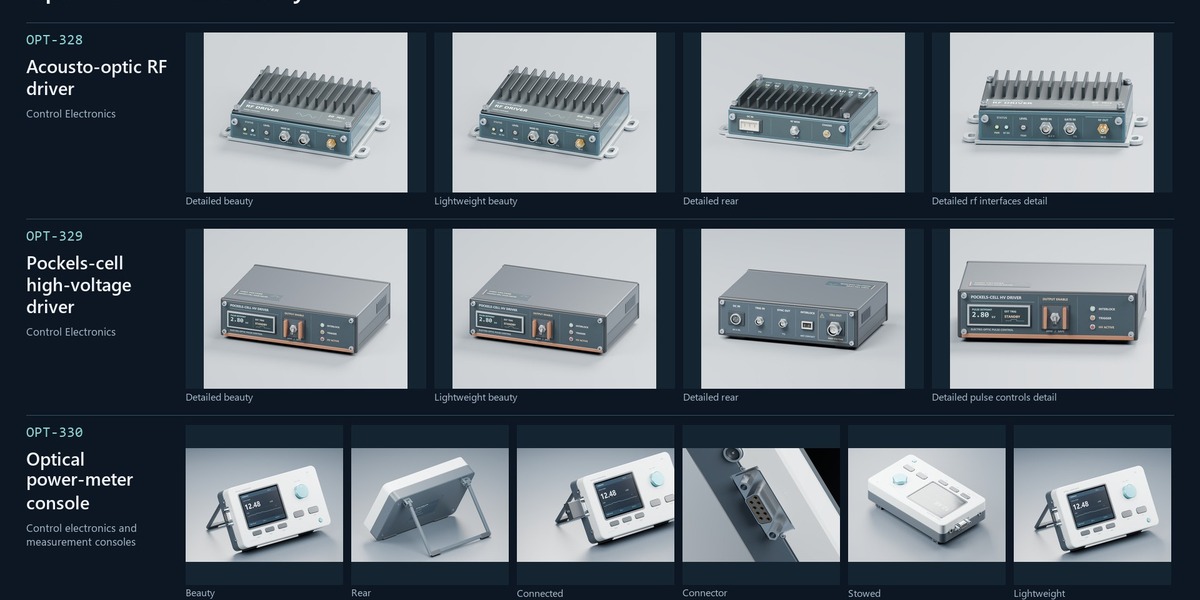
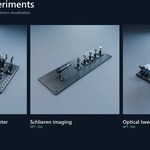
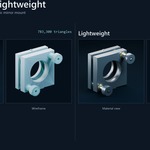
Every model comes in two versions. Use Detailed for close-up renders and Lightweight when populating benches or repeating equipment across a scene. The library uses meter-based scale. Keep compatible parts at the same scale when assembling an experiment.
Edit a model in your project
To work directly with an asset’s objects and materials, use File → Append, open the model’s .blend file, go into Collection, and select the Detailed or Lightweight collection. Selected models include native controls. For example, append the mounted iris diaphragm (OPT-241), select its root object, and find aperture_mm under Object Properties → Custom Properties.
Find a specific model
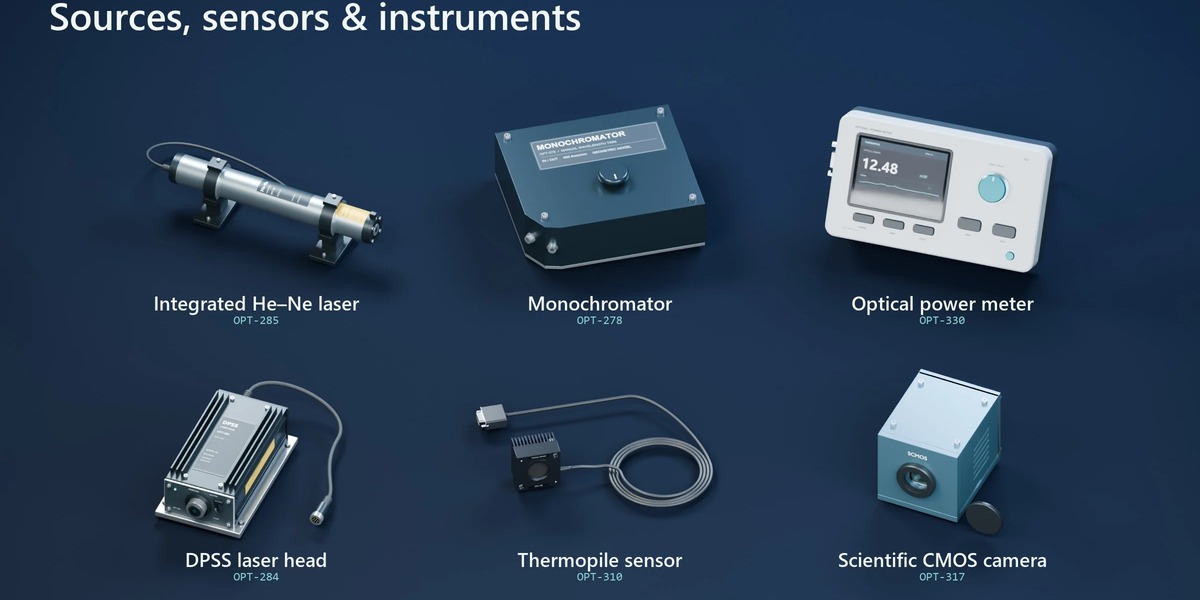
Open Model Inventory.md in the download to look up each model by name, ID, or catalog. If assets are missing from the Asset Browser, confirm that the library points to the folder containing blender_assets.cats.txt, then refresh the browser.
Have questions about this product?
Login to message
| Published | about 8 hours ago |
| Blender Version | 2.8 - 5.3 |
| Render Engine Used | Cycles |
| License | Royalty Free |

Discover more products like this
optical lab scientific instruments optomechanics scientific visualization laboratory equipment interferometer optics blender asset library optical bench sci fi lab laser optics photonics