Orange Dude
 3D Universe
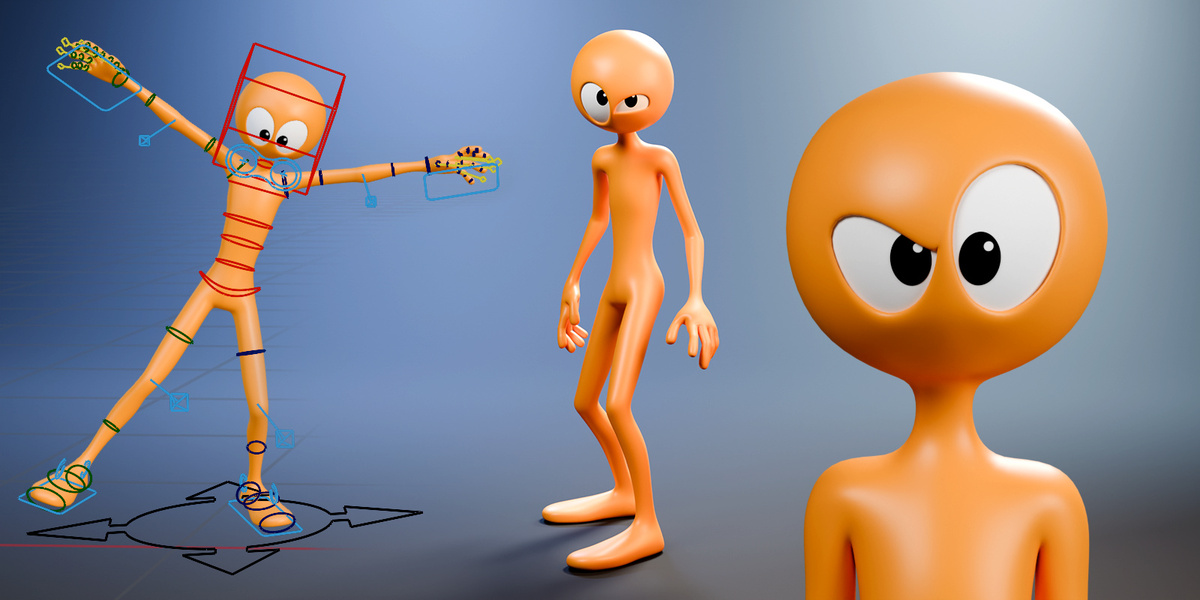
ORANGE DUDE | TECHNICAL USER GUIDE
Installation, File Formats, Rigging & Animation Controls
1. PACKAGE CONTENTS
Orange Dude is supplied as a ZIP archive containing four folders:
- Blender: Contains the native Blender character file with the complete rig, materials, and animation controls.
- FBX: Contains the character in FBX format for use in compatible 3D applications.
- GLB: Contains the character in GLB format for use in compatible 3D applications, viewers, and real-time environments.
- Python Add-ons: Contains Python scripts and tools supporting Orange Dude’s advanced Blender animation functionality.
For the best experience and access to all available animation features, we recommend using the native Blender version.
2. BEFORE YOU BEGIN
Before installing Orange Dude:
- Ensure you have a compatible version of Blender installed.
- Download the complete Orange Dude ZIP archive.
- Extract the archive to a convenient location on your computer.
- Keep the supplied folder structure intact.
- Ensure that Blender is permitted to execute trusted Python scripts when required.
Important: Blender-specific features, including custom animation panels and certain rigging controls, may not be available in the FBX and GLB versions.
3. INSTALLING ORANGE DUDE IN BLENDER
Getting started with Orange Dude is straightforward.
- Extract the downloaded ZIP archive.
- Open Blender.
- Select File > Open.
- Navigate to the Blender folder.
- Select the supplied Orange Dude .blend file.
- Click Open Blender File.
- Once loaded, select the Orange Dude armature.
- Switch to Pose Mode to begin posing and animating.
Orange Dude’s native Blender file contains the character and its associated rigging setup.
We recommend saving a working copy before making modifications.
4. INSTALLING THE PYTHON ADD-ONS
Orange Dude includes custom Python-based tools that provide convenient access to advanced animation features.
Depending on the supplied files, these tools may be packaged as installable Blender add-ons or standalone Python scripts.
Installing a Blender Add-on
- Open Blender.
- Select Edit > Preferences. On macOS, use Blender > Settings/Preferences.
- Navigate to Add-ons.
- In newer Blender versions, use Install from Disk from the add-on options menu.
- Navigate to the Python Add-ons folder.
- Select the supplied installable ZIP or Python add-on file.
- Complete the installation.
- Enable the add-on if required.
Running a Standalone Python Script
If a supplied Python file is a standalone script rather than an installable add-on:
- Open Blender.
- Switch to the Scripting workspace.
- In the Text Editor, select Open.
- Navigate to the Python Add-ons folder.
- Select the appropriate Python script.
- Review the script and click Run Script.
Important: Not every Python file is an installable add-on. Some scripts are designed to run directly from Blender’s Text Editor, while others may already be embedded in the native Blender file.
Accessing the Custom Controls
- Select Orange Dude’s armature.
- Enter Pose Mode.
- Press N while your mouse pointer is over the 3D Viewport.
- Locate the custom animation panels in the sidebar.
The available controls depend on which scripts are registered and enabled.
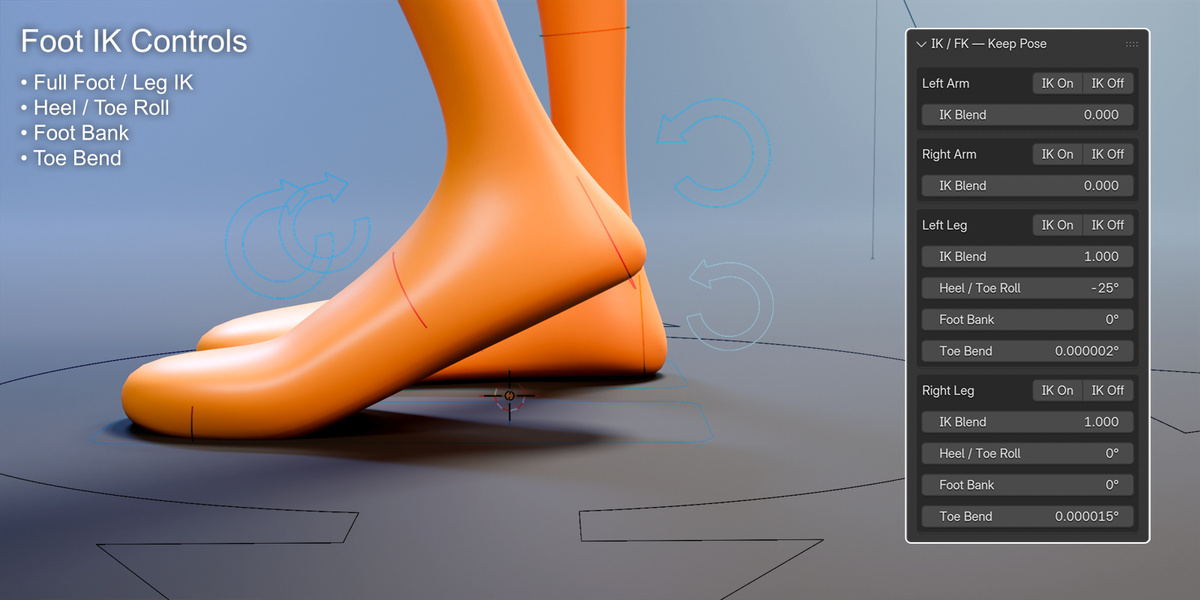
5. IK/FK ANIMATION CONTROLS
Orange Dude features advanced IK/FK animation controls, allowing you to choose the most suitable method for posing and animating individual limbs.
Inverse Kinematics (IK)
IK allows you to position a limb by moving its end controller.
For example, moving a hand controller can automatically adjust the arm’s positioning.
IK is particularly useful for:
- Keeping feet planted on the ground.
- Positioning hands against objects.
- Creating stable contact poses.
- Animating character interactions.
Forward Kinematics (FK)
FK allows you to animate a limb by rotating individual joints.
FK is particularly useful for:
- Natural swinging arm movements.
- Fluid character animation.
- Exaggerated cartoon gestures.
- Actions requiring precise rotational control.
Switching Between IK and FK
Orange Dude includes independent IK/FK controls for:
- Left Arm
- Right Arm
- Left Leg
- Right Leg
To switch animation modes:
- Select the character rig.
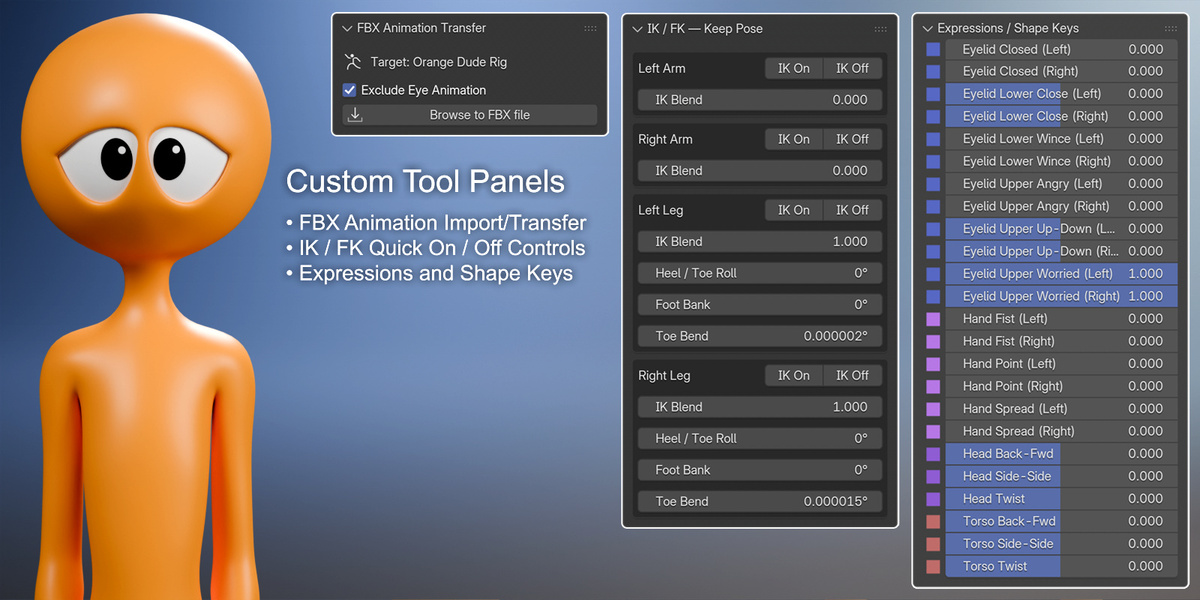
- Open the IK/FK - Keep Pose panel.
- Locate the desired limb.
- Click IK On or IK Off.
- Adjust the IK Blend value if necessary.
Pose-Preserving Switching
The IK/FK controls include pose-preserving functionality designed to maintain the character’s current position when switching animation modes.
This helps reduce the need to manually reposition limbs during animation.
IK Blend Controls
Each limb has an adjustable IK Blend value.
These controls allow you to adjust the influence of IK independently for each arm and leg.
6. ADVANCED FOOT CONTROLS
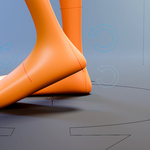
Orange Dude includes dedicated foot animation controls for creating more natural or exaggerated movements.
Heel / Toe Roll
Controls rolling movement through the heel and toe.
Useful for:
- Walking animations.
- Running cycles.
- Weight shifts.
- Cartoon-style foot movements.
Foot Bank
Controls sideways foot banking.
Useful for:
- Balancing poses.
- Sideways weight shifts.
- Exaggerated character movement.
Toe Bend
Provides additional control over toe bending.
Useful for:
- Push-off movements.
- Walking and running.
- Tiptoe poses.
- Expressive foot positioning.
These controls are available through the custom IK/FK animation interface.
7. FACIAL EXPRESSIONS AND SHAPE KEYS
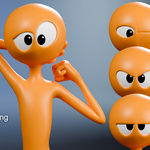
Orange Dude includes a collection of shape-key controls for creating facial expressions and additional body movements.
These controls are accessible through the Expressions / Shape Keys panel.
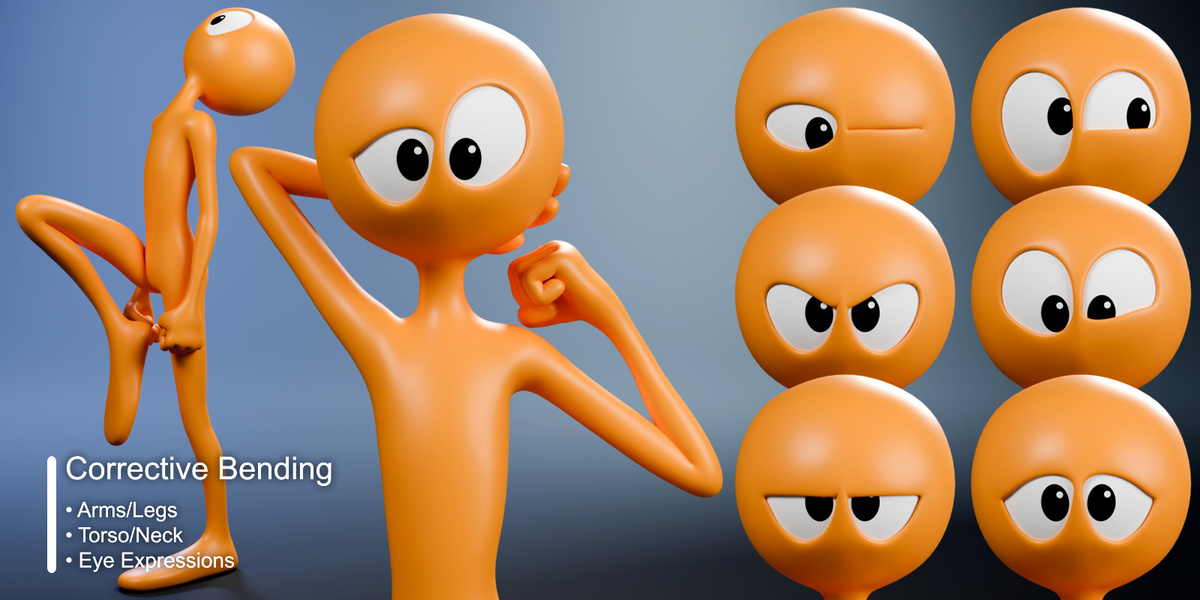
Eyelid Controls
Available controls include:
- Independent left eyelid closing.
- Independent right eyelid closing.
- Lower eyelid closing.
- Upper eyelid adjustments.
- Angry eyelid expressions.
- Worried eyelid expressions.
- Wincing expressions.
These controls can be combined to create a variety of expressions.
For example:
- Lower the upper eyelids for a suspicious expression.
- Adjust the worried eyelid controls for a concerned appearance.
- Close both eyelids for a sleeping or blinking animation.
- Adjust the eyelids independently for asymmetrical expressions.
Animating Shape Keys
To animate an expression:
- Move the timeline to the desired frame.
- Adjust the appropriate shape-key value.
- Hover over the value and press I to insert a keyframe.
- Move to another frame.
- Change the shape-key value.
- Insert another keyframe.
- Play the animation to preview the result.
Multiple shape keys can be animated together to create more complex expressions.
8. HAND AND FINGER CONTROLS
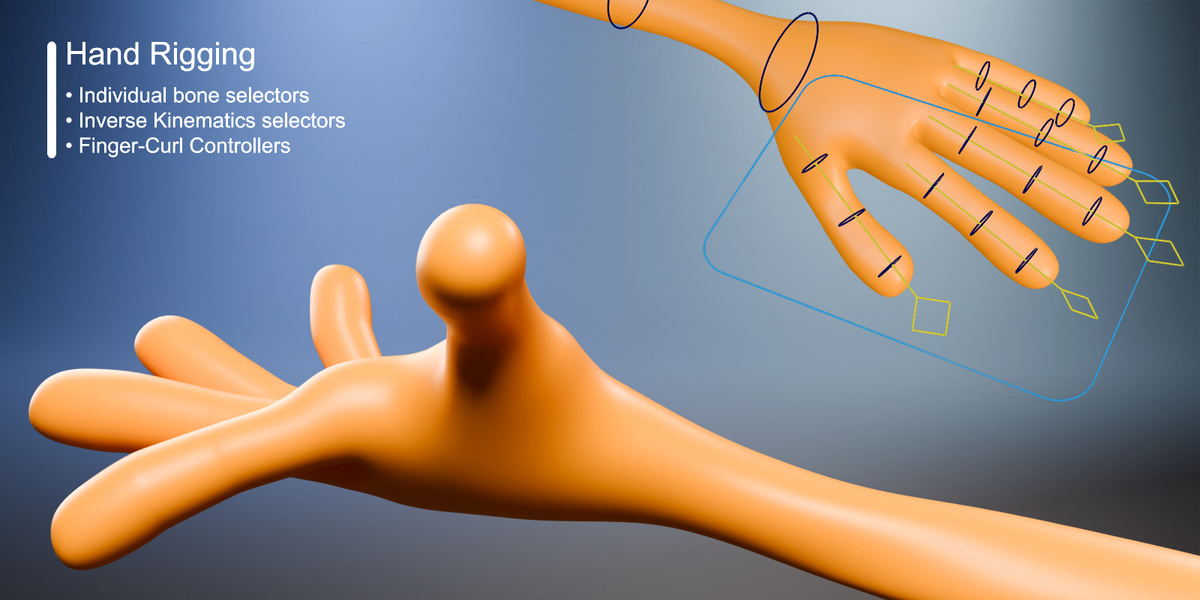
Orange Dude includes individually articulated fingers and additional hand shape-key controls.
Hand Shape Keys
Available controls include:
- Fist: Closes the hand into a fist.
- Point: Creates a pointing gesture.
- Spread: Spreads the fingers apart.
These controls are available independently for the left and right hands.
Individual Finger Animation
For more detailed hand poses, individual finger joints can be adjusted through the character rig.
This allows you to create custom gestures beyond the supplied shape-key controls.
9. HEAD AND TORSO SHAPE KEYS
Orange Dude includes additional shape-key controls for adjusting the head and torso.
Head Controls
- Forward and backward movement.
- Side-to-side movement.
- Twisting.
Torso Controls
- Forward and backward movement.
- Side-to-side movement.
- Twisting.
These controls provide additional flexibility for expressive posing and stylized character animation.
They can be combined with the standard rig controls to create exaggerated movements and character performances.
10. FBX ANIMATION IMPORT AND TRANSFER
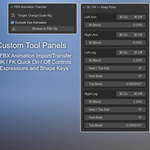
Orange Dude includes a custom FBX Animation Transfer tool designed to help transfer compatible animation data onto his Blender rig.
This functionality is particularly useful when working with existing character animation assets.
Transferring an FBX Animation
- Open the native Orange Dude Blender file.
- Select the Orange Dude armature.
- Open the FBX Animation Transfer panel.
- Confirm that the target rig is set to Orange Dude Rig.
- Enable Exclude Eye Animation if you want to preserve independent eye animation.
- Click Browse to FBX File.
- Select the desired FBX animation file.
- Allow the transfer process to complete.
- Inspect the imported animation on the timeline.
- Play the animation and check the resulting movement.
Exclude Eye Animation
The transfer panel includes an option to exclude eye animation.
This is useful when you want to transfer body movements while retaining separate control over Orange Dude’s eyes.
Important: FBX animation compatibility depends on the source skeleton and animation structure. Not every FBX animation is guaranteed to transfer correctly.
We recommend testing a short animation before transferring longer sequences.
11. USING THE FBX VERSION
The FBX folder contains an alternative version of Orange Dude intended for use in compatible 3D applications.
Importing into Blender
- Open Blender.
- Select File > Import > FBX (.fbx).
- Navigate to the FBX folder.
- Select the supplied FBX file.
- Click Import FBX.
- Inspect the imported character.
Check the following after importing:
- Character scale and orientation.
- Materials and textures.
- Armature and bone hierarchy.
- Skinning and deformation.
- Animation data, if present.
Important: The FBX format does not preserve all Blender-specific features.
Custom Python panels, certain constraints, and advanced rigging functionality may not transfer to other applications.
For the complete Blender animation experience, use the native .blend file.
12. USING THE GLB VERSION
The GLB folder contains Orange Dude in the GLB format.
GLB is commonly used for transferring 3D assets between compatible applications, real-time engines, and web-based 3D viewers.
Importing into Blender
- Open Blender.
- Select File > Import > glTF 2.0 (.glb/.gltf).
- Navigate to the GLB folder.
- Select the supplied GLB file.
- Click Import glTF 2.0.
- Inspect the imported character.
Recommended Checks
After importing, verify:
- Geometry and proportions.
- Materials and textures.
- Character scale.
- Skeleton and skinning.
- Available animations.
- Shape keys or morph targets, where supported.
Important: GLB is intended for portability and does not provide the complete Blender-specific animation interface available in the native character file.
13. RECOMMENDED ANIMATION WORKFLOW
For the best results when animating Orange Dude, we recommend the following workflow.
- Open the native Orange Dude Blender file.
- Save a working copy for your animation project.
- Select the armature and enter Pose Mode.
- Choose IK or FK for each limb.
- Create the initial character pose.
- Adjust foot roll, banking, and toe controls as needed.
- Use the Expressions / Shape Keys panel to create facial expressions.
- Add hand gestures and finger poses.
- Adjust the head and torso controls.
- Insert keyframes for the properties being animated.
- Move through the timeline and create additional poses.
- Preview the animation.
- Refine timing, expressions, and character movement.
- Save your project and render a short test animation.
Animation Tip: Exaggerated poses and clear facial expressions work particularly well with Orange Dude’s stylized proportions.
14. TROUBLESHOOTING
Custom Animation Panels Are Missing
If the custom panels do not appear:
- Confirm that Orange Dude’s armature is selected.
- Switch to Pose Mode.
- Press N to open the 3D Viewport sidebar.
- Check that the required Python scripts or add-ons are enabled.
- Restart Blender if necessary.
- Check Blender’s console for Python errors.
Python Scripts Are Blocked
Blender may restrict automatic script execution for security reasons.
Only enable script execution when you trust the source of the file.
Review Blender’s script execution preferences if the character’s custom tools are not loading.
IK/FK Switching Changes the Pose
If switching between IK and FK produces unexpected results:
- Use the dedicated Keep Pose switching controls.
- Check the IK Blend value.
- Verify that the relevant controllers are correctly positioned.
- Check for conflicting keyframes.
- Test the operation in a duplicate project.
FBX Animation Does Not Transfer Correctly
Possible causes include:
- Incompatible source skeleton.
- Different bone naming conventions.
- Incorrect scale or orientation.
- Unsupported animation structures.
- Root-motion differences.
Try transferring a simpler animation first.
Materials Look Different After Importing FBX or GLB
Material appearance may vary between applications and rendering engines.
Check:
- Texture connections.
- Material settings.
- Normal maps.
- Color-space settings.
- Lighting and rendering configuration.
Shape Keys Are Missing After Export
Not all formats or applications support every type of Blender shape key, driver, or custom control.
Confirm that the destination application supports morph targets and that the selected export settings include the required data.
15. IMPORTANT NOTES
- The native Blender version is recommended for full access to Orange Dude’s advanced rigging and animation controls.
- FBX and GLB files are supplied for compatibility with other applications and workflows.
- Blender-specific Python scripts and custom interfaces may not function outside Blender.
- Animation transfer compatibility depends on the source FBX animation.
- Always keep a backup of the original product files.
- Save working copies of your projects before making significant modifications.
16. SUPPORT AND UPDATES
For product support, updates, or additional information, please refer to the Orange Dude product page.
When requesting technical support, please include:
- Your Blender version.
- Your operating system.
- A description of the issue.
- Any relevant error messages.
- Screenshots where appropriate.
Thank you for choosing Orange Dude!
We hope he brings plenty of personality, creativity, and fun to your Blender projects.
Happy Animating!
3D Universe
Have questions about this product?
Login to message
| Published | about 2 hours ago |
| Blender Version | 5.0 - 5.2 |
| Render Engine Used | Cycles, Eevee |
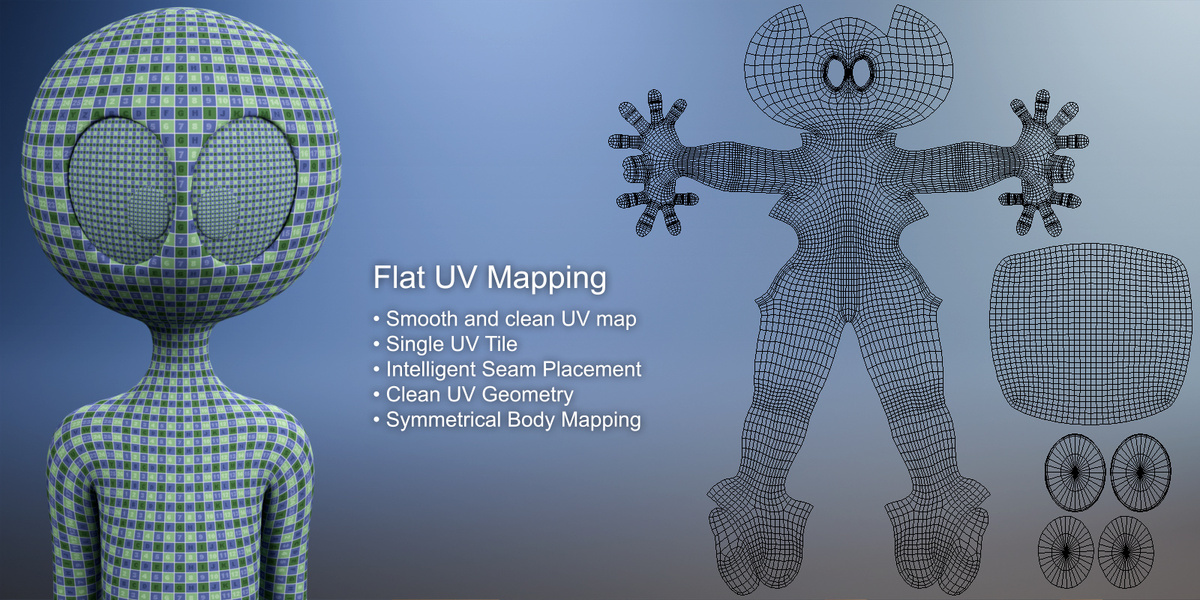
| Misc Data | Uvs-Unwrapped, Rigged, Textured |
| License | Royalty Free |