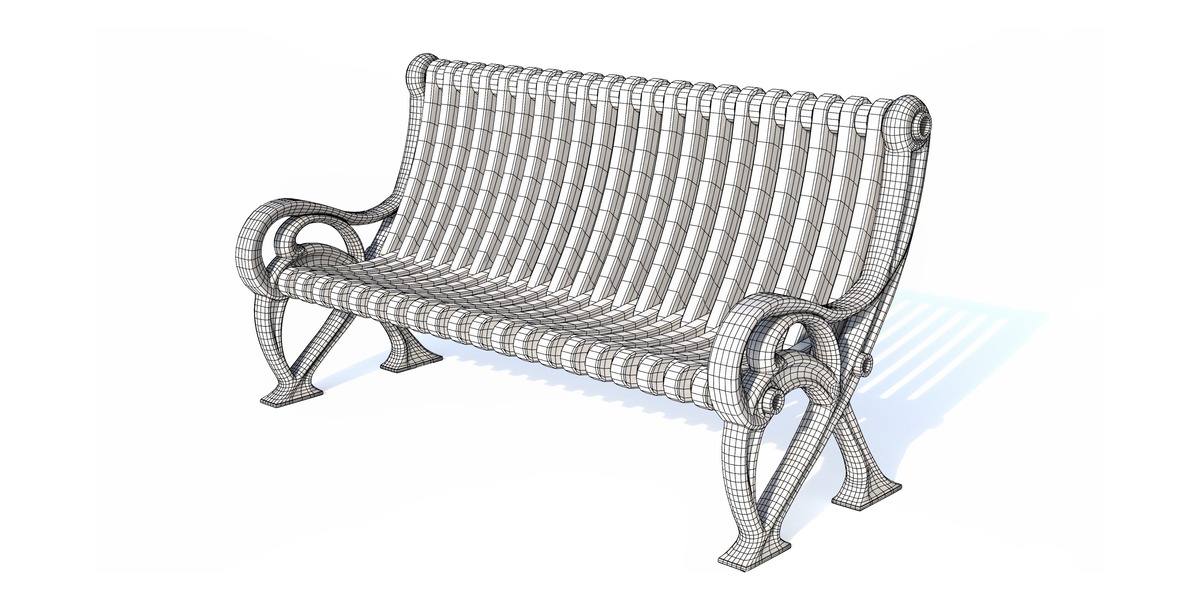
Ornamental Cast Iron Park Bench
 3DMeshCraft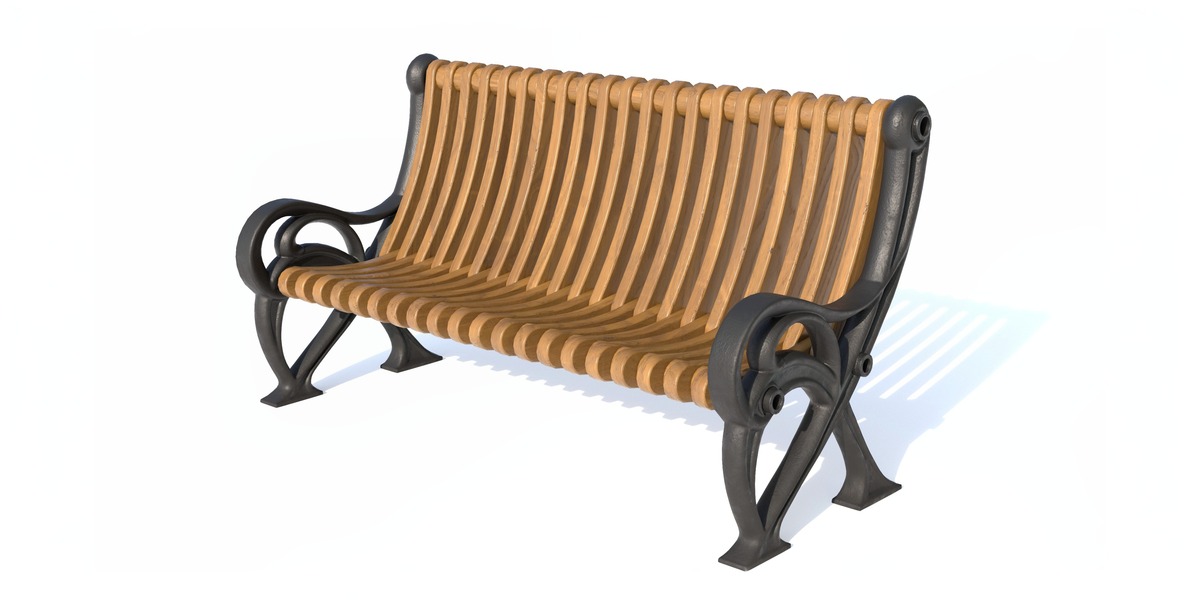
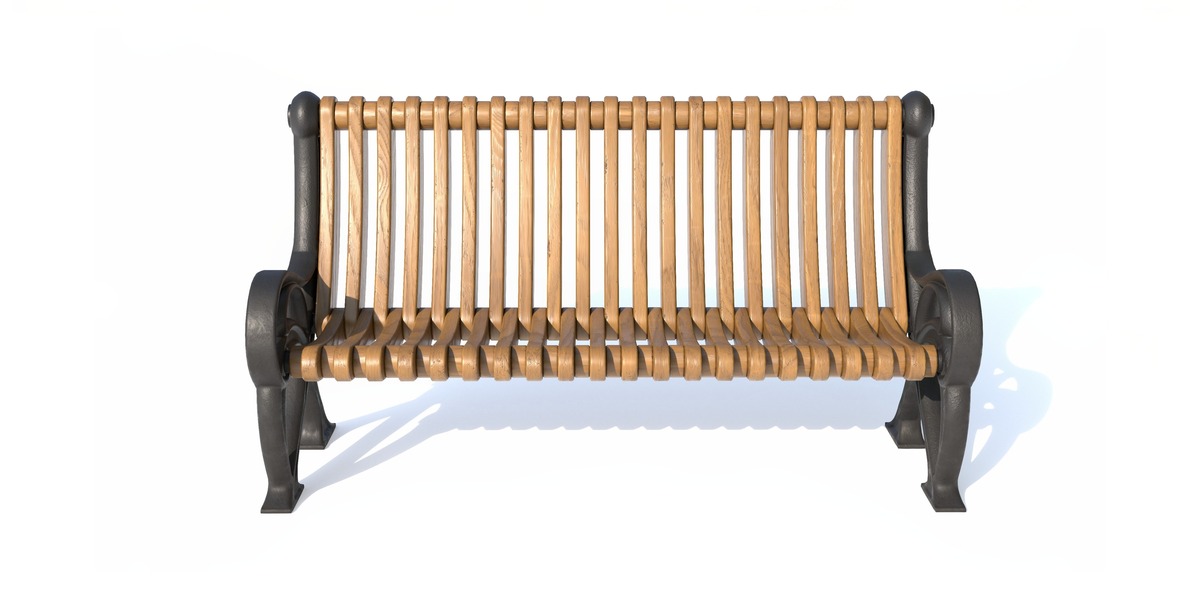
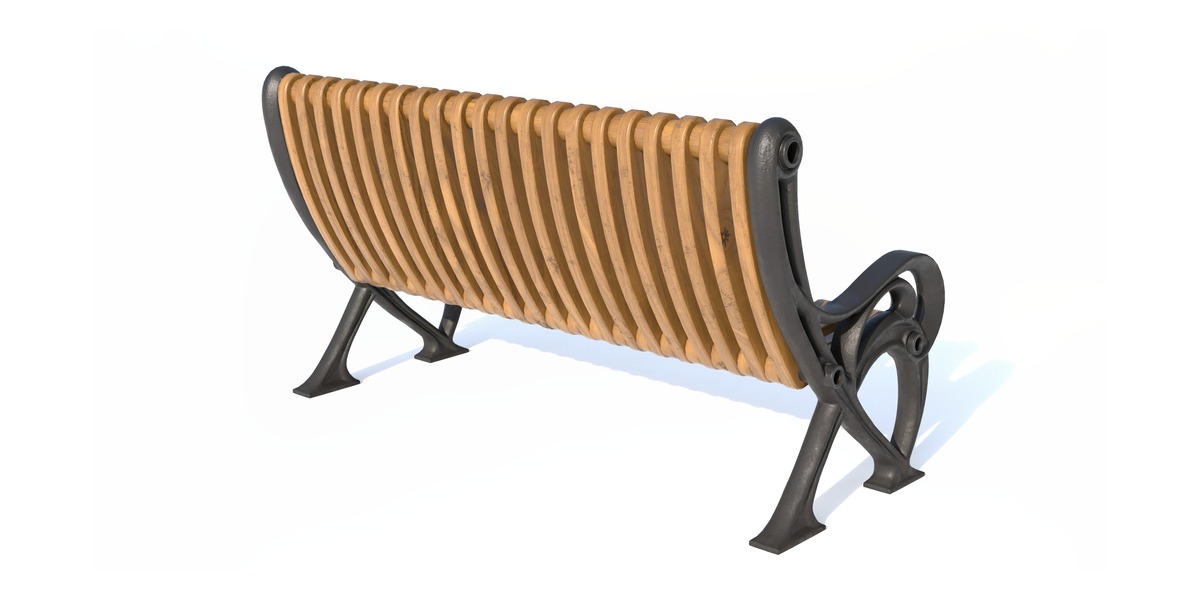
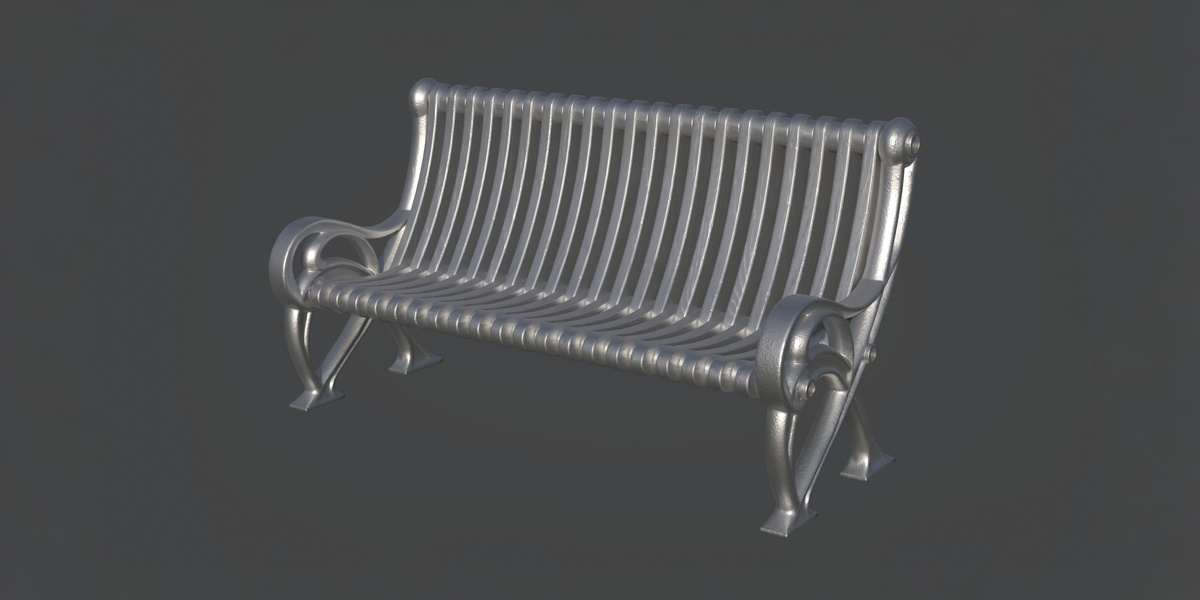
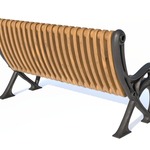
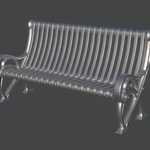
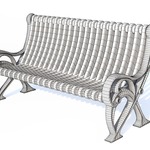
Included Files
This package contains the following files:
· Blender (.blend) source file
· FBX format
· OBJ format
· MTL material file
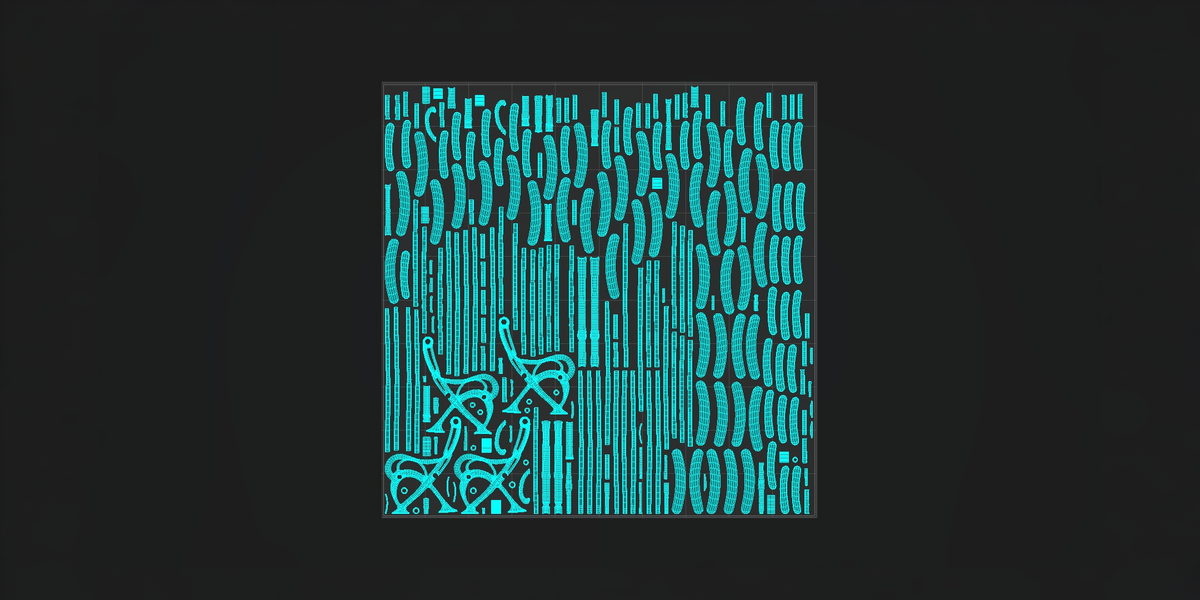
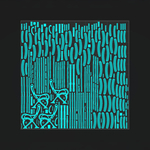
· PBR texture maps
Blender File
The Blender file includes all materials and textures packed inside the .blend file.
You can open the .blend file directly in Blender without manually reconnecting texture files.
Texture Setup
For FBX and OBJ formats, texture files are provided separately in the Textures folder.
Keep the original folder structure unchanged to ensure correct material loading.
Example:
Product_Name/
│
├── Product_Name.blend
├── Product_Name.fbx
├── Product_Name.obj
├── Product_Name.mtl
│
└── Textures/
├── BaseColor
├── Metallic
├── Roughness
└── Normal
Importing FBX
1. Import the .fbx file into your 3D software.
2. Make sure the Textures folder remains in the same directory.
3. Materials should load automatically.
If textures are not detected, manually relink them from the included Textures folder.
Importing OBJ
1. Keep the .obj, .mtl, and Textures folder together.
2. Import the .obj file into your 3D software.
3. The material information will be loaded from the .mtl file.
If needed, manually assign textures from the Textures folder.
Texture Information
The model uses PBR materials with the following texture maps:
· Base Color
· Metallic
· Roughness
· Normal Map
Notes
· Do not rename or move texture files after extraction.
· Keep the original folder structure for the best compatibility.
· The Blender file contains embedded texture data.
· FBX and OBJ formats use external texture files located in the Textures folder.
Have questions about this product?
Login to message
| Published | 14 days ago |
| Blender Version | 4.1 - 5.2 |
| Render Engine Used | Cycles, Eevee |
| Misc Data | Uvs-Unwrapped, Manifold-Mesh, Low-High-Resolution, Normal-Mapped, Textured |
| License | Royalty Free |