 ZEG
Installation
In Blender open Edit, Preferences, Get Extensions, then use Install from Disk and pick the packaging_generator zip.
Usage
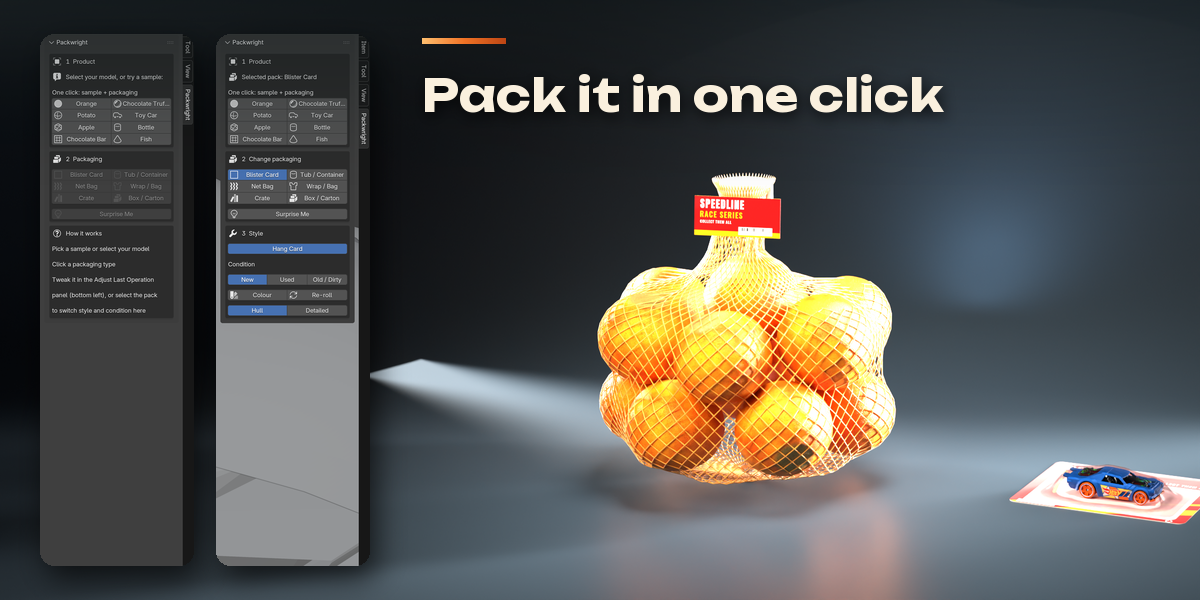
- Open the Packwright tab in the 3D viewport sidebar (N).
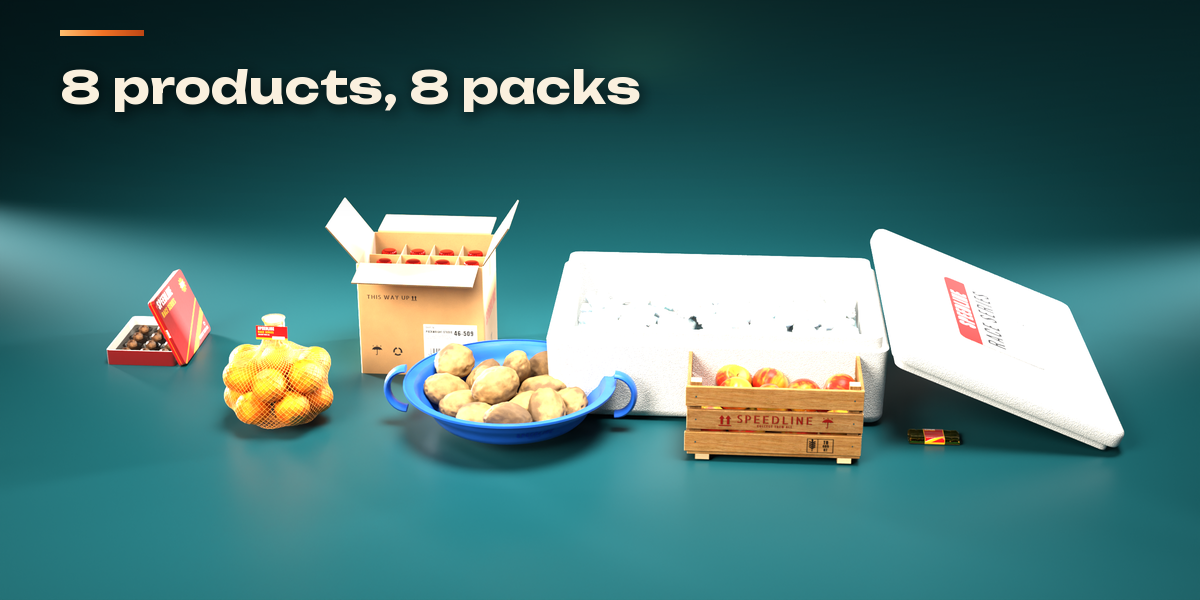
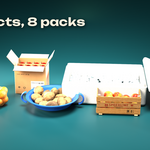
- Step 1, Product: select your own mesh object (or several), or click one of the eight sample products. A sample comes with the packaging it is most often sold in.
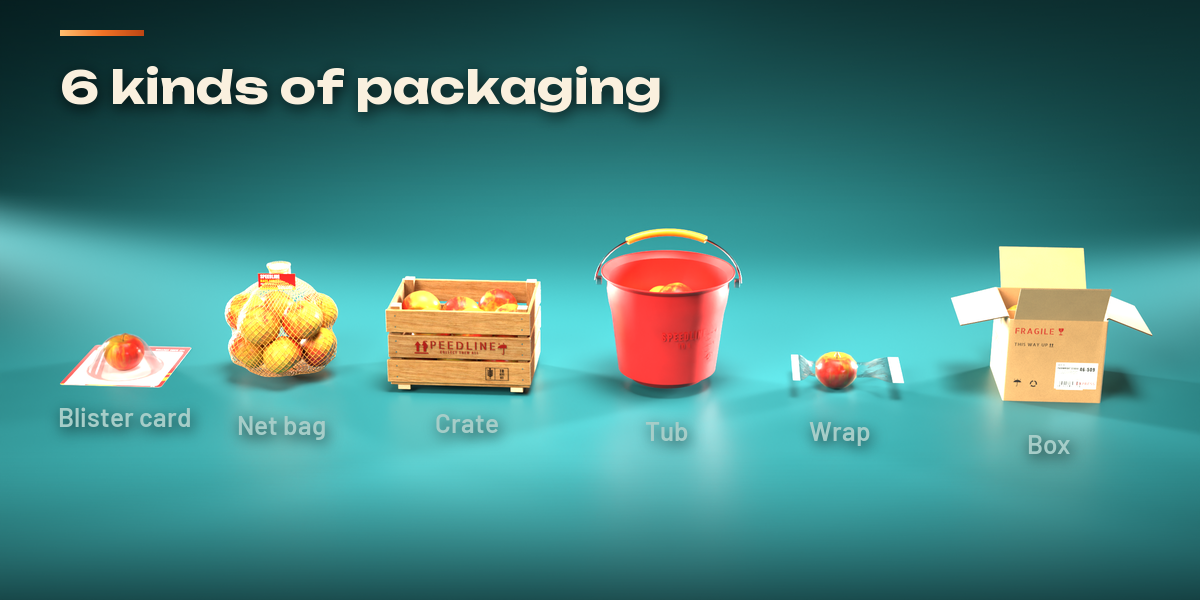
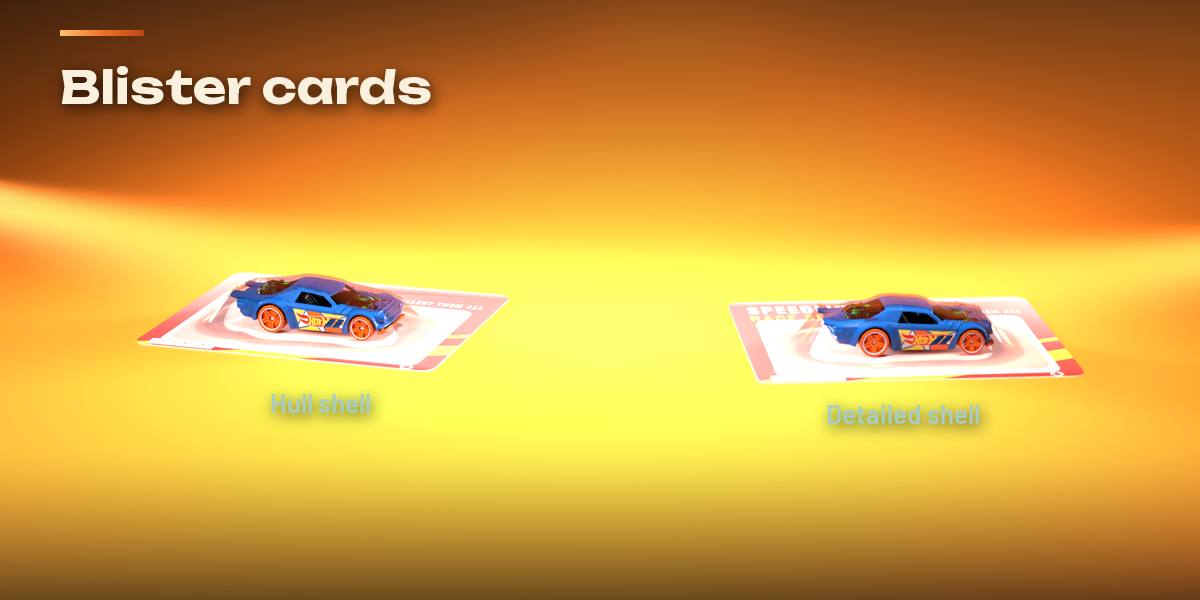
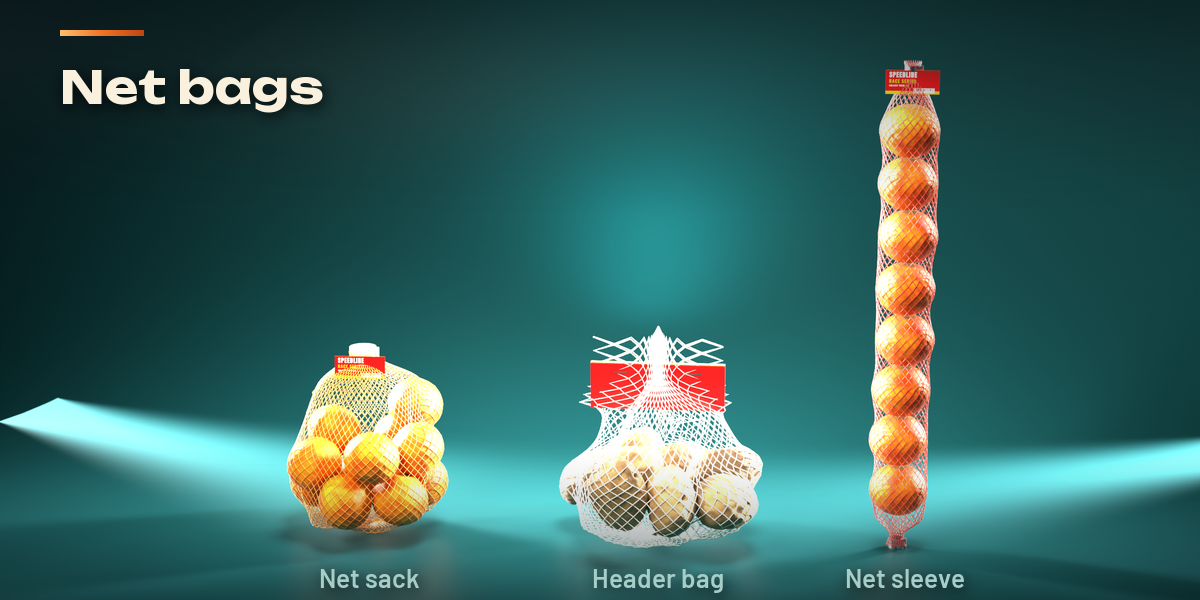
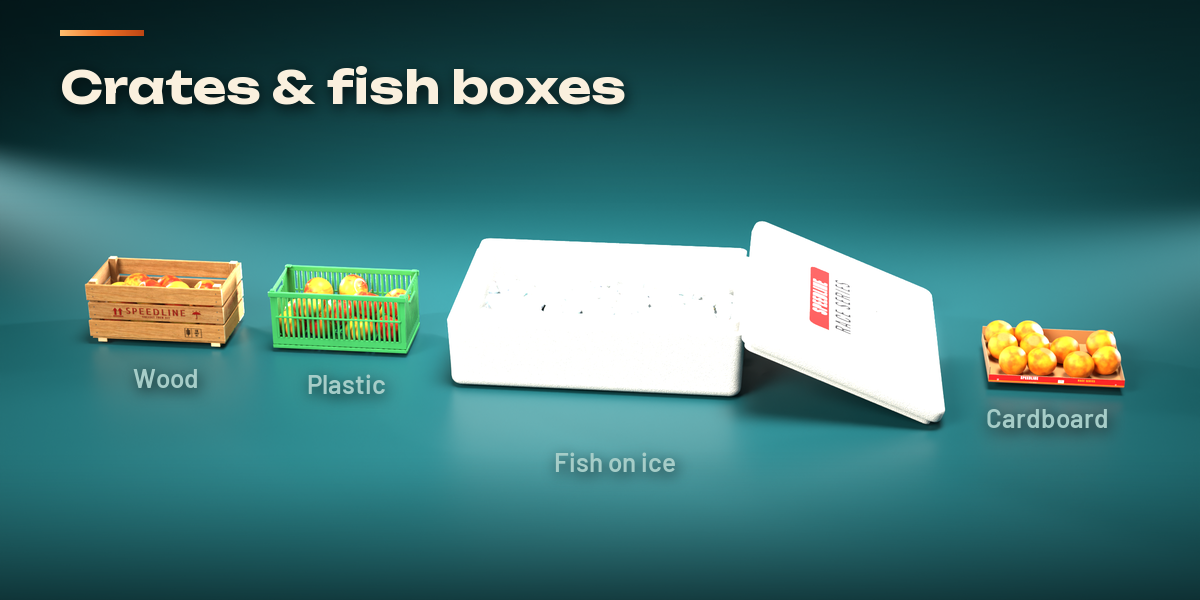
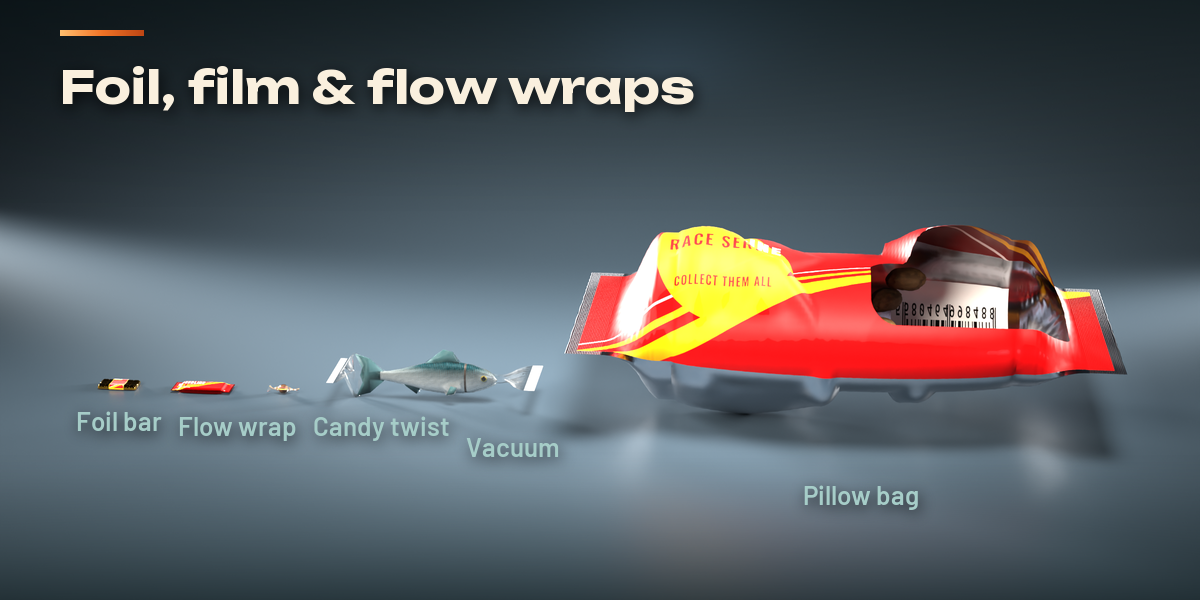
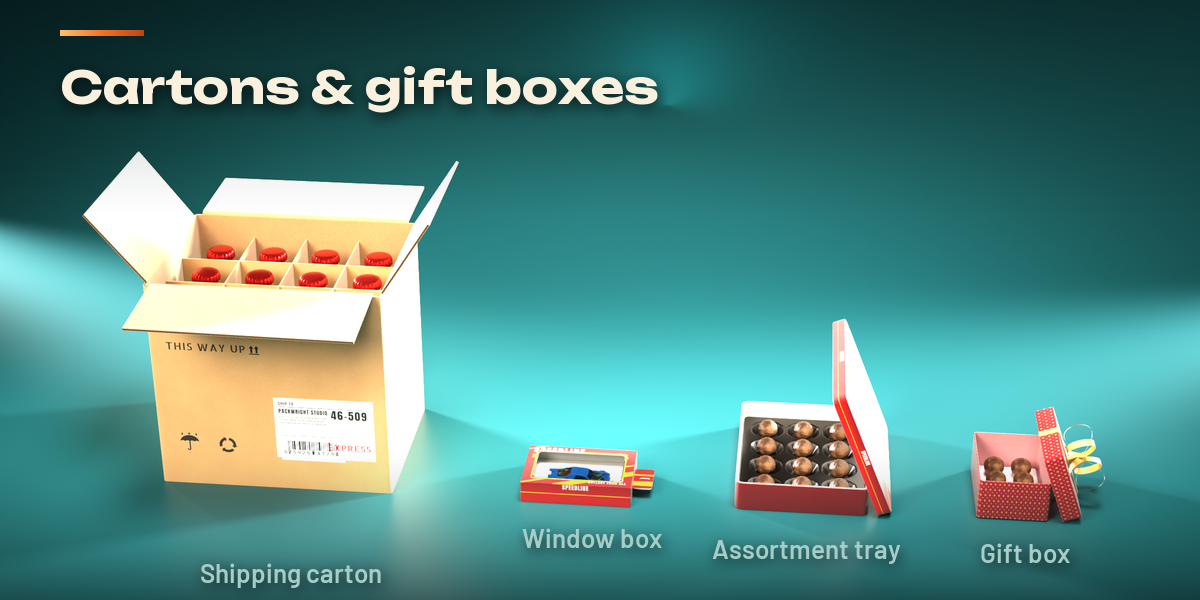
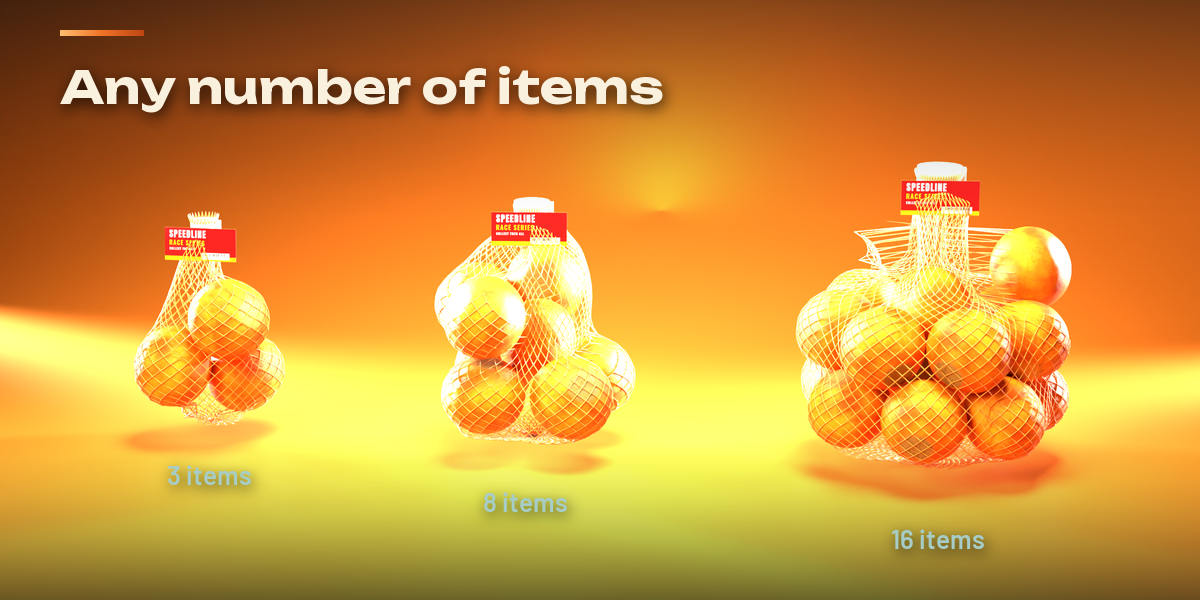
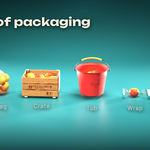
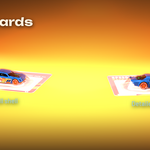
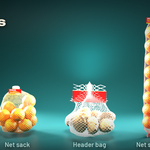
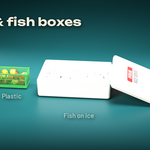
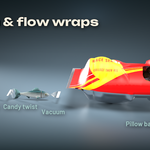
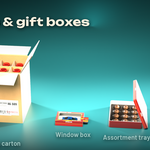
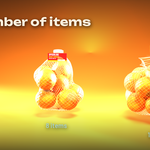
- Step 2, Packaging: click Blister Card, Net Bag, Crate, Tub / Container, Wrap / Bag or Box / Carton. Open Adjust Last Operation (bottom left of the viewport) to set the brand text, print palette, hang hole, flange, item count, arrangement and seed.
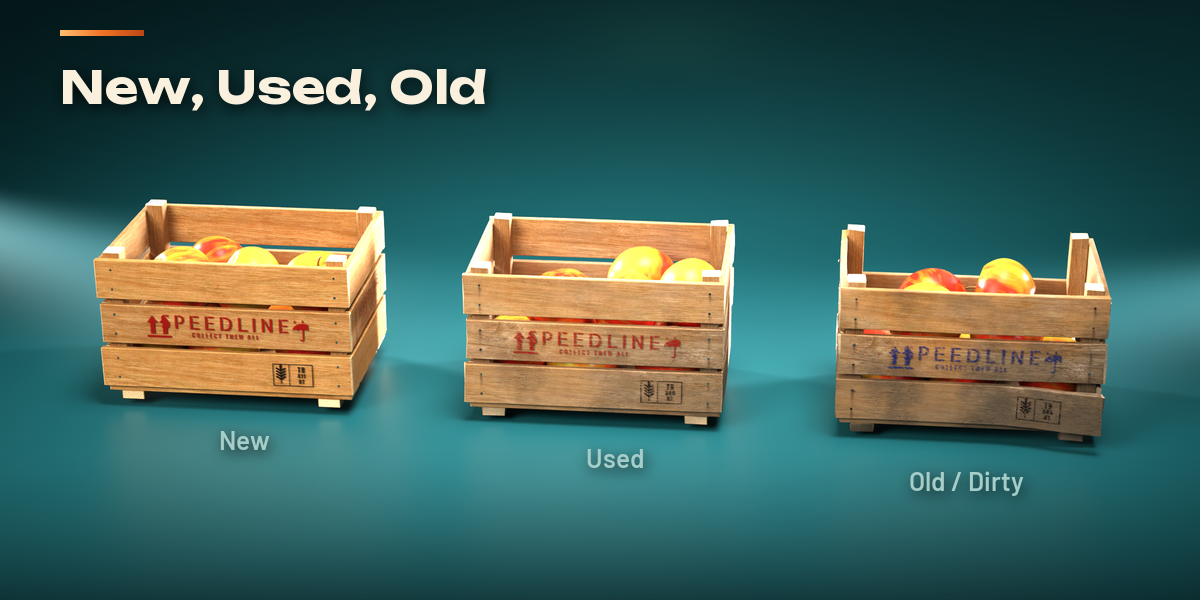
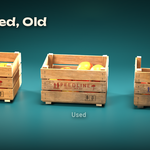
- Select the pack to change it in place. Step 3 offers every style of the family, the New, Used and Old / Dirty condition, a colour button, Re-roll, the blister Hull or Detailed shell, and for nets, crates, tubs and boxes an Items field and a Heap or Rows arrangement. Your product goes back where it was and is packed again.
- Surprise Me picks a random packaging, style, colour and condition: on a selected pack it re-rolls that pack, on a selected product it packs it.
Every pack is one Empty with its parts as children, so you can move, scale, rotate and duplicate it as one object. Use Rendered view in Cycles for the clearest film and glass. Shift+D and Alt+D copies are independent: repacking one never changes the other.
Have questions about this product?
Login to message
| Blender Extension Compatible | Yes |
| Published | about 8 hours ago |
| Blender Version | 4.2 - 5.2 |
| Extension Type | Add-on |
| Render Engine Used | Cycles, Eevee |
| License | GPL |

Discover more products like this
crate box blister shrink wrap carton vacuum packaging net-bag mockup procedural Product packaging retail