 Yoko
Yoko


Extract and palette colors with PalletePixie
Introducing the PalletePixie add-on, which provides intuitive color palette management. Instantly extract beautiful color palettes from illustrations or photos as color references and apply them to objects with a single click. No more wasting time searching for colors, manually entering colors, or using the eyedropper.
This makes color selection faster and more creative for artists, designers, game developers, and all Blender users.
■Key Features
Automatic Color Extraction
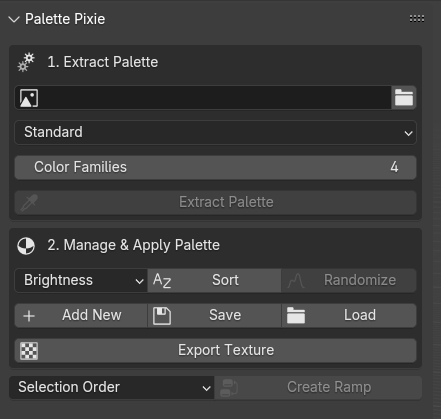
Extract from the image you want to use as a reference. Select an image and press the Extract Palette button to automatically create a color palette. You can also adjust the number of palettes depending on the number of colors you want to extract.
Automatic Color Extraction
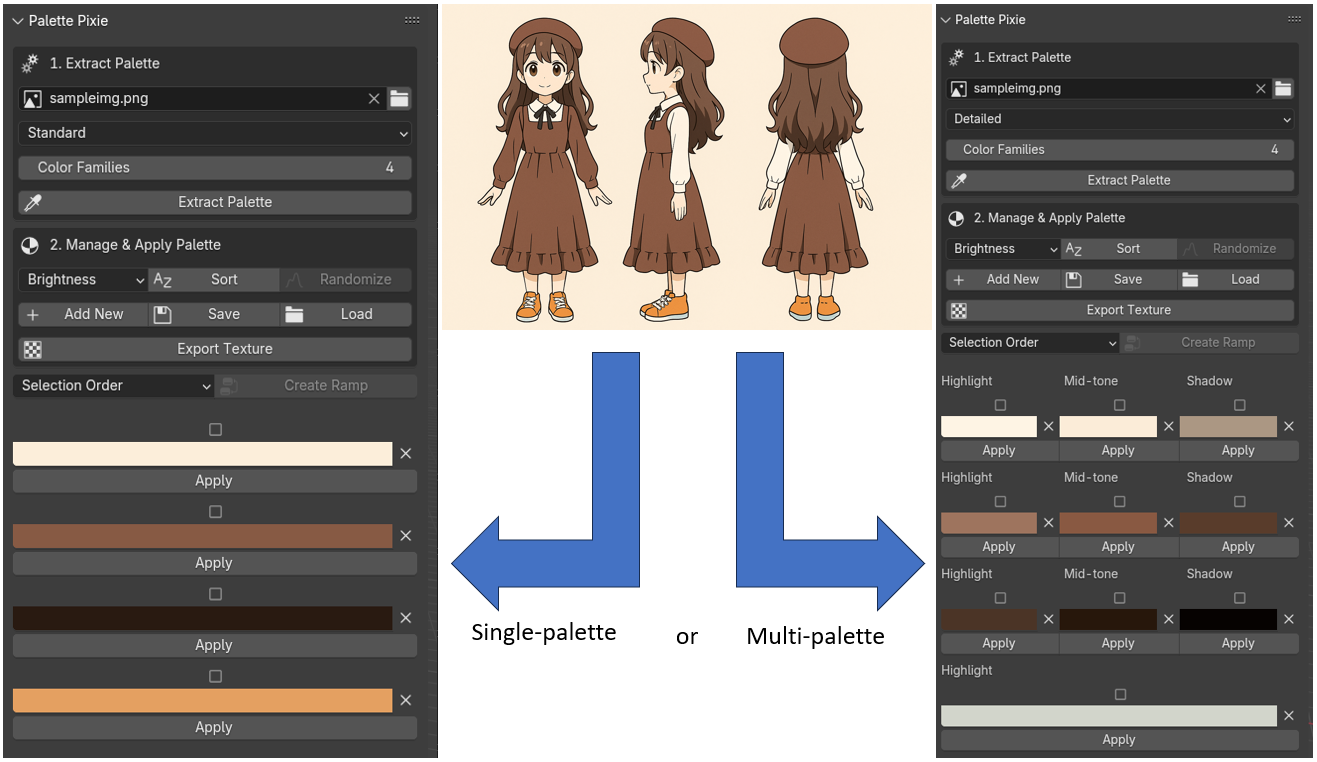
Extract from the image you want to use as a reference. Select an image and press the Extract Palette button to automatically create a color palette. You can also adjust the number of palettes depending on the number of colors you want to extract.
Color Extraction Modes
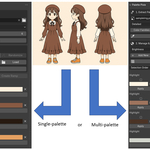
Standard Mode: Quickly extracts the dominant colors from the entire image. Advanced Mode: Automatically extracts and groups three types of colors—high, mid, and shadow—based on the dominant hue.
*In advanced mode, if it is determined that the number of colors is less than three, the number of colors will be limited to one or two.
Applying Palette Colors
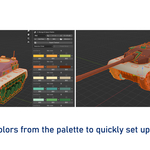
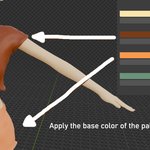
Simply click the Apply button on the palette to automatically set the material to the selected object. If a material is already set, the material will be changed.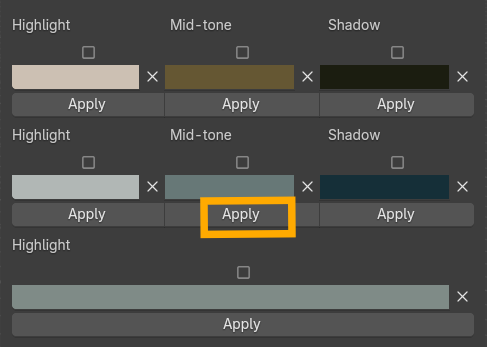
Color ramp creation function
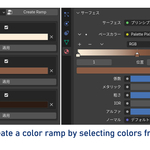
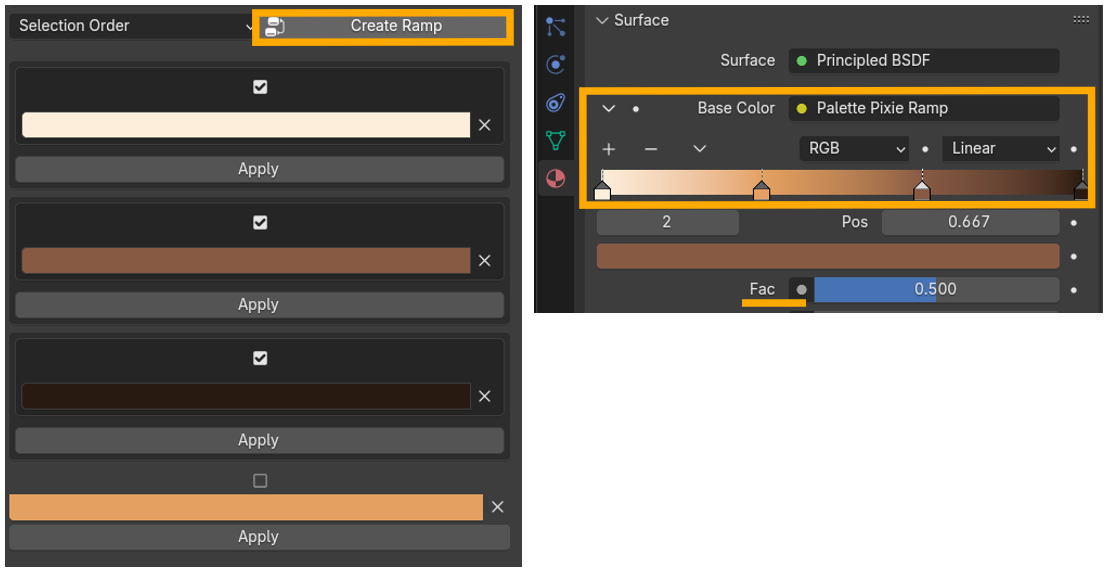
Simply select multiple colors from the palette and press the Create Ramp button to automatically generate a color ramp node in the shader editor and connect it to the base color of the Principle BSDF.
※A material must be created first.
Apply to multiple objects at once
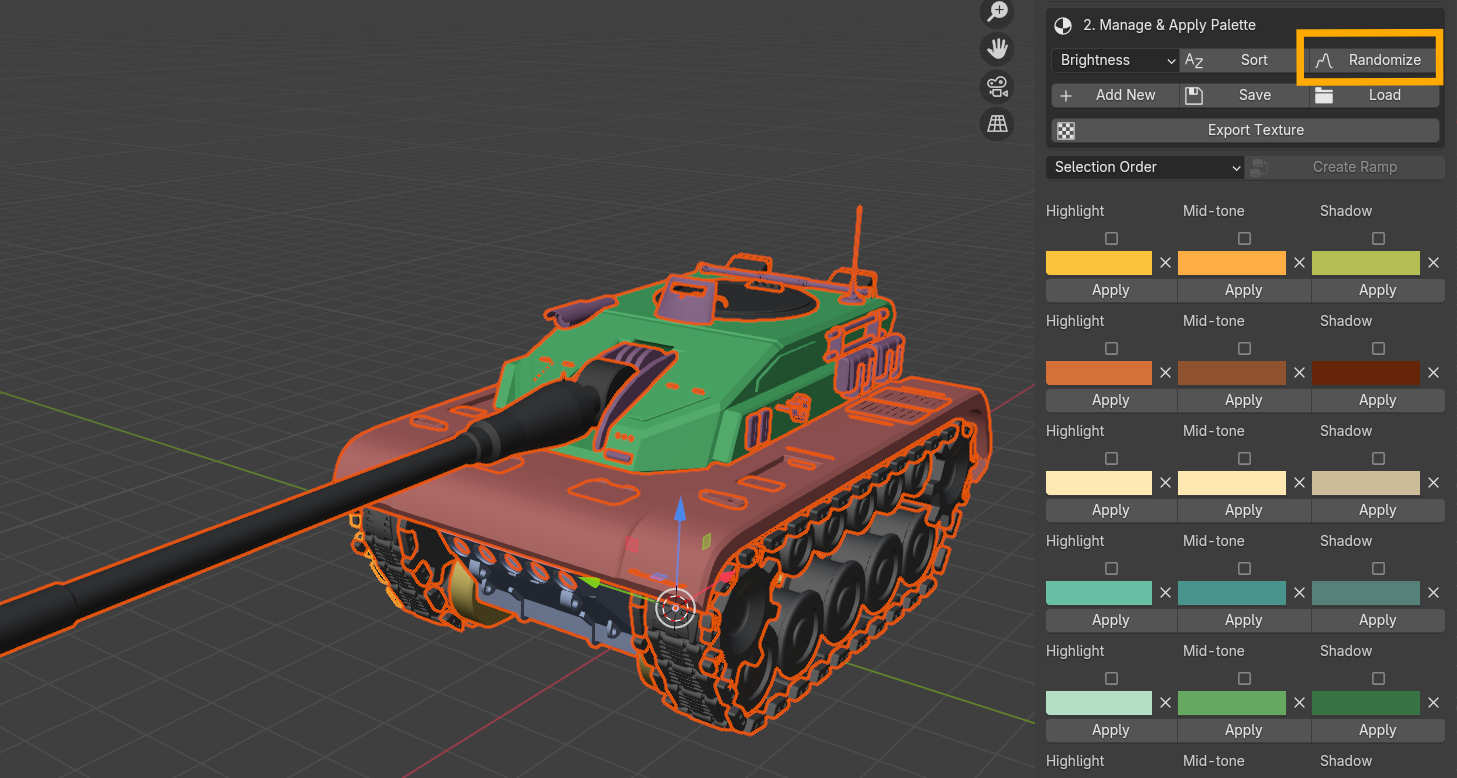
Select multiple objects in your scene and hit the Randomize button to randomly assign colors from the palette to all of them at once, allowing you to quickly explore the color scheme of an entire scene.
■Option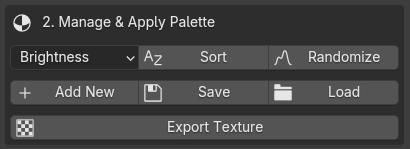
Sorting Color Palettes
To organize a large number of palettes, you can sort them by hue, saturation, or brightness. Select from the drop-down menu and click the sort button.
Adding Color
You can add a palette by clicking the +Add New button. Single color, grayscale ramp, and black & white are available as default. You can change the colors in the added palette to your liking.
You can delete a color by clicking the x button next to it.
Save a color palette
You can save and load palettes in .json. Load your favorite palettes at any time and maintain a consistent art style across projects.
Texture output function
You can output the created palette as a texture (.png) with each column aligned.
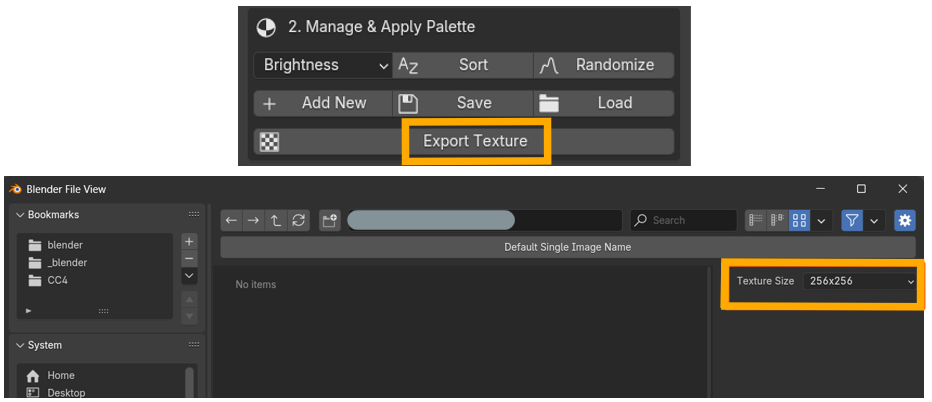
The resolution can be selected from 128px to 1024px and the exported image is square. It is ideal for use in game engines or for texturing using UV mapping. Texture images are automatically loaded, so you can start texturing right away.
■Precautions for use
High-Resolution Loading
The Extract Palette feature analyzes every pixel of the loaded image. Loading very high-resolution (e.g., 4K or 8K) images can take a long time to calculate, which may cause Blender to temporarily become unresponsive.
If your goal is to extract a recommended color palette, resizing the image to approximately 512px–1024px beforehand will improve the add-on's performance and ensure smooth operation.
About Color Management
Color Reproduction
This add-on is designed to display colors accurately using Blender's standard color management (sRGB/Filmic). If used in a special, customized color management environment, such as an OCIO setting, the colors in the UI and the Shader Editor may appear different.
About Material Settings
Node Overrides
The Apply Color and Create Ramp functions directly affect the principle BSDF node of the currently active material. If you have an existing complex node setup, please note that the base color link will be overwritten. It is recommended to duplicate the material before proceeding.
Requires active object These features operate on materials from objects that are selected and active in the scene. If you do not select an object, they will not work.
■Add-on installation
Download the .zip file.
Go to Edit menu -> Preferences -> Add-ons and select Install from Disk.
A Palette Pixie item will be added to the N panel.
■Functionality tested and confirmed (version 1.6.0)
Windows only,
Blender versions 4.4.3 ~ 5.0.0