P.i.m.p. Seam Equalizer & Auto-Normalizer
 dragonseffectgs
in Materials and Shading


# P.I.M.P. Seam Equalizer & Auto-Normalizer
**Version:** 1.0.1
**Compatibility:** Blender 4.2 LTS, 4.3, 4.4, 4.5 LTS, 5.0, 5.1+ (Extension System) & Blender 3.6 LTS–4.1 (Legacy Addon Mode)
**License:** GNU General Public License v3.0 (GPL-3.0-or-later)
**Author:** Patrick Melley (Dragon's Effect Game Studio)
---
## Overview
**P.I.M.P. Seam Equalizer & Auto-Normalizer** is an automated pipeline tool for 3D character artists, technical animators, and game developers working with modular characters, clothing attachments, and multi-part rigs.
It eliminates visible seam splits, broken vertex normal shading, bone roll mismatches, and skin weight bleeding across modular joints for game engines including **Unreal Engine**, **Unity**, **Godot**, **Blender**, **DAZ Studio**, and **Valve Source Engine**.
---
## Step-by-Step Workflow
### Step 1: Fix Seams & Shading (Main Panel)
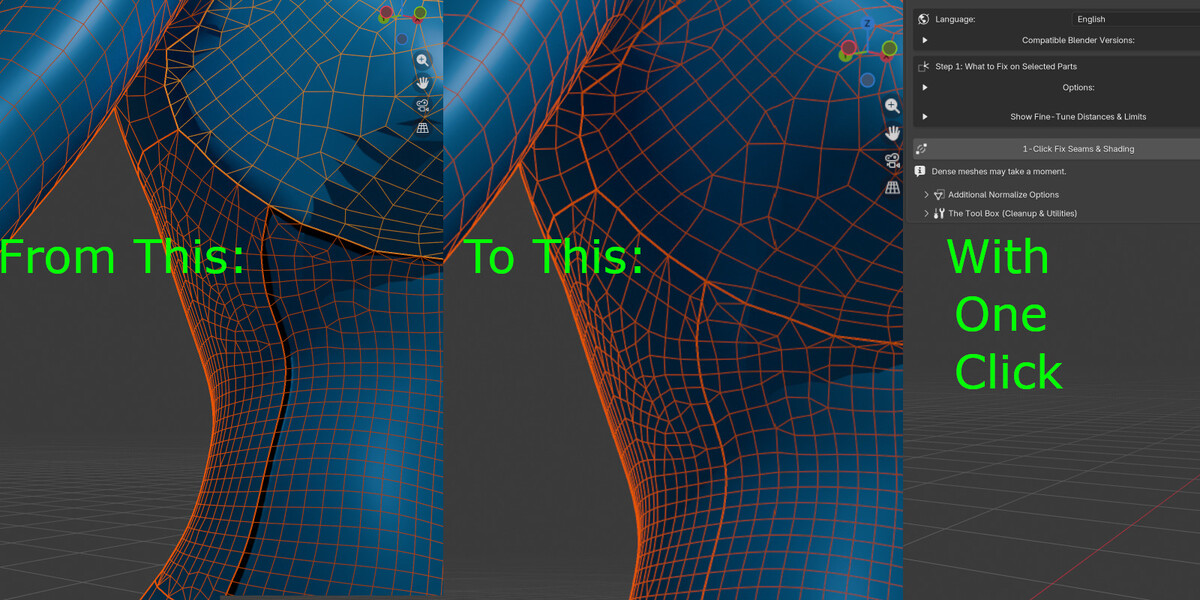
1. Select your modular mesh parts in the 3D Viewport (e.g., Head, Torso, Arms, Legs).
- *Note:* Also works seamlessly if only a single mesh is selected. When 1 mesh is active, it audits flipped normals, applies face-loop smooth shading, and builds a dedicated reference proxy.
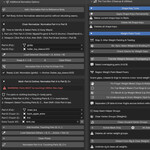
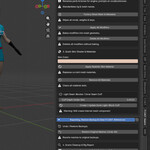
2. In the 3D Viewport sidebar (`N`), navigate to the **P.I.M.P. Seams** tab.
3. Review options:
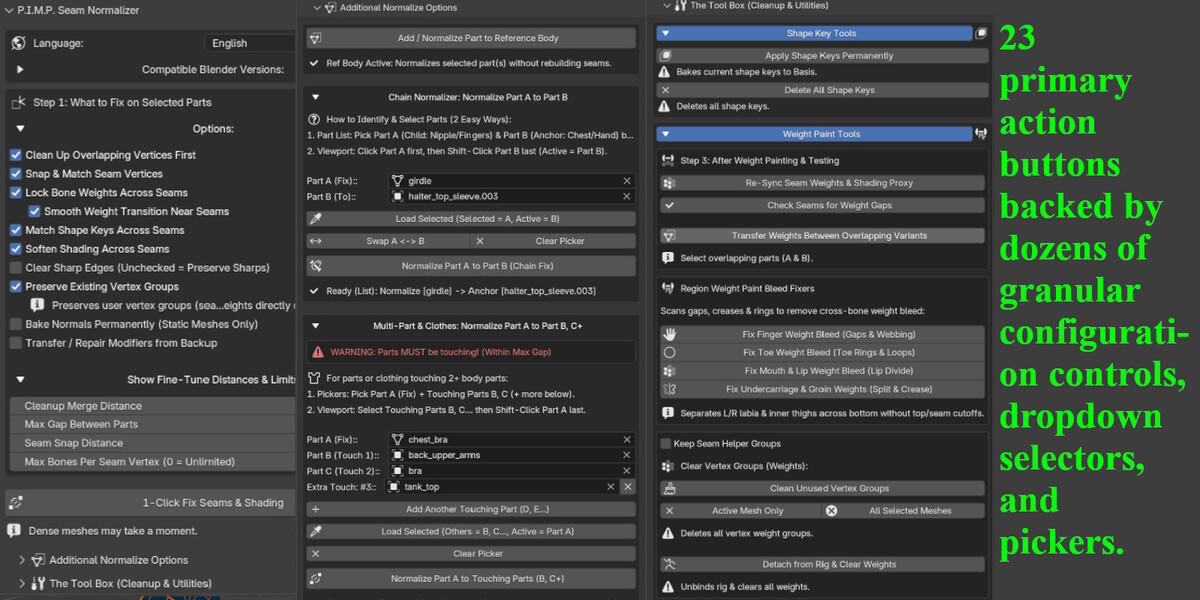
- **Preserve Existing Vertex Groups**: Enabled by default to guarantee user vertex groups and skin weights are untouched.
- **Snap Touching Border Vertices**: Welds coincident seam loops within micro-tolerance before normal transfer.
- **Preserve Shape Keys**: Preserves all existing facial and expression shape keys.
4. Click **Fix Seams & Shading (1-Click)**.
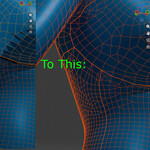
5. Continuous split vertex normals are generated across all touching boundaries without destructive geometry alteration.
---
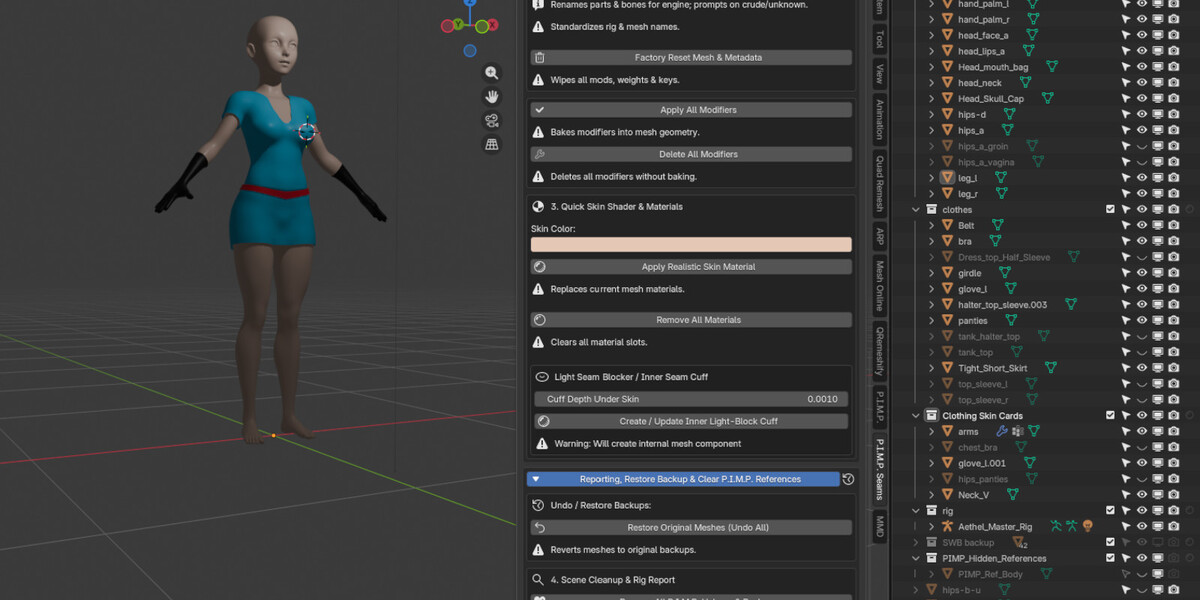
### Step 2: Light Seam Blocker / Inner Seam Cuff (Toolbox > Materials)
*When modular seams show light leakage or background glow in deferred game engines:*
1. Expand the **Toolbox** section and locate **Materials / Light Seam Blocker**.
2. Select your touching modular parts.
3. Click **Generate Light Seam Cuff Blocker**.
4. An internal light-blocking cuff geometry component (`PIMP_Seam_Cuff_Shield`) is constructed behind border edges with an inverted/matte interior shader to prevent light rays from piercing seam boundaries.
---
### Step 3: Post-Rigging Seam Weight Synchronization
*After binding and painting skin weights to your armature:*
1. Select your rigged modular parts and active armature.
2. Under the main panel, click **Synchronize & Lock Seam Weights**.
3. Vertex weights along boundary loops are mathematically matched between adjoining parts so seams never separate or tear apart during extreme poses or physics simulation.
---
## Multi-Part & Layered Clothing Normalizers
- **Part A -> Part B Chain Normalizer**:
Targets specific directional normal matching (e.g., aligning neck normals on a collar directly to the chest body).
- **Multi-Part & Clothes Normalizer (Part A -> B, C, D...)**:
Transfers clean body normals from a base character mesh across multiple overlying garments (shirts, vests, coats, belts) simultaneously without bidirectional doubling or mesh distortion.
---
## Toolbox Utilities
- **Smart Center (Zero World-Z Drift)**:
Centers torso, spine, limbs, and twist bones horizontally inside surrounding mesh volume while strictly locking vertical height ($Z = 0$ shift) to keep collarbones, neck, and shoulders in ideal anatomical alignment.
- *Facial & Head-Rig Shield*: Automatically identifies and 100% skips all face bones, jaw, tongue, teeth, eyes, eyebrows, and micro-rig UI pickers.
- **Engine Bone Roll Aligner**:
Calculates and aligns bone rolls for your target game engine (**Unreal**, **Unity**, **Godot**, **Blender**, **DAZ**, or **Source**) while skipping facial rigs.
- **6-Engine Bone & Mesh Renamer**:
Standardizes bone and mesh names to engine-specific hierarchies. Standardizes side suffixes (`_l`, `_r`), replaces numeric duplicate extensions (`.001` -> `_a`, `_b`), cleans crude/informal naming with user prompts, and uses spatial 3D coordinates to identify unmapped joints.
- **Regional Weight-Bleed Cleaner**:
One-click removal of accidental weight bleeding across opposite arms, legs, or between chin and collarbone.
- **Clean Unused Vertex Groups**:
Audits mesh vertex groups and removes empty, zero-weighted groups while strictly protecting vertex groups utilized by Armature, Mask, Lattice, Geometry Nodes modifiers, or Shape Keys.
---
## Non-Destructive Safety & Restore
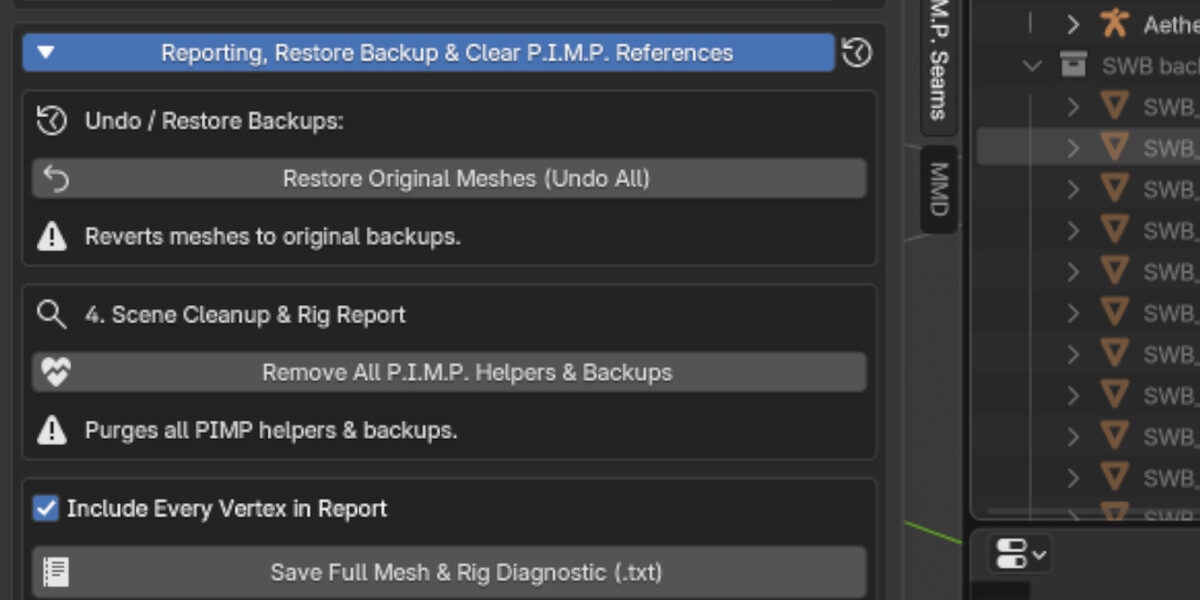
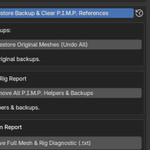
- **Restore Original Geometry**: Reverts all normal modifiers, temporary proxy meshes, and backups, returning models to their exact pre-operation state.
- **Scoped Data Safety**: The internal garbage collector (`purge_orphan_meshes`) strictly cleans temporary P.I.M.P. helper datablocks (`PIMP_*`, `_pimp_tmp_*`) and will never delete unassigned user meshes, kitbash components, or scratch models in your `.blend` file.
---
## Permissions
- `files`: Declared in `blender_manifest.toml` to allow exporting user-initiated diagnostic reports and rig audit logs (`Pimp-rig-report.txt`) to disk upon clicking **Export Diagnostic Report**. No network access or external binary processes are used.
---
## Installation
### Blender 4.2 LTS and Newer:
1. Open Blender and go to **Edit > Preferences > Get Extensions**.
2. Click the top-right menu and choose **Install from Disk...**.
3. Select `pimp_seam_normalizer-1.0.1.zip`.
### Blender 3.6 LTS – 4.1:
1. Go to **Edit > Preferences > Add-ons > Install...**.
2. Select `pimp_seam_normalizer-1.0.1.zip`.
3. Enable **Mesh: P.I.M.P. Seam Equalizer & Auto-Normalizer**.
 Included
Includes 12 months of
- Support from dragonseffectgs
- Product updates
Extend this product’s Support Period +12 months: 50% of product price
Have questions before purchasing?
Login to message
| Blender Extension Compatible | Yes |
| Published | about 2 hours ago |
| Blender Version | 4.2 - 5.2 |
| Extension Type | Add-on |
| Render Engine Used | Cycles, Eevee |
| License | GPL |
dragonseffectgs
Discover more products like this
seams normals Multilingual modular mesh cleaner toolkit one click fix