Pinpoint Outliner | Auto-Expand Deep Bones & Sync Selection
 Hugu's Works


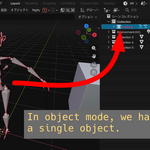
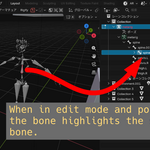
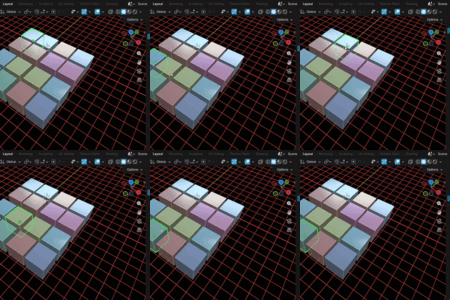
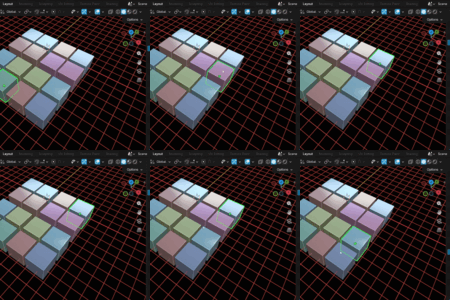
Pinpoint Outliner | Auto-Expand Deep Bones & Sync Selection - Documentation
1. Product Overview
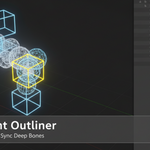
Pinpoint Outliner is a Blender add-on designed to significantly enhance the functionality of the Outliner editor. It automatically expands the hierarchy and highlights the corresponding item in the Outliner when an object or bone is selected.
This add-on is particularly powerful for Deep Bones selection: when you select a bone deep within a rig's hierarchy, the entire parent chain is instantly expanded and highlighted, allowing users to "Pinpoint" its exact location. This dramatically improves workflow efficiency in complex scenes and rigs.
Key Features:
Automatic Sync: Instantly jumps to and expands the hierarchy of the currently active object or bone in the Outliner.
Deep Bone Support: When a bone is selected in Pose Mode or Edit Mode, the entire parent chain leading up to that bone is automatically expanded. (Industry-first implementation without changing modes!)
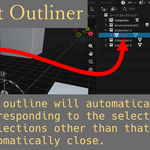
Collapse Others Option: Automatically collapses other irrelevant hierarchies, keeping your Outliner perpetually clean and organized.
2. Installation
Keep the downloaded file pinpoint_outliner.zip compressed (do not extract it).
Open Blender and go to Edit > Preferences.
Navigate to the Add-ons tab.
Click the Install... button at the top.
Select the pinpoint_outliner.zip file and click Install Add-on.
Search for Interface: Pinpoint Outliner in the add-on list, and check the box to enable it.
3. How to Use
Pinpoint Outliner is ready to use once enabled, but you can control its activation and options directly from the Outliner header.
3.1. Basic Operation
Open the Outliner Editor in a Blender workspace.
-
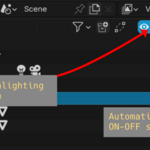
An ON/OFF toggle button for the add-on will appear in the Outliner window's header (top bar).
Icon and Text: Pinpoint (Icon: Eye / HIDE_OFF)
Ensure this button is ON (Eye icon is visible) for the feature to be active.
3.2. Behavior on Object Selection
When you select any object in the 3D Viewport, its hierarchy in the Outliner will automatically expand and the object will be highlighted.
3.3. Behavior on Bone Selection (Deep Bones Support)
Switch an Armature to Pose Mode or Edit Mode and select a bone deep within the hierarchy (e.g., a finger tip bone).
The Outliner will automatically expand the Armature object and the entire parent chain leading down to the selected bone, allowing for immediate visualization of the bone's location and structural context.
3.4. Toggle and Options
You can adjust the following options by clicking the icon next to the Pinpoint button in the Outliner header, or via the Add-on Preferences:
| Setting | Icon | Description |
| Pinpoint Outliner Active | HIDE_OFF / HIDE_ON | Toggles the overall function ON or OFF. |
| Collapse Others | COLLAPSEMENU | When ON, automatically collapses other hierarchies that are not related to the active object/bone. This keeps the Outliner tidy and improves visibility. (Recommended setting) |
4. Preferences
In the Edit > Preferences > Add-ons tab, find the Pinpoint Outliner entry to access its detailed settings.
Pinpoint Outliner Active: Global ON/OFF for the functionality.
Collapse Others: Same as the header option; toggles whether other hierarchies are collapsed.
5. Troubleshooting & FAQ
Q: The add-on is enabled, but nothing happens when I select an object.
A: First, verify that the Pinpoint button in the Outliner header is ON (the icon should look like an open eye / HIDE_OFF).
If the issue persists, try disabling the add-on, restarting Blender, and then re-enabling it.
Q: The Outliner seems to flicker or is constantly expanding.
A: The add-on uses the depsgraph_update_post handler and a small timer delay (0.12 seconds) to safely detect selection changes and prevent performance overhead.
While this is robust for general use, extremely complex scenes or low-end systems might experience slight delays.
Q: Which modes are supported for the Deep Bones feature?
A: It works in both Pose Mode and Edit Mode. When an Armature is selected in Object Mode, it is treated as a regular object.
Q: When Collapse Others is ON, all objects in other collections are closed. Is this intended?
A: Yes, the Collapse Others feature is designed to minimize and fold away hierarchies irrelevant to the currently active item, thereby saving vertical space in the Outliner and improving focus. If this behavior is not desired for your workflow, please turn this option OFF.
6. License and Support
License: This add-on is provided under the terms of the GNU General Public License (GPL) Version 3. Please refer to the license.txt file included with the product for full details.
Support: For bug reports or inquiries, please contact us via [the support form on the Superhive Market product page / or the specified contact method].
Have questions about this product?
Login to message
| Sales | 10+ |
| Published | 10 months ago |
| Blender Version | 3.3 - 5.0 |
| Extension Type | N/A |
| License | GPL |
Discover more products like this
3DWorkflow 3D Production hierarchy Blender outliner bone animation sync 3d_rigging armature utility