 BlendR6




PixelAI Documentation
Blender add-on documentation for product pages and customer onboarding
| Blender 4.0+ | Platform Windows | Backend Local AI Terminal |
Overview
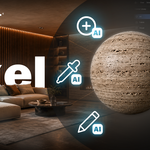
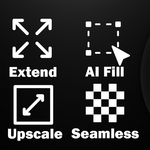
PixelAI is a Blender add-on designed to bring AI-assisted material creation, image editing, image layers, texture generation, upscaling, and render enhancement directly into Blender.
Requirements
- Blender 4.0 or newer.
- Windows.
- PixelAI local AI Terminal backend, installed automatically by the PixelAI installer.
- No manual backend configuration is required for normal installation.
Installation
- Download the PixelAI installer or Blender add-on zip.
- If using the installer, run PixelAI_Setup.exe and follow the setup process.
- If installing manually, open Blender and go to Edit > Preferences > Add-ons > Install.
- Select the PixelAI add-on zip file.
- Enable PixelAI in the add-on list.
- PixelAI panels will appear in Blender's Viewport, Shader Editor, and Image Editor side panels.
Main Features
| Feature | Description |
|---|---|
| AI Material Workflow | Create and rebuild materials from renders, images, or prompts. PixelAI can assist with generating textures, preparing material maps, and applying generated results to Blender objects. |
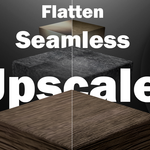
| PBR Texture Tools | Generate and process PBR texture sets for material creation and shader-based workflows. |
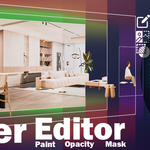
| Image Editor Tools | Use image layers, layer masks, selection tools, brushes, transforms, upscaling, and render-quality enhancement directly inside Blender's Image Editor. |
| Image Layer Workspace | Work with layer visibility, locking, opacity, blend modes, masks, transforms, and saving results back to the source image. |
| Shader Editor Tools | Generate textures, process images, and manage material-related workflows from shader projects. |
| Local AI Backend | PixelAI uses a local AI Terminal backend for AI-powered features. The installer handles setup automatically for normal use. |
Basic Workflow
- Open Blender and enable PixelAI.
- Open the PixelAI panel in the relevant editor: 3D Viewport, Shader Editor, or Image Editor.
- Start the local backend if it is not already running.
- Choose the PixelAI tool you want to use.
- Generate, edit, upscale, or process your image or material.
- Apply or save the result inside Blender.
Saving Image Layer Results
When using Image Layer tools, use the PixelAI Image Layer Save button to apply the layered result back to the source image. After that, use Blender's normal image saving workflow when needed.
Notes
- AI generation features depend on the installed backend and available models.
- Large images and complex layer stacks may require more GPU or CPU memory.
- For best results, restart Blender after installing or updating PixelAI.
Support
If a tool does not appear or the backend does not start, first confirm that PixelAI is enabled in Blender Preferences and that the installer completed successfully. Restarting Blender after installation is recommended.
Have questions about this product?
Login to message
| Sales | 10+ |
| Published | 5 months ago |
| Blender Version | 4.0 - 5.1 |
| Extension Type | N/A |
| Render Engine Used | Arnold, Blender-Internal, Blender-Game-Engine, Cycles, Eevee, Freestyle, Luxrender, Mental-Ray, Octane, Vray, Yafaray |
| License | GPL |
Discover more products like this
AI-rendering Material ai ai image editing texture 2d image to 3d