Poly Hunter
 Juno Mars 3D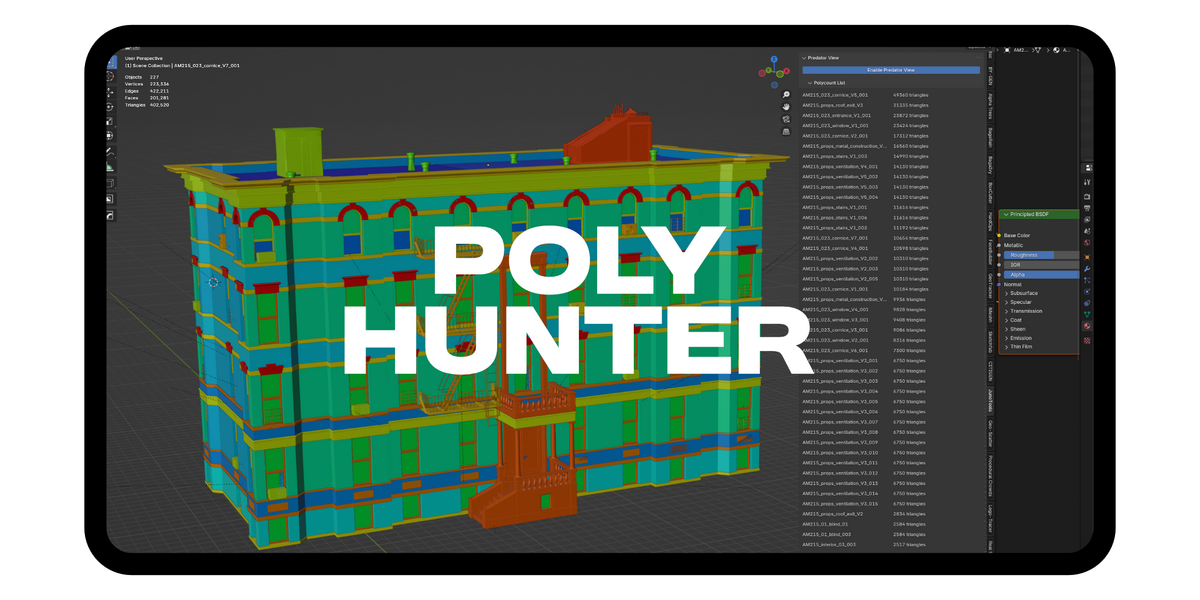
PolyHunter Addon Documentation
Welcome to the official documentation for the PolyHunter addon for Blender. This guide will walk you through its features, installation, and usage.
Author: Juno Mars 3D
Version: 1.6.0
Blender Compatibility: 4.0 or higher
Overview 🎯
PolyHunter is a powerful utility addon designed to streamline your 3D modeling and optimization workflow within Blender. It provides two core functionalities:
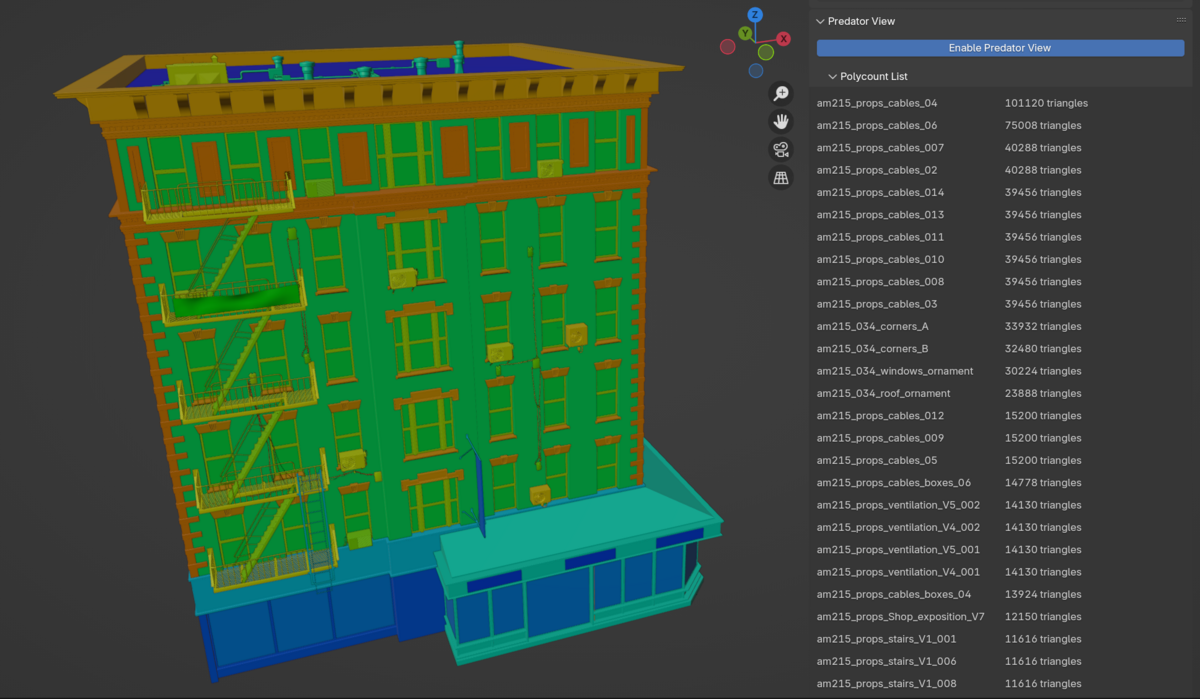
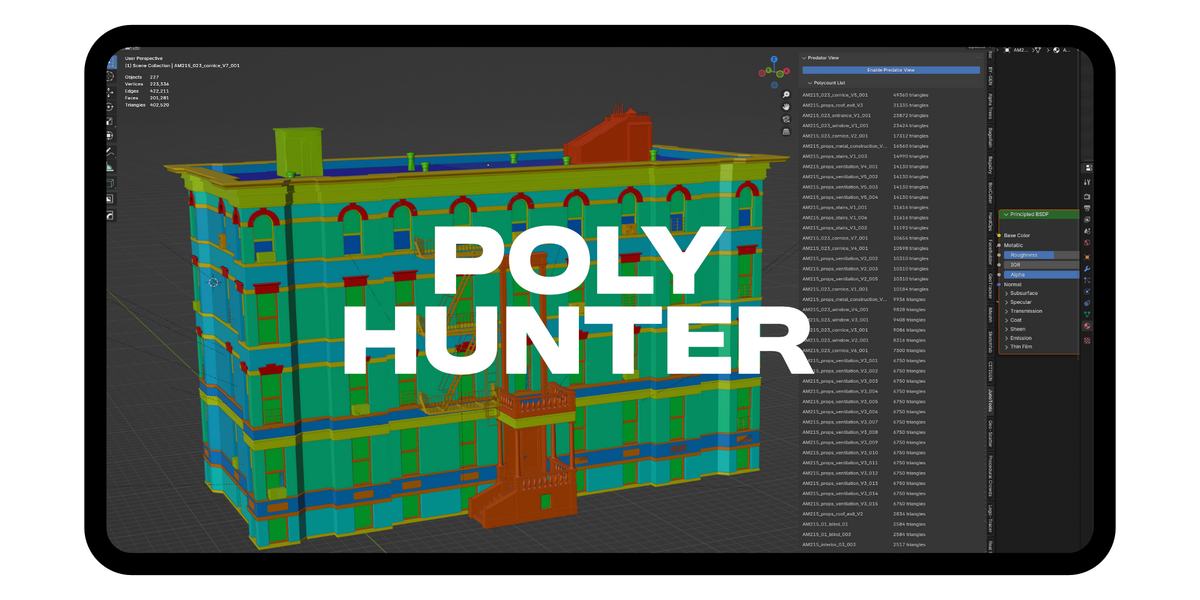
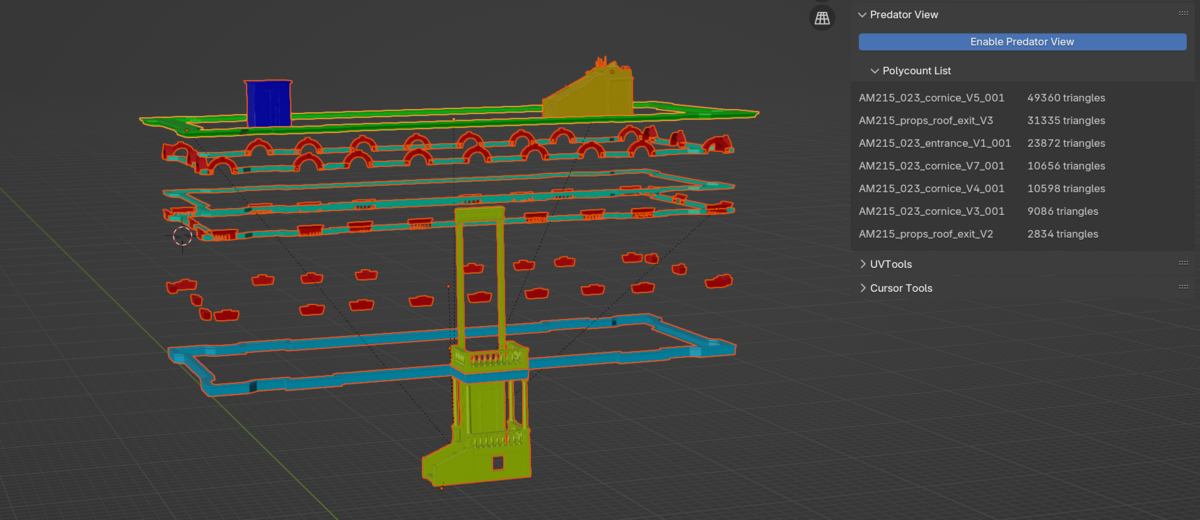
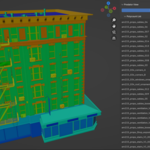
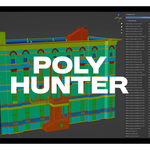
Live Polycount Visualization: Instantly identify the heaviest objects in your scene with a "heat map" style color overlay in the 3D viewport. Objects with a low triangle count appear blue, while high-poly objects grade through green, yellow, and finally red.
Optimization Organization: A set of tools to quickly collect, manage, decimate, and prepare high-poly models using a collection-based system. Collect either into the Bakedowns collection, or Decimate collection. Then use decimate to see the results. (Default decimate value is .333, but many models may accept up to .2) Bakedowns is designed for your models that require special attention, or could be made even lower poly by making a model by hand to bake it's data to.
The entire toolset is conveniently located in the 3D View's sidebar (N key) under the "JunoTools" tab.
Key Features ✨
Real-time Color Feedback: The viewport coloring updates automatically as you model or modify objects.
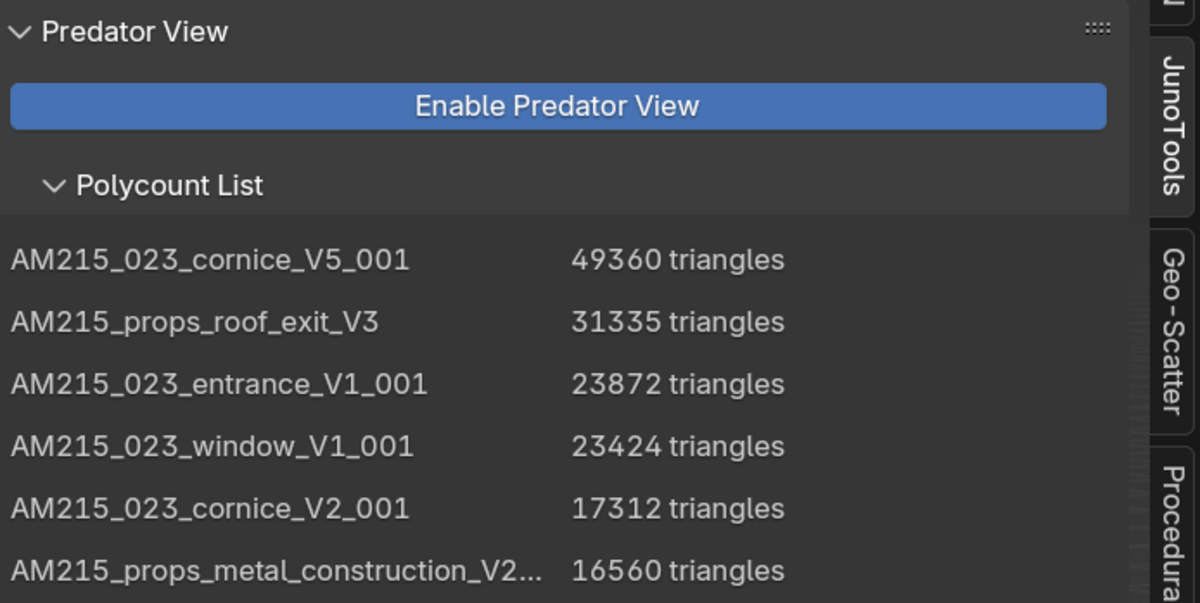
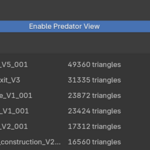
Sorted Polycount List: See a list of all visible mesh objects, sorted from highest to lowest triangle count.
Quick Selection: Click any object in the list to instantly select it in the viewport. Use Shift-Click to add to your current selection.
Decimation Management: Quickly send objects to a "Decimate" collection.
One-Click Processing: Add a
Decimatemodifier and enableAuto Smoothon all objects in the "Decimate" collection with a single button.Safe Reversion: Remove all modifiers and restore the original
Auto Smoothsettings on your decimated objects just as easily.Customizable UI: Change the addon's button text and status indicator to your liking via the Addon Preferences.
Installation & Setup 🛠️
Download the
polyhunterV#.zipfile.In Blender, go to
Edit > Preferences > Add-ons.Click the Install... button and navigate to the
polyhunterV#.zip file you downloaded.Find "PolyHunter" in the addon list and check the box next to it to enable it.
The PolyHunter panel will now be available in the 3D Viewport's Sidebar (press
Nto open) under the "JunoTools" tab.
How to Use 📖
Activating PolyHunter
To begin, simply click the main button at the top of the PolyHunter panel. By default, it's labeled "Enable PolyHunter".
When activated:
The 3D Viewport shading will automatically switch to
Solidwith the color type set toObject.Visible mesh objects will be colored according to their triangle count.
The Decimation Tools and Polycount List will appear in the panel.
Clicking the button again ("Disable PolyHunter") will restore your original viewport colors and shading settings.
The Polycount List
This list is your central hub for identifying heavy assets.
It displays every visible mesh object and its current triangle count.
The list is sorted in descending order, putting the most complex objects at the top.
Click an object's name to select it. Shift-click to add it to your selection.
The Decimation Workflow
This workflow is designed to be a safe, reversible way to create optimized versions of your models within Blender.
Step 1: Isolate Objects for Decimation
Select one or more high-poly objects in the viewport that you wish to optimize. In the Decimation Tools panel, click the "Decimate" button. This will move your selected objects into a dedicated collection named "Decimate".
Step 2: Process the Collection
Click the "Process Decimates" button. This performs two actions on every mesh object inside the "Decimate" collection:
It stores the object's original
Auto Smoothsetting in memory.It adds a
Decimatemodifier (Collapse type, with a default ratio of 0.2).It enables
Shade Auto Smoothto help preserve sharp edges on the newly decimated mesh.
You can now go to the Modifiers tab for each object and adjust the Decimate ratio to your liking.
Step 3: Revert the Changes
If you're unhappy with the results or want to go back to the original high-poly model, simply click the "Undo Decimates" button. This will:
Remove all modifiers from every object in the "Decimate" collection.
Restore the original
Auto Smoothsetting that was saved in Step 2.
⚠️ Important: The "Undo Decimates" operator removes ALL modifiers on the objects, not just the one added by the addon.
Addon Preferences ⚙️
You can customize the main button's appearance by going to Edit > Preferences > Add-ons and finding PolyHunter.
Use Custom Button Text: Check this to override the default button labels.
Custom Button Text: Set the text that appears on the main activation button.
Active Status Text: Set the text that appears next to the button when PolyHunter is enabled (default is "Enabled").
Have questions about this product?
Login to message
| Published | almost 2 years ago |
| Blender Version | 4.0 - 5.2 |
| Extension Type | N/A |
| License | GPL |
Discover more products like this
poly hunter Poly-Hunter 3D Workflow Optimization Scene Optimization 3D asset optimization 3d Low Poly