 Kaan S.
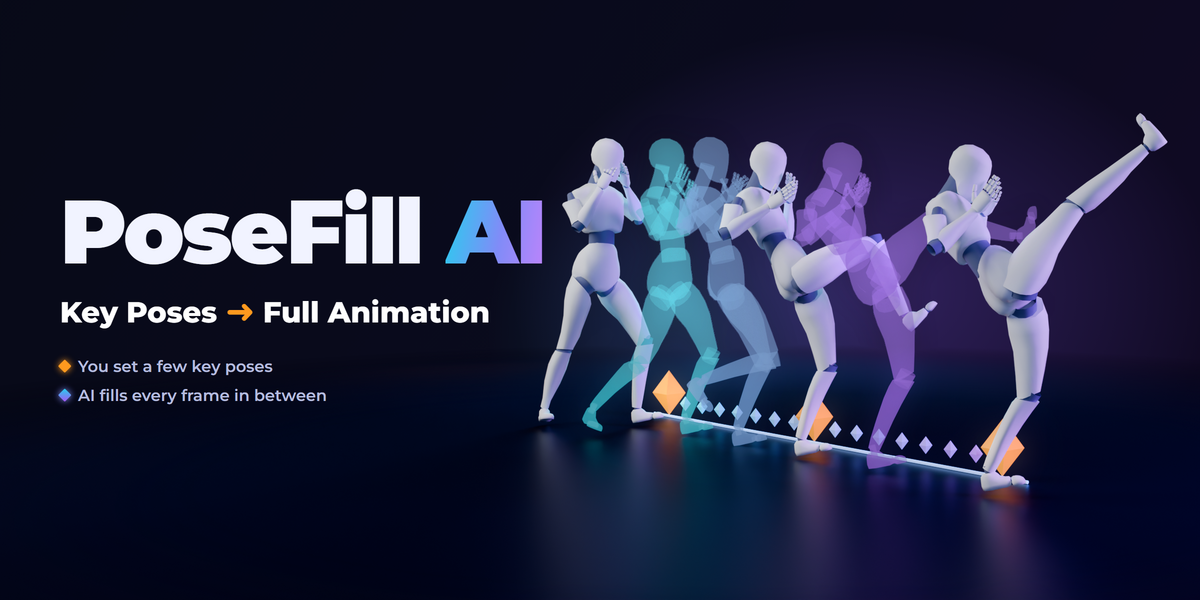
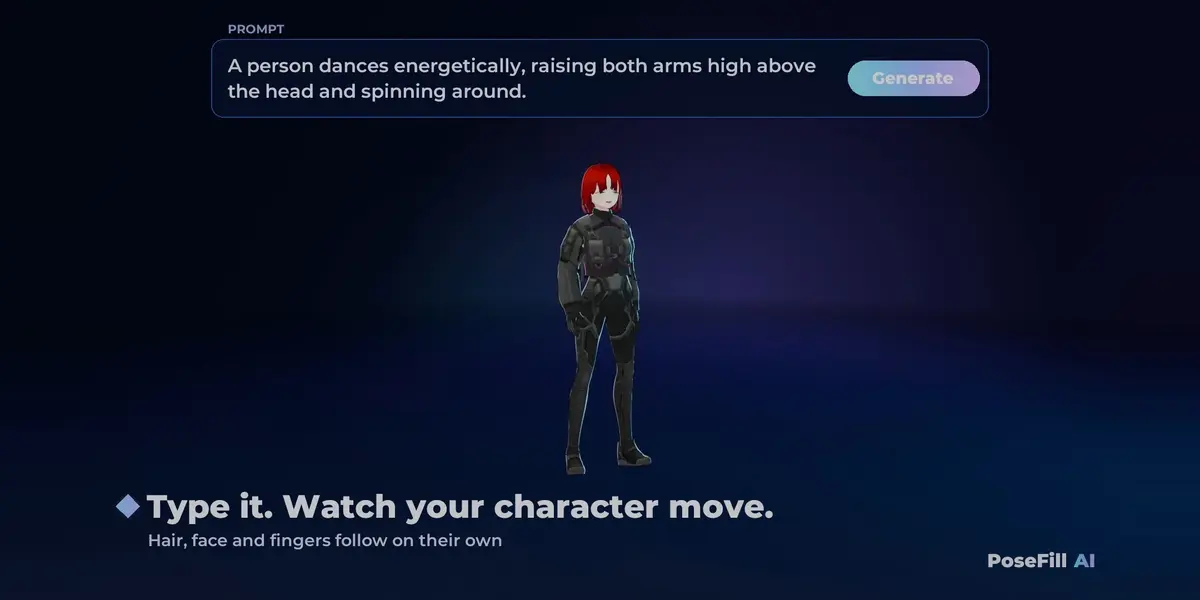
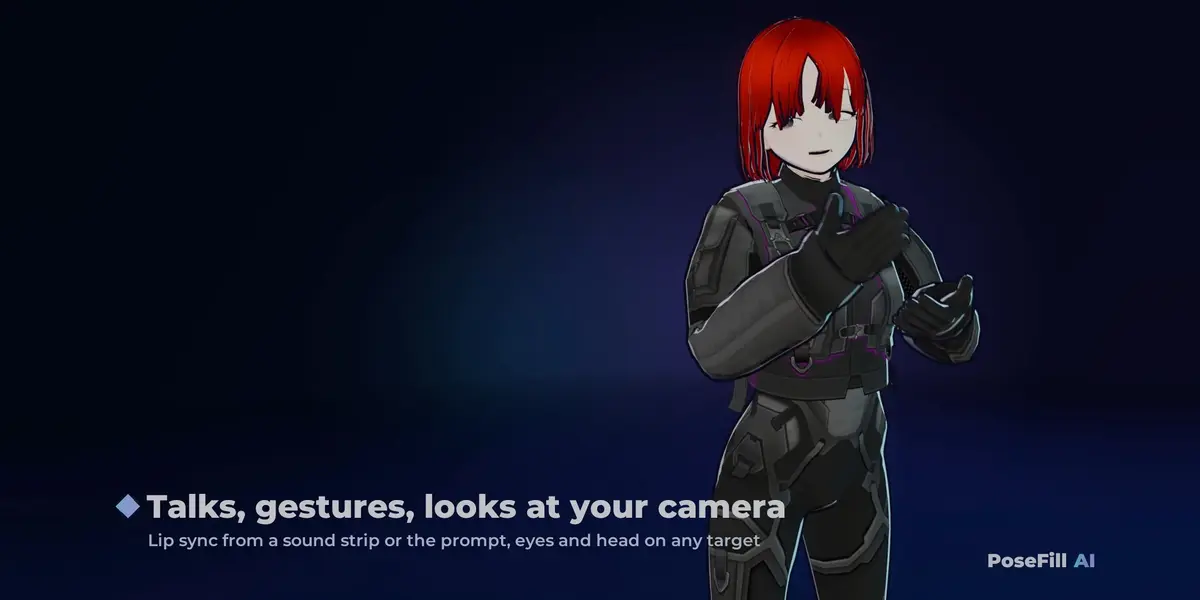
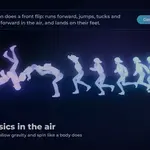
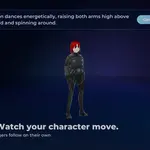
PoseFill AI generates character animation from a text prompt and a few key poses, on your own rig, inside Blender. The AI (NVIDIA Kimodo) runs locally on your computer.
1. Install
- In Blender: Edit > Preferences > Get Extensions, then the drop-down at the top right > Install from Disk… > pick
posefill_ai-0.1.0.zip. - In the 3D Viewport press
Nand open the PoseFill tab. - Press Install AI Engine. The dialog shows the download size, where it installs and the licenses. Tick I accept these licenses and press Install.
- About 22 GB is downloaded and about 30 GB of disk is used. You can keep working while it installs. The panel shows the progress.
- It installs to
%LOCALAPPDATA%\PoseFill\engine. To use another drive, set Install location in the add-on preferences before installing.
- When the panel says AI engine installed, you are ready. From now on the engine starts by itself in the background when you open the panel, and stops when Blender closes. No internet is needed after this.
To uninstall the engine, use Remove AI Engine in the add-on preferences. It deletes only what the installer put there.
2. Your first animation
- Select your character's armature (or any of its meshes) and press Animate This Character. PoseFill matches the bones automatically. Check that Bones matched shows the hips, legs and arms.
- Set the frame range on the timeline (up to 30 seconds).
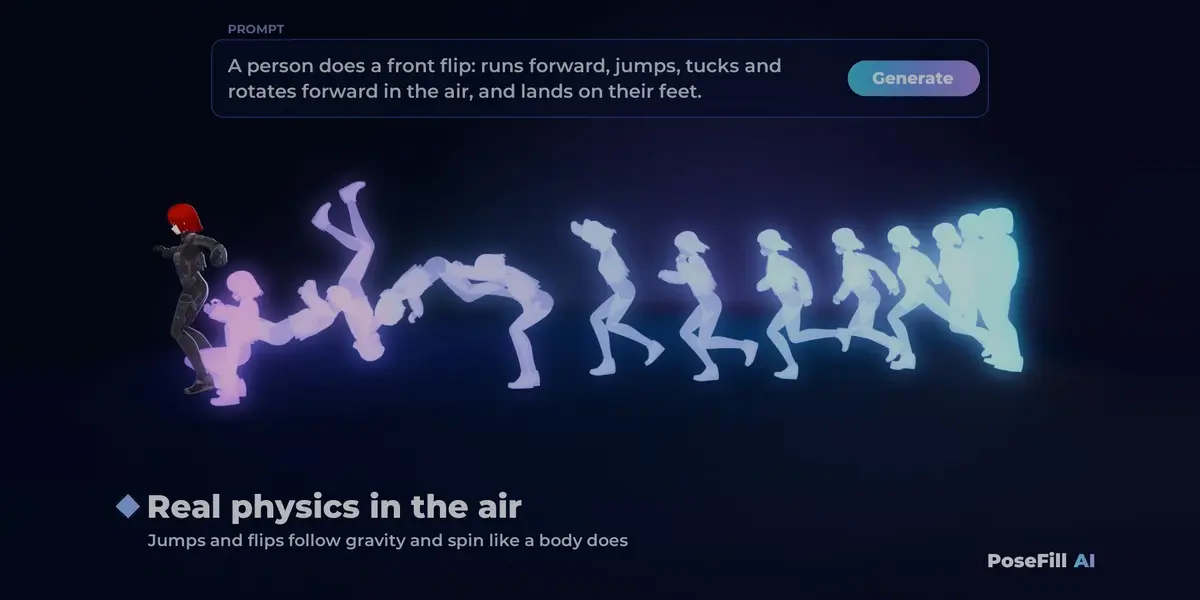
- Type what happens, for example
walks forward, stops and waves, or pick one from Ready-made motions. - Press Generate Motion. The first result is put on your character. Under Results you can switch to the others.
- Like one? Press Keep. It gets a name from the prompt and goes into Saved motions. The next Generate only replaces results you didn't keep.
The first generate after starting Blender takes longer because the model loads into memory.
3. Key poses
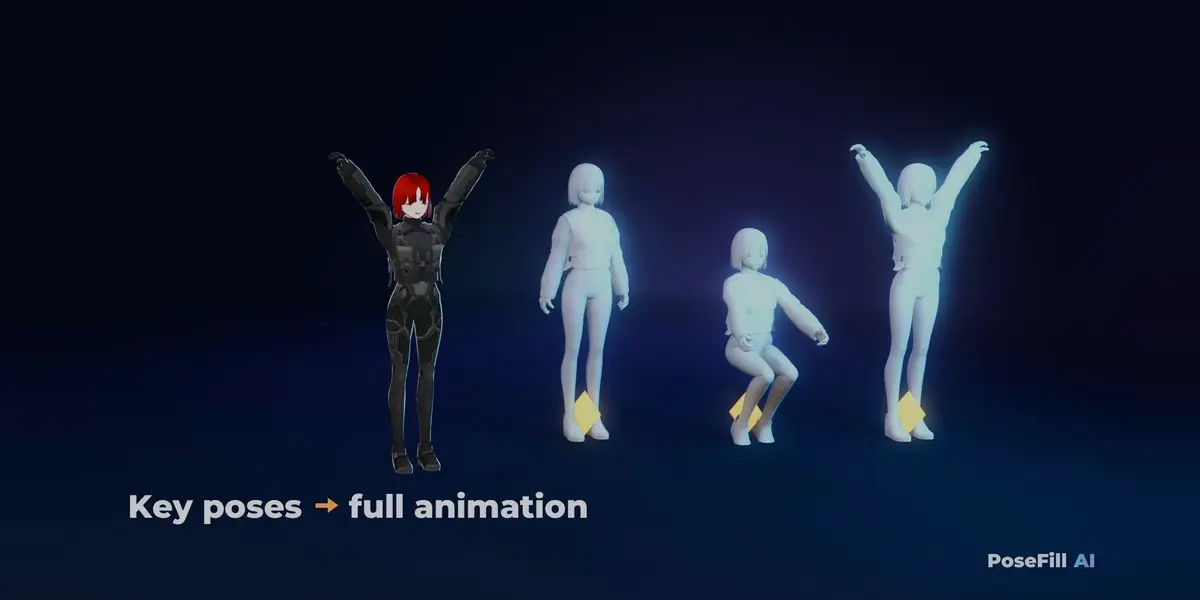
Pose your character on the frames that matter and press I to key them: the first frame, the last frame, any frame in between. PoseFill makes the motion pass exactly through these poses.
- Partial poses: key only one arm (or one foot) on a frame and only that limb is pinned there. The rest of the body moves freely.
- Edit Key Poses brings your poses (and your IK/FK settings) back so you can change them.
- The Key poses list shows each pose and what it pins. Click one to jump to it.
- Characters that already have animation: put timeline markers (
M) on the frames to use as key poses. - Hand shapes you key (a fist, pointing) are kept on those frames.
4. Direction, loops and timing
-
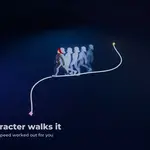
Path: draw a curve on the floor (
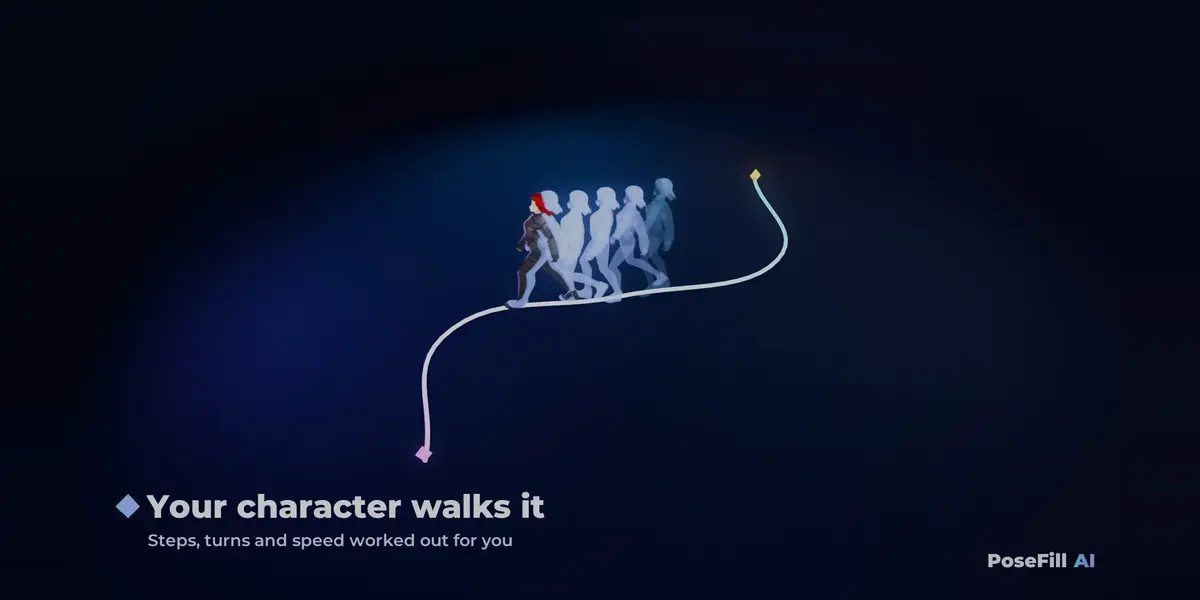
Shift+A> Curve) and pick it as Path. The character follows it at an even speed. The panel tells you if the speed means running. -
Loop: tick Loop and describe a repeating motion (
walks forward). You get a seamless cycle that repeats forever. Loops are 0.7 to about 6 seconds long. - In place (next to Loop): removes the travel so the character stays on the spot, for game engines. It works for loops and for one-off motions: a walk treads in place, a backflip or a jump lands where it took off. Height and spin are kept. It is off when a Path is picked.
-
Change Prompt Here: on a later frame, add a second prompt (frame 1
walks forward, frame 90sits down). Each part is generated in turn and joined smoothly. -
Redo Part: set the preview range (
Alt+P) over a clumsy moment and regenerate only that part. - Mirror makes a left/right mirrored copy. Speed makes a 0.5x to 2x copy. For jumps you choose: keep the jump height, real gravity, or plain slow motion.
- Fit Timeline sets the scene range to the result.
5. Layers
The Layers row switches each finishing layer on and off. The result on screen updates right away.
| Layer | What it does |
|---|---|
| Feet planted | Keeps feet from sliding while they are on the ground. |
| Physics | Jumps, flips and falls follow real ballistic arcs. |
| Collisions | Keeps hands and arms outside the body, sized from your mesh. |
| Hands | Relaxed hands, fists, pointing, hands on hips; your key-posed hand shapes. |
| Face | Blinks, eye movement, moods from the prompt; Mouth: Auto, Talk or Closed. Talk follows a sound strip in the Video Sequencer if there is one (lip sync), otherwise the prompt. |
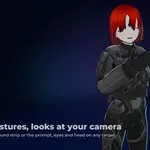
| Look at | Pick any object or character: head and eyes follow it. Press Fit Again after moving the target. |
| Loose parts | Hair, skirts, tails, capes and ribbons swing with the body. Looseness makes them looser or tighter. |
The Face layer uses VRoid/VRM blend shapes (blink, A-I-U-E-O mouth shapes, moods) or a Rigify face rig's jaw. Loose parts are found by bone name (hair, skirt, tail, ribbon…) or VRM spring bones.
6. Export
Export FBX… writes the character with the shown motion, and optionally every saved motion, each as its own take. Choose the Unity or Unreal preset. Deform bones only leaves out control bones.
7. Characters without a rig
- Select the model's meshes. It should stand upright (Z up), in a T- or A-pose.
- Place Joint Guides: PoseFill estimates the joints and places a marker on each.
- Move any marker that is off (
G). With Mirror left to right on, fixing the left side is enough. - Build Rig: a Mixamo-style skeleton is built, the mesh is bound and the character is ready to animate.
8. Supported rigs
Mixamo, Unreal Mannequin-style, Rigify (IK or FK), VRoid/VRM, MakeHuman/MPFB, and Character Creator and Daz Genesis bone names. Unknown rigs are matched from the shape of the skeleton. If a bone is matched wrong, fix it in the Bones matched section and press Save Bone Mapping: the next character with the same rig is matched the same way. Auto-Rig Pro control rigs are not supported yet.
9. Memory and speed
- The engine picks the text model's precision by the free video memory when it starts: full on cards with about 17 GB free (uses ~16 GB), 8-bit with ~10 GB free (~9 GB), 4-bit with ~6.5 GB free (~6 GB, so 8 GB cards fit). Measured with NVIDIA's TMR text-motion model, the motions match the prompt equally well in all three. With less video memory the text model runs on the CPU and needs about 16 GB of free RAM; that is much slower.
- Text understanding runs on (add-on preferences): Automatic does the above. You can also pick GPU full, 8-bit, 4-bit or CPU yourself. Under the status row the panel shows how much GPU memory is free and what the text model uses, and what to close when another program crowds it out.
- A prompt is understood once: generating again with the same prompt skips that step.
- Free GPU Memory (on the status row) unloads the model right away. It also unloads by itself after 15 idle minutes (preferences) and reloads on the next Generate.
- Fewer Samples (results per generate) is faster and uses less memory.
10. Troubleshooting
| Message | What to do |
|---|---|
| Not enough disk space | Free space, or set Install location to another drive in the preferences. |
| Install failed … (see Log) | Usually a dropped connection: press Install again, it resumes. Otherwise contact us through this product page and attach logs\install.log from the install folder. |
| Your GPU ran out of memory | Close other GPU-heavy apps, lower Samples, or set Text understanding runs on: CPU. |
| The AI engine is taking very long to start | Preferences > Open Server Log, or press Restart AI Engine. |
| Another program uses the AI engine's port | Change Port in the preferences, then Restart. |
| Match the hips, legs and arms first | Open the Bones matched section and fill in the missing bones. |
| Feet or hands look off on a custom rig | Check Bones matched: a swapped left/right or a missed bone is the usual cause. |
Licenses
PoseFill AI is GPL-3.0-or-later. The AI engine is downloaded from its official sources after you accept its licenses: NVIDIA Kimodo (Apache-2.0); the Kimodo-SOMA motion model (licensed by NVIDIA Corporation under the NVIDIA Open Model License); SOMA-X (Apache-2.0); LLM2Vec (MIT); Meta Llama 3 8B Instruct (Meta Llama 3 Community License). Built with Meta Llama 3. The motions you generate are yours to use, commercially too. See THIRD_PARTY_NOTICES.md in the add-on folder.
Have questions about this product?
Login to message
| Blender Extension Compatible | Yes |
| Published | about 15 hours ago |
| Blender Version | 4.5 - 5.2 |
| Extension Type | Add-on |
| License | GPL |
Discover more products like this
mocap rigify rigging Game animation keyframes motion generation character animation ai animation retargeting vrm mixamo