Pro Animation Toolkit – Parent, Bake, And Stepsnap In Blender
 raha realistis studio


PBS Parent_Bake_StepSnap_Tools — Product Documentation
Short summary:
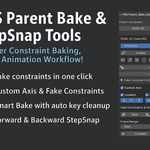
PBS Parent_Bake_StepSnap_Tools is a compact Blender addon that speeds up the technical parts of animation: fast parenting (Child-Of / LocRot), precise snapping, step-based timing controls, and a smarter baking workflow. It’s built to save time and reduce manual cleanup so you can focus on animating.
Key features (at-a-glance)
-
Smart Parenting modes: Child-Of and LocRot for bones & objects.
-
Influence control: animate, enable/disable, insert/delete influence keyframes.
-
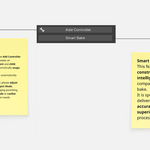
Add Controller: generate auxiliary controllers for clean, non-destructive parenting.
-
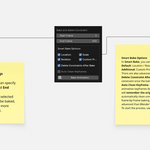
Smart Bake: bake constraints to keyframes with options (Location/Rotation/Scale/CustomProps), frame range, auto-clean, and optional removal of original constraints.
-
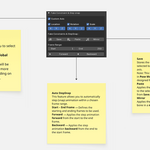
StepSnap & Fake Constraint: save/paste/mirror global transforms, custom axis, and step animation forward/backward.
-
One-click helpers: Invert, Clear Inverse, Apply Constraint, Clear Keys, Delete Parent.
Installation
-
After purchase, download the addon
.zip. -
In Blender: Edit → Preferences → Add-ons → Install.
-
Select the downloaded
.zipand install. -
Enable the addon and open the PBS panel in the 3D Viewport → Sidebar (N-Panel).
Quick Start (common tasks)
A. Fast parenting (hand → object)
-
Select the child (object or bone), then select the parent (last selected is parent in Pose Mode; in Object Mode the first selected object is considered parent depending on mode).
-
In the PBS panel choose Child-Of (or LocRot if you want strict loc+rot copy). The addon will create the necessary constraints and snap the child into place.
-
Use the Influence controls to enable/disable or keyframe influence values for smooth parent transitions.
B. Animate parent influence (grab → release)
-
With the constraint active, set Influence to
1.000where the child is following the parent. Insert an Influence key. -
At the release frame, set Influence to
0.000and insert another Influence key. -
Optionally use Invert or Clear Inverse if the object/bone offset changes unexpectedly.
C. Smart Bake (make motion permanent)
-
Set Start Frame and End Frame in the Smart Bake panel.
-
Choose what to bake (Location / Rotation / Scale / Custom Properties).
-
Click Smart Bake. Optionally enable Delete Constraint After Bake and Auto Clean Keyframe to tidy the F-curve results.
D. StepSnap & Fake Constraint (pose staging)
-
Use Save to store a global transform snapshot.
-
Jump to other frames and use Paste to apply saved transform to the selected bone/object.
-
Use Mirror when you need symmetric application.
-
Use StepSnap (Forward / Backward) to step through frame ranges and create pose-to-pose timing quickly.
Button / UI reference (concise)
-
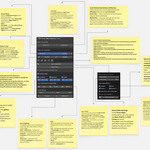
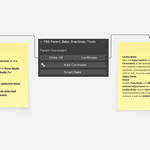
Child-Of — add Child-Of constraint and snap child into place.
-
LocRot — add Copy Location + Copy Rotation constraints for tight following.
-
Add Controller — create a helper controller for parenting & easier manipulation.
-
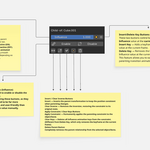
Influence slider — set constraint influence (0.0 → 1.0).
-
Insert Key / Delete Key — keyframe or remove Influence at current frame.
-
Enable / Disable — quick toggle Influence on/off.
-
Invert — flip influence behaviour or offset handling to keep world transforms consistent.
-
Clear Inverse — fix offset issues from newly created Child-Of constraints.
-
Apply Constraint — bake/apply constraint permanently to transform.
-
Clear Keys — remove influence keyframes (current selection or full range depending on option).
-
Delete Parent — remove parenting relationship & constraints.
-
Smart Bake settings — Start/End frame, which channels to bake, delete constraints after bake, auto clean keyframes.
-
Save / Paste / Mirror (Fake Constraint) — save global transform, paste to selected, mirror across axis.
-
StepSnap Forward / Backward — apply saved step transforms in frame increments.
Note: exact button labels in your UI may vary slightly; use the above as the functional map.
Recommended workflow examples
Example 1 — Pick up an object (clean, non-destructive)
-
Add a Controller for the object (Add Controller).
-
Parent the object to the character hand using Child-Of (snap into place).
-
Animate Influence from 0 → 1 at pick frame (Insert Key).
-
Animate Influence back to 0 at release frame and bake that range with Smart Bake (delete constraints after bake if you want final baked motion).
-
Use Clear Inverse if the object jumps when switching parents.
Example 2 — Bake and hand off between multiple parents
-
Parent object to Parent A; animate.
-
Insert Influence keys to transition to Parent B (using either Child-Of or LocRot).
-
Use Smart Bake to bake final motion across the whole action, select Delete Constraint After Bake if you want a pure keyframe result.
-
Use Auto Clean Keyframe to reduce redundant keyframes.
Example 3 — Pose staging with StepSnap
-
Save a pose/transform with Save.
-
Move forward/back in timeline using StepSnap Forward/Backward to place keys at each step.
-
Use Mirror to quickly create opposite-side poses.
Troubleshooting & tips
-
Object/bone jumps after parenting: use Clear Inverse or the Invert helper to correct offsets.
-
Baked keys look offset: ensure you included the correct channels (Location/Rotation/Scale) and that you applied object scale (Ctrl-A → Apply Scale) if needed.
-
Smart Bake didn’t delete constraints: confirm Delete Constraint After Bake was checked; otherwise remove constraints manually or use Delete Parent helper.
-
StepSnap not applying: verify you saved a transform first with Save, and that the target bone/object is selected before Paste.
-
Addon not visible: check Edit → Preferences → Add-ons and enable the PBS addon; confirm Blender version compatibility.
Licensing & Terms (short)
-
Personal License (1–2 seats): Single buyer use for up to 2 devices/seats. Commercial use allowed.
-
Studio License (1–30 seats): Valid for up to 30 seats in a company/organization. Commercial use allowed.
-
Restrictions: Redistribution, resale, or modification of the addon code / packaged files is strictly prohibited. License is tied to the purchaser and is non-transferable unless explicitly authorized.
Suggested EULA snippet (use in product page):
This addon is licensed for use under the purchased seat(s). You may use PBS Parent_Bake_StepSnap_Tools in commercial and non-commercial projects. Redistribution, resale, modification, or sharing of the addon files or source code is strictly prohibited. One license per buyer; studio license covers up to 30 s
-
$19.99
For individual artists or small teams.
-
$29.99
For larger studios, agencies, or institutions.
Have questions about this product?
Login to message
| Published | 12 months ago |
| Blender Version | |
| Extension Type | N/A |
| Render Engine Used | Cycles, Eevee |
| License | GPL |