 NODI
NODI



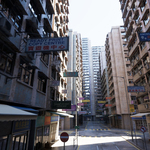
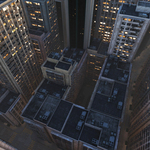
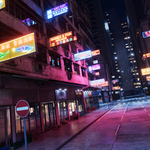
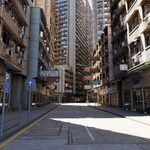

Pro City Hong Kong – Help Guide
How It Works
Pro City Hong Kong generates a procedural city based on the shape of a base mesh.
By editing the base mesh in Edit Mode, you control the layout of the city, including roads, building placement, and building heights.
Getting Started
-
Click Add City in the add-on panel.
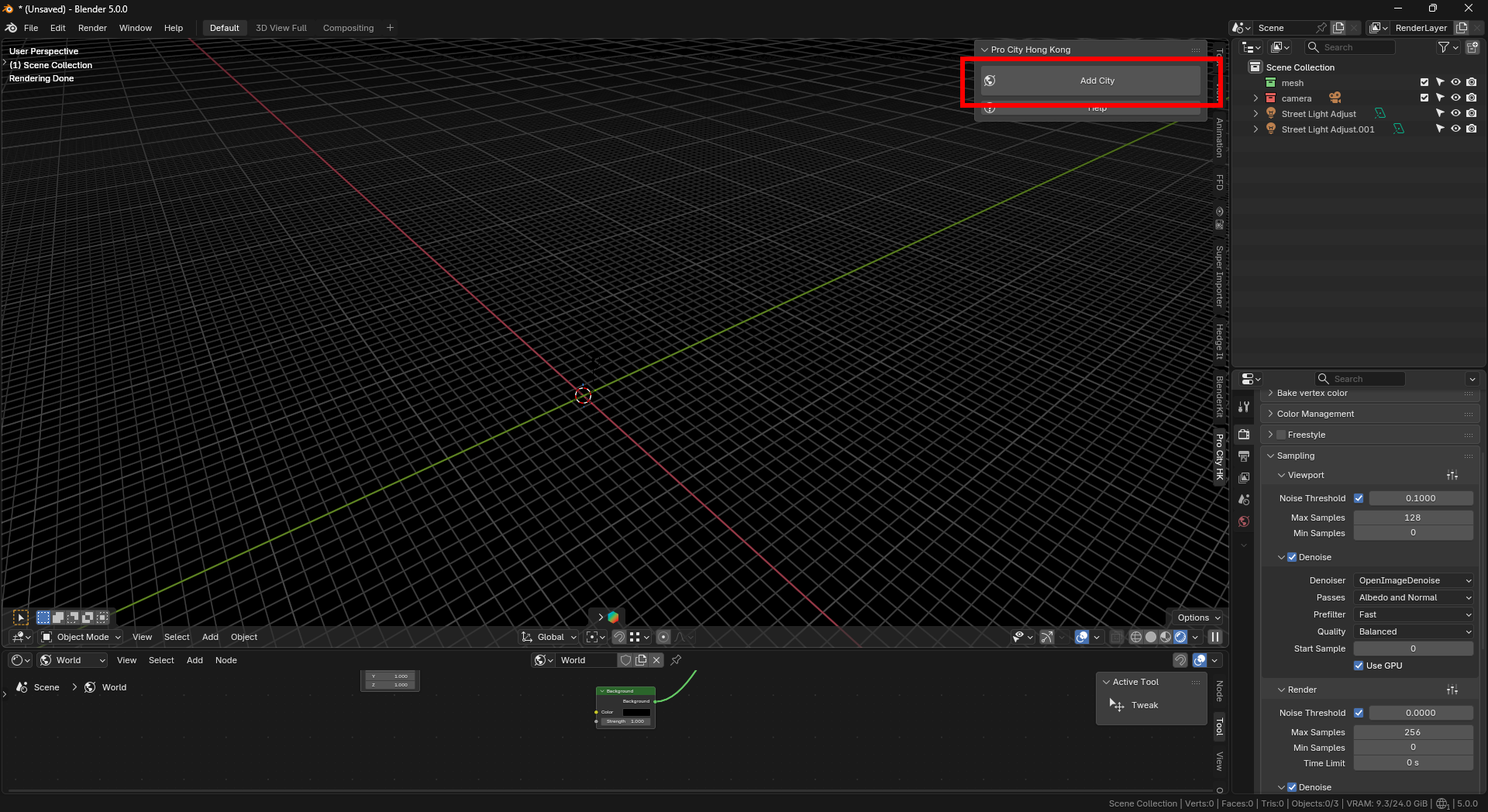
A new city base object will be created.
-
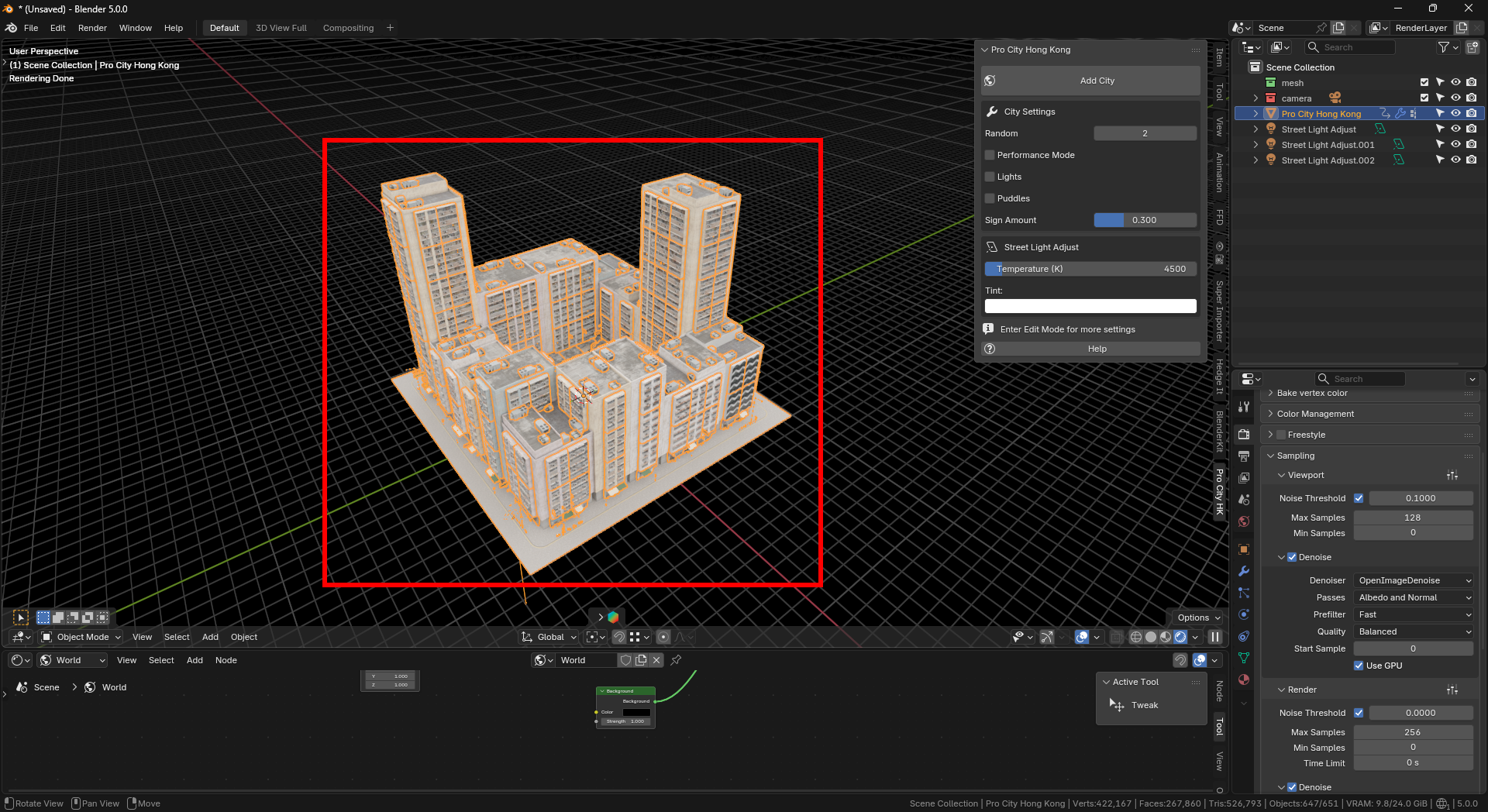
Select this object to begin editing and customizing your city.
Base Mesh & City Layout
Enter Edit Mode to modify the base mesh.
The entire city is generated from the shape of this base plane.
Important guidelines:
Keep the base mesh completely flat.
The outline of the mesh defines the city footprint.
-
Extrude edges outward to expand the city area.
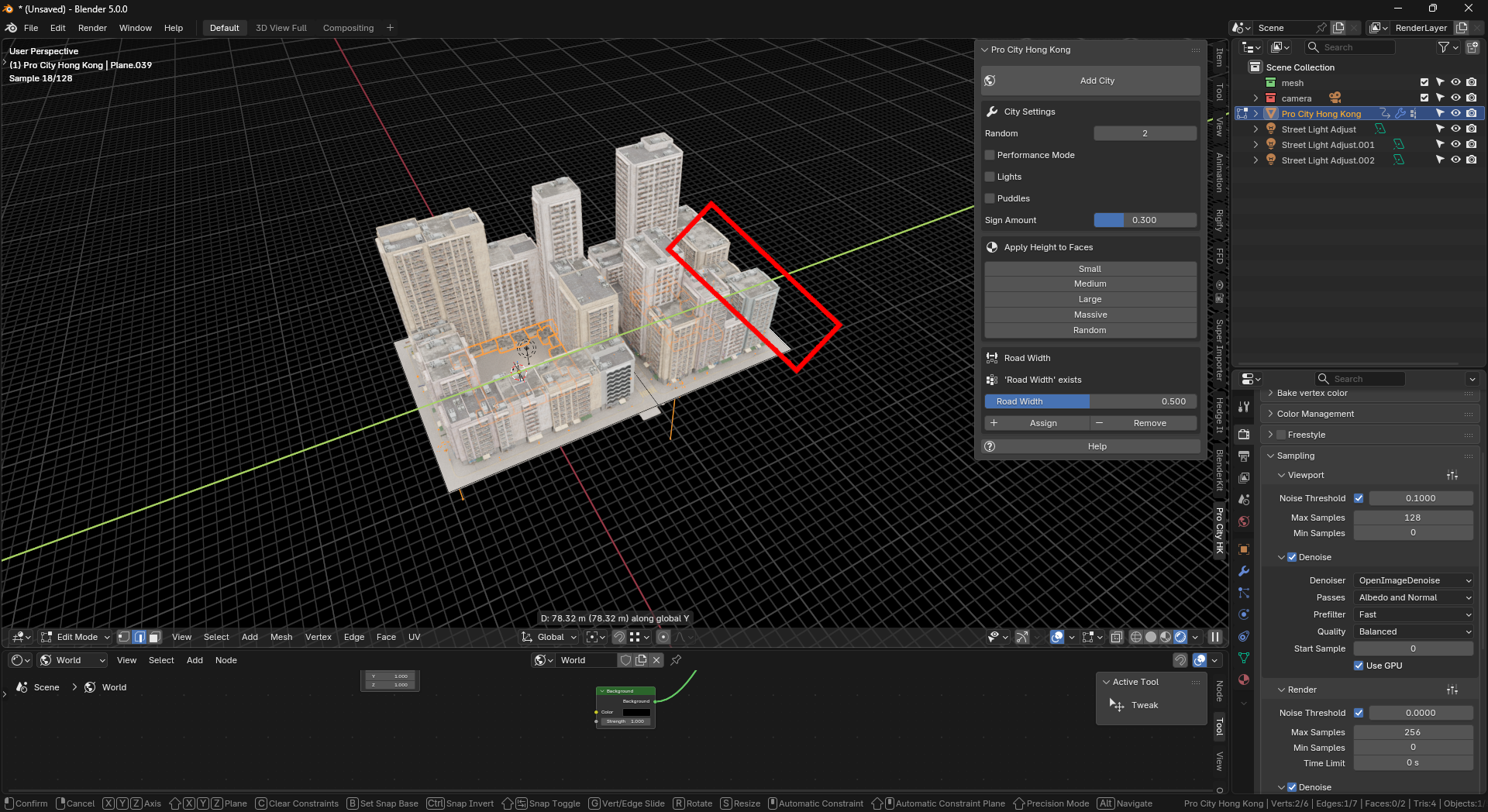
-
Use Loop Cut (Ctrl + R) or the Knife Tool to add new edges that will become roads.
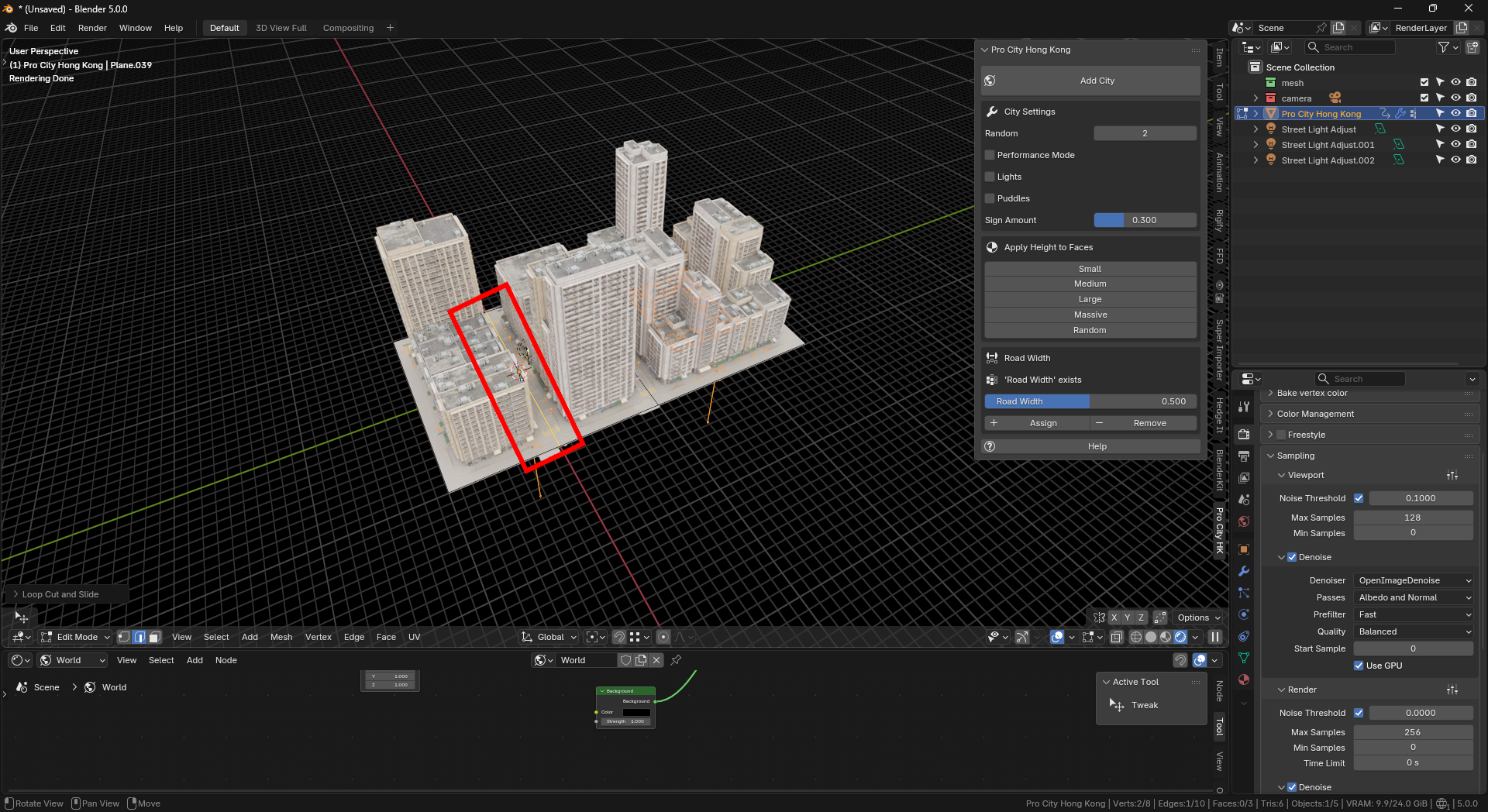
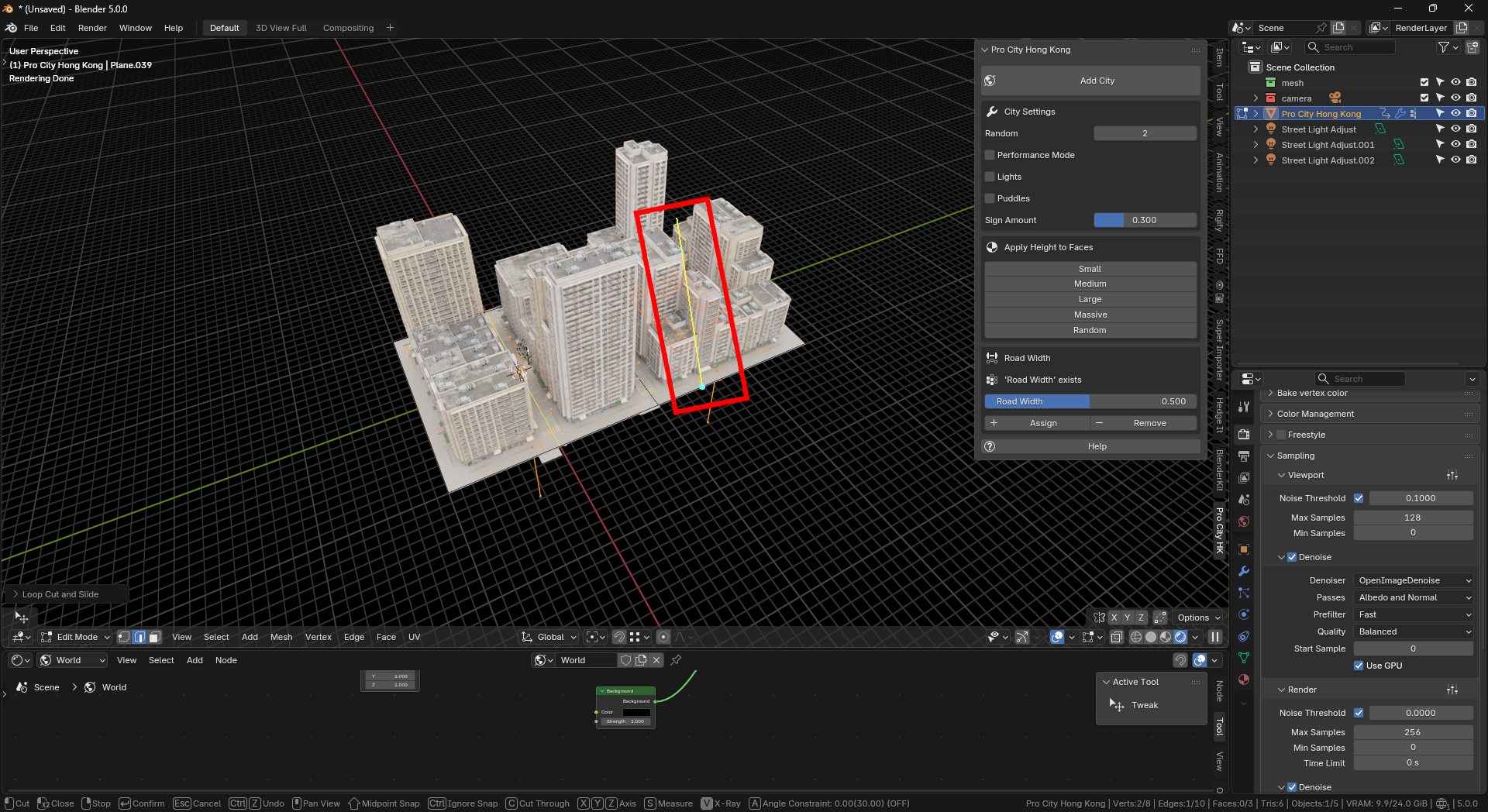
These edits allow you to quickly design complex city layouts.
Setting Building Heights
Enter Edit Mode.
-
Switch to Face Select Mode.
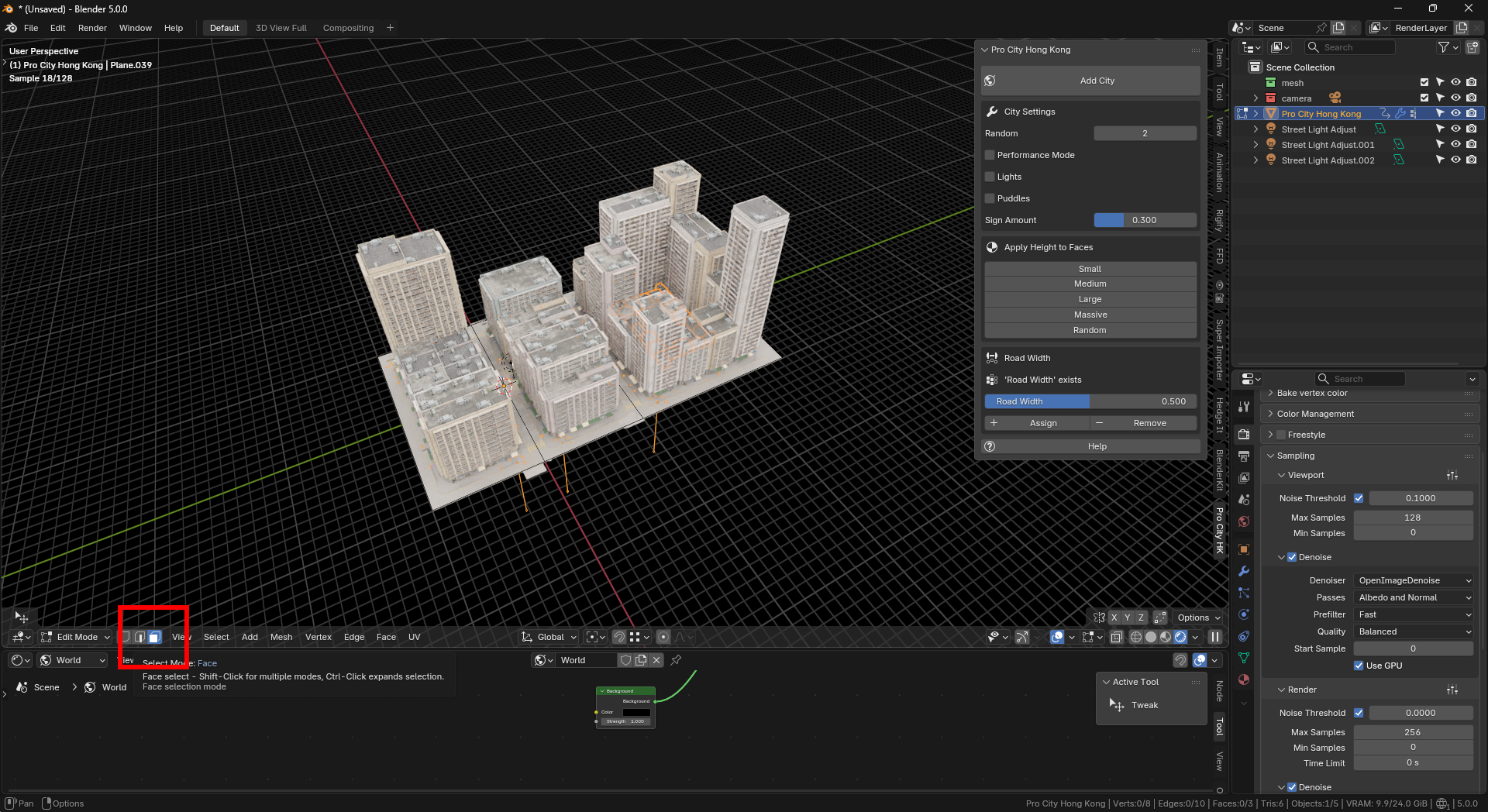
-
Select the faces where you want buildings.
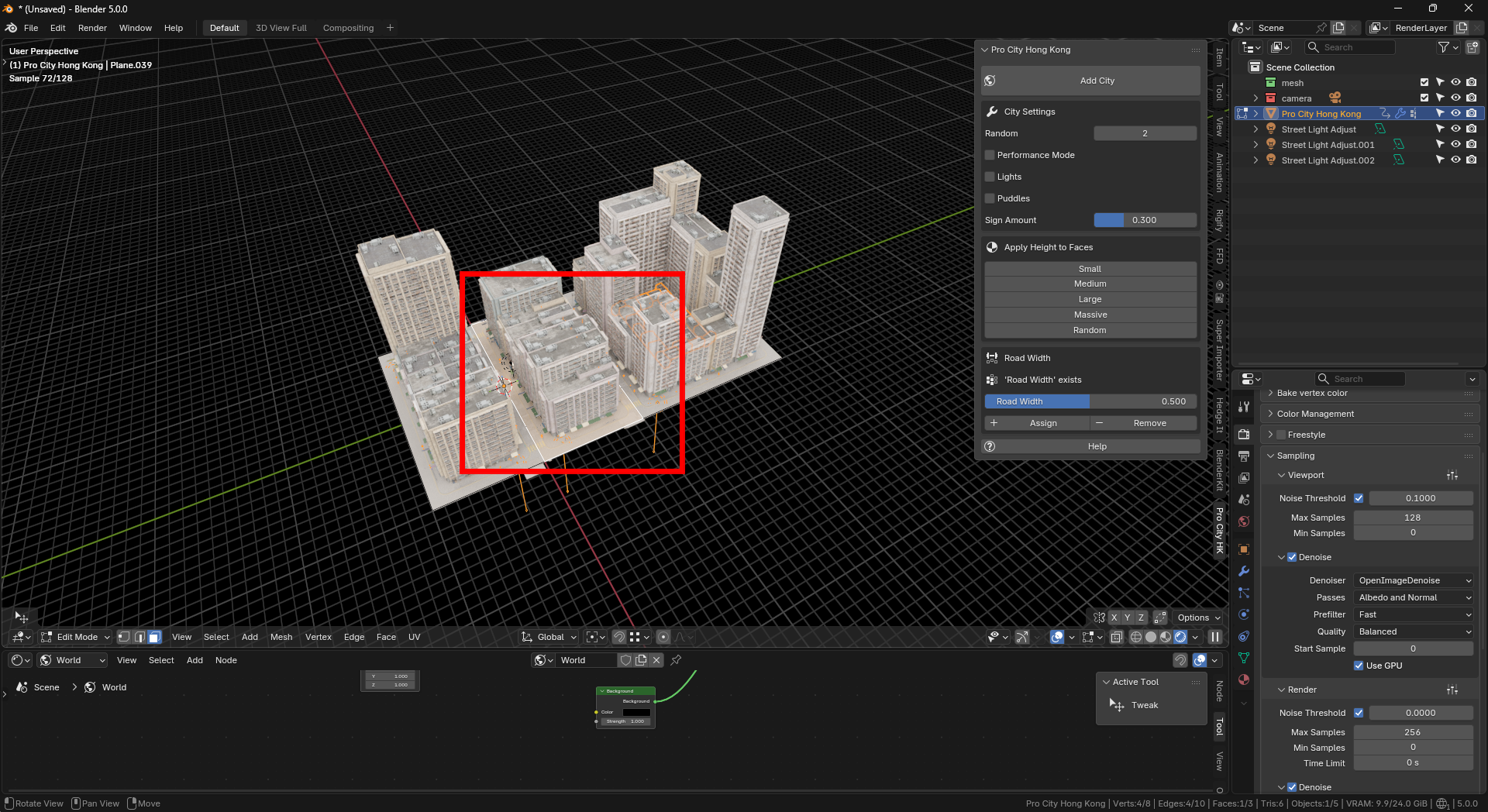
Choose a height preset:
Small
Medium
Large
Massive
-
Random
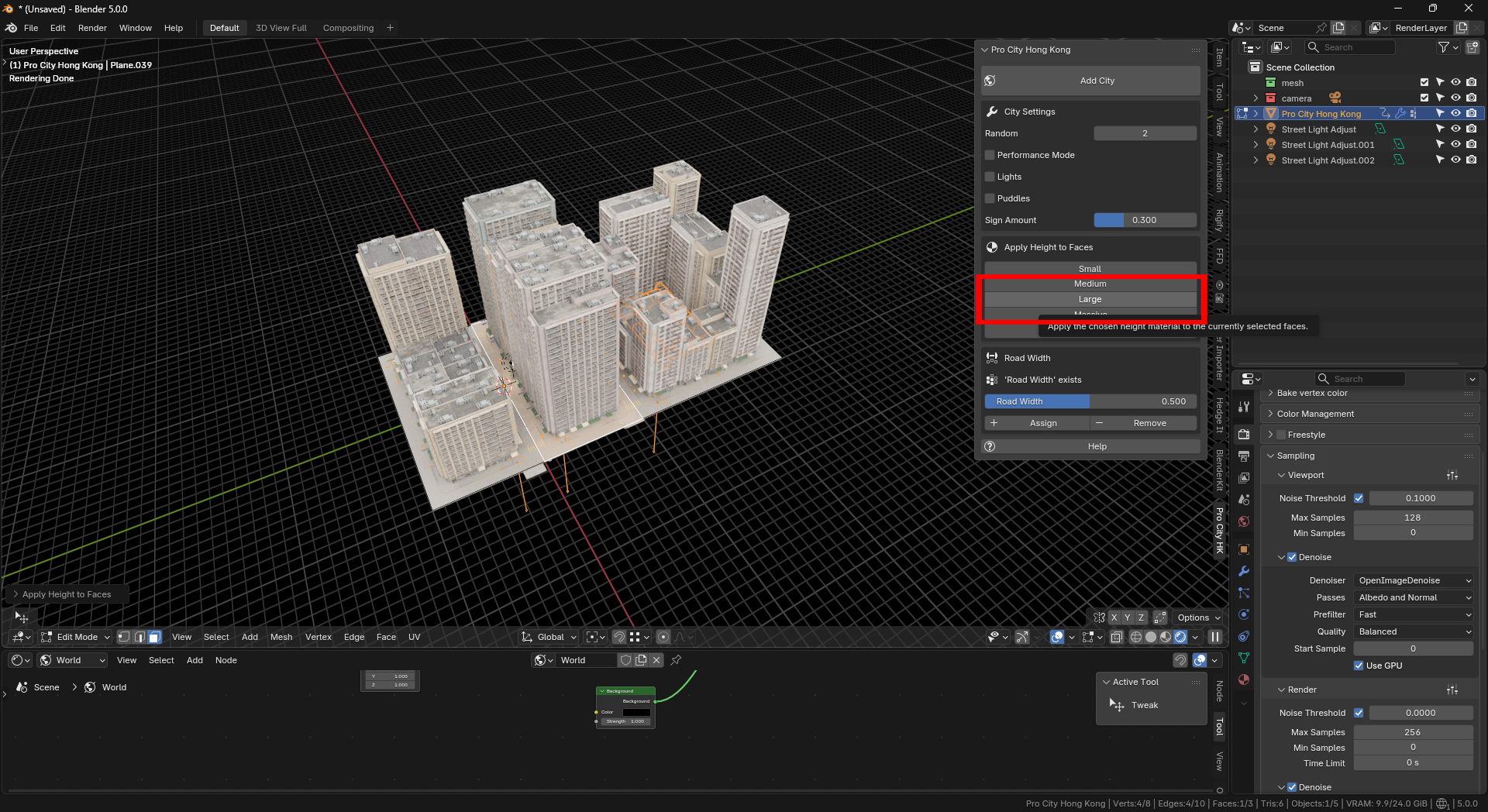
These options control the building height for the selected area and help create varied city districts.
Adjusting Road Width
Enter Edit Mode.
-
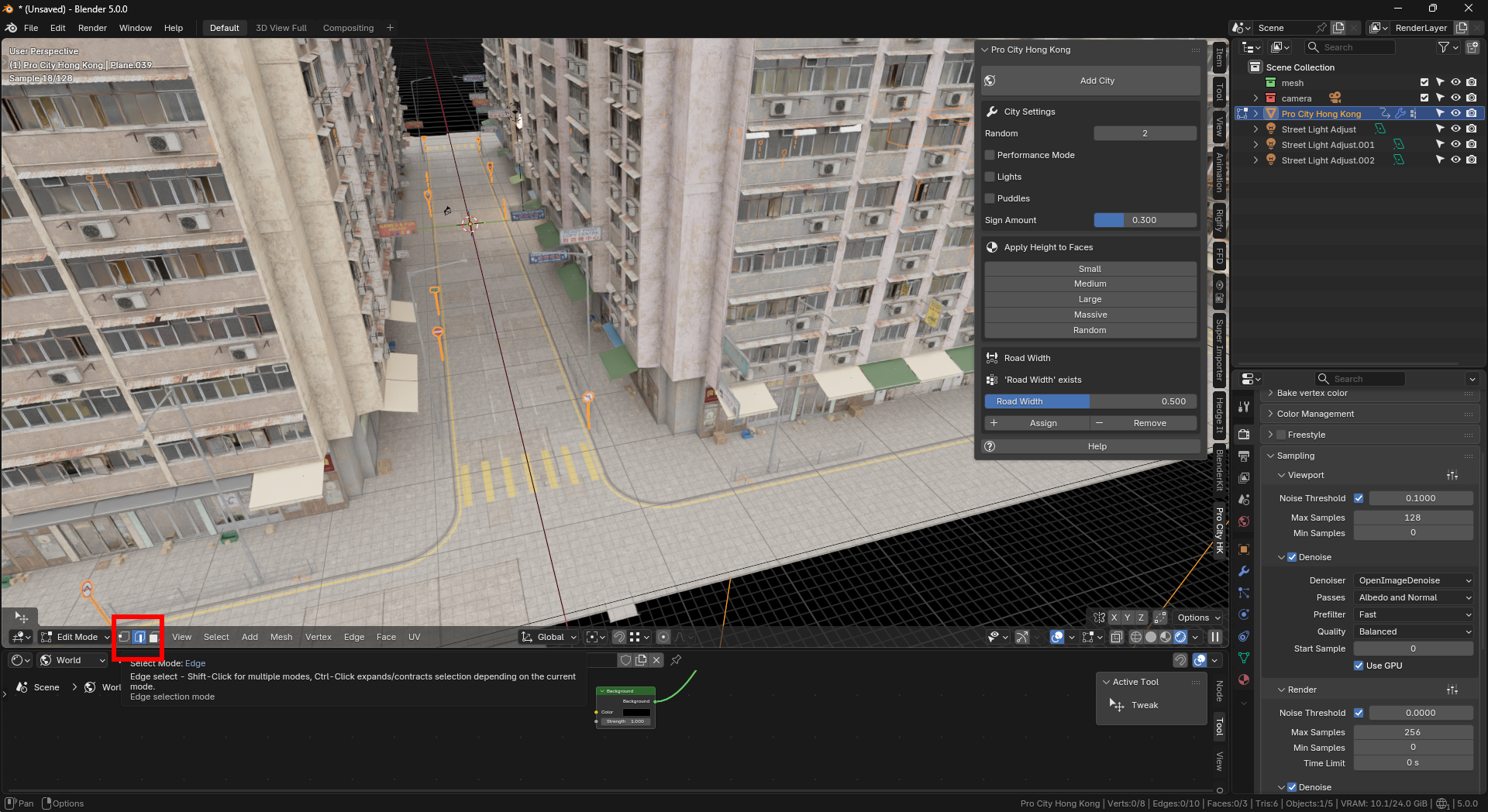
Switch to Edge Select Mode.
-
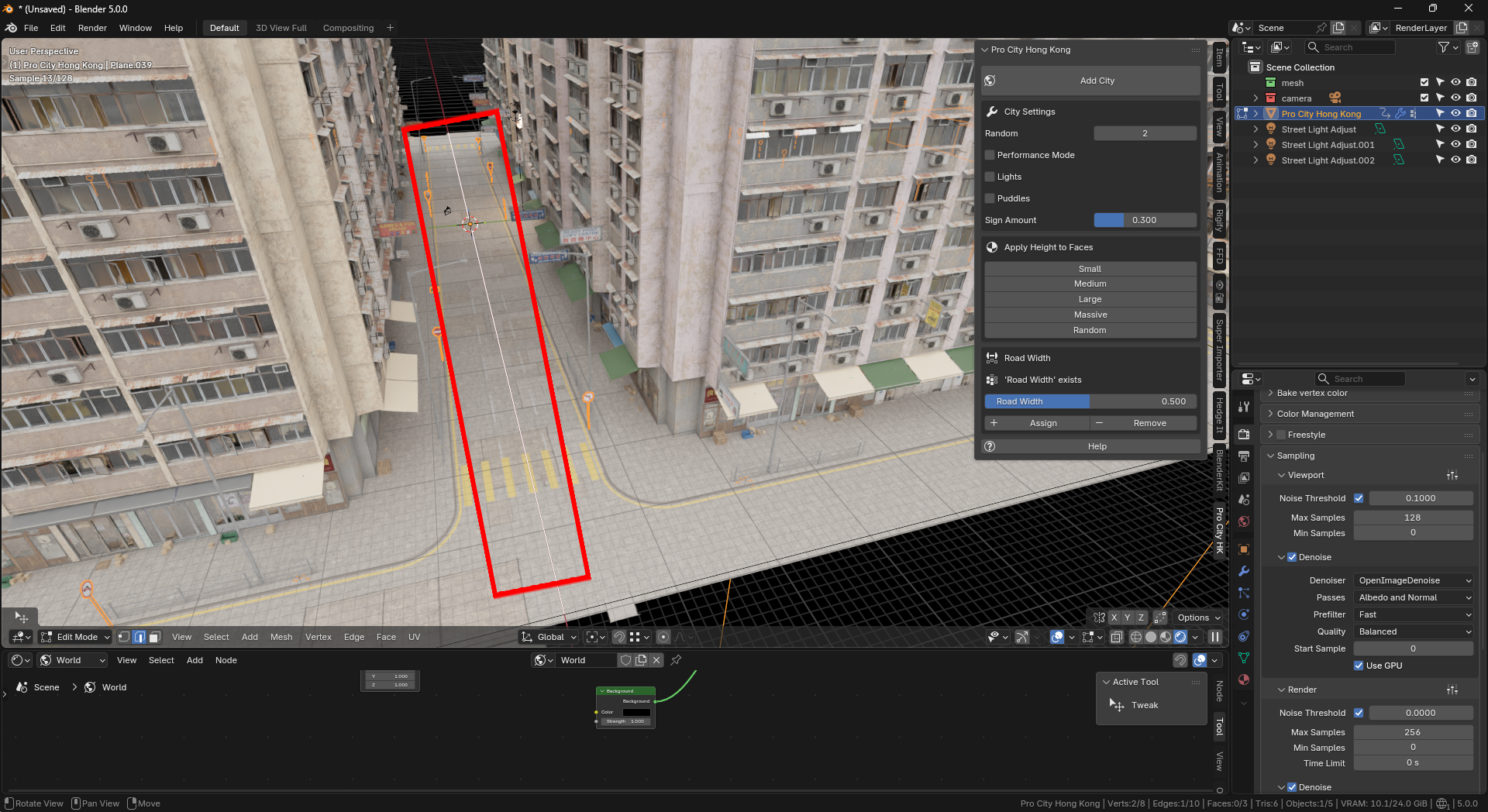
Select the edges that represent roads.
-
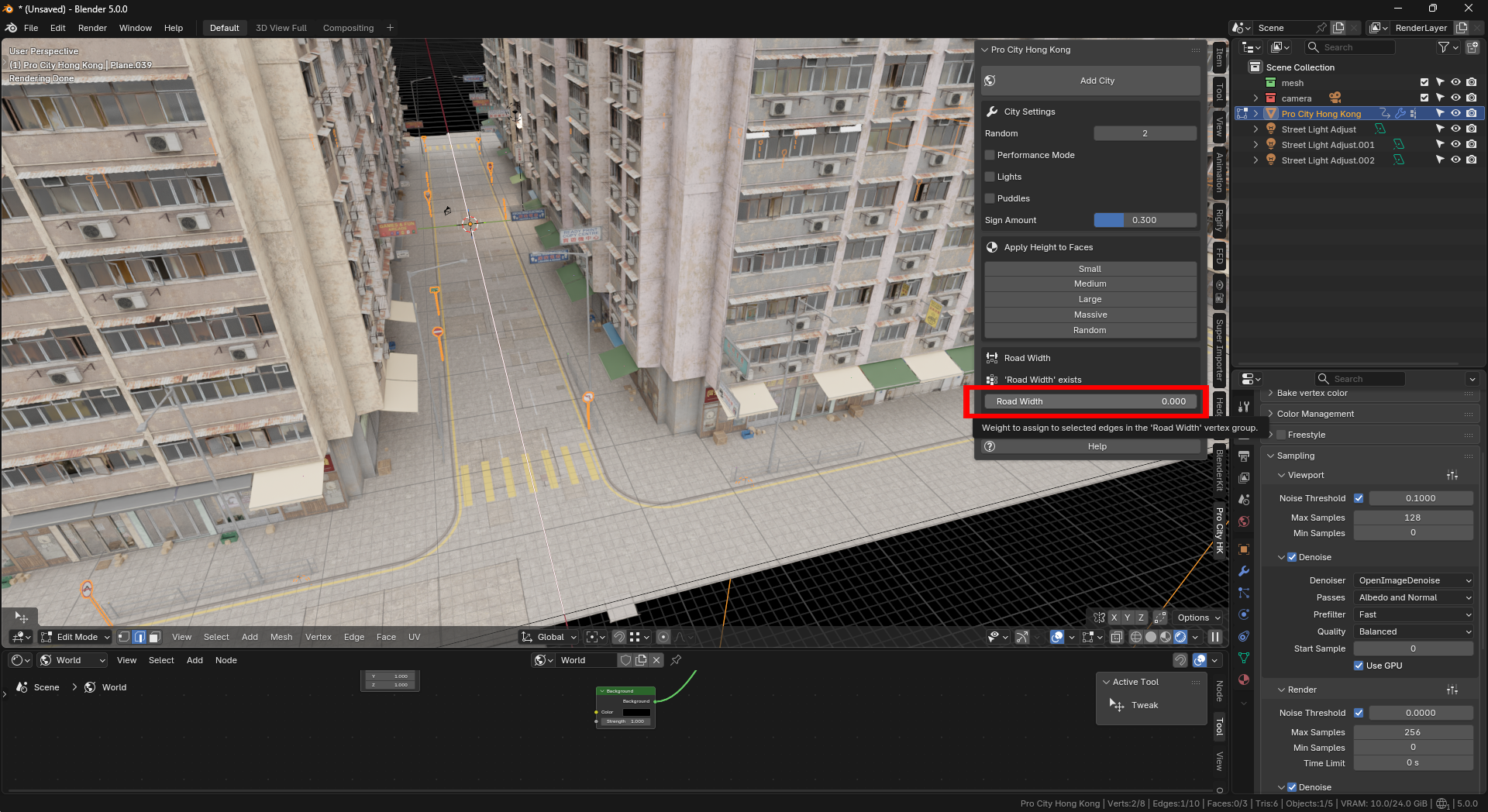
Adjust the Road Width slider.
-
Click Assign to apply the width.
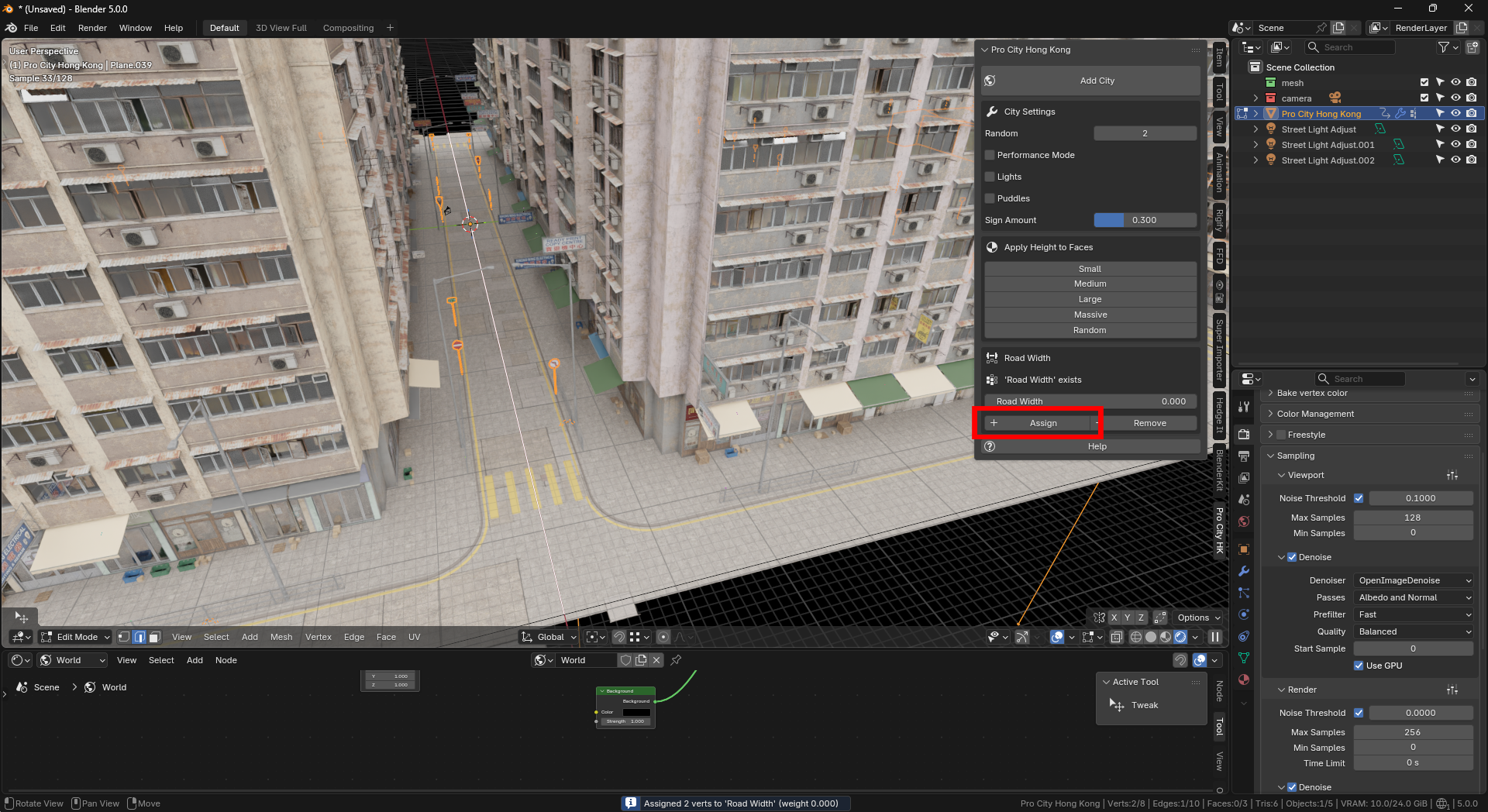
Higher values will produce wider roads.
Area Light Controls
The city includes adjustable lighting settings.
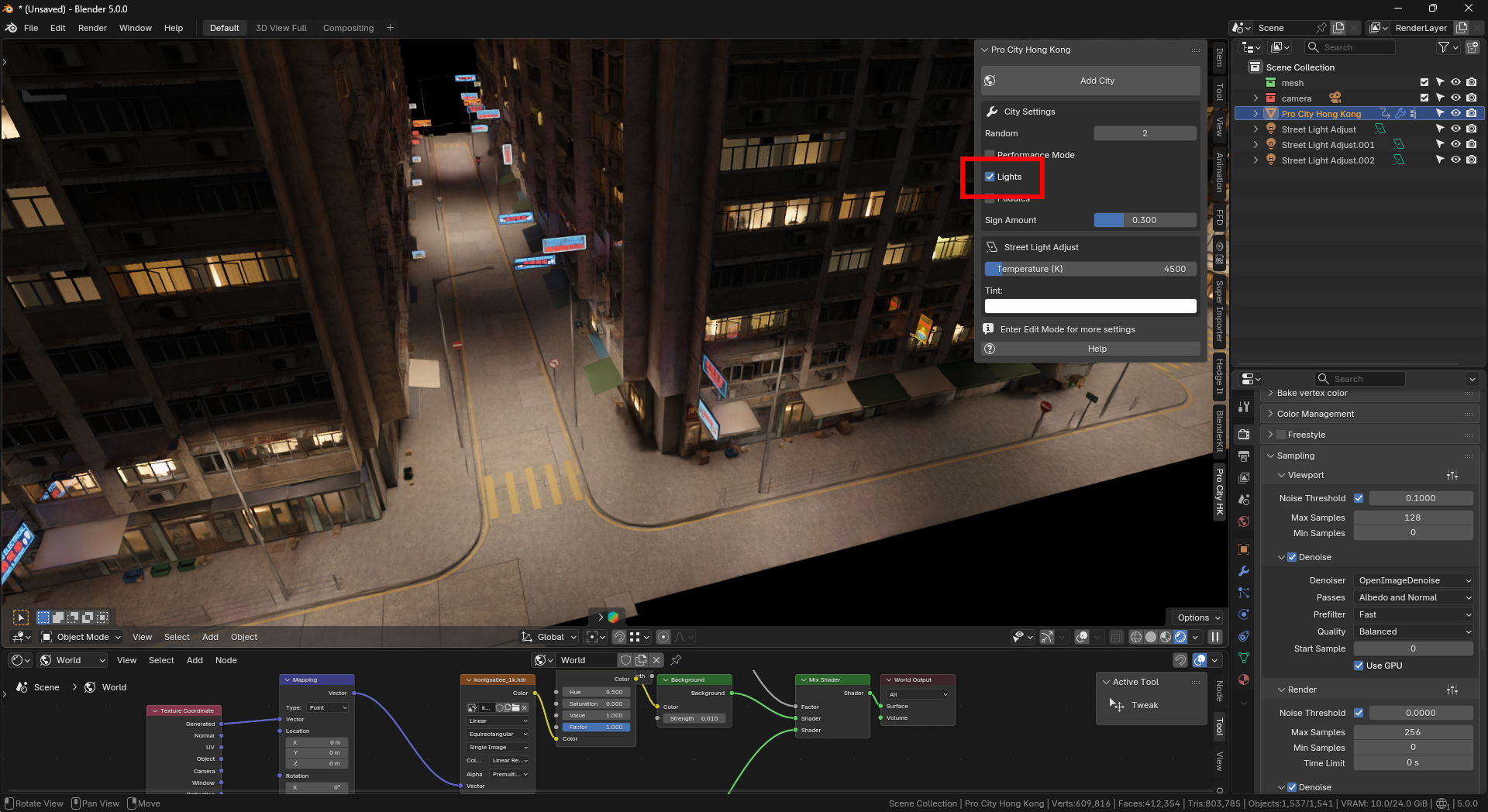
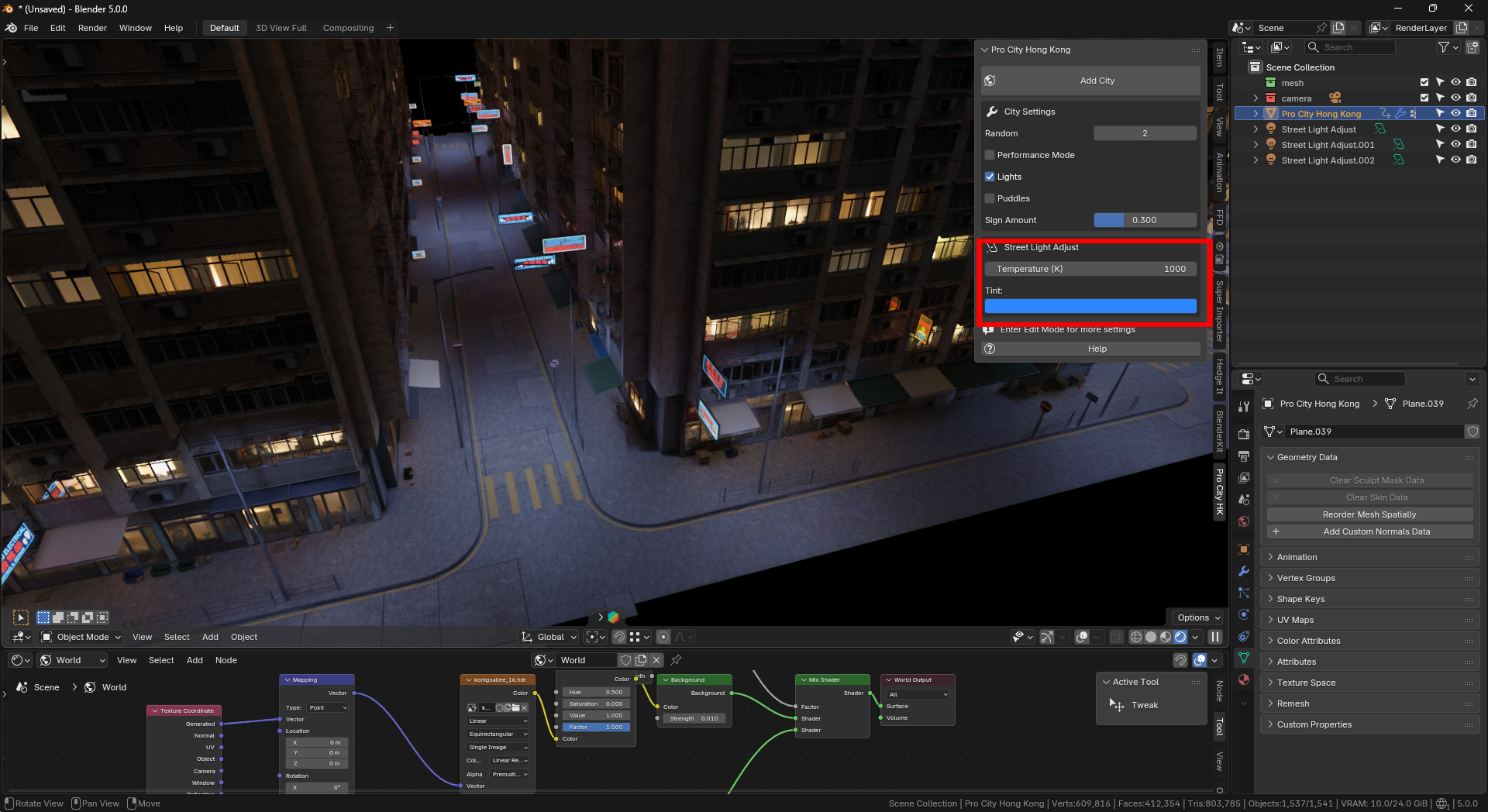
Temperature controls the colour warmth of the lights using Kelvin values:
1000K – Warm orange light
6500K – Cool daylight
Tint adds an additional colour on top of the temperature value.
Default settings:
4500K
-
White tint
-
$19.99
For individuals and freelancers - Commercial Use
-
$99.99
For teams, studios, and companies - Commercial Use
Have questions about this product?
Login to message
Discover more products like this
buildings architecture skyscrapers city generator geometry nodes procedural hong kong city procedural-city urban cyberpunk