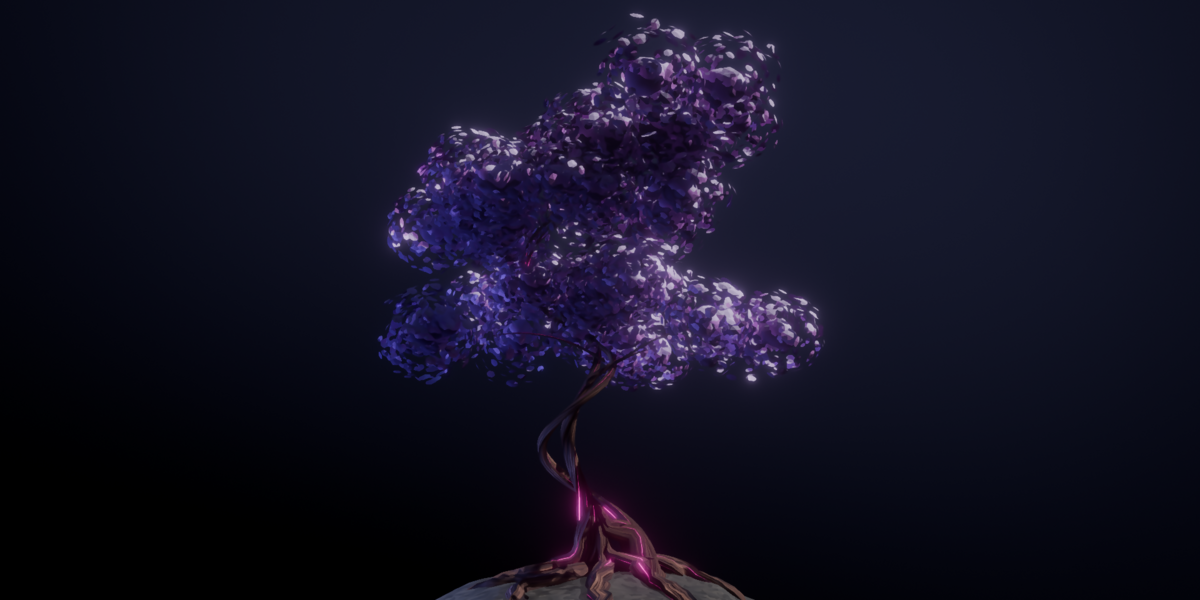
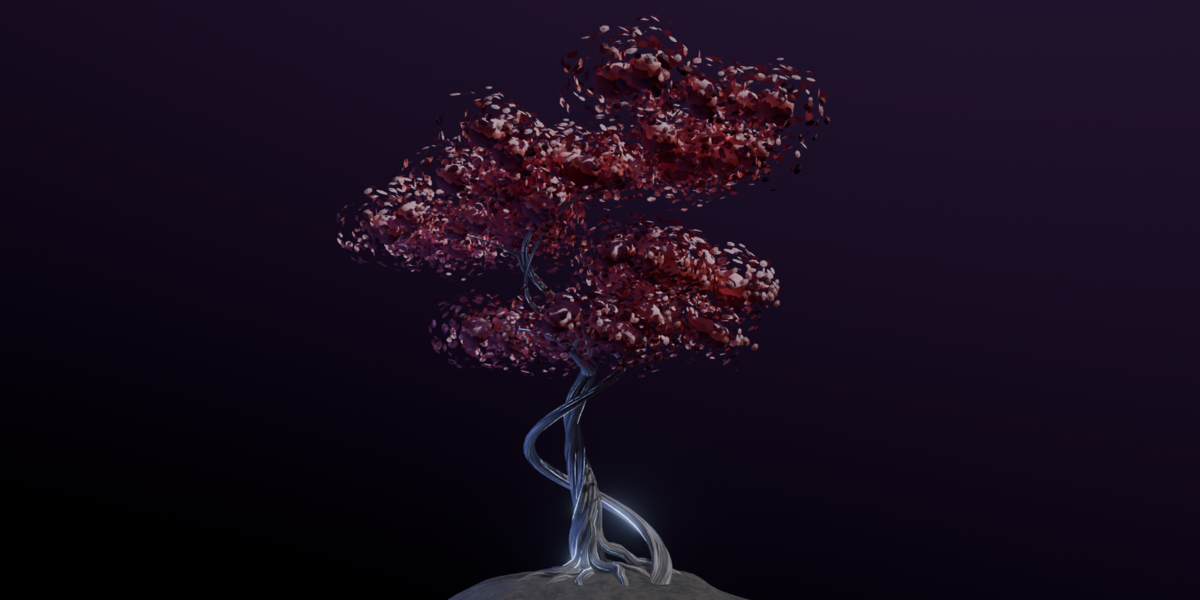
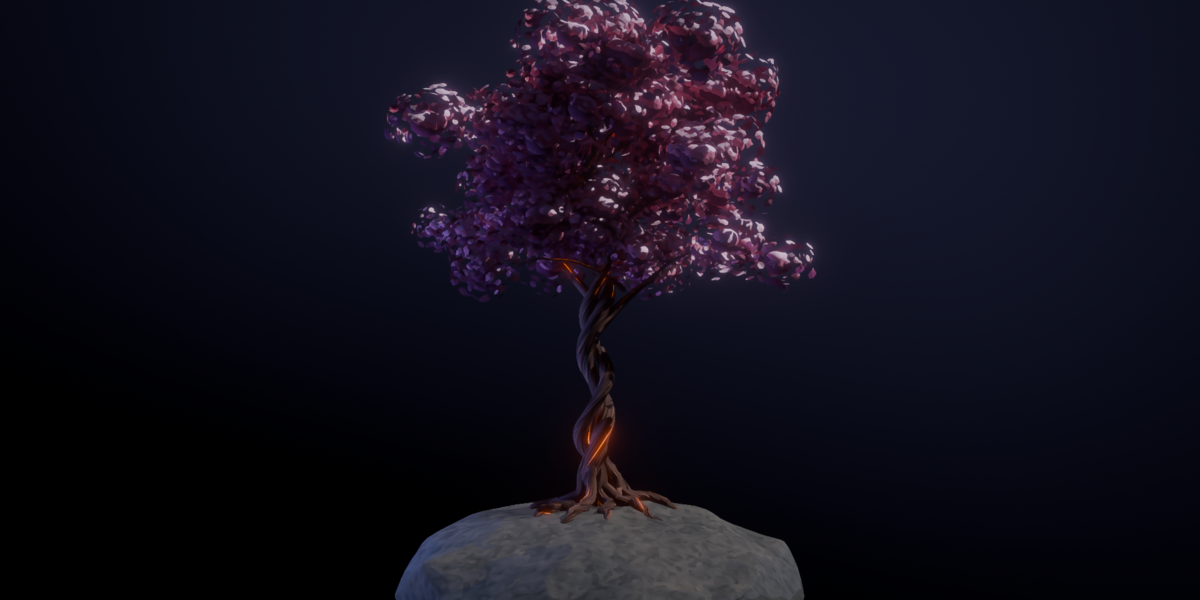
Procedural Anime Tree
 ArtbyTymi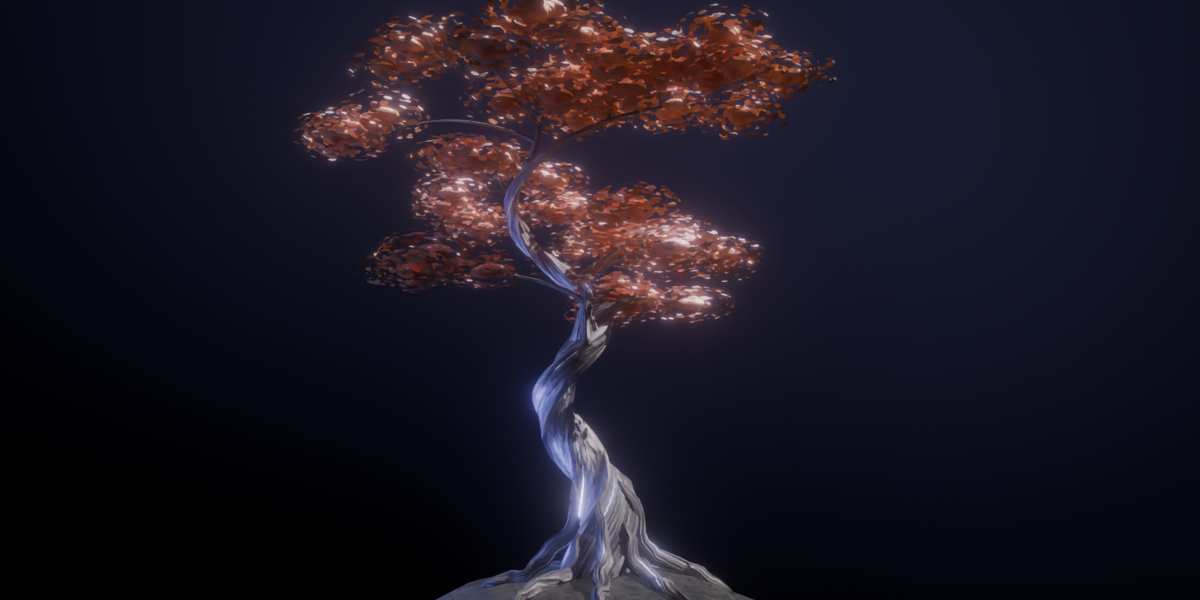
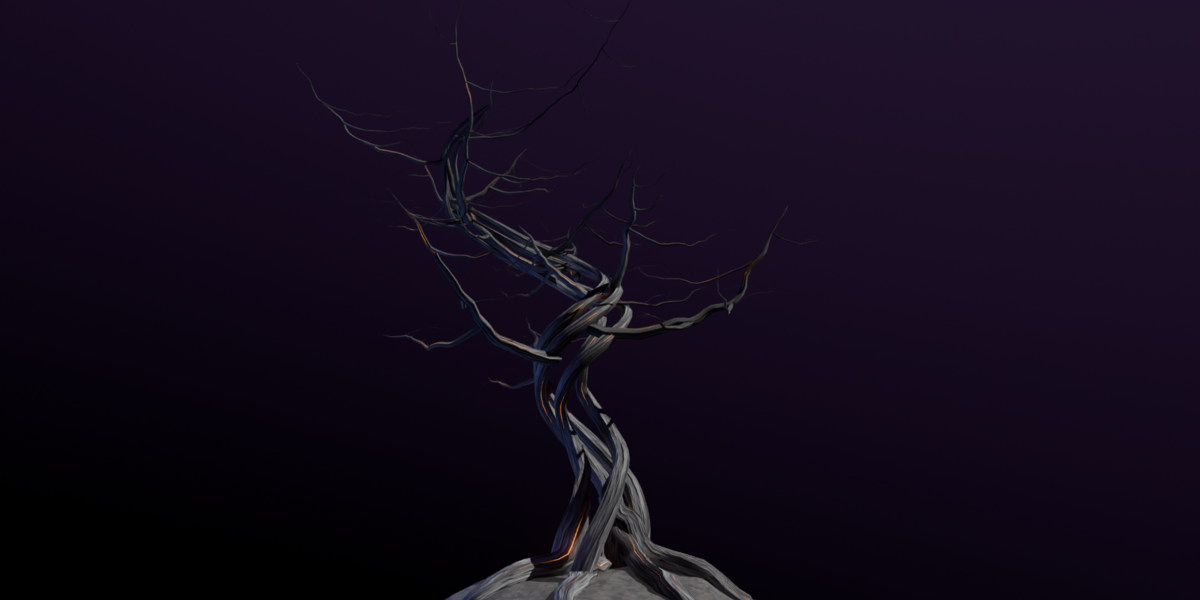
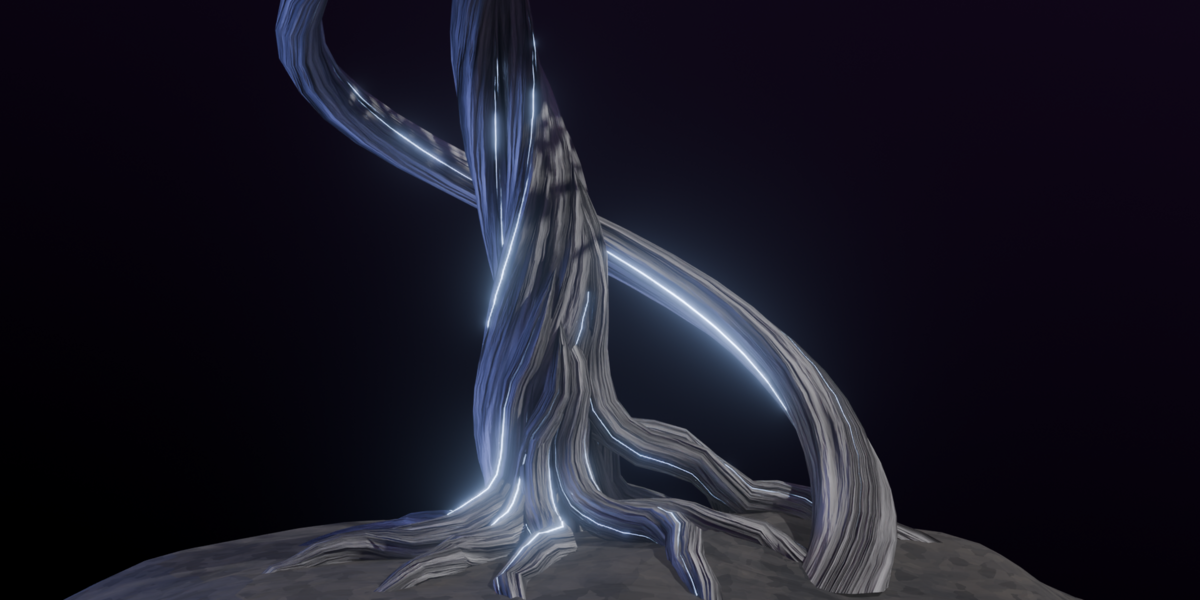

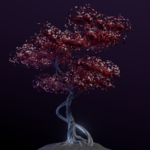
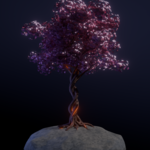
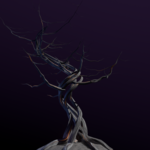
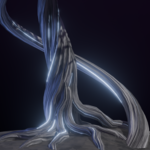
Procedural Anime Tree: settings guide
Open the supplied Blender file, select Anime Tree, and open its Anime Tree Geometry Nodes modifier. The controls are grouped in the same order as the screenshots below. The pictured values are examples, not required defaults.
Start with Shape and Trunk, then refine branches and roots. Hide the leaves while checking the structure, add the canopy, and finish with the palette. Change one setting at a time to see how it affects the result.
To bring the setup into another scene, use File > Append and select the Anime Tree and Rock objects from the supplied .blend file. If you use object-based roots, check that Root attach Object still points to Rock or your chosen attachment surface.
Shape
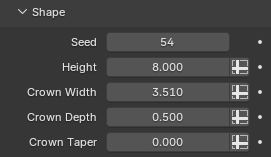
Set the overall size and crown silhouette before refining individual branches.
Seed: Changes the procedural arrangement of the tree.
Height: Sets the structural trunk height; foliage and rising twigs may extend above it.
Crown Width: Sets the primary branches’ base reach across the crown; side branches and foliage can extend beyond it.
Crown Depth: Shapes the envelope of the primary branch tips, from a flatter crown to a deeper dome.
Crown Taper: Shortens the upper primary branches to narrow the crown toward its top.
Trunk
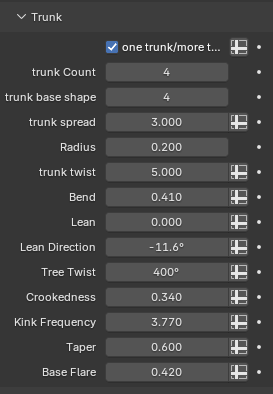
Shape the trunk’s path and its wood profile. The two twist controls affect different parts of this structure.
one trunk/more trunks: Switches between one and multiple profiles arranged around the trunk.
trunk Count: Sets the number of wood profiles when the multiple-trunk option is enabled.
trunk base shape: Sets the number of vertices around each wood cross-section. Higher values make the cross-section smoother.
trunk spread: Changes how far the multiple wood profiles spread from the trunk center.
Radius: Sets the trunk radius before the extra thickness from Base Flare is applied.
trunk twist: Rotates the wood cross-section as it follows the trunk curve.
Bend: Adds a broad S-shaped bend to the trunk relative to its height.
Lean: Tilts the trunk sideways; the sign controls the side of the lean.
Lean Direction: Rotates the direction of the trunk lean around the vertical axis.
Tree Twist: Twists the bent trunk centerline and the ridged bark profile as a whole.
Crookedness: Adds irregular bends to the trunk, branches, and roots beyond the broad trunk bend.
Kink Frequency: Changes how frequently the wood curves change direction irregularly.
Taper: Controls how quickly the trunk narrows toward its upper sections.
Base Flare: Adds thickness concentrated at the foot of the trunk.
Primary Branches & Fine Branches
Primary Branches
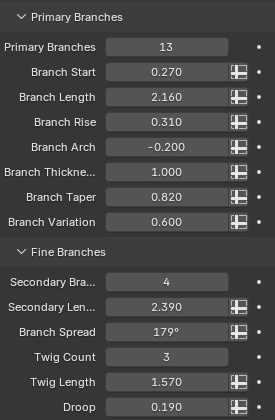
These branches establish the broad crown before the smaller side branches and twigs are generated.
Primary Branches: Sets the number of main branches growing from the trunk.
Branch Start: Sets how far up the trunk the first primary branches may begin.
Branch Length: Scales primary branch reach relative to the base size set by Crown Width.
Branch Rise: Adds upward or downward reach beyond the crown dome target.
Branch Arch: Changes the height of each branch’s middle arch relative to its length.
Branch Thickness: Sets the branch’s base radius relative to the trunk radius at its attachment point.
Branch Taper: Controls how strongly the branch generations narrow toward their tips.
Branch Variation: Adds seed-based differences in primary branch lengths; lower settings make lengths more regular.
Fine Branches
Adjust the smaller branches that support the foliage.
Secondary Branches: Sets the number of side branches per primary branch; zero also disables twig generation.
Secondary Length: Sets the base reach of each side branch.
Branch Spread: Sets the maximum horizontal fan angle of side branches around their parent direction.
Twig Count: Sets twigs per side branch; at zero, foliage moves to the previous branch layer.
Twig Length: Sets the base reach of the twigs.
Droop: Changes the downward bend at the tips of side branches and twigs.
Roots
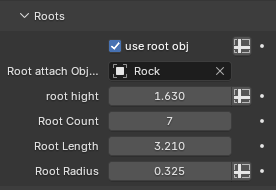
The included Rock object is the default root attachment surface and has an anime-style stone material.
use root obj: Uses the selected attachment object’s surface to guide the roots. When disabled, an internal flat grid provides the reference surface.
Root attach Object: Selects the object whose surface guides root placement when use root obj is enabled.
root hight: Sets the maximum random hight vertical offset applied to the root curves.
Root Count: Sets the number of visible buttress roots; zero removes them.
Root Length: Controls how far the roots spread from the foot of the trunk.
Root Radius: Sets the visible root thickness independently of the trunk radius.
Foliage
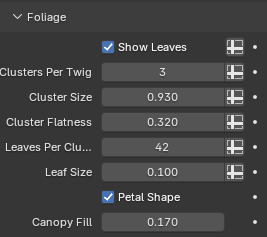
Hide the leaves while checking the branches, then build up the canopy with clusters and individual leaves.
Show Leaves: Shows or hides all foliage while keeping the branch structure.
Clusters Per Twig: Sets the number of foliage clusters on the outer part of each supporting curve.
Cluster Size: Sets the base size of each cluster before flattening and random variation.
Cluster Flatness: Changes each cluster’s vertical-to-horizontal proportion; lower values make flatter clusters.
Leaves Per Cluster: Sets an approximate leaf count per cluster; random scattering affects the final count.
Leaf Size: Changes the size of individual leaves before local random scaling.
Petal Shape: Switches between pointed four-sided leaves and wider, folded six-sided petals.
Canopy Fill: Changes the size of the shaded inner foliage mass; lower settings expose more branches.
Palette & Materials
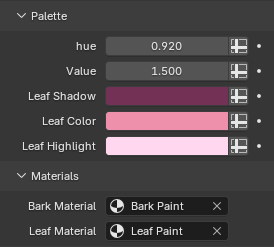
Palette
Use the supplied foliage material to work with these color controls.
hue: Shifts the foliage hue through the color adjustment stored for the material.
Value: Adjusts the foliage brightness through the value stored for the material.
Leaf Shadow: Sets the dark foliage color band.
Leaf Color: Sets the main foliage color band.
Leaf Highlight: Sets the light foliage color band.
Materials
Choose which materials the generated tree uses.
Bark Material: Assigns the material used on the wood, including the trunk, branches, and roots.
Leaf Material: Assigns the foliage material. A custom shader may ignore the Palette attributes.
Additional detail controls
These controls are available in the modifier beyond the groups shown in the screenshots.
Curve Resolution: Sets the primary curve point count; the trunk uses more points and child branches use fewer.
Bark Fluting: Changes the geometric ridges along the bark, making the axial twist visible on the trunk.
Realize Output: Converts foliage instances to real geometry for conversion or export. Leave it off during routine shaping.
Practical tips
Slow updates
Reduce Leaves Per Cluster, Clusters Per Twig, or branch and twig counts while shaping the tree. Increase them again once the silhouette is settled.
Branches are hard to see
Disable Show Leaves while editing the structure. With foliage enabled, lower Canopy Fill to reveal more branches inside the crown.
Roots do not follow the intended surface
Enable use root obj and check Root attach Object. Use the included Rock as a starting surface, then refine Root Length, Root Radius, and root hight.
Testing a new palette
Keep the supplied Leaf Paint material assigned while adjusting Palette. Custom materials need to use the setup’s foliage attributes for these controls to affect their shading.
Assets included
The file includes the Procedural Anime Tree Geometry Nodes setup, bark and foliage materials, and a Rock object with an anime-style stone material.
Have questions about this product?
Login to message
| Published | 3 days ago |
| Blender Version | 5.0 - 5.2 |
| Render Engine Used | Cycles, Eevee |
| License | Royalty Free |
Discover more products like this
environment foliage canopy generator branching tree flowering tree anime tree petal foliage tree-generator stylized-tree tree