 Mrs Eliza
Create 27+ Realistic Cardboard Box Styles with Custom Text, Logos, Materials & Fold Animations
Overview
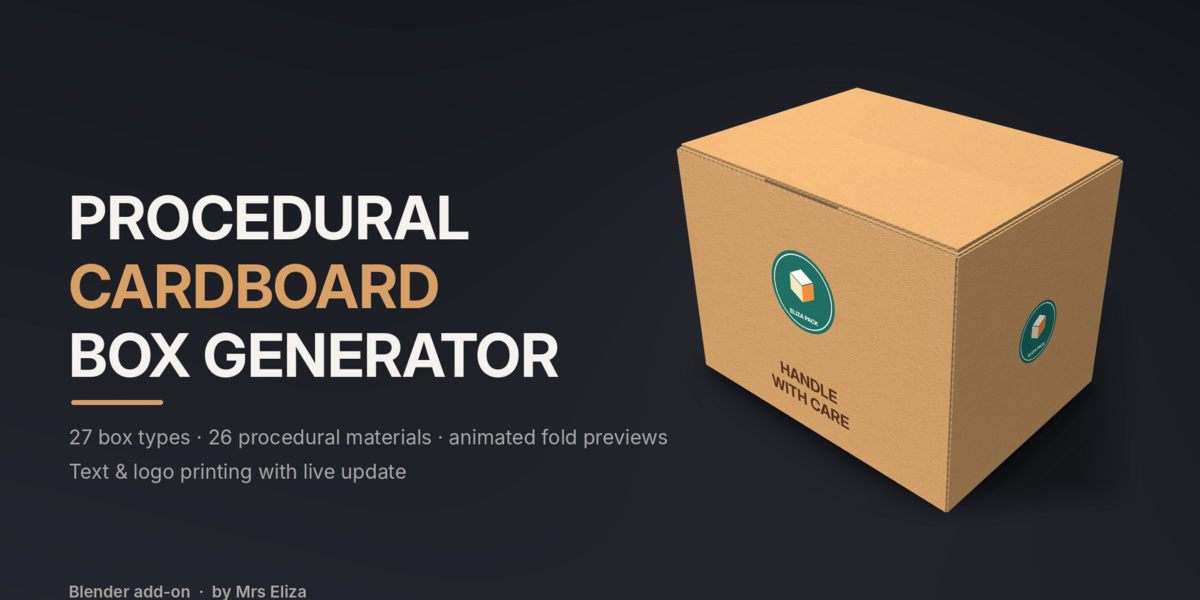
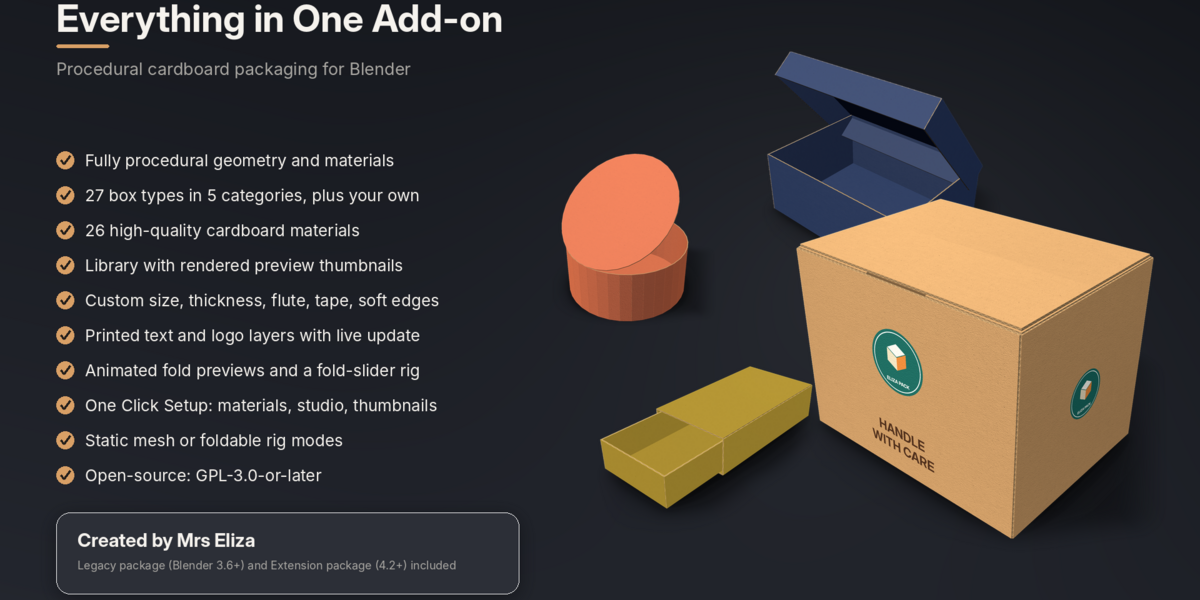
Procedural Box Generator Using Cardboard is a powerful Blender add-on for creating realistic cardboard packaging, shipping boxes, product containers, and custom packaging designs.
Create professional packaging directly inside Blender without manually modeling complicated box structures or relying on external image textures.
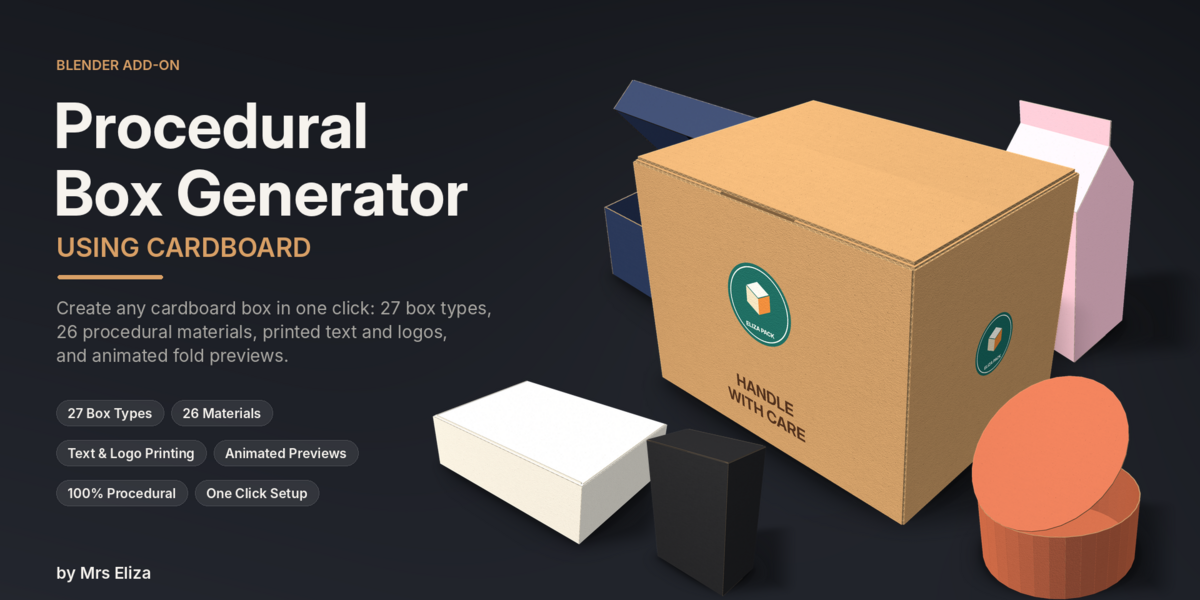
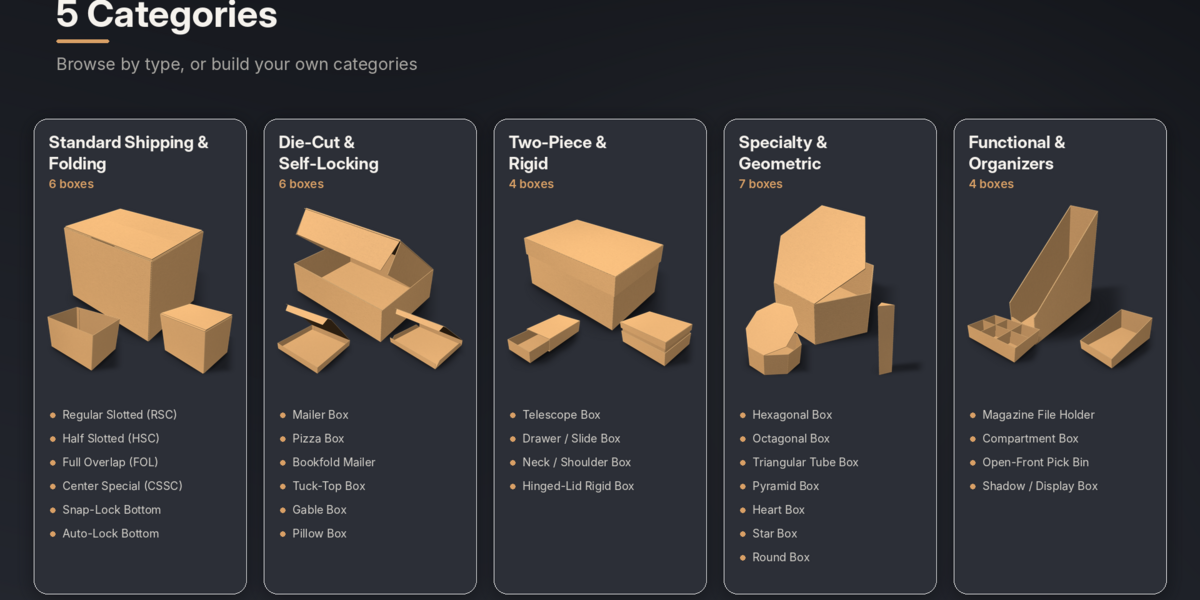
With 27 box types across 5 categories, 26 procedural cardboard and paper materials, customizable text and logo printing, and built-in fold animations, you can create everything from simple shipping cartons to pizza boxes, mailers, rigid gift boxes, and custom packaging designs.
Every box and material is generated procedurally, allowing you to customize dimensions, details, materials, printed graphics, and animations directly inside Blender.
Key Features
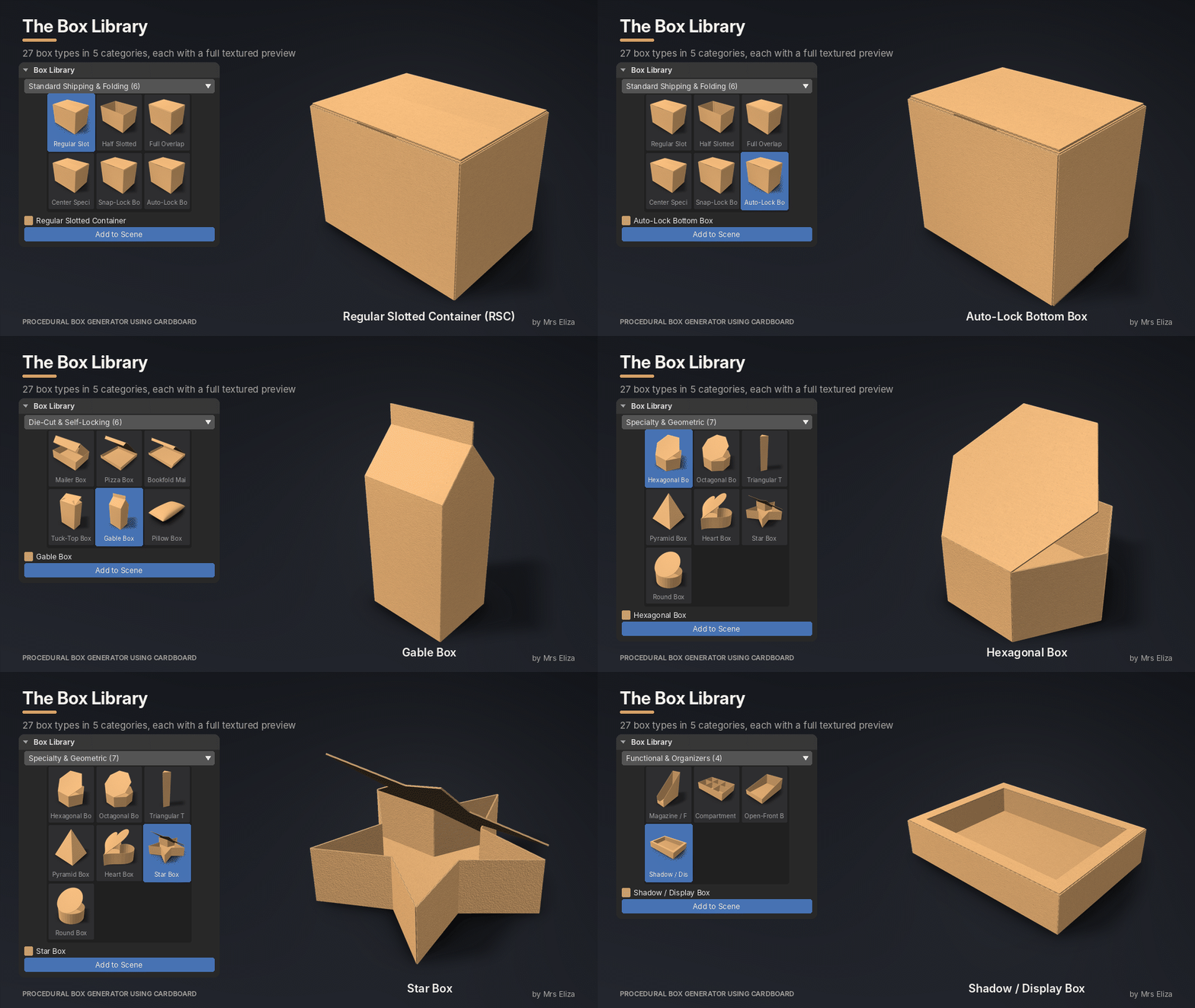
27 Box Types: Explore a wide collection of packaging designs across 5 categories.
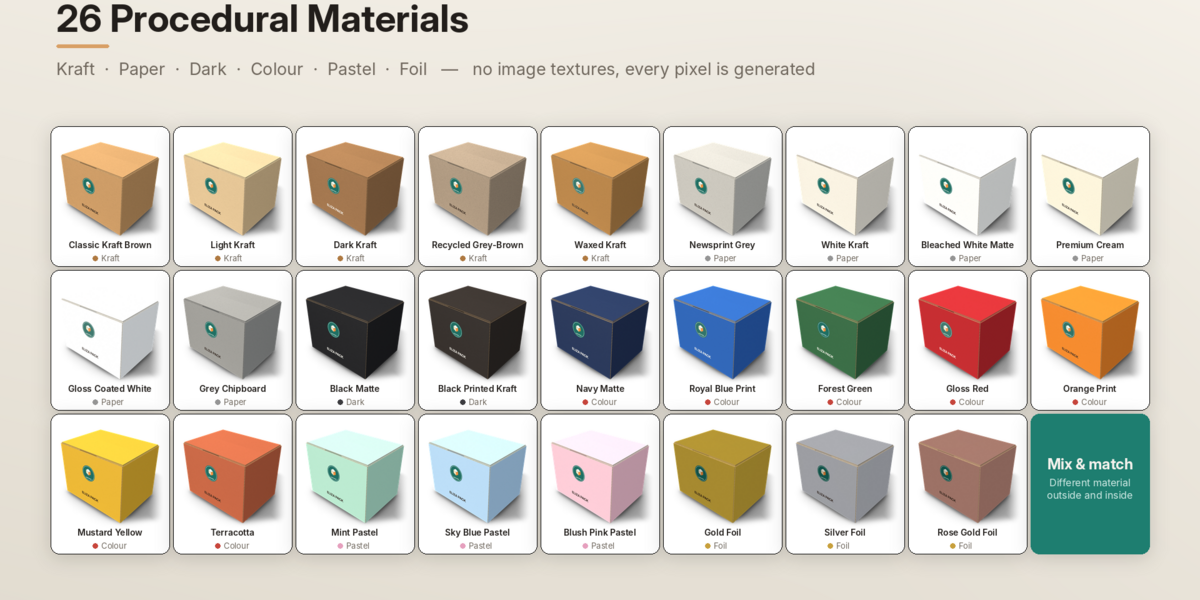
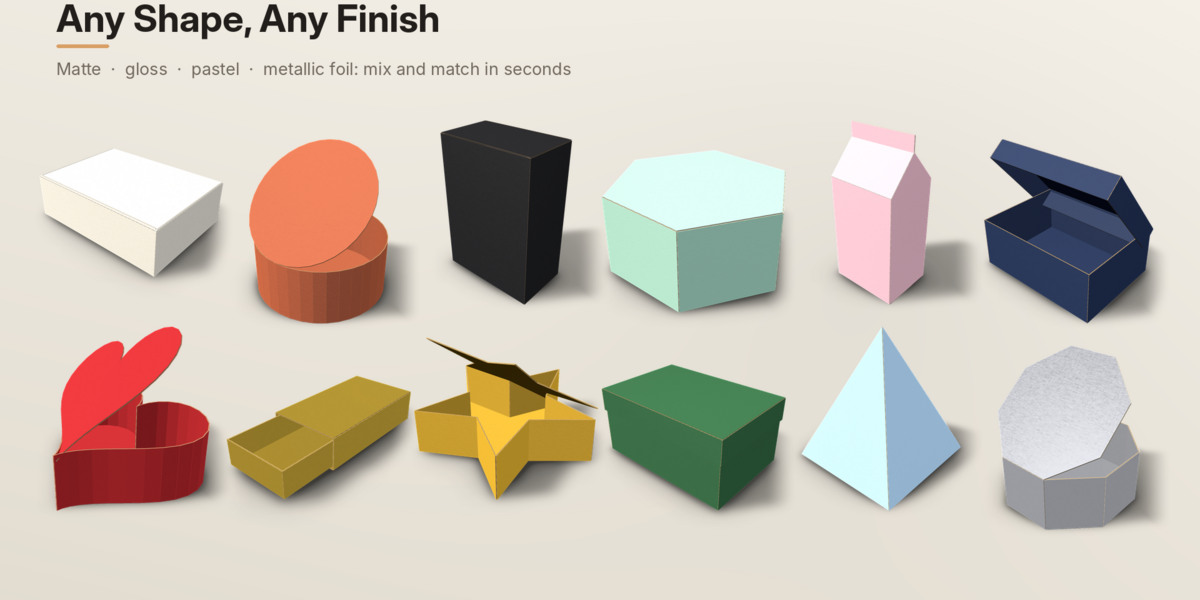
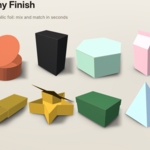
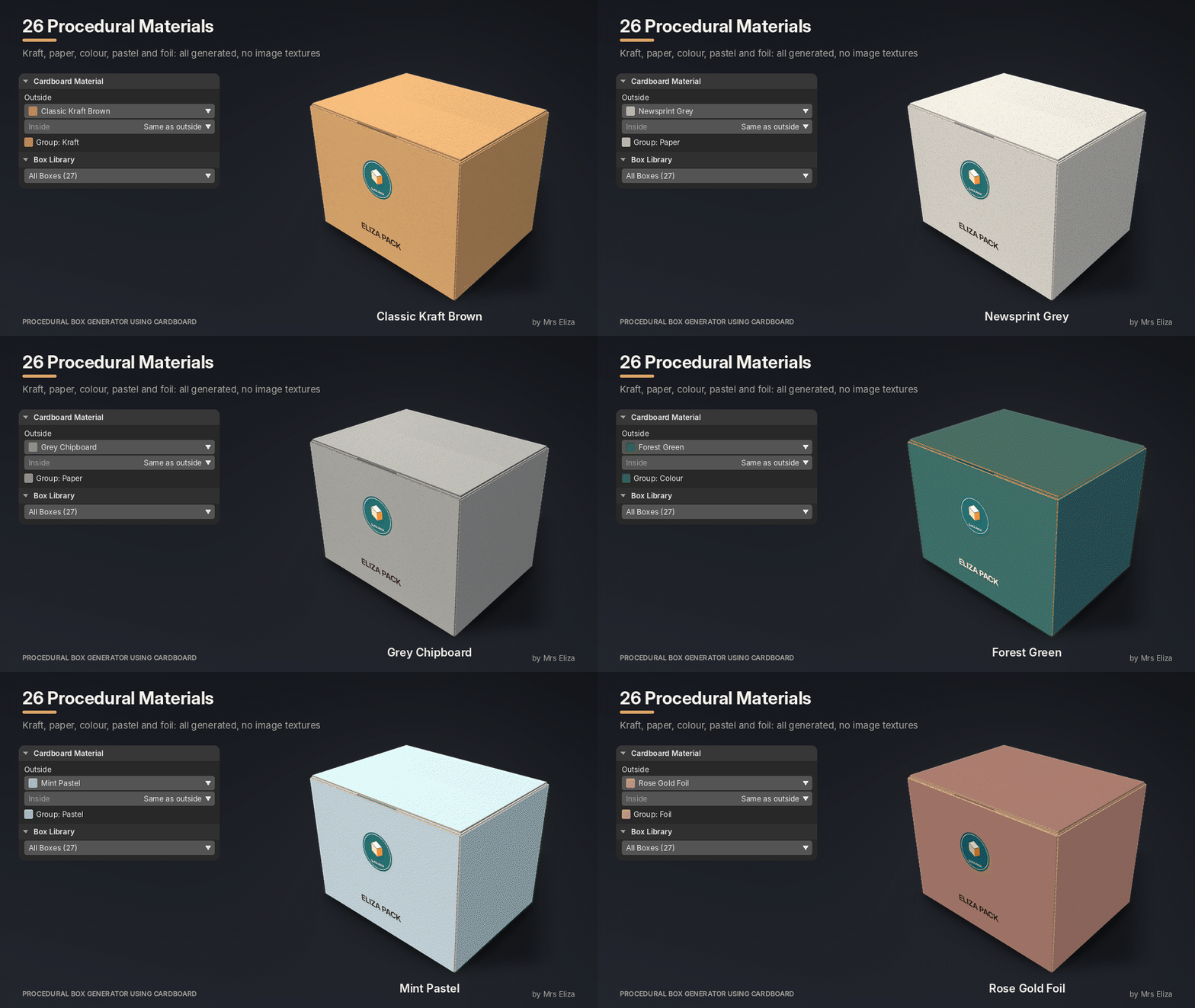
26 Procedural Materials: Create natural kraft, white cardboard, colored boards, pastel materials, and metallic foil finishes.
Fully Procedural Geometry: Customize box dimensions, thickness, folds, flaps, dividers, and structural details.
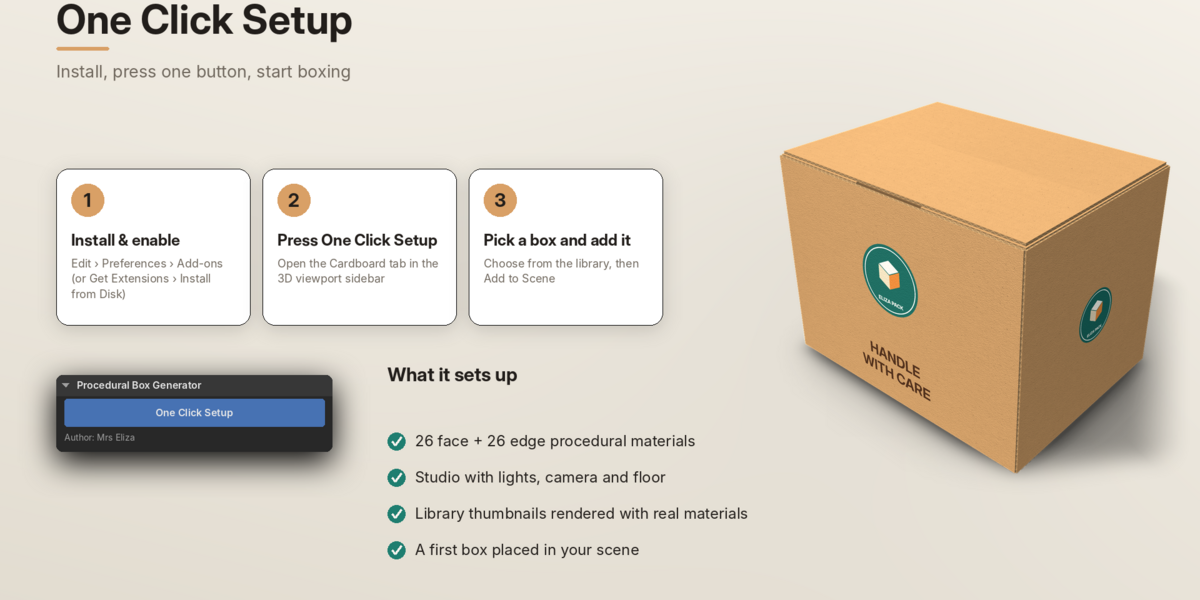
One-Click Setup: Automatically prepare materials, studio lighting, camera, floor, library thumbnails, and a starter box.
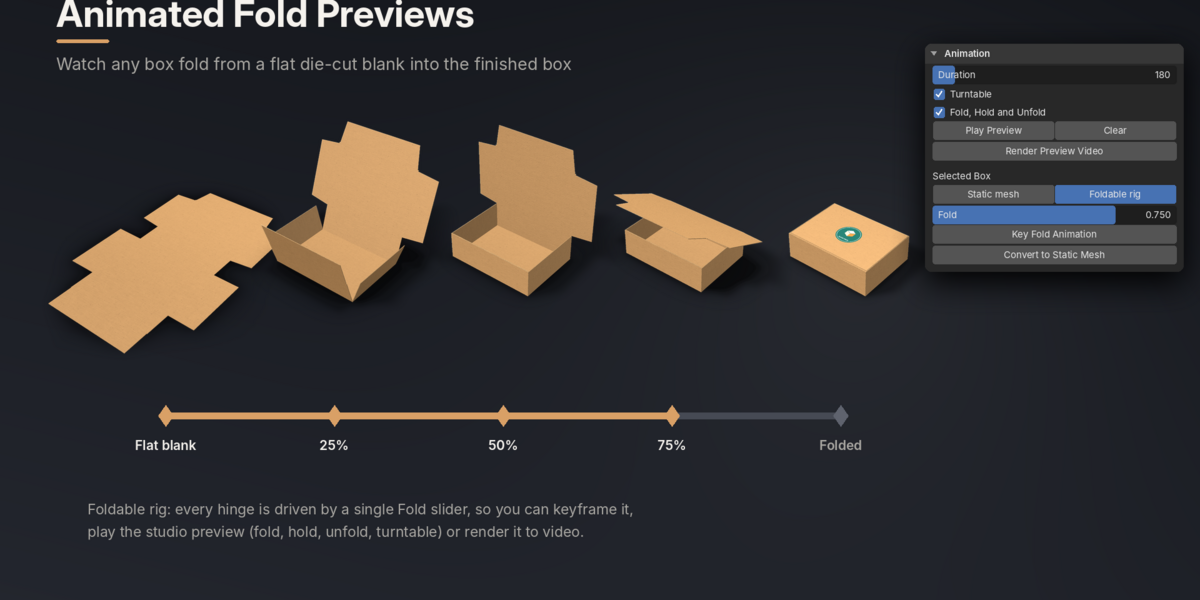
Animated Box Library: Preview boxes folding open and closed before adding them to your scene.
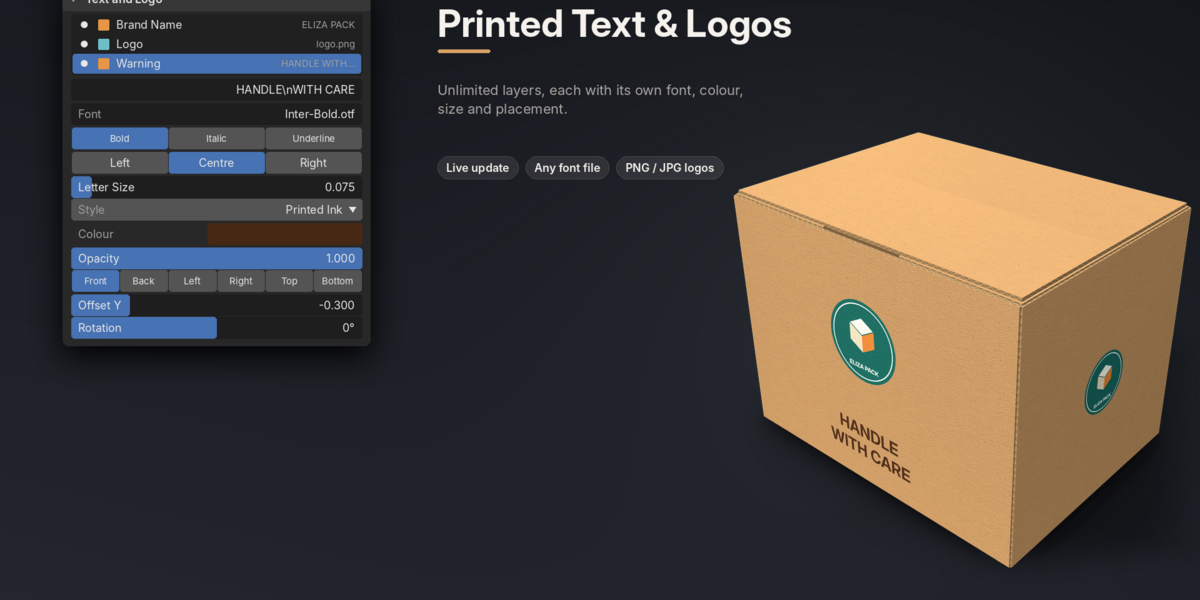
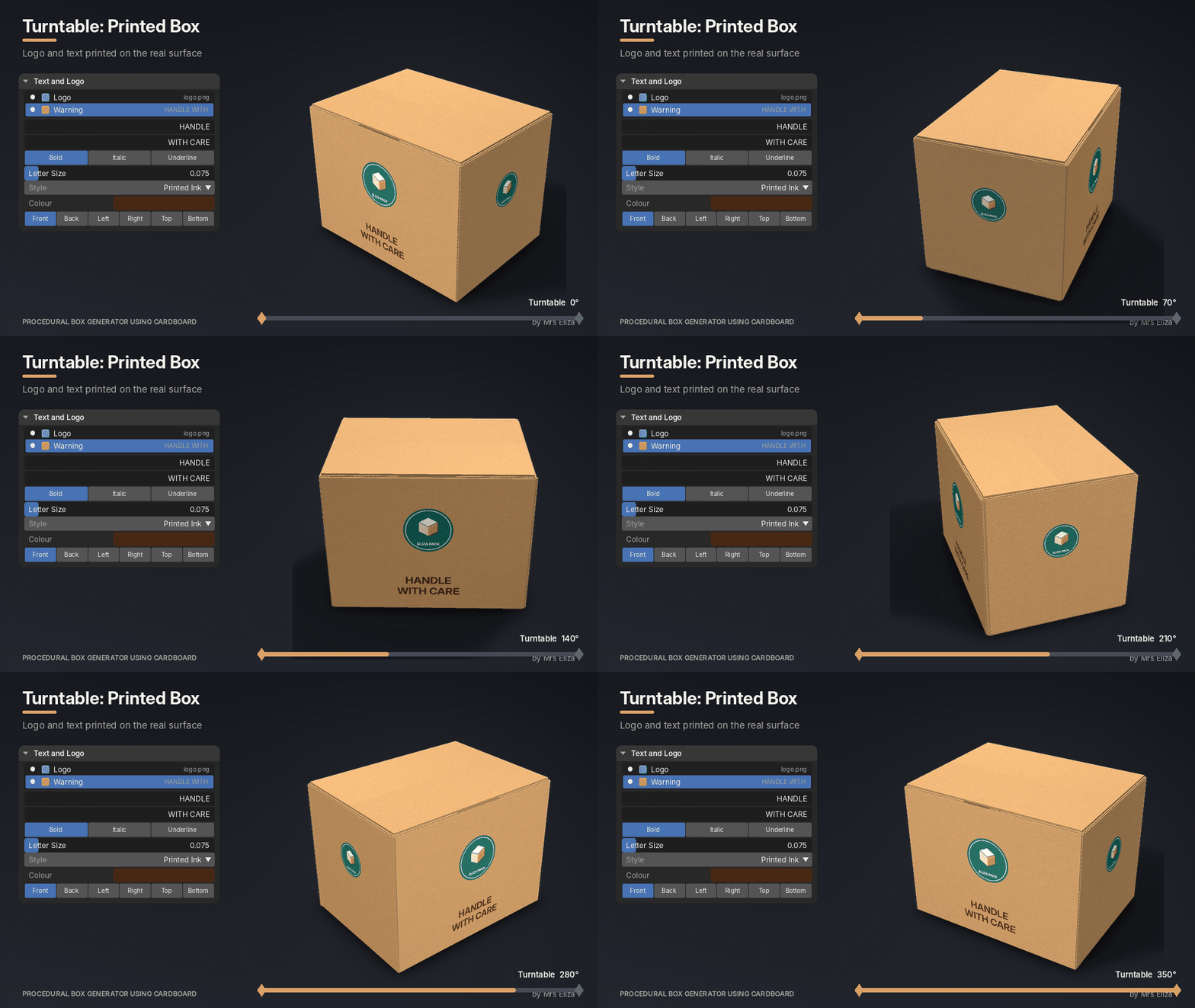
Custom Text & Logo Printing: Add multiple text and image layers to different box faces.
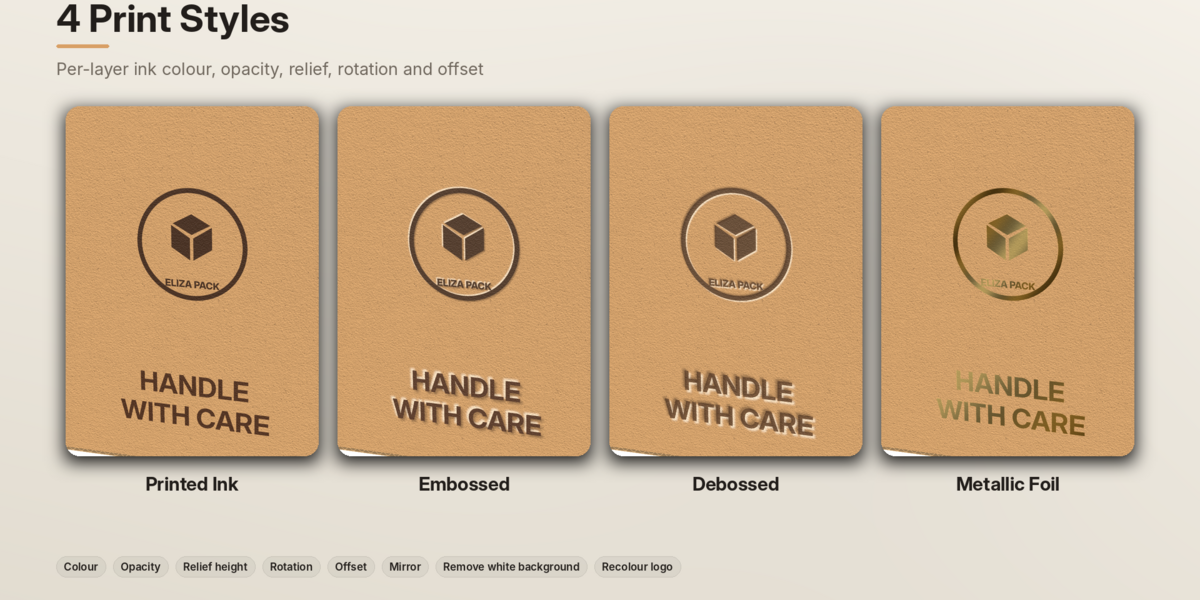
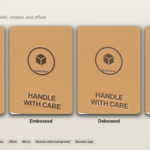
Four Printing Styles: Printed ink, embossed, debossed, and metallic foil.
Custom Logo Support: Import PNG and JPG images and customize their appearance.
-
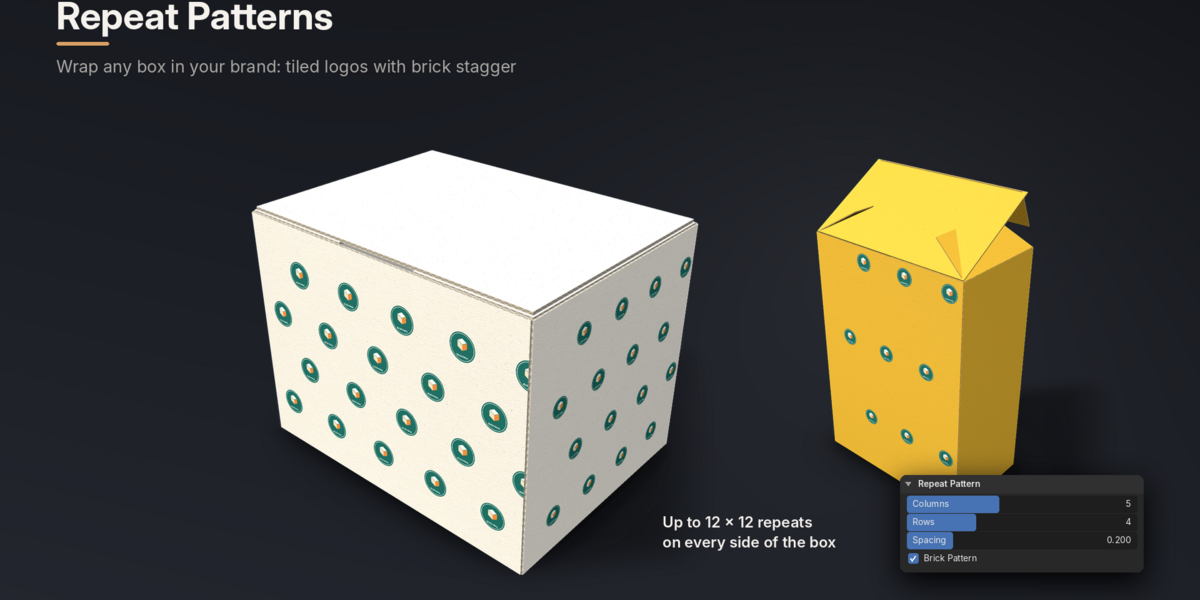
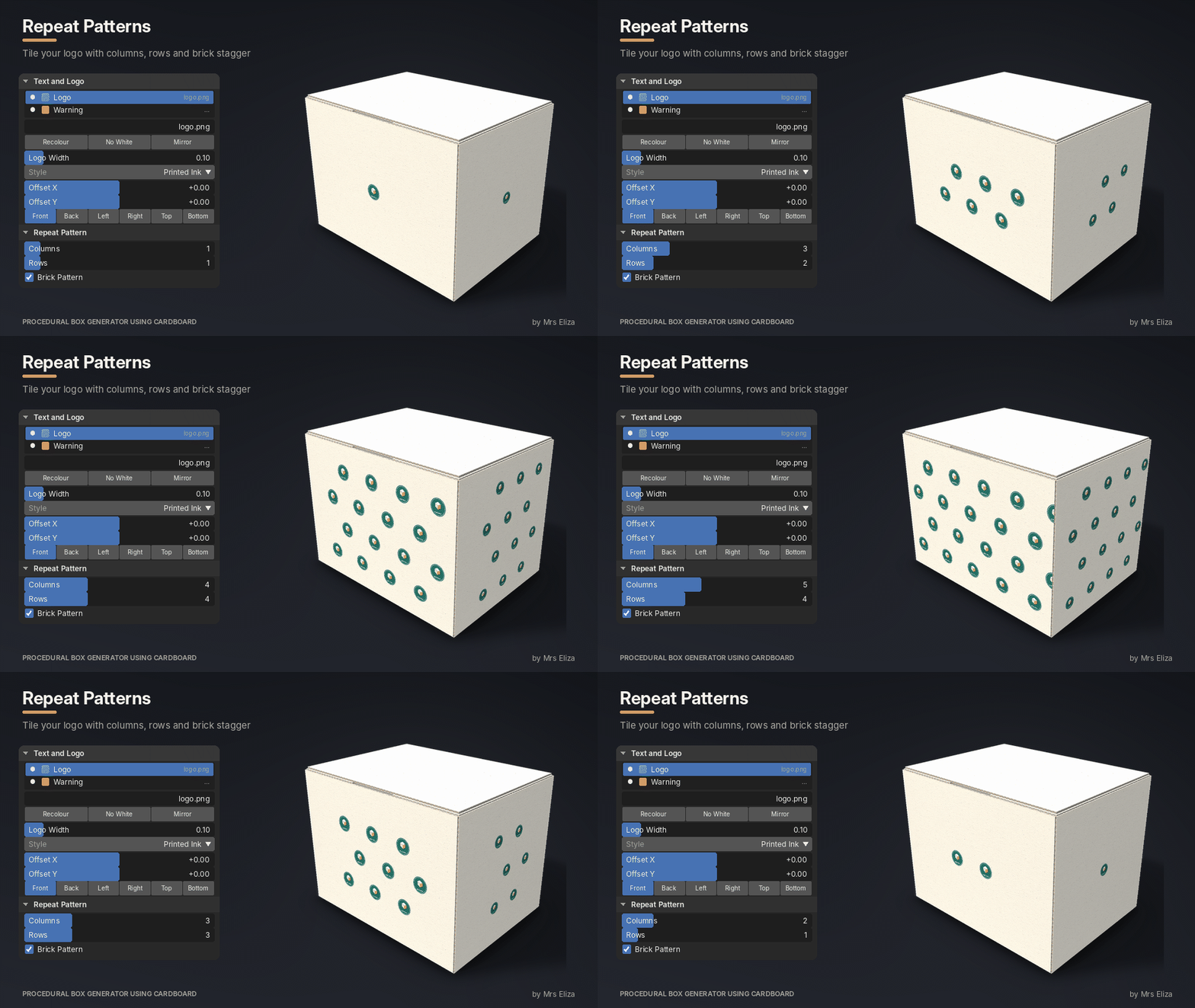
Repeat Pattern System: Create repeating graphics and decorative patterns on packaging.
Live Update: See design changes directly while adjusting settings.
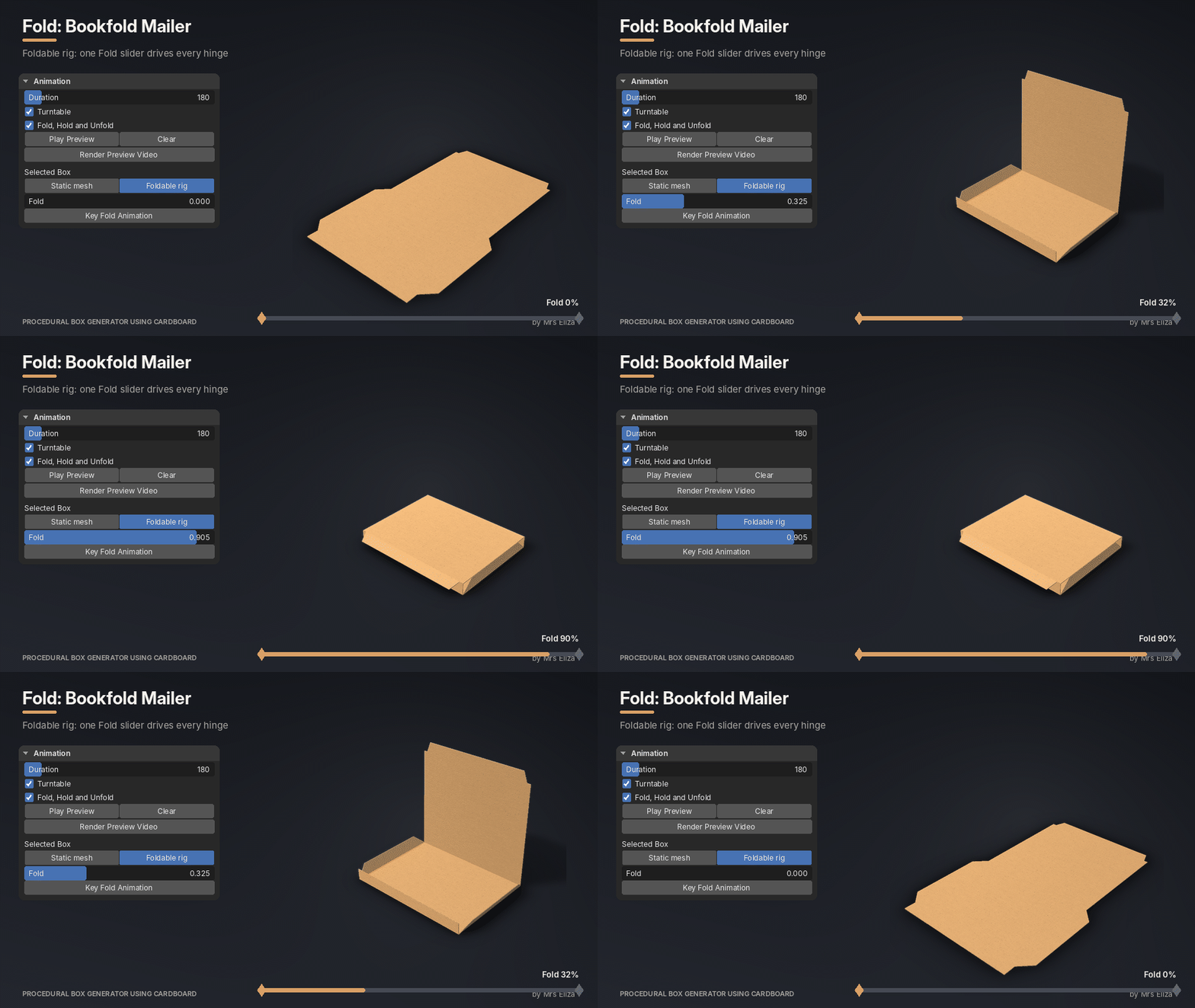
Fold Animation System: Animate box structures with a dedicated fold rig.
-
Turntable Animation: Create rotating product presentations.
Asset & Preset Organization: Organize favorite designs using custom categories.
Box Preset Library
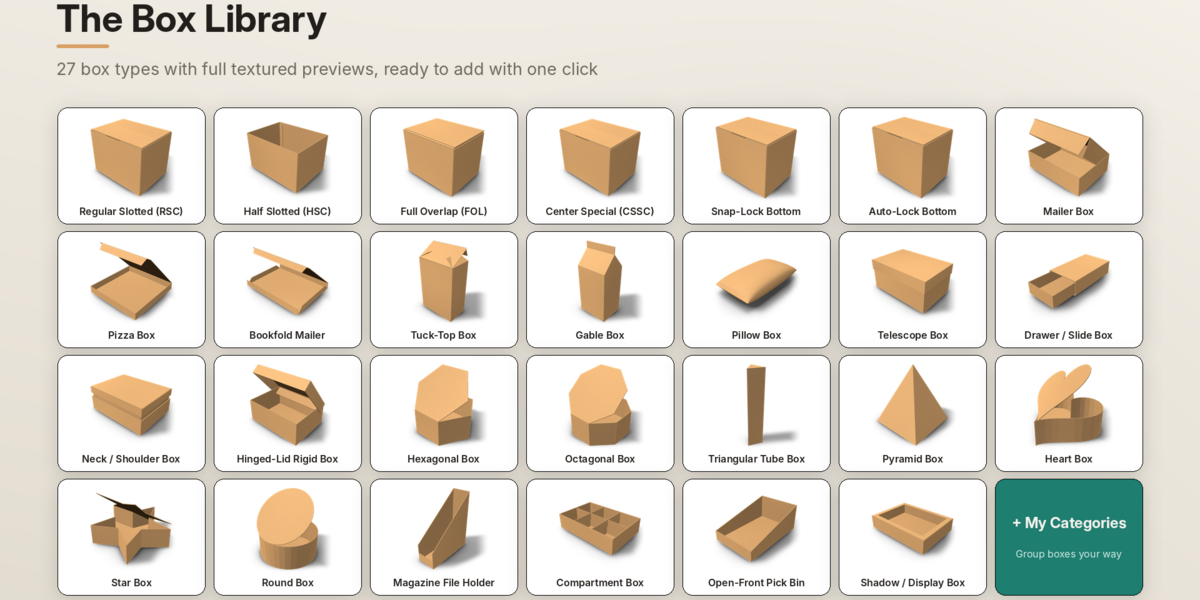
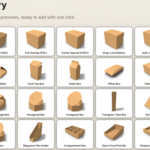
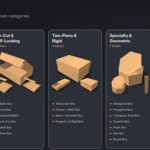
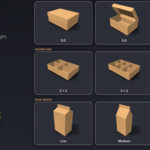
Explore 27 ready-made box designs organized into 5 categories.
The library includes a variety of packaging styles, such as:
Shipping Cartons: Regular Slotted Containers and other shipping box designs.
-
Mailer Boxes: Bookfold mailers and different mailer packaging styles.
-
Food Packaging: Pizza boxes and other food packaging designs.
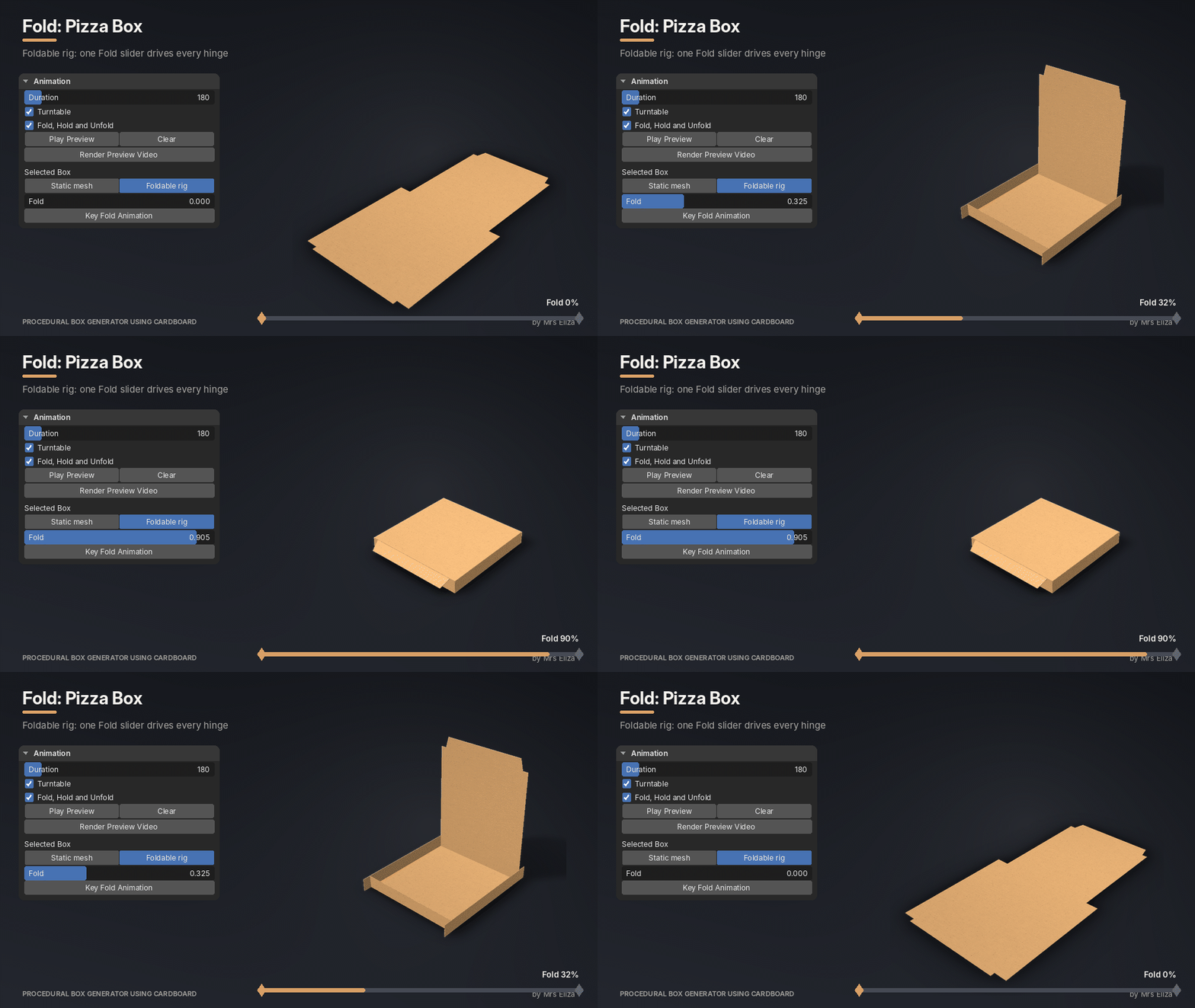
-
Retail Packaging: Tuck-top boxes and gable boxes.
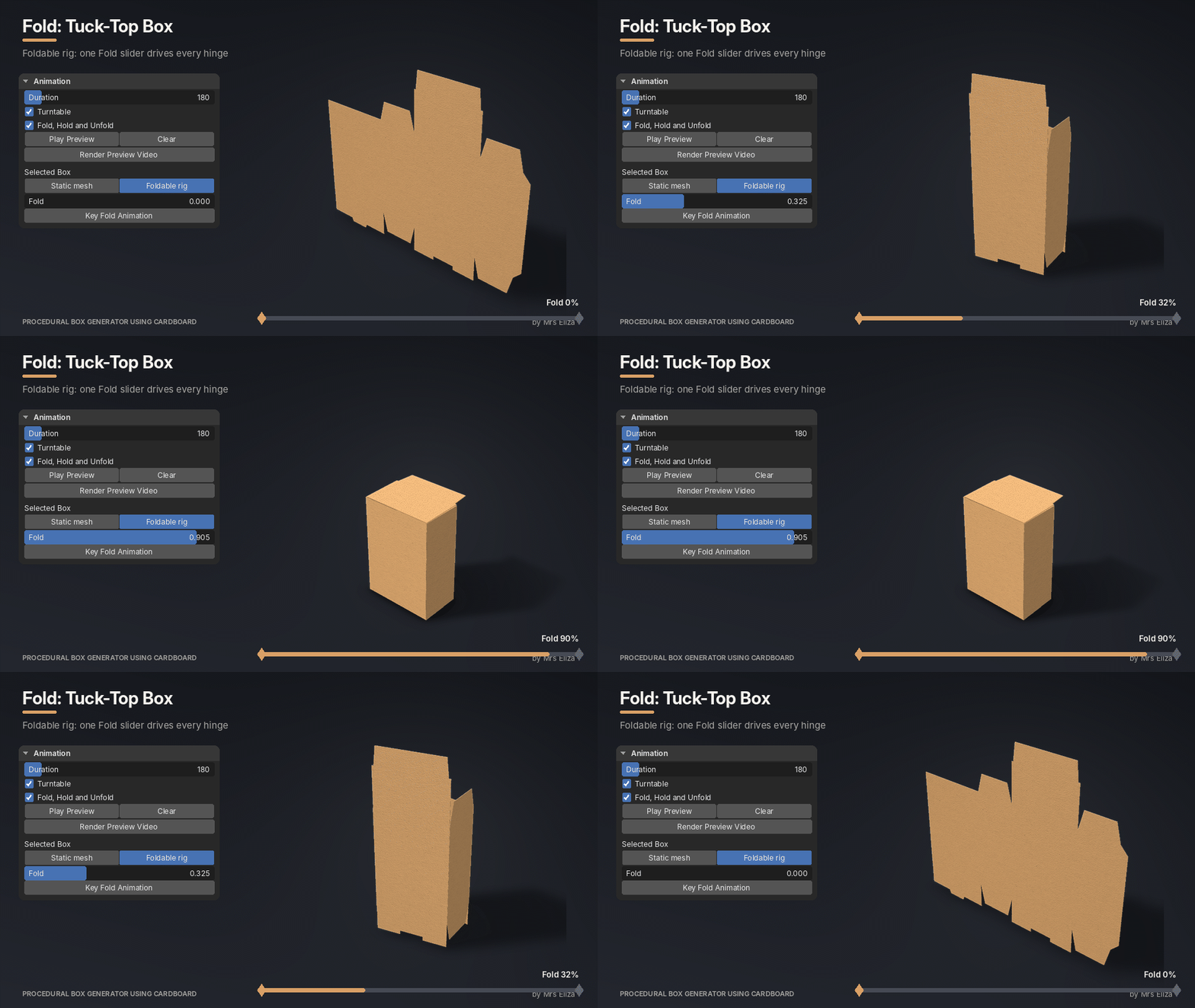
-
Specialty Packaging: Hinged rigid boxes and compartment trays.
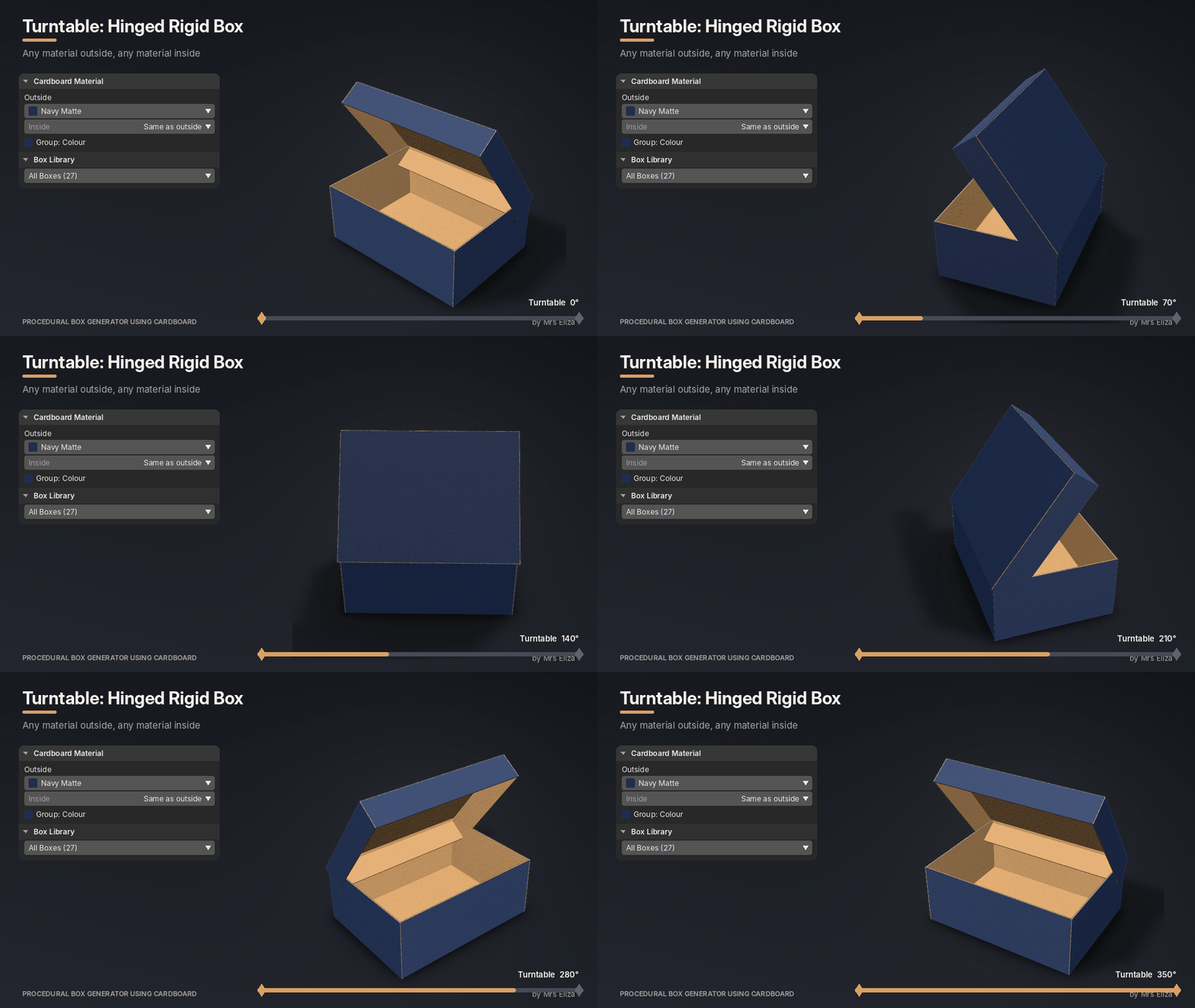
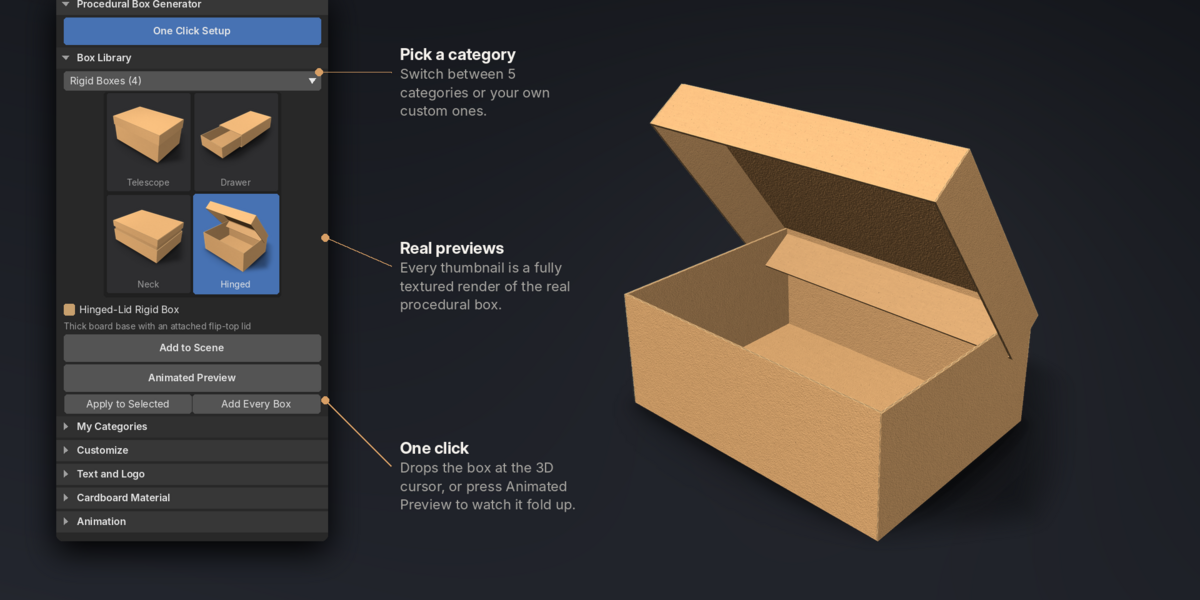
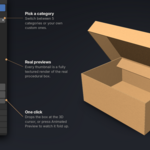
Every box includes a visual preview and description to help you choose the right design.
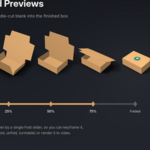
Animated Preview lets you see the selected box folding open and closed before adding it to your scene.
Additional library tools include:
Add to Scene: Add the selected box to your Blender scene.
Apply to Selected: Replace the type of an existing box with another library design.
Add Every Box: Place the entire box library in a row to compare different styles.
My Categories: Create your own categories to organize favorite box designs.
Fully Procedural Box Customization
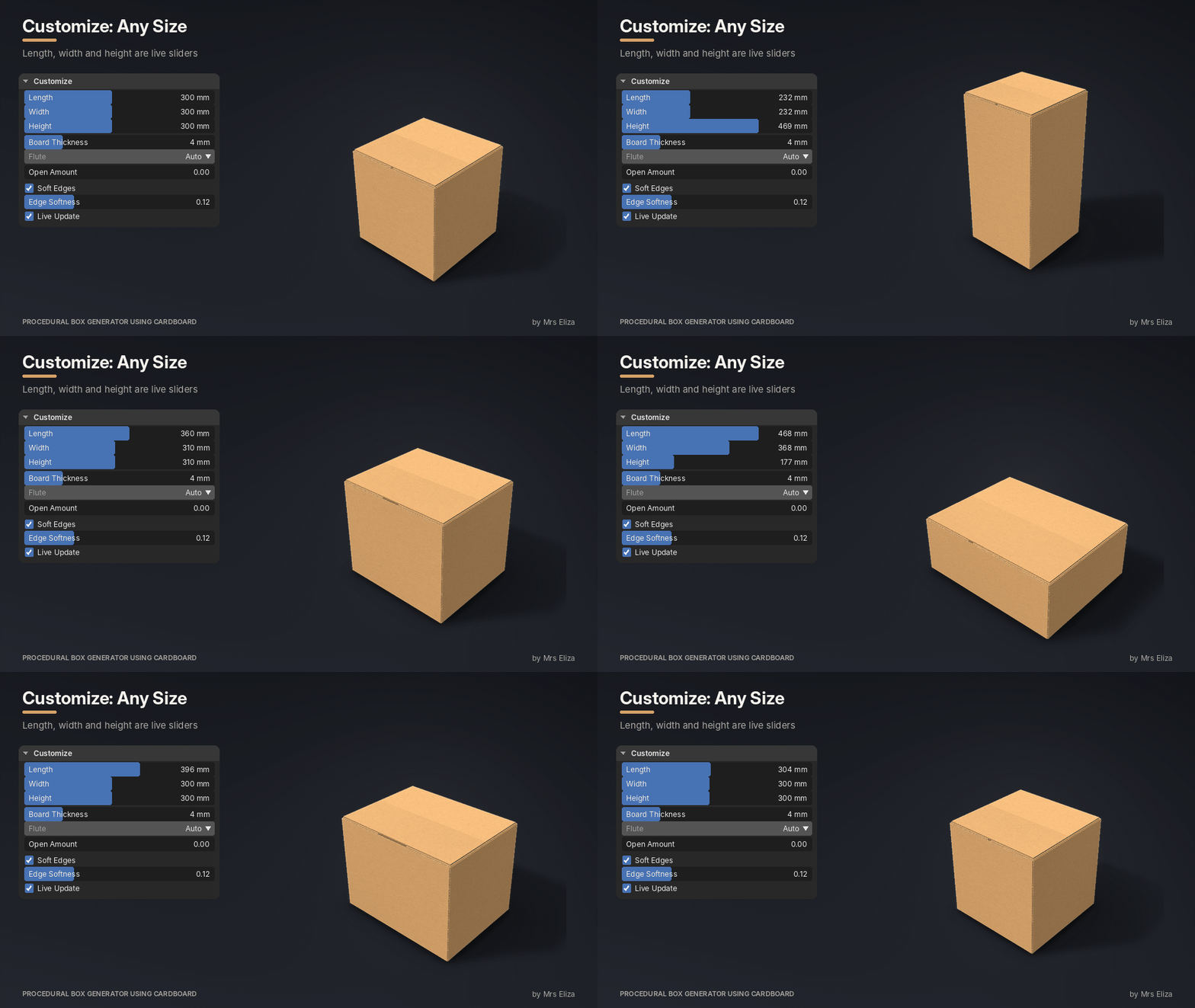
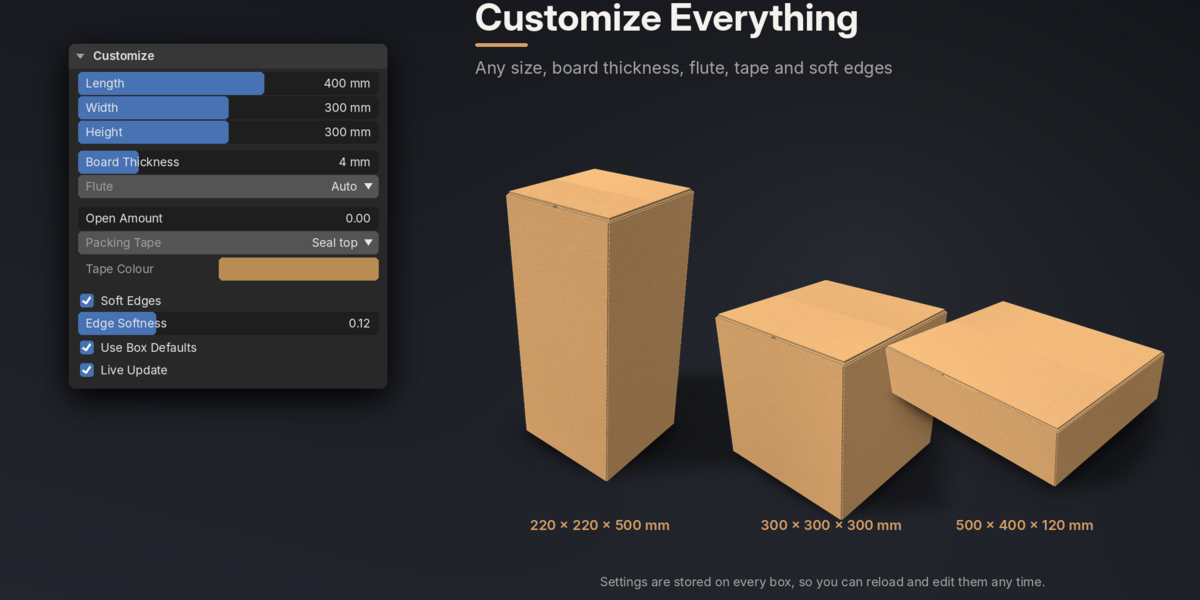
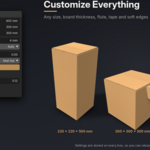
Customize the dimensions and structural details of your packaging using dedicated controls.
Shape & Dimensions
Adjustable length
Customizable width
Adjustable height
Board thickness
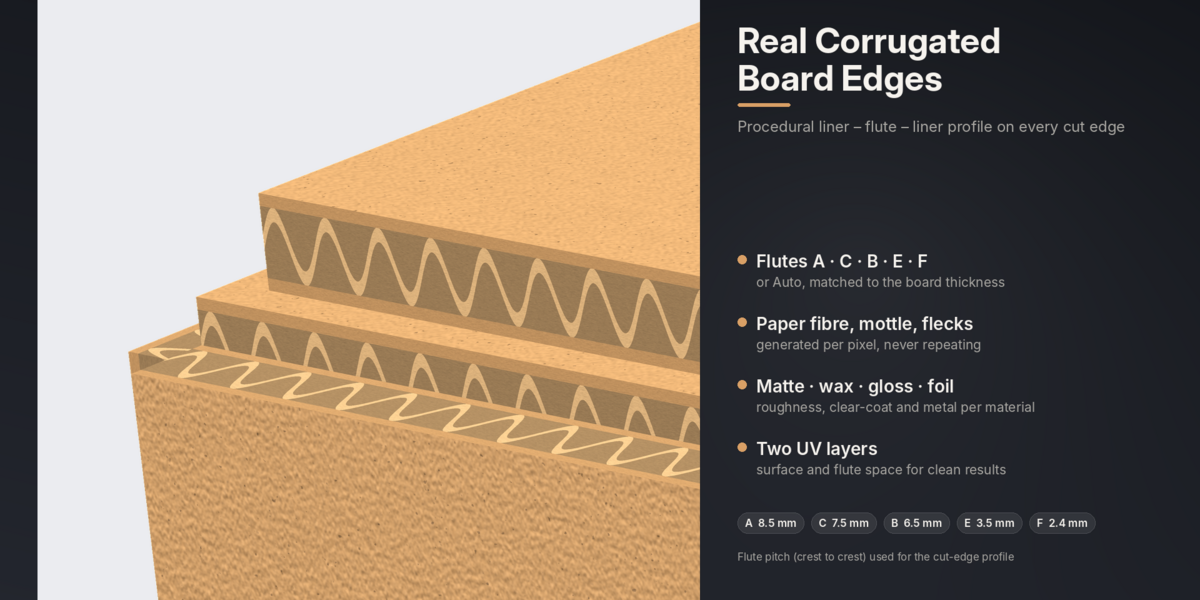
Automatic or manual flute selection
Edge softness for realistic folds
Additional Structural Controls
Depending on the selected box type, additional options are available:
-
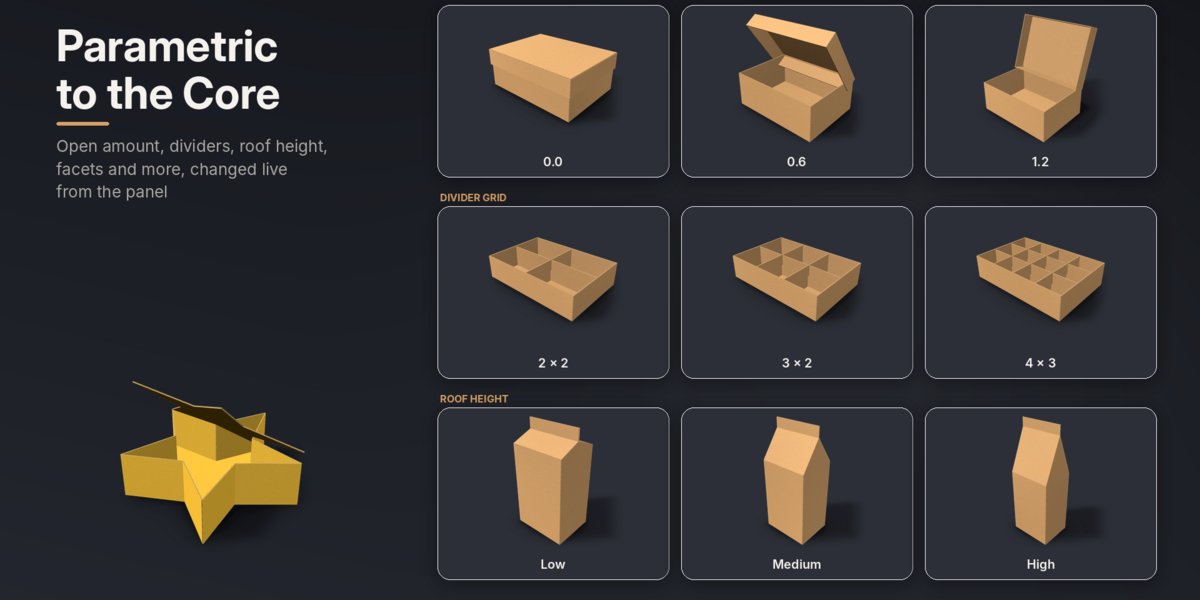
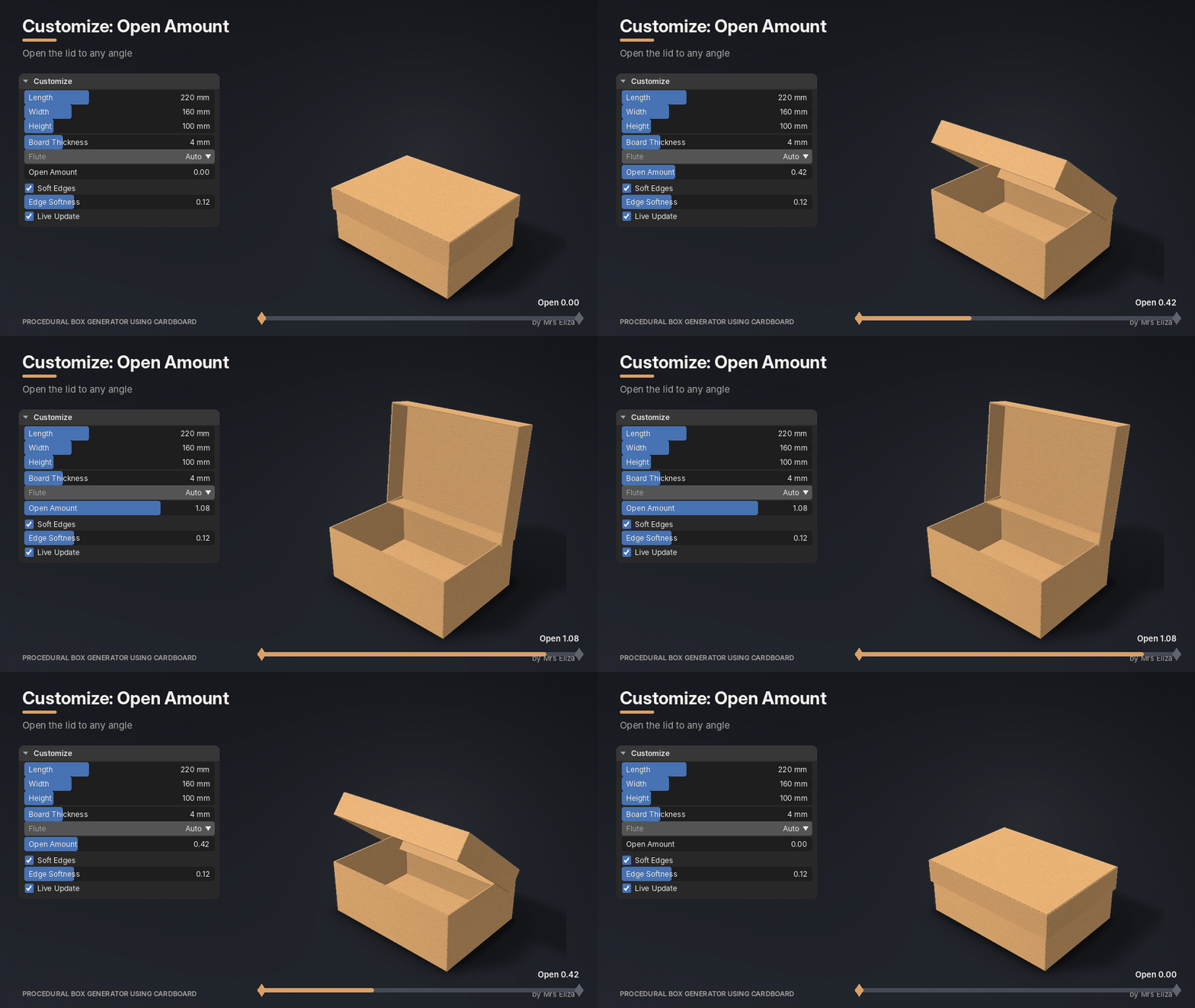
Open Amount: Adjust the opening position of lids and flaps.
-
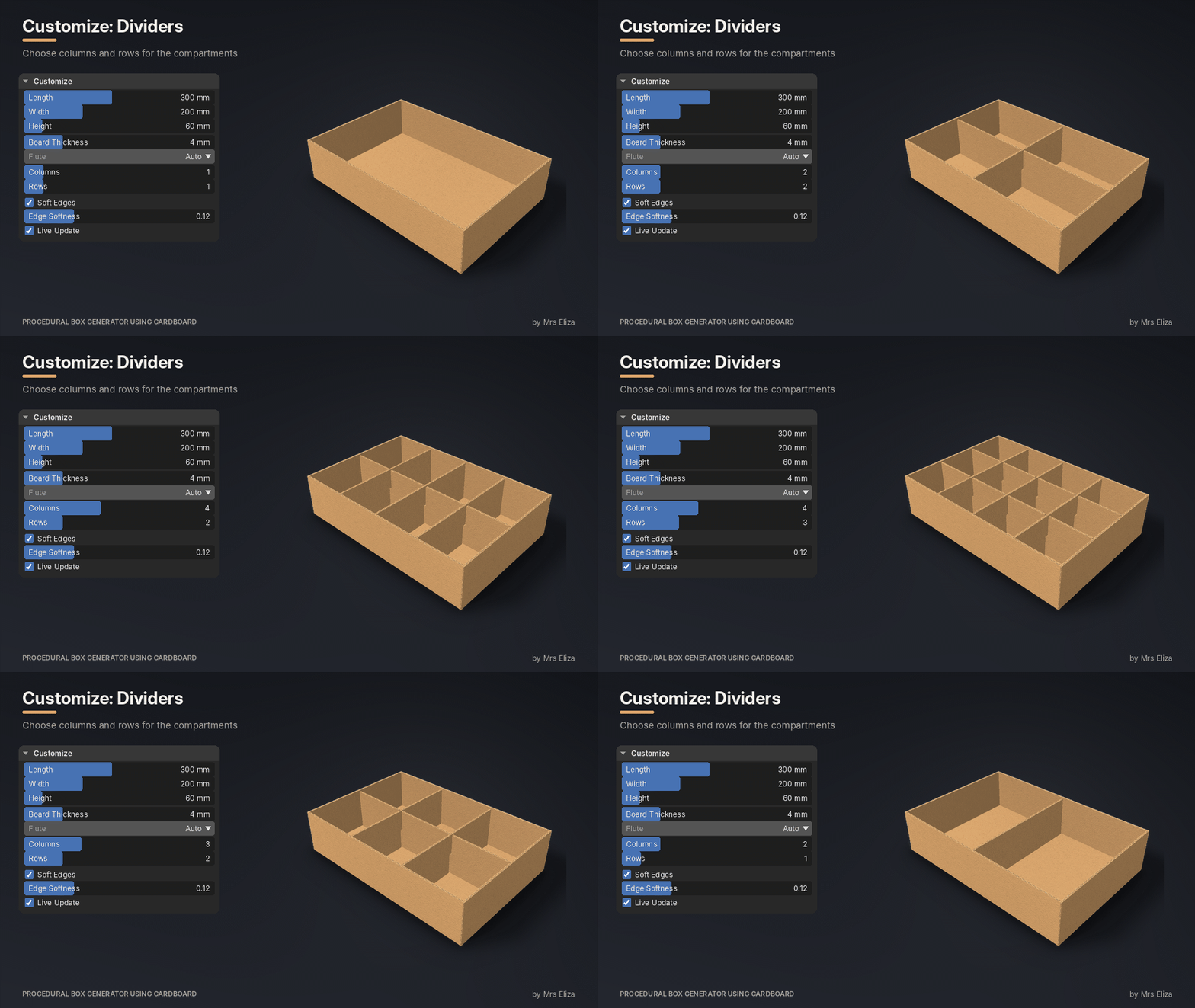
Columns & Rows: Customize compartment dividers and internal layouts.
-
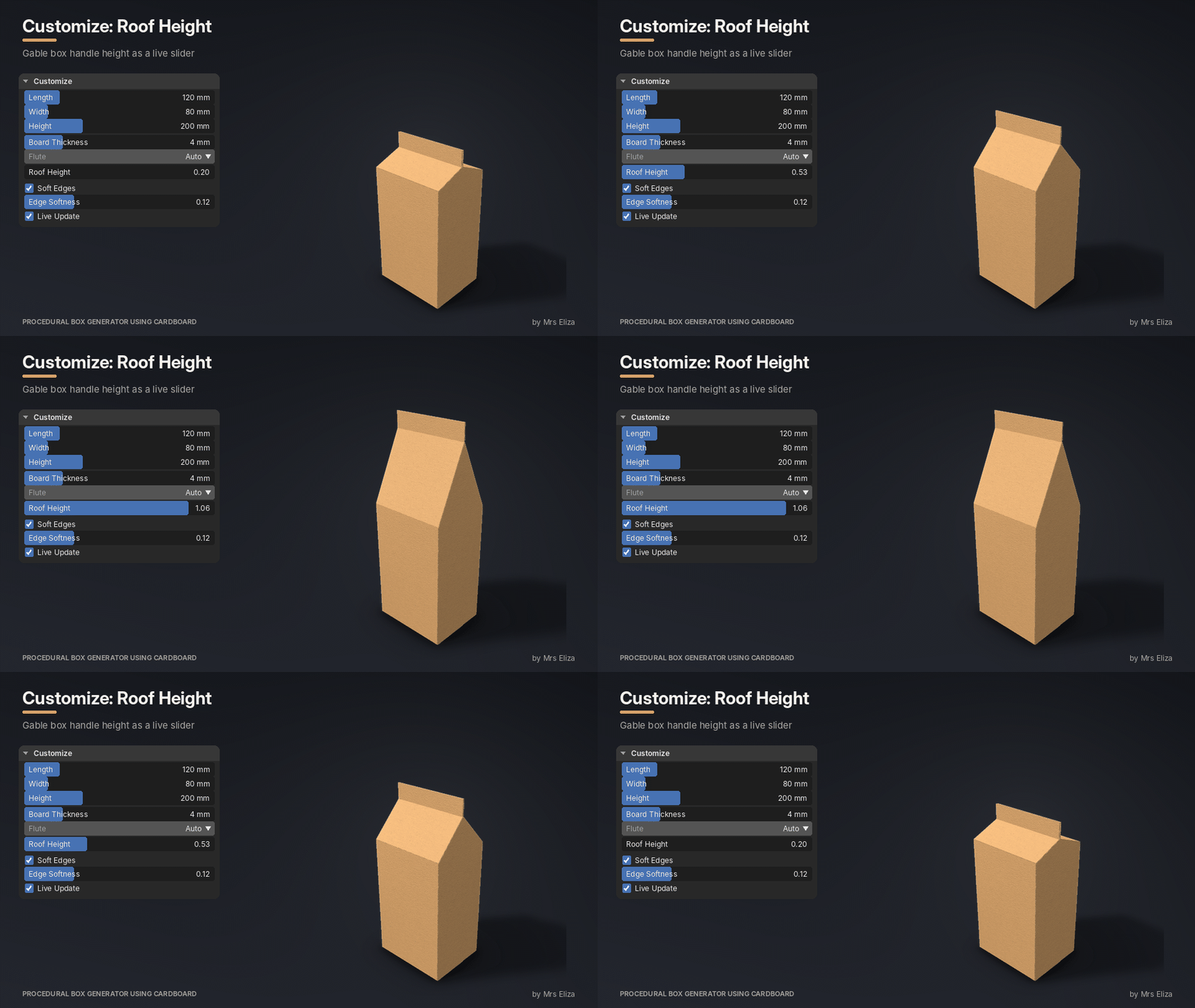
Roof Height: Adjust the roof structure of gable-style boxes.
Edge Softness: Add subtle rounding to folds for a more realistic cardboard appearance.
Enable Live Update to automatically rebuild the box while changing parameters.
Procedural Cardboard Material Library
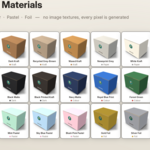
Choose from 26 procedural cardboard and paper materials designed for realistic packaging presentations.
Material options include:
Natural Kraft
White Kraft
Colored Cardboard
Pastel Cardboard
Metallic Foil Finishes
Additional paper and cardboard variations
Procedural material details include:
Cardboard fiber
Surface mottling
Small material flecks
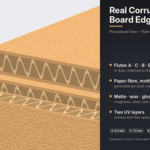
Corrugated edge profiles
Paper surface variations
All material effects are generated using Blender shader nodes, so no external image textures are required.
Separate Interior & Exterior Materials
Give your packaging a different appearance inside and outside.
For example:
Navy blue exterior with natural kraft interior.
White exterior with colored interior.
Custom combinations for retail and product packaging.
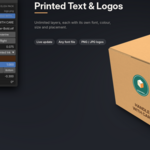
Custom Text & Logo Printing System
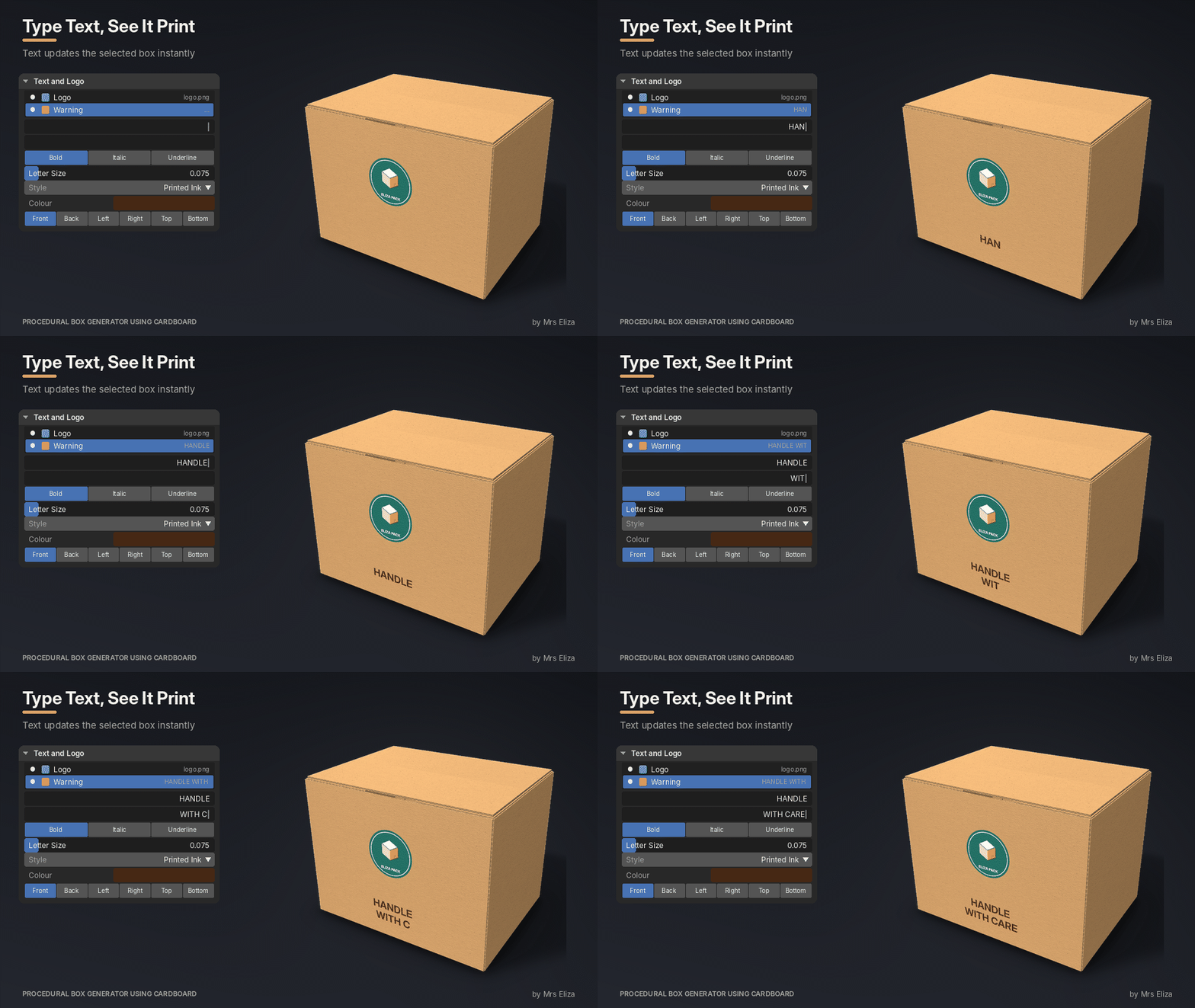
Create personalized packaging with a powerful layered text and logo system.
Add multiple text and logo layers to your boxes and customize each element independently.
Text Customization
Custom text content
Font selection
Bold and italic styles
Underline option
Text alignment
Line spacing
Letter spacing
Adjustable size and position
Rotation and opacity
Logo Customization
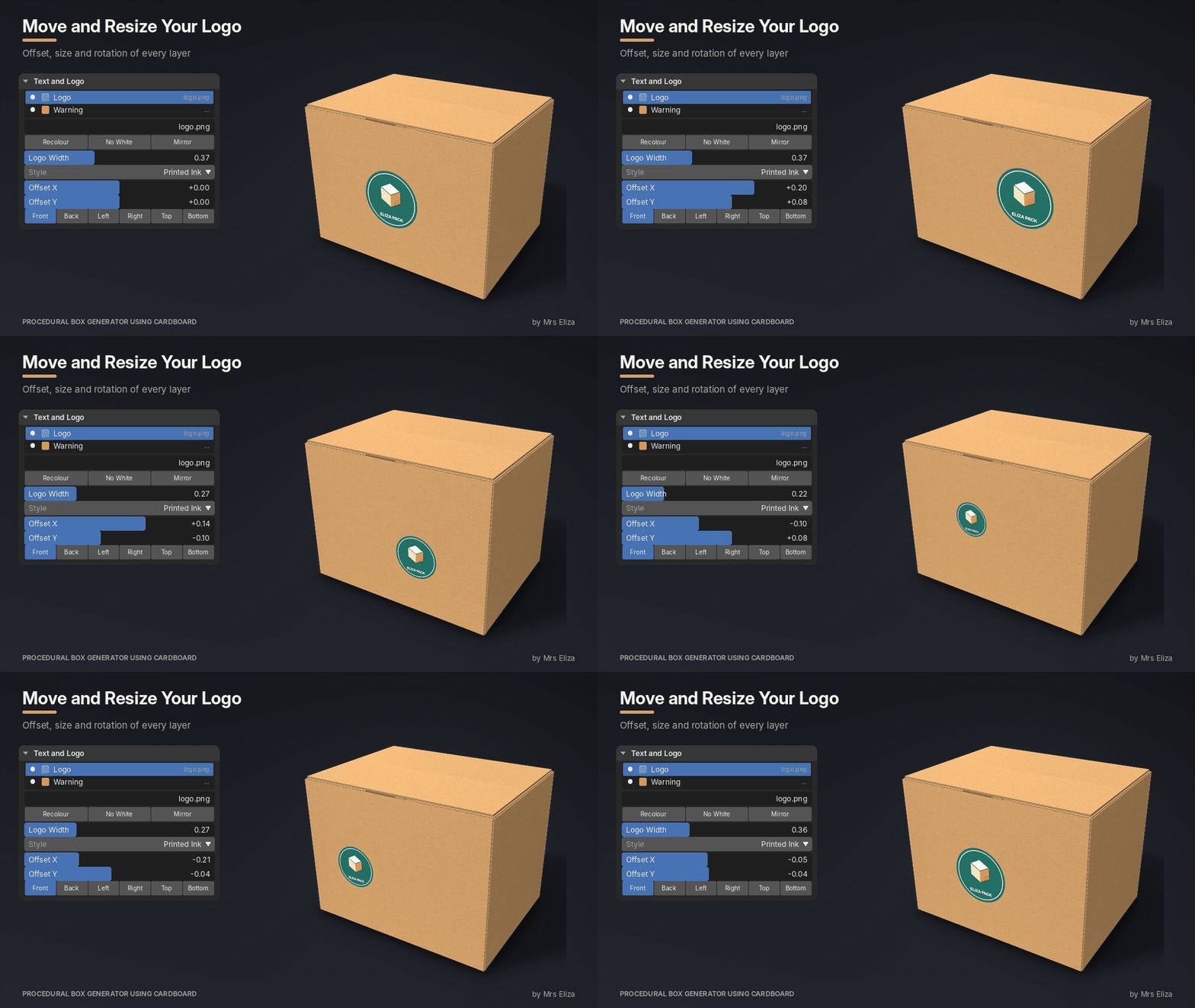
Import PNG and JPG images.
Adjust logo position and size.
Customize rotation and opacity.
Recolor logo graphics.
Remove white backgrounds.
Mirror logo designs.
Surface Placement
Choose which box faces display your graphics:
Front
Back
Left Side
Right Side
Top
Bottom
Four Printing Styles
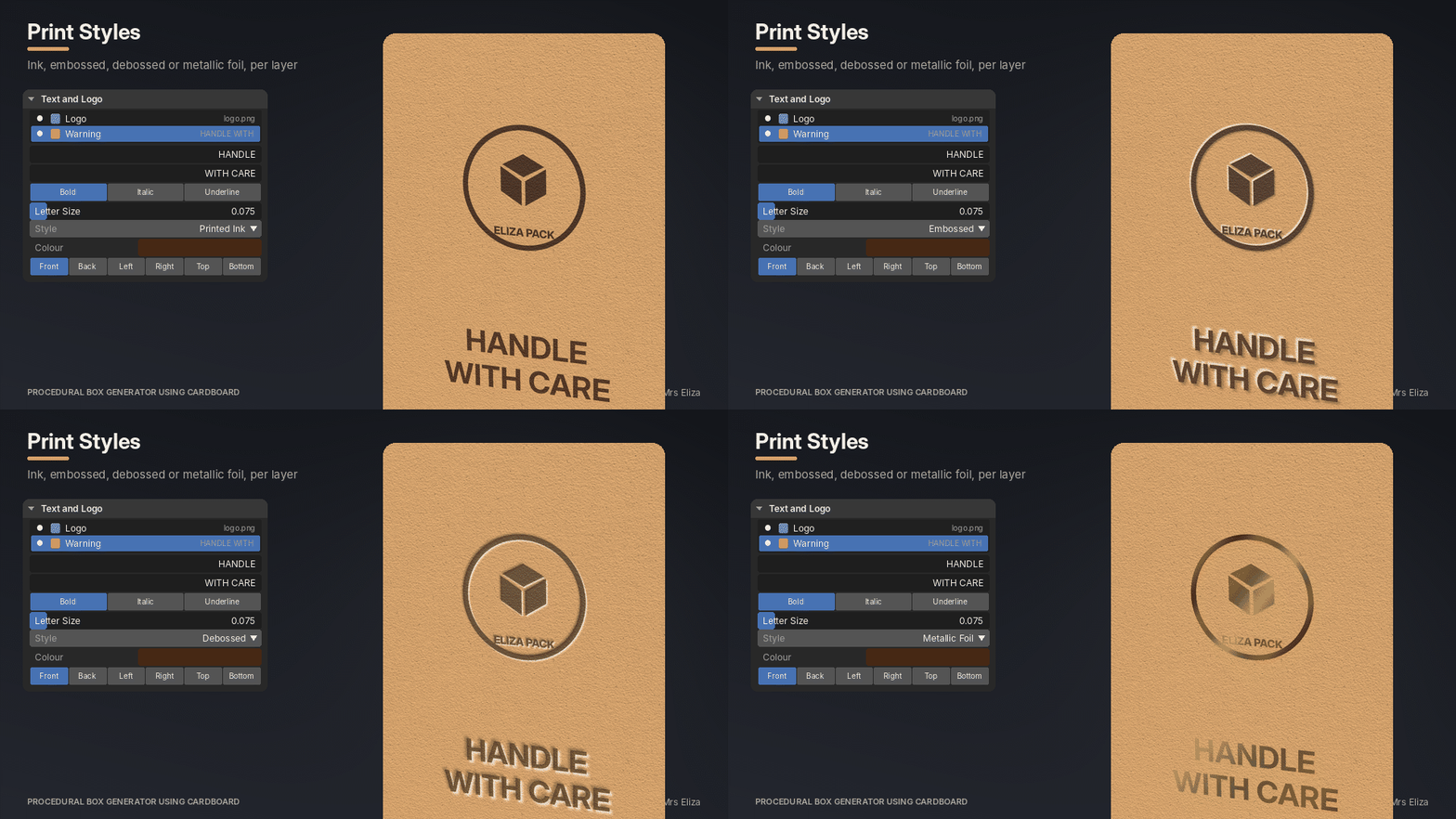
Printed Ink: Creates a traditional printed graphic appearance.
Embossed: Makes text and logos appear raised from the cardboard surface.
Debossed: Creates an engraved or pressed-in appearance.
Metallic Foil: Adds a premium metallic printing finish.
Repeat Pattern System
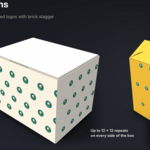
Use Repeat Pattern to distribute text or logo layers across a box surface.
Customize the repeating grid and use optional brick staggering to create different packaging patterns.
All text and logo adjustments update live while you type or drag elements.
Fold Animation System
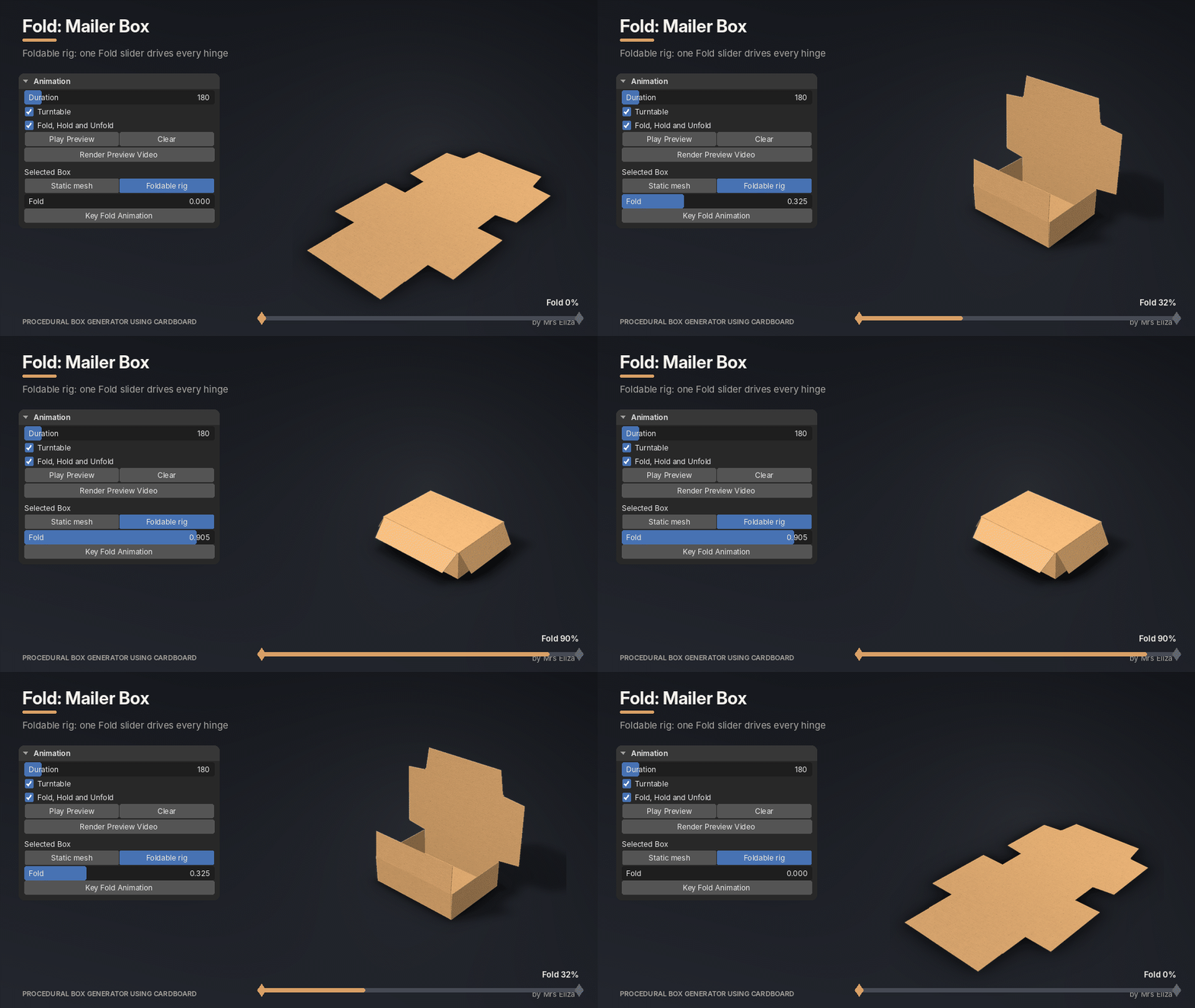
Bring your packaging designs to life with the built-in procedural folding system.
Foldable boxes use a dedicated rig, allowing a single Fold slider to control the box's hinges and folding structure.
Animation Features
Adjustable Fold control
Key Fold Animation
Custom animation duration
Fold, Hold & Unfold animation cycle
Turntable animation
Timeline keyframes
Viewport animation preview
Render Preview Video
Use Play Preview to view your animation directly inside Blender or Render Preview Video to export a preview video.
Static & Foldable Modes
Switch between a regular static mesh and a foldable rig whenever needed.
Use Static mode for faster modeling and viewport work. Switch to Foldable mode when you need to animate the packaging.
One-Click Studio Setup
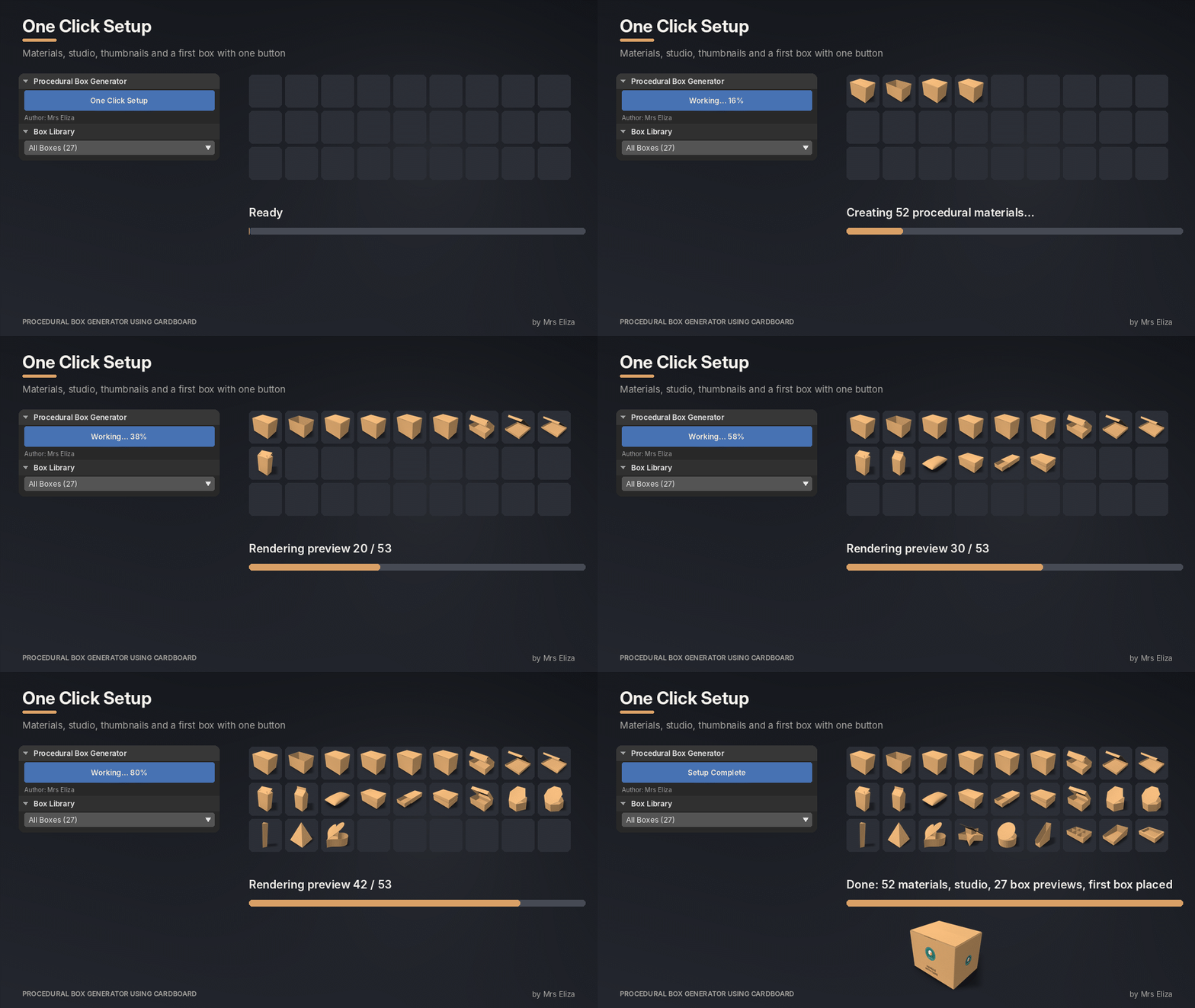
Create a ready-to-use product presentation scene with a single click.
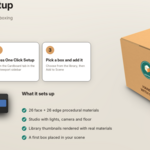
The One Click Setup feature automatically:
Creates the procedural cardboard materials.
Prepares a studio floor.
Adds lighting.
Sets up a camera.
Builds the box library thumbnails.
Places the first box in your scene.
Once the setup is complete, newly added boxes are ready for product presentation and rendering.
Add-on Panels & Tools
All features are organized inside the Cardboard tab in the 3D Viewport sidebar.
One Click Setup: Prepare the studio environment, materials, library thumbnails, and starter box.
Box Library: Browse box presets, filter categories, view descriptions, preview folding animations, and add boxes to your scene.
Customize: Adjust box dimensions, board thickness, flute settings, folds, dividers, and other structural details.
Cardboard Material: Browse and apply the 26 procedural cardboard and paper materials.
Text & Logo: Add multiple text and image layers, customize their appearance, and choose printing styles.
Animation: Control box folding, add keyframes, configure animation duration, and create turntable presentations.
My Categories: Organize your favorite box designs into custom categories.
Requirements
Blender 3.6 or newer.
Supports Blender 3.6–4.1 through the legacy add-on installation method.
Supports Blender 4.2 and newer through the Extensions installation workflow.
No external 3D models or image textures required.
Installation
For Blender 4.2 and Newer
Download the extension ZIP file.
Open Blender and navigate to Edit > Preferences > Get Extensions.
Select Install from Disk.
Choose the downloaded extension ZIP file.
Enable the add-on.
For Blender 3.6 to 4.1
Download the legacy ZIP file.
Open Blender and navigate to Edit > Preferences > Add-ons.
Click Install and select the downloaded ZIP file.
Enable Procedural Box Generator Using Cardboard.
Accessing the Add-on
Open the 3D Viewport, press N, and select the Cardboard tab.
Frequently Asked Questions (FAQ)
Q: Which Blender versions are supported?
The add-on supports Blender 3.6 and newer, with separate installation methods for Blender 4.2 and newer.
Q: How do I create my first cardboard box?
Open the Cardboard panel and click One Click Setup. It prepares the materials, studio environment, library thumbnails, and your first box.
Q: Can I change the dimensions of a box?
Yes. Use the Customize panel to adjust length, width, height, board thickness, and other available structural parameters.
Q: Can I preview a box before adding it?
Yes. Select a box from the library to view its description and use Animated Preview to see it folding open and closed.
Q: Can I replace an existing box with another style?
Yes. Select the box in your scene, choose another library design, and click Apply to Selected.
Q: Can I add multiple boxes to my scene?
Yes. Use Add Every Box to place the entire library in a row for comparing different packaging styles.
Q: Can I create my own cardboard materials?
The add-on includes 26 procedural materials and allows you to customize the available material appearance through its material system.
Q: Can I use different materials inside and outside the box?
Yes. Choose separate materials for the exterior and interior surfaces, allowing combinations such as navy blue outside and natural kraft inside.
Q: Can I add my own company logo?
Yes. Import PNG or JPG images through the Text and Logo panel and customize their size, position, rotation, opacity, color, and appearance.
Q: Can I add multiple text and logo designs?
Yes. The layered printing system supports multiple text and logo layers, each with independent placement and appearance settings.
Q: Which printing styles are available?
Four printing styles are available: Printed Ink, Embossed, Debossed, and Metallic Foil.
Q: Can I place graphics on different sides of a box?
Yes. Choose the front, back, sides, top, or bottom faces for your text and logo layers.
Q: How can I create repeating graphics?
Use Repeat Pattern to distribute a text or logo layer into a grid. You can also enable optional brick staggering.
Q: How do I animate a cardboard box?
Switch the box to Foldable mode and use the Fold slider or Key Fold Animation to create folding animations on the timeline.
Q: Can I create a complete opening and closing animation?
Yes. The animation system supports fold, hold, and unfold cycles, along with adjustable duration and turntable animation.
Q: Can I use the boxes without animation?
Yes. Switch to Static mode for regular mesh-based modeling and faster viewport work.
Q: Why are printed layers hidden while the box is moving?
Printed layers appear when foldable boxes are fully folded and hide while the box is moving. This is the intended behavior of the printing system.
Q: Which mode is recommended for faster viewport performance?
Use Static mode when you are working on the box design without animation. Switch to Foldable mode when you need to create folding animations.
Version & Credits
Add-on Name: Procedural Box Generator Using Cardboard
Version: 1.2.2
Author & Maintainer: Mrs Eliza
Category: Add Mesh
Requirements: Blender 3.6+
For technical support, include your Blender version, a short description of the steps that caused the issue, and a screenshot if possible.
Thank you for choosing Procedural Box Generator Using Cardboard!