 Mrs Eliza
Camera Shake & Paths – Blender Add-on
1. Overview
Camera Shake & Paths is a two-in-one animation tool for Blender that helps you create realistic camera movement, procedural shake effects, and cinematic camera animations.
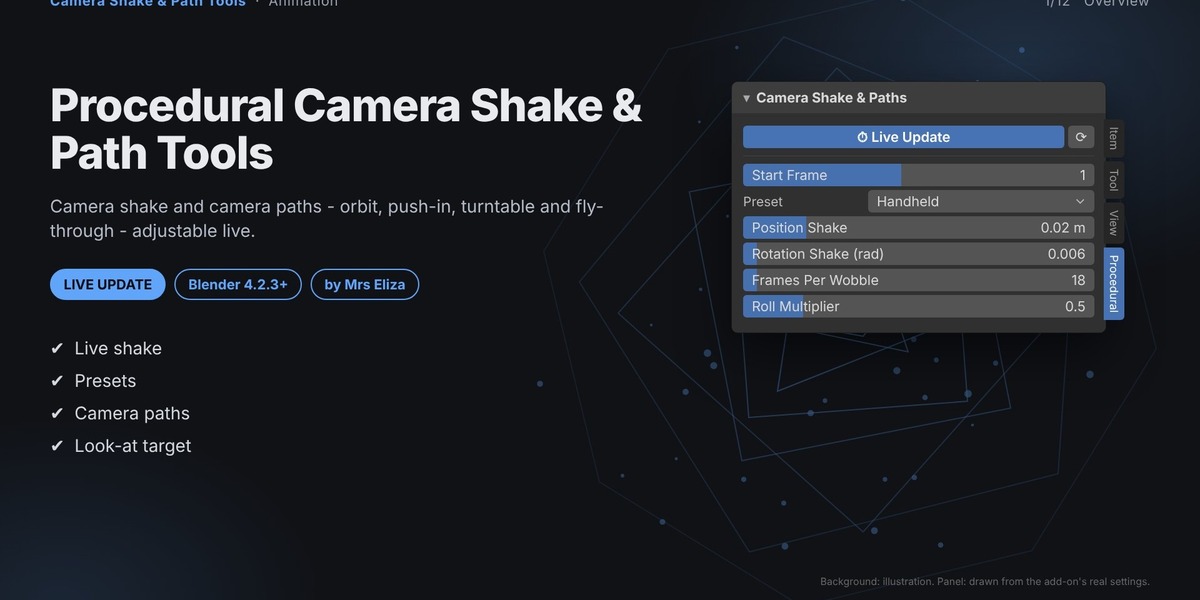
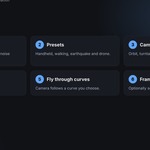
The Camera Shake system adds procedural noise to an object's location and rotation. Choose from ready-made presets such as Handheld, Walking, Earthquake, and Drone, or customize the shake settings.
The Camera Paths system creates animated camera movements, including Orbit, Turntable, Fly Through, Push In, Spiral, Crane Reveal, and Dolly Zoom.
All settings support Live Update, allowing you to adjust movement, strength, radius, turns, and duration without manually rebuilding the animation.
Create realistic camera shake and cinematic camera paths with a simple, adjustable workflow.
2. Features
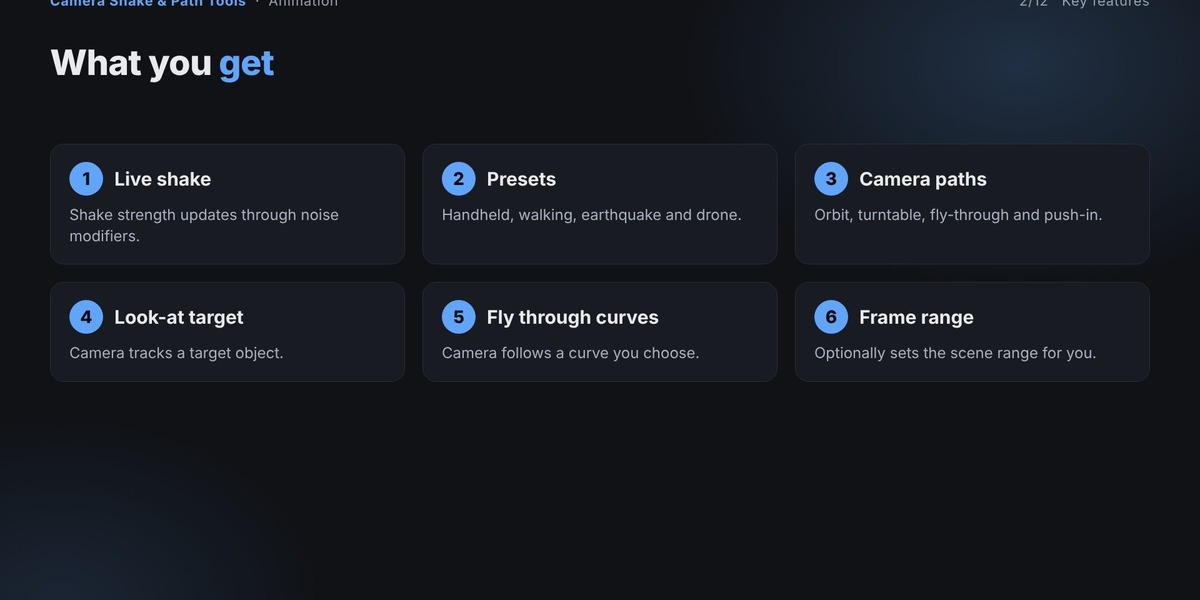
Procedural Camera Shake: Add realistic movement to cameras and other objects.
4 Shake Presets: Handheld, Walking, Earthquake, and Drone.
7 Camera Path Types: Orbit, Turntable, Fly Through, Push In, Spiral, Crane Reveal, and Dolly Zoom.
Live Update: Automatically rebuild animations when settings change.
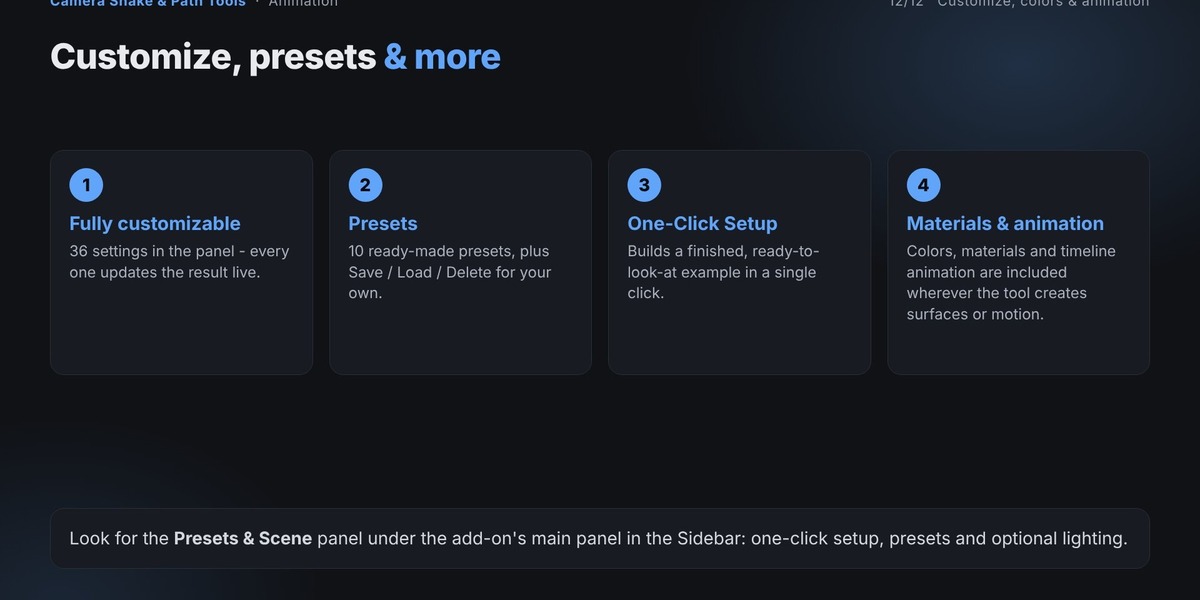
10 Ready-Made Presets: Quickly create professional camera movements.
Custom Presets: Save, load, and delete your own settings.
Look-At Target: Keep the camera focused on a selected object.
Impact Burst: Create short camera shake effects for explosions and impacts.
Camera Settings: Adjust focal length, depth of field, and F-stop.
Color Grading: Apply different visual styles directly from the panel.
One-Click Setup: Create a complete example scene with materials and optional lighting.
3. Installation
Download the add-on ZIP file.
Open Blender 4.2.3 or newer.
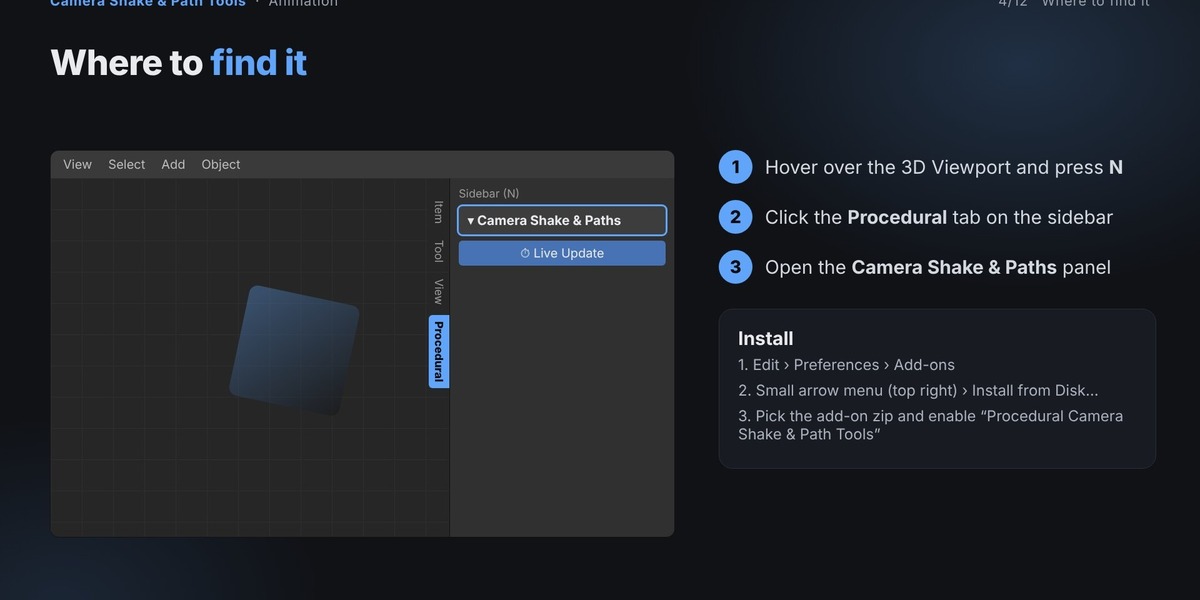
Go to Edit → Preferences → Add-ons.
Open the menu in the top-right corner of the Add-ons panel.
Select Install from Disk.
Choose the downloaded ZIP file.
Enable the add-on using the checkbox next to its name.
Important: Do not extract the ZIP file before installation. Make sure you select the individual add-on ZIP rather than a bundle containing multiple add-ons.
4. Opening the Add-on
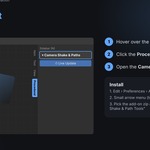
Open the 3D Viewport.
Press N to open the sidebar.
Select the Procedural tab.
Find and expand Camera Shake & Paths.
If you have multiple Mrs Eliza procedural add-ons installed, they will appear together in the same Procedural tab.
5. Getting Started
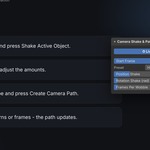
Create Camera Shake
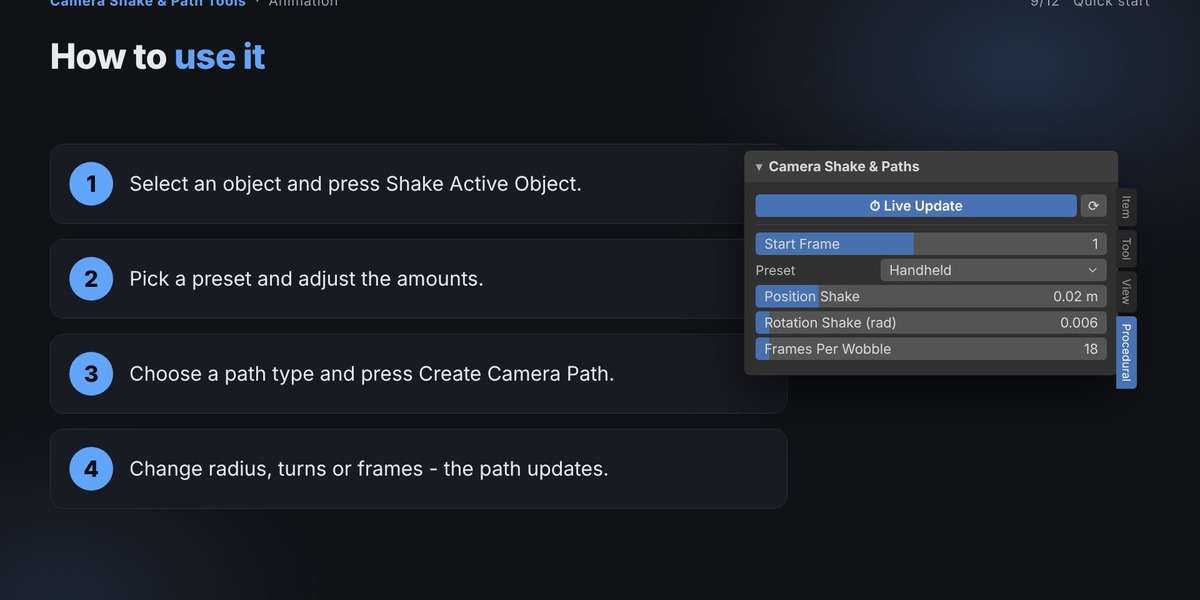
Select a camera or any object.
Click Shake Active Object.
Choose a shake preset.
Adjust Position Shake, Rotation Shake, and other settings.
The shake effect updates automatically.
Create a Camera Path
Choose a camera path type.
Adjust Radius, Height, Turns, and Duration.
Select a Look-At Target.
For Fly Through, choose a curve in the Flight Curve field.
Click Create Camera Path.
Adjust the settings to customize the animation.
The add-on keeps the result live, so you can continue editing the animation without starting again.
6. Live Update System
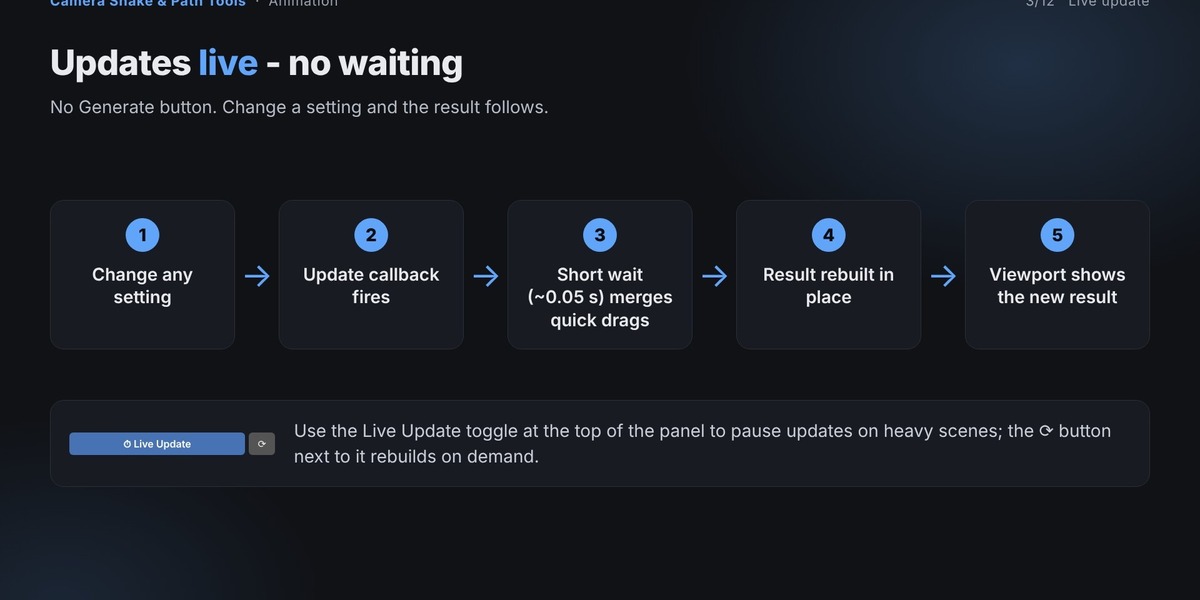
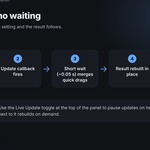
The Live Update switch is enabled by default. Whenever you change a setting, the add-on automatically rebuilds the result after a short pause.
Quick slider adjustments are combined into a single update to keep the workflow responsive.
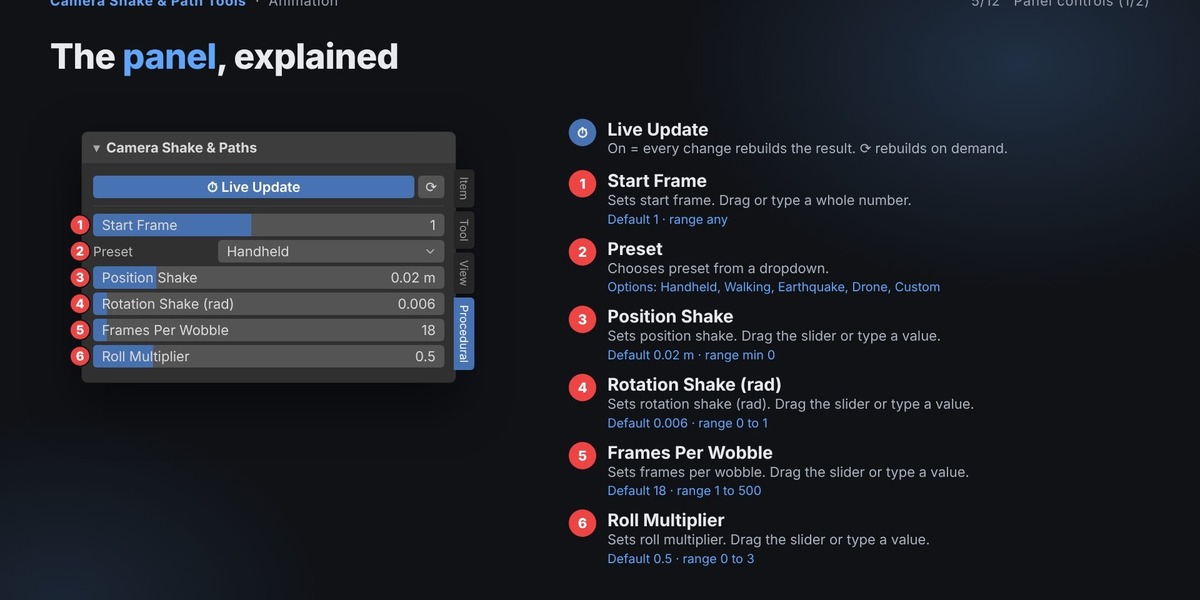
You can also use the Rebuild button (circular arrow) to update the result manually when Live Update is disabled.
The add-on preserves the existing object's location, rotation, scale, parent, and additional modifiers when rebuilding its data.
7. One-Click Setup & Presets
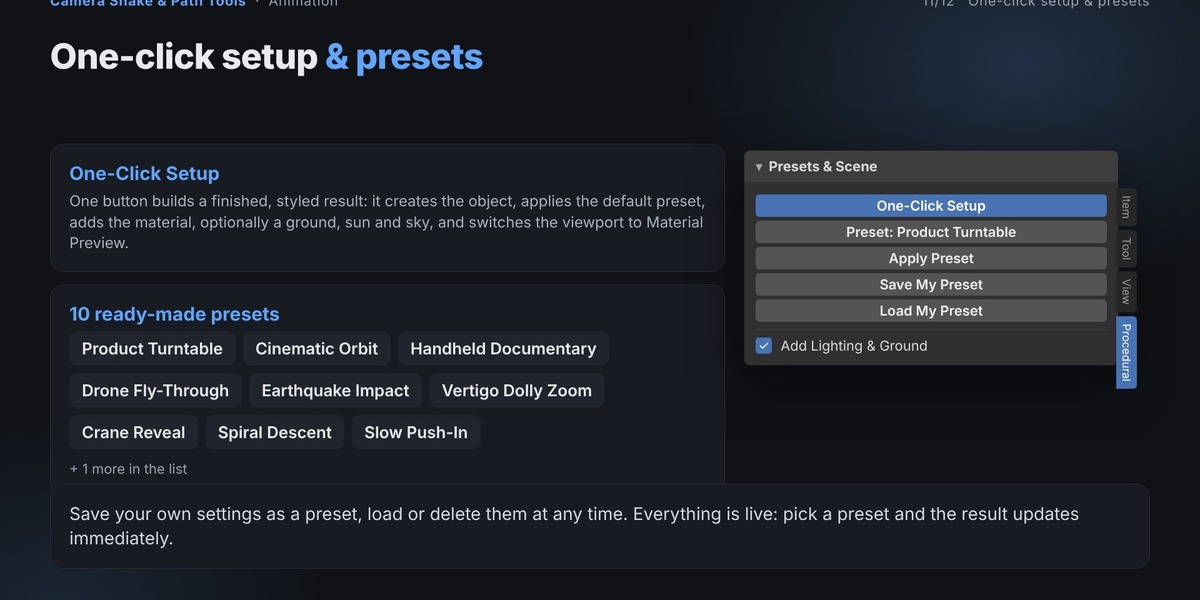
The Presets & Scene section provides a quick way to create a complete camera animation.
Click One-Click Setup to generate a ready-to-use example using the Product Turntable preset.
Depending on your settings, the setup can also create:
A camera animation.
A subject material with preset colors.
A ground plane.
A Sun light.
A sky color.
Material Preview viewport display.
Built-in Presets
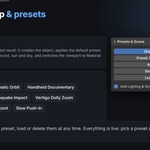
Choose from 10 ready-made presets:
Product Turntable – Smooth rotation for product presentations.
Cinematic Orbit – Cinematic camera movement around a subject.
Handheld Documentary – Natural handheld camera movement.
Drone Fly-Through – Smooth aerial-style camera movement.
Earthquake Impact – Strong camera shake for dramatic scenes.
Vertigo Dolly Zoom – Creates a cinematic perspective distortion.
Crane Reveal – Reveals a subject using rising camera movement.
Spiral Descent – Creates a descending spiral camera path.
Slow Push-In – Gradually moves the camera toward the subject.
Walking Follow – Adds natural movement for following shots.
Select a preset and click Apply Preset. You can modify any setting after applying it.
Save Your Own Presets
Save My Preset: Save your current settings with a custom name.
Load My Preset: Restore a previously saved preset.
Delete My Preset: Remove a saved preset.
Custom presets are stored in Blender's configuration folder and remain available across projects and sessions.
8. Settings Guide
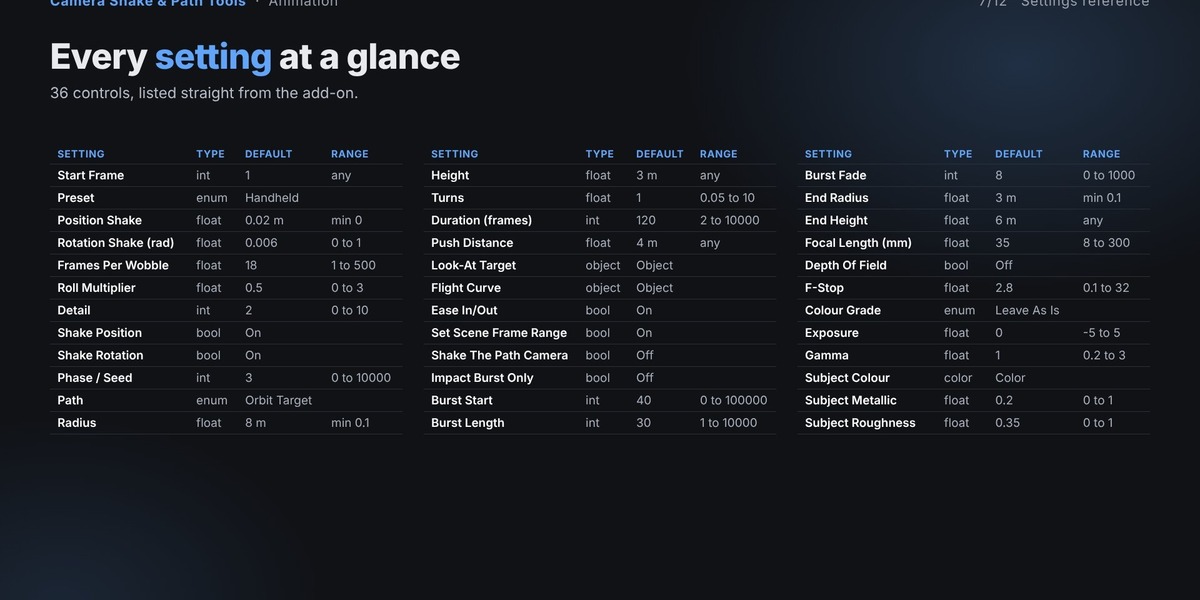
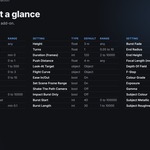
The add-on provides 36 adjustable settings. Some controls appear only when their related mode is selected.
Camera Shake Settings
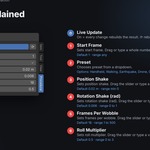
Start Frame: Sets the frame where the shake begins. Default: 1.
Preset: Select Handheld, Walking, Earthquake, Drone, or Custom. Default: Handheld.
Position Shake: Controls positional movement in meters. Default: 0.02.
Rotation Shake: Controls rotational movement in radians. Default: 0.006.
Frames Per Wobble: Controls the frequency of the shake. Default: 18.
Roll Multiplier: Adjusts the amount of rotational roll. Default: 0.5.
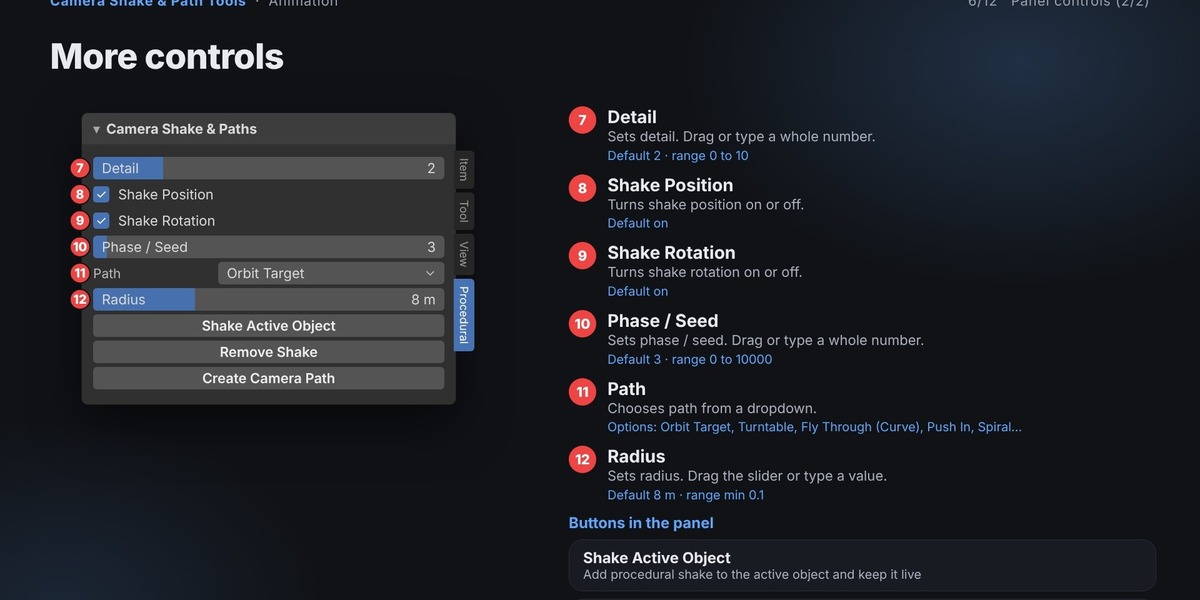
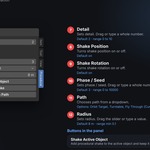
Detail: Controls the complexity of the shake. Default: 2.
Shake Position: Enables or disables positional movement.
Shake Rotation: Enables or disables rotational movement.
Phase / Seed: Changes the random variation of the shake. Default: 3.
Camera Path Settings
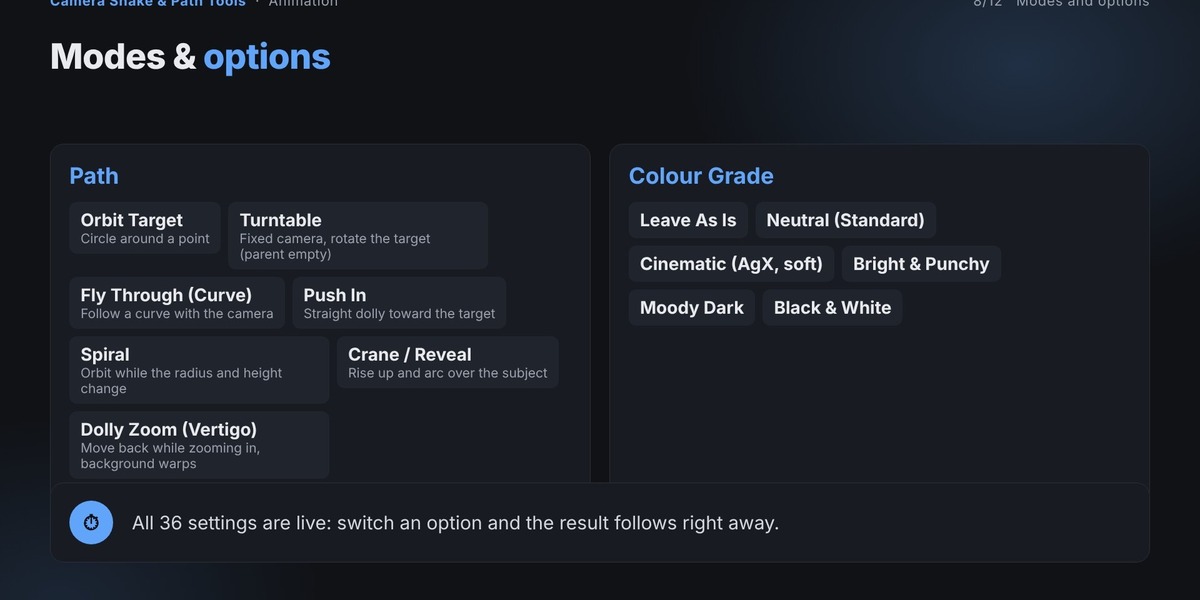
Path: Select Orbit Target, Turntable, Fly Through (Curve), Push In, Spiral, Crane / Reveal, or Dolly Zoom (Vertigo).
Radius: Controls the camera's distance from the target. Default: 8 m.
Height: Adjusts the camera's vertical position. Default: 3 m.
Turns: Sets the number of rotations along the path. Default: 1.
Duration (Frames): Controls the animation length. Default: 120.
Push Distance: Sets the camera's forward or backward movement distance. Default: 4 m.
Look-At Target: Selects the object the camera should focus on.
Flight Curve: Selects a curve for the Fly Through animation.
Ease In/Out: Smoothly accelerates and decelerates the camera movement.
Set Scene Frame Range: Automatically adjusts the timeline range to match the animation.
Shake The Path Camera: Applies procedural shake to the camera following the path.
Impact Burst Settings
Impact Burst Only: Limits the shake effect to a short animation window.
Burst Start: Sets the starting frame of the impact. Default: 40.
Burst Length: Controls the duration of the impact. Default: 30 frames.
Burst Fade: Controls how smoothly the shake fades out. Default: 8.
Advanced Path Settings
End Radius: Sets the ending radius for Spiral and Crane paths. Default: 3 m.
End Height: Sets the ending height for Spiral and Crane paths. Default: 6 m.
Camera Settings
Focal Length: Adjusts the camera lens in millimeters. Default: 35 mm.
Depth of Field: Enables or disables camera depth of field.
F-Stop: Controls the depth-of-field aperture. Default: 2.8.
Color Grading
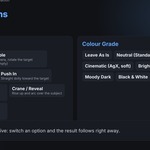
Choose from the following color grading styles:
Leave As Is
Neutral (Standard)
Cinematic (AgX, Soft)
Bright & Punchy
Moody Dark
Black & White
Additional controls:
Exposure: Adjusts image brightness. Default: 0.
Gamma: Controls image gamma. Default: 1.
Subject Material Settings
Subject Colour: Choose the material's base color using the color picker.
Subject Metallic: Adjusts the metallic appearance. Default: 0.2.
Subject Roughness: Controls surface roughness. Default: 0.35.
9. Panel Buttons & Actions
Shake Active Object: Adds procedural shake to the selected object.
Remove Shake: Removes the add-on's shake modifiers from the selected object.
Create Camera Path: Creates or updates the camera path animation.
One-Click Setup: Builds a complete example scene using the selected preset.
Apply Preset: Applies the selected built-in preset.
Add Lighting & Ground: Creates a ground plane, Sun light, and sky color.
Save My Preset: Saves your current settings.
Load My Preset: Loads a previously saved custom preset.
Delete My Preset: Deletes a saved custom preset.
10. Tips for Better Results
Use Handheld for subtle, realistic camera movement.
Choose Earthquake for dramatic impacts and action scenes.
Use smooth curves for better Fly Through animations.
Adjust Duration to match the length of your shot.
Disable Set Scene Frame Range if you prefer to manage the timeline manually.
Use Start Frame to move the entire animation to a different point in the timeline.
Enable Shake The Path Camera to combine camera movement with procedural shake.
11. Common Uses
Camera Shake & Paths is useful for:
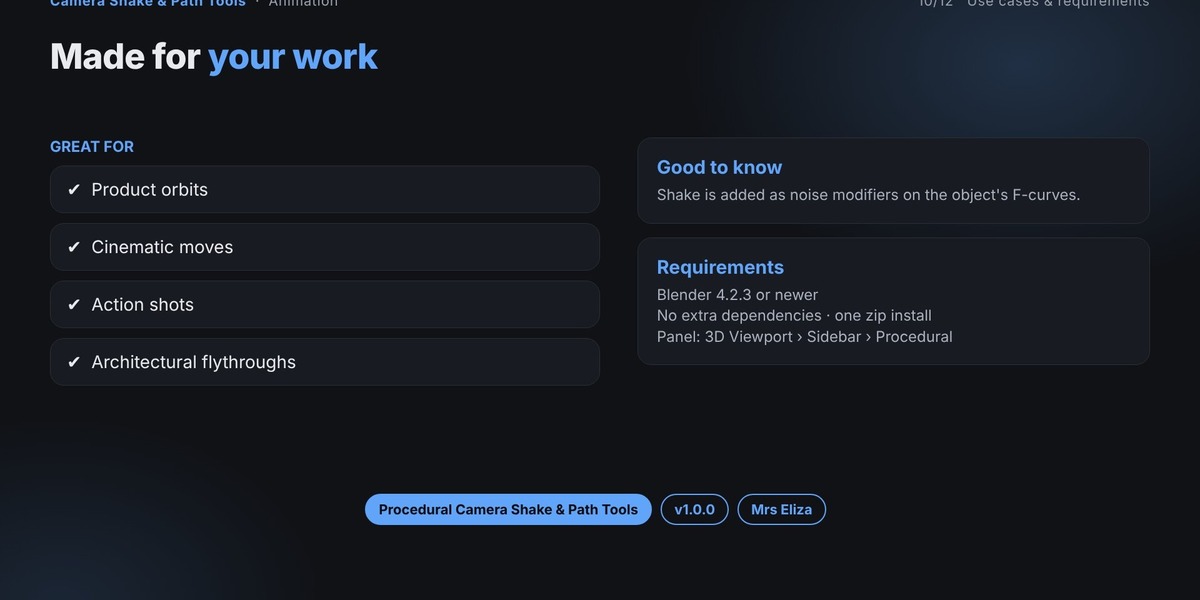
Product presentations and turntable animations.
Cinematic camera movements.
Architectural walkthroughs and fly-throughs.
Action scenes and impact animations.
Documentary and handheld-style shots.
Drone-style camera animations.
Game cinematics and animation projects.
Dramatic reveals and perspective effects.
12. Troubleshooting
The camera does not follow the curve.
Make sure you have selected a valid curve object in the Flight Curve field.
Camera shake disappears after creating a new path.
The add-on reapplies the shake to the path camera when rebuilding the animation. Enable Shake The Path Camera if needed.
The camera path starts at the wrong frame.
Adjust the Start Frame setting in the Path section.
Changes are not updating automatically.
Make sure Live Update is enabled. If it is disabled, use the Rebuild button to apply your changes.
13. Technical Information
Blender Compatibility: Blender 4.2.3 or newer.
Camera Shake: Uses procedural Noise Modifiers on object location and rotation F-curves.
Modifier Identification: Shake modifiers are named
MRSE_Shake.Undo Support: Use Ctrl + Z to undo changes.
Project Compatibility: Saving the .blend file preserves the generated objects, animations, and effects.
The add-on does not need to be installed to open a saved project. However, it is required to continue editing the animation through its live controls.
14. Support
If you encounter any issues, please include the following information when contacting support:
Your Blender version.
Add-on name and version.
Steps to reproduce the issue.
Full error message from the Info Editor or System Console.
Screenshots, if they help explain the problem.
Providing these details helps identify and resolve issues more quickly.