 Mrs Eliza
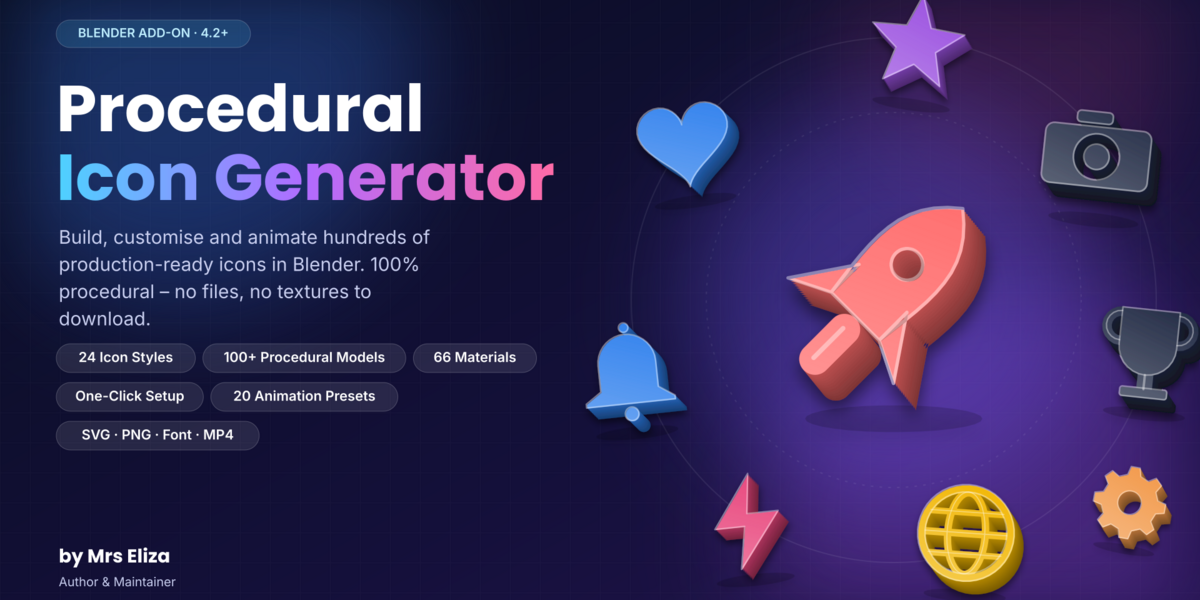
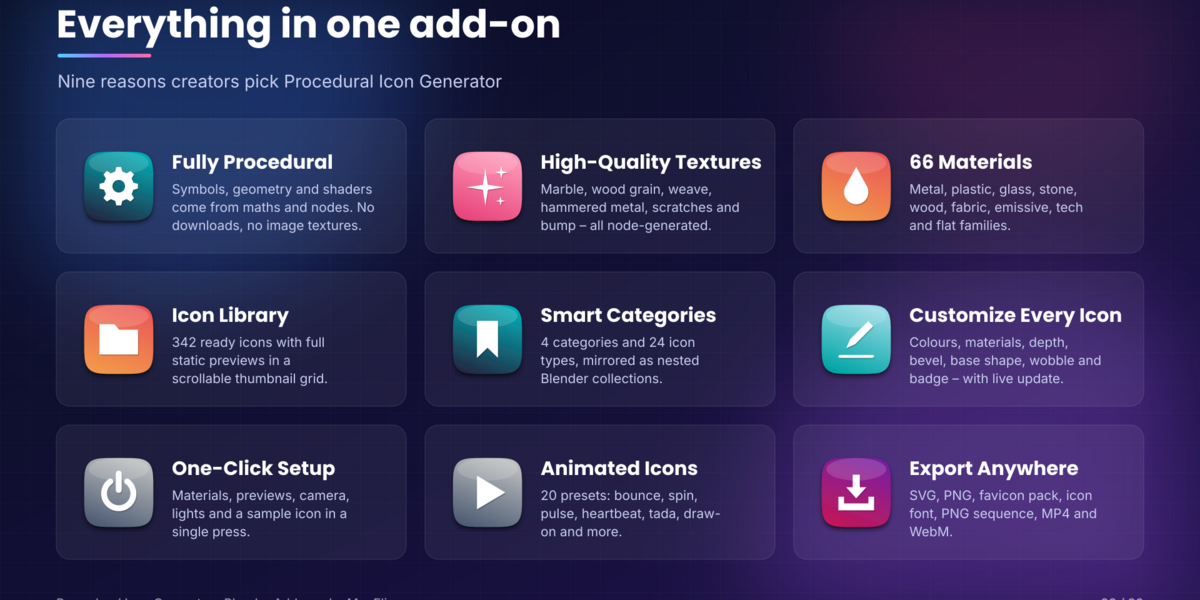
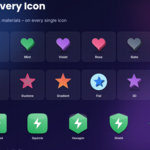
Create 342+ Professional Icons with 100 Procedural Symbols, 66 Materials, 20 Animations & 8 Export Modes
Overview
Procedural Icon Generator is a powerful Blender add-on for creating, customizing, animating, and exporting professional icons entirely through procedural generation.
Create a wide variety of icons for UI design, applications, websites, games, presentations, digital products, and graphic design projects. Choose a symbol, select an icon style, customize its appearance, and generate a complete icon with its geometry, materials, and animation.
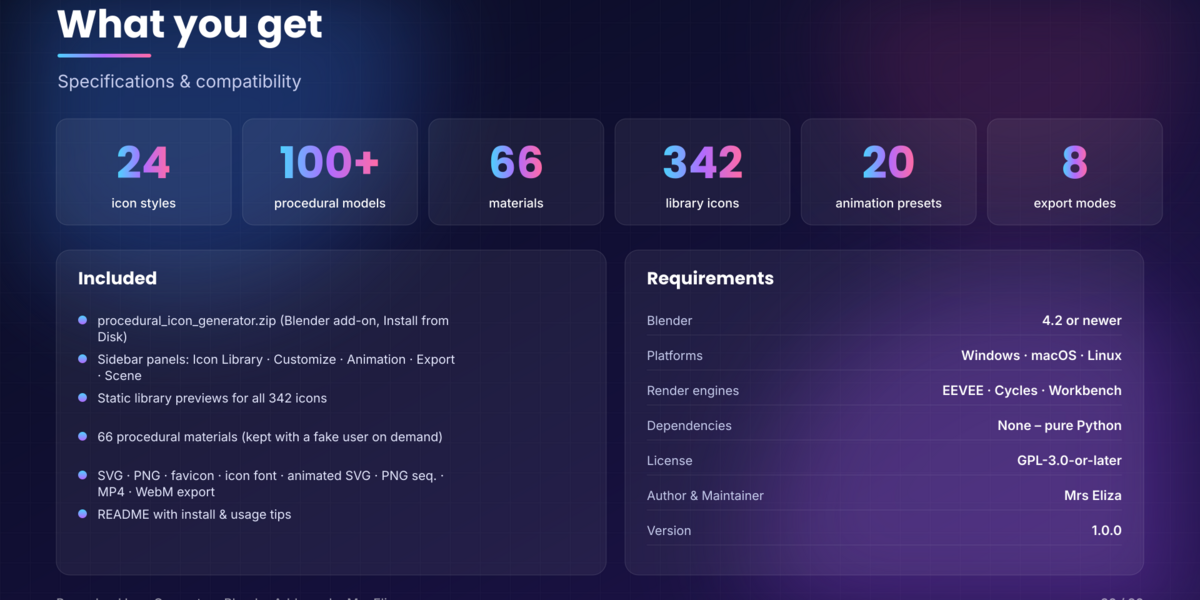
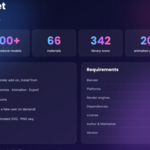
The add-on includes 342 ready-made library icons, 100 procedural symbol models, 66 procedural materials, 20 animation presets, and 8 export modes.
Every icon is generated directly inside Blender without requiring external image assets. Customize colors, materials, depth, bevel, line weight, base shapes, and more to create consistent icon collections for your projects.
Key Features
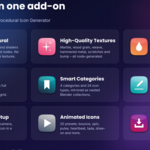
342 Ready-Made Icons: Browse a large library of icons with static previews.
100 Procedural Symbol Models: Generate icons using a collection of procedural symbols, including 12 seeded abstract ideograms.
24 Icon Types: Explore different icon styles, functions, meanings, and technical formats.
4 Icon Categories: Browse icons organized by Visual Style, Function & Usage, Semiotic Meaning, and Technical File Format.
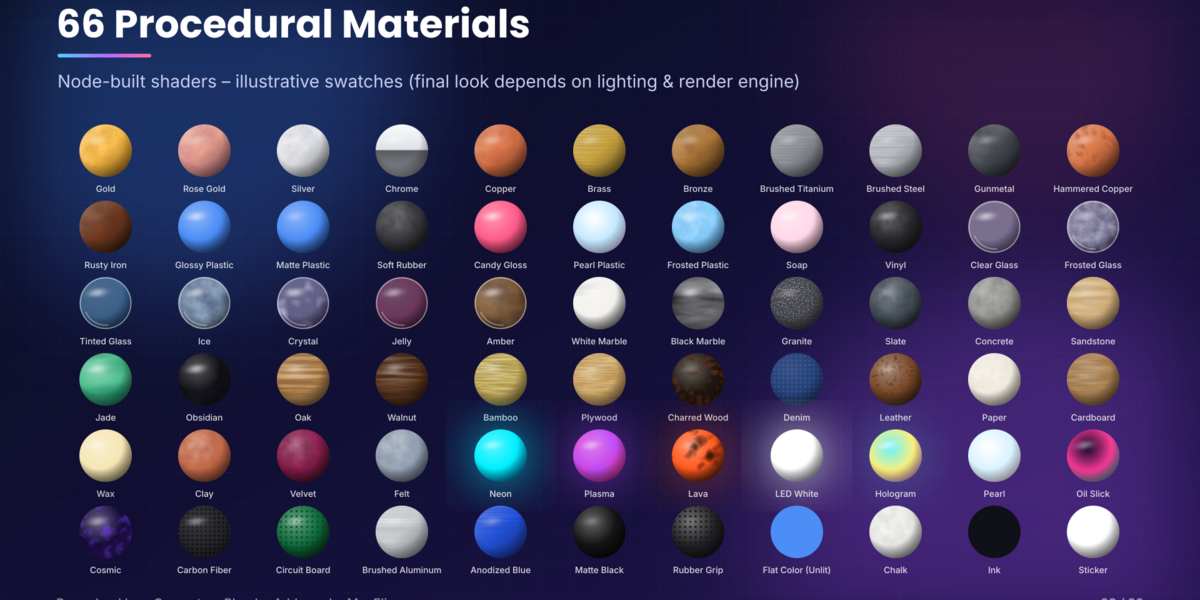
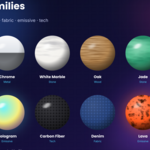
66 Procedural Materials: Create detailed metal, plastic, glass, stone, wood, fabric, emissive, tech, and flat finishes.
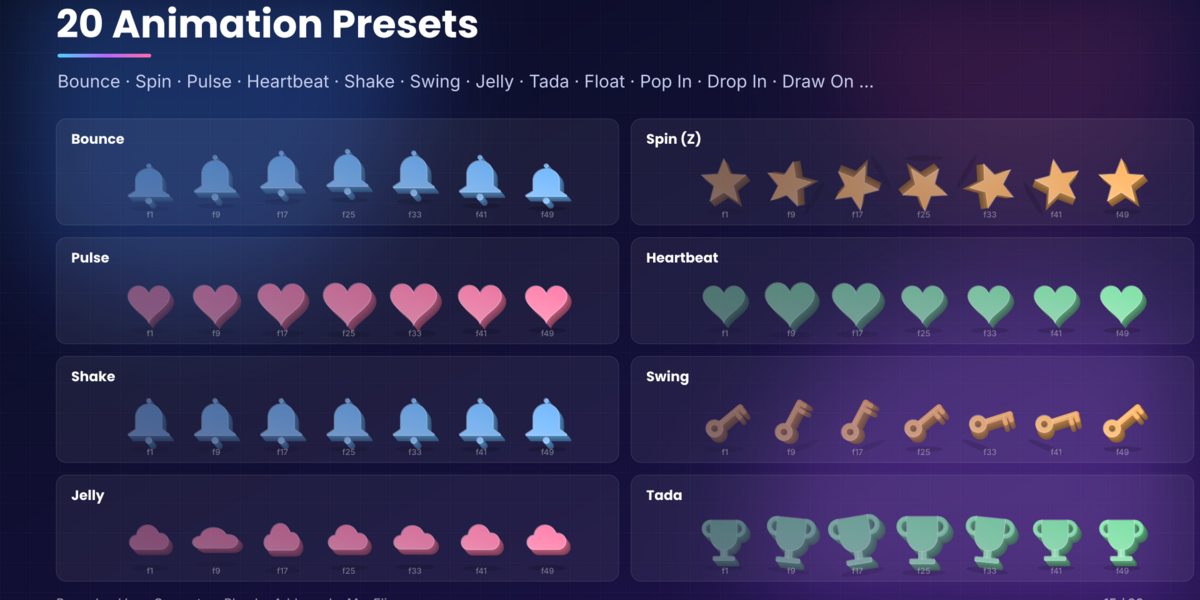
20 Animation Presets: Animate icons with bounce, spin, heartbeat, swing, jelly, tada, draw-on, and more.
10 Color Palettes: Quickly apply coordinated color combinations.
Advanced Customization: Adjust colors, materials, depth, bevel, line weight, size, wobble, and base shapes.
Randomize System: Generate new visual variations with one click.
One-Click Setup: Prepare materials, library previews, studio scene, camera, lights, and a sample icon.
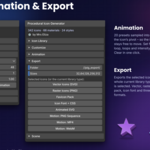
8 Export Modes: Export SVG, PNG, favicon packs, icon fonts, animated SVG, PNG sequences, MP4, and WebM.
Fully Procedural Workflow: Generate shapes, textures, and animations through Blender without external image files.
Icon Library & Preset Collection
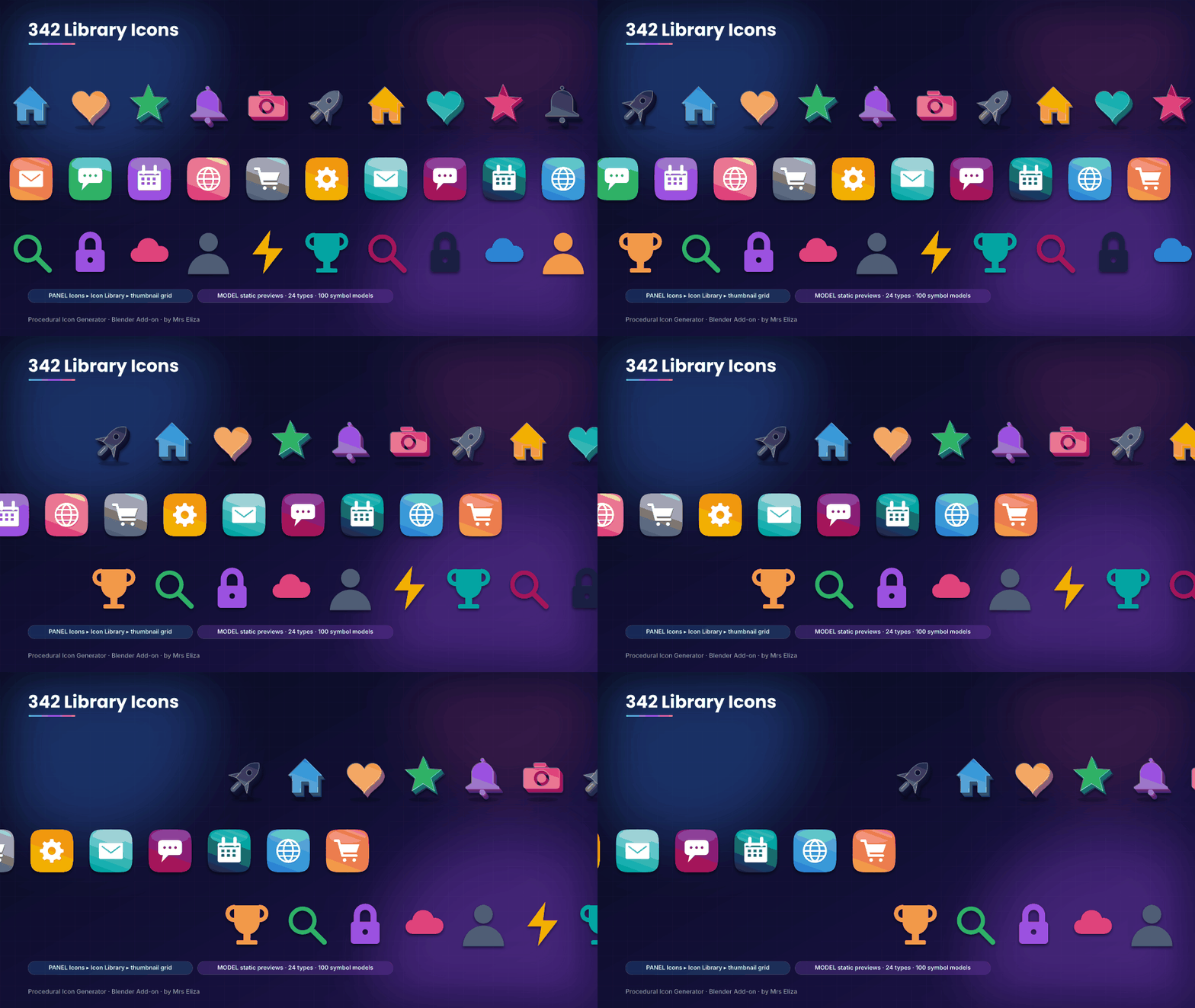
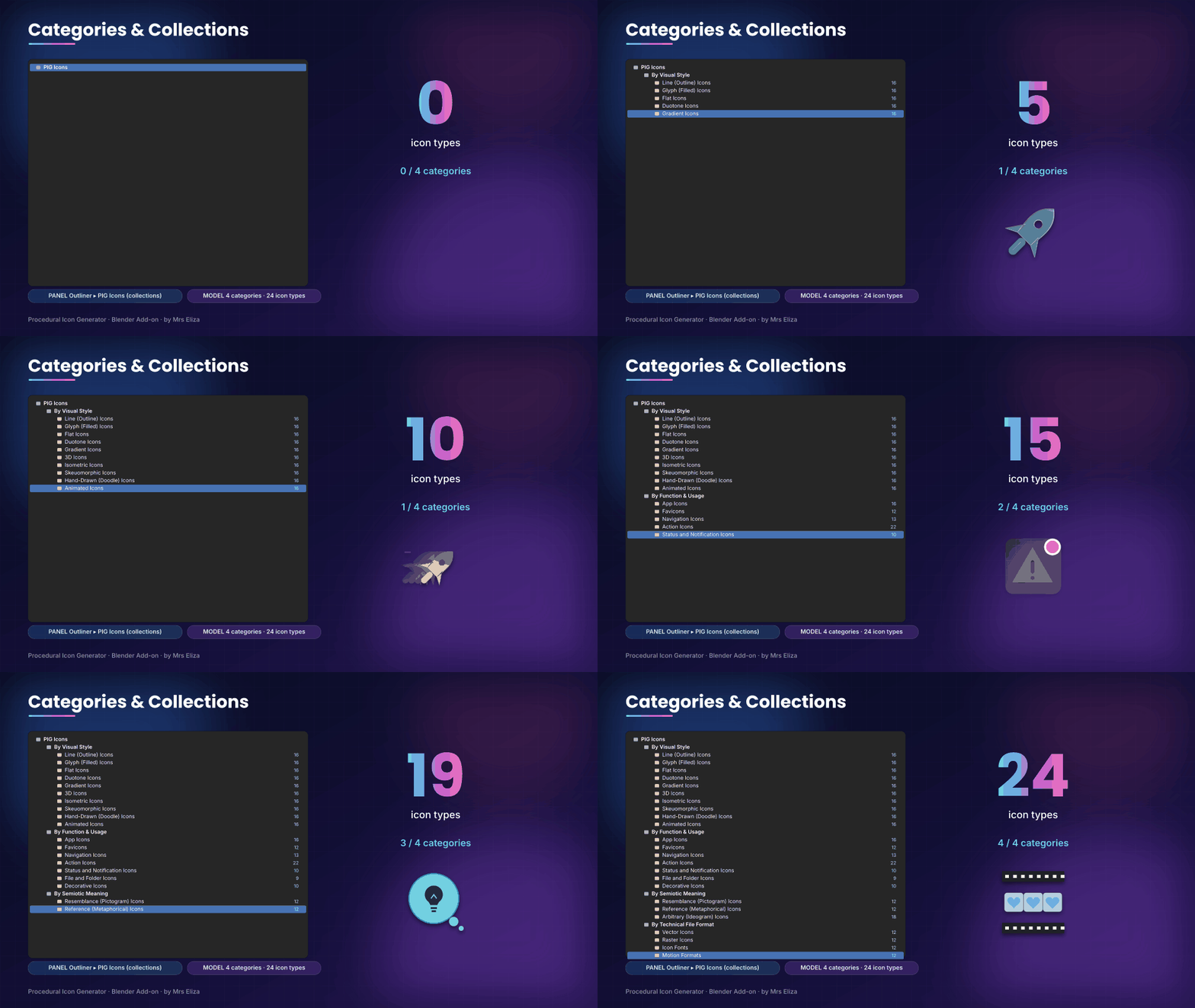
Explore 342 ready-made icons organized into four main categories and 24 icon types.
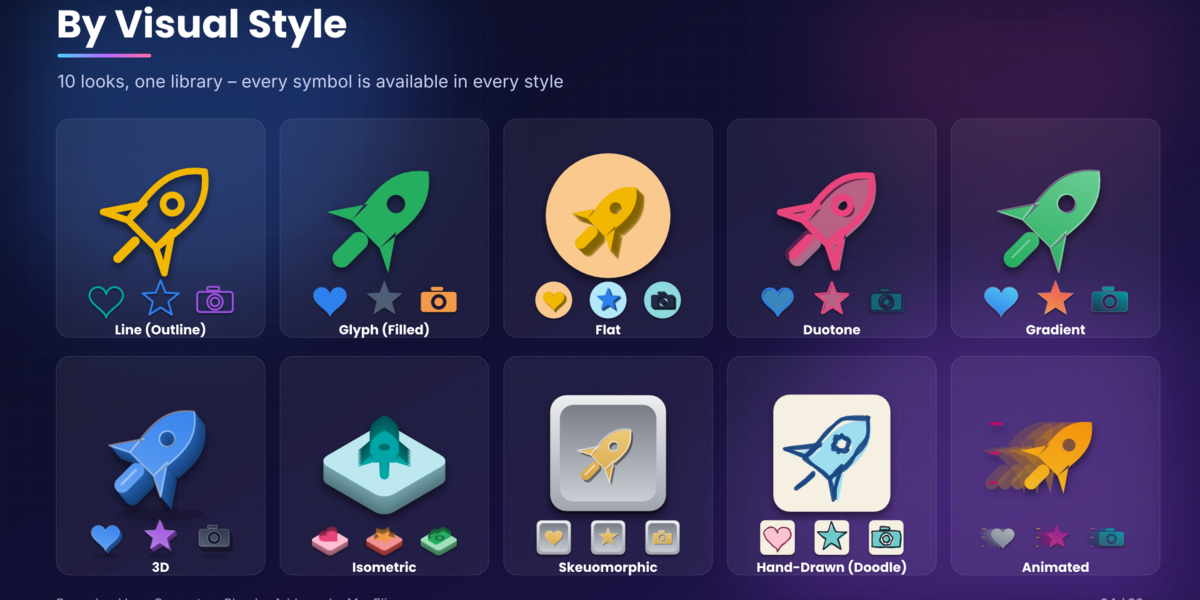
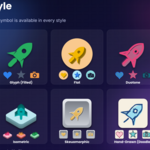
By Visual Style
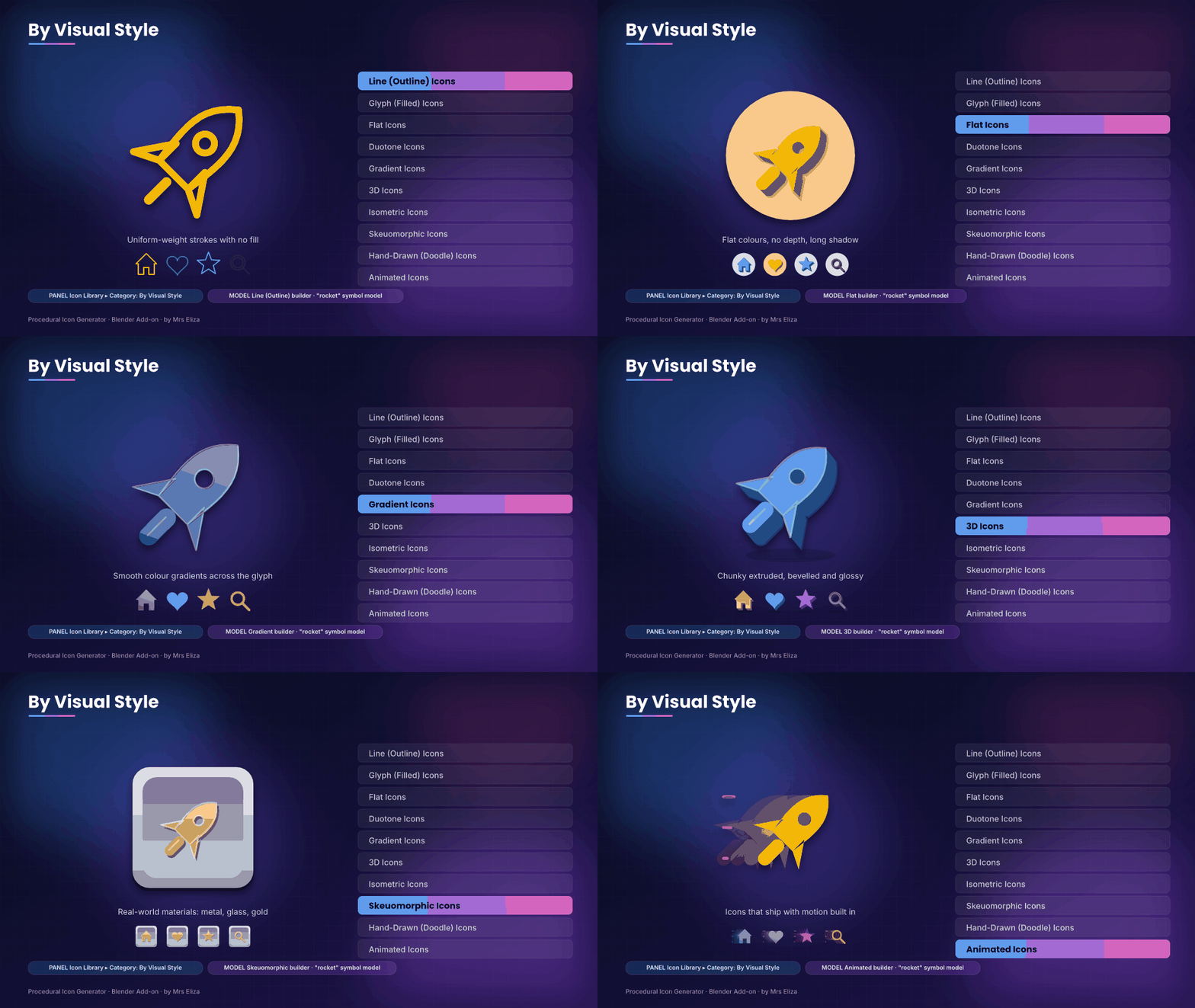
Create icons with different visual appearances:
Line Icons
Glyph Icons
Flat Icons
Duotone Icons
Gradient Icons
3D Icons
Isometric Icons
Skeuomorphic Icons
Hand-Drawn Icons
Animated Icons
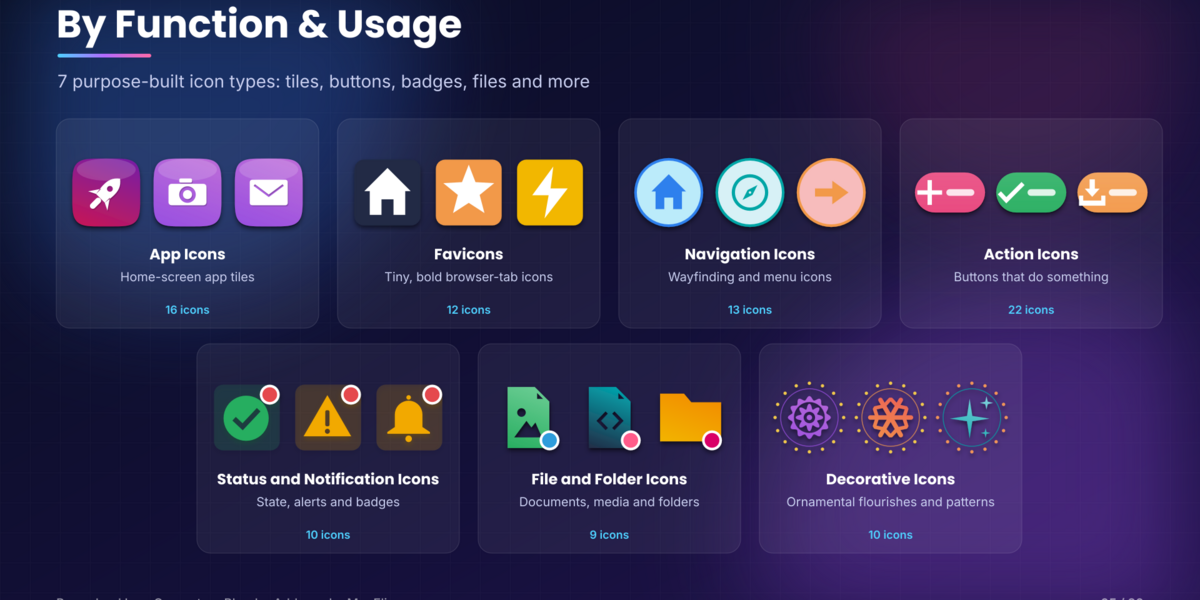
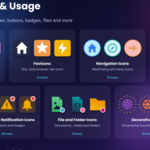
By Function & Usage
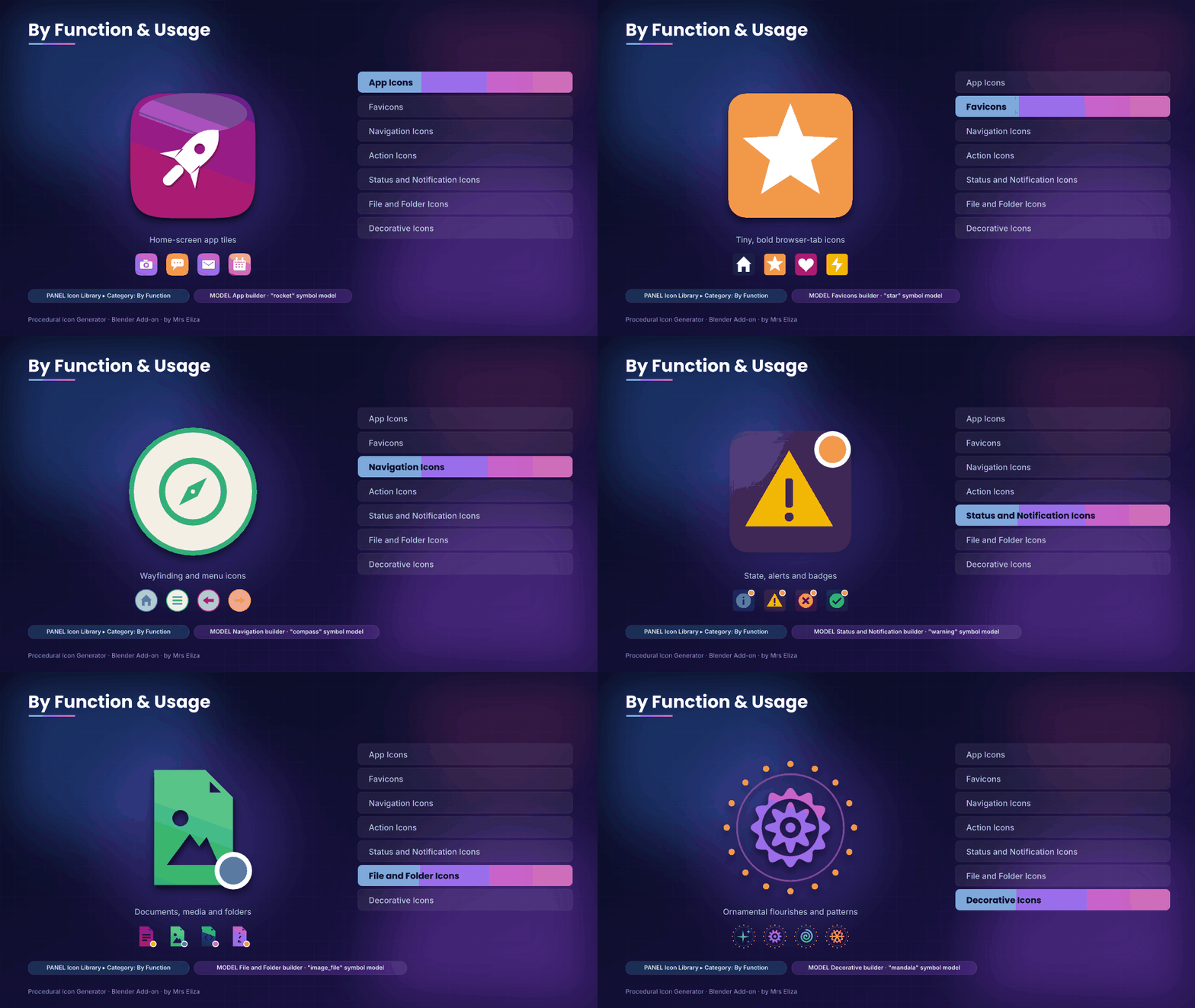
Create icons for different interface and design purposes:
App Icons
Favicon Icons
Navigation Icons
Action Icons
Status & Notification Icons
File & Folder Icons
Decorative Icons
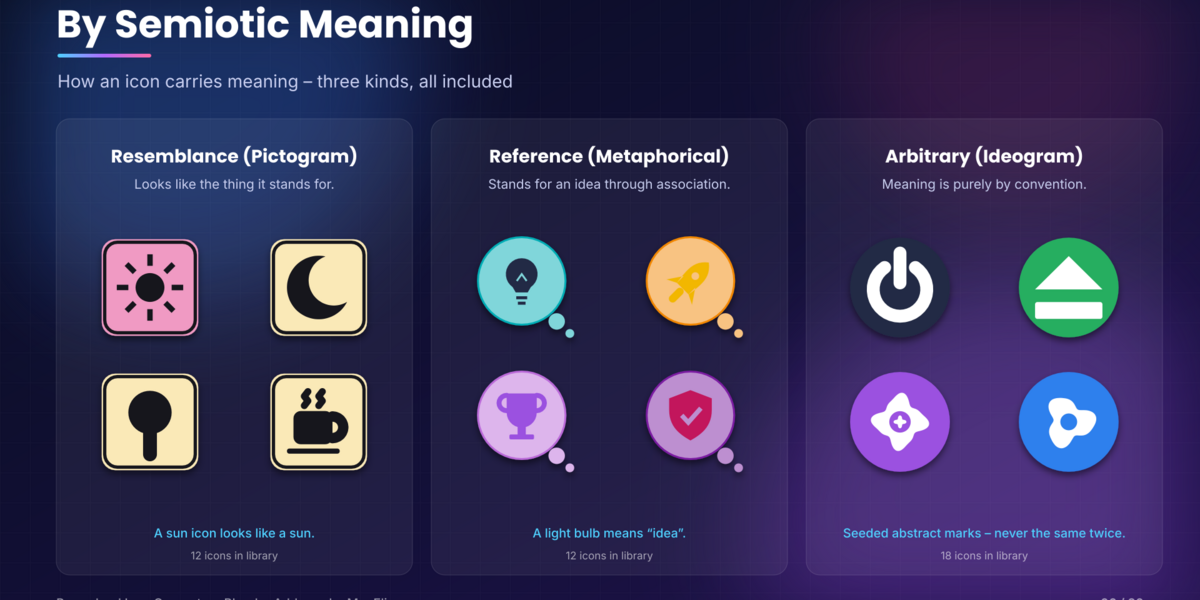
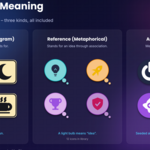
By Semiotic Meaning
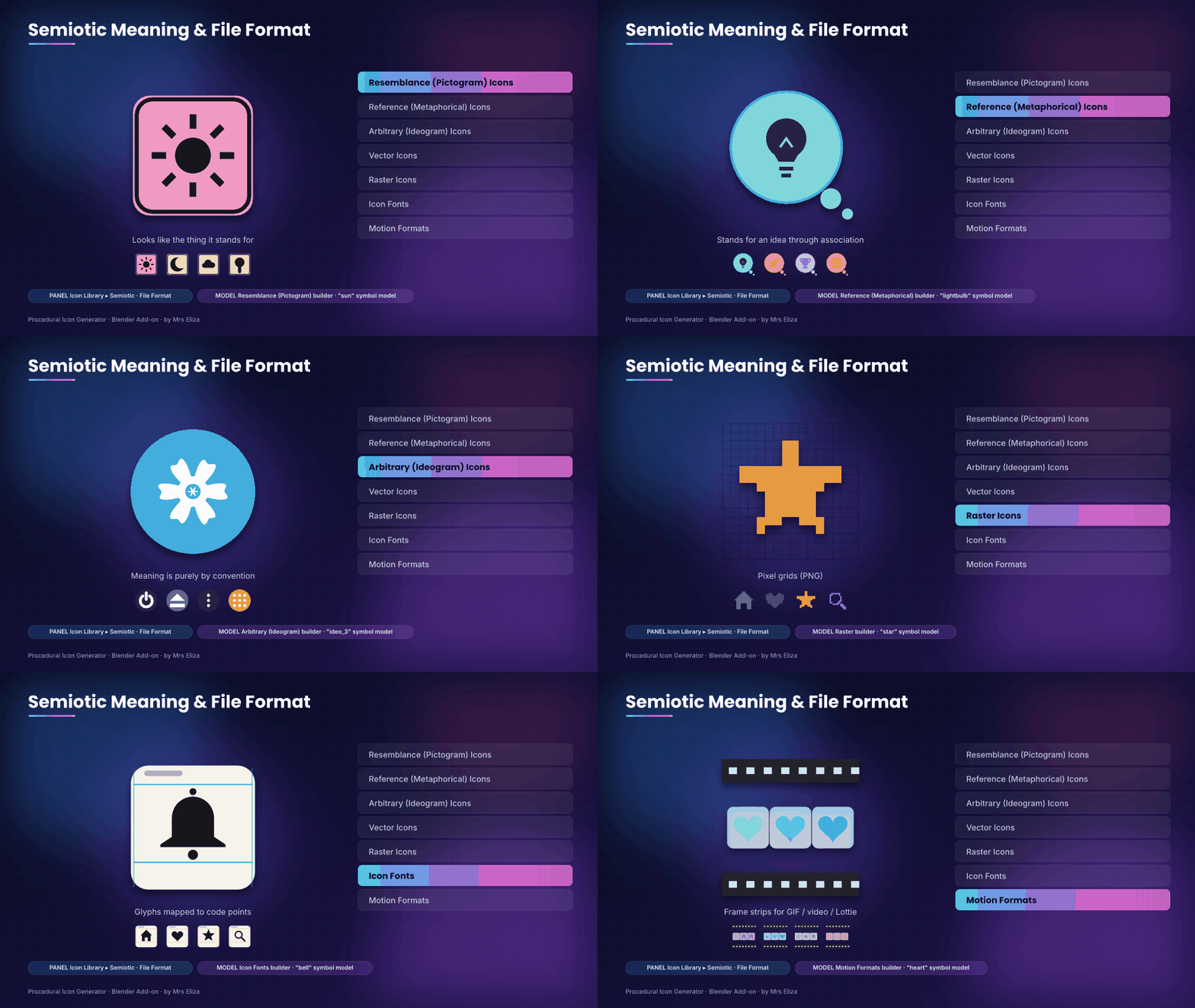
Explore three types of visual communication:
Resemblance: Pictogram icons that visually represent objects or concepts.
Reference: Metaphorical icons that communicate through associations.
Arbitrary: Ideogram icons that represent abstract concepts and meanings.
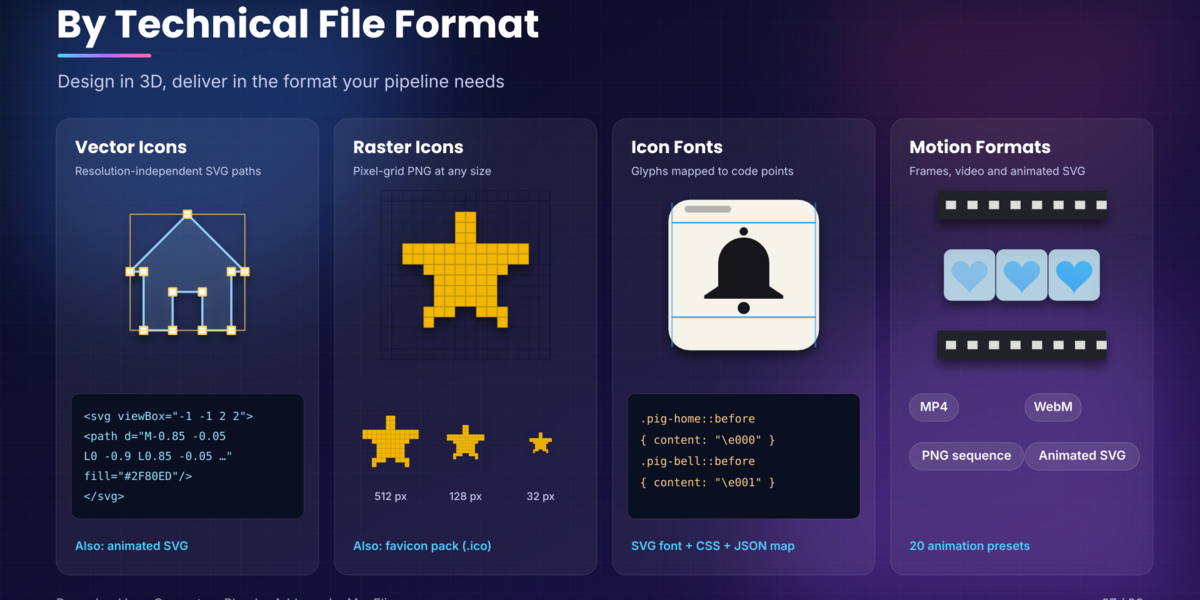
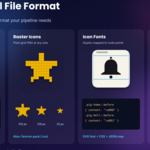
By Technical File Format
Organize icons according to their output format:
Vector Icons
Raster Icons
Icon Font Icons
Motion Icons
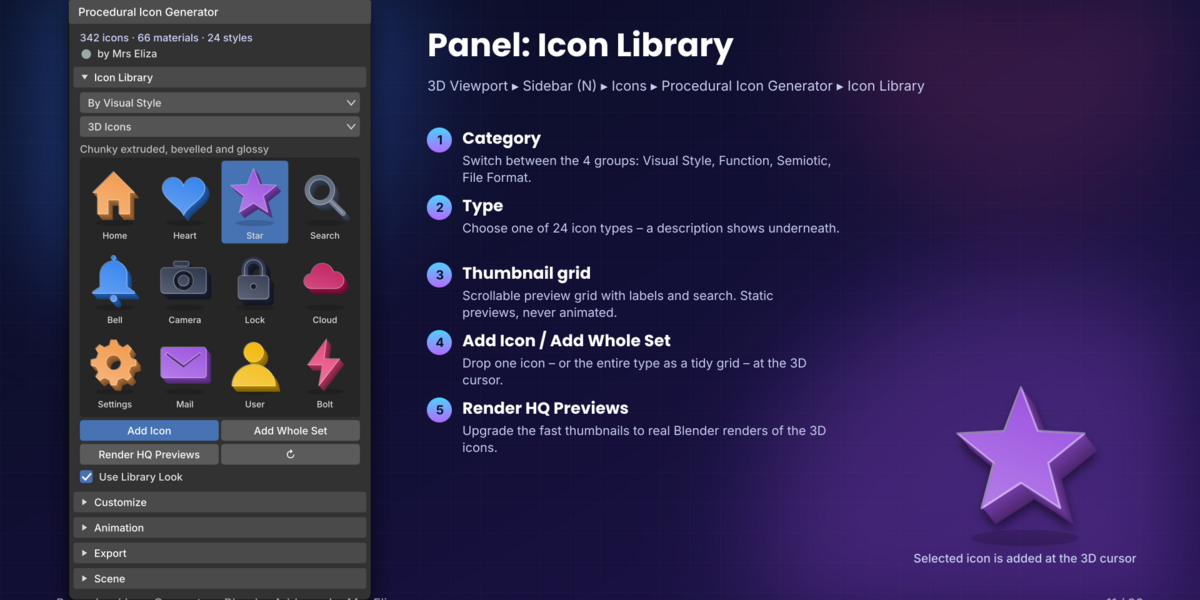
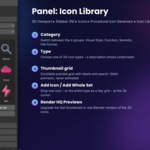
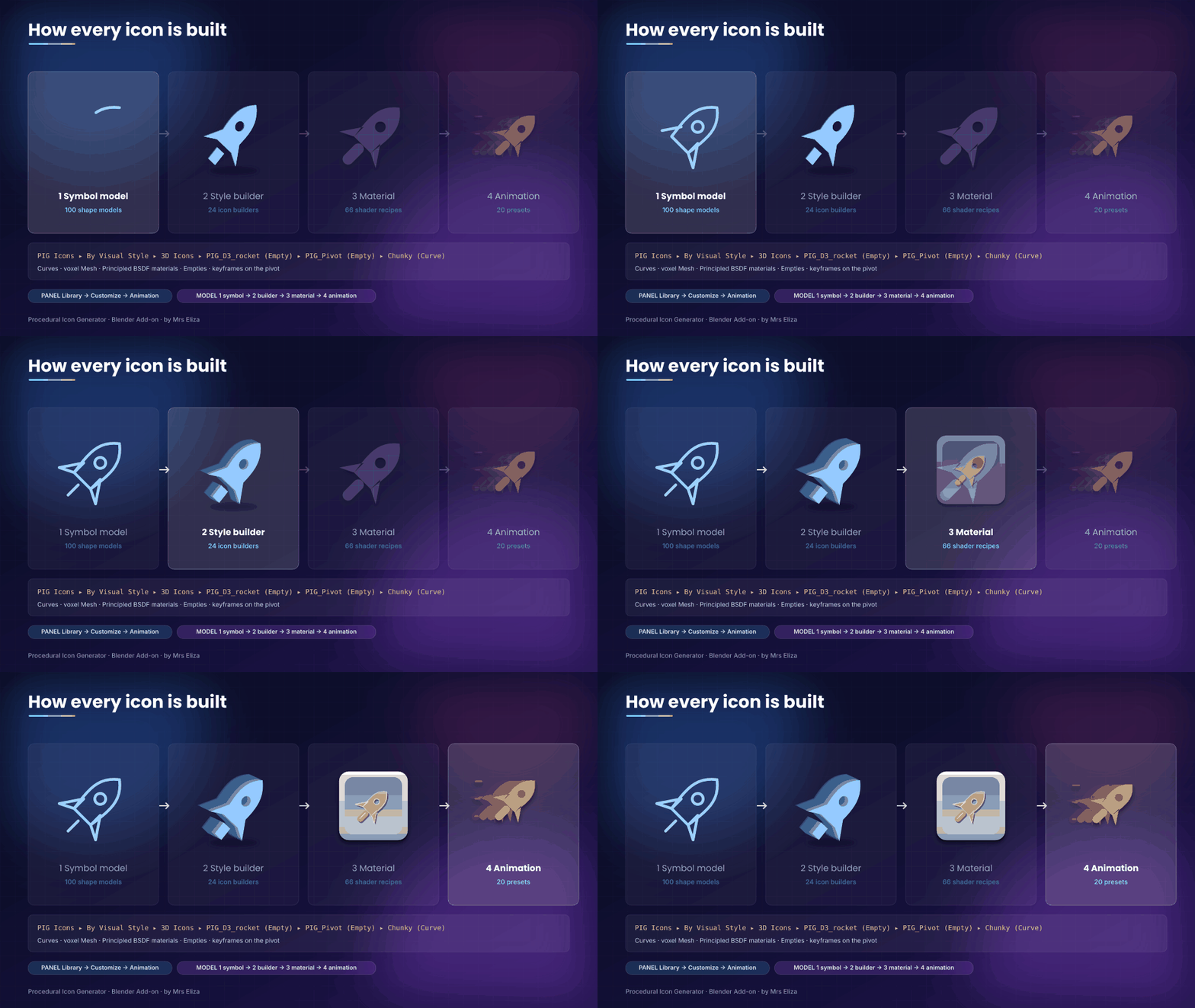
Each icon type uses its own builder to transform a symbol into a finished icon. Browse the library using category and icon-type filters, then select a thumbnail to create your icon.
Add Icon: Place an individual icon into your Blender scene.
Add Set: Create a complete group of icons for building consistent icon collections.
Procedural Symbol Generator
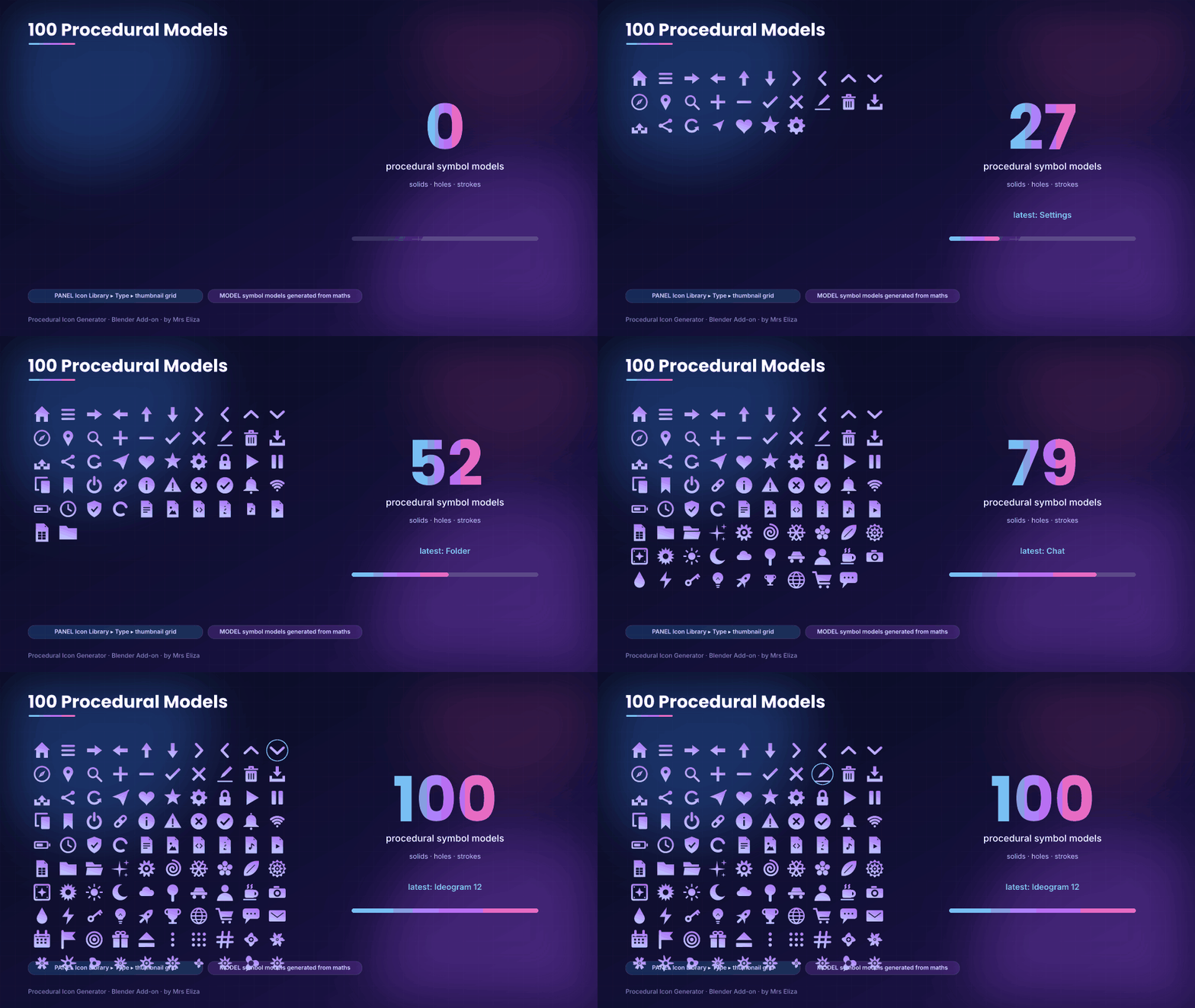
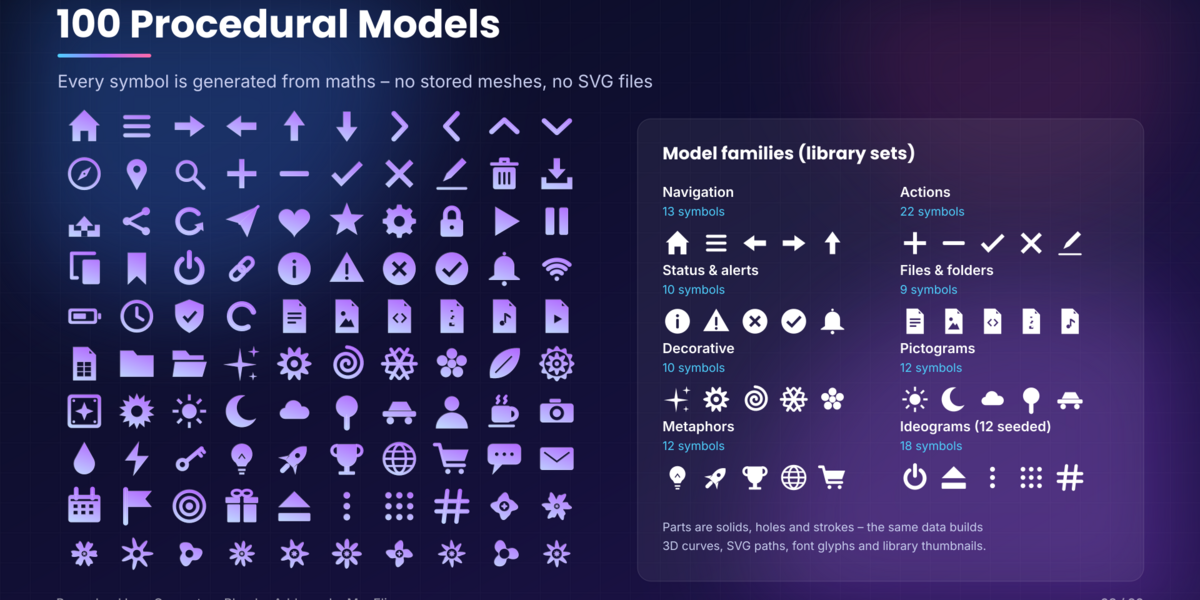
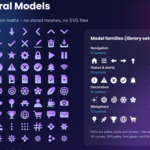
Create icons using 100 procedural symbol models, including 12 seeded abstract ideograms.
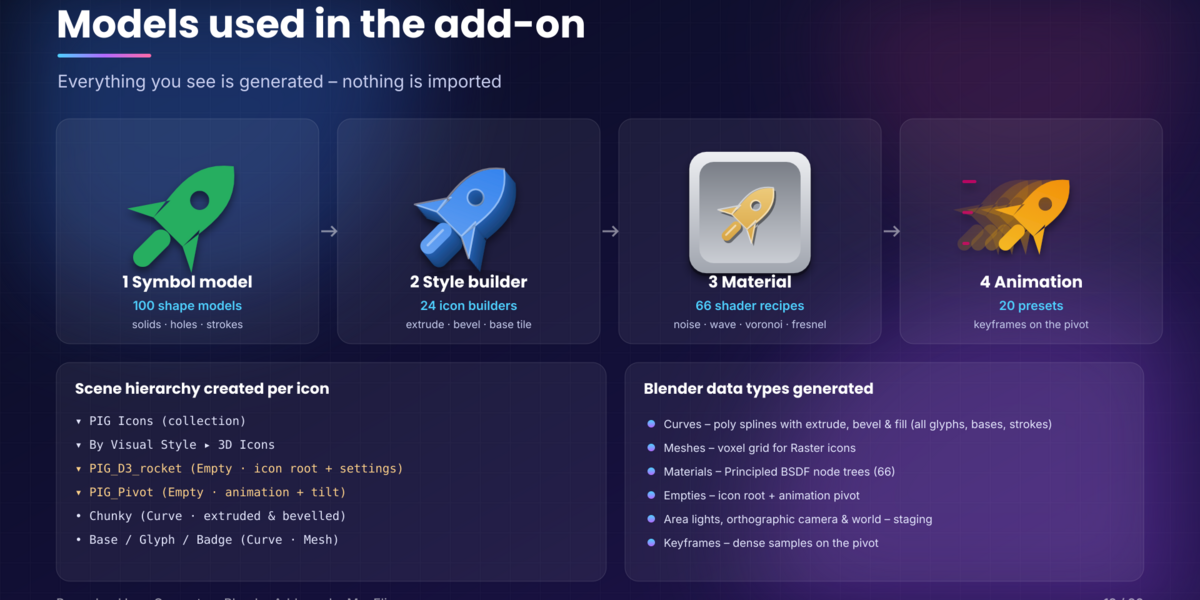
Symbols such as home, heart, star, camera, rocket, and bell are defined using mathematical solid, hole, and line components.
This procedural construction allows symbols to scale cleanly and work with different icon builders.
Procedural Geometry System
Generate icon shapes using mathematical definitions.
Combine symbols with different visual styles.
Create clean vector-style curves.
Generate extruded, bevelled, and filled curve geometry.
Build raster-style icons using voxel meshes.
Choose a symbol, select an icon type, and generate your icon directly inside Blender.
Procedural Material Library
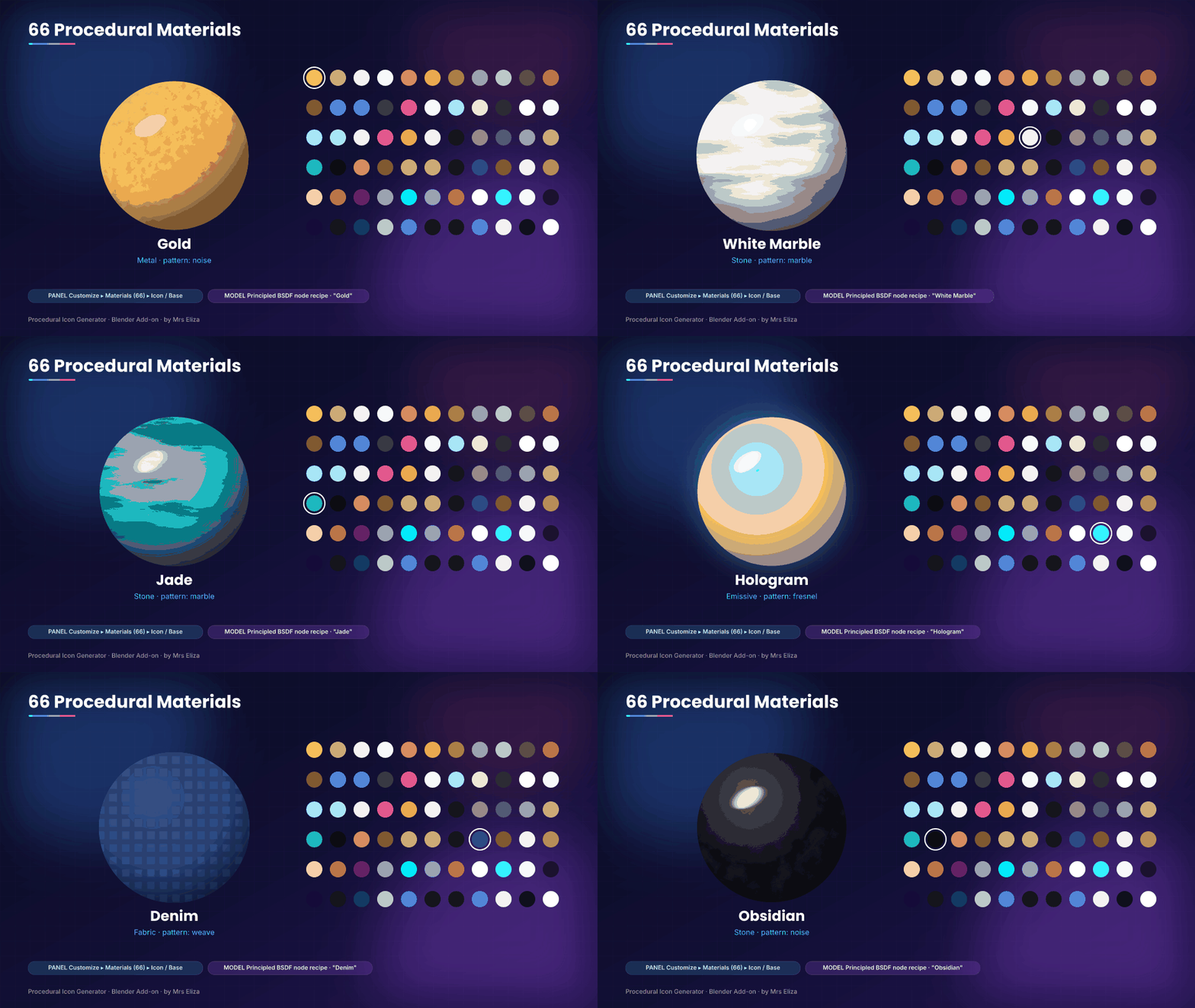
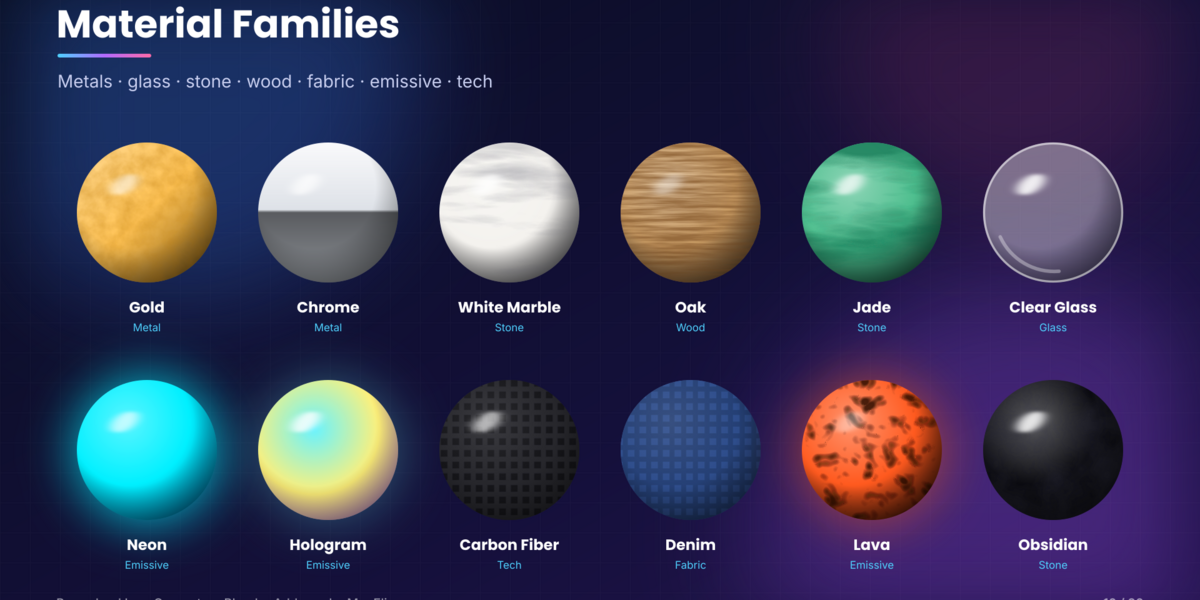
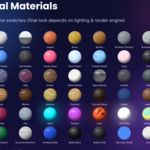
Explore 66 procedural materials organized into nine material families.
All materials are generated using Blender's Principled BSDF shader nodes and procedural textures. No external image textures are required.
Material Categories
Metal – 12 Materials: Metallic surfaces and finishes.
Plastic – 8 Materials: Smooth and stylized plastic appearances.
Glass – 7 Materials: Transparent and glass-inspired finishes.
Stone – 8 Materials: Stone and marble-inspired surfaces.
Wood – 5 Materials: Natural wood finishes and grain.
Fabric – 8 Materials: Fabric-inspired surfaces and weave.
Emissive – 8 Materials: Glowing and luminous appearances.
Tech – 6 Materials: Technical and modern surface styles.
Flat – 4 Materials: Clean flat-color materials.
Procedural Surface Details
Create detailed appearances using procedural effects such as:
Marble veins
Wood grain
Fabric weave
Carbon fiber
Fresnel glow
Apply materials to your icons and customize their appearance using the available material controls.
Advanced Icon Customization
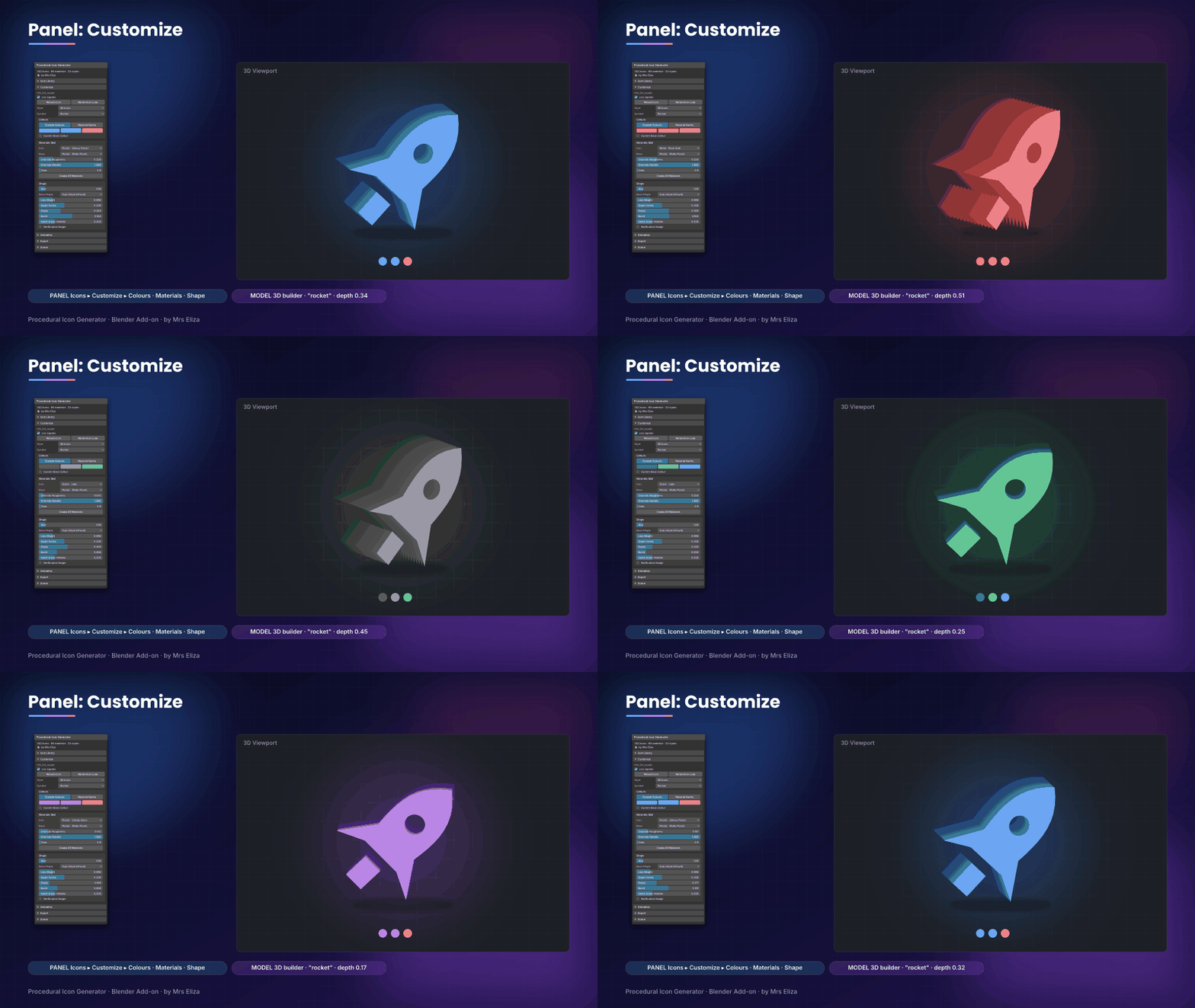
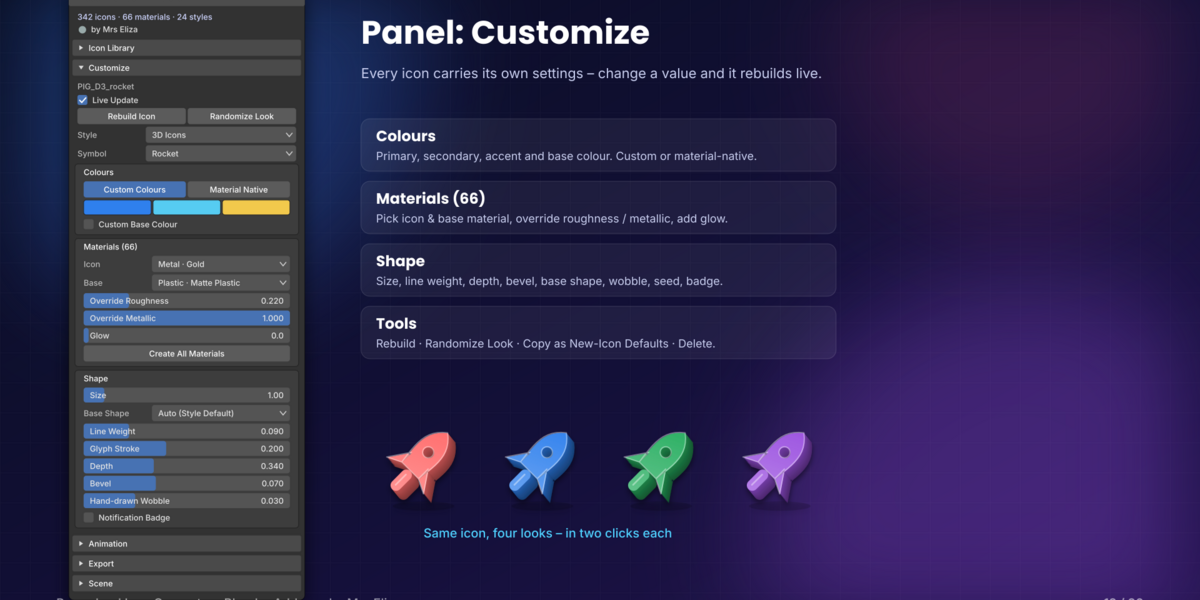
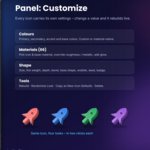
Customize every icon individually using the dedicated Customize panel.
Color Customization
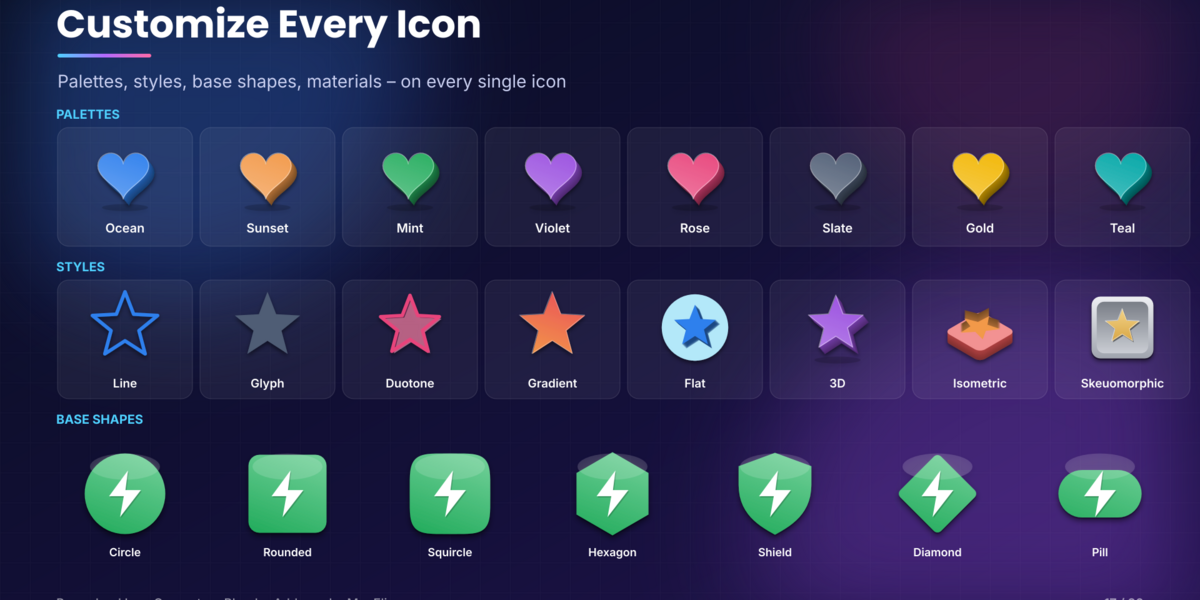
Choose from 10 included color palettes or create your own color combinations.
Customize individual icon colors to match your preferred design style, branding, or project requirements.
Shape Customization
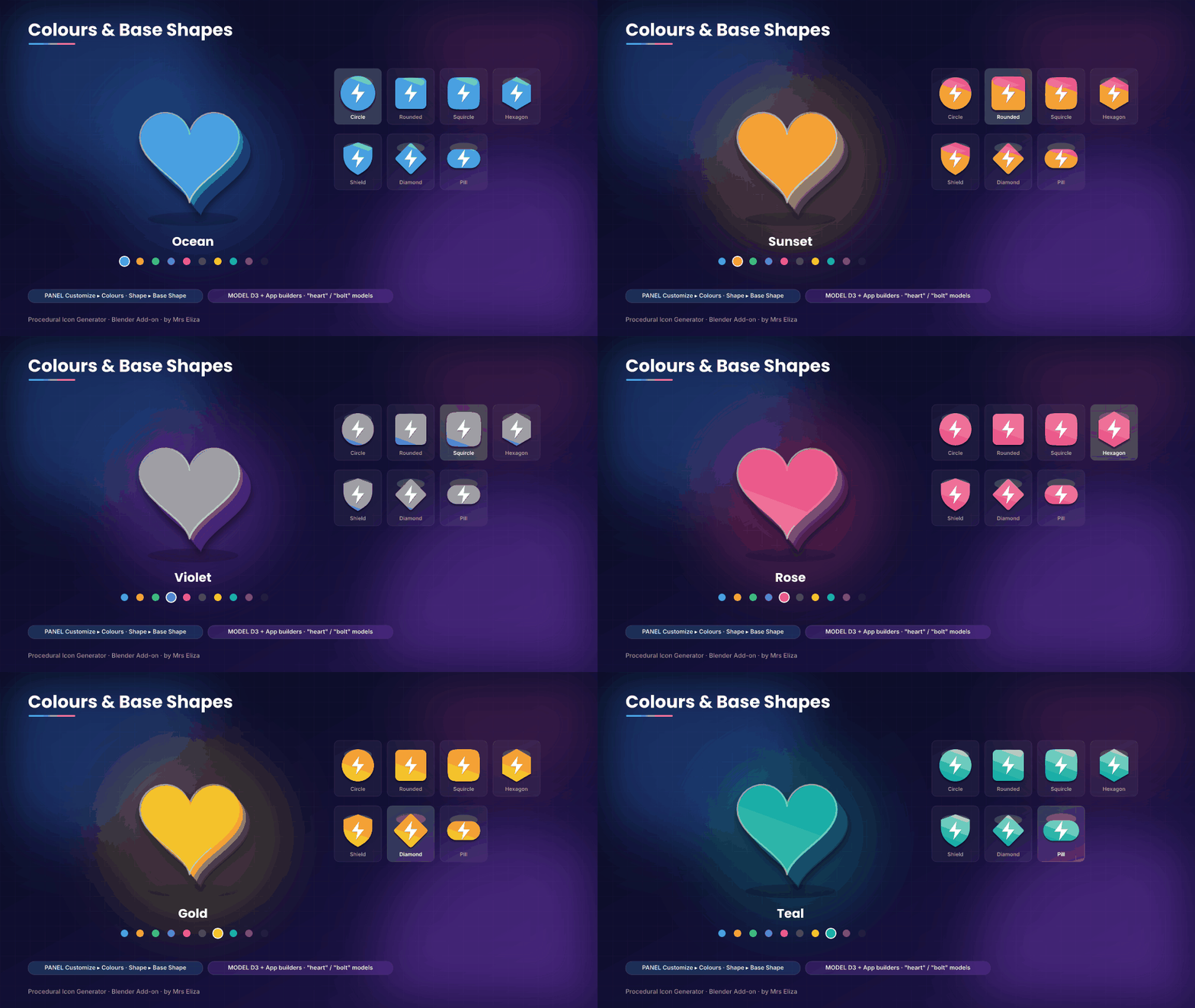
Choose from seven available base shapes:
Circle
Rounded
Squircle
Hexagon
Shield
Diamond
Pill
Geometry & Appearance Controls
Adjust the following properties:
Icon Size
Line Weight
Depth
Bevel
Hand-Drawn Wobble
Base Shape
Material
Roughness
Metallic Values
Three Icon Colors
Live Update: Changes update your active icon directly.
Rebuild: Rebuild the icon when required.
Randomize: Generate a new icon variation with one click.
Copy to Defaults: Save your current appearance as the default look for newly created icons.
Animation System
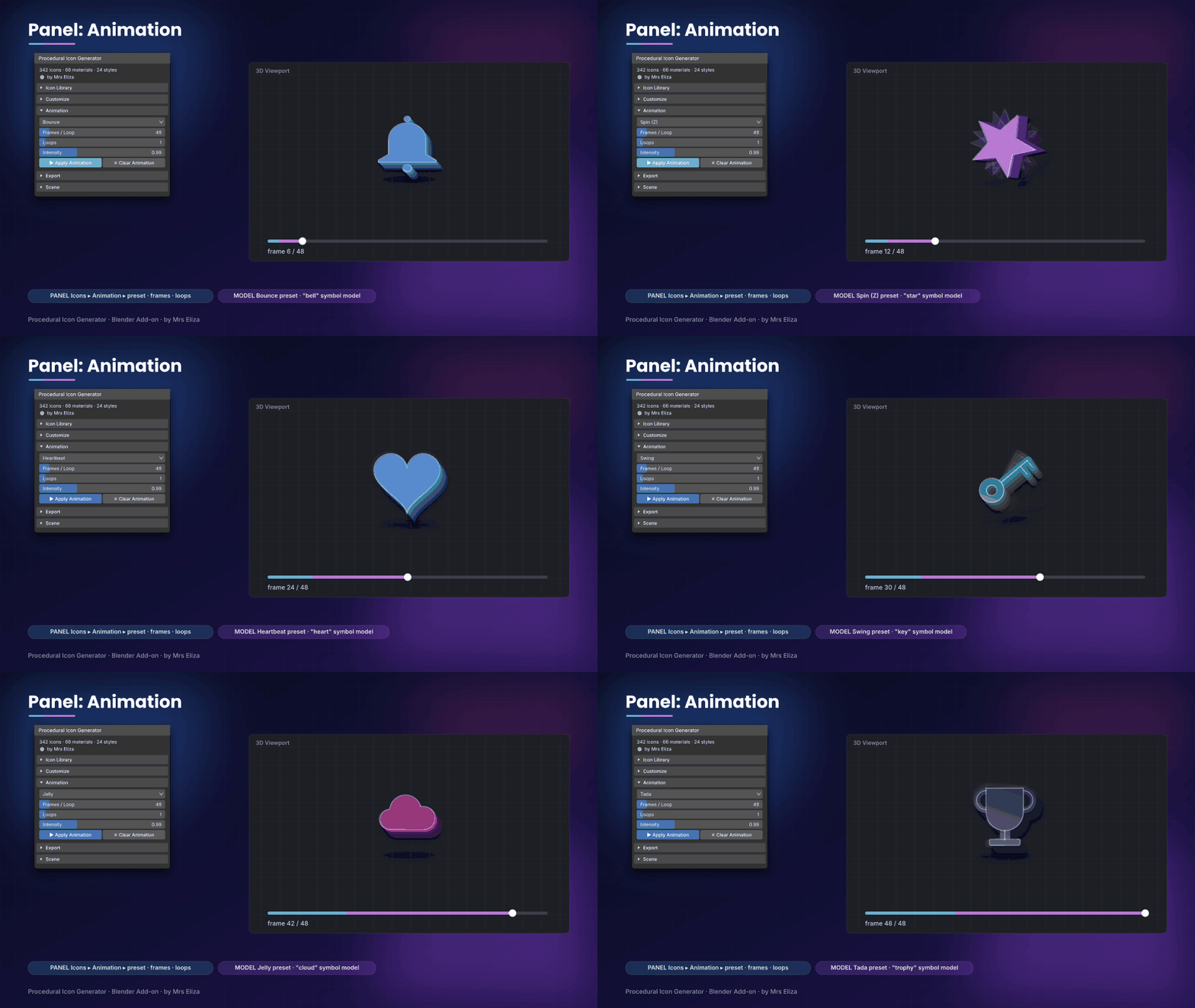
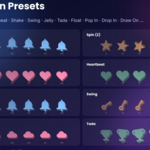
Bring your icons to life with 20 built-in animation presets.
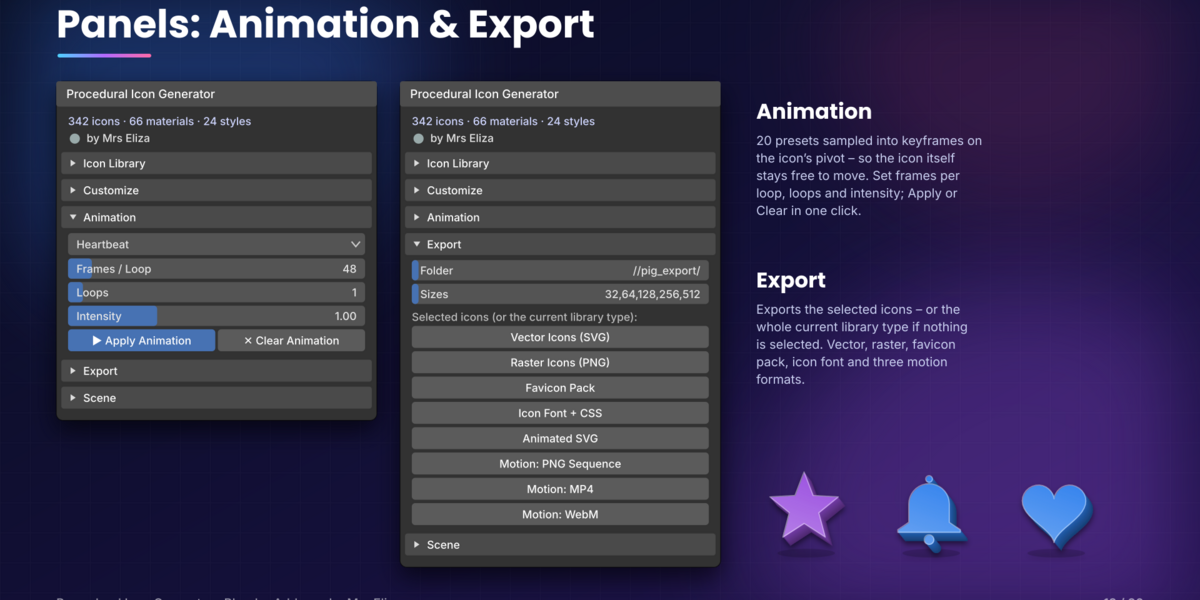
Choose an animation, customize its frame length, loops, and intensity, then apply it to your selected icon.
Animation Presets
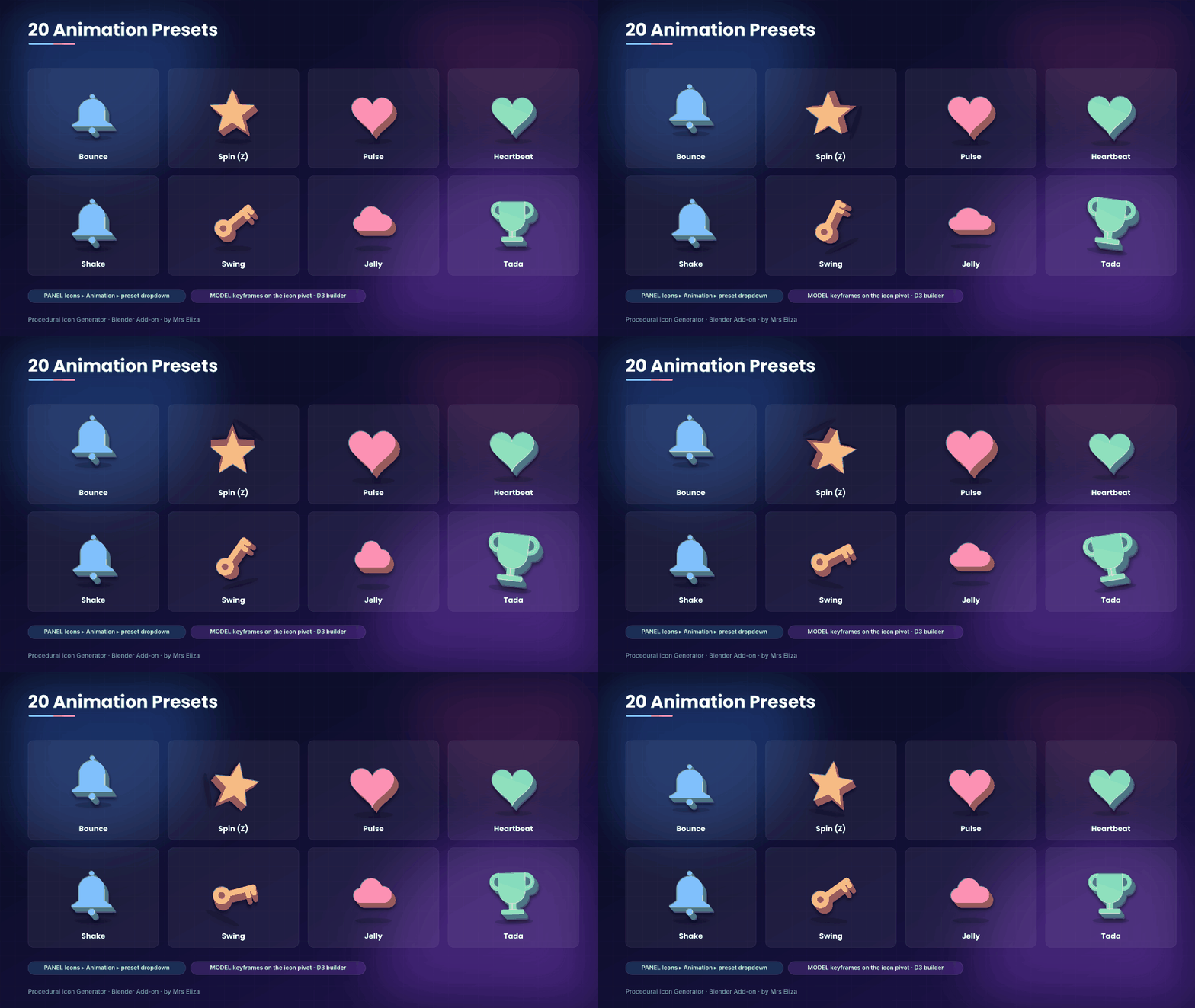
Spin: Rotate the icon around its pivot.
-
Turntable: Create a continuous rotating presentation.
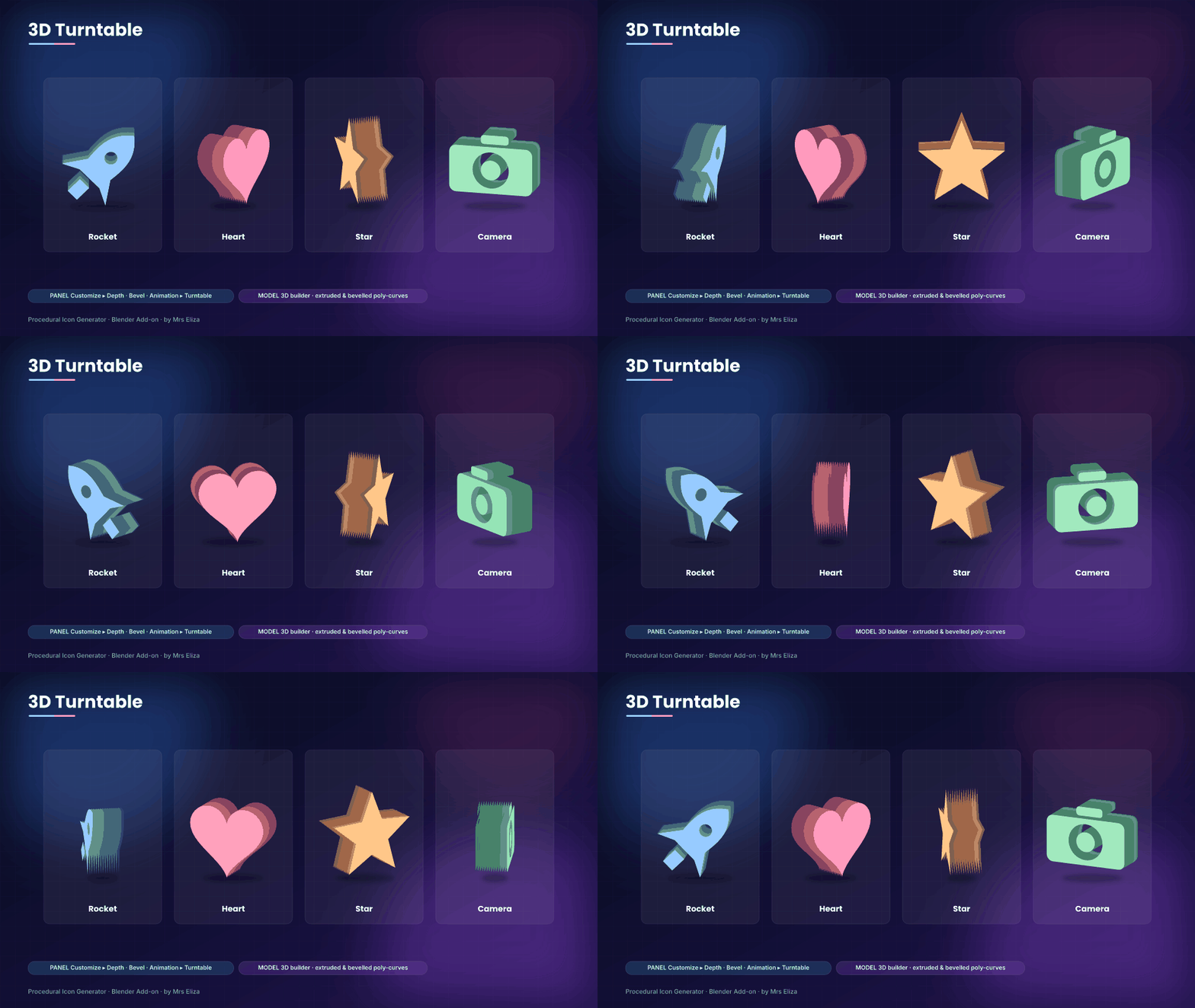
Flip: Reveal the icon with a flipping motion.
Bounce: Add a bouncing movement.
Pulse: Create a pulsing animation.
Heartbeat: Simulate a heartbeat-style motion.
Wobble: Add a wobbling effect.
Shake: Create a quick shaking movement.
Swing: Animate the icon with a swinging motion.
Float: Create a smooth floating effect.
Pop In: Introduce the icon with a pop animation.
Drop In: Drop the icon into the scene.
Slide In: Animate the icon into position.
Orbit: Create an orbital movement.
Jelly: Add a flexible jelly-style effect.
Tada: Create a celebratory animation.
Rubber: Apply a rubber-like movement.
Blink: Create a blinking effect.
-
Draw On: Reveal the icon with a drawing-style animation.
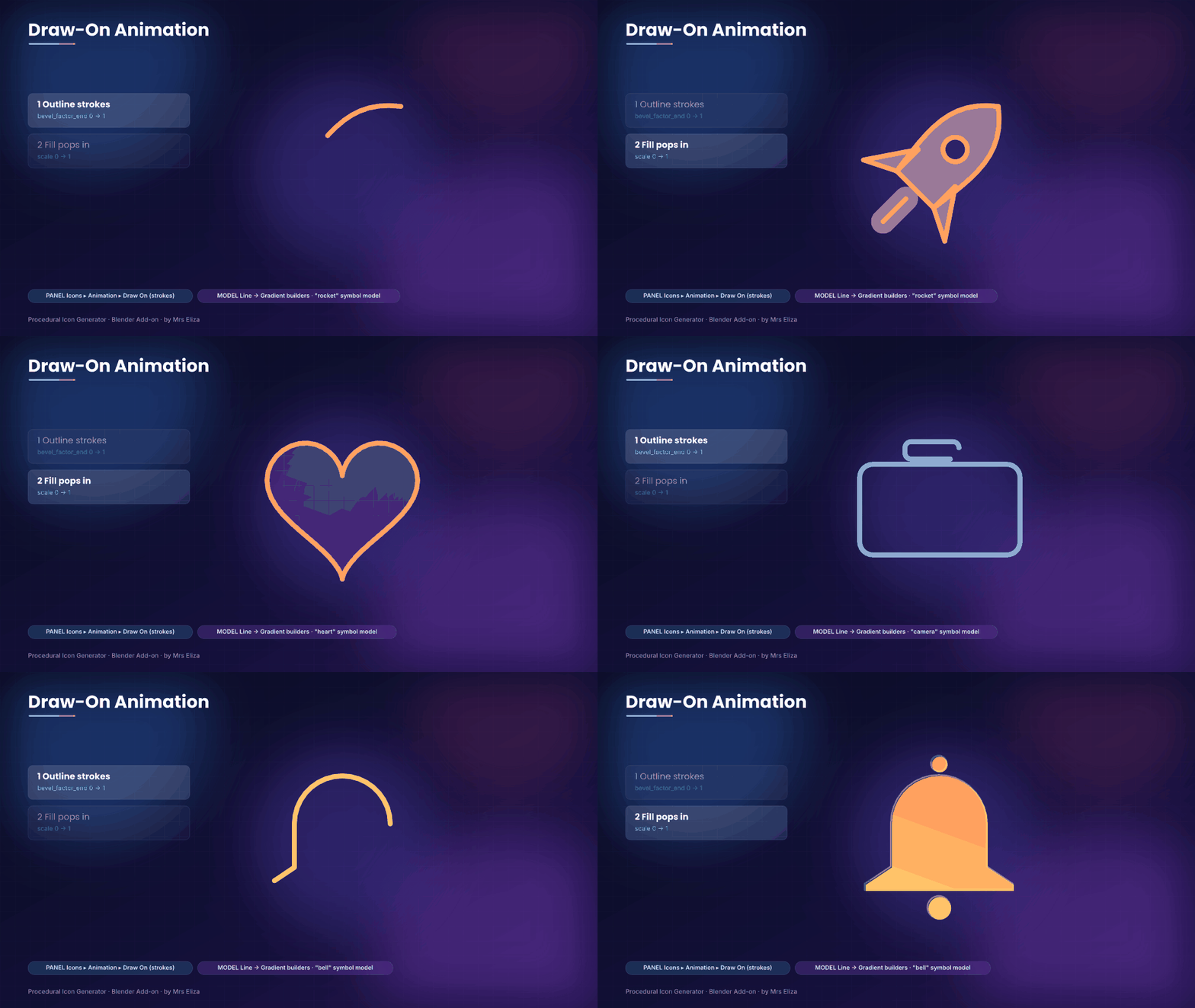
The animation system writes keyframes on a pivot object, keeping the icon's own transforms clean.
Use Apply Animation to add an animation or Clear Animation to remove it.
Professional Icon Export System
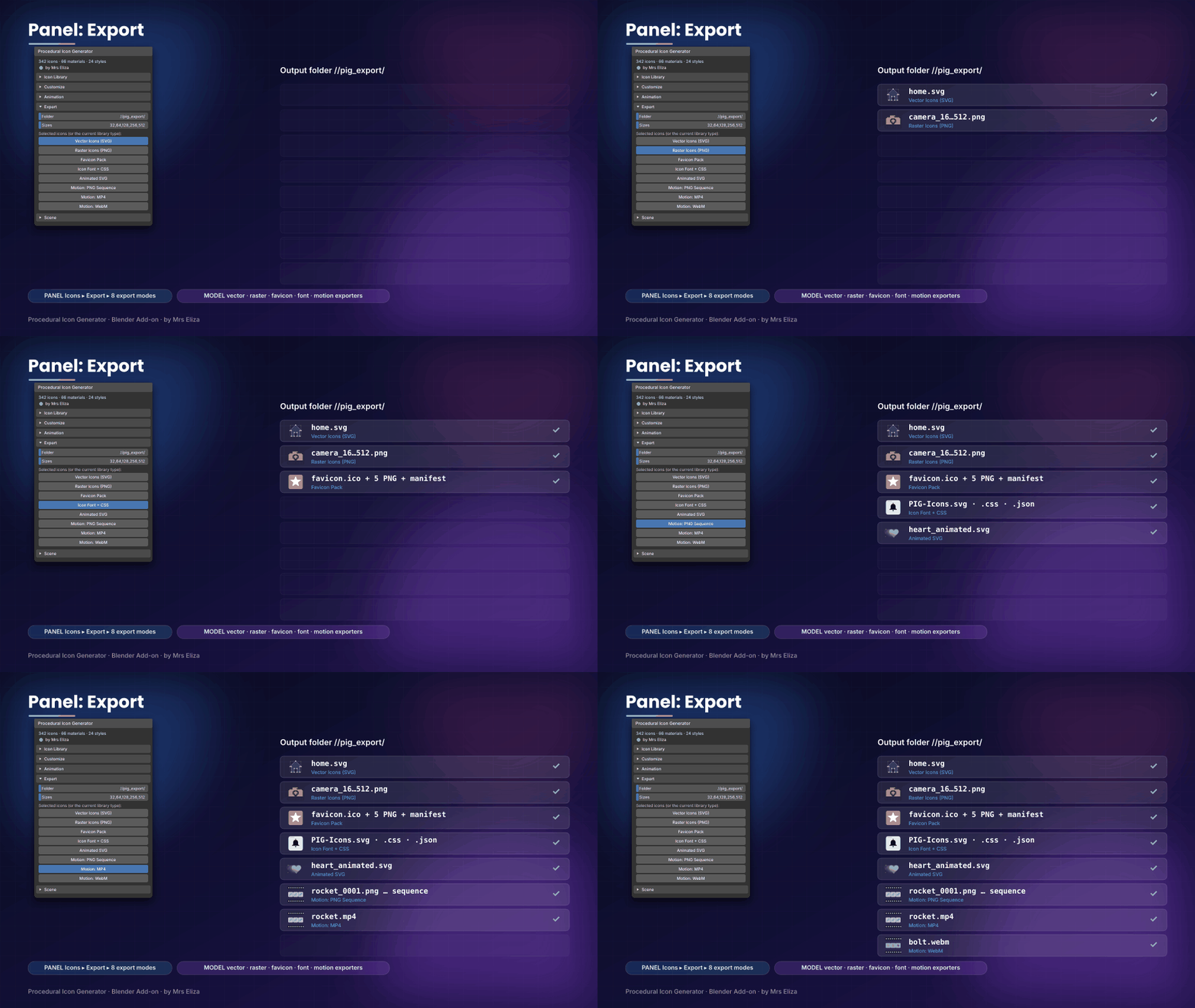
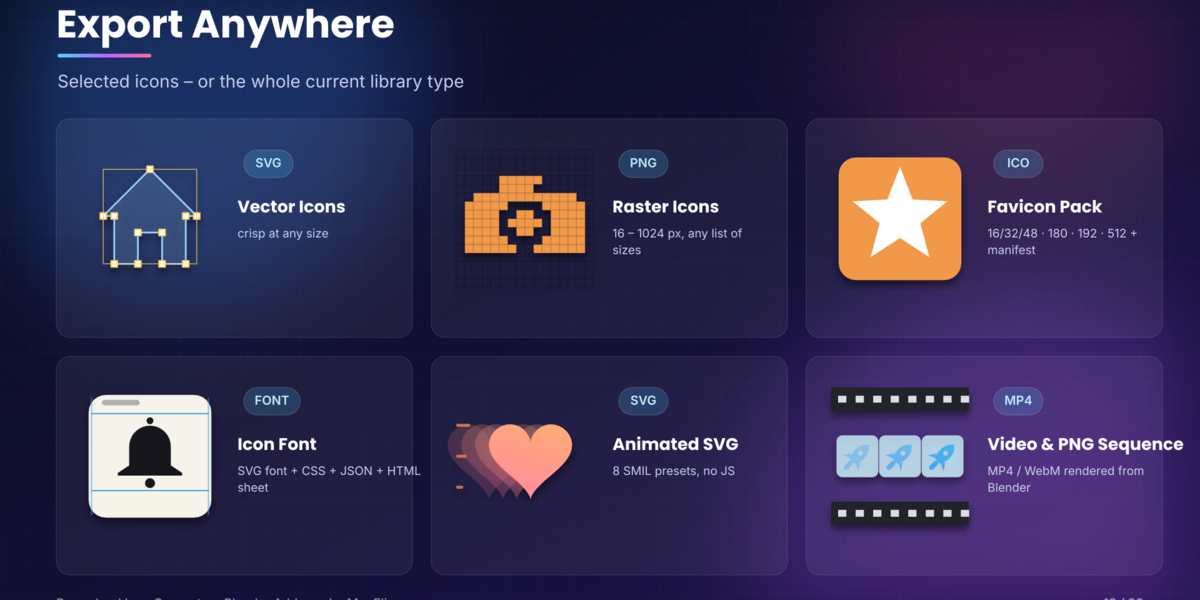
Export your created icons in 8 different export modes for use in websites, applications, graphic design, presentations, and video projects.
1. SVG Export
Export vector icons in SVG format for scalable graphics and web design.
2. PNG Export
Export raster icons in different PNG sizes.
3. Favicon Pack
Generate an ICO file with PNG sizes and a manifest for website favicon use.
4. Icon Font with CSS
Export an SVG font together with CSS and a JSON mapping file.
5. Animated SVG
Export animated icons in SVG format.
6. PNG Sequence
Export motion animations as individual PNG frames.
7. MP4 Export
Export animated icon presentations as MP4 video.
8. WebM Export
Export motion animations in WebM format.
Choose the required export mode, set your output folder, and export your icons directly from the add-on.
MP4 and WebM export depend on Blender's built-in video encoder.
One-Click Setup
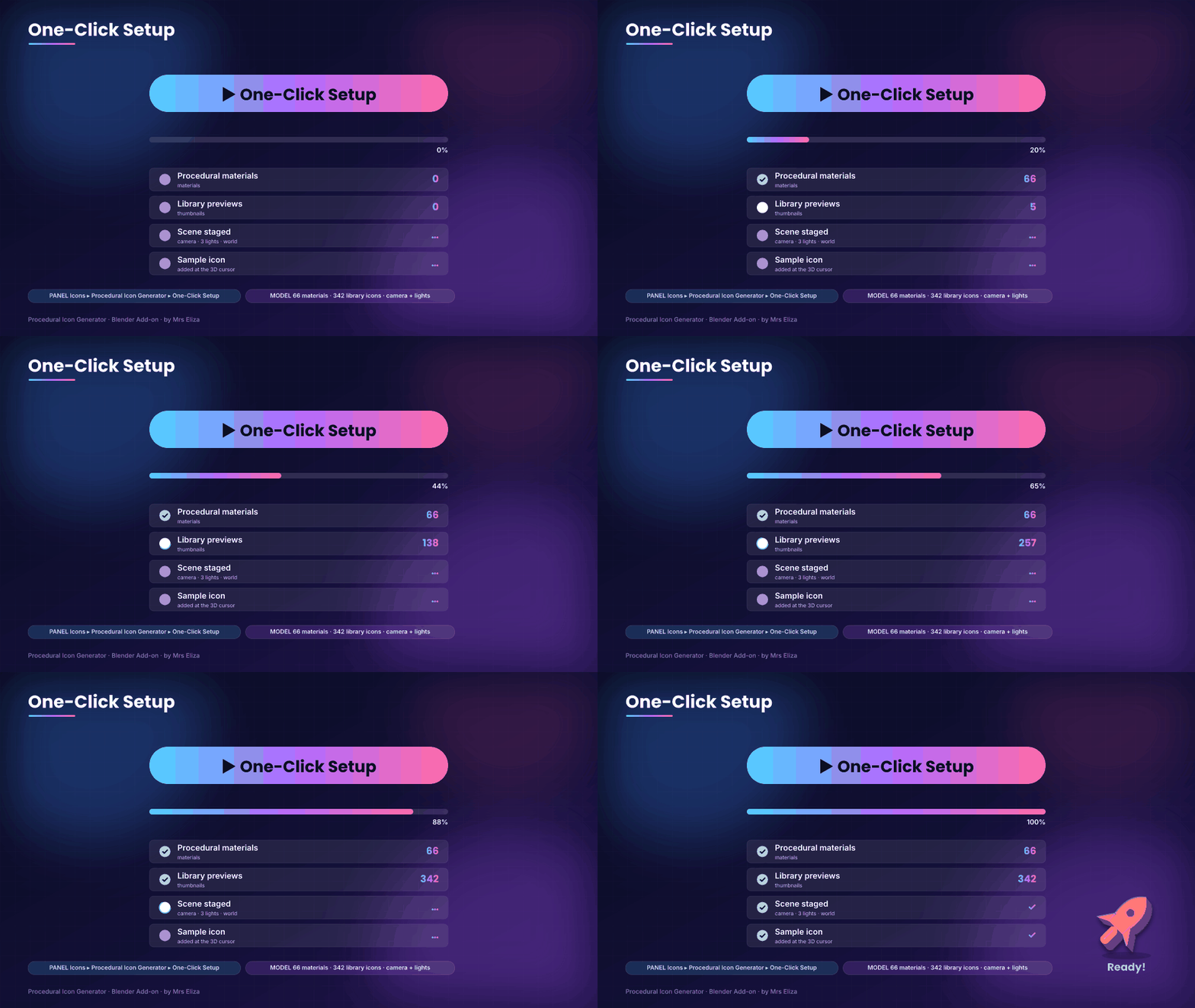
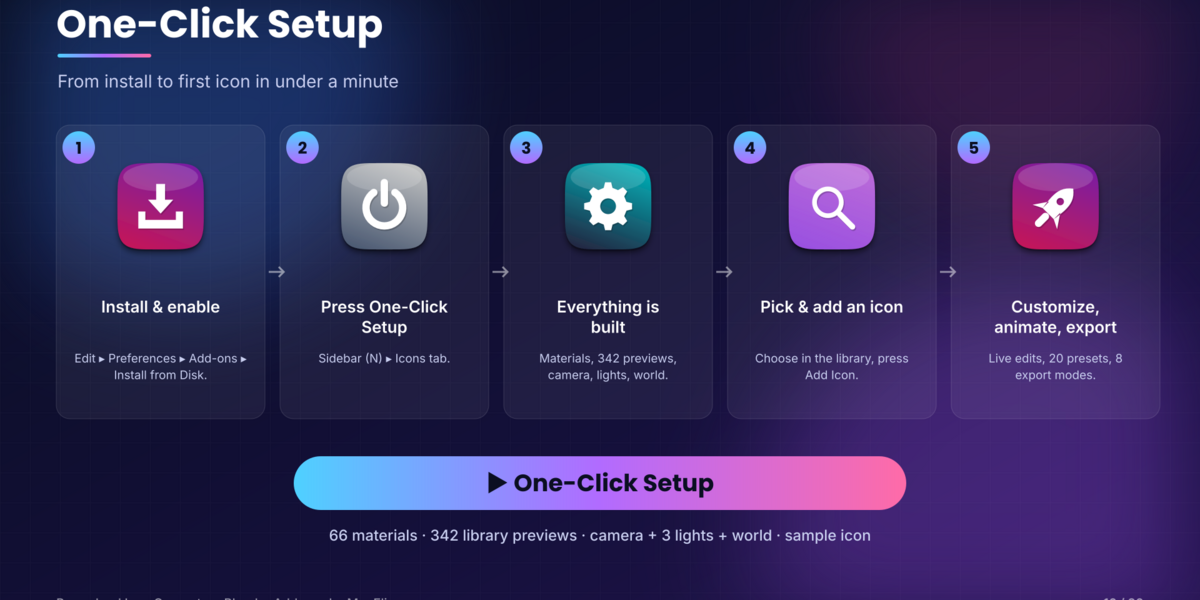
Prepare your icon creation workspace with a single click.
The One-Click Setup feature automatically:
Creates and installs all 66 procedural materials.
Generates the icon library previews.
Prepares the studio scene.
Adds a camera and lights.
Creates a sample icon.
Once setup is complete, you can start browsing the library and creating your own icon collections.
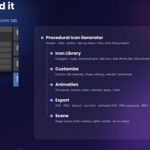
Add-on Panels & Tools
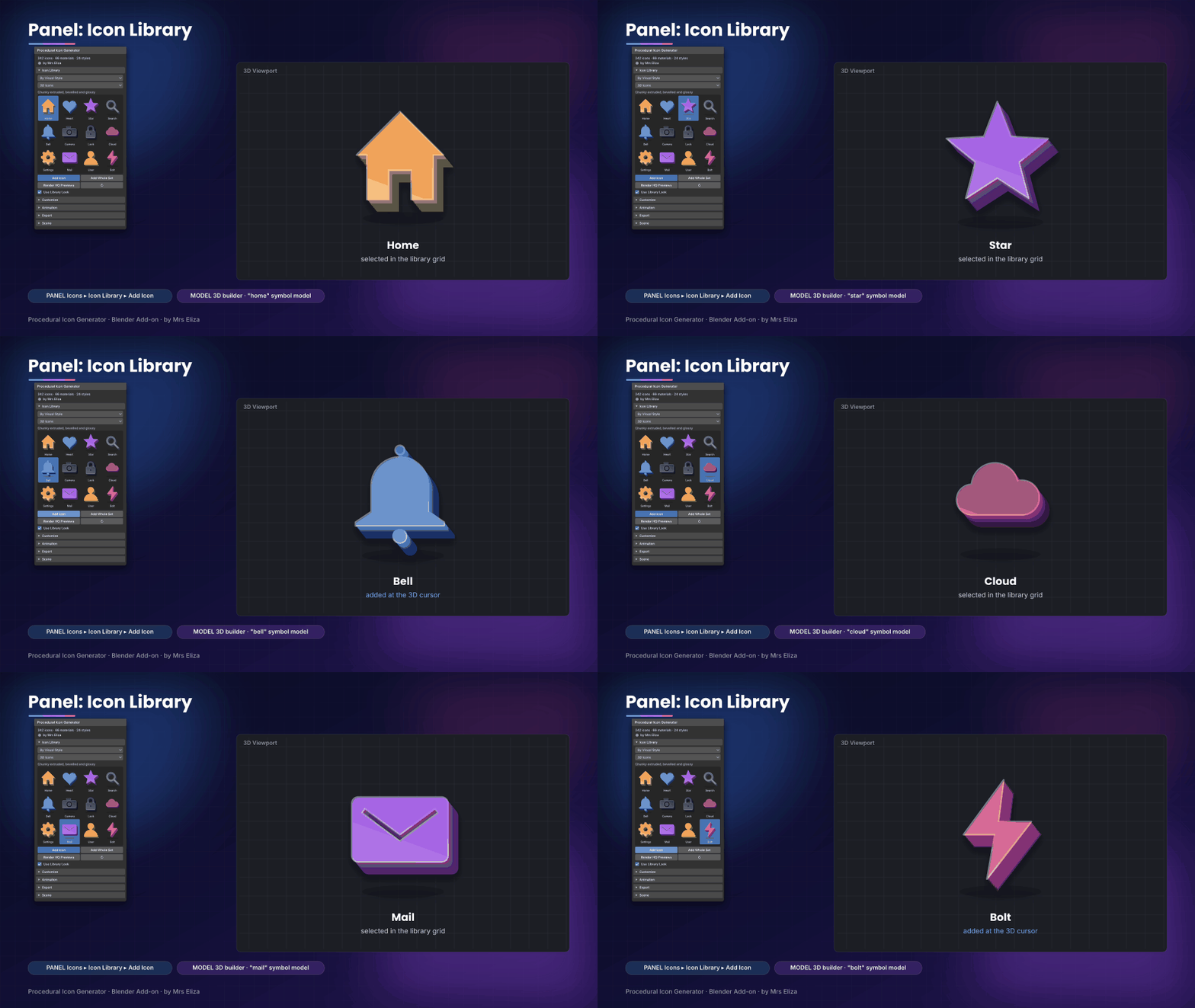
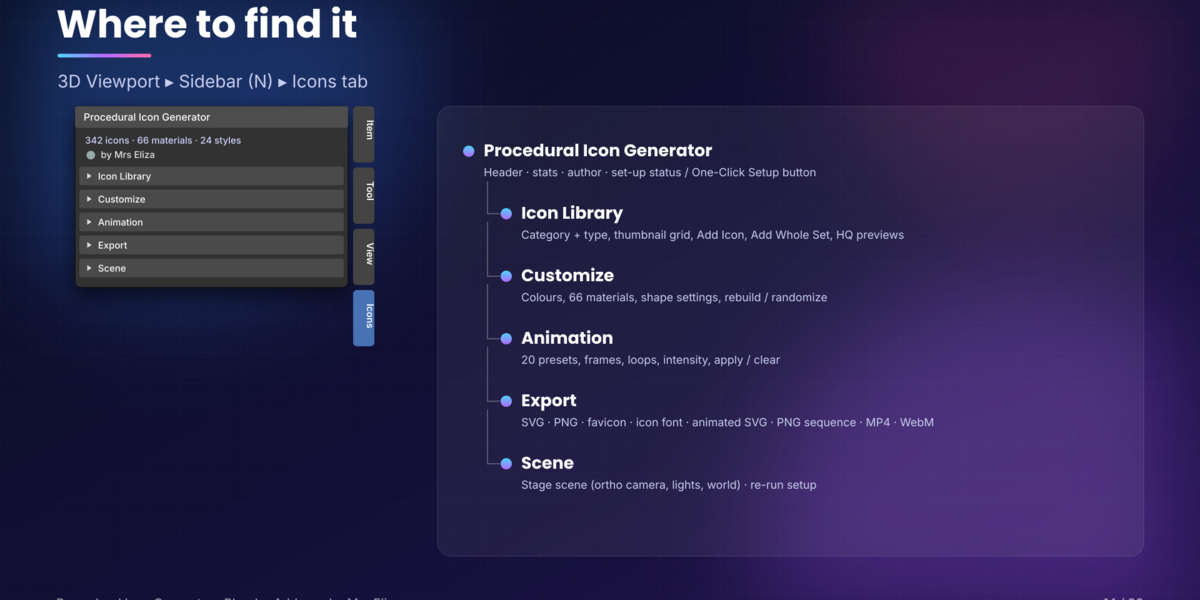
All features are organized inside the Icons tab in the 3D Viewport sidebar.
One-Click Setup: Prepare materials, library previews, the scene, camera, lights, and a sample icon.
Icon Library: Browse categories, select icon types, view static thumbnails, and add individual icons or complete sets.
Customize: Edit the active icon's symbol, colors, material, roughness, metallic values, size, line weight, depth, bevel, wobble, and base shape.
Animation: Choose from 20 animation presets, adjust frame length, loops, and intensity, then apply or clear animations.
Export: Select an export mode, choose an output folder, and export your icons.
Scene: Prepare the camera, lighting, and world settings, create all materials, or refresh library previews when needed.
Icon Organization: Icons are automatically organized inside a dedicated PIG Icons collection in the Outliner, with separate sub-collections for categories and icon types.
Requirements
Blender 4.2 or newer.
Works with Blender's built-in Python.
No additional add-ons required.
No external image textures or assets required.
Compatible with EEVEE.
Materials include Workbench-friendly fallback settings.
MP4 and WebM exports depend on Blender's built-in video encoder.
Installation
Download
procedural_icon_generator.zip.Do not unzip the file.
Open Blender and navigate to Edit > Preferences > Add-ons.
Click the dropdown arrow in the top-right corner.
Select Install from Disk.
Choose
procedural_icon_generator.zipand confirm.Enable Procedural Icon Generator using its checkbox.
Accessing the Add-on
Open the 3D Viewport.
Press N to open the sidebar.
Select the Icons tab.
Open the Procedural Icon Generator panel.
Quick Start Guide
Step 1 – One-Click Setup
Open the Icons tab and click One-Click Setup. The add-on prepares the materials, library previews, studio scene, camera, and lights, then adds a sample icon.
Step 2 – Browse the Icon Library
Choose a category and icon type inside Icon Library, then select an icon thumbnail.
Step 3 – Add an Icon
Click Add Icon to place the selected icon at the 3D cursor. Use Add Set to create a complete group.
Step 4 – Customize Your Icon
Open Customize to edit colors, materials, depth, bevel, line weight, and shape. Changes update live.
Step 5 – Apply Animation
Open Animation, choose a preset, adjust its settings, and click Apply Animation.
Step 6 – Export Your Icon
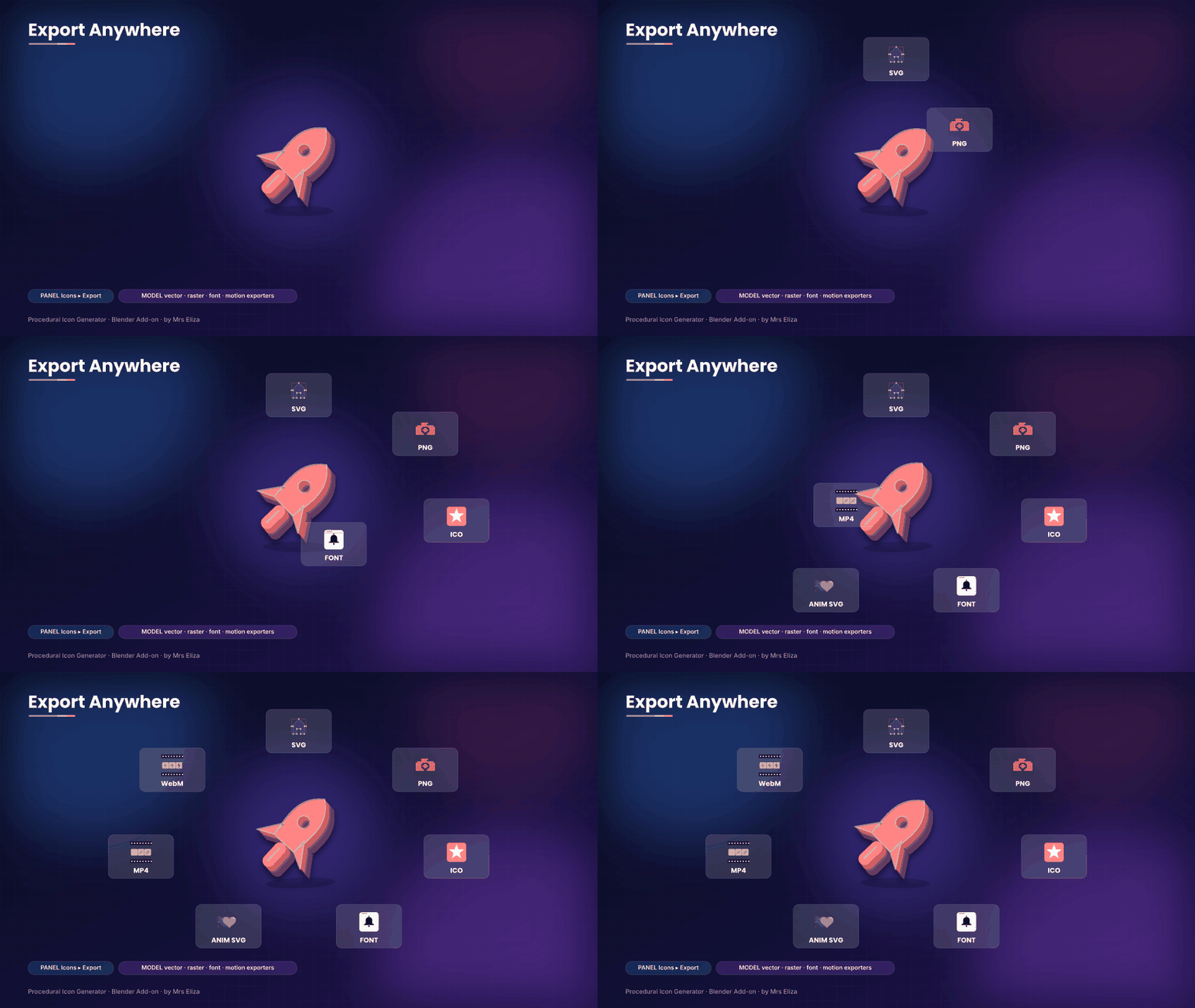
Open Export, select your preferred format, choose an output folder, and export.
Frequently Asked Questions (FAQ)
Q: Which Blender versions are supported?
The add-on targets Blender 4.2 or newer.
Q: How many icons are included?
The library includes 342 ready-made icons with static previews. The add-on also includes 100 procedural symbol models, including 12 seeded abstract ideograms.
Q: How many icon types are available?
There are 24 icon types organized into four categories: Visual Style, Function & Usage, Semiotic Meaning, and Technical File Format.
Q: Can I create a complete icon set?
Yes. Use the Add Set button in Icon Library to place a whole group of icons into your scene.
Q: Can I customize individual icons?
Yes. The Customize panel allows you to change colors, materials, size, line weight, depth, bevel, hand-drawn wobble, and base shape.
Q: How many color palettes are included?
The add-on includes 10 color palettes. You can also customize the icon colors individually.
Q: How many procedural materials are included?
There are 66 procedural materials across nine categories: Metal, Plastic, Glass, Stone, Wood, Fabric, Emissive, Tech, and Flat.
Q: Do I need external textures?
No. The materials and their surface details are generated using Blender shader nodes and procedural textures.
Q: Can I create animated icons?
Yes. The add-on includes 20 animation presets. You can choose a preset, adjust frame length, loops, and intensity, then apply the animation.
Q: Will animations affect my icon's original transforms?
The animation presets write keyframes on a pivot object, keeping the icon's own transforms clean.
Q: Which export formats are supported?
The add-on supports SVG, PNG, favicon packs, icon fonts with CSS, animated SVG, PNG sequences, MP4, and WebM.
Q: Can I export icons for websites and applications?
Yes. Use SVG, PNG, favicon, or icon font export options depending on your project requirements.
Q: Can I export animated icons?
Yes. You can export animated SVG files or export motion as a PNG sequence, MP4, or WebM.
Q: Why are my library previews missing?
Open the Scene panel and use the preview refresh option. You can also run One-Click Setup to prepare the library previews.
Q: Can I use the add-on without installing other tools?
The add-on uses Blender's built-in Python and does not require additional add-ons or external assets.
Q: Does it work with EEVEE?
Yes. The add-on works with EEVEE, and its materials include Workbench-friendly fallback settings when needed.
Q: Where are my icons organized?
Icons are organized inside the PIG Icons collection in the Outliner, with sub-collections for each category and icon type.
Q: Can I use the icons in commercial projects?
Yes. Icons you create are yours to use in personal and commercial projects.
Version & Credits
Add-on Name: Procedural Icon Generator
Version: 1.0.0
Author & Maintainer: Mrs Eliza
License: GPL-3.0-or-later
Requirements: Blender 4.2+
Before publishing, test the add-on in a full Blender 4.2 or newer installation. The documentation notes that development testing used a simulated Blender API rather than a full Blender installation. Marketplace preview images and GIFs are illustrations made from the add-on's own data, so consider including real Blender viewport screenshots as well.
For technical support, include your Blender version and a short description of the issue. Screenshots can also help when reporting problems.