 Mrs Eliza
Procedural Rope, Cable & Knot Creator for Blender
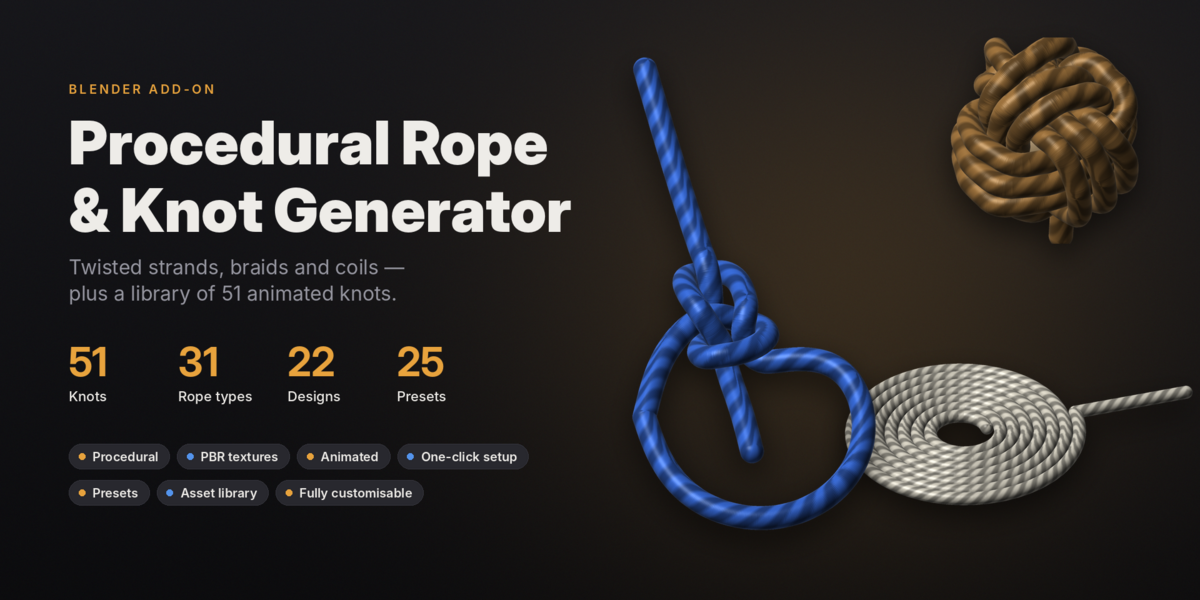
Create realistic ropes, detailed knots, braided cables, and coils with procedural geometry.
Rope & Knot Generator transforms Blender curves into realistic rope geometry made from individual strands, yarns, and wires that twist, braid, and weave together.
Powered by Geometry Nodes, every rope remains fully editable. Changes update instantly, and nothing needs to be baked unless you choose to export or finalize it.
✦ 01 — Key Features
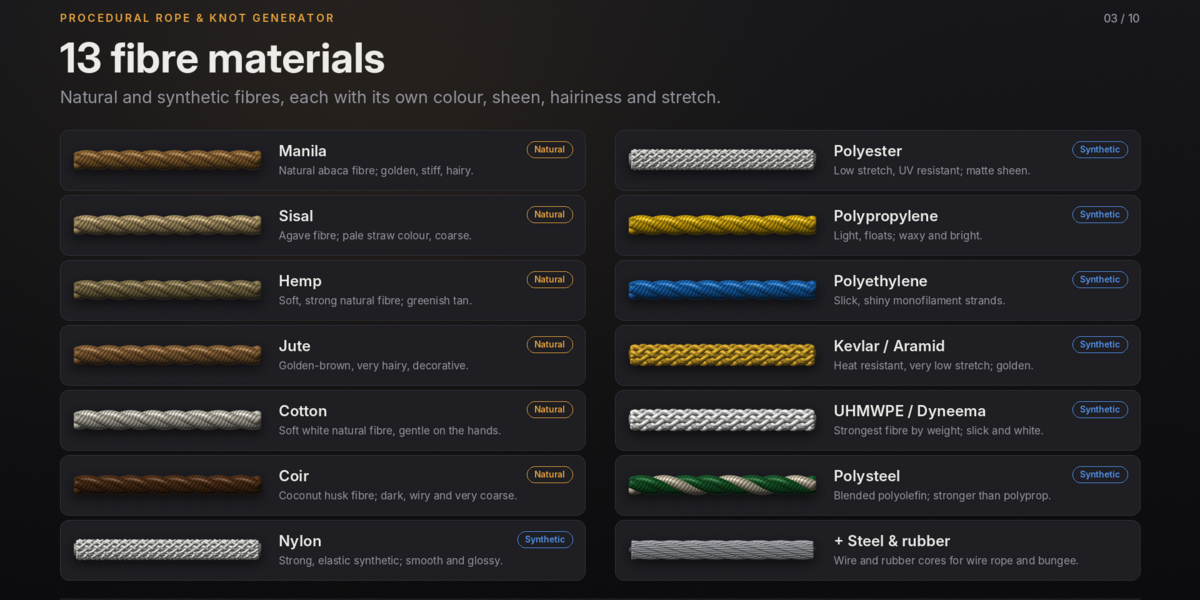
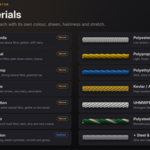
13 Fibre Materials
Manila, Sisal, Hemp, Jute, Cotton, Coir, Nylon, Polyester, Polypropylene, Polyethylene, Kevlar / Aramid, UHMWPE / Dyneema, and Polysteel, plus steel and rubber for wire rope and bungee cores.
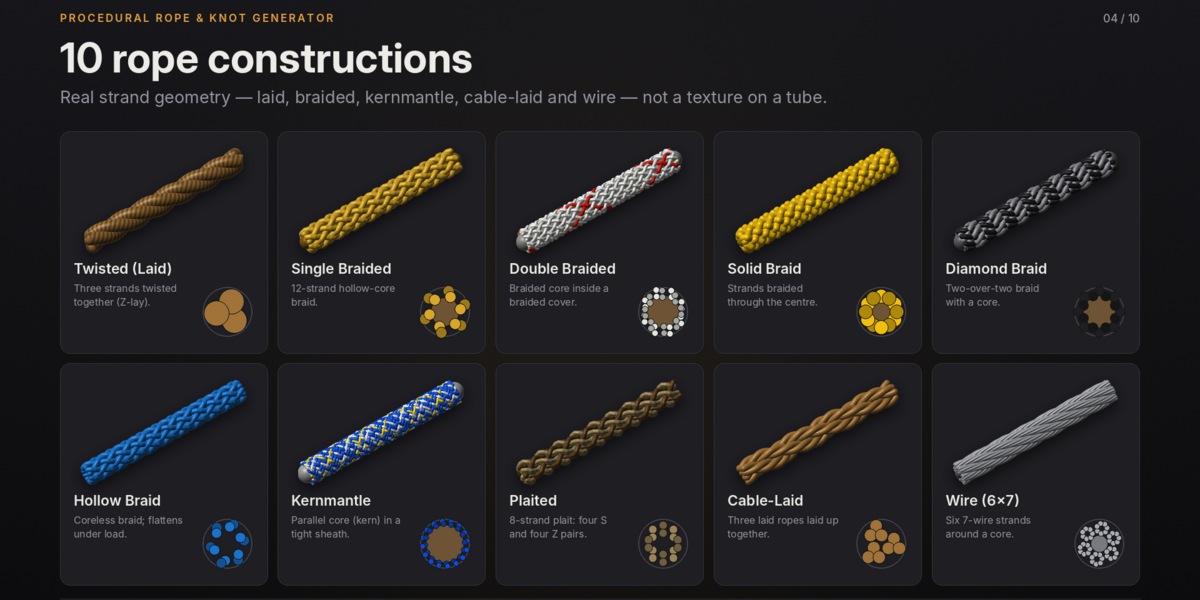
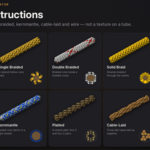
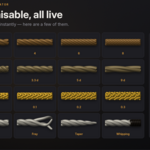
10 Rope Constructions
From traditional three-strand twisted ropes to braided, kernmantle, cable-laid, and 6×7 wire rope.
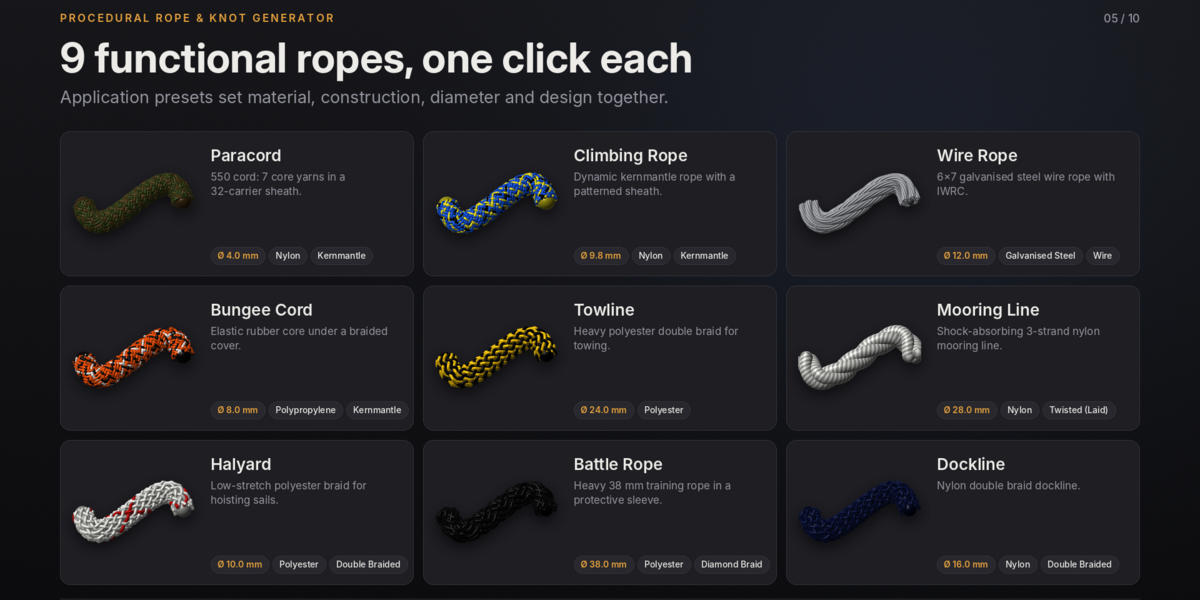
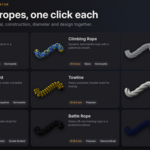
9 Functional Rope Types
Ready-made configurations including Paracord, Climbing Rope, Mooring Line, Towline, and more.
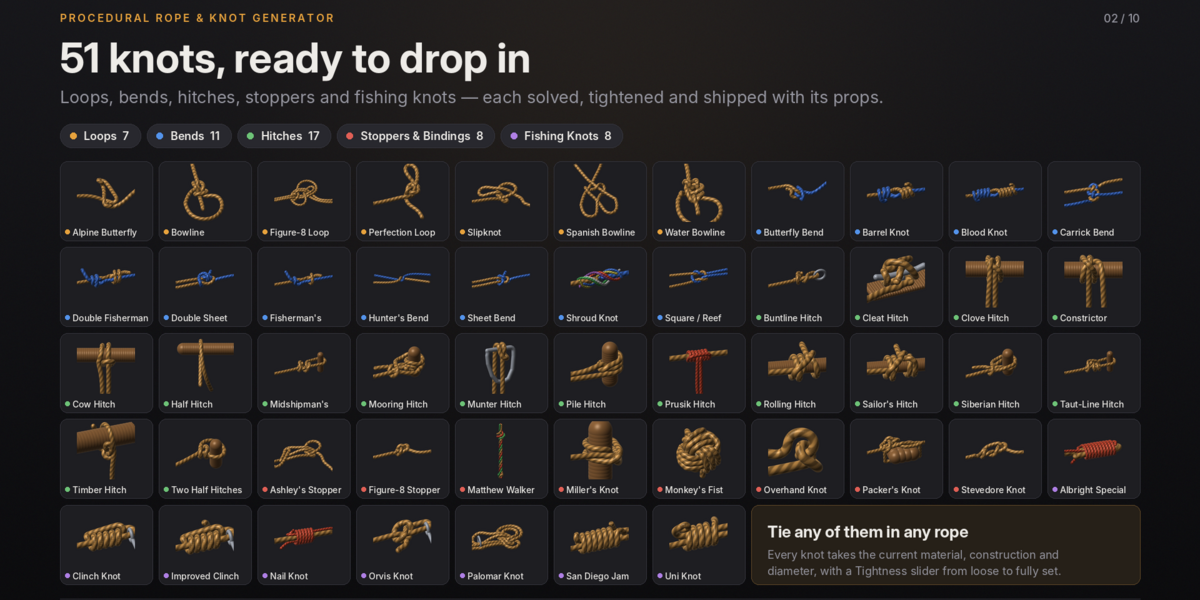
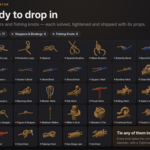
51 Procedural Knots
Organized into five categories, with pre-computed solutions and supporting props such as posts, rings, cleats, and carabiners.
Complete Rope Design System
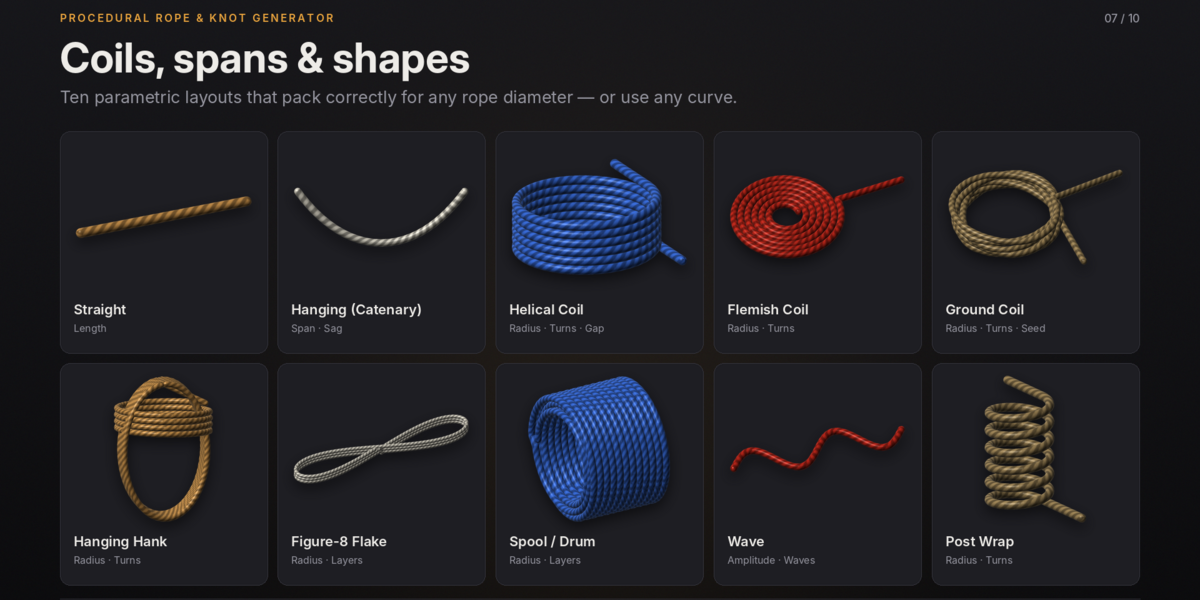
10 coil and span shapes.
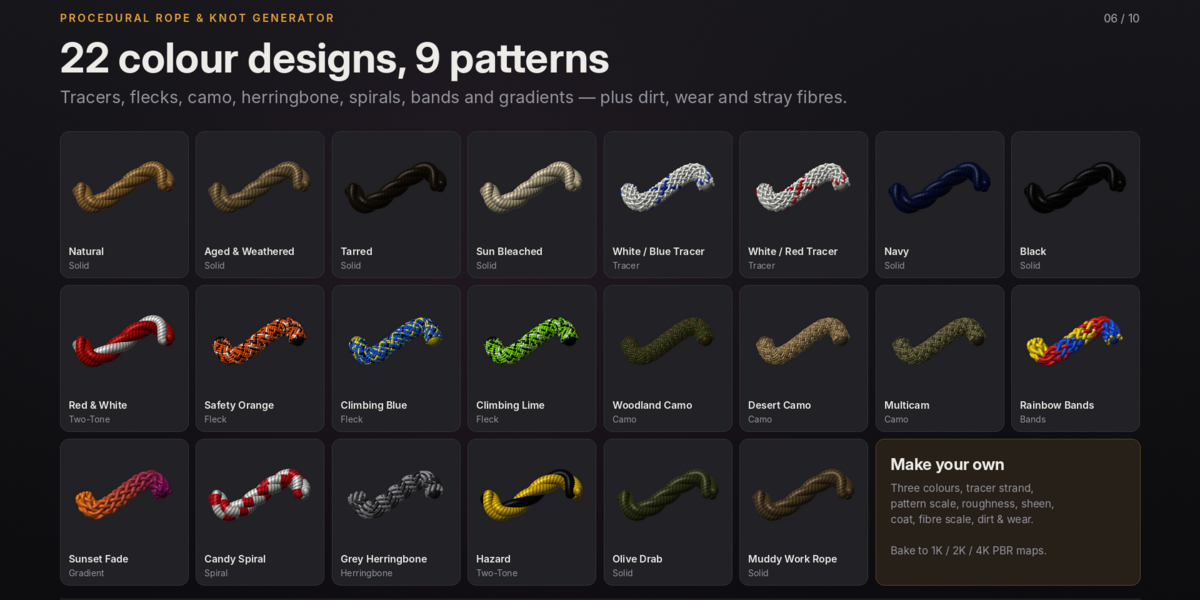
22 colour designs.
25 ready-to-use presets.
Procedural fibre materials.
Texture baking and export tools.
Animation and physics controls.
Blender Asset Browser integration.
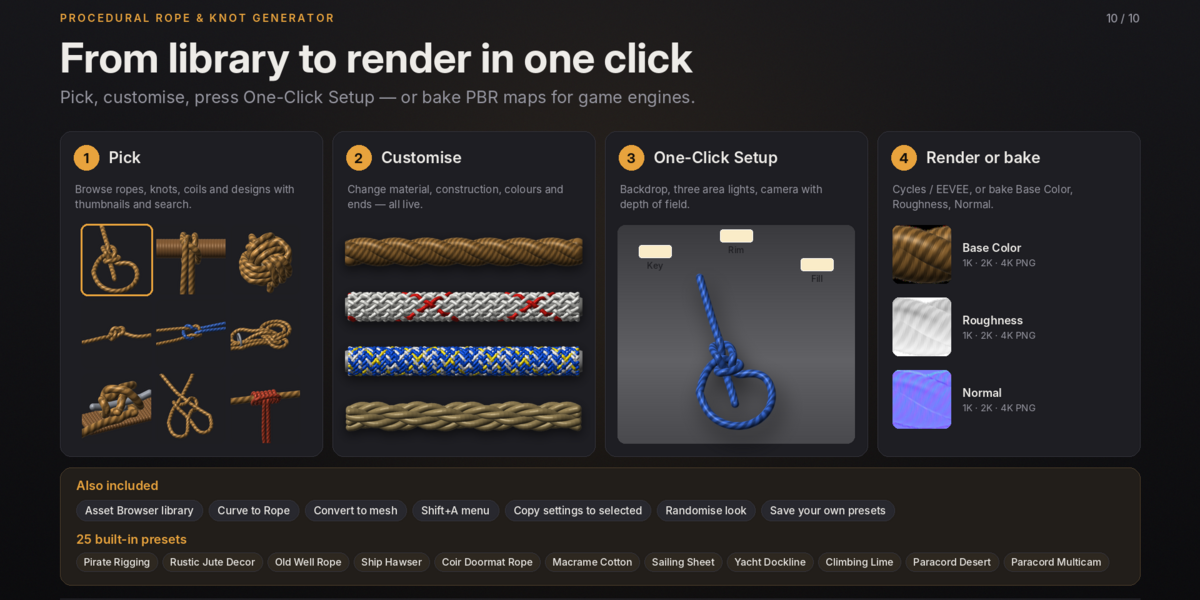
🚀 03 — Quick Start
Create a complete rope or knot scene with just a few clicks.
STEP 01 — Set Your Defaults
In the main panel, choose the default Material, Construction, and Diameter. These settings will be used for newly created ropes and knots.
STEP 02 — Choose a Knot
Open Library → Knots and select a design, such as the Bowline.
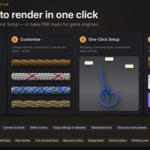
STEP 03 — One-Click Setup
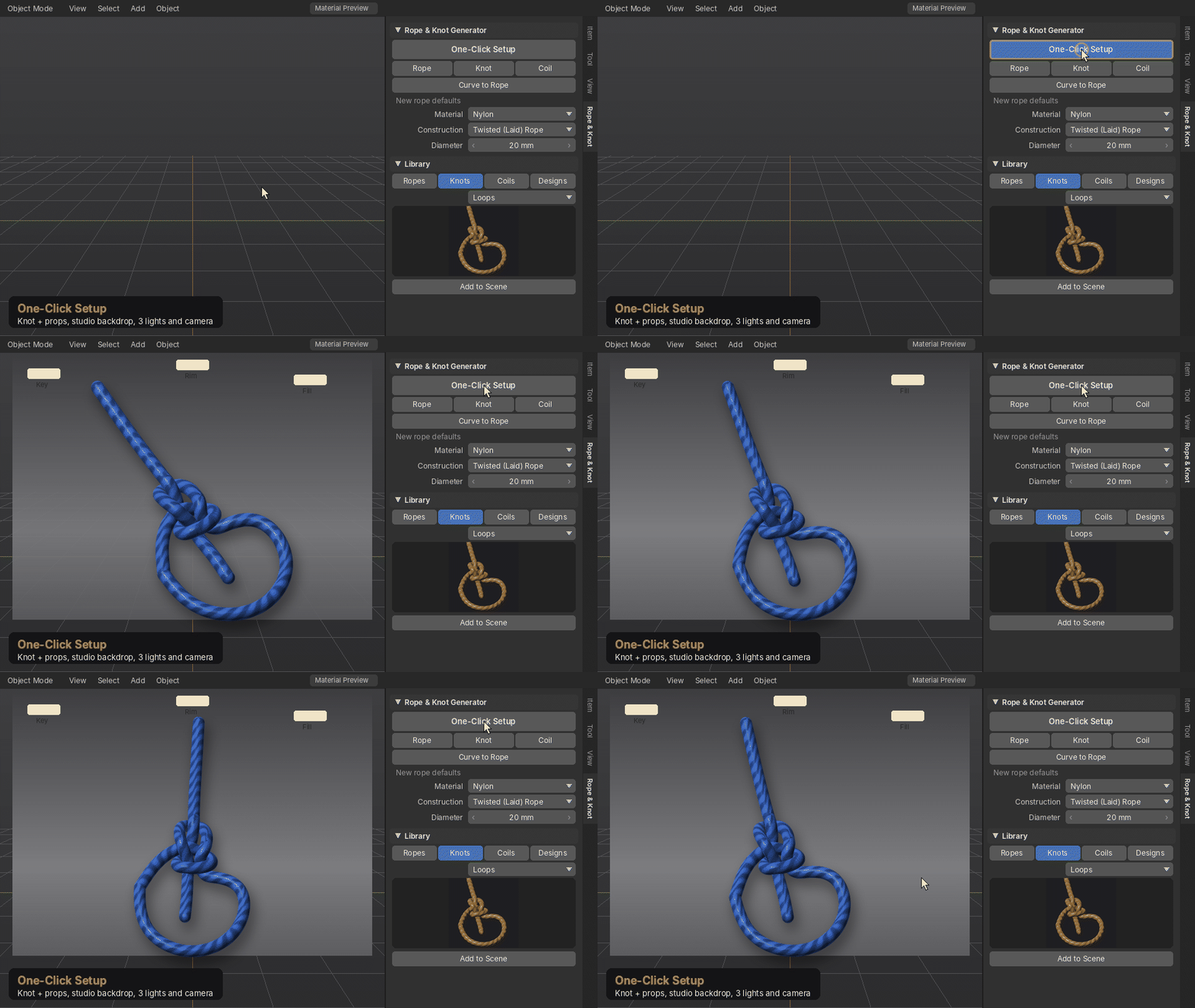
Click One-Click Setup.
The add-on automatically:
Creates the selected knot with its supporting props.
Adds a curved studio backdrop.
Creates three area lights.
Adds a camera with depth of field.
Switches the viewport to Material Preview.
STEP 04 — Customize
Select the generated knot and adjust its material, design, diameter, or tightness through the Rope panel.
STEP 05 — Render
Press F12 to render your scene.
Working with existing ropes: If ropes are already selected when you click One-Click Setup, the studio environment is created around those ropes instead of generating a new knot.
🎛 04 — Understanding the Interface
All tools are available in the 3D Viewport sidebar under the Rope & Knot tab.
Rope & Knot Generator
The main panel contains:
One-Click Setup.
Quick buttons for Rope, Knot, and Coil creation.
Curve to Rope.
Default settings for new ropes.
Library
A visual thumbnail browser containing:
Ropes.
Knots.
Coils.
Designs.
It also includes knot search, Animate Tying, Include Props, Add to Scene, and Build Asset Library controls.
Rope Panel
Appears when a rope or knot is selected. It provides controls for:
Application.
Material.
Construction.
Design.
Diameter.
Knot Tightness.
Coil and rope shape settings.
Its main sub-panels are Construction, Material & Texture, Ends, and Animation & Physics.
Presets
Apply, save, and delete presets. You can also choose the render engine used by One-Click Setup.
Add Menu
The same creation tools are available through Shift + A → Rope & Knot, including straight ropes, rope shapes, and knot categories with thumbnails.
🧵 05 — Rope Materials & Constructions
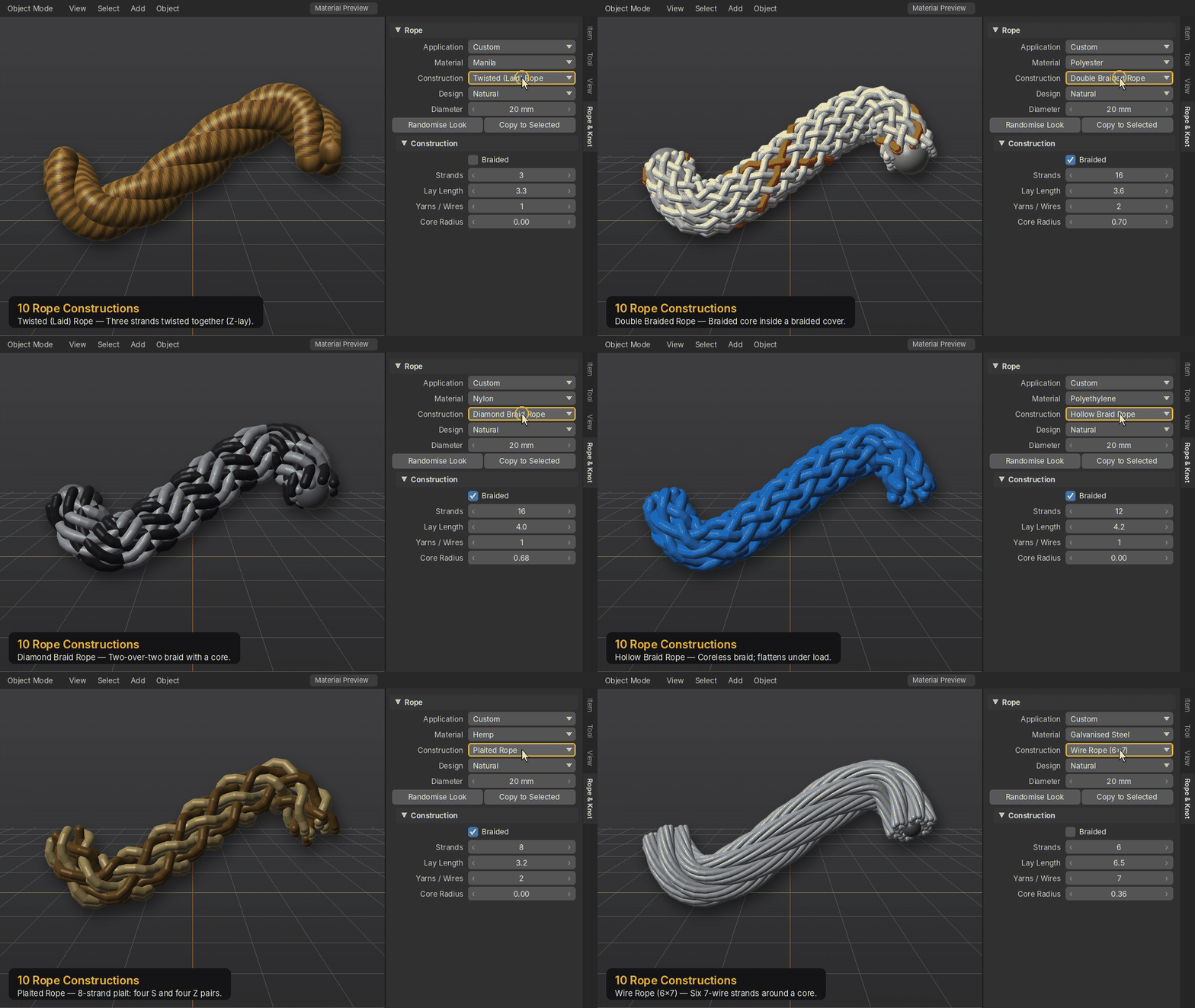
Every rope is defined by three main choices:
Material: What the rope is made from.
Construction: How its strands are arranged.
Application: What kind of functional rope it represents.
All three can be changed at any time without losing your other settings.
Fibre Materials
The material controls the rope's colour, sheen, roughness, hairiness, and fibre detail.
Natural Fibres
Manila
Sisal
Hemp
Jute
Cotton
Coir
Natural fibres have an irregular, hairy appearance, with stray fibres enabled by default.
Synthetic Fibres
Nylon
Polyester
Polypropylene
Polyethylene
Kevlar / Aramid
UHMWPE / Dyneema
Polysteel
Synthetic fibres generally have smoother and glossier surfaces.
Additional steel and rubber materials are available for wire rope and bungee cores.
Selecting a material also chooses a typical rope construction, which you can change afterward.
10 Rope Constructions
Each construction controls the actual geometry of the rope strands.
01. Twisted (Laid)
Three strands twisted together, using Z-lay by default.
02. Single Braid
A 12-carrier braid with a hollow core.
03. Double Braid
A braided outer cover over a braided core.
04. Solid Braid
Strands braided through the centre to create a firm, rounded rope.
05. Diamond Braid
A two-over-two braided construction with a core.
06. Hollow Braid
A coreless braid that can flatten slightly.
07. Kernmantle
A tight outer sheath surrounding a parallel core, commonly used for climbing ropes.
08. Plaited
Eight strands arranged in four S-twist and four Z-twist pairs.
09. Cable-Laid
Three laid ropes twisted together into a larger rope.
10. Wire Rope (6×7)
Six strands, each containing seven wires, arranged around a core.
Functional Rope Applications
The Application menu provides ready-made rope configurations with matching materials, constructions, diameters, and colour designs.
Available types include:
Paracord: 4 mm
Climbing Rope: 9.8 mm
Wire Rope: 12 mm
Bungee Cord: 8 mm
Towline: 24 mm
Mooring Line: 28 mm
Halyard: 10 mm
Battle Rope: 38 mm
Dockline: 16 mm
After applying an application type, every setting remains editable.
🪢 06 — Knot Library
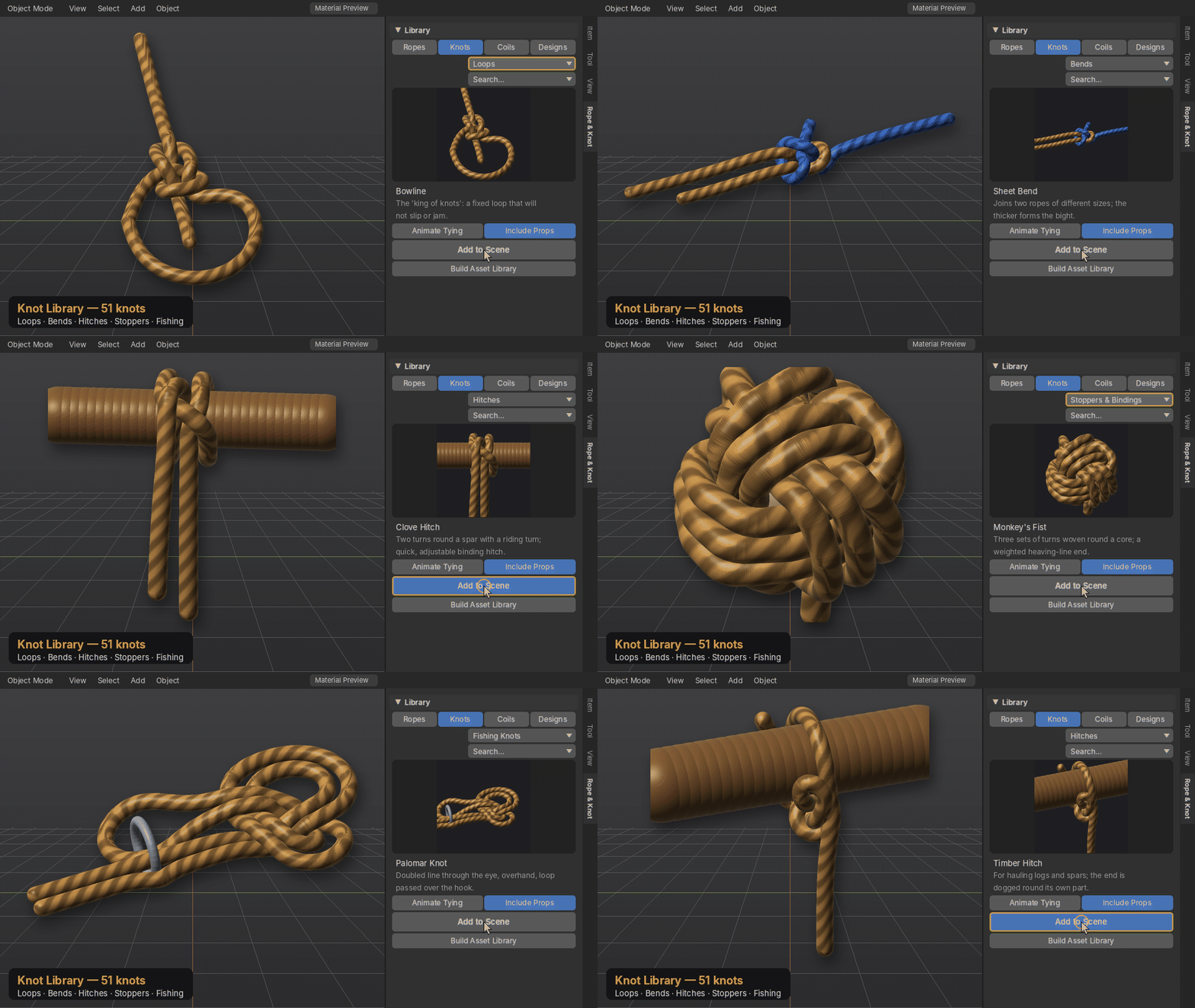
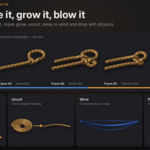
Create realistic knots using a library of 51 pre-computed knot designs.
Each knot is carefully arranged crossing by crossing, then relaxed and tightened using a rope simulation. This prevents the rope from passing through itself or its supporting props.
The solutions are included with the add-on, so knots can be created instantly without running a simulation every time.
5 Knot Categories
01. Loops — 7 Knots
Bowline
Alpine Butterfly Knot
Figure-Eight Loop
Perfection Loop
Spanish Bowline
Slipknot
Water Bowline
02. Bends — 11 Knots
Sheet Bend
Double Sheet Bend
Carrick Bend
Square / Reef Knot
Fisherman's Knot
Double Fisherman's Knot
Blood Knot
Barrel Knot
Shroud Knot
Alpine Butterfly Bend
Hunter's Bend
03. Hitches — 17 Knots
Clove Hitch
Timber Hitch
Taut-Line Hitch
Midshipman's Hitch
Rolling Hitch
Cleat Hitch
Munter Hitch
Siberian Hitch
Pile Hitch
Mooring Hitch
Sailor's Hitch
Half Hitch
Two Half Hitches
Buntline Hitch
Prusik Knot
Cow Hitch
Constrictor Knot
04. Stoppers & Bindings — 8 Knots
Overhand Knot
Figure-Eight Stopper
Stevedore Knot
Ashley's Stopper Knot
Monkey's Fist
Matthew Walker Knot
Miller's Knot
Packer's Knot
05. Fishing Knots — 8 Knots
Palomar Knot
San Diego Jam
Orvis Knot
Nail Knot
Clinch Knot
Improved Clinch Knot
Albright Special
Uni Knot
Adding a Knot
Open Library → Knots.
Search for or select your desired knot.
Click Add to Scene.
The new knot uses your New Rope defaults.
If a rope is already selected, the new knot copies that rope's complete appearance instead.
The search field also recognizes alternative names, such as Lark's Head and Grapevine Bend.
Knot Tightness & Props
Tightness controls how firmly the knot is set.
0: Loose knot.
1: Fully tightened knot.
The Tightness setting is animatable.
Many knots include supporting objects such as posts, rails, logs, deck cleats, carabiners, rings, hook eyes, sack necks, and parcels.
Use Show Props to hide or display the supporting objects.
Disable Include Props before adding a knot if you do not want its props generated.
Knot Scaling
Knots are modelled using rope-diameter units, allowing the same knot design to work with different rope thicknesses.
Change the Diameter setting rather than manually scaling the knot object. Leave the object scale under the add-on's control.
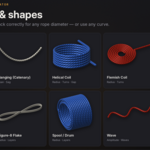
🌀 07 — Coils, Shapes & Custom Curves
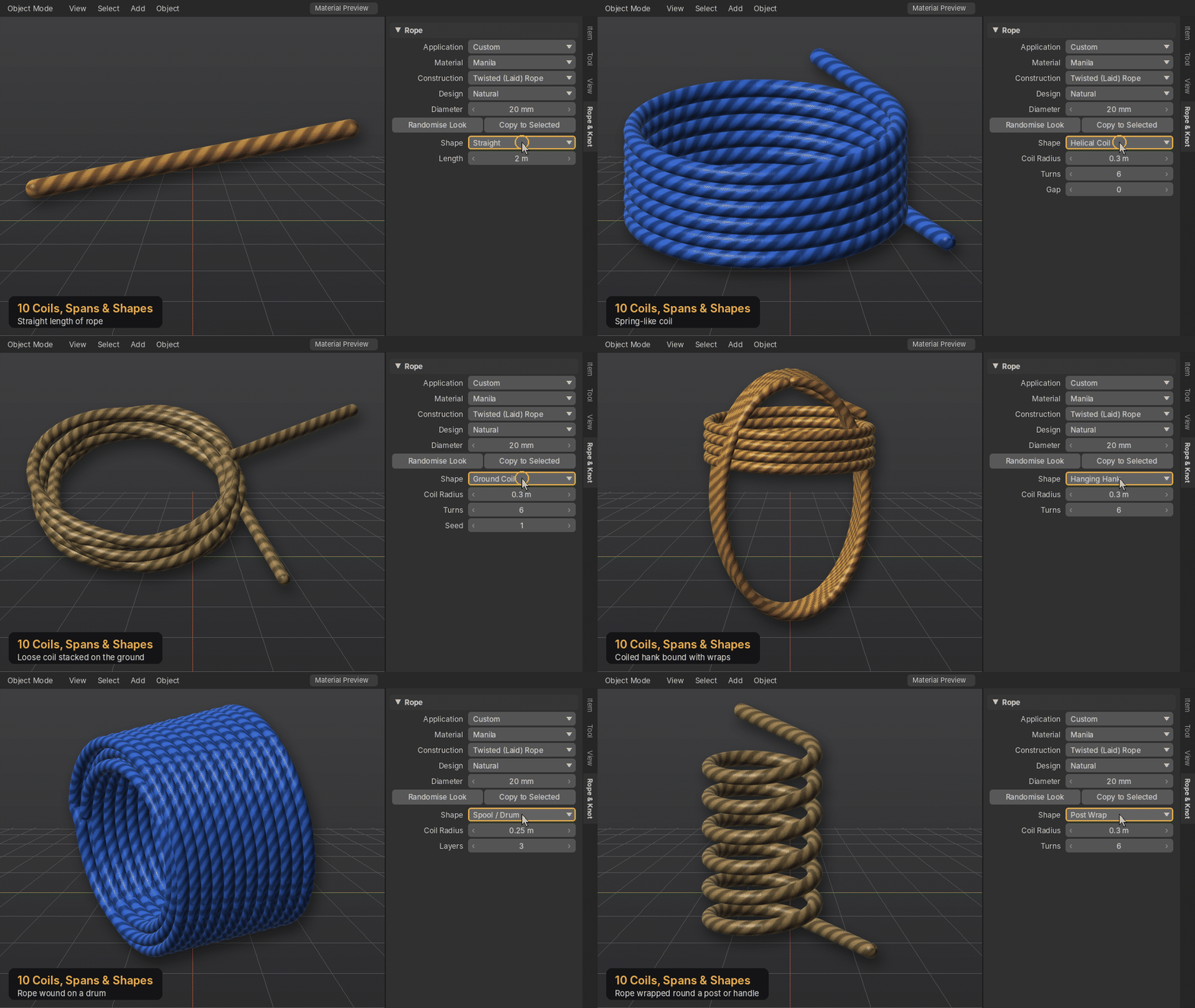
Create different rope arrangements using 10 procedural shapes.
Coil spacing is calculated using the rope diameter, helping turns fit neatly regardless of rope thickness.
Available Rope Shapes
01. Straight
Creates a simple straight rope.
02. Hanging (Catenary)
Creates a rope hanging between two points. Adjust Span and Sag to control its shape.
03. Helical Coil
Creates a spring-like coil with Radius, Turns, and Gap controls.
04. Flemish Coil
Creates a flat spiral coil lying on a surface.
05. Ground Coil
Creates a loose, slightly irregular coil on the ground. Use Seed to generate variations.
06. Hanging Hank
Creates a coiled rope hank secured with several wraps.
07. Figure-8 Flake
Arranges rope in figure-eight patterns, ready to run.
08. Spool / Drum
Winds rope around a drum in multiple layers.
09. Wave
Creates a winding, snake-like rope, suitable for battle rope arrangements. Adjust Amplitude and Waves.
10. Post Wrap
Wraps rope around a post or handle.
Curve to Rope
Turn your own curves into realistic rope geometry.
Draw or select a curve.
Click Curve to Rope.
The add-on generates rope geometry that follows the curve.
The rope remains linked to the curve, so you can continue editing it, attaching it to objects, or animating it.
Per-point curve radius is supported, allowing you to make sections thinner or thicker along the rope's length.
Mesh objects made only of edges can also be converted.
🎨 08 — Rope Customization
Every setting updates the selected rope immediately.
Each rope has its own materials, so changes to one rope do not automatically affect others.
Copy to Selected transfers the active rope's settings to other selected ropes.
Randomise Look generates a quick combination of material, construction, and design.
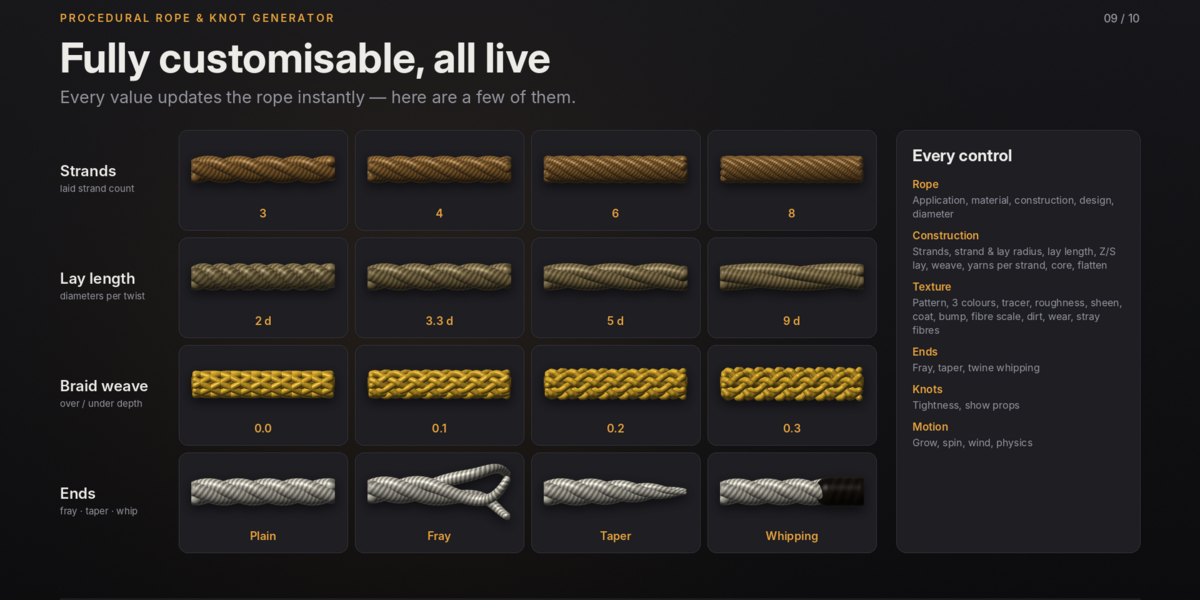
Construction Controls
The Construction panel controls the geometry and arrangement of individual strands.
Profile Resolution — Controls the vertices around each strand.
Length Density — Controls the number of samples per diameter along the rope.
Simple Tube — Replaces individual strands with one smooth tube for faster previews.
Strands — Sets the number of strands or braid carriers.
Strand Radius — Controls individual strand thickness.
Lay Radius — Controls the distance of strands from the rope centre.
Lay Length — Sets the number of rope diameters per complete twist.
Lay — Switches between Z (right-hand) and S (left-hand) twisting.
Phase — Rotates all strands around the rope axis.
Braiding Controls
Enable Braided to make carriers alternate direction.
Weave controls how deeply strands pass over and under each other.
Weave Frequency controls the weave pattern:
1.0: One-over-one.
0.5: Two-over-two.
Yarn & Wire Controls
Add another twist level inside every strand.
Yarns / Wires: Enables the secondary twist.
Yarn Offset: Changes the arrangement inside each strand.
Yarn Thickness: Controls yarn or wire thickness.
Yarn Lay: Sets the twist direction. Negative values twist in the opposite direction.
Core Radius: Adds a plain central core.
Flatten: Squashes the rope cross-section.
Use Reset Construction to restore the default construction settings.
✨ 09 — Materials & Texture Controls
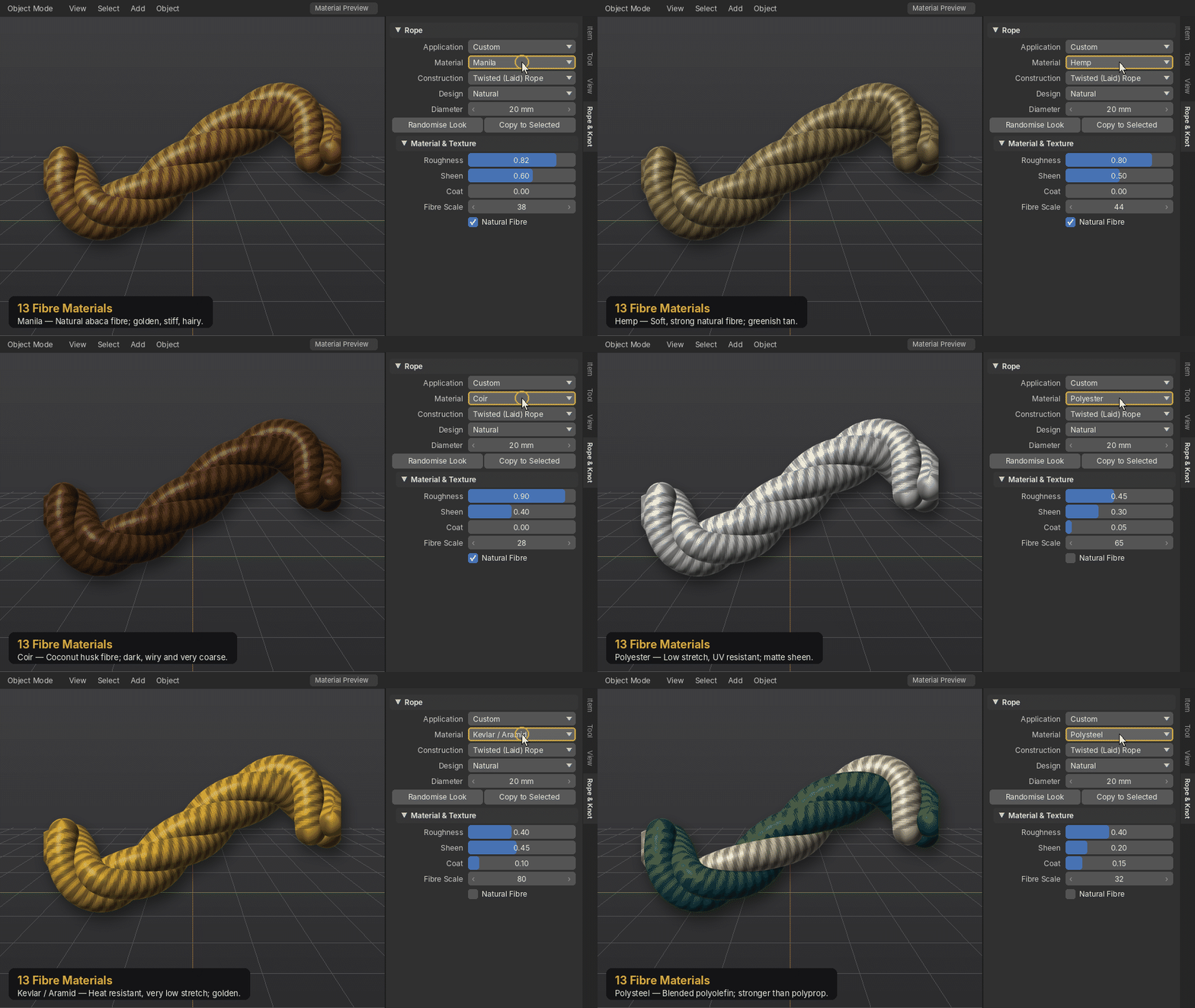
The rope material is fully procedural, keeping its details sharp at different viewing distances.
Colour & Pattern
Choose from nine colour patterns:
Solid
Tracer
Two-Tone
Bands
Camo
Fleck
Gradient
Spiral
Herringbone
Customize the appearance using:
Colour A & Colour B: Main pattern colours.
Tracer Colour: Sets the tracer colour.
Tracer Strand: Selects which strand carries the tracer.
Pattern Scale: Stretches or adjusts the pattern.
Surface Appearance
Fine-tune the material using:
Roughness: Controls surface softness and gloss.
Sheen: Adds a soft fibre-like reflection.
Metallic: Adjusts metallic appearance.
Coat: Adds a reflective surface layer.
Bump: Controls surface relief.
Fibre Details
Fibre Scale & Fibre Contrast control the appearance of twisted fibre details.
Hue Variation & Value Variation add subtle differences between individual strands.
Natural Fibre introduces irregular colour variation through the fibres.
Dirt & Wear creates aged and weathered rope surfaces.
Stray Fibres adds actual hair-like geometry to the rope.
Fibre Length controls the length of these fibres.
Use Reset Look to restore the original material and design defaults.
🔗 10 — Rope Ends & Finishing
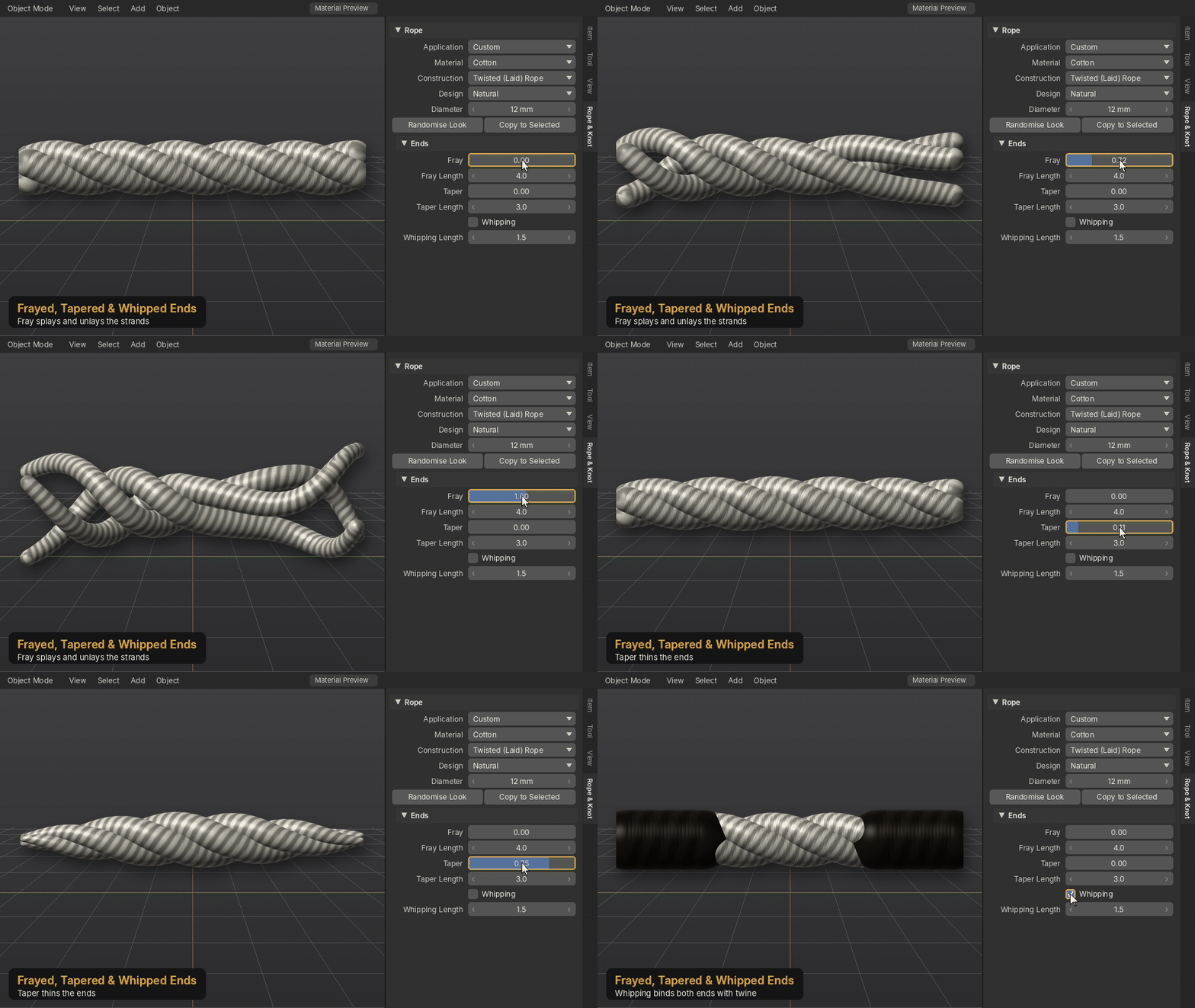
Customize the appearance of rope ends using three controls.
Fray
Separates and splays the individual strands over the selected Fray Length.
Taper
Gradually reduces rope thickness toward its ends.
Whipping
Wraps both ends with binding twine. You can customize the whipping colour to match your design.
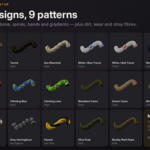
🎨 11 — Designs & Colour Library
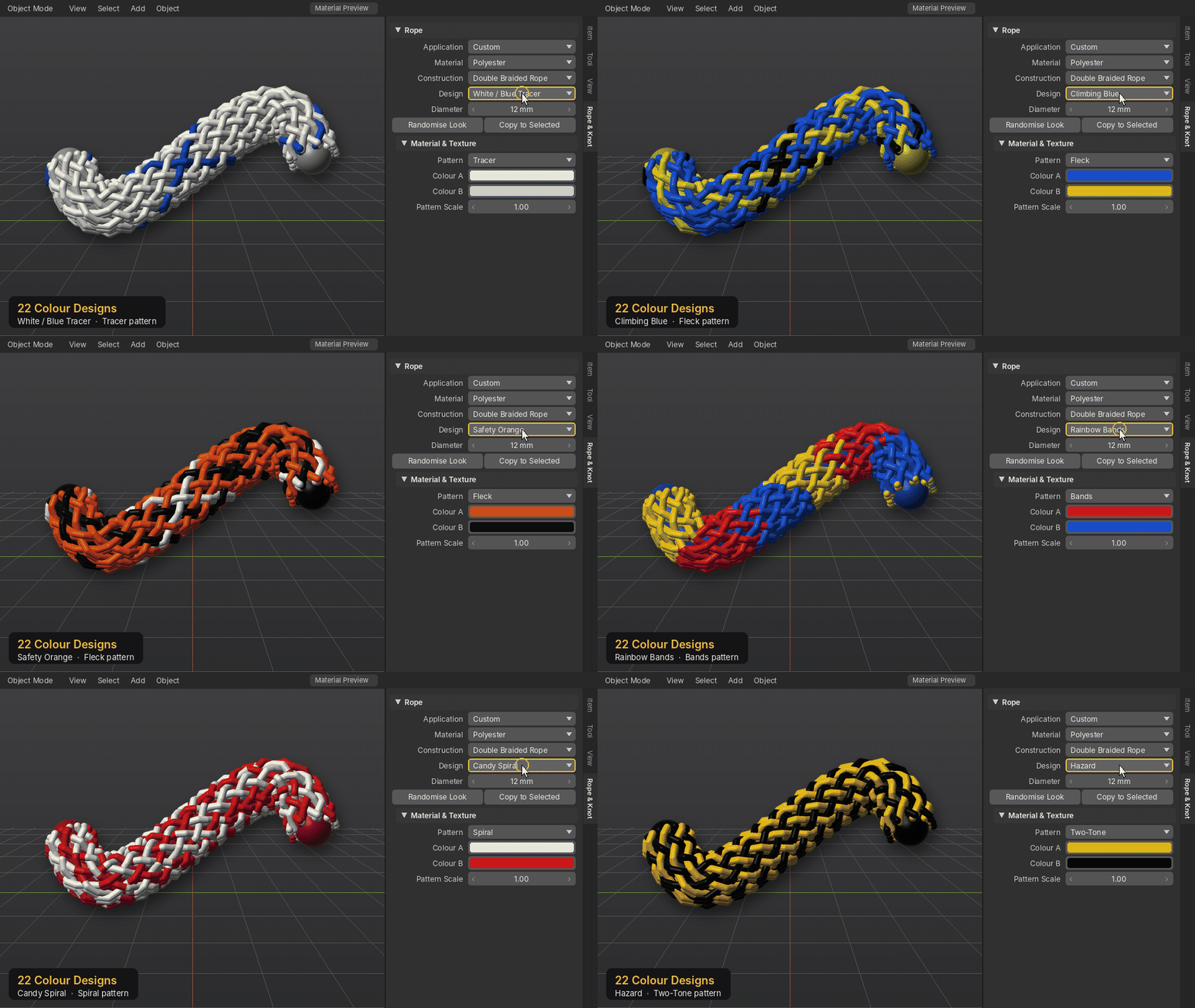
A design is a ready-made colour scheme applied to one of nine procedural patterns.
22 Built-in Designs
The collection includes:
Natural
Aged & Weathered
Tarred
Sun Bleached
White Tracer
Blue Tracer
Red Tracer
Navy
Black
Olive Drab
Climbing Blue
Climbing Lime
Safety Orange
Woodland Camo
Desert Camo
Multicam
Rainbow Bands
Sunset Fade
Candy Spiral
Grey Herringbone
Hazard
Muddy Work Rope
Some designs, such as Natural, do not define their own colours and instead use the current material's colours.
Applying Designs
You can apply a design from either:
Rope Panel
Library → Designs
The selected design is applied to the active rope.
📚 12 — Presets Library
The add-on includes 25 built-in presets for quickly creating recognizable rope styles.
Examples include:
Pirate Rigging
Rustic Jute Decor
Old Well Rope
Ship Hawser
Macrame Cotton
Sailing Sheet
Yacht Dockline
Climbing Lime
Paracord Multicam
Gym Battle Rope
Crane Wire Rope
Kevlar Arborist Line
What Does a Preset Save?
Each preset stores a complete rope appearance, including:
Material.
Construction.
Design.
Diameter.
Construction settings.
Texture settings.
Rope end settings.
Shape and animation settings are not included, allowing presets to be applied to different ropes and knots.
Save Your Own Presets
Customize a rope's appearance.
Open the Presets panel.
Click the + button.
Enter a preset name.
Your custom presets appear in the same list.
Use the − button to remove your own presets. Built-in presets cannot be deleted.
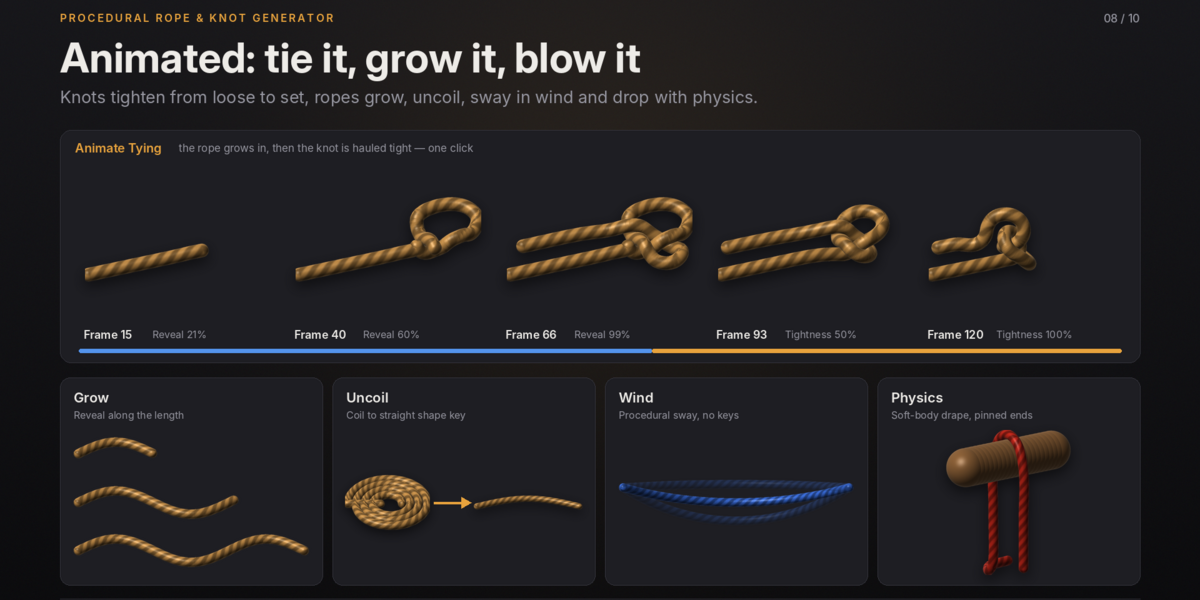
🎬 13 — Animation Tools
Animate rope creation, twisting, knot tying, and uncoiling directly inside Blender.
The Animation & Physics panel uses the Start and End frame range, set to frames 1–120 by default.
You can also keyframe individual settings manually by hovering over a value and pressing I.
Animate Tying
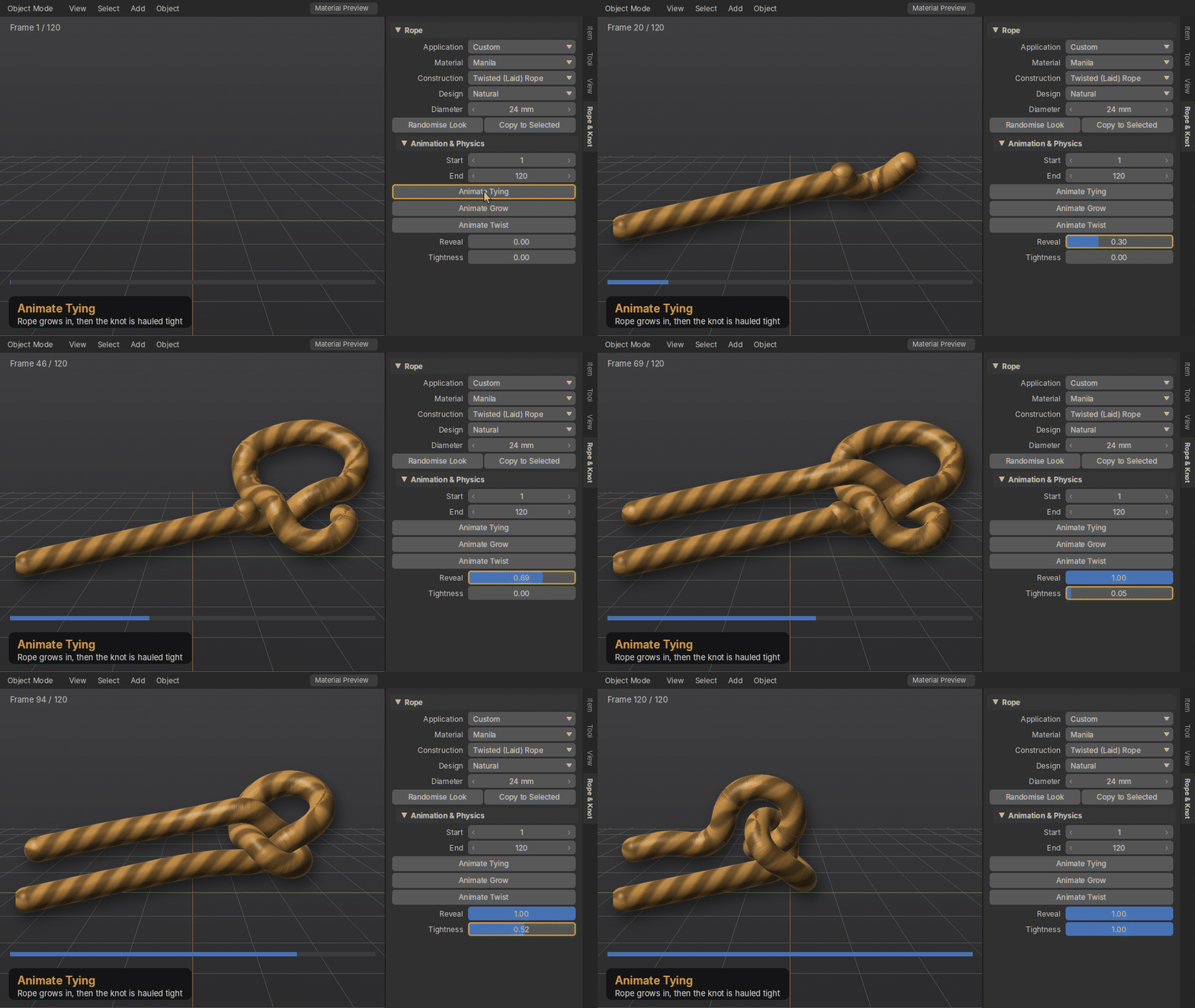
Designed for knots.
The rope grows into position during the first 55% of the animation range. The knot is then pulled tight until the End frame.
This animation keyframes:
Reveal.
Tightness.
Enable Animate Tying in the Library to apply this effect automatically to newly added knots.
Animate Grow
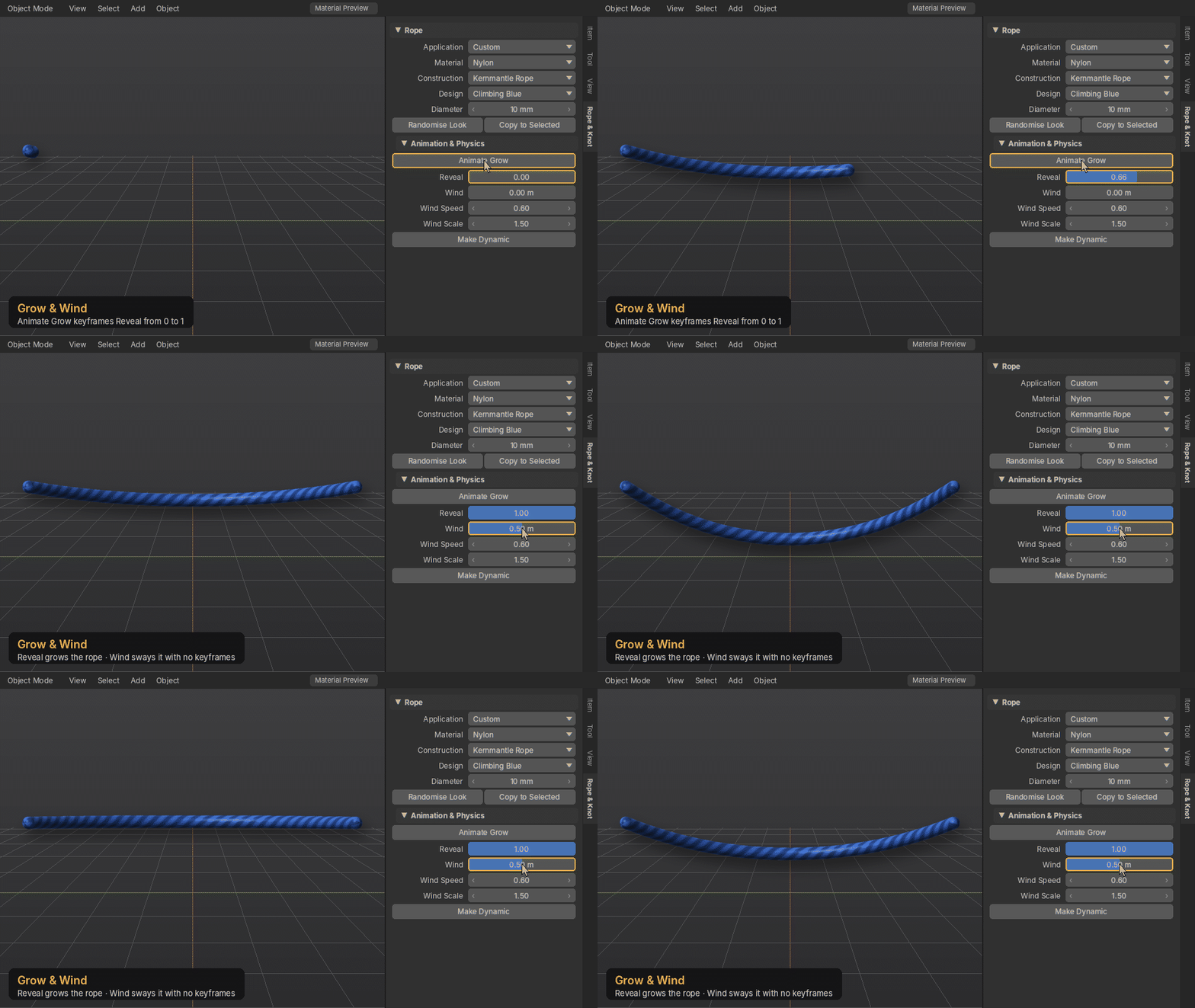
Makes the rope draw itself along its length by animating Reveal from 0 to 1.
Use Reveal Start to trim the opposite end.
Animate Twist
Rotates the rope strands around the main rope axis. The default animation performs two complete turns.
Animate Uncoil
Available for coils and curve ropes. Creates shape keys that transform the selected coil into a straight rope.
Clear Animation
Removes animation keys and resets Reveal and Tightness to 1.
Continuous Animation Effects
Two effects work without manually creating keyframes.
Strand Spin: Continuously rotates individual strands at the selected speed, measured in radians per second.
Wind: Adds procedural movement using Wind, Wind Speed, and Wind Scale. The ends remain still while the middle moves most.
🌊 14 — Physics Simulation
Turn procedural coils and curve ropes into dynamic soft-body objects.
Make Dynamic
Click Make Dynamic to create a soft-body copy with the same rope appearance.
The add-on:
Creates a dynamic copy.
Pins both ends by default.
Hides the original rope.
Setting Up Collisions
Select the objects that the rope should interact with.
Enable Collision physics for those objects.
Press Play to run the simulation.
For longer animations and final renders, bake the simulation in Blender's Physics Properties.
🧩 15 — Blender Asset Browser Library
Build a reusable library of ropes and knots for future projects.
Click Build Asset Library to generate a Blender asset library containing:
Every knot with its supporting props.
Every functional rope type.
Asset descriptions and tags.
Organized Knots and Ropes catalogs.
The library is saved as:
rope_knot_library.blend
Blender registers the folder as Rope & Knot Library.
You can then open the Asset Browser and drag ropes or knots directly into any project.
If an Asset Library Folder is configured in the add-on preferences, that folder is used automatically. Otherwise, Blender asks you to choose a folder.
🖼 16 — Texture Baking
Blender procedural materials cannot be used directly in most game engines and external 3D applications. Use the built-in baking system to convert them into image textures.
Baking Steps
Select the rope.
Open Material & Texture.
Choose a texture resolution: 1K, 2K, or 4K.
Select the output folder.
Click Bake Textures.
The add-on uses Cycles to bake:
Base Color.
Roughness.
Normal.
The baked textures are saved as PNG files.
A mesh copy named Baked is also created, with its material already connected to the generated image textures.
Important: Save your .blend file before baking so the default rope_textures folder next to your project can use a valid relative path.
📦 17 — Convert & Export
Use Convert to Mesh when you need a regular Blender mesh for sculpting, editing, or exporting.
The add-on creates a mesh copy with UV coordinates while keeping the original procedural rope intact.
Supported export formats include:
FBX
glTF
OBJ
You can continue editing the original rope and create another mesh copy whenever needed.
⚡ 18 — Performance Tips
Use these settings to keep complex rope scenes responsive.
Reduce Length Density
Lower Length Density for long ropes viewed from a distance. Values around 3–4 are often sufficient.
Optimize Profile Resolution
Kernmantle, Paracord, and Climbing Rope use many carriers. A Profile Resolution of 5 or 6 is often enough.
Control Stray Fibres
Stray Fibres add real geometry and can increase scene complexity. Keep their density low on long ropes or use them mainly on ropes close to the camera.
💡 19 — Workflow Tips
Choose the material first, then select a suitable construction.
Use functional rope applications for quick, realistic starting configurations.
Adjust Diameter instead of scaling knot objects.
Use Copy to Selected to transfer settings between ropes.
Use Randomise Look to explore different rope appearances.
Use presets to maintain consistent rope styles across a project.
Keep procedural ropes editable until the design is complete.
Bake textures before exporting materials to external applications.
Use the Asset Browser to reuse frequently needed ropes and knots.
ROPE & KNOT GENERATOR
Create realistic ropes, detailed knots, braided cables, and procedural coils with complete control over geometry, materials, animation, and physics—all inside Blender.