 Mrs Eliza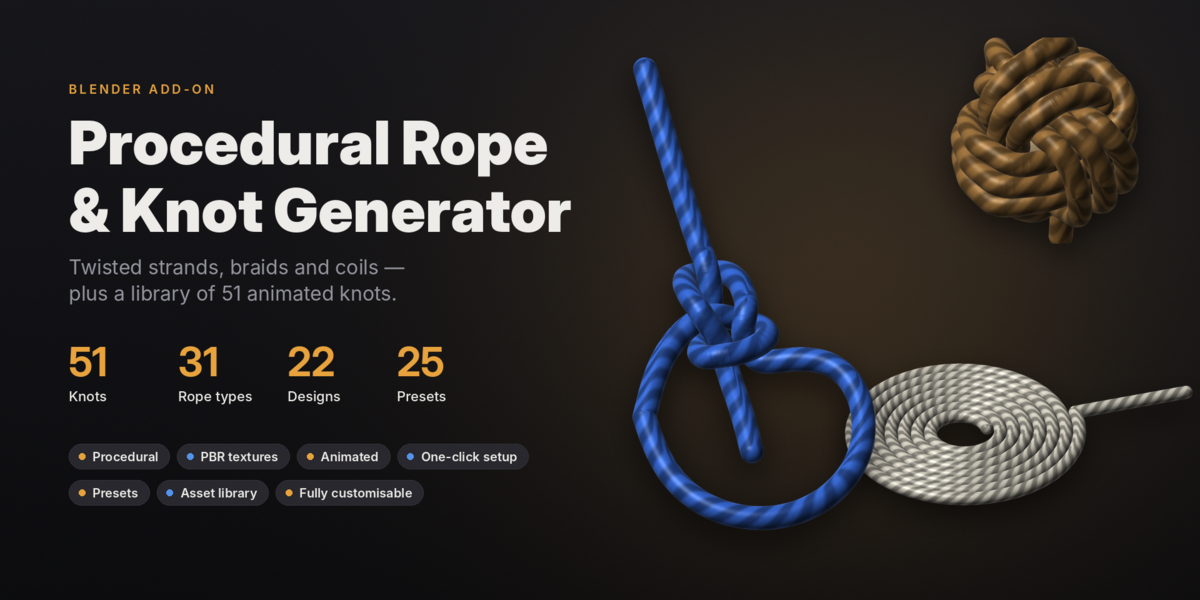
Overview
The add-on turns any curve into real rope geometry: individual strands, yarns and wires that twist, braid and weave around each other, not a striped texture on a tube. Everything is driven by one Geometry Nodes group, so every change updates instantly and nothing is baked until you want it to be.
Out of the box you get:
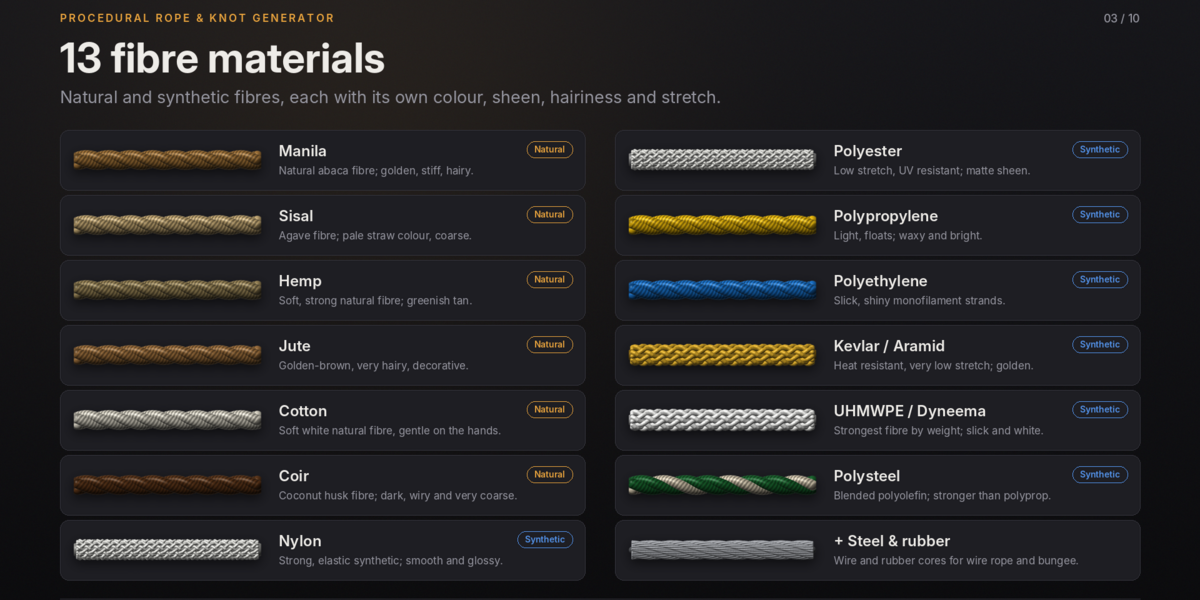
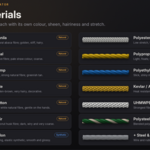
- 13 fibre materials (Manila, Sisal, Hemp, Jute, Cotton, Coir, Nylon, Polyester, Polypropylene, Polyethylene, Kevlar / Aramid, UHMWPE / Dyneema, Polysteel), plus steel and rubber for wire rope and bungee cores.
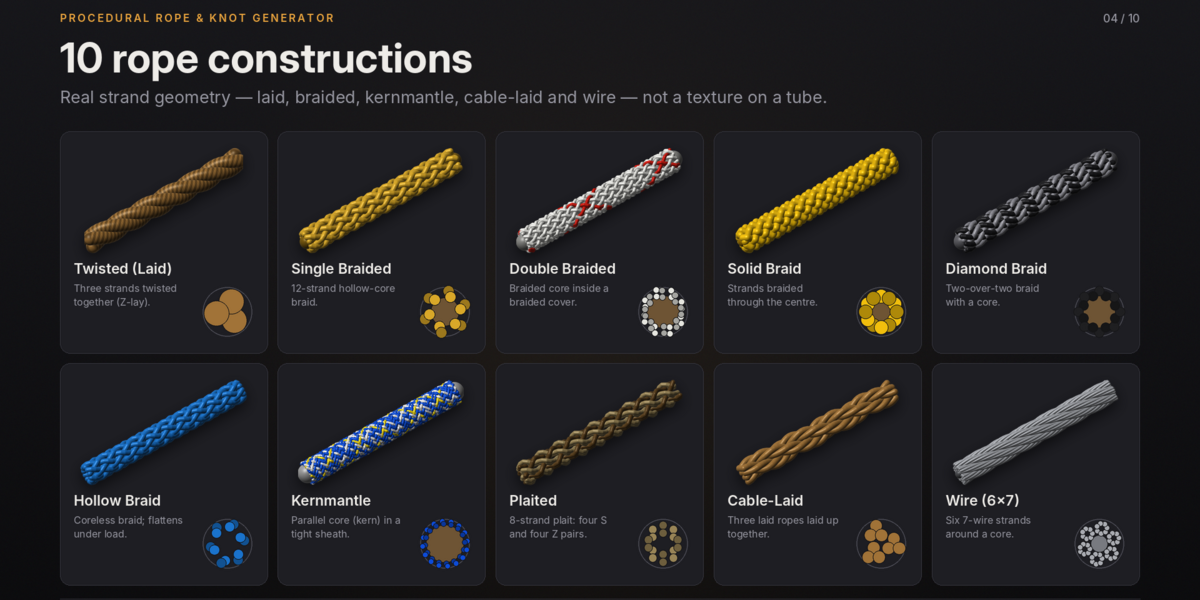
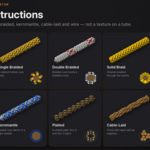
- 10 constructions, from three-strand laid rope to kernmantle, cable-laid and 6×7 wire rope.
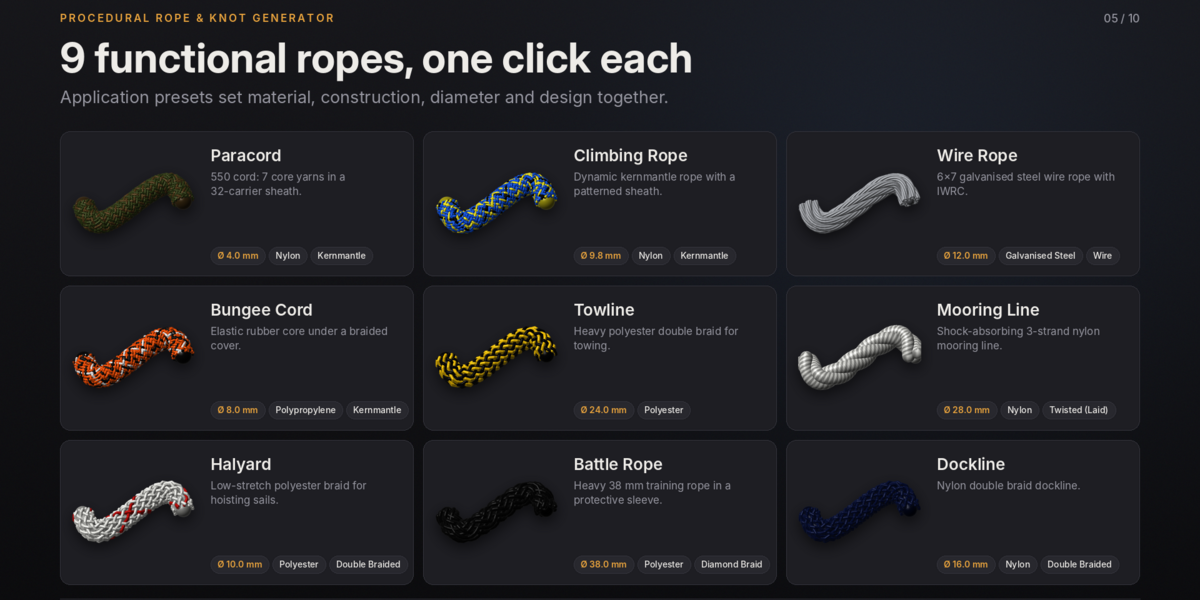
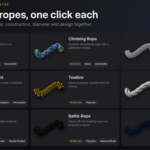
- 9 functional ropes such as Paracord, Climbing Rope and Mooring Line, each set up in one click.
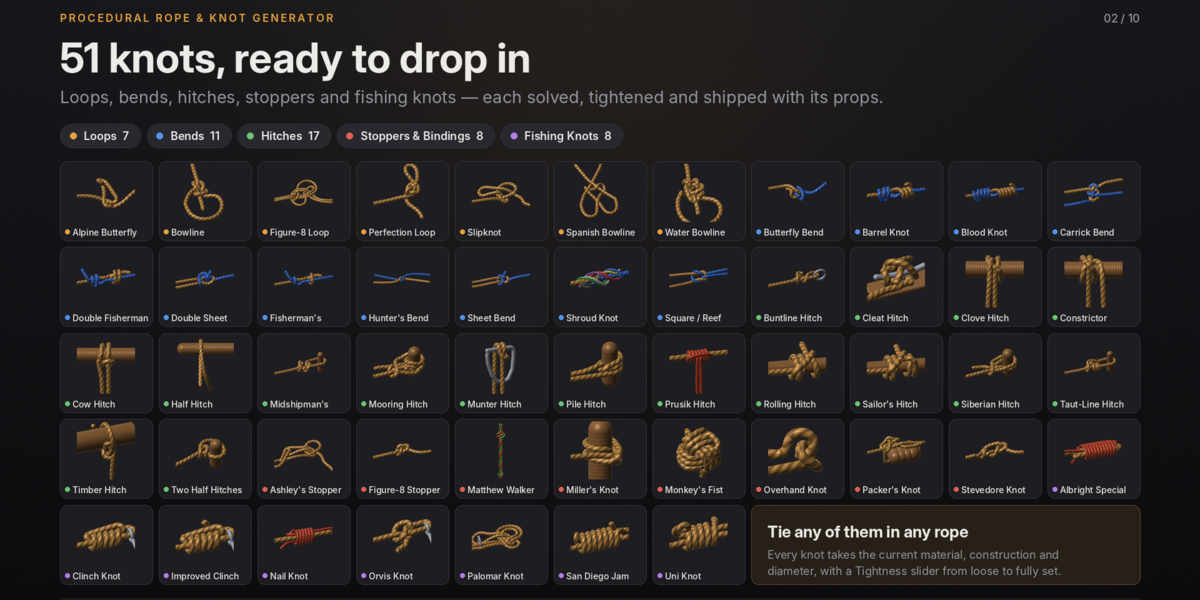
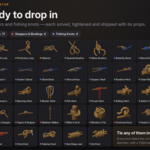
- 51 knots in five categories, solved and tightened by a rope simulation, shipped with the posts, rings and cleats they are tied to.
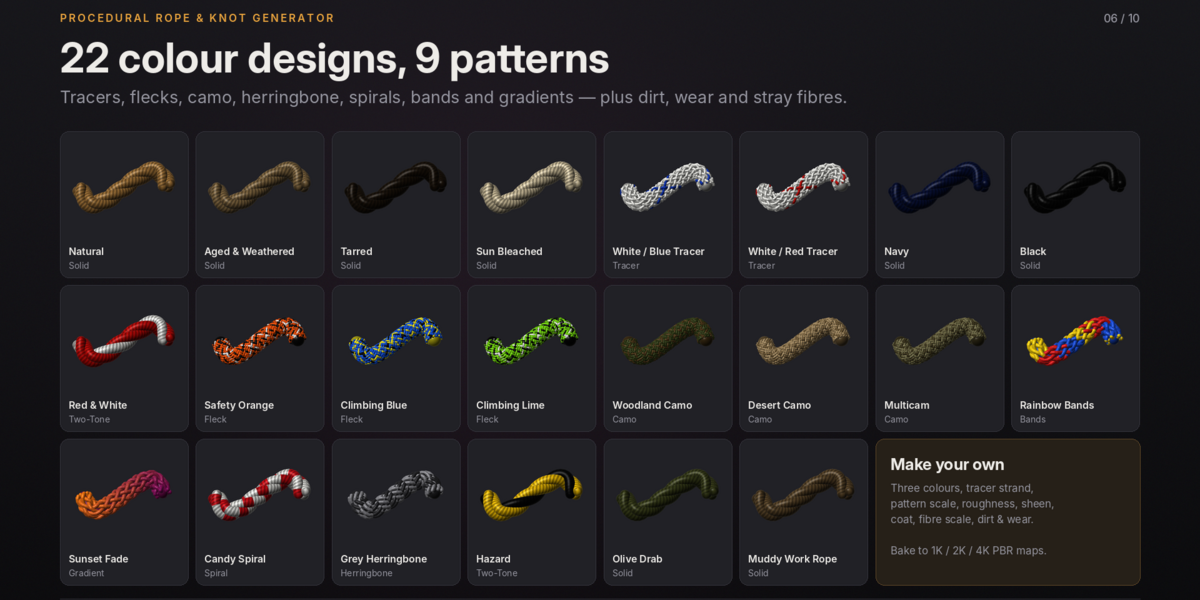
- 10 coil and span shapes, 22 colour designs, 25 presets, procedural fibre materials, texture baking and animation tools.
Installation and requirements
The add-on needs Blender 4.2 or newer and works with both Cycles and EEVEE. It has no external dependencies.
- In Blender, open Edit › Preferences › Add-ons (Get Extensions on newer versions).
- Open the drop-down menu in the top right and choose Install from Disk.
- Select
rope_knot_generator.zipand enable the add-on if it is not enabled automatically. - Optionally, expand the add-on entry and set an Asset Library Folder and a Default Diameter.
After installing, press N in the 3D Viewport and open the Rope & Knot tab, or use Shift+A › Rope & Knot. To update, remove the old version first, then install the new zip. Your saved presets are kept, because they live in Blender's user configuration folder, not inside the add-on.
Quick start
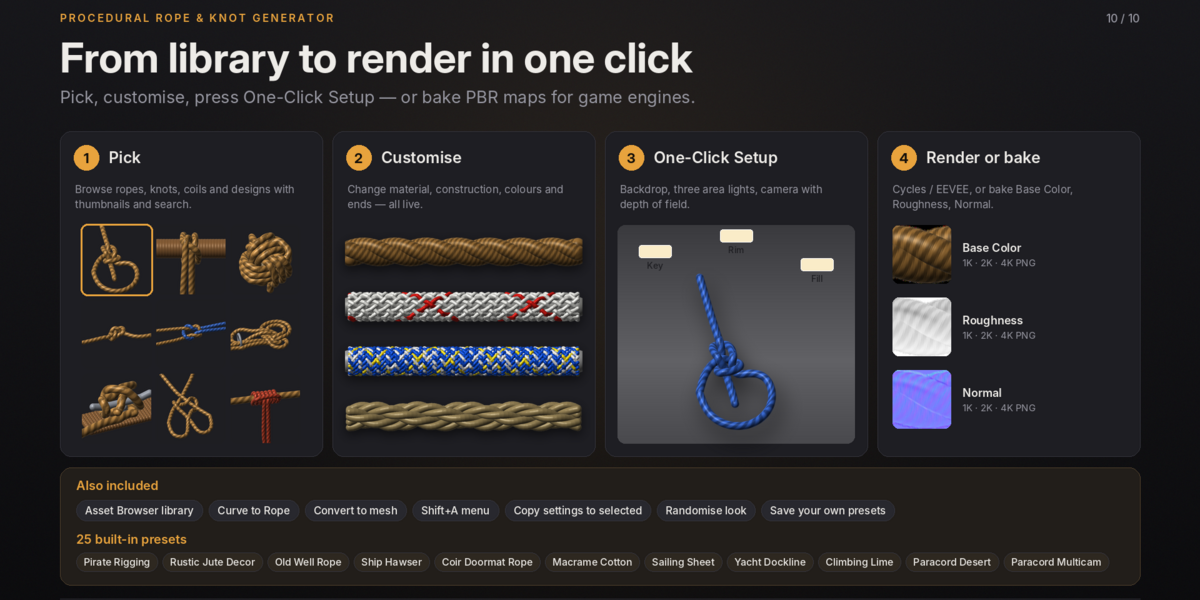
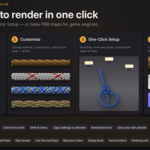
The fastest route to a finished image takes one click; the steps below show the usual workflow.
- In the main panel, set the New rope defaults: Material, Construction and Diameter. Everything you add next uses them.
- Open the Library panel, choose the Knots tab and pick a knot, for example the Bowline.
- Click One-Click Setup. The add-on places the knot with its props, adds a curved studio backdrop, three area lights and a camera with depth of field, and switches the viewport to Material Preview.
- Select the knot and adjust anything in the Rope panel: material, design, diameter or tightness.
- Press F12 to render.
If ropes are already selected when you click One-Click Setup, the studio is built around them instead of adding a new knot.
The interface
All tools live in the 3D Viewport sidebar under the Rope & Knot tab. The panels follow the order you work in.
- Rope & Knot Generator — One-Click Setup, quick buttons to add a Rope, Knot or Coil, Curve to Rope, and the defaults used for new ropes.
- Library — thumbnail browsers for Ropes, Knots, Coils and Designs, with knot search, Animate Tying and Include Props toggles, Add to Scene and Build Asset Library.
- Rope — appears when a rope is selected. Holds application, material, construction, design and diameter, plus tightness for knots or shape settings for coils. Its sub-panels are Construction, Material & Texture, Ends, and Animation & Physics.
- Presets — apply, save and delete presets, and choose the render engine for One-Click Setup.
The same content is in Shift+A › Rope & Knot: One-Click Setup, a straight rope, every rope shape, and one sub-menu per knot category with thumbnails.
Rope types
A rope is defined by three choices: what it is made of, how it is made, and optionally what it is for. Each one can be changed at any time without losing your other settings.
Materials
The material sets the fibre look: colour, sheen, roughness, hairiness and how much fibre texture shows. Natural fibres (Manila, Sisal, Hemp, Jute, Cotton, Coir) are irregular and hairy, with stray fibres turned on by default. Synthetic fibres (Nylon, Polyester, Polypropylene, Polyethylene, Kevlar / Aramid, UHMWPE / Dyneema, Polysteel) are smoother and glossier. Choosing a material also picks a typical construction, which you can change afterwards.
Constructions
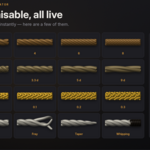
The construction sets the geometry of the strands.
- Twisted (Laid) — three strands twisted together, Z-lay by default.
- Single Braid — 12 carriers in a hollow-core braid.
- Double Braid — a braided cover over a braided core.
- Solid Braid — strands braided through the centre for a round, firm rope.
- Diamond Braid — a two-over-two braid with a core.
- Hollow Braid — a coreless braid that flattens slightly.
- Kernmantle — a fine, tight sheath over a parallel core, as in climbing rope.
- Plaited — eight strands in four S and four Z pairs.
- Cable-Laid — three laid ropes laid up together.
- Wire Rope (6×7) — six seven-wire strands around a core.
Functional ropes
The Application menu sets material, construction, diameter and colour design together for a recognisable rope: Paracord (4 mm), Climbing Rope (9.8 mm), Wire Rope (12 mm), Bungee Cord (8 mm), Towline (24 mm), Mooring Line (28 mm), Halyard (10 mm), Battle Rope (38 mm) and Dockline (16 mm). After applying one, every setting stays editable.
Knot library
Every knot was laid out crossing by crossing, then relaxed and pulled tight by a rope simulation, so ropes never pass through each other or through their props. Knots are added instantly because the solutions ship pre-computed with the add-on.
- Loops (7) — Bowline, Alpine Butterfly Knot, Figure-Eight Loop, Perfection Loop, Spanish Bowline, Slipknot, Water Bowline.
- Bends (11) — Sheet Bend, Double Sheet Bend, Carrick Bend, Square / Reef Knot, Fisherman's Knot, Double Fisherman's Knot, Blood Knot, Barrel Knot, Shroud Knot, Alpine Butterfly Bend, Hunter's Bend.
- Hitches (17) — Clove, Timber, Taut-Line, Midshipman's, Rolling, Cleat, Munter, Siberian, Pile, Mooring, Sailor's, Half Hitch, Two Half Hitches, Buntline, Prusik, Cow Hitch and the Constrictor Knot.
- Stoppers & Bindings (8) — Overhand Knot, Figure-Eight Stopper, Stevedore Knot, Ashley's Stopper Knot, Monkey's Fist, Matthew Walker Knot, Miller's Knot, Packer's Knot.
- Fishing Knots (8) — Palomar, San Diego Jam, Orvis, Nail Knot, Clinch Knot, Improved Clinch Knot, Albright Special, Uni Knot.
Tying a knot
Pick a knot in Library › Knots (the search box also matches alternative names such as Lark's Head or Grapevine Bend) and click Add to Scene. A new knot uses the New rope defaults. If a rope is selected when you add it, the knot copies that rope's full look instead.
Tightness and props
The Tightness slider moves a knot from loose (0) to fully set (1); it is animatable. Hitches, bindings and fishing knots come with their props: posts, rails, logs, a deck cleat, a carabiner, rings, hook eyes, a sack neck or a parcel. Props are parented to the knot and can be hidden with Show Props, or left out entirely by turning off Include Props before adding.
Scale
Knots are modelled in rope-diameter units and the object is scaled by the diameter, so any knot works at any rope size. Leave the object scale to the add-on and change Diameter instead.
Coils, shapes and your own curves
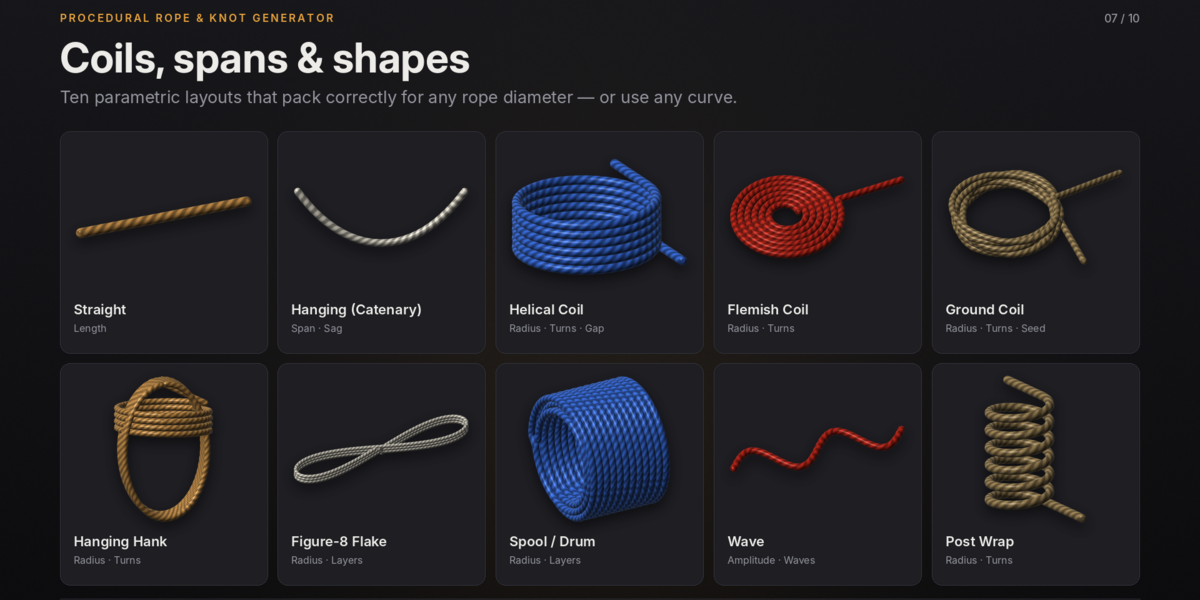
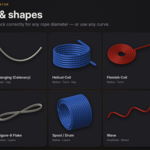
Ropes that are not knots are built from a parametric shape. Coil shapes are spaced by the rope diameter, so turns pack neatly at any thickness.
- Straight — a plain length of rope.
- Hanging (Catenary) — rope hanging between two points, set by Span and Sag.
- Helical Coil — a spring-like coil with Radius, Turns and Gap.
- Flemish Coil — a flat spiral lying on the deck.
- Ground Coil — a loose, slightly irregular coil stacked on the ground; Seed varies it.
- Hanging Hank — a coiled hank bound with a few wraps.
- Figure-8 Flake — rope flaked in figure-eights, ready to run.
- Spool / Drum — rope wound layer on layer around a drum.
- Wave — a snaking rope, useful for battle ropes, with Amplitude and Waves.
- Post Wrap — rope wrapped round a post or handle.
Curve to Rope
Any curve you draw, or a mesh made only of edges, can become rope. Select it and click Curve to Rope. The rope follows the curve live, so you can keep editing it, hook it to objects or animate it. A curve's per-point radius is respected, which lets you thin or swell the rope along its length.
Customising a rope
Every setting updates the rope immediately. Each rope owns its own materials, so changing one rope never affects another. Use Copy to Selected to pass the active rope's settings to other ropes, and Randomise Look for a quick random material, construction and design.
Construction
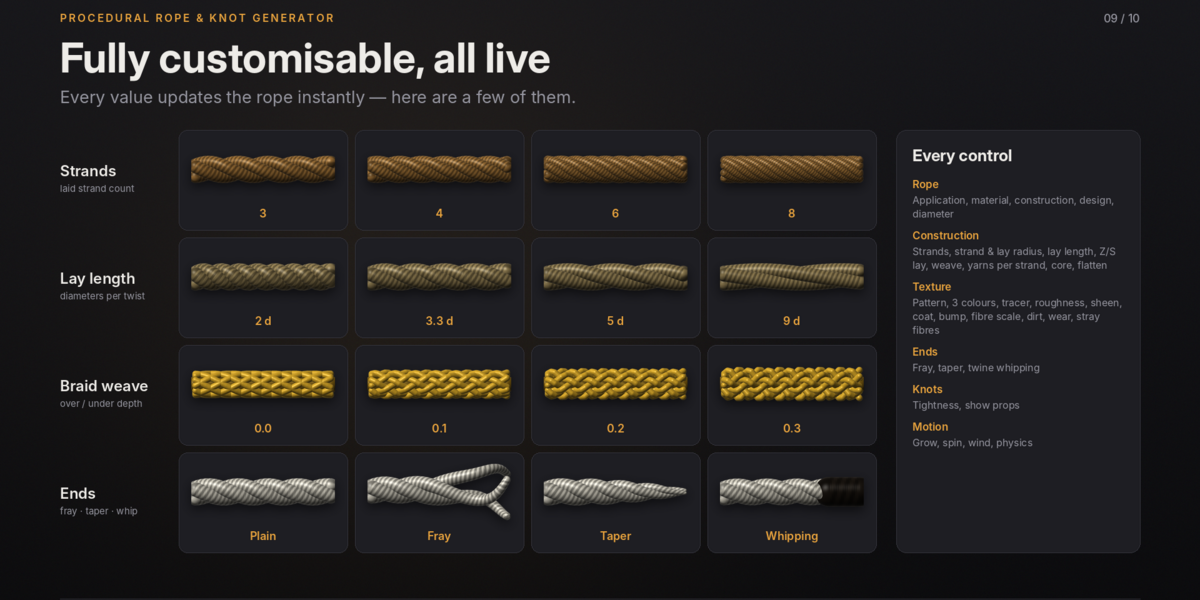
This sub-panel controls the strand geometry. Profile Resolution sets the vertices around each strand and Length Density the samples per diameter along the rope; Simple Tube swaps the strands for a single smooth tube for fast previews.
Strands sets the number of strands or braid carriers, while Strand Radius and Lay Radius set their thickness and distance from the centre. Lay Length is the number of diameters per full twist, and Lay switches between Z (right-hand) and S (left-hand) twist. Phase rotates all strands around the axis.
Turning on Braided makes carriers alternate direction. Weave then sets how deeply they pass over and under each other, and Weave Frequency switches between one-over-one (1.0) and two-over-two (0.5). Yarns / Wires adds a second twist level inside every strand, with Yarn Offset, Yarn Thickness and Yarn Lay; a negative Yarn Lay twists the yarns the opposite way. Core Radius adds a plain core and Flatten squashes the cross-section. Reset Construction restores the construction's defaults.
Material & Texture
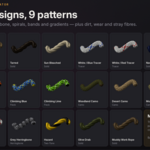
The material is fully procedural, so it stays sharp at any distance. Pattern chooses one of nine colour patterns, using Colour A, Colour B and a Tracer colour; Tracer Strand picks which strand carries the tracer and Pattern Scale stretches the pattern.
Surface response comes from Roughness, Sheen, Metallic, Coat and Bump. Fibre Scale and Fibre Contrast control the twisted-fibre detail, and Hue Variation and Value Variation make each strand slightly different. Natural Fibre adds irregular colour through the fibres. Dirt and Wear age the rope, and Stray Fibres with Fibre Length add real hair geometry on the surface. Reset Look restores the material and design defaults.
Ends
Fray splays and unlays the strands over the Fray Length, Taper thins the rope towards its ends, and Whipping binds both ends with twine in a colour of your choice.
Designs and presets
Designs
A design is a ready-made colour scheme built on one of nine patterns: Solid, Tracer, Two-Tone, Bands, Camo, Fleck, Gradient, Spiral and Herringbone. The 22 designs range from Natural, Aged & Weathered, Tarred and Sun Bleached, through White / Blue and White / Red Tracer, Navy, Black and Olive Drab, to Climbing Blue, Climbing Lime, Safety Orange, Woodland and Desert Camo, Multicam, Rainbow Bands, Sunset Fade, Candy Spiral, Grey Herringbone, Hazard and Muddy Work Rope. Designs with no colours of their own, such as Natural, take the colours of the current material. Apply a design from the Rope panel or from Library › Designs, which applies it to the active rope.
Presets
A preset stores a complete look: material, construction, design, diameter, every construction value, every texture value and the end settings. Shape and animation values are not stored, so a preset can be applied to any rope or knot.
The 25 built-in presets include Pirate Rigging, Rustic Jute Decor, Old Well Rope, Ship Hawser, Macrame Cotton, Sailing Sheet, Yacht Dockline, Climbing Lime, Paracord Multicam, Gym Battle Rope, Crane Wire Rope and Kevlar Arborist Line. To save your own, style a rope, click the + button in the Presets panel and name it. User presets appear in the same list and can be removed with the − button; built-in presets cannot be deleted.
Animation and physics
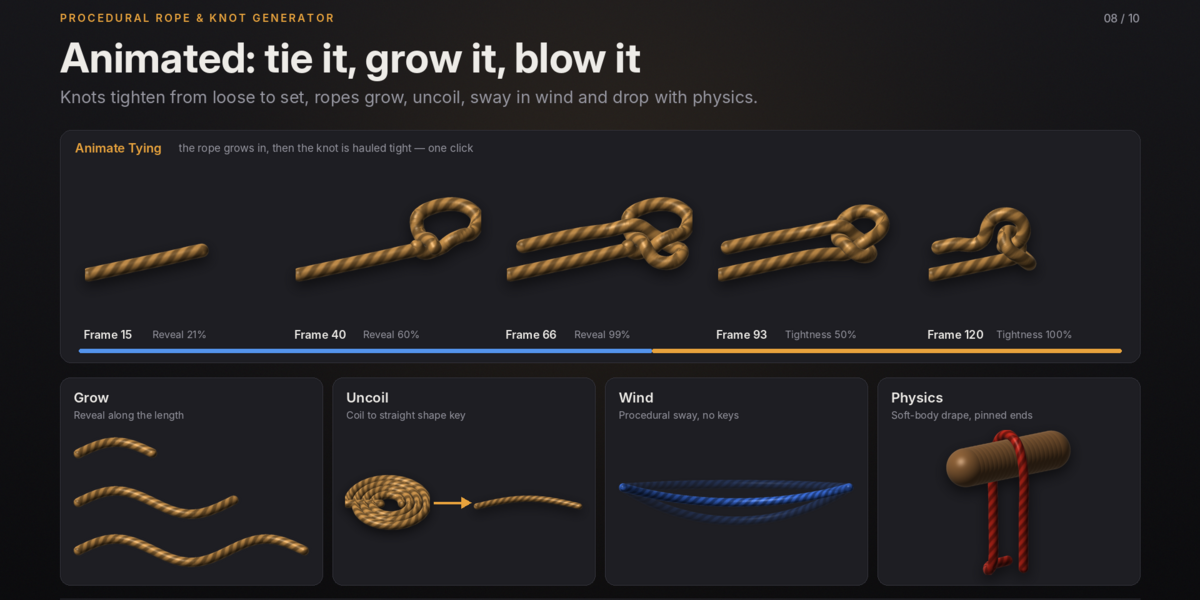
The Animation & Physics sub-panel uses the Start and End frames set at its top (1 to 120 by default). Every rope setting can also be keyframed by hand: hover over it and press I.
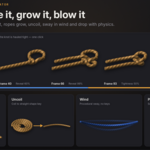
- Animate Tying (knots) — the rope grows in over the first 55% of the range, then the knot is hauled tight until the End frame. It keyframes Reveal and Tightness, and can be applied automatically to new knots with the Animate Tying toggle in the Library.
- Animate Grow — keyframes Reveal from 0 to 1 so the rope draws itself along its length. Reveal Start trims the other end.
- Animate Twist — rotates the strands around the rope, two full turns by default, as if it were being wound.
- Animate Uncoil (coils and curves) — adds shape keys that move a coil to a straight rope.
- Clear Animation — removes the keys and resets Reveal and Tightness to 1.
Two effects need no keyframes at all. Strand Spin turns the strands continuously at the set speed in radians per second, and Wind sways the rope with procedural noise using Wind, Wind Speed and Wind Scale; the ends stay still and the middle moves most.
Physics
Make Dynamic converts a coil or curve rope into a soft-body copy with the same look. Its two ends are pinned by default and the original is hidden. Give the objects it should land on Collision physics, then press play. Bake the simulation in Physics properties before rendering long shots.
Asset library, baking and export
Asset Browser library
Build Asset Library writes every knot (with its props) and every functional rope into rope_knot_library.blend, marks them as assets with descriptions and tags, sorts them into Knots and Ropes catalogs, and registers the folder as an asset library named Rope & Knot Library. You can then drag any of them in from Blender's Asset Browser in any project. If an Asset Library Folder is set in the add-on preferences it is used directly; otherwise you are asked for a folder.
Baking textures
Game engines and other programs cannot read Blender's procedural material, so the add-on can bake it. In Material & Texture, choose a resolution (1K, 2K or 4K) and a folder, which defaults to a rope_textures folder next to your .blend, then click Bake Textures. Cycles bakes Base Color, Roughness and Normal maps to PNG files and creates a mesh copy of the rope named "Baked", already wired to those images. Save your .blend first so the relative folder path resolves.
Export
Convert to Mesh makes a plain mesh copy of the rope, with its UVs, for sculpting or export to FBX, glTF or OBJ. The original rope stays procedural, so you can keep editing it and convert again.
Performance tips and troubleshooting
Keeping scenes fast
- Turn on Simple Tube while blocking out a scene, then switch it off for final renders.
- Lower Length Density for long ropes seen from a distance; 3 to 4 is often enough.
- Kernmantle, paracord and climbing ropes use many carriers, so a Profile Resolution of 5 or 6 is plenty.
- Stray Fibres add real geometry; keep the density low on long ropes or use them only near the camera.