 Mrs Eliza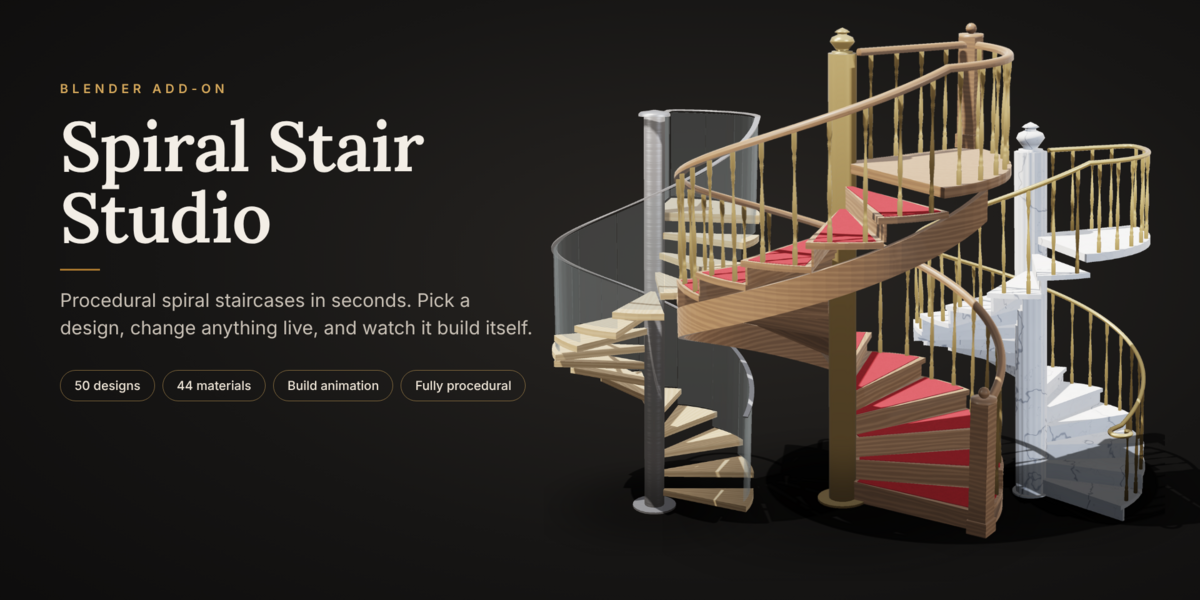

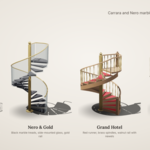
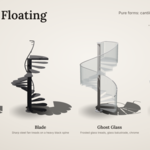
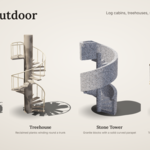
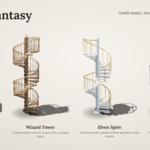
Recommended title: Spiral Stair Studio – Procedural Spiral Staircase Generator. It keeps your product name and puts the words buyers search for right in the title.
Build any spiral staircase in seconds
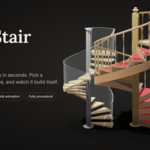
Spiral Stair Studio is a fully procedural spiral staircase generator for Blender. Pick a design from the built-in library, drop it in your scene, and change anything – height, turn, step shape, pole, railing, balusters, landing – with live updates. No modeling, no fiddly modifiers, no broken geometry.
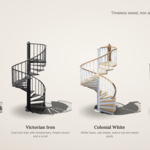
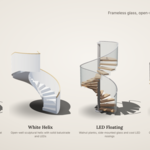
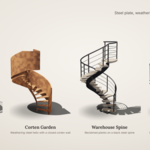
Whether you need a cast-iron Victorian stair, a floating oak helix, a marble palace stair or a castle tower, it's one click away.
Highlights
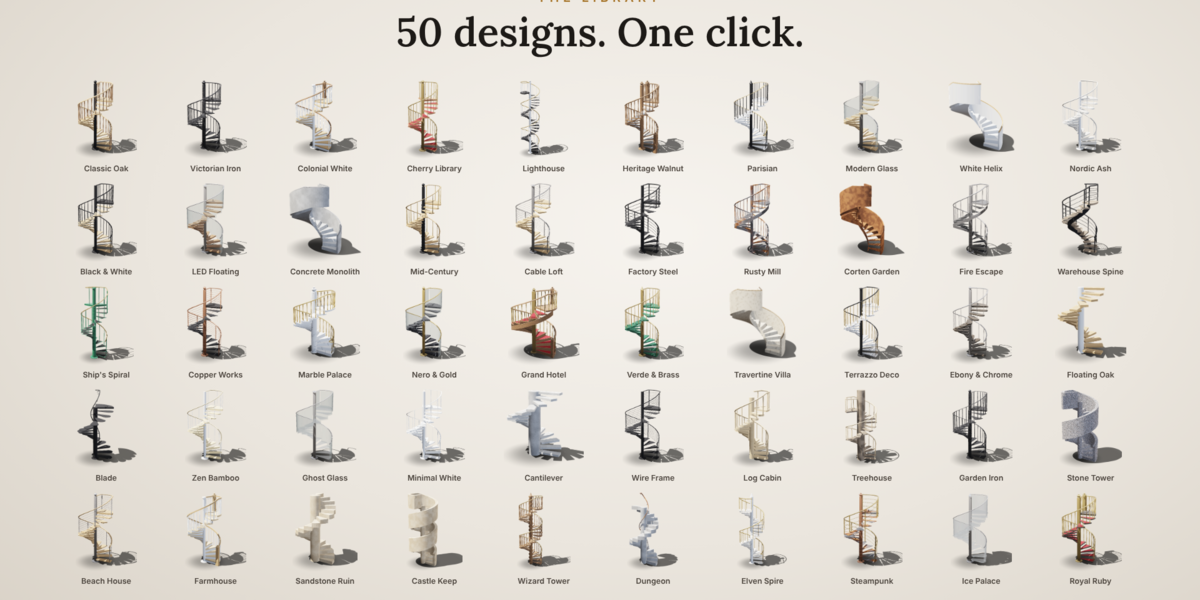
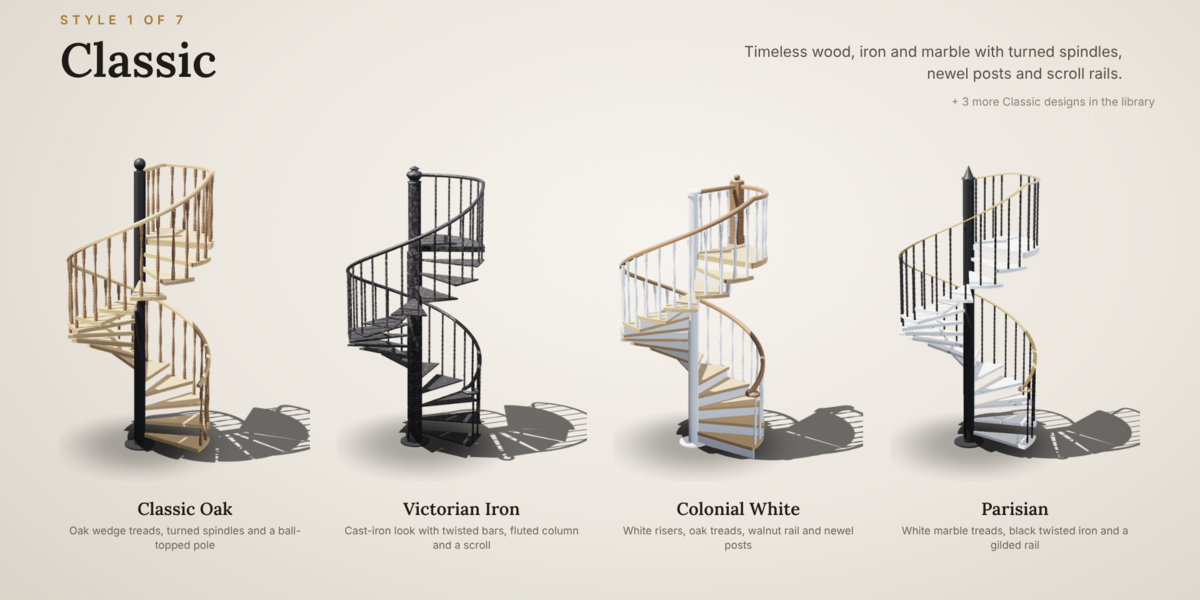
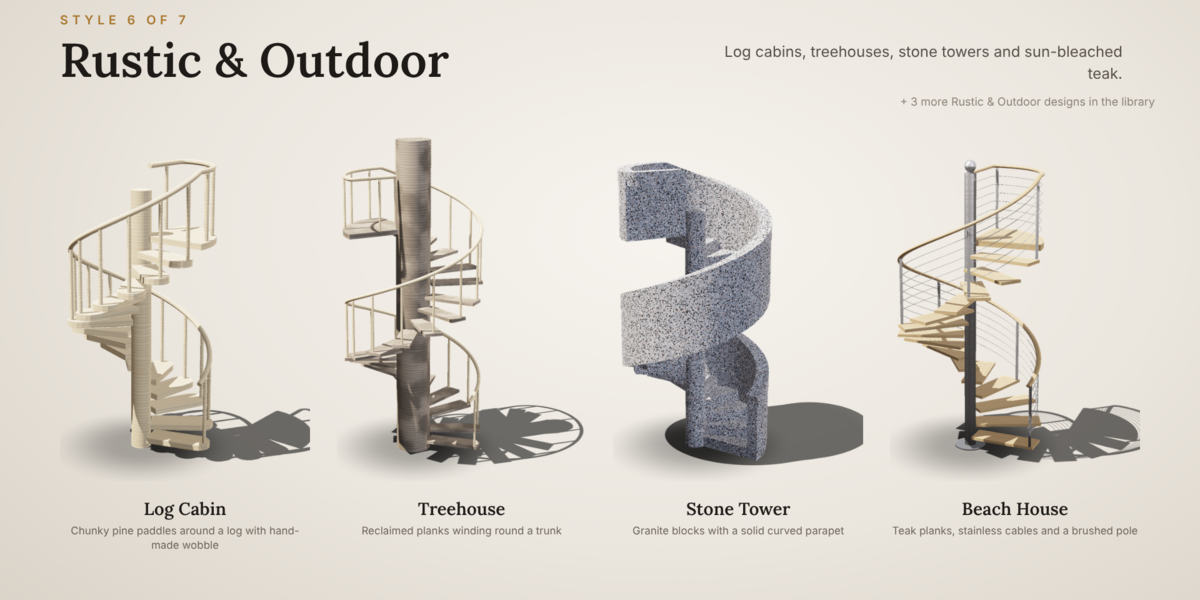
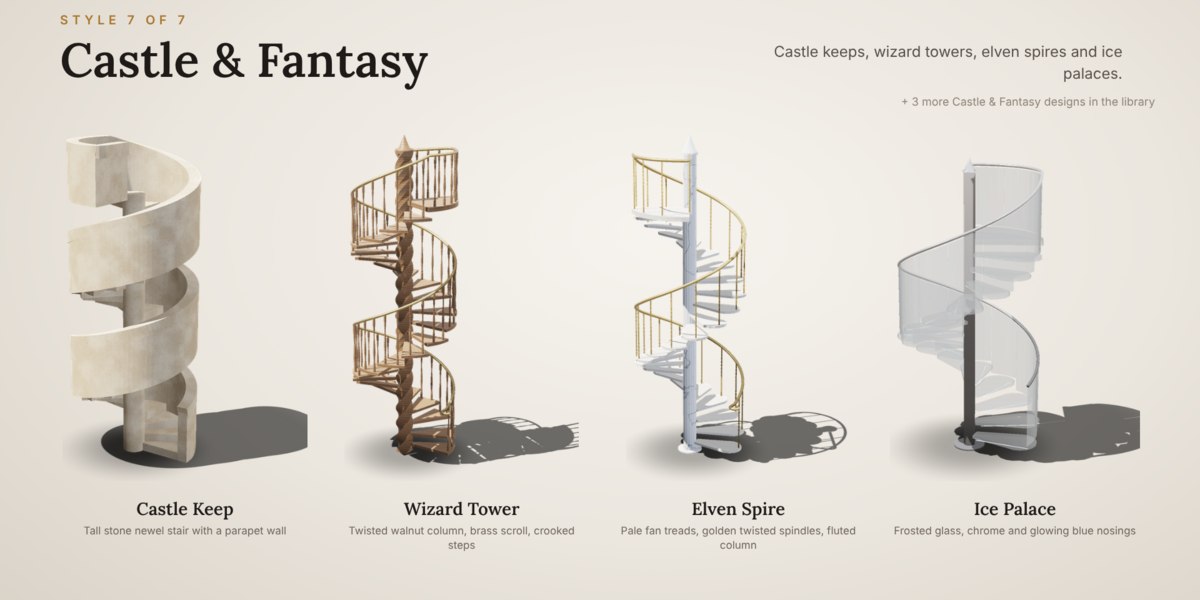
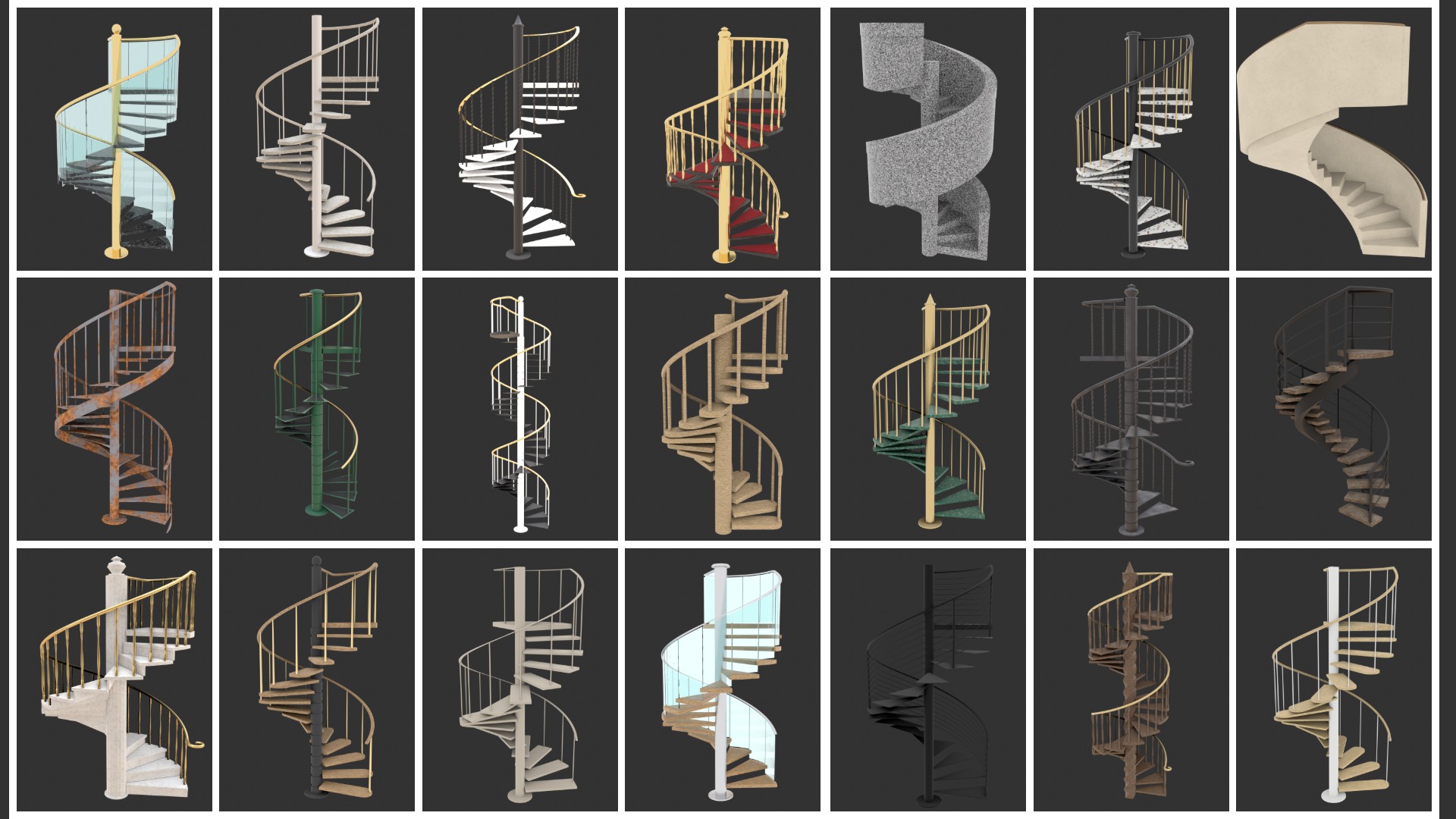
- 50 ready-made designs in 7 categories: Classic, Modern, Industrial, Luxury, Minimal & Floating, Rustic & Outdoor, Castle & Fantasy.
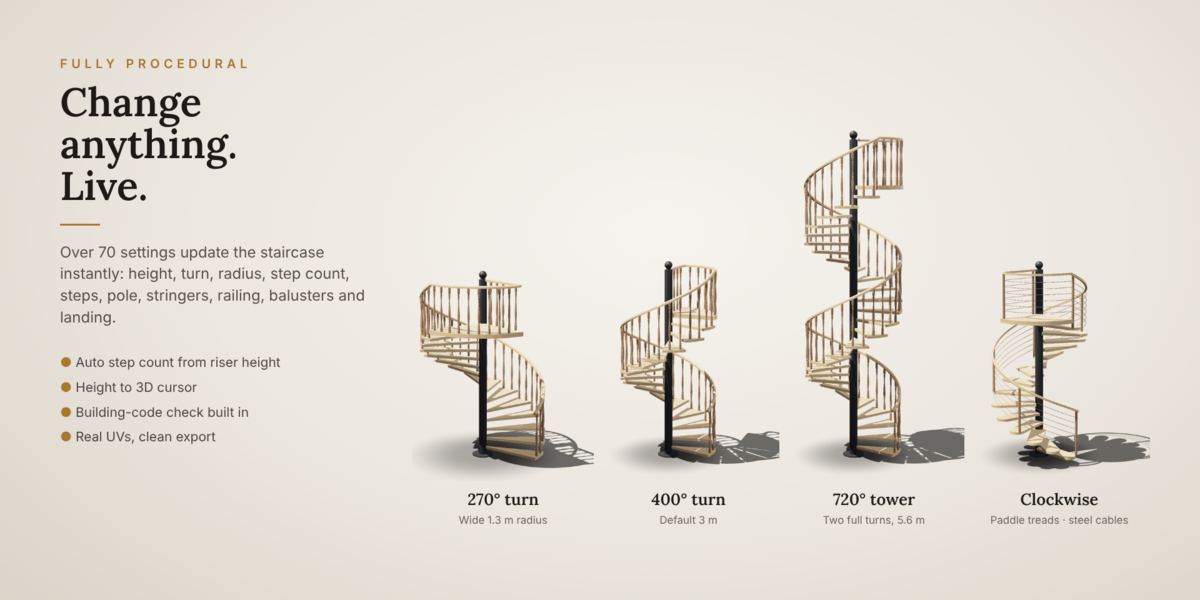
- Fully procedural: over 60 settings, all live. Change the height and the stair re-calculates its step count automatically.
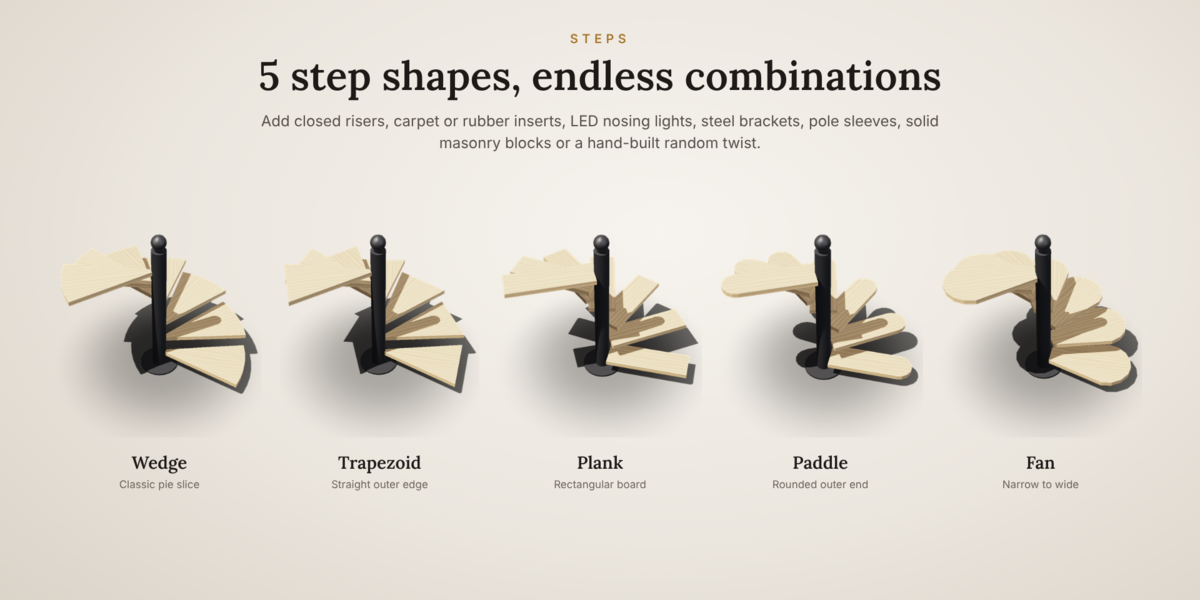
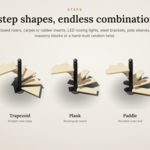
- 5 step shapes: Wedge, Trapezoid, Plank, Paddle and Fan. Add solid blocks, closed risers, carpet or rubber inserts, LED nosing lights, support brackets and pole sleeves.
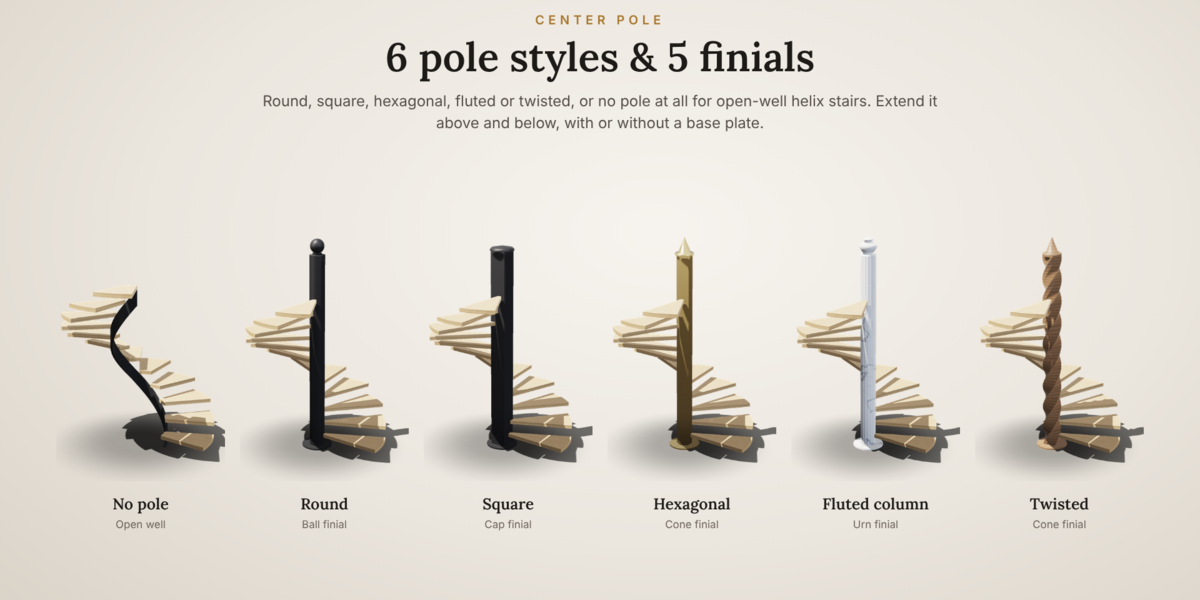
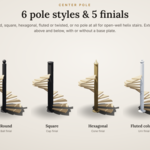
- Center pole options: Round, Square, Hex, Fluted or Twisted – or no pole for open-well helix stairs. Ball, Cap, Cone or Urn finials.
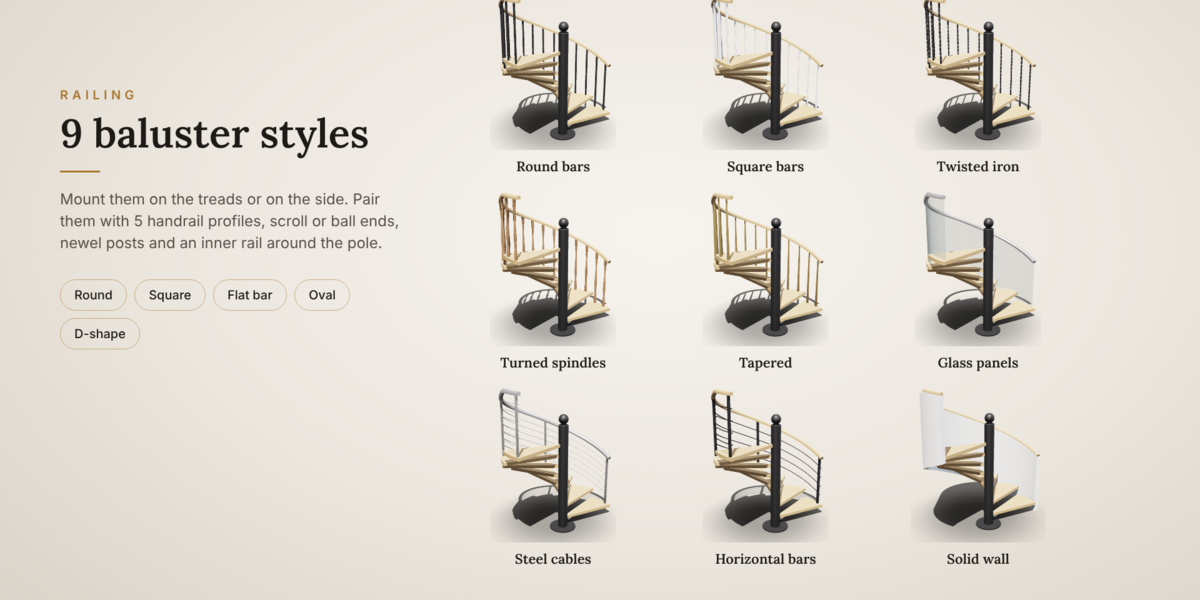
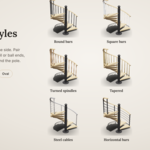
- 9 baluster styles: round, square, twisted iron, lathe-turned, tapered, glass panels, steel cables, horizontal bars and solid curved walls. Mount them on the treads or on the side.
- 5 handrail profiles with scroll (volute), extension or ball ends, newel posts and an optional inner rail around the pole.
- Stringers and soffit: outer, inner, double or center-spine stringers, plus a smooth underside for concrete helix stairs.
- Top landing of any angle, with railing that can close back to the pole.
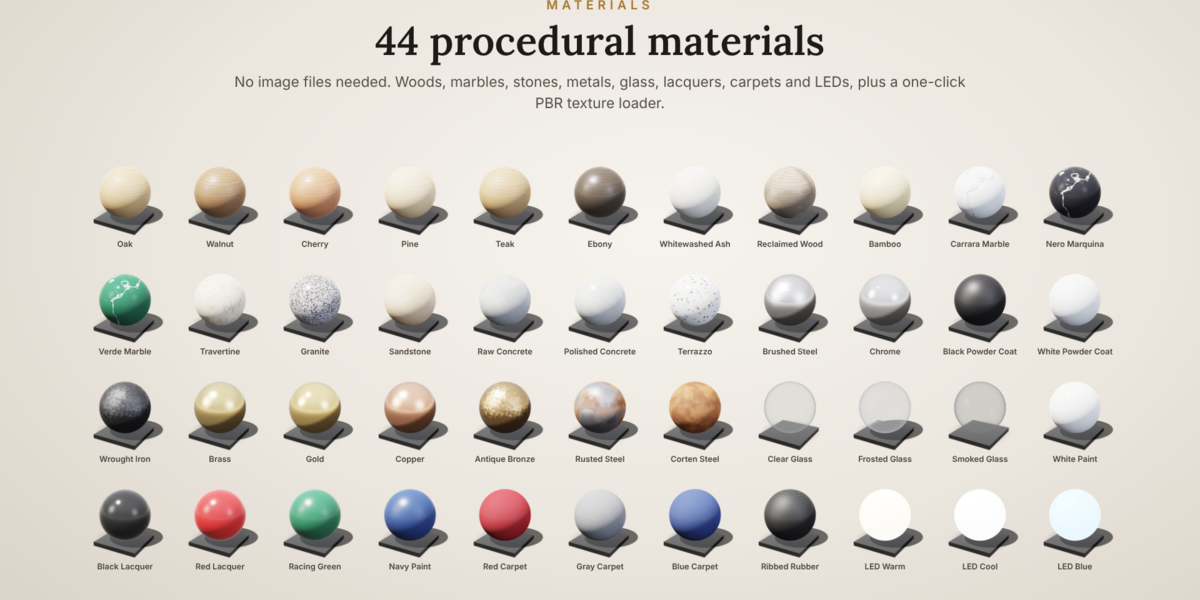
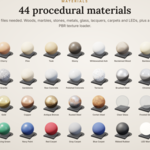
- 44 procedural materials: woods, marbles, granite, terrazzo, concrete, metals, glass, lacquers, carpets, rubber and LEDs. No image files needed, and every step gets a slightly different tone for a natural look.
- PBR texture loader: point it at any downloaded texture folder and it builds the material for you.
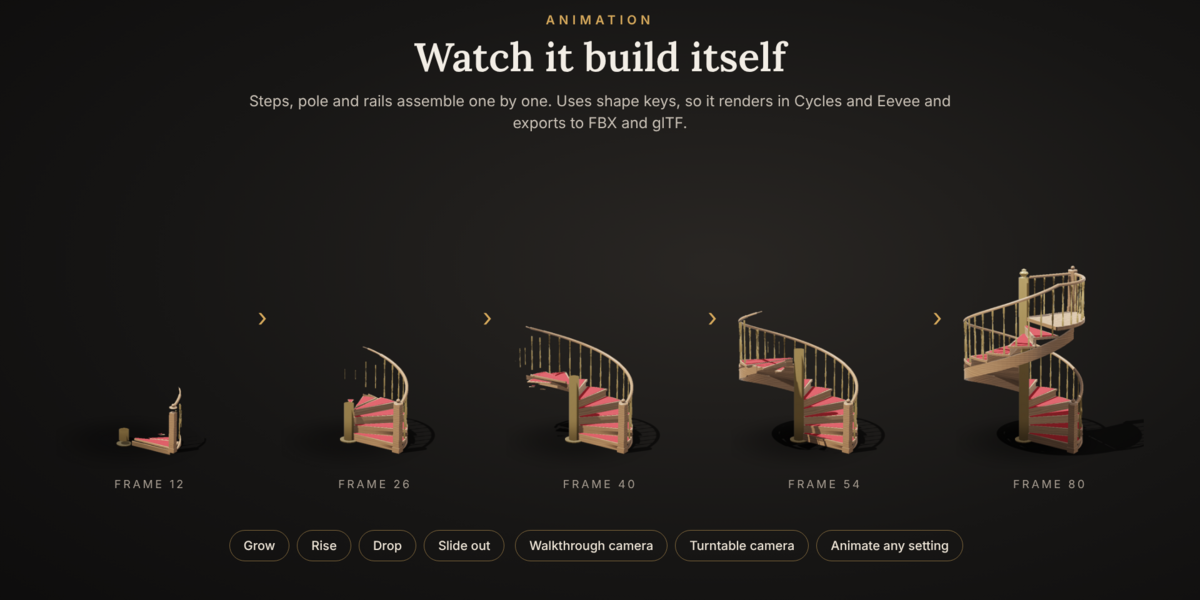
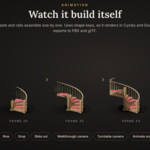
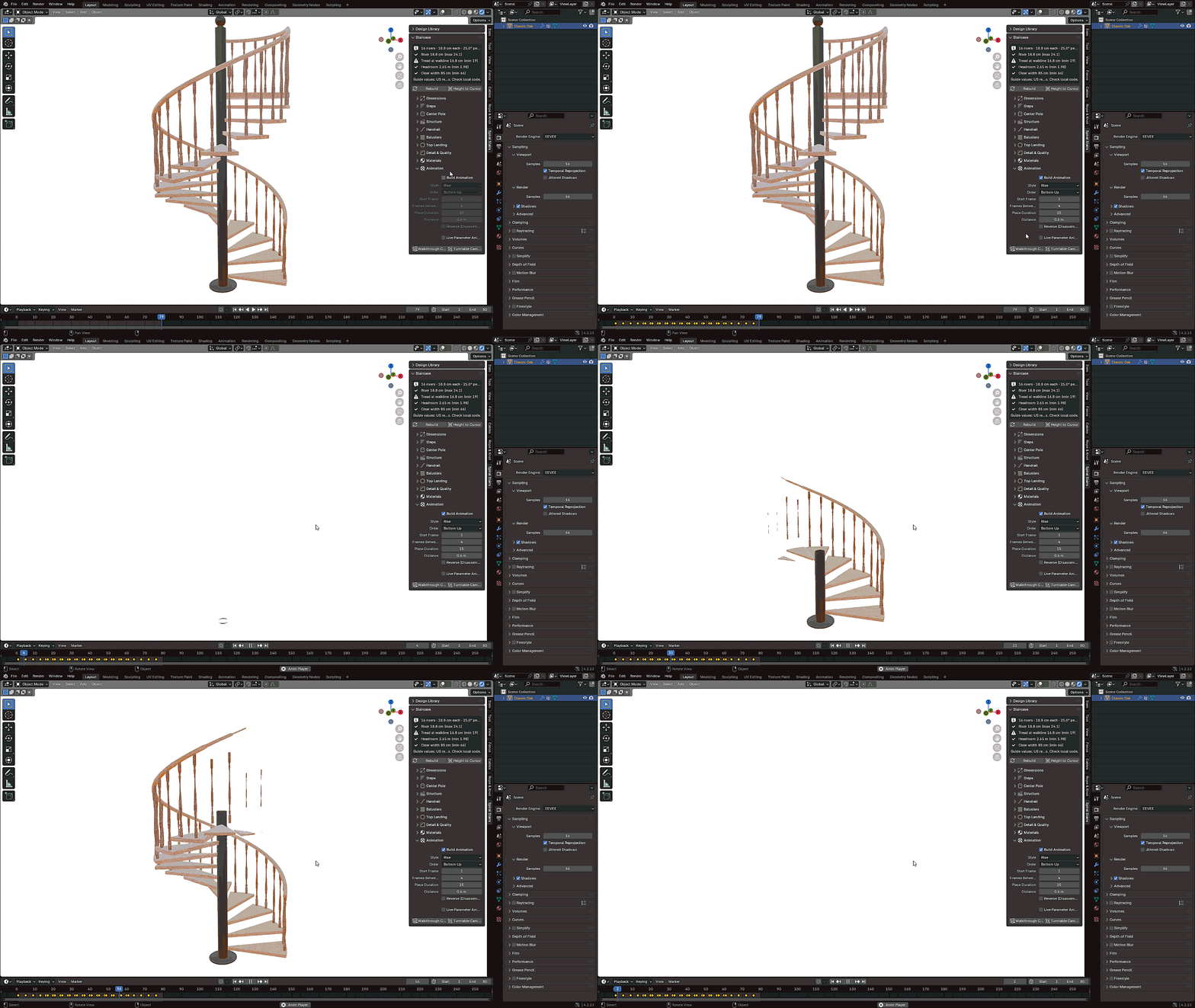
- Build-up animation: the staircase assembles itself step by step in 4 styles – Grow, Rise, Drop and Slide. The pole and rails grow with it.
- Walkthrough and turntable cameras in one click.
- Live parameter animation: keyframe any setting, such as the turn or height, and watch it animate.
- Building-code check: live readout of riser height, tread depth, headroom and clear width.
- Production-ready mesh: real UVs in meters, clean material slots and non-destructive bevels. Exports cleanly to FBX and glTF for game engines.
Compatibility
Works in Blender 4.2 LTS through 5.x. Installs as an Extension in Blender 4.2+ and as a classic add-on in older versions – same zip.
What you get
- The Spiral Stair Studio add-on (one zip)
- 50 designs with preview thumbnails
- 44 procedural materials
- Full documentation (see the Documentation tab)
1. Installation and quick start
The add-on installs from one zip file in every supported Blender version (4.2 to 5.x). Do not unzip it.
Install in Blender 4.2 and newer
- Download
spiral_stair_studio_v1.1.zip. - Open Edit → Preferences → Get Extensions.
- Click the ⌄ menu at the top right and choose Install from Disk….
- Select the zip. The add-on is enabled automatically.
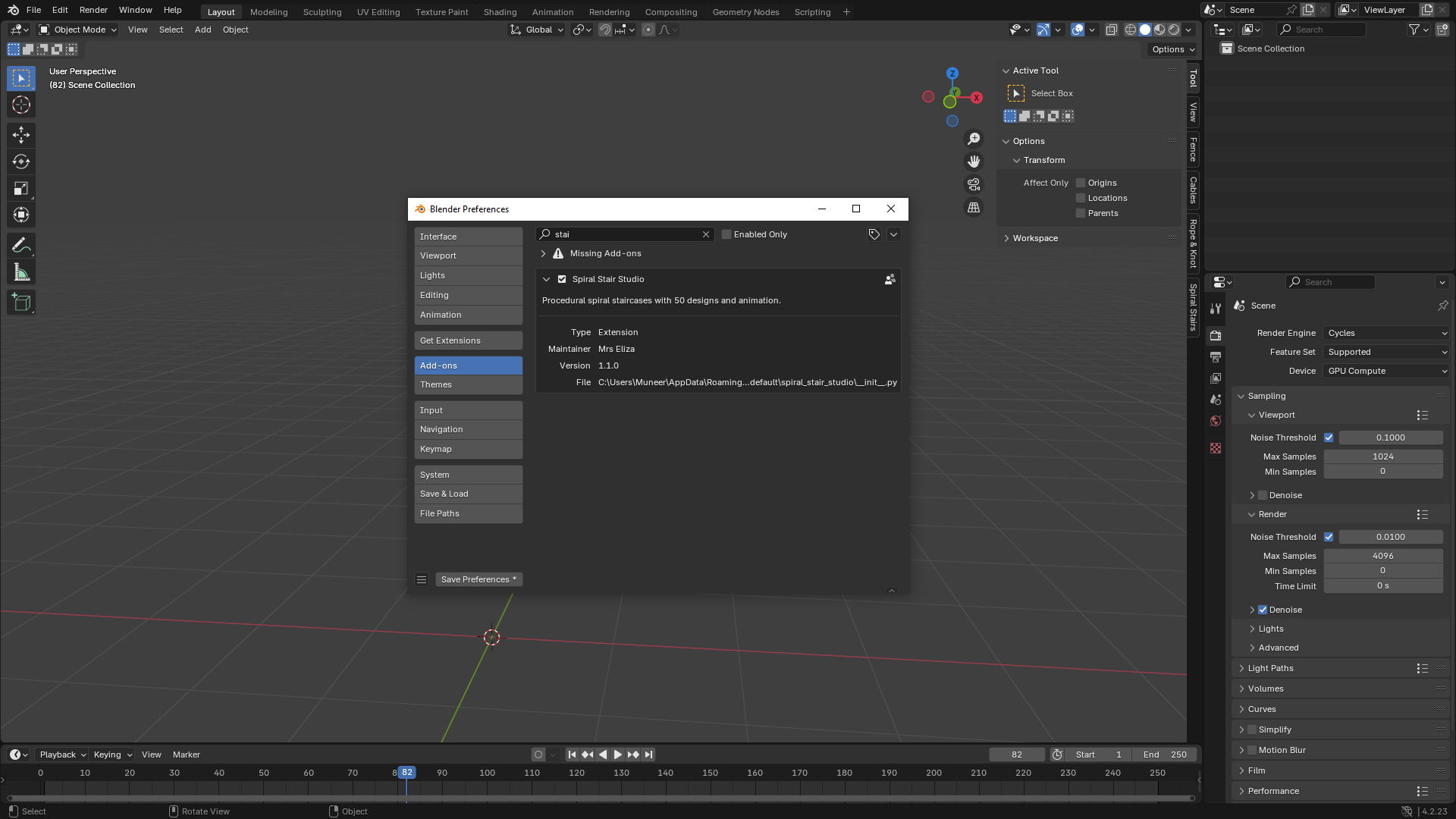
Install in Blender – 4.2
- Open Edit → Preferences → Add-ons.
- Click Install… and select the zip.
- Tick the checkbox next to Add Mesh: Spiral Stair Studio.
Your first staircase in 30 seconds
- In the 3D Viewport, press N to open the sidebar and click the Spiral Stairs tab.
- In Design Library, choose a category and click a thumbnail to pick a design.
- Click Add New Staircase. It appears at the 3D cursor.
- Open the Staircase panel and change anything. The mesh updates live.
You can also add a staircase from Add → Mesh → Spiral Staircase (Shift+A).
Fit it to your building
- Place the 3D cursor at the upper floor level (Shift+right-click).
- Select the staircase and click Height to Cursor.
- The stair sets its height and recalculates the number of steps.
Interface reference
Everything lives in the 3D Viewport sidebar (N) under the Spiral Stairs tab. Lengths are in meters. Every setting updates the staircase live, and you can keyframe any of them.
2. Design library and main controls
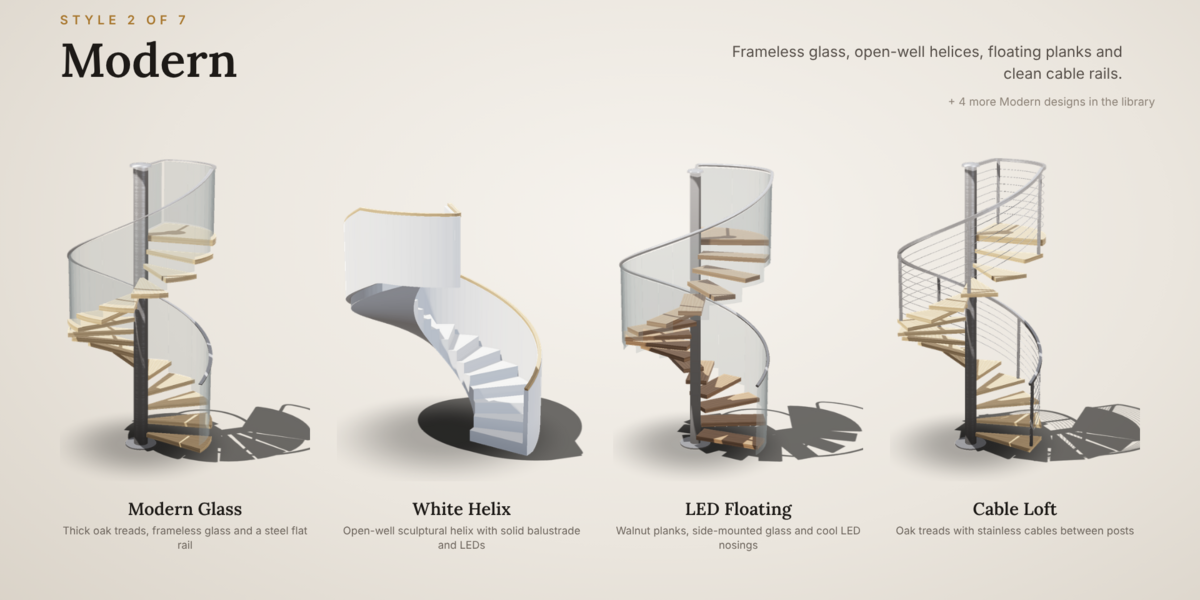
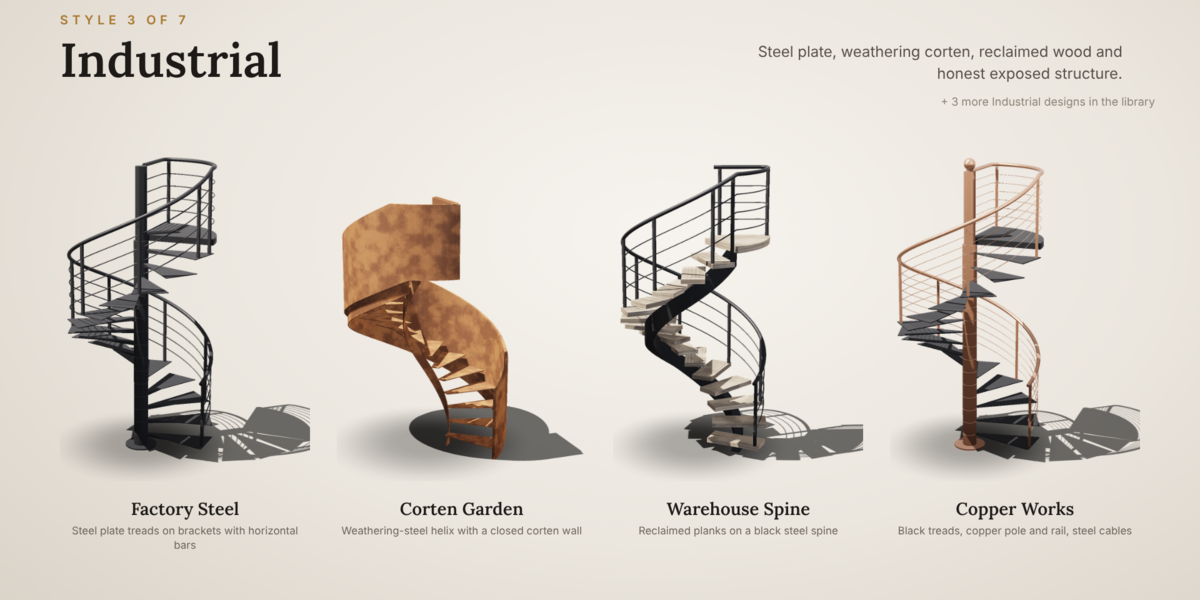
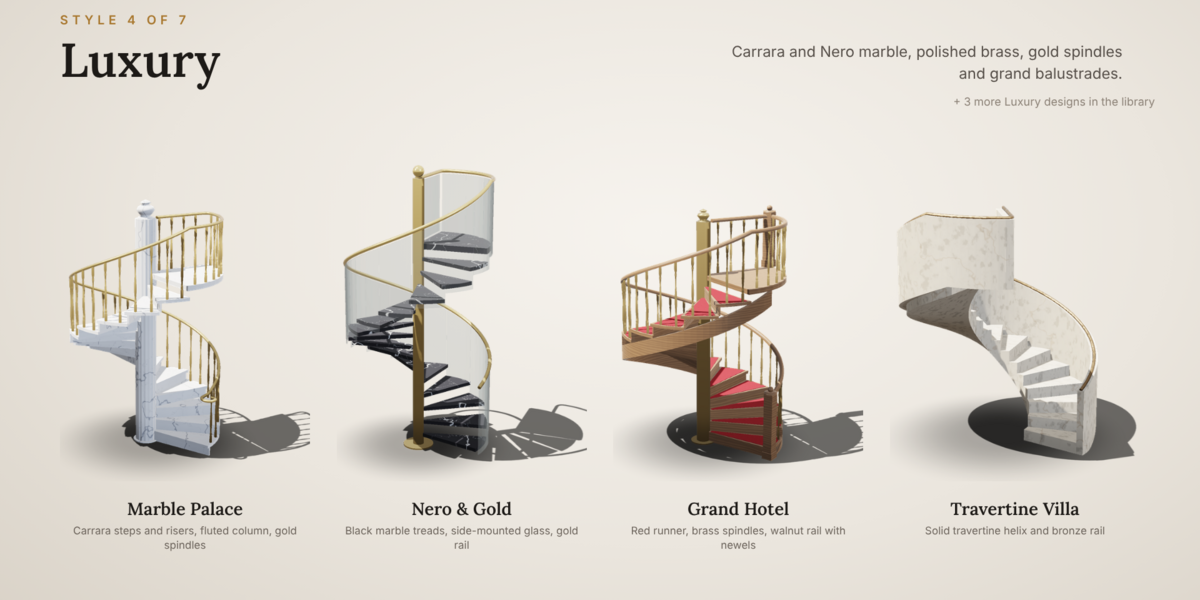
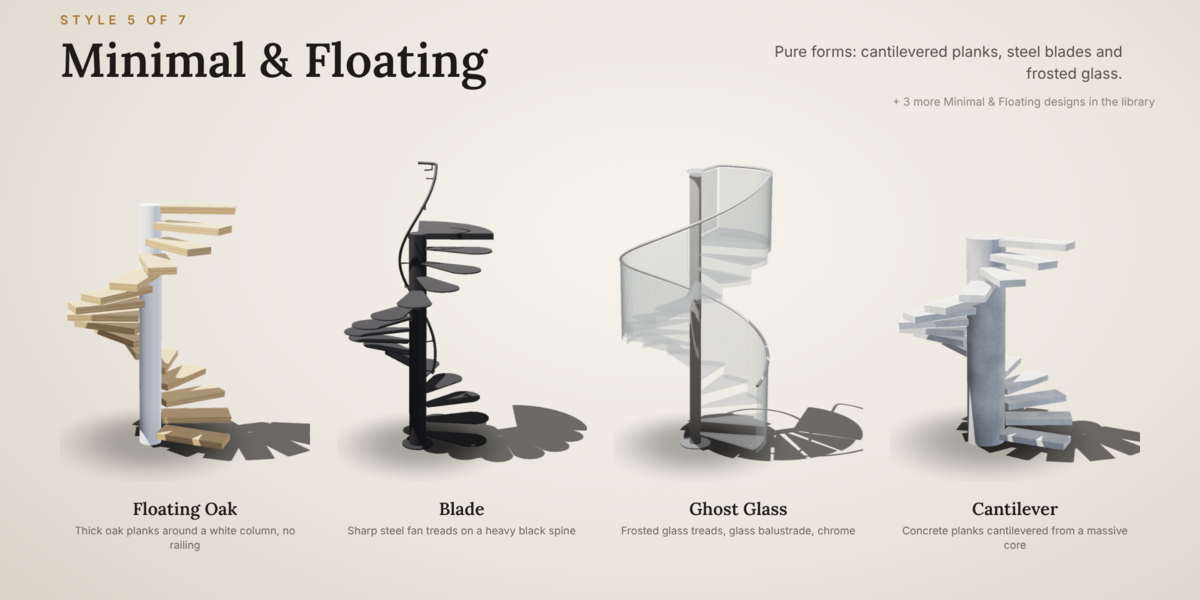
The library includes 50 starting designs in seven categories: Classic, Modern, Industrial, Luxury, Minimal & Floating, Rustic & Outdoor, and Castle & Fantasy. Select a design, then customize its settings and materials.
- Add New Staircase creates the selected design at the 3D cursor.
- Apply to Active applies a design to the selected staircase; height and radius are kept by default.
- Surprise Me creates a randomized design and materials while keeping the current height.
Dimensions and layout
- Height: floor-to-floor height; default 3.0 m.
- Auto Step Count: automatically selects the number of steps based on the Target Riser; default target is 0.19 m.
- Steps: sets the riser count manually when Auto Step Count is off; default 16.
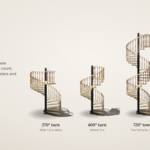
- Total Turn: rotation from bottom to top; default 360°. Use larger values for multi-turn stairs.
- Clockwise and Start Angle: control turning direction and where the first step begins.
- Radius: controls the stair’s outer radius; default 1.0 m.
Steps and structure
Choose Wedge, Trapezoid, Plank, Paddle or Fan treads. You can adjust tread thickness, overlap, plank width and the gap from the center pole. Optional details include solid blocks, closed risers, carpet/rubber/stone inserts, LED nosing lights, support brackets, pole sleeves and random step rotation.
Structure options include a round, square, hexagonal, fluted or twisted center pole—or no pole for an open-well helix. Add a finial or base plate as needed. Stringers can be outer, inner, double or center-spine; enable a smooth soffit for a continuous underside.
Handrails, balusters and landing
Viewport quality
3. Materials and PBR textures
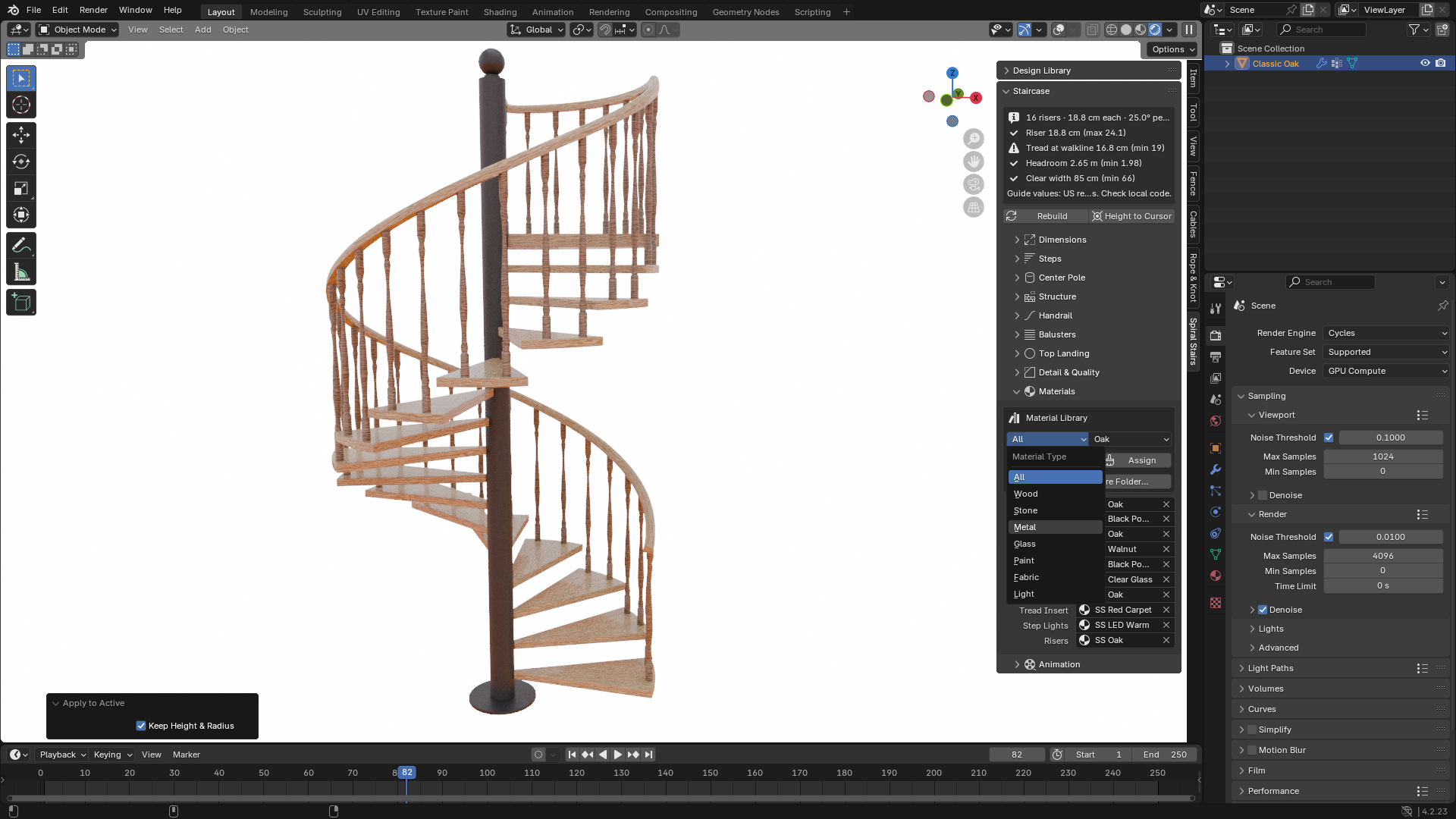
Each staircase has separate material slots for steps, center pole, handrail, balusters, structure, glass, landing, tread inserts, step lights and risers. Assign materials from Staircase → Materials by choosing a material type and material, selecting the target slot in On, and clicking Assign.
If the Steps slot has a library material, the Landing and Risers follow it automatically unless you assign them their own materials. You can also use materials already in your Blender file.
Built-in material library
- Wood: Oak, Walnut, Cherry, Pine, Teak, Ebony, Whitewashed Ash, Reclaimed Wood and Bamboo.
- Stone: Carrara Marble, Nero Marquina, Verde Marble, Travertine, Granite, Sandstone, Raw Concrete, Polished Concrete and Terrazzo.
- Metal: Brushed Steel, Chrome, Black/White Powder Coat, Wrought Iron, Brass, Gold, Copper, Antique Bronze, Rusted Steel and Corten Steel.
- Glass: Clear, Frosted and Smoked Glass.
- Paint: White Paint, Black Lacquer, Red Lacquer, Racing Green and Navy Paint.
- Fabric and lighting: Red, Gray and Blue Carpet; Ribbed Rubber; Warm, Cool and Blue LEDs.
Load your own PBR textures
4. Animation and cameras
5. Building-code guide and workflow tips
The Staircase panel displays the riser count, riser height and degrees per step, and provides guide checks based on common US residential spiral-stair limits.