 X W Z
X W Z



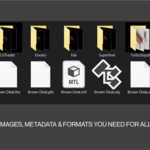
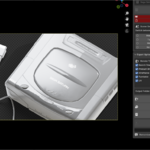
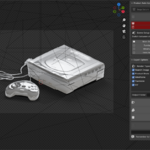
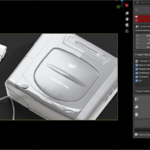

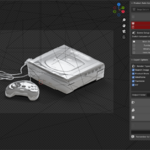

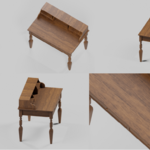
Product Autouploader Add-on
Transform your 3D models into marketplace-ready products with professional studio lighting, automated export capabilities, and (coming soon) auto uploading capabilities that will upload all your assets to all marketplaces in a jiffy.
🎯 What Does This Add-on Do?
Product Autouploader is a powerful Blender addon that automatically creates professional studio lighting setups and camera angles for your 3D models, then exports them in the exact formats and specifications required by major 3D marketplaces.
Think of it as having a virtual photography studio inside Blender that knows exactly what each marketplace wants.
✨ Why You'll Love This Addon
🚀 Save Hours of Work
- No more manually positioning lights and cameras for each product shot
- Instantly create 8 different professional camera angles
- One-click setup replaces hours of manual work
💼 Marketplace Ready
Pre-configured export settings for 6 major marketplaces:
- Superhive - 3D Assets & Add-ons marketplace
- BlenderKit - In-app 3D Asset marketplace
- TurboSquid - Industry standard 3D marketplace
- CGTrader - 3D asset store
- Fab (Sketchfab) - Unreal Engine marketplace
- Envato Elements - Creative marketplace
🎨 Professional Results
- Studio-quality lighting with Key, Fill, and Rim lights
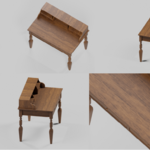
- Perfect camera positioning for hero shots, detail views, and turntables
- Wireframe rendering capabilities
- Shadow catcher ground plane for realistic shadows
📦 Complete Export Pipeline
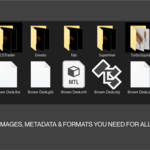
- Multiple file formats: .blend, .obj, .fbx, .glb, .usd
- Correct image sizes and specifications for each marketplace
- Automated turntable animations (36 frames)
- UV layout exports
- AI-powered metadata generation
🛠️ How It Works
Step 1: Prepare Your Model
- Create or import your 3D model in Blender
- Organize your model objects into a collection
- Make sure your model is properly scaled and positioned
Step 2: Set Up the Studio
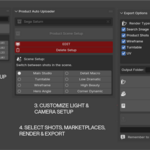
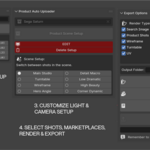
- Open the "Product Auto Uploader" panel in the 3D Viewport sidebar (press
Nto show/hide) - Select your model collection from the dropdown
- Adjust lighting settings if needed:
- Base Strength: Overall brightness of all lights
- Key Light: Main studio light (usually brightest)
- Fill Light: Softens shadows and fills dark areas
- Rim Light: Creates edge definition and separation
- Click "Product Scene Setup"
✨ That's it! The addon automatically creates:
- 8 professional camera angles positioned around your model
- 3-point studio lighting system (Key, Fill, Rim)
- Shadow catcher ground plane
- Proper scene organization
Step 3: Preview Your Shots
Use the camera buttons to quickly switch between different angles:
- Main Studio: Primary hero shot
- Turntable: 360° rotation view
- Wireframe: Technical mesh view
- Hero Angle: Dynamic perspective shot
- Detail Macro: Close-up detail view
- Low Dramatic: Low angle for impact
- High Beauty: Elevated beauty shot
- Corner Dynamic: Three-quarter view
Step 4: Export for Marketplaces
- Switch to the "Export Options" panel
- Choose your target marketplaces (each has different requirements)
- Select render types you need:
- Search Image: Thumbnail/preview image
- Product Shots: Multiple angle beauty shots
- Wireframe: Technical mesh visualization
- Turntable: 360° animation frames
- UV: Texture mapping layout
- Pick file formats for export
- Set your output folder
- Click "RENDER PRODUCT" to generate all images
- Click "EXPORT FORMATS" to save 3D files
- Click "EXPORT METADATA" to generate descriptions and tags
🎯 Camera Types Explained
Each camera is positioned and configured for specific marketplace requirements:
- 📸 Main Studio: Perfect for search thumbnails and primary product images
- 🔄 Turntable: Positioned for smooth 360° rotation animations
- 📐 Wireframe: Orthographic view showing mesh topology clearly
- 🎬 Hero Angle: Dynamic perspective that showcases the product dramatically
- 🔍 Detail Macro: Close-up view for showing textures and fine details
- ⬇️ Low Dramatic: Low angle shot that makes products look powerful/impressive
- ⬆️ High Beauty: Elevated angle for elegant, refined product presentation
- 📐 Corner Dynamic: Three-quarter view showing multiple sides at once
🏪 Marketplace Specifications
The addon automatically handles the technical requirements for each platform:
| Marketplace | Search Image | Product Shots | Turntable | Special Features |
|---|---|---|---|---|
| TurboSquid | 2000×2000px | 1920×1080px (5 shots) | 36 frames | UV layout required |
| CGTrader | 1920×1080px | 1920×1080px (5 shots) | 36 frames | Wireframe versions |
| Fab | 1920×1080px | 1920×1080px (5 shots) | 36 frames | Epic Games standards |
| BlenderKit | 2000×2000px | Hero shot focus | - | Blender-specific |
| Envato | 1920×1080px | 1920×1080px (5 shots) | 36 frames | Creative marketplace |
| Superhive | 1920×1080px | 1920×1080px (5 shots) | 36 frames | Modern platform |
💡 Pro Tips
🎨 For Better Results
- Position your model at the world origin (0,0,0) before setup
- Make sure your model faces forward (+Y direction)
- Use proper scale - the addon works best with real-world sized objects
- Clean up your mesh before setup (remove duplicate vertices, fix normals)
⚡ Workflow Optimization
- Set up the lighting once, then use "Edit" mode to adjust individual lights if needed
- Use the camera preview buttons to check all angles before rendering
- Start with default lighting settings, then fine-tune for your specific model
- Export to multiple marketplaces at once to save time
🔧 Troubleshooting
- If lights seem too bright/dim, adjust the "Base Strength" setting
- For very large models, increase the base strength
- For small models, decrease the base strength
- The "Edit" button lets you modify the setup after creation
- Use "Delete Setup" to start over if needed
🚀 Getting Started
- Install the addon in Blender (Preferences → Add-ons → Install)
- Enable "Product Lighting Setup" in the add-ons list
- Find the "Product Auto Uploader" panel in the 3D Viewport sidebar
- Select your model collection
- Click "Product Scene Setup"
- Start creating marketplace-ready renders!
🤖 AI Metadata Generation
The addon includes AI-powered metadata generation to help you create compelling product descriptions and tags. Simply add a brief description of your model in the AI Description field, and the addon will generate professional marketplace-ready metadata.
Note: You'll need to input your Gemini API key for the metadata generator to work.
Transform your 3D models into marketplace success stories with professional studio lighting and automated export workflows. No photography experience required!