 Arcwork
Installing
Blender 4.2 and newer
- Download
prop_handoff-1.1.1.zip. Don't unzip it. - Drag it onto the Blender window and click Install. Or go to Edit > Preferences > Get Extensions, click the arrow at the top right, choose Install from Disk and pick the zip.
Blender 3.6 to 4.1
- Unzip
Prop_Handoff_1.1.1_Complete.zip. - Go to Edit > Preferences > Add-ons > Install and pick
Older Blender/prop_handoff.py, then tick the box to enable it.
Opening the panel: in the 3D Viewport press N and click the Handoff tab.
Two ideas
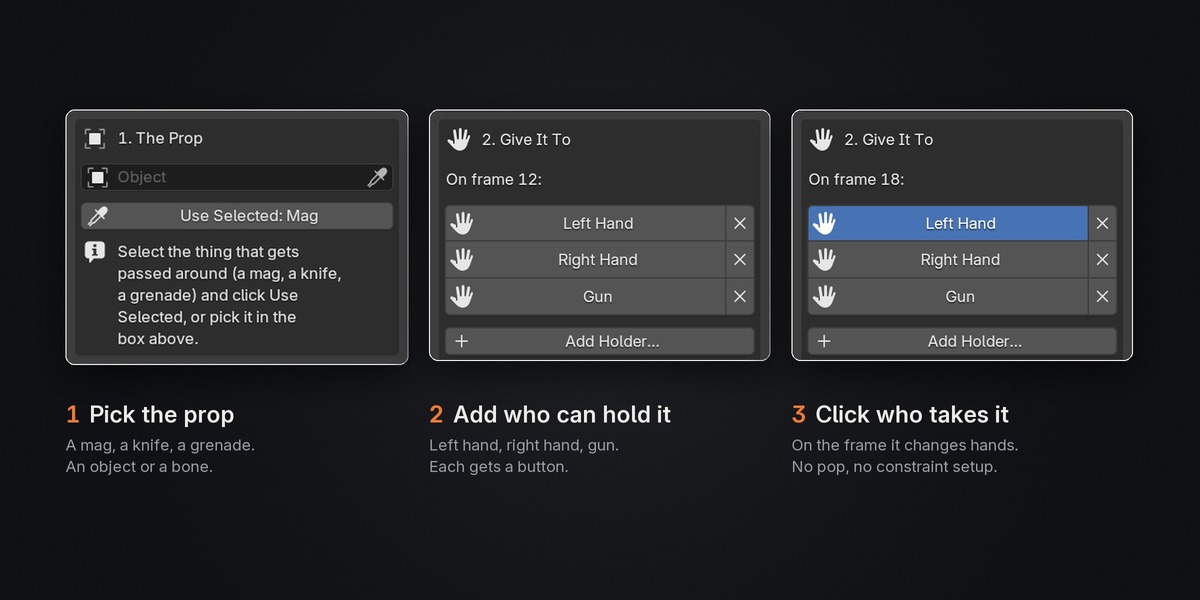
- The prop is the thing that gets passed around: a mag, a knife, a grenade. It can be an object or a bone.
- Holders are the things that can carry it: the left hand, the right hand, the gun. Each holder gets a button.
Quick start
1. Choose the prop. Select it in the viewport and click Use Selected, or pick it in the box at the top of the panel. For a bone, pick the armature and then the bone. The add-on remembers the prop, so you can select and pose the hands freely afterwards.
2. Add your holders (once per file). Select a hand (in Pose Mode, click the hand bone or IK control) and click Add Holder.... The window fills in the object, the bone and a readable name (hand.L becomes Left Hand). Click OK. Repeat for every hand, the gun, and anything else that can carry the prop. You can also pick any object or bone in the window directly, even on an armature you're not posing.
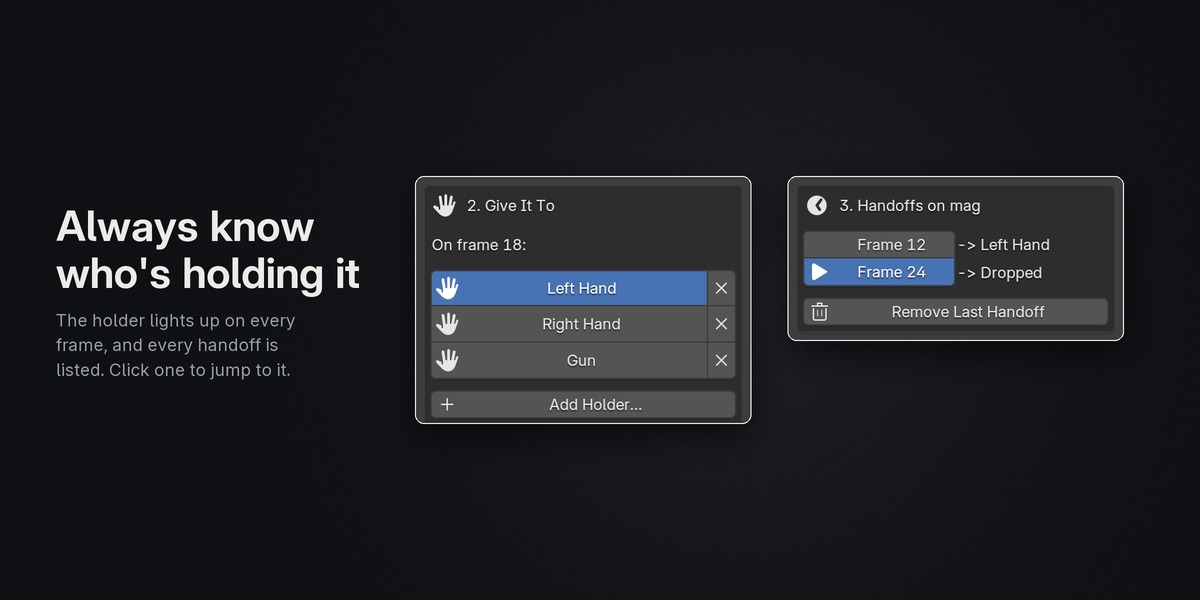
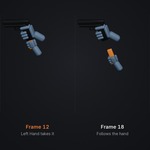
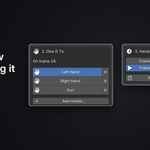
3. Go to the frame and click who takes it. Go to the frame where the hand grabs the prop and click that hand's button. On that frame the prop doesn't move. After it, the prop follows the hand. The current holder's button is highlighted blue. To pass the prop on, go to a later frame and click another holder. There's no need to let go first.
Letting go
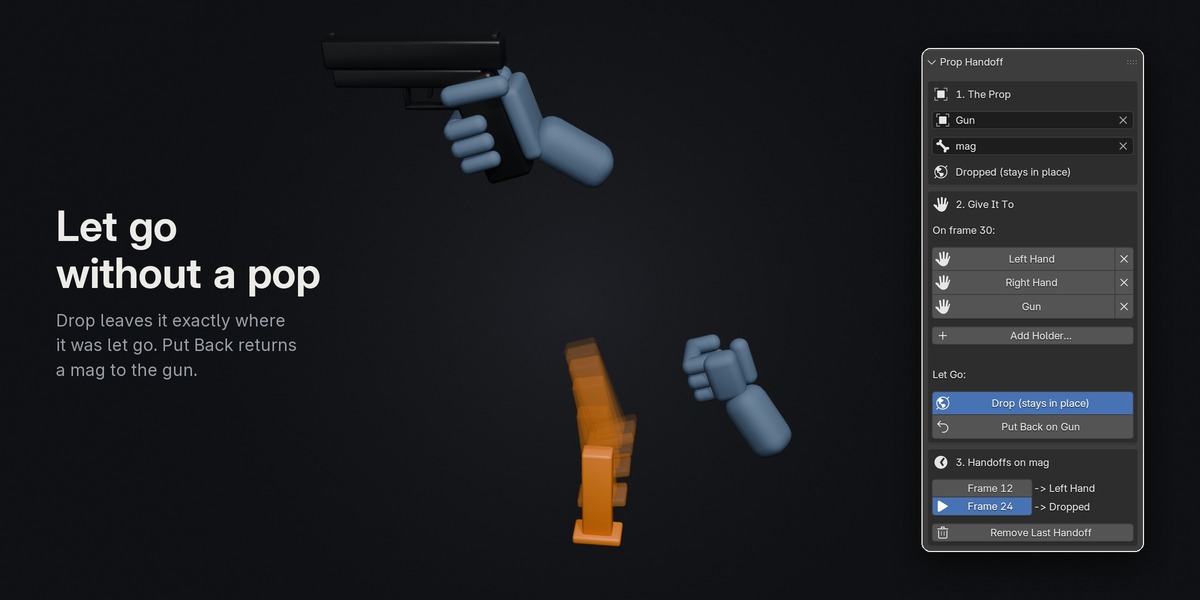
- Drop (stays in place): the prop stays exactly where it is in the world, and nothing moves it any more. Key it falling, sliding or bouncing.
- Put Back on (parent): shown when the prop has its own parent, like a mag bone in the gun. The prop goes back to following that parent, without jumping.
The handoff list
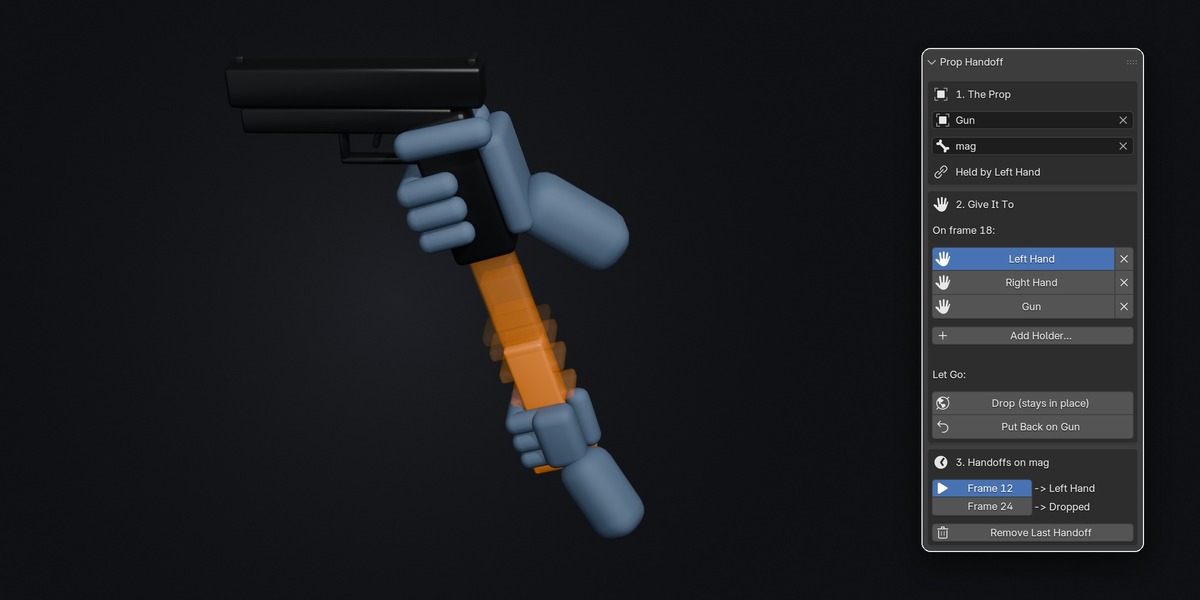
Section 3 of the panel lists every handoff on the prop: the frame and who took it. The handoff active on the current frame is highlighted. Click a frame button to jump there. Remove Last Handoff takes the most recent one out cleanly. Ctrl+Z also undoes a click right away.
Example: a magazine reload
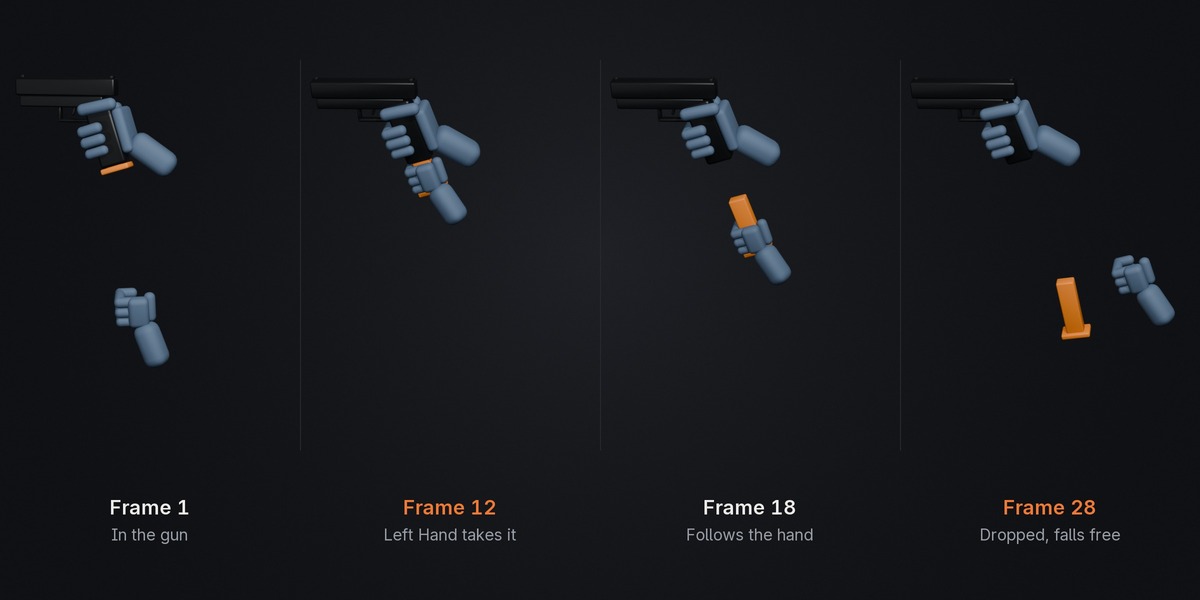
This uses a mag bone parented to the gun's body bone, with holders called Left Hand and Gun.
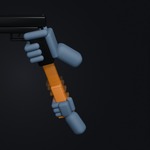
- Pull it out: on the frame the left hand closes on the mag, click Left Hand. Animate the hand pulling away, and the mag follows even while the gun moves.
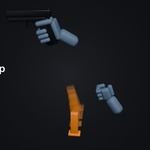
- Drop it: on the frame the fingers open, click Drop (stays in place), then key the mag falling.
- Fresh mag: while the mag is off screen, move it into the hand on the frame the hand comes back up, and click Left Hand again.
- Seat it: a few frames before it's fully in, with the mag lined up under the mag well, click Put Back on Gun. On the fully-seated frame, press Alt+G and Alt+R to clear its location and rotation, then key it. It snaps to its exact rest position.
Other uses
- A hand that rides the gun: make the hand's IK control the prop and click Gun. Click Drop when the hand needs to move on its own again.
- Passing between hands: click the other hand on the frame it switches.
- Picking things up, throwing, handing over objects. Plain objects, cameras and empties work as well as bones.
Rules that keep it clean
- Work forwards in time. Make handoffs in the order they happen. The add-on warns you if you add one before an existing handoff.
- Each handoff writes two columns of keys on the prop: on its frame and on the frame before. Keep them together.
- Two things can't follow each other, even at different times. If the right hand rides the gun, the gun can't later be handed to that hand. The panel greys out such a button and says why.
- Limit constraints are handled for you. A prop's own Limit Location / Rotation / Scale switch off while it's held or dropped and back on when it goes home. If it goes home while still outside its limits they stay off (so it doesn't jump) and you're told to key them back on once it's seated.
- The rig's own attachments switch off while the prop is away. If the prop already follows something through its own constraints (a hand pinned to the gun grip by Child Of or Copy Location / Rotation), they switch off while it's held or dropped, so only the new holder moves it. Put Back sets them back to how they were, and so does deleting the handoff keys or switching to another action.
- Don't edit the "Handoff: ..." constraints by hand. The add-on creates and reuses them.
- Leave the "Handoff World" empty at the origin. It's created the first time you drop a parented prop.
- Exporting: turn on Bake Animation in FBX/glTF export.
Troubleshooting
- Holder buttons are greyed out: choose the prop first (section 1).
- A button says "(missing)": the bone or object was renamed or deleted. Remove it with the X and add it again.
- A holder says "(follows ...)" and is greyed out: it already follows the prop (through its parent or an earlier handoff), so giving the prop to it would make a loop. Use another holder or remove the earlier handoff.
- "... is a Connected bone": untick Connected for that bone in Edit Mode (Bone Properties > Relations).
- "... may have jumped by up to ...": the prop has a constraint the add-on can't compensate for. Check it, use Remove Last Handoff if needed, and try muting that constraint.
- "Its Limit Location stays off for now": once the prop is seated, key the constraint's Influence back to 1.
- The prop jumps after a handoff: it had older keys later in the timeline. Delete or re-key them, and work in time order.
- "Switch to Object or Pose mode": leave Edit Mode.
- Exported animation is missing the handoffs: export with Bake Animation turned on.
- Hide the tips: click the ? in the panel header (also in Preferences > Add-ons > Prop Handoff).
Have questions about this product?
Login to message
| Blender Extension Compatible | Yes |
| Published | about 4 hours ago |
| Blender Version | 4.2 - 5.3 |
| Extension Type | Add-on |
| Render Engine Used | Cycles |
| License | GPL |
Discover more products like this
Reload Game animation props parent switching child of fps animation rigging weapon constraints hand