 Mamba CG

DOCUMENTATION · VERSION 1.10.0
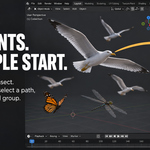
Quick Birds & Insects
Install the add-on, create your first flock, and control its path, motion and appearance.
01. Choose your download & install
Use the ZIP that matches your Blender version. Install one package only. Do not extract the ZIP.
Blender 4.2 and newer · Extension
Quick_Birds_Insects_1.10.0_Extension_Blender_4.2_plus.zip
- Open Edit → Preferences → Get Extensions.
- Open the menu in the upper-right corner and choose Install from Disk.
- Select the Extension ZIP. Leave Enable on Install enabled, or enable the extension in the Add-ons tab afterward.
Blender 4.0–4.1 · Add-on
Quick_Birds_Insects_1.10.0_Blender_4.0.zip
- Open Edit → Preferences → Add-ons → Install.
- Select the Blender 4.0 ZIP.
- Enable Quick Birds & Insects - Flock and Swarm Generator.
Find the tools: open a 3D Viewport, press N, and select the Quick Birds & Insects tab. Use Object Mode when creating a group.
Updating: save your scene, install the updated package and restart Blender. When switching between the legacy add-on and Extension, disable and remove the old installation before enabling the other format.
Compatibility: procedural flight works in Blender 4.0+. Full-flock animation caching requires Blender 4.1+. Models, textures and previews are included; no separate model downloads are needed.
02. Create your first flock
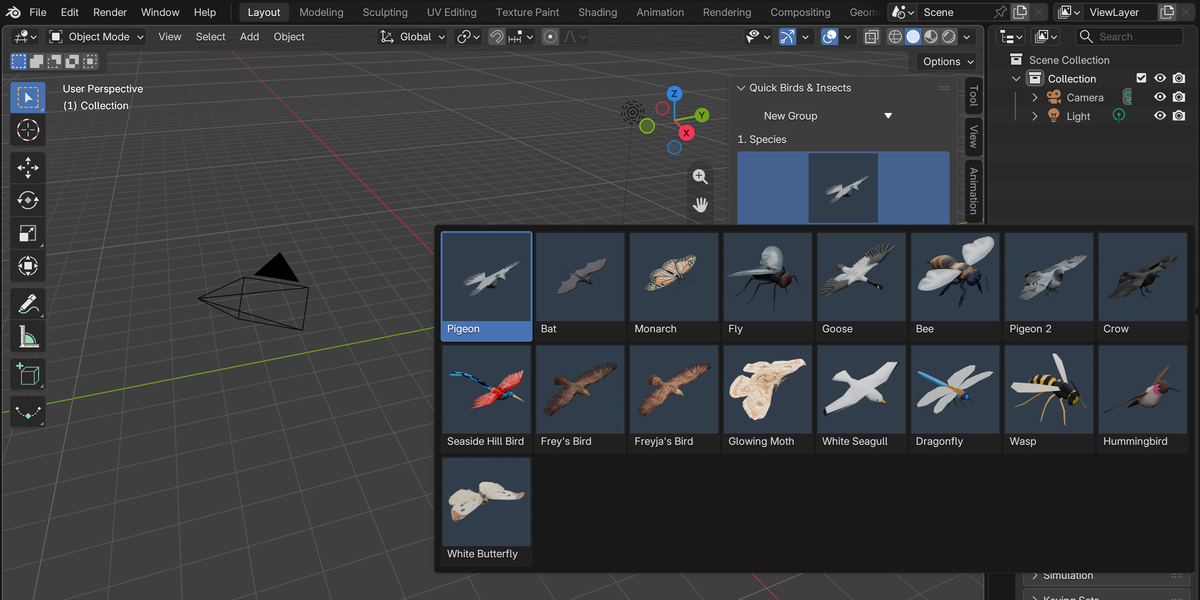
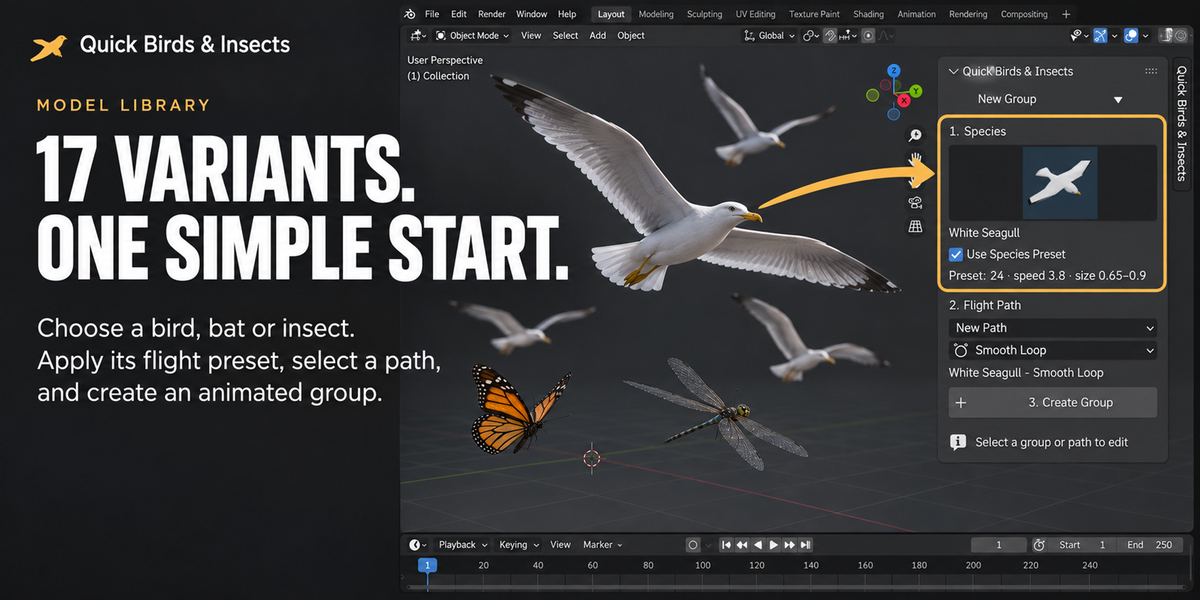
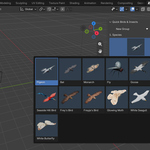
- Under New Group → 1. Species, click the preview image and choose a bird, bat or insect.
- Keep Use Species Preset enabled for starting values suited to the selected species.
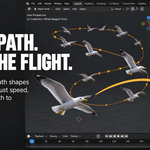
- Under 2. Flight Path, select New Path and choose a shape.
- Click 3. Create Group. The new path appears at the 3D cursor.
- With the path selected, press Tab to edit its control points. Return to Object Mode when finished.
- Play the timeline. Select the flock or its path to adjust Count, Formation, Flight Speed and Repeat Flight.
Creating vs. editing: the picker in New Group configures your next group. To change an existing flock, use Species under Editing: [object name].
Choosing a species or path does not create anything until you click Create Group. The Shift+A → Quick Birds & Insects menu also offers creation shortcuts.
03. Choose & edit a flight path
- New Path: creates an editable Blender curve using the selected shape.
- Selected Curve: uses your active curve without replacing its geometry. Select a curve object first.
- Through Camera Frame: creates an open flight path through the active scene camera. Set an active camera first.
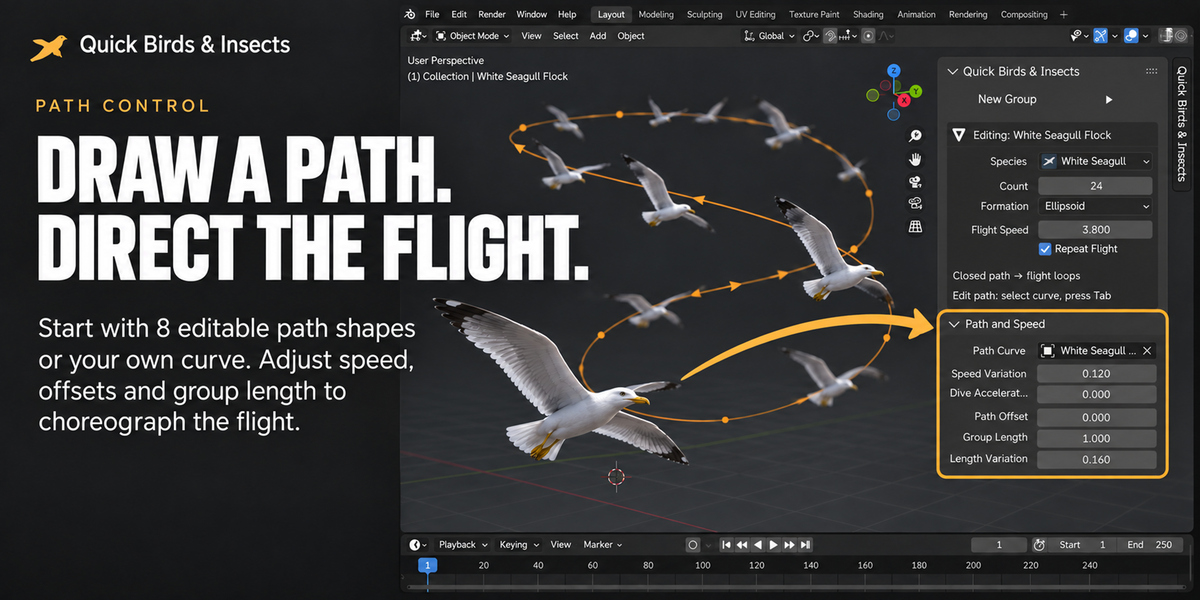
Eight built-in shapes: Smooth Loop, Smooth Curve, Straight Line, Zigzag / Polyline, Rising Spiral, Figure Eight, Circle and Wave.
Edit the curve in Edit Mode to change the route. The flock follows the updated path.
Repeat Flight: closed paths repeat by default. Open paths make a single pass; enable this option to restart at the beginning. The repeat setting and the curve’s cyclic setting are separate.
Use Path and Speed for speed variation, diving acceleration, path offset and flock length.
04. Models & species presets
17 included variants: Pigeon, Pigeon 2, Goose, Crow, Seaside Hill Bird, Frey's Bird, Freyja's Bird, White Seagull, Hummingbird, Bat, Monarch, Glowing Moth, Bee, Fly, Dragonfly, Wasp and White Butterfly.
Each variant includes a flight cycle, a preview and a distant LOD mesh. Pigeon is the default for new groups.
Use Species Preset supplies starting values for count, formation, size, speed and wing motion. The preset summary shows its values. Disable it to start from generic settings.
Goose presets start with a V formation. Fly and Bee presets use a cloud formation with continuous wing motion. All settings can be adjusted after creation.
Glowing Moth
The moth material emits light. For a visible halo, add Glare → Fog Glow between Render Layers and Composite in the compositor. The add-on keeps your existing compositor setup.
05. Shape the group & tune its motion
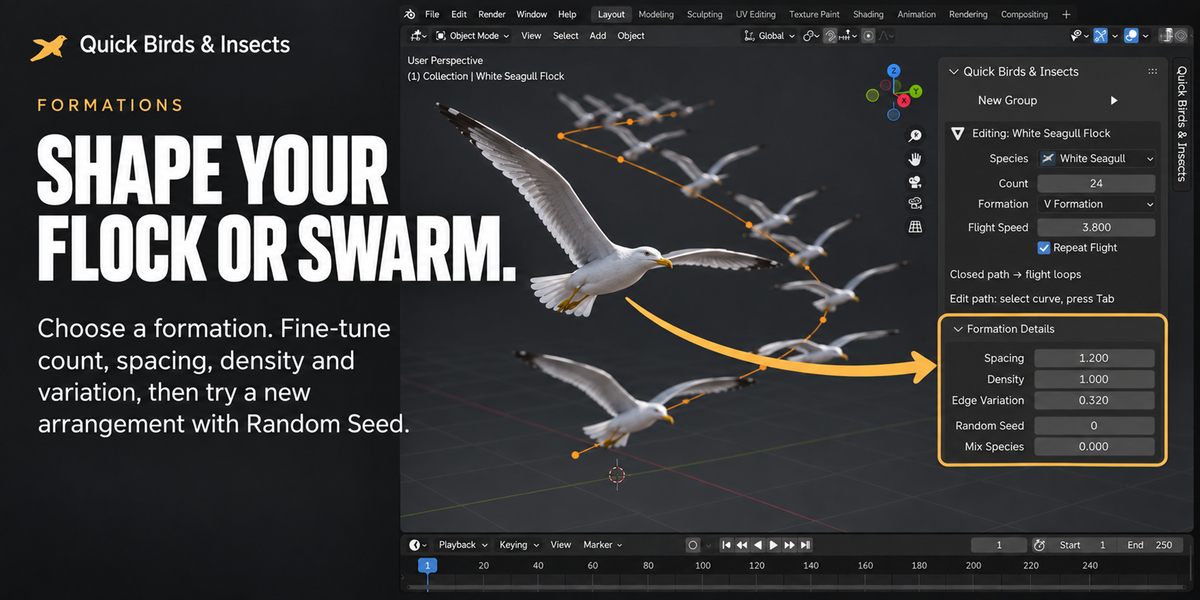
Formation Details
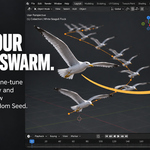
Adjust bird spacing, density, edge variation and the random seed. Use Mix Species to introduce other built-in species into the group.
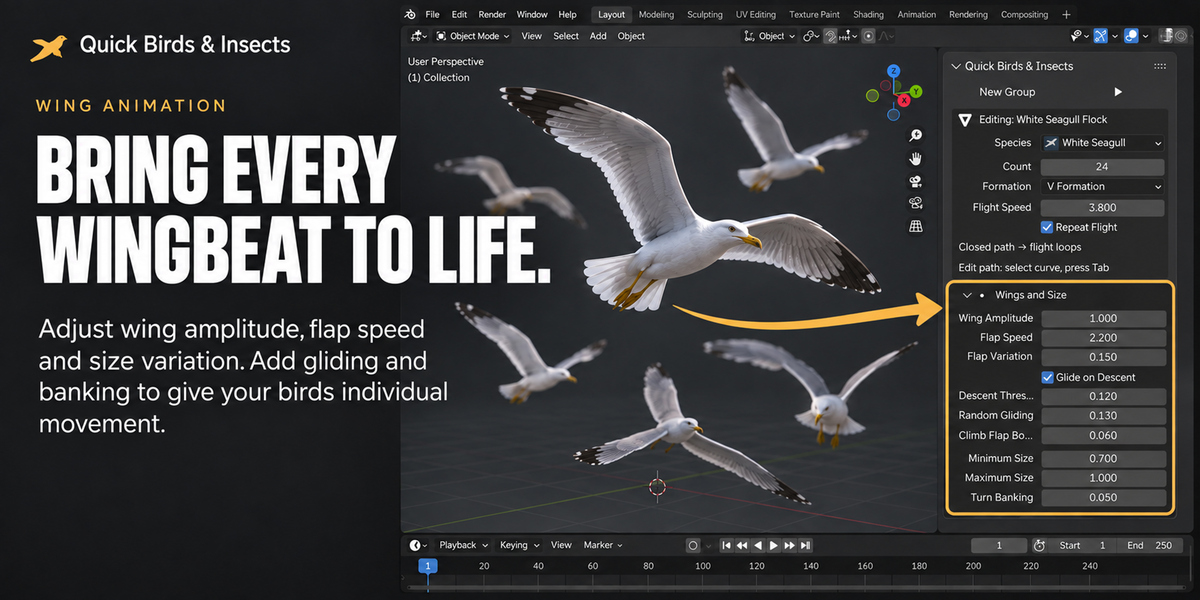
Wings and Size
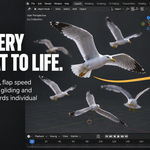
Adjust wing amplitude, flap speed, flap variation, gliding, climb flap boost, banking and size variation. Glide on Descent and Random Gliding create pauses in wing motion.
Natural Motion
Wander Amount and Wander Speed control individual movement. Stragglers and Straggler Distance spread some members away from the group. Collective Motion and Motion Scale affect coordinated movement.
Changed-setting indicator: a dot beside a detail-section title means a tracked value differs from the group’s initial preset. It is a change indicator, not an error.
06. Targets, obstacles & ground
Target attraction
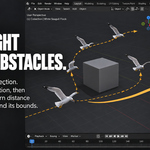
Select the group and open Scene and Ground → Target Attraction. Assign Target Object, then adjust Target Strength and Approach Distance. For multiple attraction objects, use the separate Attractors section and its collection, radius and strength controls.
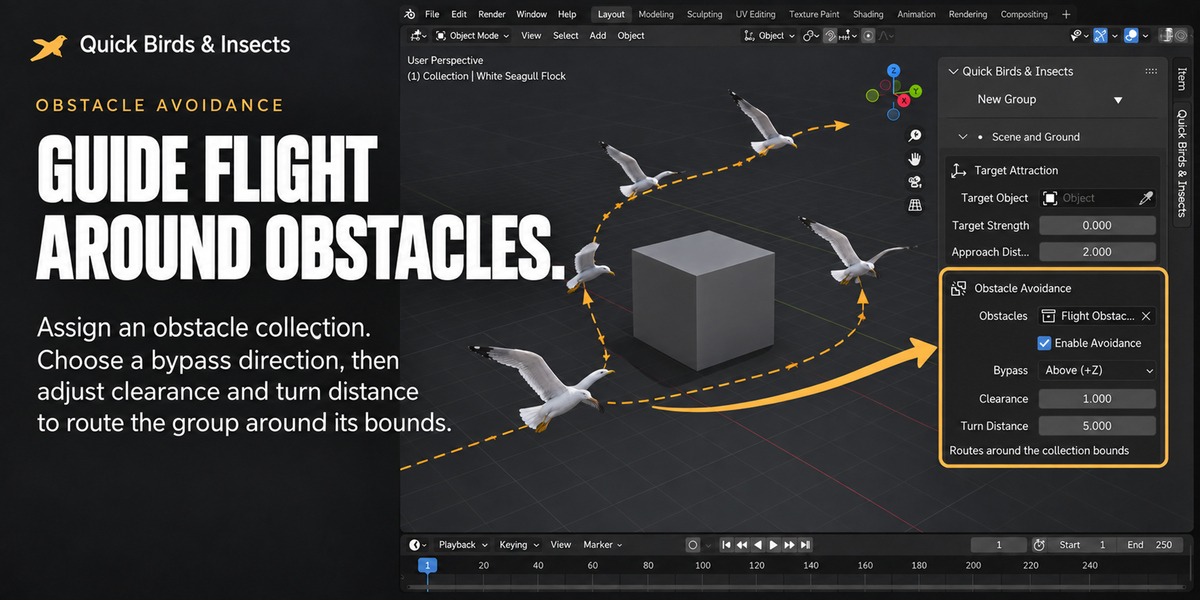
Obstacle avoidance
- Put obstacle meshes in a dedicated collection. Keep the flock and its path outside it.
- Open Scene and Ground → Obstacle Avoidance. Assign the collection to Obstacles and enable Enable Avoidance.
- Choose a Bypass direction. Above (+Z) suits a horizontal route; a side direction may work better for a vertical path or tall obstacle.
- Increase Clearance to leave room for bodies and wings. Adjust Turn Distance to control how early the detour starts and finishes.
- Move or resize the obstacle and play the animation to check the updated route.
How it works: avoidance routes around one bounding box enclosing the obstacle collection, expanded for the flock and clearance. It does not navigate through gaps between separate obstacles or simulate exact wing collisions. Use simple proxy meshes for tighter control.
Directions use the flock host’s local axes. Choose a bypass direction across the flight route. Avoidance takes priority over attraction and ground settling; check ground clearance when bypassing below an obstacle.
Ground, takeoff & landing
Assign Ground Surface and adjust minimum height and takeoff/landing distances. Preview the complete route to check transitions at your scene’s scale.
Older groups: click Update Animation Nodes in the avoidance section to add the current controls. Clear or rebuild an existing bake after changing the setup.
07. Display & performance
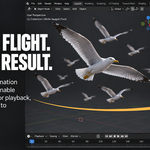
- Viewport Fraction: reduces the displayed population while you work in the viewport. Inspect the full group before final output.
- Dark silhouettes: changes the appearance for distant flocks or silhouette shots.
- Cull Outside Camera: uses the assigned camera and FOV controls to limit the visible population. Check the edges of your final framing.
- Use Distant LOD: switches to simpler geometry beyond LOD Distance. Inspect the transition using your final camera.
Start with a lower count and increase it after the path and timing work. Performance depends on model complexity, count, scene settings and hardware.
08. Use your own animated model
- Select an animated mesh, or an animated armature with its child meshes.
- Open Custom Models and Baking and click Bake Model Frames.
- The add-on samples the Action frame range, or the scene frame range when no Action is available. It creates a hidden frame collection and preserves materials.
- Select the flock again and adjust its flight settings. The sampled collection supplies the model’s animation.
To reuse the sampled model on another flock, assign its collection to Frame Collection. Set Frames per Species and Animation Frames to the sampled frame count.
LOD Collection lets you supply simpler geometry for distant display. Advanced Grid exposes manual Count X / Y / Z controls.
Click Use Built-in Species to return to the included species picker.
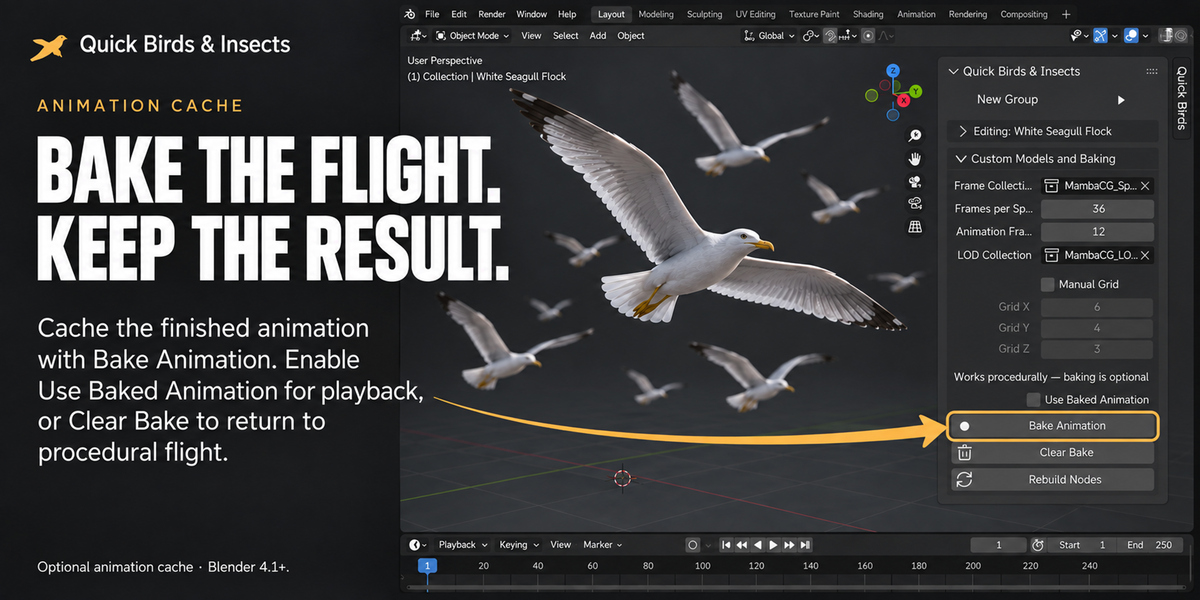
Bake Model Frames samples your model’s poses. Bake Animation caches the motion of the complete flock.
09. Bake & update flock animation
Requires Blender 4.1 or newer. Baking is optional. Live flight and custom-model frame sampling also work in Blender 4.0.
- Save your scene as a .blend file and set the scene’s start and end frames.
- Select the flock or its path.
- Open Custom Models and Baking and click Bake Animation. Wait for completion.
- Save the scene again. Use Use Baked Animation to switch between the cached and live result.
Blender versions with packed-bake support can store the cache in the .blend file. Older versions store it on disk beside the scene; keep that cache folder with your project.
After changing a path or flock settings, clear or rebuild the bake. Clear Bake removes that flock’s cache and disables baked playback. Save afterward.
Rebuild Nodes updates shared node groups while preserving modifier input values. Save a copy of important scenes before updating existing setups.
10. Troubleshooting & FAQ
I cannot find the panel.
Confirm that the add-on is enabled. Move the pointer into a 3D Viewport, press N, and select Quick Birds & Insects. Restart Blender after an update.
The Create Group button is unavailable.
Use Object Mode. For Selected Curve, make a curve the active object. For Through Camera Frame, set an active scene camera. The panel explains the missing requirement.
Changing the species did not change my existing flock.
The New Group picker affects the next group. Select the existing flock or its path and change Species in the Editing section.
My flock disappeared at the end of its path.
An open path can make a single pass. Enable Repeat Flight to restart it. Also check camera culling and the current timeline frame.
My edits do not appear during playback.
Check Use Baked Animation. Switch to live playback or clear and rebuild the bake after editing.
The moth has no glow around it.
Emission alone does not produce a halo. Add Glare → Fog Glow in the compositor and inspect the composited render.
Why are the bake controls disabled in Blender 4.0?
Full-flock caching requires Blender 4.1+. Procedural flight and Bake Model Frames remain available in Blender 4.0.
Does the Blender 4.0 package convert Blender 5.x scenes?
No. Compatible model libraries do not convert newer scene files. Create Blender 4.0 projects in Blender 4.0 using the matching add-on package.
11. Support & licenses
Developed by MambaCG. Visit the MambaCG store on Superhive and use creator or order-support messaging to get help.
Include your Blender version, add-on version, operating system, reproduction steps and any error message. A screenshot or minimal .blend example helps explain the issue.
Code license: GNU GPL version 3 or later. The package includes the full license and Python source. Models, textures and previews retain their separate source licenses; see AUTHOR_AND_LICENSE.md and assets/ASSET_CREDITS.md in your download.
© 2026 MambaCG.
Have questions about this product?
Login to message
| Blender Extension Compatible | Yes |
| Published | about 23 hours ago |
| Blender Version | 4.2 - 5.2 |
| Extension Type | Add-on |
| Render Engine Used | Cycles, Eevee |
| License | GPL |
Discover more products like this
Butterfly Animation Obstacle Avoidance flying birds geometry nodes blender addon Procedural Animation bird flock Flock Generator wildlife animation Insect Swarm