 Zemalate
QUICK BONE REPARENT / BLENDER ADD-ON
Change what
your bones follow.
Give a bone a new virtual parent, keep its pose editable, and animate the handover. Your real armature hierarchy stays intact.
BONE PARENTS · MESH FACES · ANIMATED INFLUENCE
ONE LIST FOR YOUR PARENT LINKS
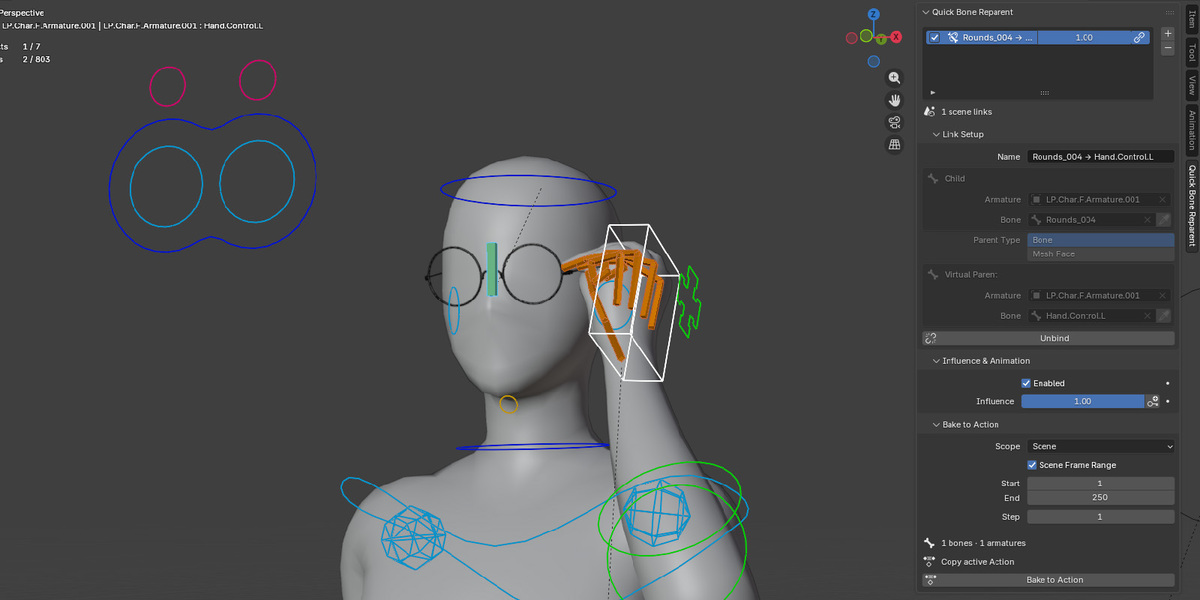
Let a control follow another rig. Attach a bone to a moving surface. Blend between its original parent and a new one. Quick Bone Reparent gives you these options through a clear, scene-wide list of virtual-parent links.
01 / VIRTUAL BONE PARENTS
A new parent. A pose you can still edit.
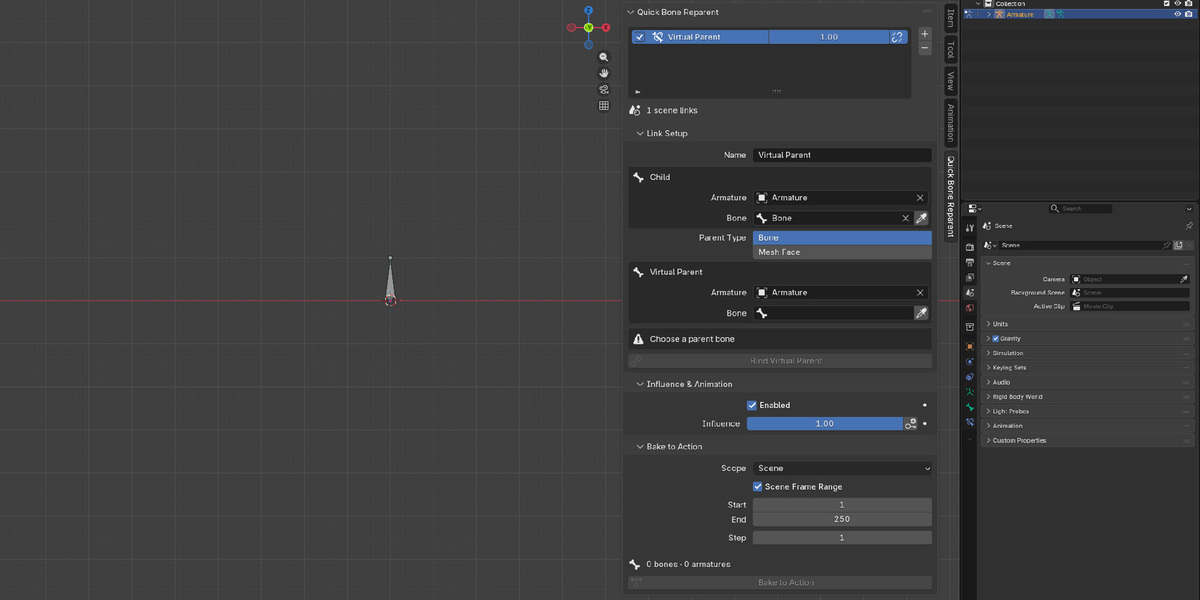
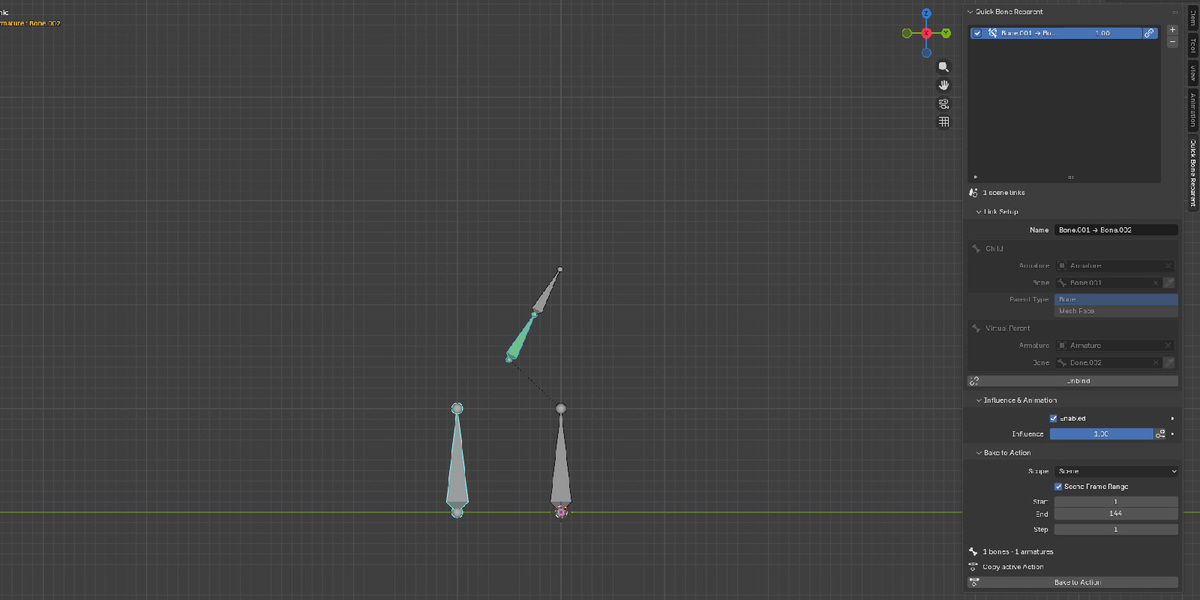
Pick a parent bone in the viewport, including a bone in another armature. Binding preserves the current visible pose. At full influence, the child follows its virtual parent while you keep moving, rotating and scaling its local pose.
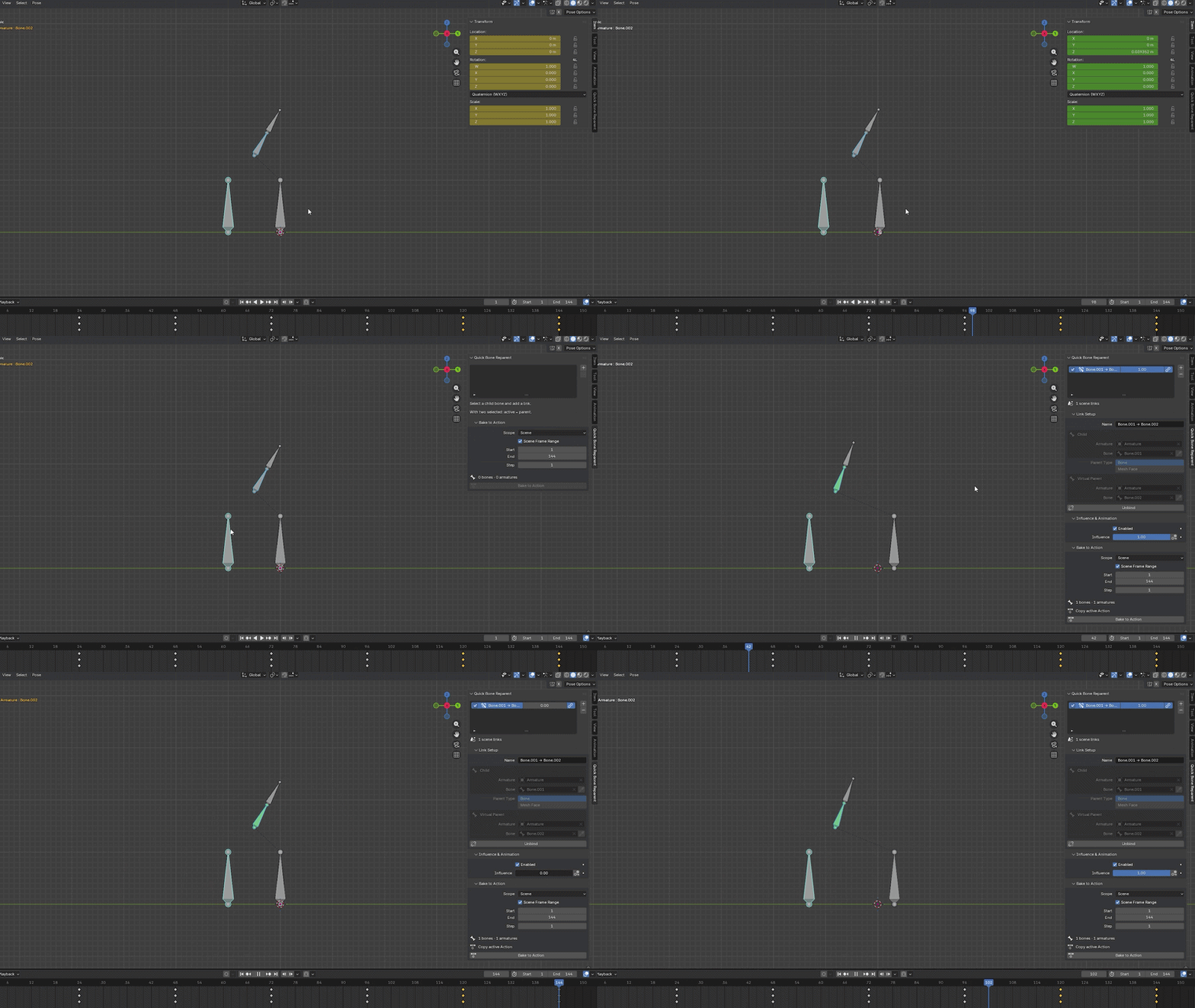
At Influence 1, movement from the real parent no longer controls the child.
02 / MESH FACE PARENTS
Let the surface lead.
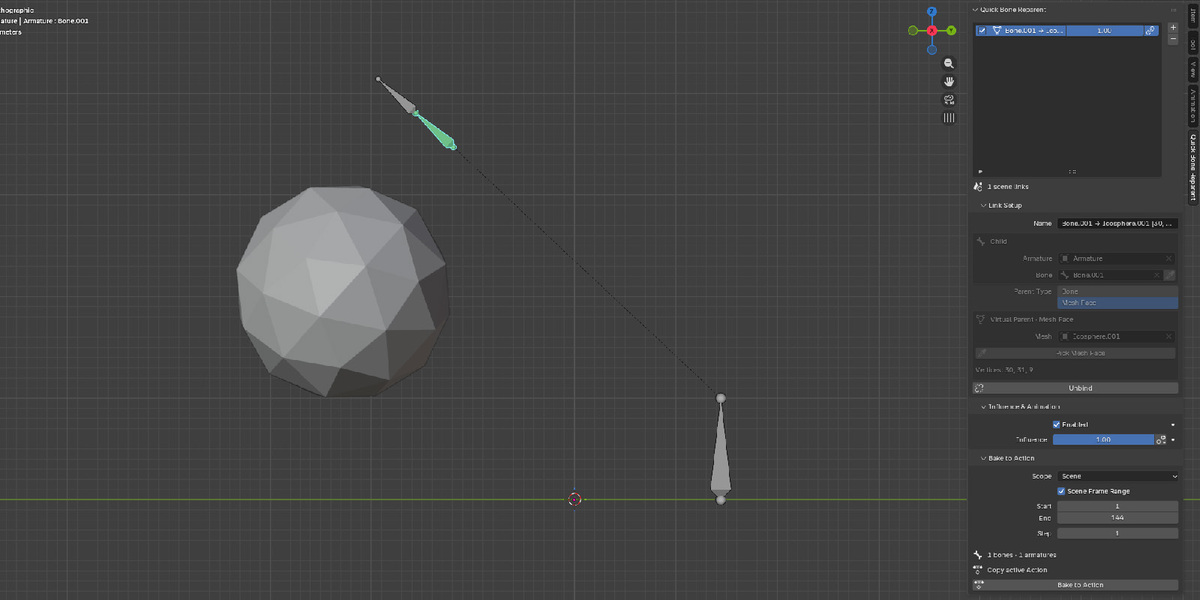
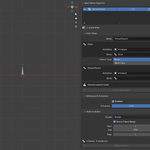
Click a mesh face to make the child follow that surface. The link stores three fixed vertex indices, so a change in face triangulation does not change which vertices it follows.
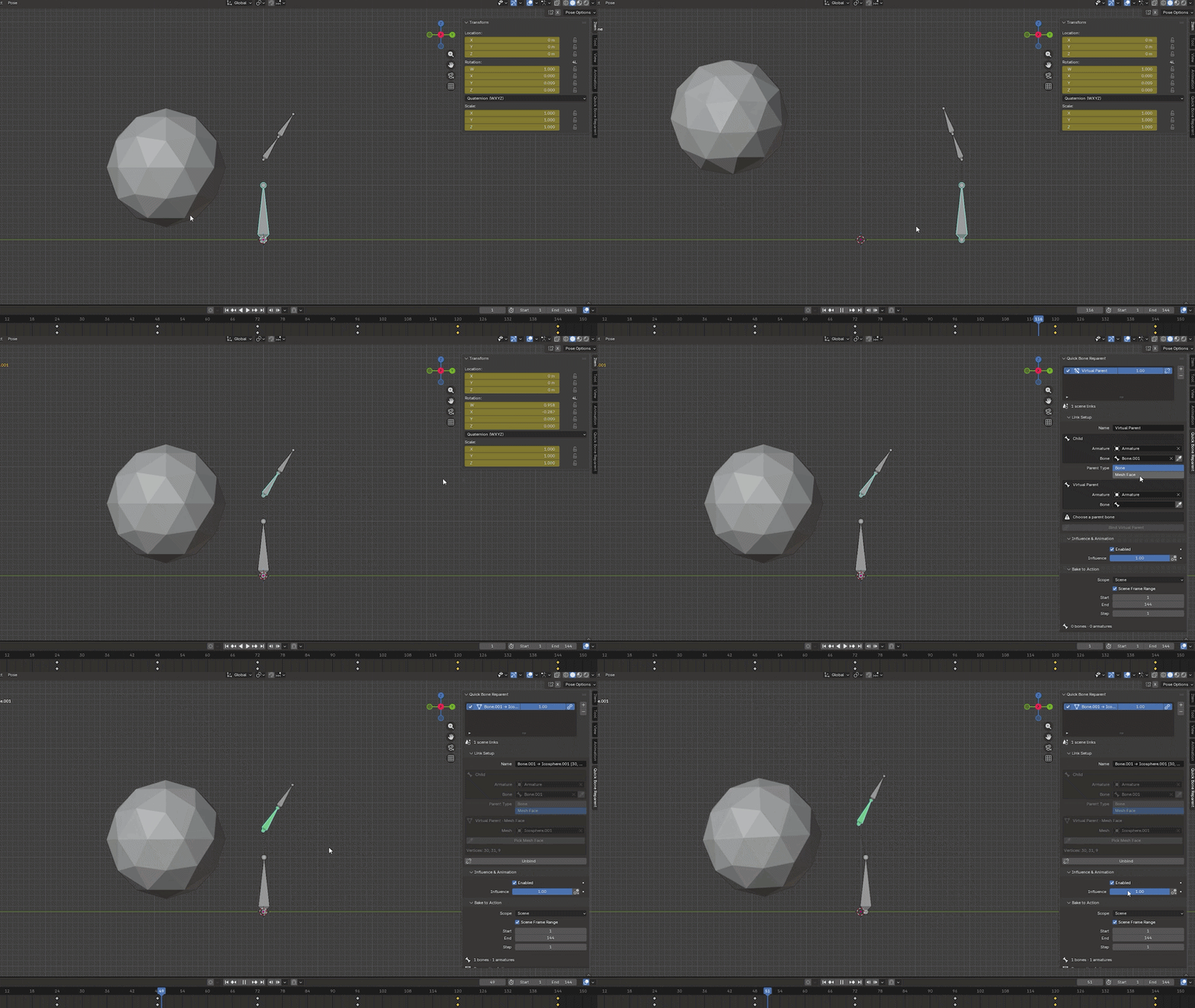
Keep the original mesh topology intact after binding. If its vertex count changes, unbind and pick the face again.
03 / INFLUENCE YOU CAN ANIMATE
Choose the parent.
Key the moment.
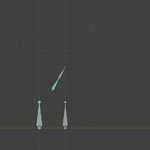
Move from original parenting to virtual parenting with a keyframeable Influence slider. Create a gradual blend or use Constant interpolation for an instant switch.
0.0 Original parent
The bone uses its original parenting.
0.5 Blend both
Mix the original and virtual parent’s motion.
1.0 Virtual parent
Follow the new parent with an editable child pose.
04 / BAKE TO ACTION
Turn the motion into keyframes.
Bake virtual-parent bones into a copy of the active Action, or a new Action when none is active. Choose the frame range and step, then bake the active armature or all linked armatures in the scene.
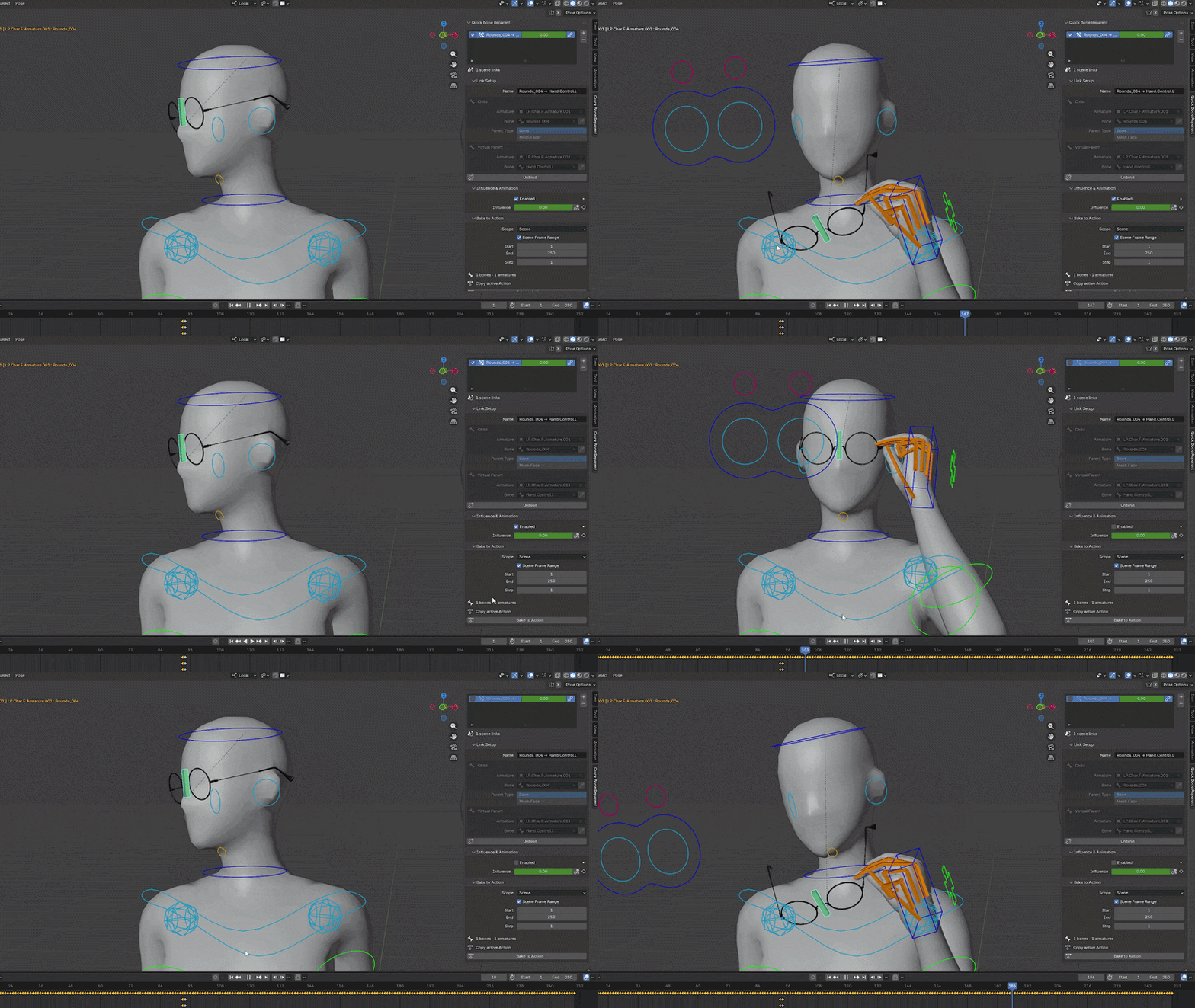
Original Actions and NLA strips remain available. Baked virtual-parent items are automatically disabled during the baked range.
A small setup. Clear controls.
Pick directly in the viewport.
Choose a bone or its custom control with the eyedropper, including controls in another armature.
Manage the whole scene.
Keep your links together in one list. Rename them, toggle Enabled, and adjust Influence right in the row.
Start with two bones.
Select the child, then the new parent last. Click + to add and bind the link. Or select one child and pick its parent afterward.
A few things to know
Can I keep posing the child?
Yes. The child’s local location, rotation and scale remain editable while it follows a virtual parent.
Which bones can be linked?
Use bones outside the same ancestor–descendant chain, or bones in different armatures. Self-parenting and dependency cycles are blocked.
What if my rig cannot be baked?
Some constraints or drivers prevent an exact transform bake. If the result cannot reproduce the pose, the add-on reports the issue and restores the previous Actions.
Give the movement a new parent.
Virtual bone parents. Surface attachments. Keyframeable control.