Quick Eye
 Yasine Imerie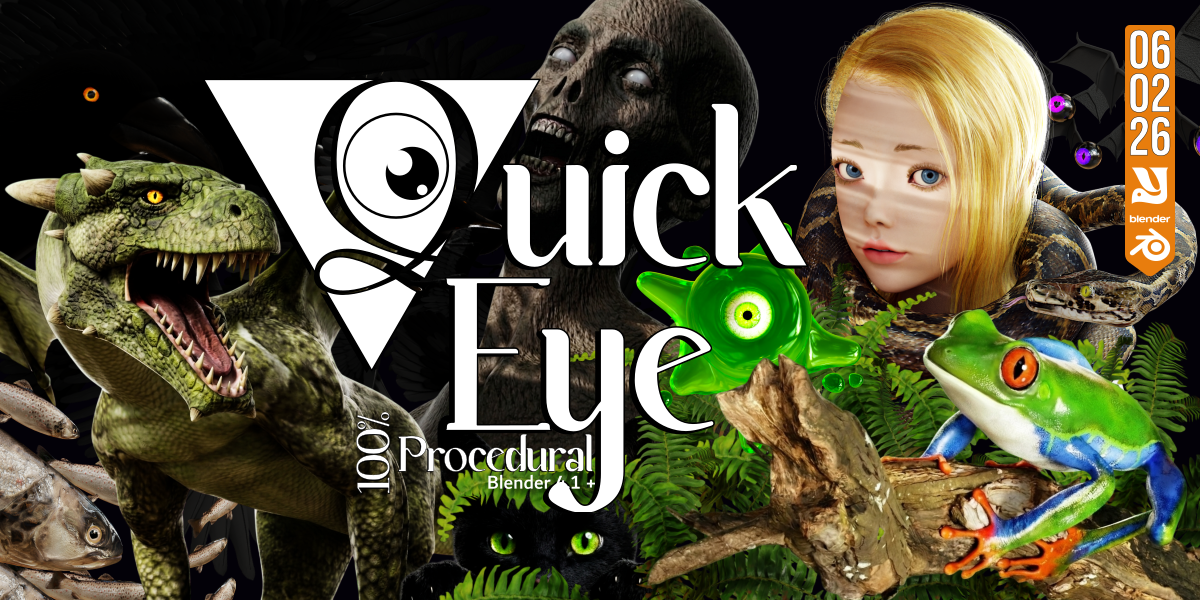



Quick Start Guide
1. Installation & Setup
To add Quick Eye to your permanent Blender Asset Browser layout, follow these steps:
Open Blender and navigate to Edit > Preferences.
Select the File Paths tab on the left.
Under Asset Libraries, click the + icon.
Browse to the extracted folder containing the
.blendfile, the.cats.txtcatalog file, and thePreviewfolder.Save your preferences.
2. Using the Assets
Open a new or existing project.
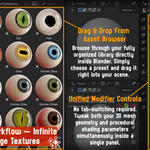
Change any editor window to an Asset Browser.
Switch the library dropdown from Current File to Quick Eye.
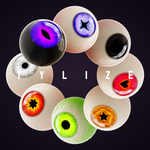
Simply drag and drop your chosen eye preset (Realism, Stylized, or Fantasy) directly onto your character mesh.
3. Tweaking Parameters
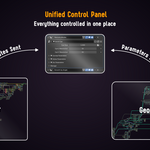
You do not need to switch tabs or dive into complex shader networks. Everything is unified for a clean, non-technical workflow:
Select the eye object.
Go to the Modifier Properties panel (the wrench icon) on the right.
Adjust clean, intuitive sliders like Fleshiness, Softness, and Subsurface Scattering (SSS) to seamlessly match your character's shading and scale.
 Included
Includes 12 months of
- Support from Yasine Imerie
- Product updates
Extend this product’s Support Period +12 months: 25% of product price
Have questions before purchasing?
Login to message
| Published | 4 months ago |
| Blender Version | 4.1 - 5.1 |
| Render Engine Used | Cycles, Eevee |
| License | GPL |
Discover more products like this
fantasy-eyes eye-generator procedural eye Stylized Eyes character art creature-creation photorealistic eye anime eyes asset-browser geometry nodes cartoon-eye procedural materials