Quick Image Scale
 Blender.Fun
in VSE
Blender.Fun
in VSE


Quick Image Scale Add-on
Overview
Quick Image Scale is a Blender add-on that simplifies importing multiple images as individual strips in the Video Sequencer. It allows you to select a folder containing images and import them with customizable scaling options and frame durations. The add-on is designed for video editing workflows, offering flexibility in how images are scaled to fit the scene resolution.
Version: 1.0.5
Blender Compatibility: 3.2.0 to 5.1.0
Location: Sequencer > Add > Import Image Folder
Default Shortcut: Ctrl + Shift + I (customizable)
Category: Sequencer
Author: Blender.Fun
License: GPL-3.0-or-later
Installation
-
Download the Add-on:
Obtain the quick_image_scale.zip file from the Blender Extensions Platform or the add-on's repository (if available).
-
Install in Blender:
Open Blender and go to Edit > Preferences > Add-ons.
Click Install, select the quick_image_scale.zip file, and click Install Add-on.
Enable the add-on by checking the box next to Sequencer: Quick Image Scale.
(Optional) Save your preferences to keep the add-on enabled across Blender sessions.
-
Permissions:
The add-on requires file access to read images from a folder. When prompted, grant permission to allow file operations.
Usage
The Quick Image Scale add-on adds a new operator to the Video Sequencer for importing images as strips. Follow these steps to use it:
-
Open the Video Sequencer:
Switch to the Video Editing workspace or open the Sequencer area in any workspace.
-
Access the Operator:
In the Sequencer, go to Add > Import Image Folder (or press Ctrl + Shift + I).
Alternatively, use the Add menu in the Sequencer header and select Import Image Folder.
-
Select a Folder:
A file selection dialog opens. Navigate to the folder containing your images.
Supported formats: .png, .jpg, .jpeg, .bmp, .tiff, .tif, .exr, .hdr, .webp.
-
Configure Import Options:
-
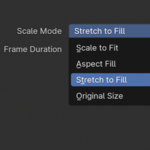
Scale Mode:
Scale to Fit: Scales the image to fit within the scene resolution while maintaining the aspect ratio.
Aspect Fill: Scales the image to fill the scene, potentially cropping edges to maintain the aspect ratio.
Stretch to Fill: Stretches the image to fill the scene resolution, ignoring the aspect ratio (may distort the image).
Original Size: Imports the image at its original resolution without scaling.
Frame Duration: Set the number of frames each image strip should last (default: 1, range: 1–100).
Choose your desired options and click OK.
-
-
Import Images:
The add-on imports all supported images from the selected folder as individual strips in the Sequencer.
Strips are placed sequentially starting at the current frame, with each strip using the specified frame duration.
All imported strips are automatically selected for further adjustments.
-
Review the Import:
A message in the status bar indicates the number of imported strips (e.g., "Imported 10 image strips from [directory]").
If no images are found or no folder is selected, an error or warning message appears.
Customizing the Shortcut
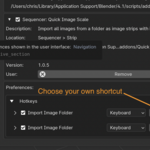
The default shortcut for Import Image Folder is Ctrl + Shift + I. You can customize it in the add-on's preferences:
-
Open Preferences:
Go to Edit > Preferences > Add-ons.
Find Sequencer: Quick Image Scale and expand its preferences.
-
Access Hotkeys:
Click the arrow next to Hotkeys to expand the section (controlled by the Show Hotkeys checkbox).
The current shortcut (e.g., Ctrl Shift I) is displayed, with an interactive UI to change it.
-
Change the Shortcut:
Click on the displayed shortcut to enter a new key combination.
Press the desired keys (e.g., Ctrl + I or Shift + I) to set a new shortcut.
The change is saved automatically and persists across Blender sessions.
-
Remove or Reset Shortcuts:
To remove or modify the shortcut further, go to Edit > Preferences > Keymap, search for "Import Image Folder," and adjust or remove the keymap entry manually.
Features
Batch Import: Import all images from a folder as individual sequencer strips in one operation.
-
Flexible Scaling: Choose from four scaling modes to control how images fit the scene:
Scale to Fit: Preserves aspect ratio, fits within scene resolution.
Aspect Fill: Preserves aspect ratio, fills the scene (may crop edges).
Stretch to Fill: Ignores aspect ratio, stretches to fill the scene.
Original Size: Retains the image's original resolution.
Frame Duration Control: Set the duration of each image strip (1–100 frames).
Undo Support: The import operation supports Blender's undo system (Ctrl + Z).
Shortcut Customization: Adjust the operator's shortcut directly in the add-on preferences.
Compatibility: Works with Blender 3.2.0 to 5.1.0, supporting both older and newer Sequencer APIs.
Troubleshooting
-
"No directory selected" Error:
Ensure you select a folder in the file dialog before confirming.
-
"No image files found" Warning:
Check that the selected folder contains supported image formats (.png, .jpg, .jpeg, .bmp, .tiff, .tif, .exr, .hdr, .webp).
Verify that the files are not corrupted or hidden.
-
Shortcut Not Working:
Confirm that the shortcut (Ctrl + Shift + I by default) is not conflicting with other keymap entries in Edit > Preferences > Keymap.
Check the add-on preferences to ensure the shortcut is correctly set.
-
Scaling Issues:
If Stretch to Fill or Original Size do not work as expected in Blender 3.2, it may be due to API limitations. These modes are fully supported in Blender 5.0+.
Adjust the scene resolution or strip properties in the Sequencer for fine-tuning.
-
Preferences UI Not Showing:
Ensure the add-on is enabled in Edit > Preferences > Add-ons.
If the hotkey section does not display, toggle the Show Hotkeys checkbox.
Have questions about this product?
Login to message
| Dev Fund Contributor | |
| Published | 12 months ago |
| Blender Version | 3.2 - 4.5 |
| Extension Type | N/A |
| License | GPL |
