Quick Menu Studio Pro Version 1
 Prabu Shankar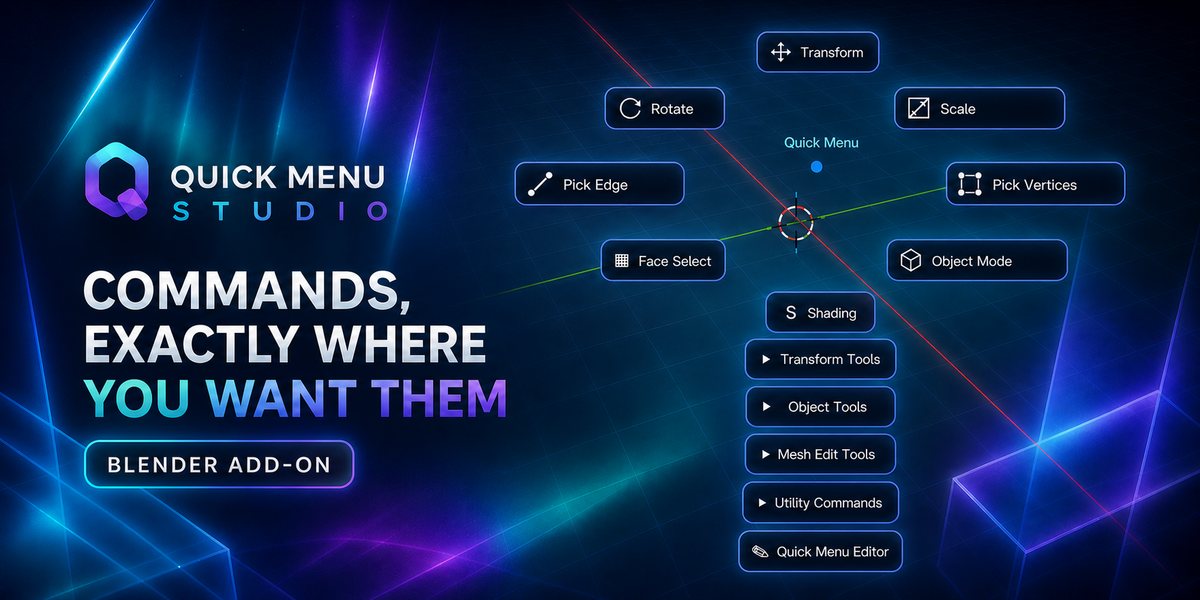
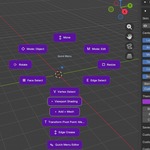
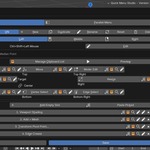
Quick Menu Studio — Build Blender Around Your Workflow
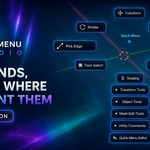
Commands exactly where your hand expects them.
Quick Menu Studio is a configurable radial and marking-menu system for Blender 4.2+ on Windows. It lets you bring frequently used tools closer to the cursor, organize commands into clear layouts, and shape Blender around the way you work.
Instead of searching through menus or memorizing more keyboard combinations, place transforms, selection tools, shading controls, mode switches, navigation commands, and custom actions in predictable directions. Open the menu, move toward the command, and continue working.
Three Mouse Buttons, Three Independent Layouts
Every menu set includes three separately configurable layouts:
Left Mouse Menu
Middle Mouse Menu
Right Mouse Menu
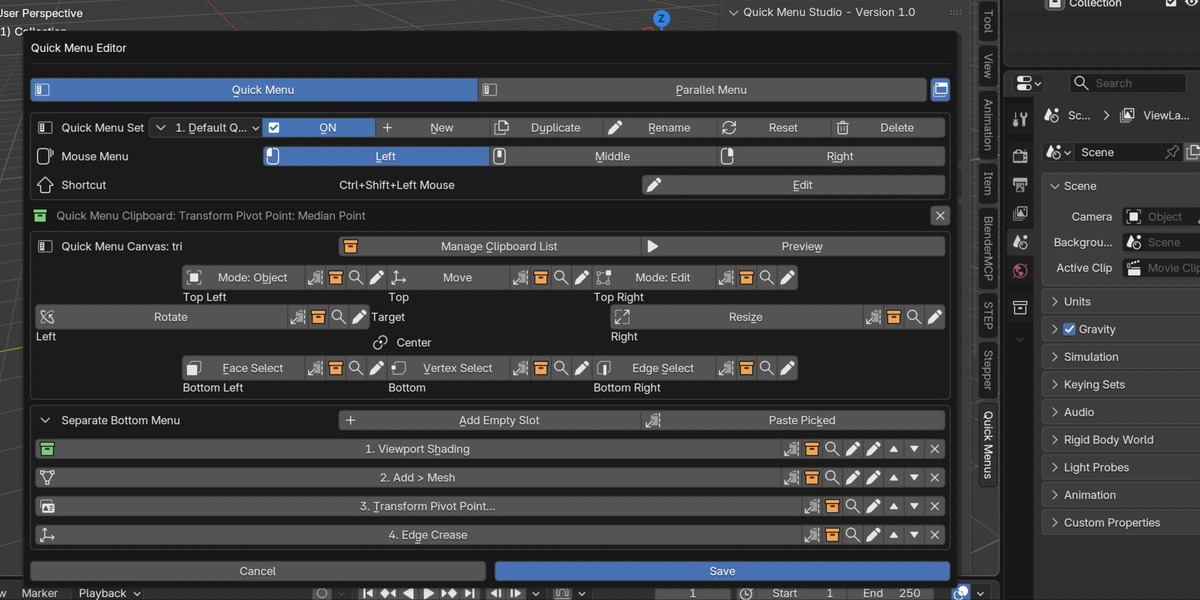
Each mouse button can serve a completely different part of your workflow. For example, use the Left Mouse Menu for transforms, the Middle Mouse Menu for selection and navigation, and the Right Mouse Menu for shading and utility commands.
On Windows, the included presets can use Alt + Shift with the Left, Middle, and Right Mouse buttons. You can also assign shortcuts that better match your preferences.
This gives you three organized command spaces without forcing every tool into one crowded menu.
Add More Workflows with Parallel Menus
Your primary menu set is only the beginning. Parallel Menu Sets let you create additional groups of Left, Middle, and Right Mouse layouts, each with its own name, enabled state, contents, and shortcut assignment.
Use parallel menus to separate tools by:
Object Mode and Edit Mode
Modeling, sculpting, UV, and animation
Selection, transforms, shading, and navigation
Different projects or production stages
Personal and application-inspired layouts
Parallel menus expand the number of available layouts while keeping each menu focused and easy to understand.
Add Commands Your Way
Quick Menu Studio supports several ways to add Blender commands.
Search by command or shortcut
Find tools by their name, Blender operator ID, or familiar keyboard shortcut. Searches can use entries such as G, Tab, Shift+A, /, or commands such as transform.rotate.
Capture directly from Blender
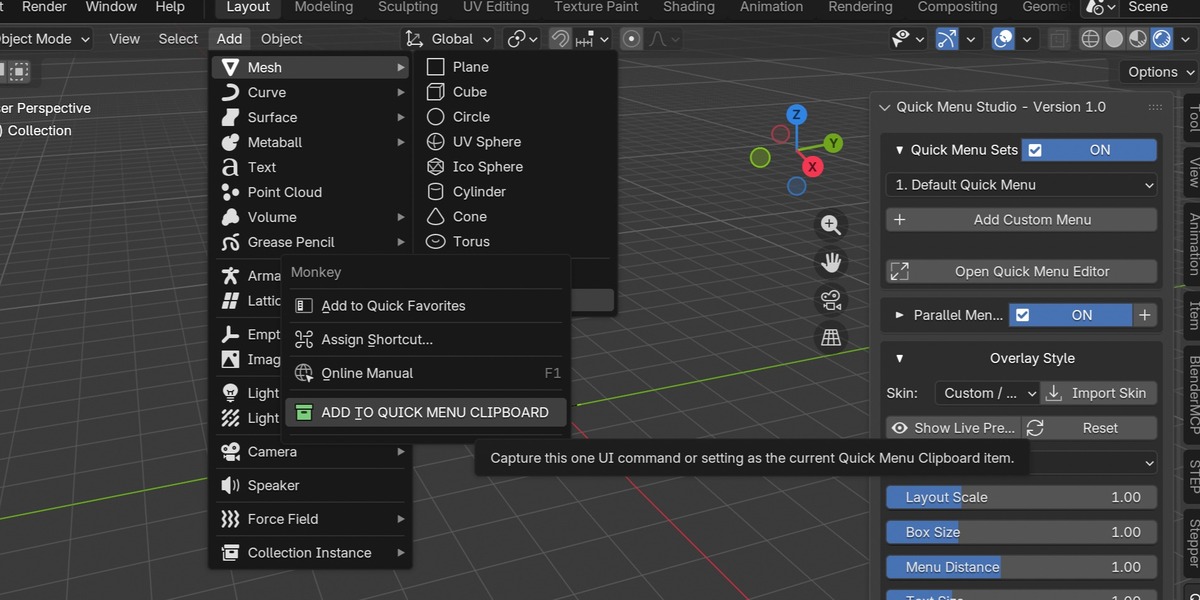
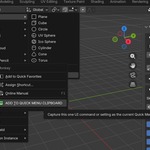
Right-click a supported Blender command, property, dropdown, or enum choice and add it to the Quick Menu Clipboard. You can then paste it into any radial slot, bottom-menu row, saved list, or submenu.
Paste Blender Python operator commands
Advanced users can paste valid Blender bpy.ops... operator snippets and assign them directly. This provides precise control for specialized actions without requiring a separate add-on or a full Python script.
Python is optional—standard menus can be created visually through search, direct capture, and the Quick Menu Editor.
Keep the Muscle Memory You Already Have
Moving to Blender from another 3D, CAD, or DCC application does not have to mean abandoning years of muscle memory.
Place Move, Rotate, Scale, selection modes, view controls, and other familiar commands in the directions where your hand already expects them. Recreate the spatial relationships you know while connecting them to Blender’s native tools.
This can reduce the mental friction of changing applications and help experienced artists become comfortable in Blender more quickly.
Flexible Enough to Grow with Your Workflow
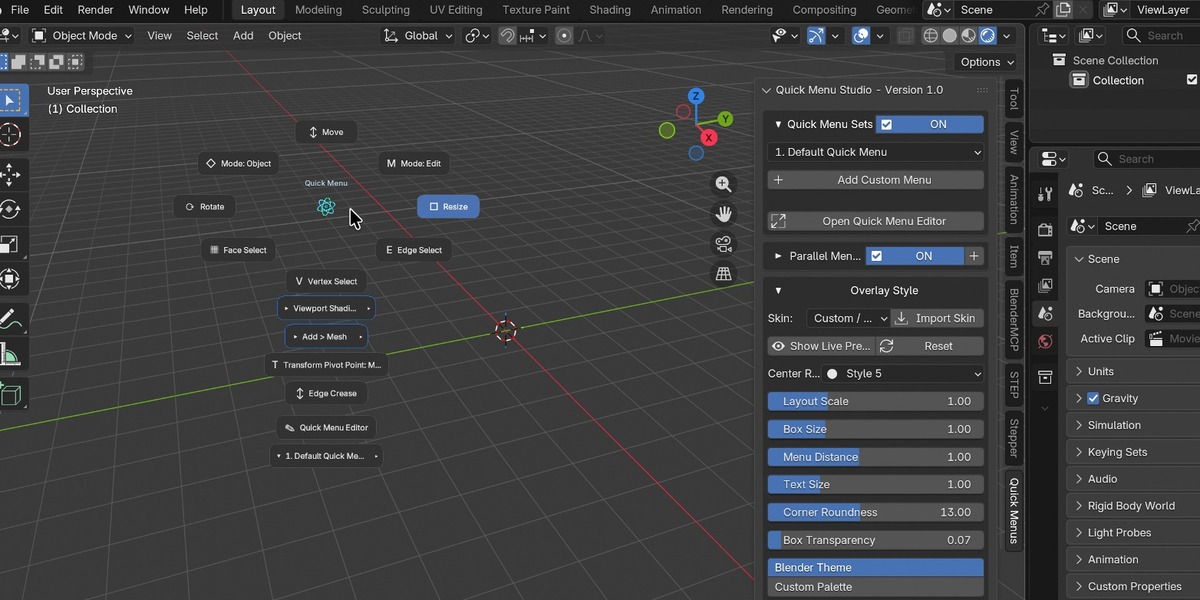
Quick Menu Studio is designed for more than a single pie menu. Its configurable system includes:
Eight-way radial command layouts
Independent Left, Middle, and Right Mouse menus
Additional ordered bottom-menu commands
Parallel menu sets for alternate workflows
Reusable saved command lists
Nested submenus and sublists
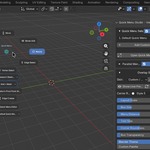
Live viewport preview
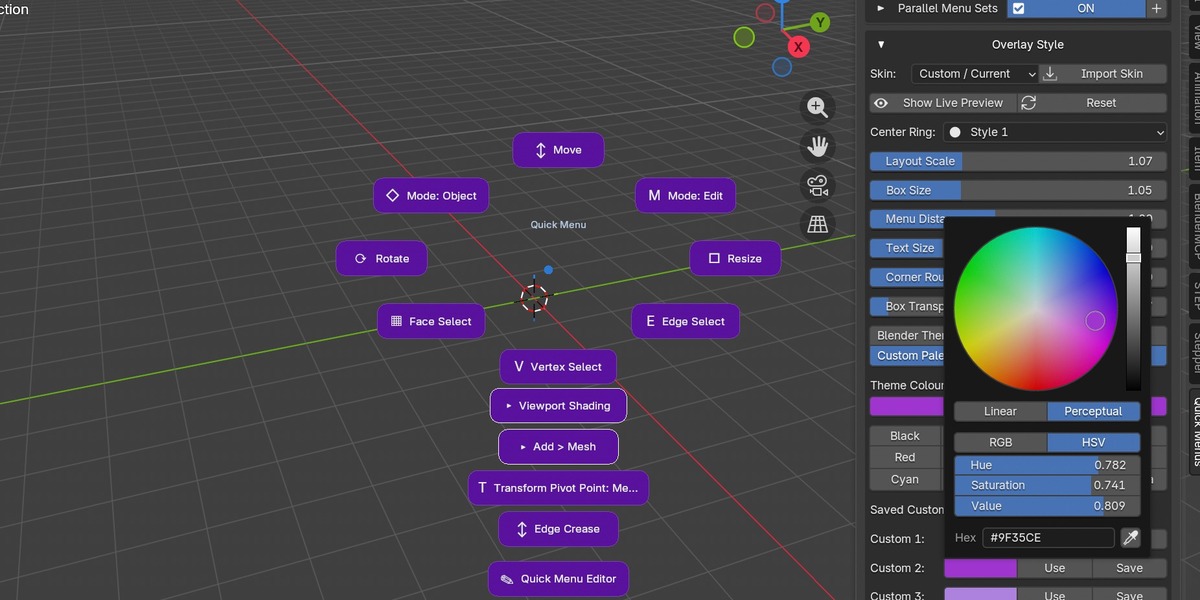
Custom labels, icons, spacing, scale, and styling
Import and export for backup or transfer
Start with a compact menu containing your essential tools, then expand it gradually as your workflow develops.
Compatibility
Blender 4.2 and newer
Windows x64
Configurable mouse and keyboard shortcuts
Put Your Tools Where You Need Them
Quick Menu Studio helps you spend less time searching through Blender’s interface and more time working with commands arranged around your habits.
Create your layouts once, refine them whenever your workflow changes, and keep the tools you use most within one familiar gesture.
Get the Limited Free Trial version here
Have questions about this product?
Login to message
| Blender Extension Compatible | Yes |
| Dev Fund Contributor | |
| Published | about 2 months ago |
| Blender Version | 4.2 - 5.1 |
| Extension Type | Add-on |
| Render Engine Used | Cycles, Eevee |
| License | GPL |
Discover more products like this
Blender 3D shortcuts quick custom-pie-menus custom menu pieMenu Hotkeys menu editor menu customizable marking menus