Quick Motion
 Yasine Imerie

Quick Start Guide
1. Installation & Setup
To add Quick Motion to your permanent Blender Asset Browser layout, follow these steps:
Open Blender and navigate to Edit > Preferences.
Select the File Paths tab on the left.
Under Asset Libraries, click the + icon.
Browse to the extracted folder containing the
.blendfile, the.cats.txtcatalog file, and thePreviewsfolder.Save your preferences.
2. Using the Assets
-
Open a new or existing project.
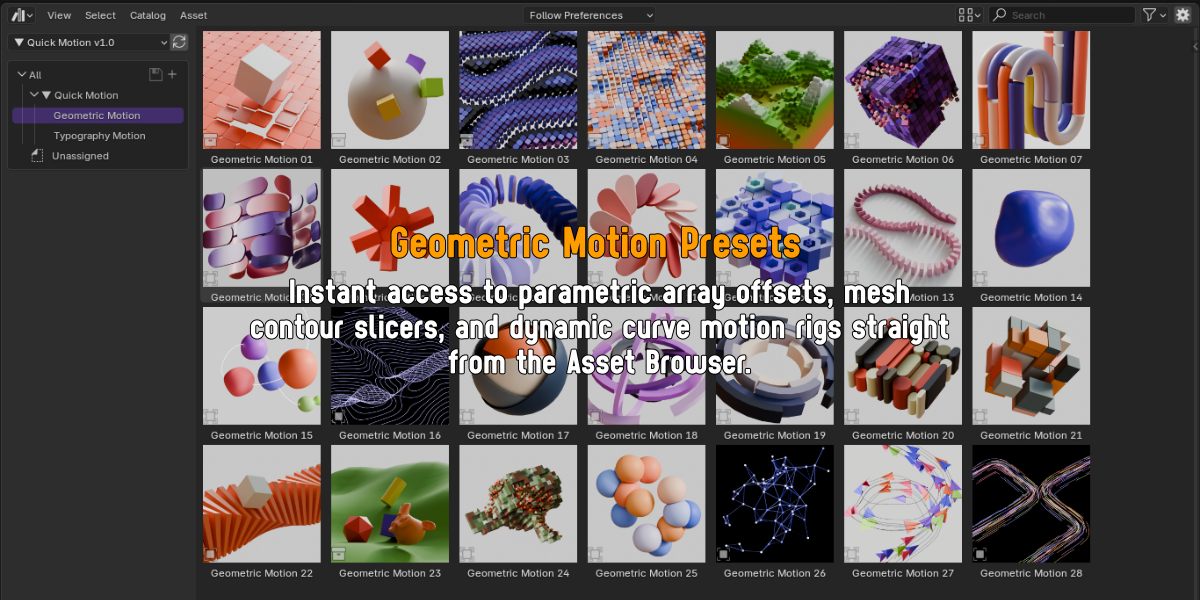
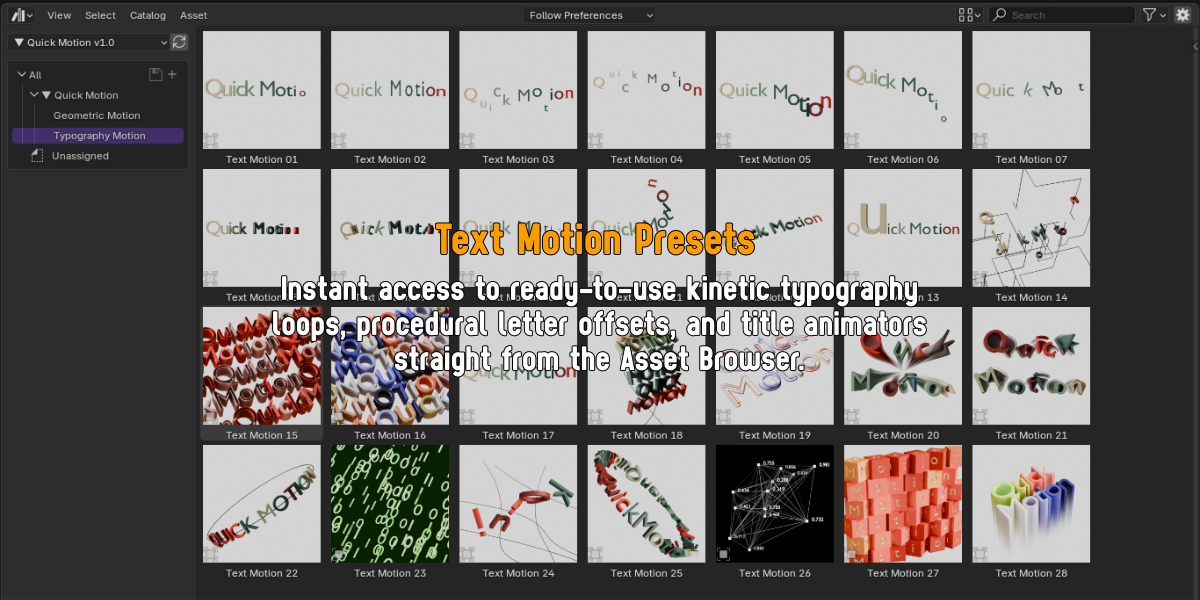
- Change any editor window to an Asset Browser.
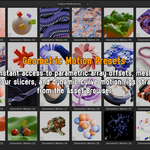
- Switch the library dropdown from Current File to Quick Motion.
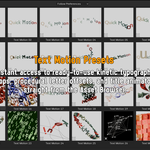
- Drag and drop your chosen preset (Geometric, Text) directly onto your viewport.
3. Fine-Tuning & Customizing Presets
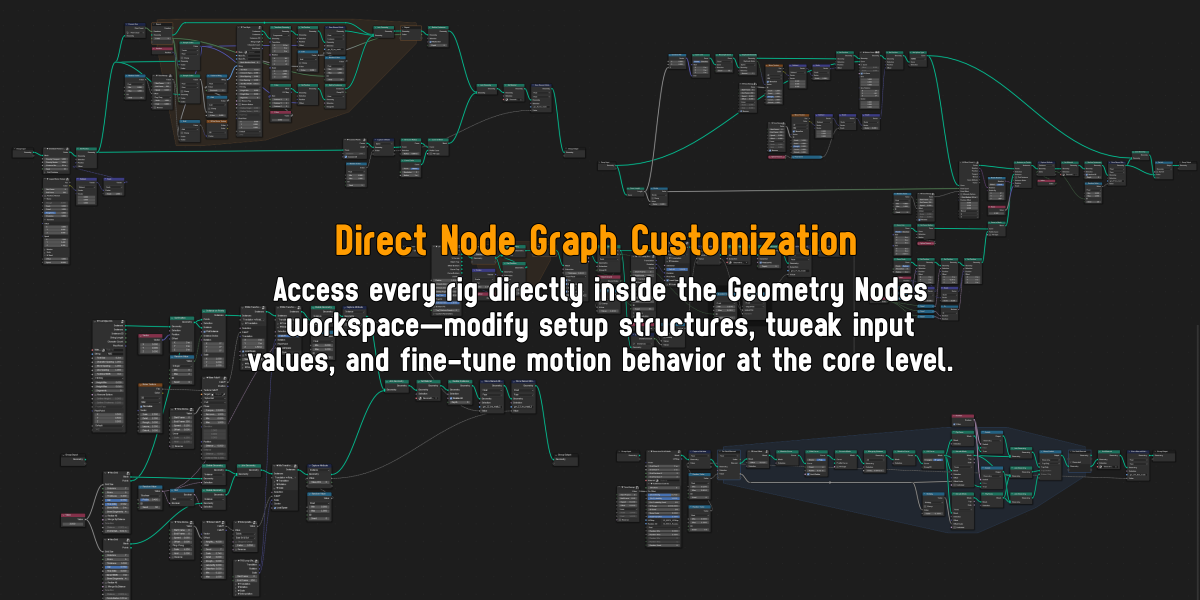
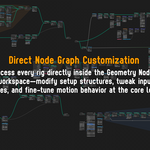
Every rig in Quick Motion is fully parametric and exposed inside the Geometry Nodes workspace for total creative control.
How to Control and Modify the Setup:
Select the Rig: After dragging a preset into your scene, select the main geometry object or node group.
Open Geometry Nodes: Switch your editor view to Geometry Nodes to view the underlying node graph.
Adjust Group Inputs: Tweak exposed parameters directly on the Group Input node (or within the node modifier settings)—including speed, array counts, spacing, curve offsets, and vector falloffs.
Customize at the Core: Because all node trees are 100% unlocked, you can freely rearrange nodes, swap input geometries, or link parameters to your own custom control setup.
 Included
Includes 12 months of
- Support from Yasine Imerie
- Product updates
Extend this product’s Support Period +12 months: 25% of product price
Have questions before purchasing?
Login to message
Includes an Asset Library
56 drag-and-drop assets for Blender’s Asset Browser.
Browse included assets| Published | about 10 hours ago |
| Blender Version | 4.1 - 5.2 |
| Render Engine Used | Cycles, Eevee |
| License | GPL |
Discover more products like this
assetbrowser motiongraphics #DesignTools #3DMotion typography geometrynodes #MotionDesign mograph #ProceduralNodes #KineticTypography