Quick Reload
 ZlabyaCodes


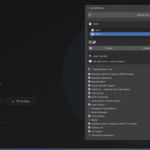
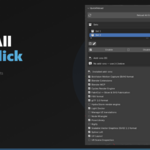
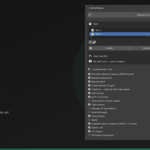
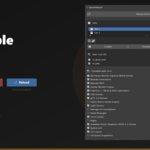
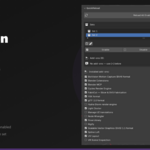
How to Use QuickReload
- Install the addon normally through Edit → Preferences → Add-ons.
- Enable QuickReload.
- In the 3D Viewport, press N to open the sidebar.
- Go to the QuickReload tab.
- Use the Reload All Enabled button to reload every active addon at once, or click the reload icon next to a specific addon to reload just that one.
- Optionally, press F8 anywhere in Blender to reload all addons instantly.
Using Addon Sets
- In the Sets section, click + to create a named set (e.g. "Rigging Tools").
- In the Installed add-ons list below, click the + icon next to each addon you want to add to the set.
- Use the Enable, Disable, or Reload buttons to act on the entire set at once.
- Sets are saved automatically and persist across Blender restarts.
Tips
- Use it after updating an addon from Blender Market or GitHub no restart needed.
- Create separate sets for different workflows (modelling, rigging, dev) and switch between them in one click.
- The Reload Set button only reloads currently-enabled addons in the set, so disabled ones are safely skipped.
- Works with both legacy addons and the newer Blender Extensions.
$5
Have questions about this product?
Login to message
| Published | 3 months ago |
| Blender Version | 5.1 |
| Extension Type | N/A |
| License | GPL |
Discover more products like this
reloader Workflow extensions blender-utility no restart Reload utility quick reload reload scripts tool productivity refresh addon