Rainflow
 Venous_FX




RainFlow Documentation
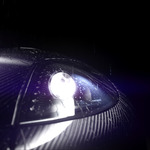
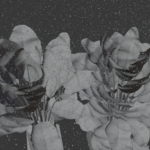
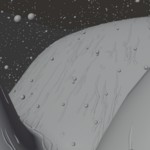
RainFlow creates animated rain that lands, sticks, beads, flows, and leaves trails across mesh surfaces. The Geometry Nodes simulation is managed through a dedicated RainFlow panel in Blender.
Requirements: Blender 5.2 or newer on Windows, macOS, or Linux. Simulation performance is primarily CPU-dependent.
Installation
- Download the complete RainFlow ZIP from your Superhive order.
- In Blender, open Edit → Preferences → Get Extensions.
- Open the menu and choose Install from Disk.
- Select RainFlow-1.0.0.zip without extracting it.
- Enable RainFlow Surface Raindrops if Blender does not enable it automatically.
- Open the 3D View sidebar with N and select the RainFlow tab.
Quick Start
- Place the mesh objects that should receive rain in a collection. A clean outer collision shell is recommended for complex assets.
- In the RainFlow sidebar, click Create RainFlow Simulation.
- Select the collection as Simulation Mesh Collection. This field is required.
- Optionally choose a Static Distribute Collection. Leave it blank to use the simulation collection.
- Optionally choose a Rain Spawner Collection containing one or more emitter surfaces. Leave it blank to create a fitted wireframe emitter that is hidden from renders.
- Create the setup, return to frame 1, press Play, and adjust the RainFlow controls.
RainFlow creates a separate controller and does not apply the simulation to the original collision mesh. Multiple RainFlow setups can exist in the same scene.
Rigid Moving Objects and Parenting
RainFlow keeps rigid moving targets stable by moving the complete simulation hierarchy with the target. The controller follows:
- The simulation mesh when the collection contains one mesh.
- The nearest object parent shared by every simulation mesh when the collection contains multiple meshes.
- World space when the meshes are independently rooted and have no safe shared transform. RainFlow displays a warning in this case.
The top-level object hierarchies in the Rain Spawner Collection are parented to the RainFlow controller while preserving their initial world transforms. If another RainFlow setup would otherwise share the same emitter collection, RainFlow creates a setup-owned copy so both simulations can move independently.
After changing the Simulation Mesh Collection or Rain Spawner Collection on an existing setup, click Update Follow Parent. Removing a setup preserves user-supplied emitter objects and removes RainFlow-managed emitter copies.
Deformation limitation: Parenting solves rigid object transforms, but it does not make old trail points follow rapid mesh deformation or independently moving components. Fast deformation can cause trails to stretch, float, or detach.
Main Controls
- Rain Vector: Direction and initial movement of falling rain.
- Speed: Overall surface-droplet movement speed.
- Rain Lifetime: Maximum lifetime of falling rain before removal.
- Iterations: Simulation steps per frame. The default is 1; higher values can improve stability at a performance cost.
- Density: Amount of falling and dynamic rain.
- Density Static: Amount of fine, non-moving surface droplets.
- Lifetime: Maximum age of droplets after reaching the target.
- Adhesion: How strongly droplets stick and resist moving.
- Noise Scale: Scale of procedural movement variation.
- Direction Vector: Direction used for wind-driven surface movement.
- Wind Factor: Strength of wind-driven movement.
- Size: Rendered droplet size.
- Mesh Detail: Rendered droplet geometry detail.
- Hide Static in Viewport: Hides extra static droplets in the viewport while retaining them for final renders.
Performance
RainFlow is primarily CPU-bound. Performance depends on dynamic and static density, trail lifetime, simulation age, collision-mesh complexity, iteration count, viewport mode, cache state, and hardware. Use a simplified outer collision shell, lower density or lifetime, and one iteration while working interactively. Increase quality only where the shot requires it.
Baking and Rendering
- Return to frame 1 after structural changes so the simulation starts from a clean state.
- Bake the Geometry Nodes simulation before final rendering when appropriate.
- When moving a project to another computer or render farm, include the bake data and use the same compatible Blender version.
- RainFlow stores a velocity attribute for motion blur. Confirm motion-blur settings in your render engine and test a short frame range before the final render.
- RainFlow generates droplet and trail geometry. It does not automatically create wet-surface shaders, puddles, or material darkening.
Common Troubleshooting
- No RainFlow panel: Confirm the add-on is enabled and open the 3D View sidebar with N.
- Missing node-library error: Install the complete ZIP from your Superhive order. The public GitHub source repository is not the installable product.
- Drops jump into internal parts: Use a clean outer simulation shell that excludes internal geometry.
- Drops cross sharp gaps: Use a cleaner collision mesh and, if necessary, increase Iterations.
- Moving setup becomes misaligned: Confirm the simulation meshes share one rigid hierarchy, then select the controller and click Update Follow Parent.
- Unexpected simulation after editing: Return to frame 1 and clear or rebake the simulation cache.
Support
For help, use the Superhive product inbox, email [email protected], or message @MrBullCrap on Discord. Include your order number, Blender version, operating system, reproduction steps, screenshots, and a minimal .blend file when possible. Response time is normally within seven calendar days, subject to any faster Superhive Support Period requirement shown on the product page.
Have questions about this product?
Login to message
| Published | about 2 months ago |
| Blender Version | 5.2 |
| Render Engine Used | Blender-Internal, Blender-Game-Engine, Cycles, Eevee |
| License | Royalty Free |

Discover more products like this
2d fluid simulation advanced-procedural advanced geometry nodes Water rain drops