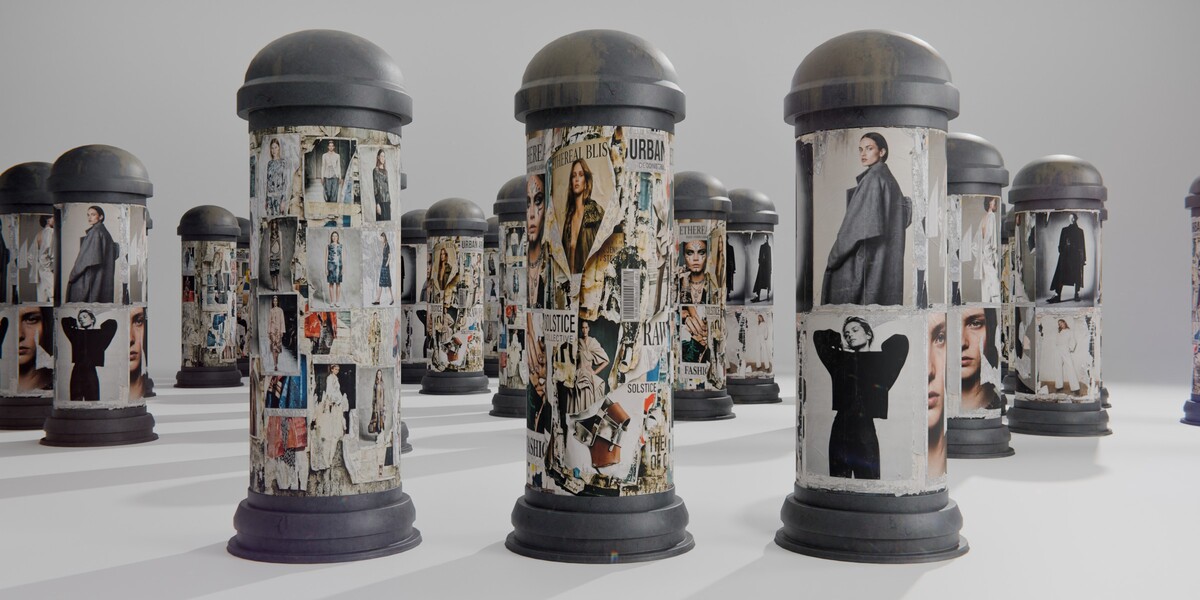
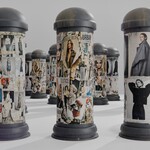
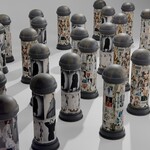
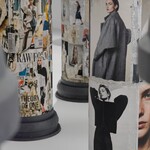
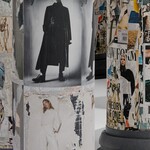
Randomized Advertising Column – Urban Street Prop
 Media Brennt GmbH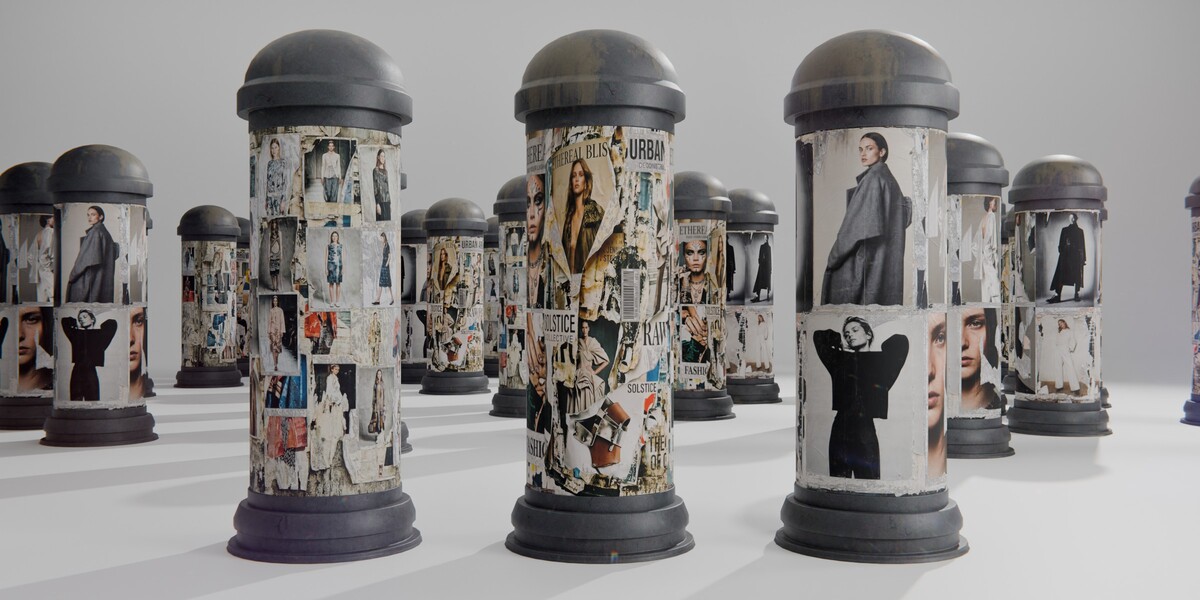
Documentation
Randomized Advertising Column – User Guide
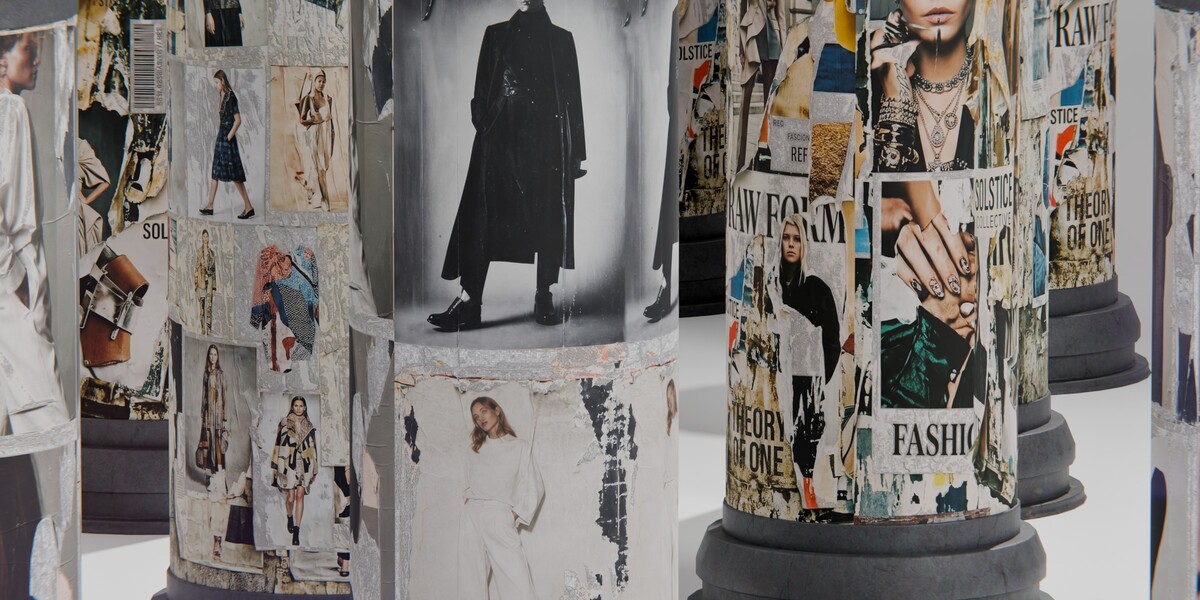
This guide explains how to use the randomized advertising column, generate object-based variation, replace poster artwork, control rotation and weathering, use the baked variants and optimize larger urban scenes.
Quick Start
- Open MB-Random-advertising_column.blend.
- Select MB_STREETPROBS_ADCOLUMN-RDM.
- Duplicate it with Shift + D or Alt + D.
- Move the duplicate to a new position.
- Switch to Material Preview or Rendered View.
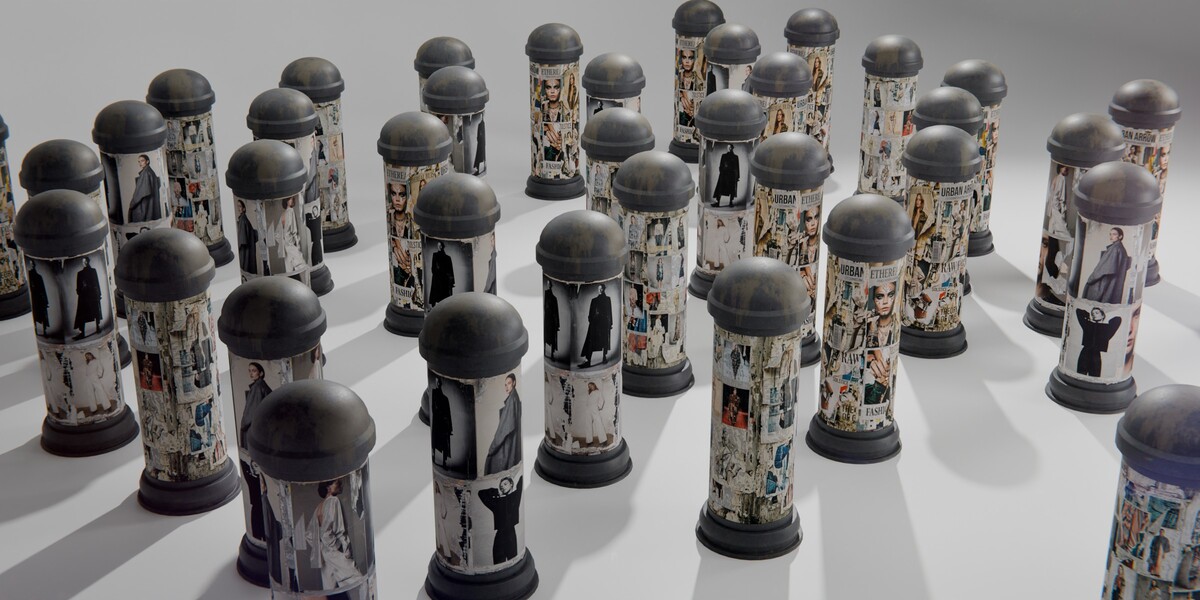
- The shader will evaluate a poster layout, poster rotation and weathering combination for the new object.
1. File Overview
| Main File | MB-Random-advertising_column.blend |
| Blender Version | 5.2.0 LTS |
| Render Engine | Cycles |
| Unit System | Metric |
| Poster Layouts | 3 packed 4096 × 4096 images |
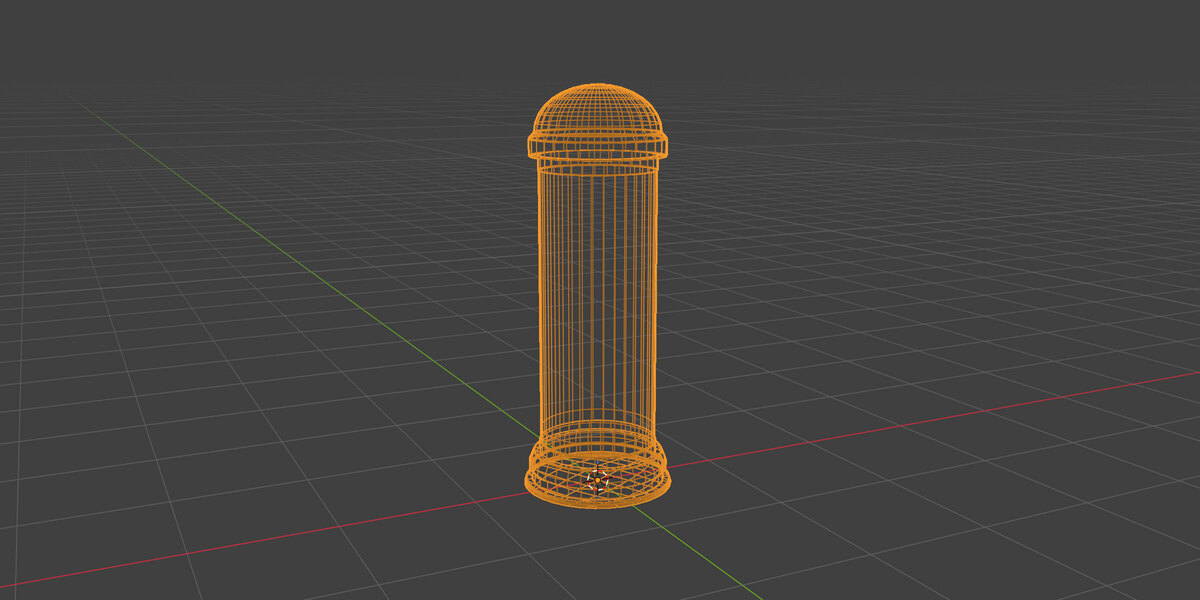
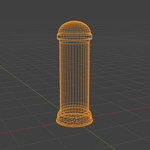
| Randomized Asset | 3,022 vertices / 2,940 faces / 5,848 triangles |
| Baked Variants | 3 variants, each with 942 vertices / 860 faces / 1,688 triangles |
| Preview Scene | 4 cameras, 6 lights and a background setup |
2. Collection Structure
| CINEMATICS | Contains the preview cameras, lights and background plane. This collection is not required when appending the asset to another project. |
| MB_STREETPROBS_ADCOLUMN | Contains the main randomized advertising-column objects and the example variation setup. |
| BAKE | Contains the fixed baked variants A, B and C with their 4K texture materials. |
Recommended Workflow
Use the randomized version for foreground objects and hero shots. Use the baked variants for larger background populations or workflows where the dynamic Blender shader is not required.
3. Randomized Asset vs. Baked Variants
Main Randomized Asset
The primary editable object is:
MB_STREETPROBS_ADCOLUMN-RDM
It uses two main materials:
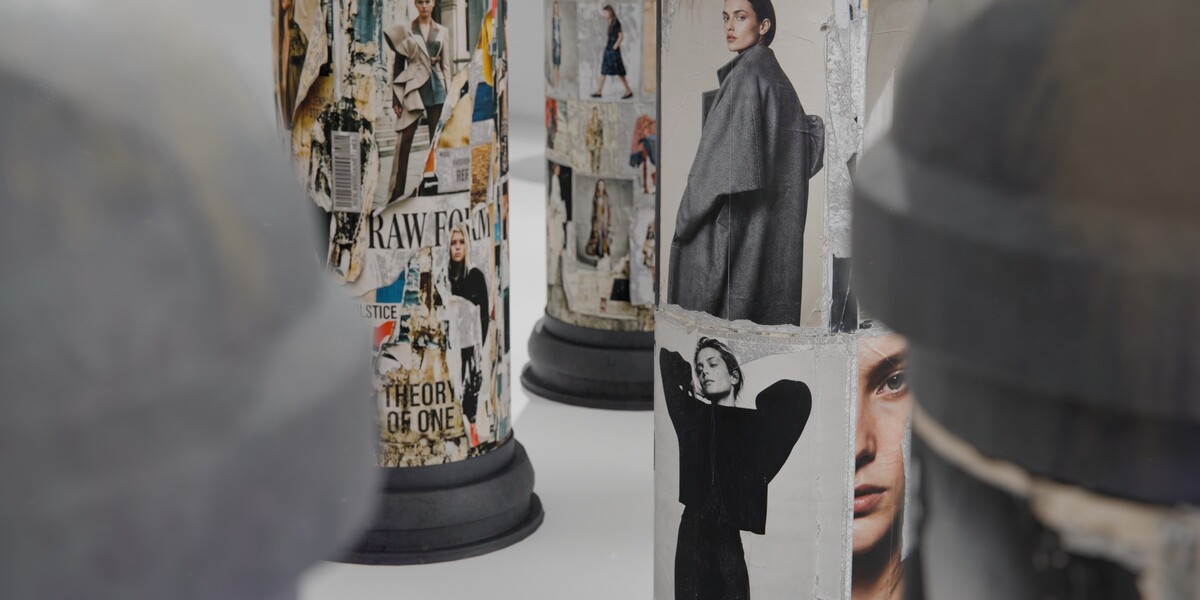
- MB_STREETBROBS_LABEL-RDM – poster selection, poster rotation and poster weathering.
- MB_PROC-METAL_WEATHER – worn metal, rust, dirt, dust, drip streaks and random damage.
Baked Variants
- MB_STREETPROBS_ADCOLUMN-BAKE-A
- MB_STREETPROBS_ADCOLUMN-BAKE-B
- MB_STREETPROBS_ADCOLUMN-BAKE-C
The baked versions use fixed 4K textures and do not automatically change when duplicated.
4. How the Automatic Variation Works
The randomized materials use Blender object or instance information to generate a pseudo-random value. This value is then used in several parts of the shader.
Poster Selection
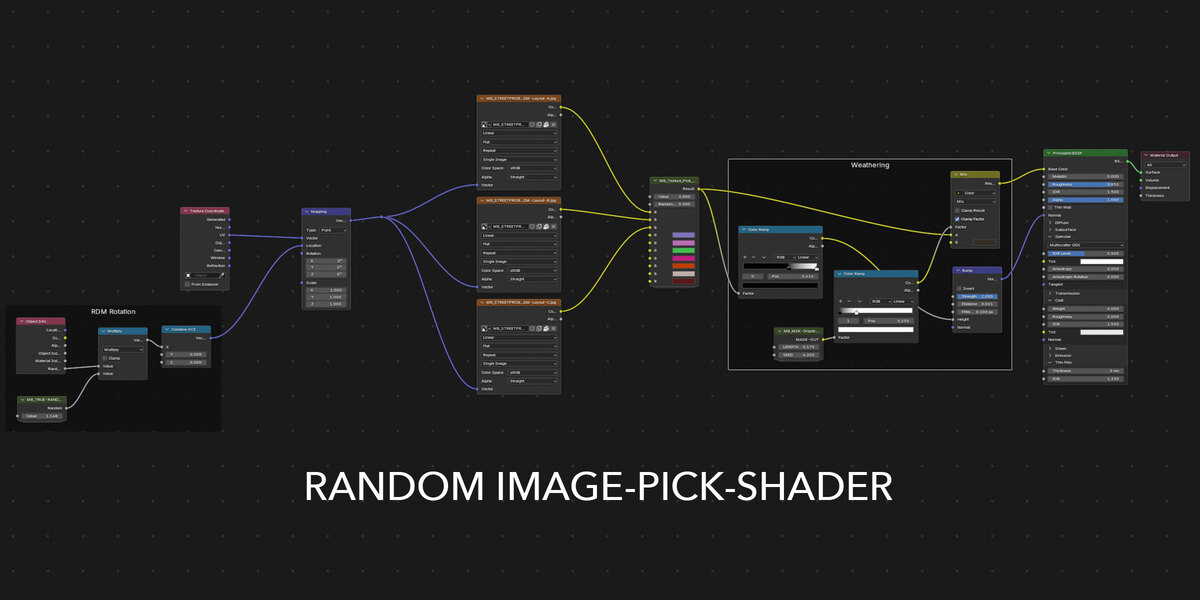
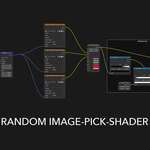
The material MB_STREETBROBS_LABEL-RDM contains three connected image textures:
- MB_STREETPROBS_ADCOLUMN-RDM-Layout-A.jpg
- MB_STREETPROBS_ADCOLUMN-RDM-Layout-B.jpg
- MB_STREETPROBS_ADCOLUMN-RDM-Layout-C.jpg
The MB_Texture_Pick_10 node group uses the random value to choose one of the connected images.
Poster Rotation
The RDM Rotation section sends a randomized value into the Mapping node. This changes the horizontal orientation of the artwork around the cylindrical surface.
Poster Weathering
The Weathering section uses drip-streak and surface masks to introduce variable wear, discoloration and bump detail on the advertising surface.
Metal Weathering
The material MB_PROC-METAL_WEATHER combines several included node groups:
- WORN METAL
- MB_NODE-PROC_DUST-O1
- MB_MSK-Ground-Dirt02
- MB_MSK-Dripstreeks-01
- MB_MSK-Random_Damage-O1
- MB_TRUE-RANDOMNESS
Together they create changes in dirt, rust, dust, drip streaks, bump detail and surface damage.
Important
The system uses three poster layouts. A large group of columns can therefore contain repeated layouts. Rotation and weathering variation create additional differences, but the system does not guarantee that every copy will be completely unique.
5. Duplicating and Instancing
Independent Duplicate
- Select MB_STREETPROBS_ADCOLUMN-RDM.
- Press Shift + D.
- Move the duplicate.
- Switch to Material Preview or Rendered View.
Linked Duplicate
- Select the object.
- Press Alt + D.
- Move the linked duplicate.
- The mesh data remains linked, while object-based shader variation can still be evaluated separately.
Instances
The shader is designed to support per-instance variation in Blender workflows that expose an individual instance random value. If an instancing setup shows identical results, convert the instances to real objects or use separate duplicates.
6. Replacing the Poster Artwork
- Select the randomized advertising column.
- Open the Shader Editor.
- Select the material MB_STREETBROBS_LABEL-RDM.
- Locate the three Image Texture nodes connected to MB_Texture_Pick_10.
- Replace Layout A, B or C with your own image.
- Use square artwork at 4096 × 4096 pixels for the closest match to the supplied setup.
- Keep the image Color Space set to sRGB.
- Use File > External Data > Pack Resources after adding your images.
Artwork Tip
Keep important text and faces away from the left and right edges of the image. The artwork wraps around a cylindrical surface, so elements near the image edges may meet at the texture seam.
7. Controlling Poster Rotation
- Open MB_STREETBROBS_LABEL-RDM in the Shader Editor.
- Locate the frame labeled RDM Rotation.
- Adjust the Math or Multiply value to change the rotation range.
- Reduce the multiplier to create smaller placement changes.
- Set the rotation contribution to zero to keep all artwork in the same orientation.
Material settings are shared by all objects using the same material. Duplicate the material first when only one object should use a different rotation setup.
8. Controlling Poster Weathering
- Open MB_STREETBROBS_LABEL-RDM.
- Locate the frame labeled Weathering.
- Adjust the Color Ramp handles to increase or reduce the affected areas.
- Adjust the Mix factor to control how strongly the worn layer is blended with the poster.
- Reduce the Bump strength when the damaged paper surface appears too pronounced.
9. Controlling Metal Weathering
- Select one of the metal parts of the randomized asset.
- Open MB_PROC-METAL_WEATHER.
- Use the rust and ground-rust Color Ramps to control their coverage.
- Adjust the dust and ground-dirt masks for cleaner or dirtier surfaces.
- Adjust the drip-streak and random-damage masks to control local wear.
- Reduce Bump strength for a smoother metal surface.
Shared Material Warning
Editing the shared material changes the general weathering system for every column using it. Object-based randomness can still vary the result, but global values such as color, intensity and mask contrast are shared.
10. Locking a Specific Appearance
Recommended Method
Use one of the baked A, B or C variants. These versions have fixed poster artwork and fixed weathering.
Advanced Shader Method
- Duplicate the poster material.
- Replace the random input connected to MB_Texture_Pick_10 with a fixed Value node.
- Adjust the value until the required poster layout is selected.
- Remove or reduce the random input in the RDM Rotation section.
- Assign the duplicated material only to the required object.
11. Baked Texture Workflow
The three baked variants use 4K texture sets containing:
- Diffuse
- Normal
- Metalness
- Specular
- Roughness
- Anisotropic
- Sheen
- Clearcoat
- Transmission
Recommended Color-Space Settings
| Diffuse / Base Color | sRGB |
| Normal | Non-Color, connected through a Normal Map node |
| Metalness | Non-Color |
| Roughness | Non-Color |
| Additional Data Maps | Non-Color |
12. Appending the Asset to Another Blender File
Append the Randomized Version
- Open your target Blender project.
- Choose File > Append.
- Select MB-Random-advertising_column.blend.
- Open the Collection folder.
- Append MB_STREETPROBS_ADCOLUMN.
Append the Baked Variants
- Choose File > Append.
- Open the Collection folder.
- Append BAKE.
The CINEMATICS collection is only required when you want to use the included preview cameras and lighting.
13. Performance Tips
- Use the randomized version for foreground columns and close-ups.
- Use the 1,688-triangle baked variants for distant or repeated background objects.
- Use linked duplicates or instances when placing large numbers of columns.
- Hide the CINEMATICS collection after appending the asset.
- Use Solid View while arranging larger urban scenes.
- Reduce viewport samples while testing placement.
- Use texture resolution limits in Blender when working with many 4K assets.
- Disable non-visible columns per camera where possible.
14. Troubleshooting
| All copies show the same poster | Confirm that you created separate objects or supported instances. Try Shift + D, make instances real or check that the Object Info random output is still connected. |
| Some poster layouts repeat | This is expected. The included setup contains three poster layouts, so repeated layouts are possible. Rotation and weathering can still differ. |
| Poster artwork is rotated incorrectly | Check the Mapping node and the RDM Rotation section. Confirm that the original UV map has not been modified. |
| Poster artwork is stretched | Use square artwork matching the supplied 4096 × 4096 layout and keep the original UV mapping. |
| Weathering is too strong | Reduce the Weathering Mix factor, narrow the Color Ramp range and lower the Bump strength. |
| Editing one material changes every column | The objects share the same material data. Duplicate the material before making object-specific manual changes. |
| Textures appear pink | Use File > External Data > Find Missing Files. The original product textures are packed, but newly added custom artwork must be packed separately. |
| Baked maps look incorrect | Set Diffuse to sRGB and all technical maps to Non-Color. Connect the Normal texture through a Normal Map node. |
| The scene is slow | Use the baked variants for background placement, lower viewport samples and hide the preview lighting and cameras. |
| The file does not open correctly | Use Blender 5.2 LTS or a newer compatible version. Earlier Blender releases may not support every node or file feature. |
15. Support
If you need help with custom poster artwork, material variation, weathering controls, baked textures or importing the asset into another Blender file, please contact us through Superhive.
When requesting support, include your Blender version, a screenshot and a short description of the issue.
Have questions about this product?
Login to message
| Published | about 2 months ago |
| Blender Version | 5.0 - 5.2 |
| Render Engine Used | Cycles |
| Misc Data | Uvs-Unwrapped, Manifold-Mesh, Low-High-Resolution, Normal-Mapped, Textured |
| License | Royalty Free |
Discover more products like this
advertising pillar poster urban advertising column Billboard exterior street prop Urban Prop shader variation city prop litfass column street