 PIP Lab
Before you start
- Apply the character's rotation and scale (Ctrl+A › All Transforms) if possible.
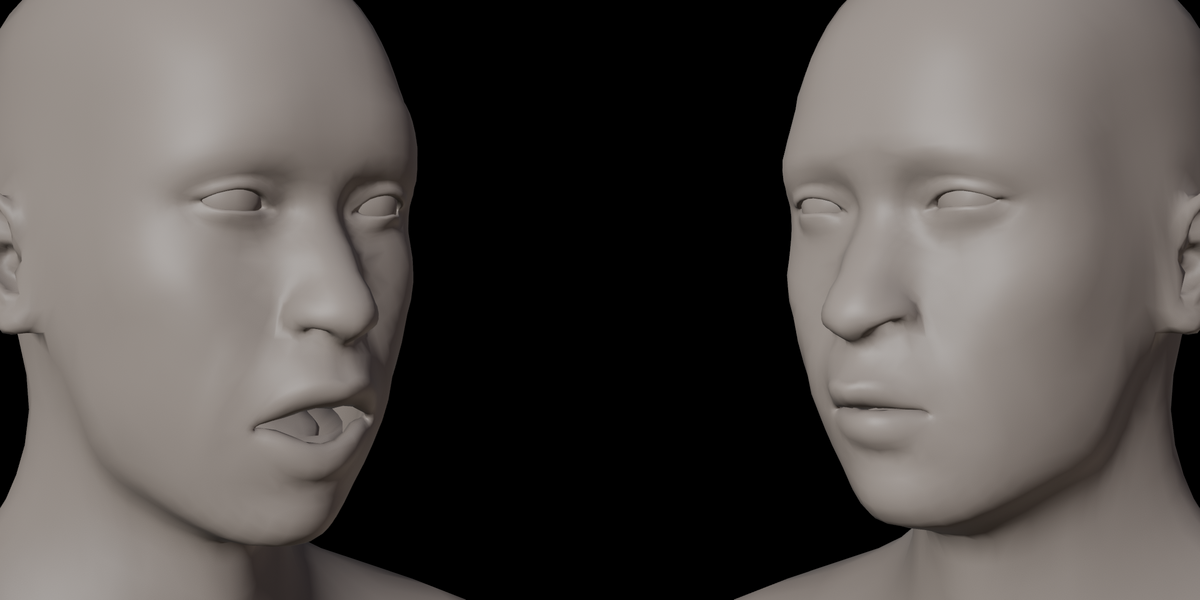
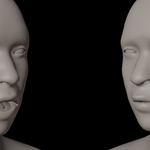
- Make sure the face looks toward -Y (Numpad 1 shows the face).
- Eye L is the character's own left eye (on the right side of the screen in front view).
1. Character Parts
Click Auto-Detect Parts. RealFace finds the head, eyes, teeth and tongue by object name and size. If both eyes are one object, or teeth, gums and tongue are one object (as in DAZ Genesis 9), they are split automatically. Check every field and pick the correct object by hand if needed.
2. Guide Points
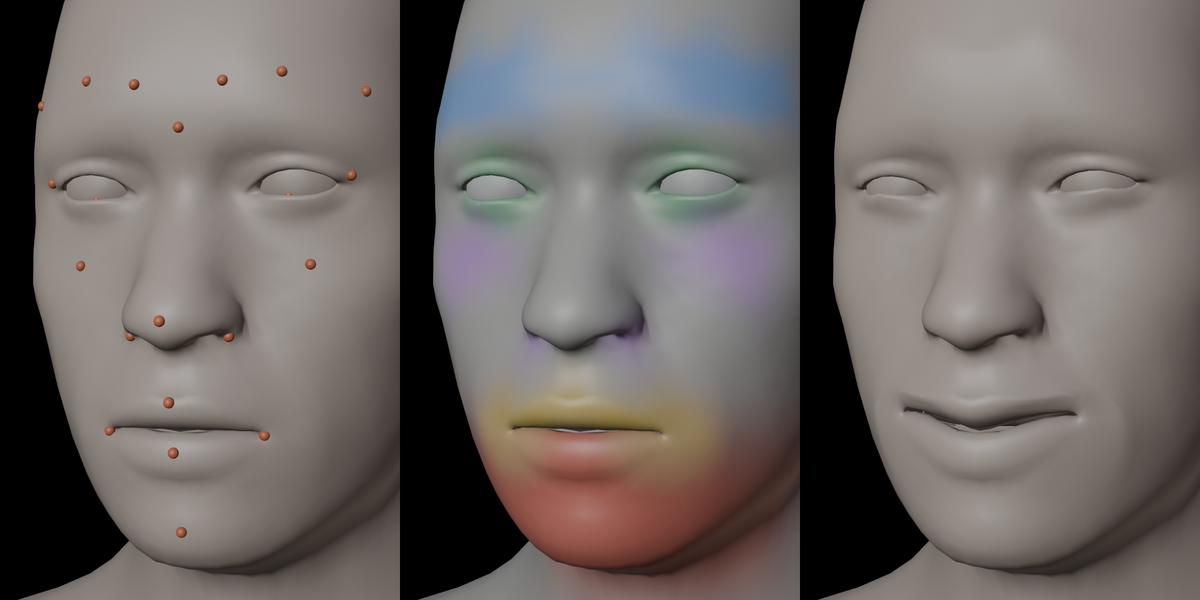
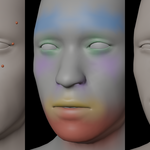
Click Place Guide Points. 28 small spheres appear on the face.
- Select a sphere and press G to move it if it is not on the right spot.
- Mirror Left to Right copies the character's left-side guides to the right side.
- Snap to Surface moves all guides back onto the skin.
The jaw pivot guide sits inside the head, in front of the ear; place it at the jaw joint.
3. Rig
Click Generate Face Rig. A helper armature (RF_FaceRig) and skin weights are created. Run it again any time after moving guides.
4. ARKit Expressions
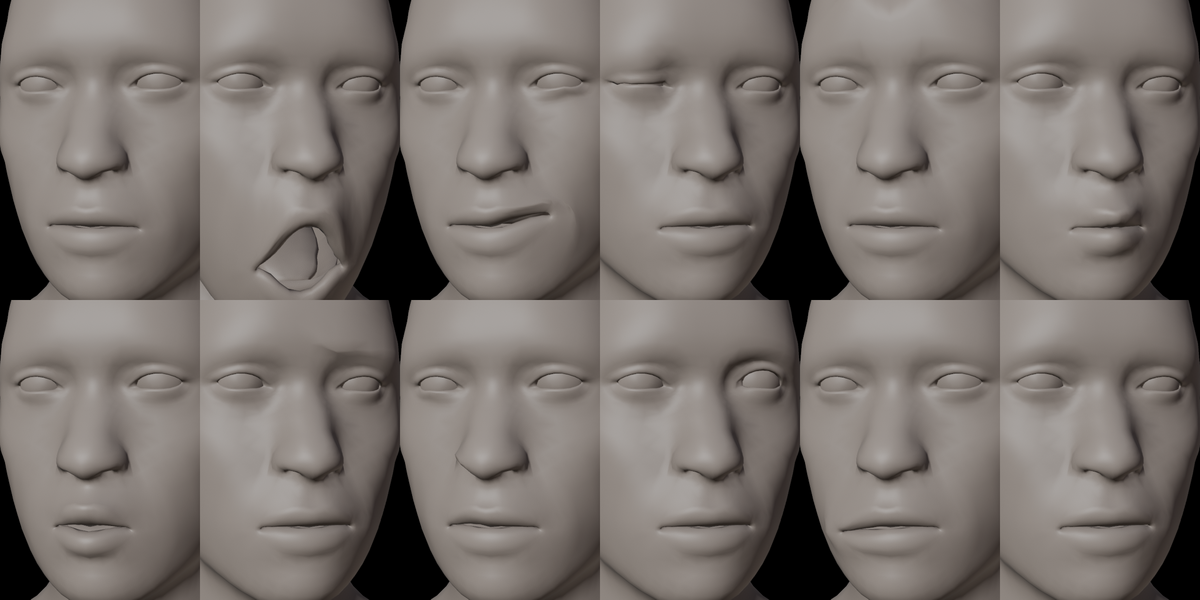
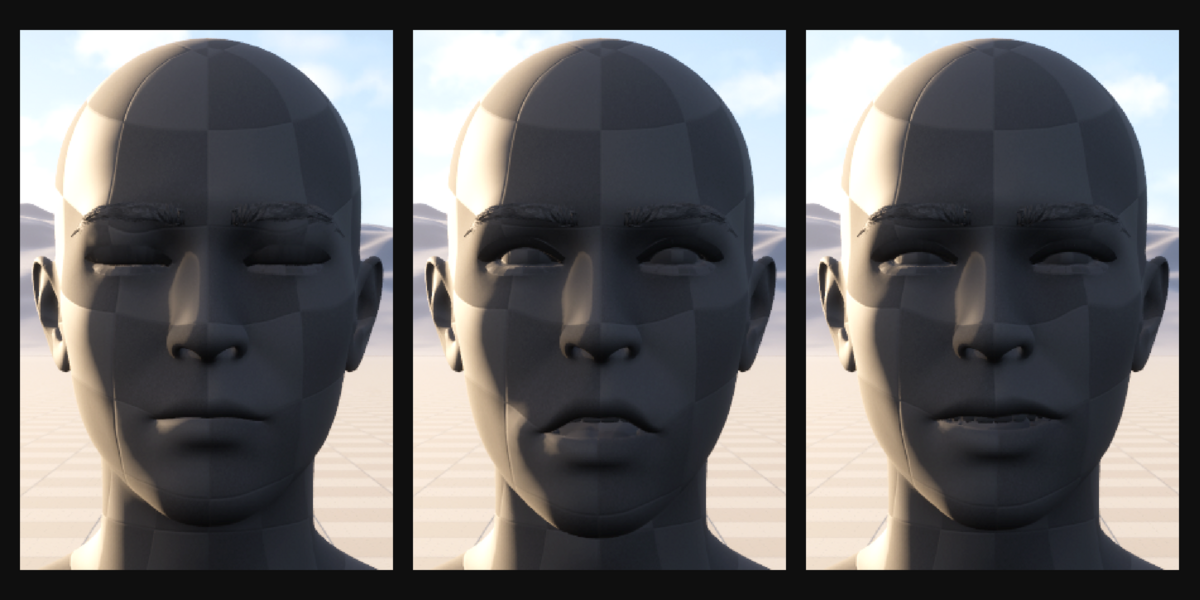
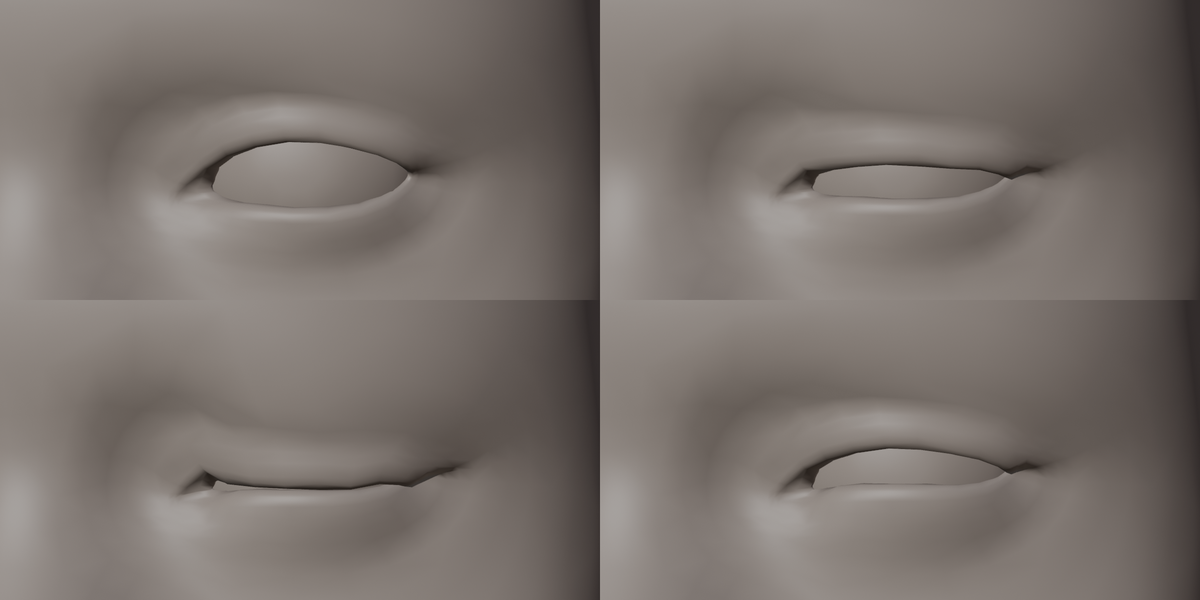
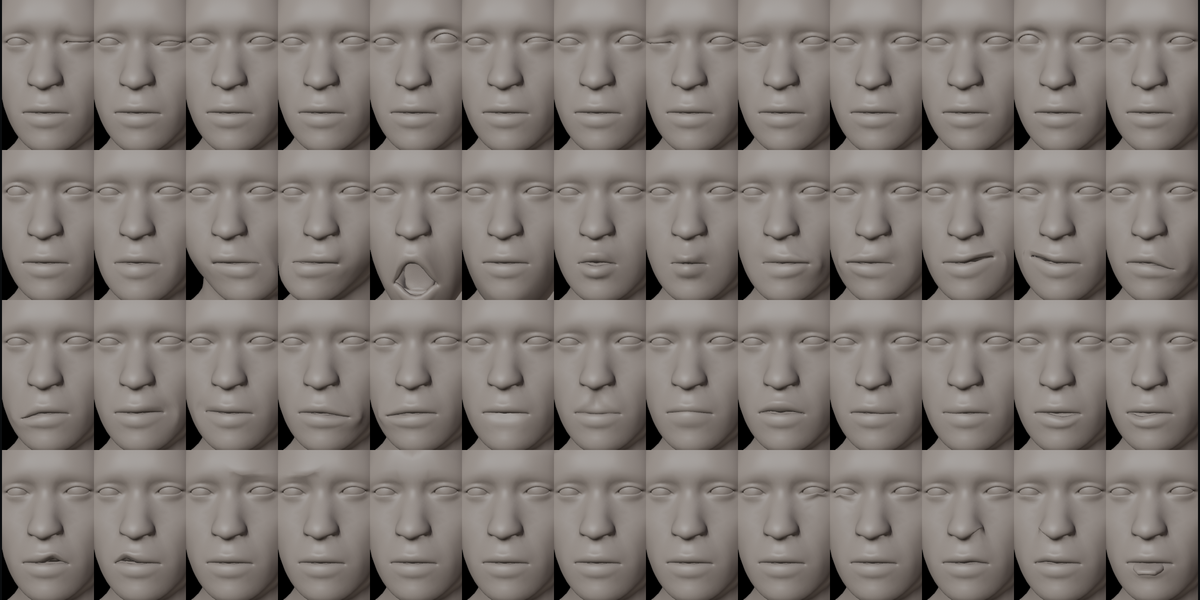
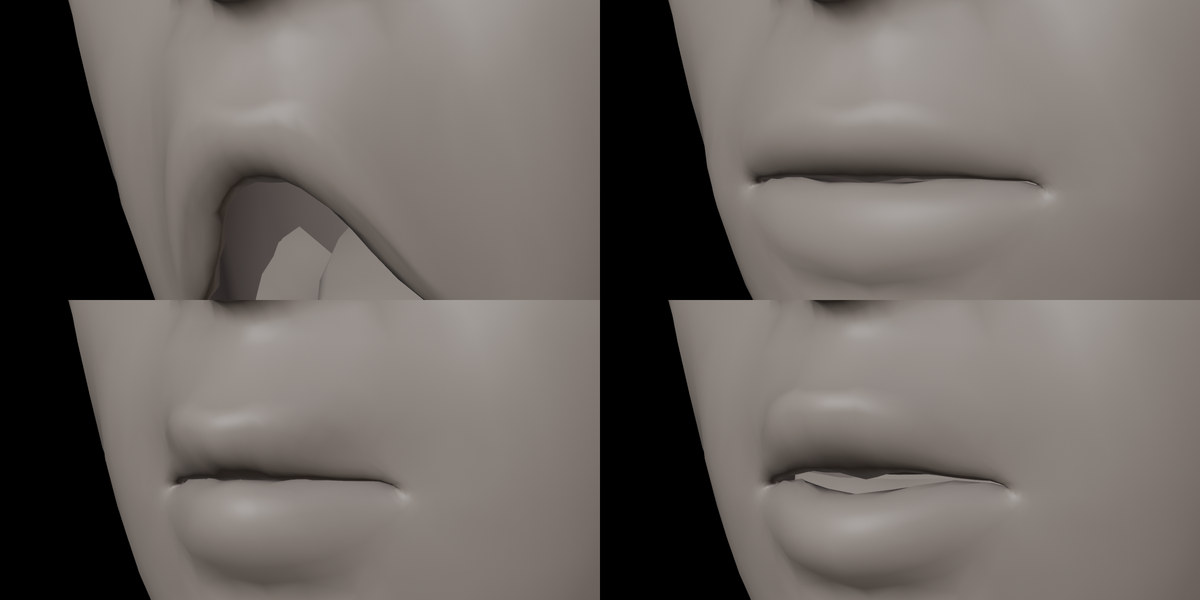
Click Generate ARKit Expressions. The 52 shape keys are written to the head, eyeballs, lower teeth and tongue. The panel shows how many of the 52 shape keys are present. Separate eyelash, eyebrow and tear objects on the face receive the expressions too.
Preview: under step 4, pick any expression from the list and drag Strength. The head, eyes, teeth, tongue and eyelashes move together. Only This One shows a single expression at a time; Reset sets everything back to 0.
Note: as in ARKit, mouthClose is meant to be used together with jawOpen.
5. Export to Unreal
Click Check Before Export to list anything that could stop the shapes from reaching Unreal. Click Export for Unreal (FBX) and choose a file name. The head, eyes, teeth, tongue and eyelashes are exported as one skeletal mesh. If the head already uses your own body armature, that skeleton is used; otherwise a minimal root + head skeleton is created for the export and removed afterwards.
In Unreal, import the FBX as a Skeletal Mesh with morph targets enabled (the default). For Live Link Face: create an Animation Blueprint, add a Live Link Pose node with your iPhone as the subject and connect it to the Output Pose.
6. Finish
Click Remove Rig Helpers to delete the guides, the helper rig, its modifiers and vertex groups. The shape keys are kept.
Error messages
- "The face must look toward -Y": rotate the character so it faces front view, apply rotation.
- "Eye L and Eye R are swapped": swap the two eye fields.
- "modifiers change the vertex count": RealFace switches modifiers off while baking; if a modifier still changes the vertex count, apply or remove it.
Have questions about this product?
Login to message
| Blender Extension Compatible | Yes |
| Published | 40 minutes ago |
| Blender Version | 4.2 - 5.2 |
| Extension Type | Add-on |
| Render Engine Used | Cycles |
| License | GPL |
Discover more products like this
live link ARKit MetaHuman morph targets realistic face capture shape keys Daz blendshapes facial rig Unreal Engine Facial Animation