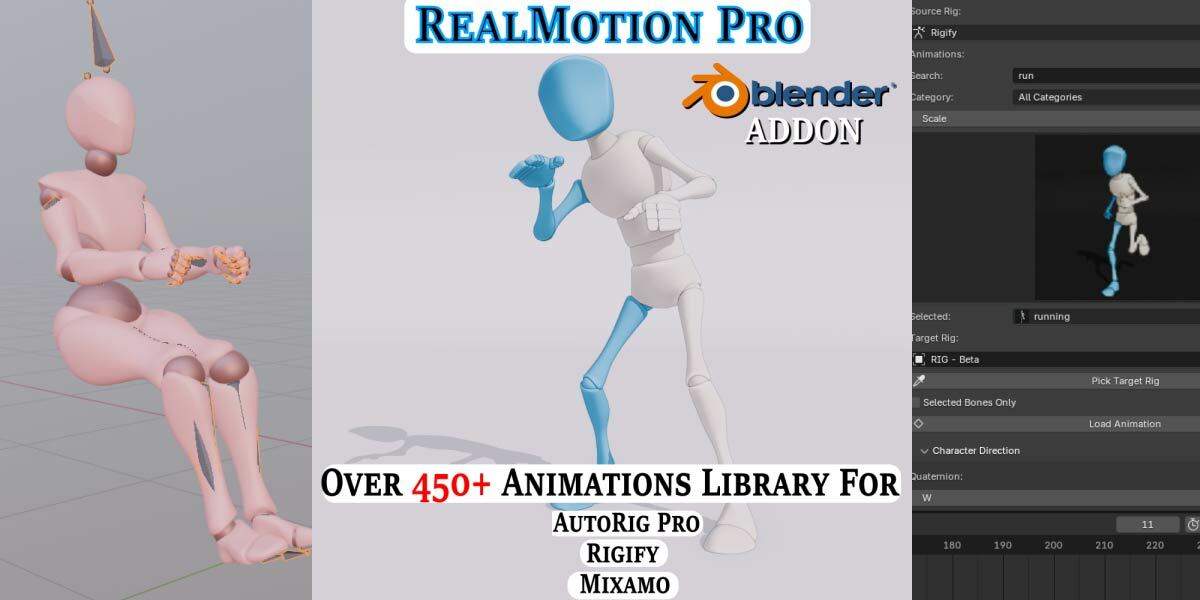
RealMotion Pro
 Wee Learn From Mobile
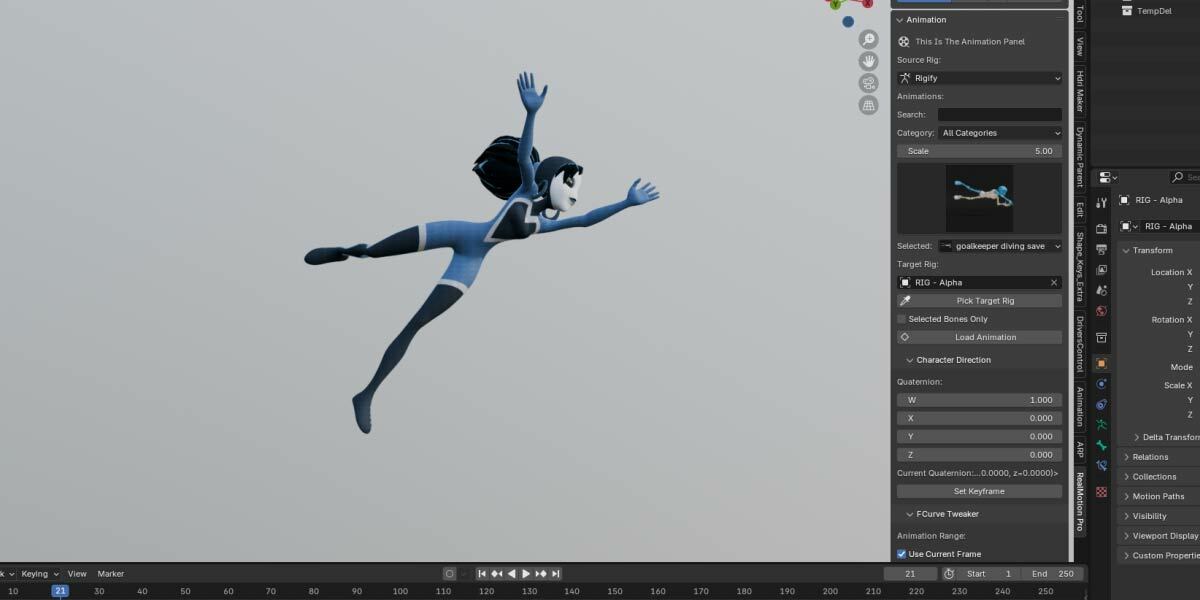
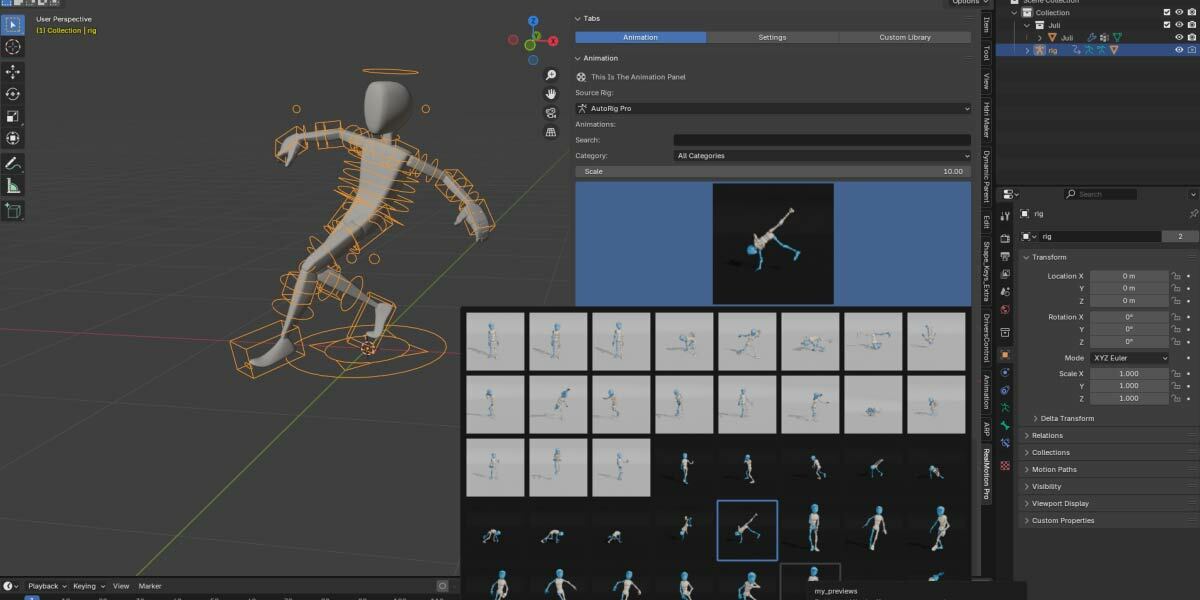
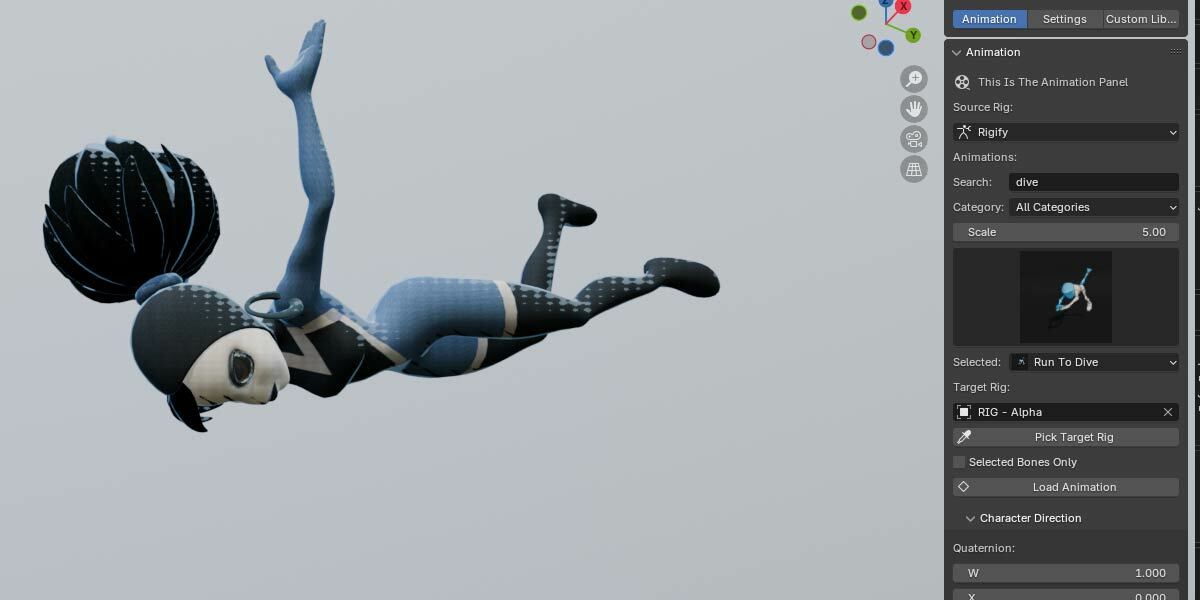
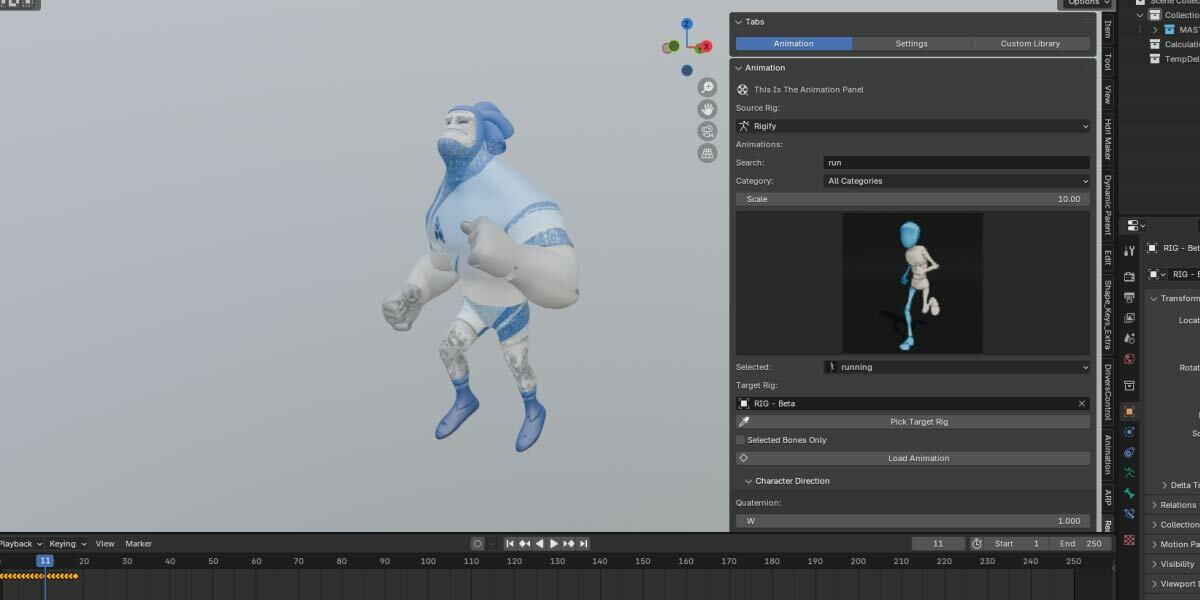
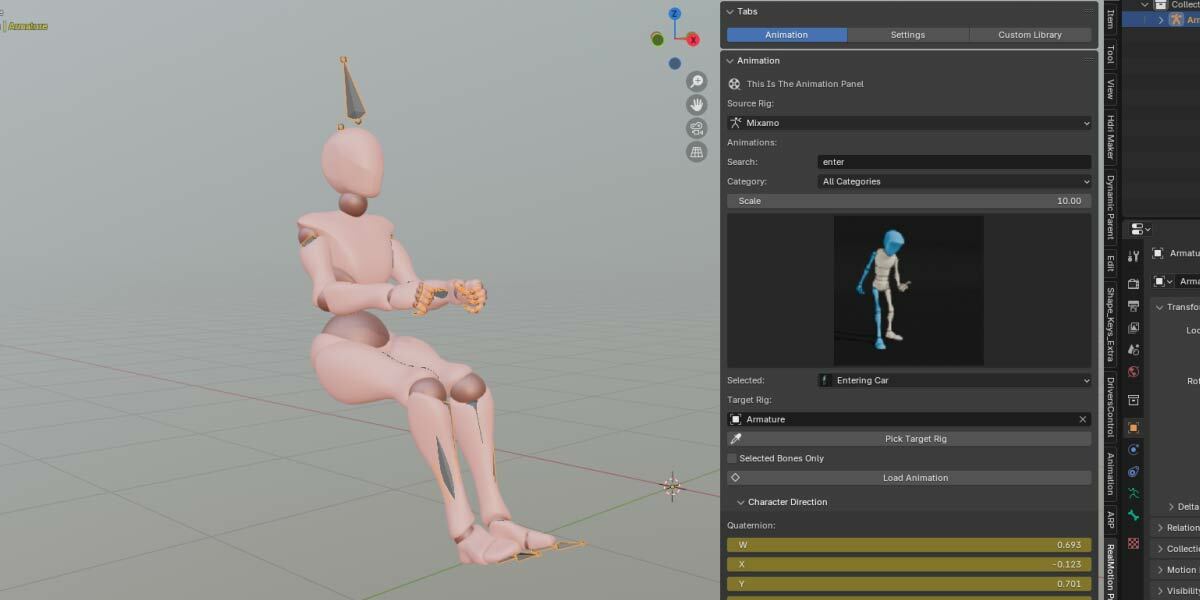


RealMotion Pro 2.0 Installation Guide
Step 1: Remove Older Versions
Before installing RealMotion Pro 2.0, remove any older versions below 2.0.
To uninstall:
Edit Preferences → Add-ons → Search for "RealMotion Pro" → Uninstall
Step 2: Download Required Files
RealMotion Pro comes in 4 different versions depending on your workflow:
Full Version
AutoRig Pro Only
Rigify Only
Mixamo Only
Each version includes its own compatible add-on file and content pack.
AutoRig Pro Version
RealMotionPro_v2.0_Blender 3.6x_AutoRigPro.zip
RealMotionPro_v2.0_Blender 5.0x_AutoRigPro.zip
Main_Content_Pack_AutoRigPro_v.zip
Previews.zip
Rigify Version
RealMotionPro_v2.0_Blender 3.6x_Rigify.zip
RealMotionPro_v2.0_Blender 5.0x_Rigify.zip
Main_Content_Pack_Rigify_v.zip
Previews.zip
Mixamo Version
RealMotionPro_v2.0_Blender 3.6x_Mixamo.zip
RealMotionPro_v2.0_Blender 5.0x_Mixamo.zip
Main_Content_Pack_Mixamo_v.zip
Previews.zip
Full Version
RealMotionPro_v2.0_Blender 3.6x.zip
RealMotionPro_v2.0_Blender 5.0x.zip
Main_Content_Pack_Full_v.zip
ExtraMocap.zip
Previews.zip
Step 3: Install the Add-on
Open Blender and go to:
Edit Preferences → Add-ons → Install
Navigate to your downloaded file and select the correct RealMotion Pro ZIP file for your Blender version.
After installation, enable the add-on.
Step 4: Choose Install Location
Under Install Location, click the folder icon and choose where you want to install the content.
You can use your Documents folder or any custom location you prefer.
Once selected, the add-on will automatically create a folder called:
AnimationGen
All content will be extracted inside this folder.
Important:
After selecting the install location, make sure to save preferences in Blender. Otherwise, Blender may forget the path on restart.
Step 5: Install Content Packs
Click the folder icon for each section and assign the correct file:
Main Content Pack (Required)
Select the correct file depending on your version:
Main_Content_Pack_Full_v.zip (Full Version)
Main_Content_Pack_AutoRigPro_v.zip (AutoRig Pro)
Main_Content_Pack_Rigify_v.zip (Rigify)
Main_Content_Pack_Mixamo_v.zip (Mixamo)
Extra Mocaps (Optional - Full Version only)
Select:
ExtraMocap.zip
Previews (Optional)
Select:
Previews.zip
You can skip Extra Mocaps and Previews if you don’t need them.
After assigning files, you can:
Click each extract button one by one, or
Click “Extract All” to extract everything at once
Wait a few moments for the installation to complete.
Step 6: Content Safety
Your content and custom libraries are stored separately from the add-on.
This means even if you uninstall RealMotion Pro, your content will remain safe and unchanged.
Step 7: Using Content Across Blender Versions
RealMotion Pro allows you to use the same content across multiple Blender versions.
Important:
When setting up another Blender version, you do NOT need to open the AnimationGen folder.
Instead, simply point the Install Location to the folder that contains AnimationGen.
Example:
If your content is installed in:
D:/BlenderContent/
Then the add-on will automatically look for:
D:/BlenderContent/AnimationGen/
So you only select:
D:/BlenderContent/
Not the AnimationGen folder itself.
This allows all Blender versions to share the same content library.
Step 8: Version Compatibility
RealMotionPro_v2.0_Blender 3.6x
Supports Blender 3.6 to 4.5 (and may also work up to 5.0 depending on compatibility)RealMotionPro_v2.0_Blender 5.0x
Supports Blender 5.0 and above (current Blender series)
If future Blender updates break compatibility, a new version of RealMotion Pro will be released for that Blender series.
Installation Complete
RealMotion Pro is now ready to use. You can start accessing animations, mocaps, previews, and content packs directly from the add-on.
If you have questions or problems with RealMotion Pro,Please join my Discord for assistance.Discord
Have questions about this product?
Login to message
| Blender Extension Compatible | Yes |
| Sales | 800+ |
| Rating | 20 ratings |
| Dev Fund Contributor | |
| Published | almost 2 years ago |
| Blender Version | 3.6 - 5.2 |
| Extension Type | Add-on |
| License | GPL |
Discover more products like this
autorig pro auto blender 3d library 3danimation realmotion pro 3d animation animation library blender rigify Mixamo Compatible mixamo Daz daz studio 3D Animation Character auto rigging