 ZEG
Installation
In Blender open Edit, Preferences, Get Extensions, then use Install from Disk and pick the zip.
Usage
- Open the Monitor tab in the 3D viewport sidebar (N), or use Add, Monitor.
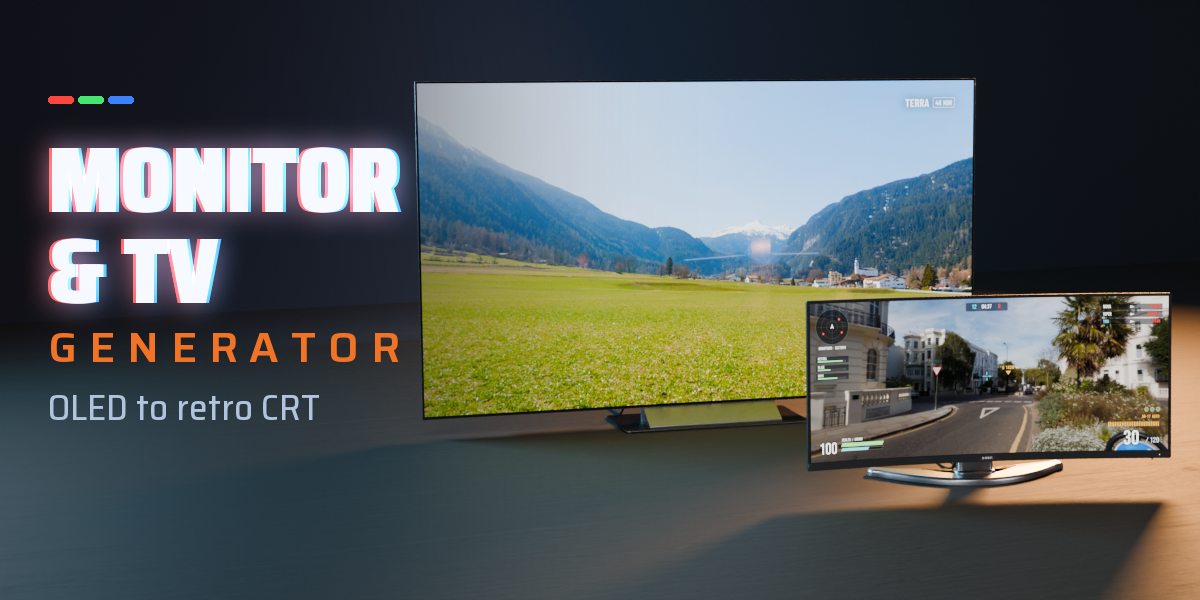
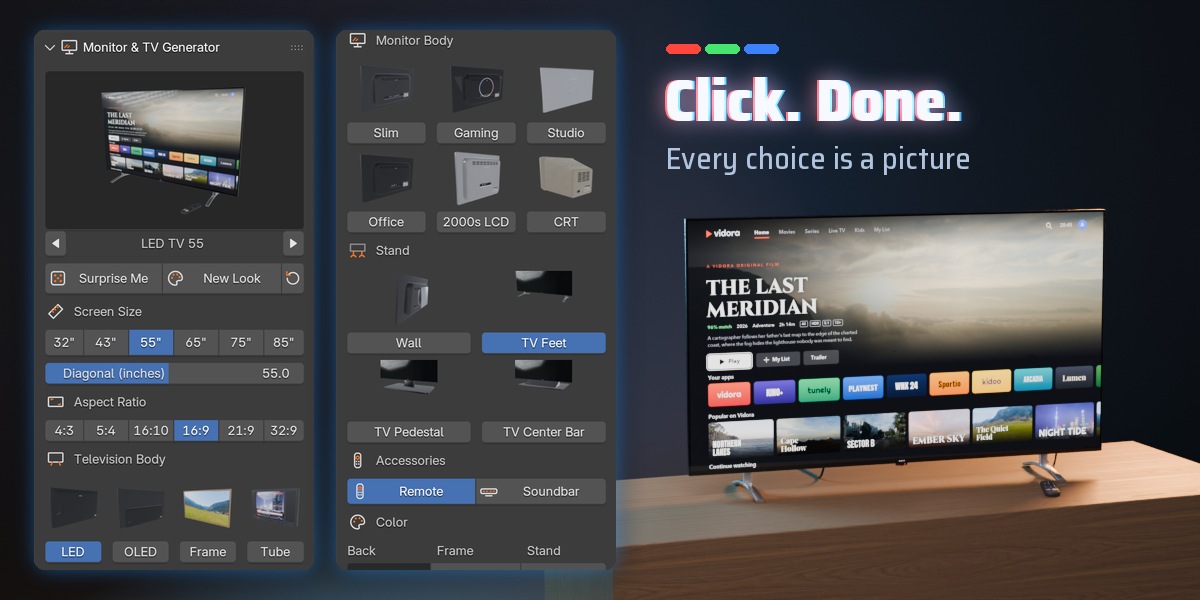
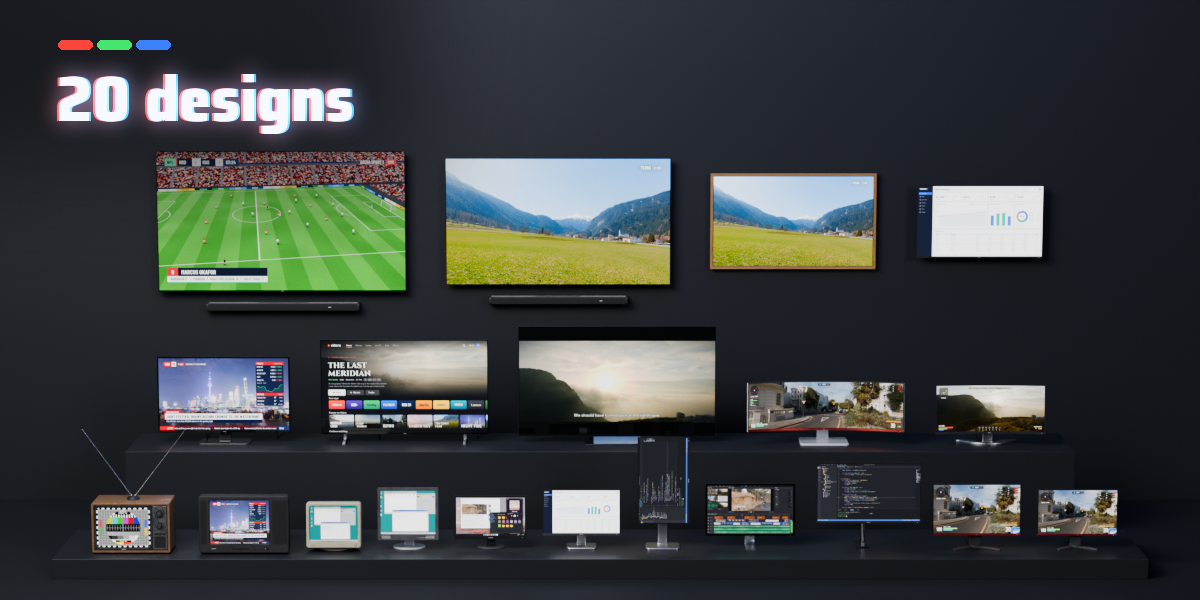
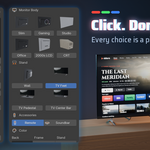
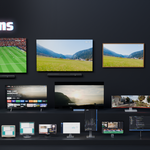
- Click the design picture to open the gallery of 20 monitors and TVs, pick one, then press Add Monitor / TV. It appears at the 3D cursor.
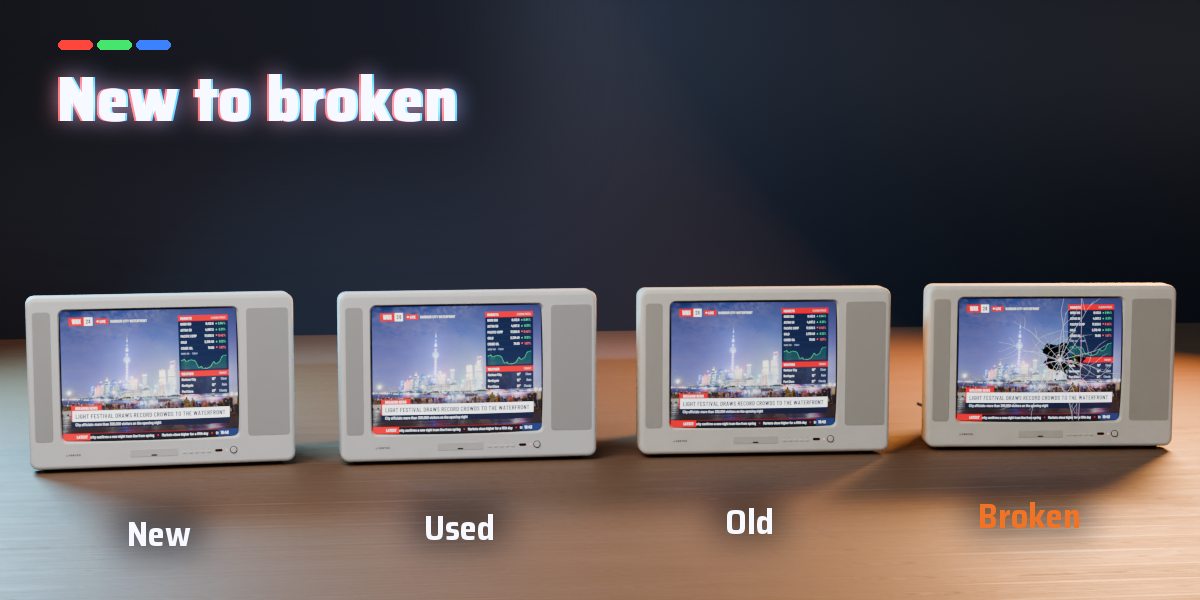
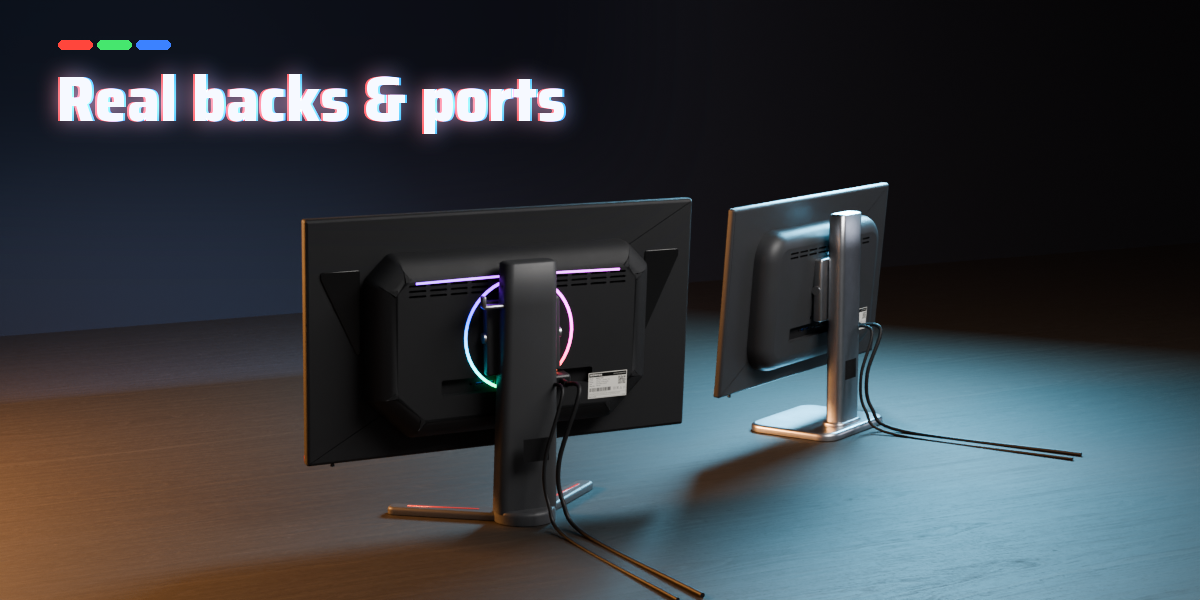
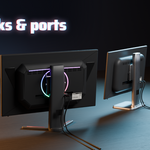
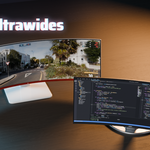
- With it selected, pick the screen size, aspect ratio, body, stand, colors, finish, condition and screen on the first page; the panels below hold the panel and housing, stand, back and ports, RGB lights, screen and logo details. It rebuilds live.
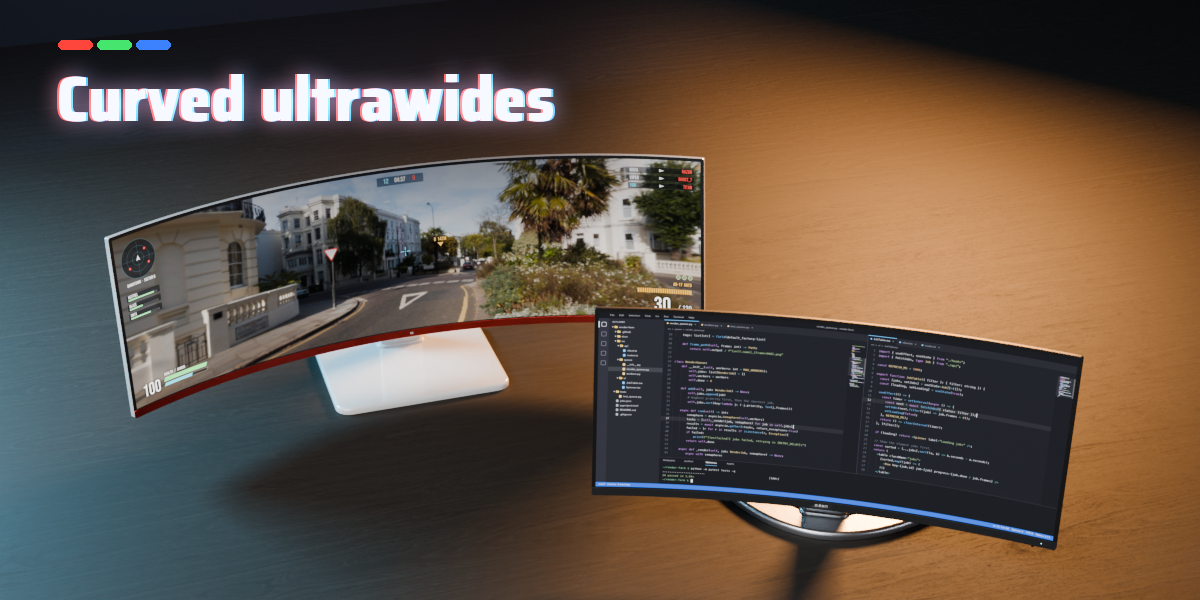
- Monitors: use Tilt and Height, or the pose buttons, to move the screen on its stand; Portrait turns it 90 degrees on column, crescent, arm and wall stands. Curve bends the panel from 2300R to 1000R.
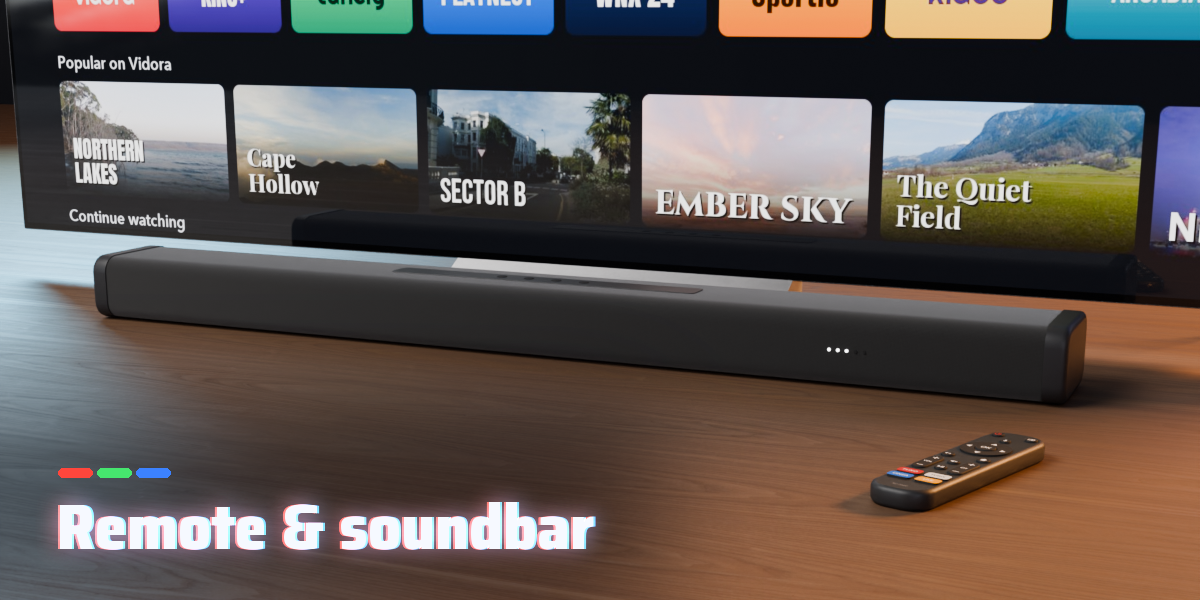
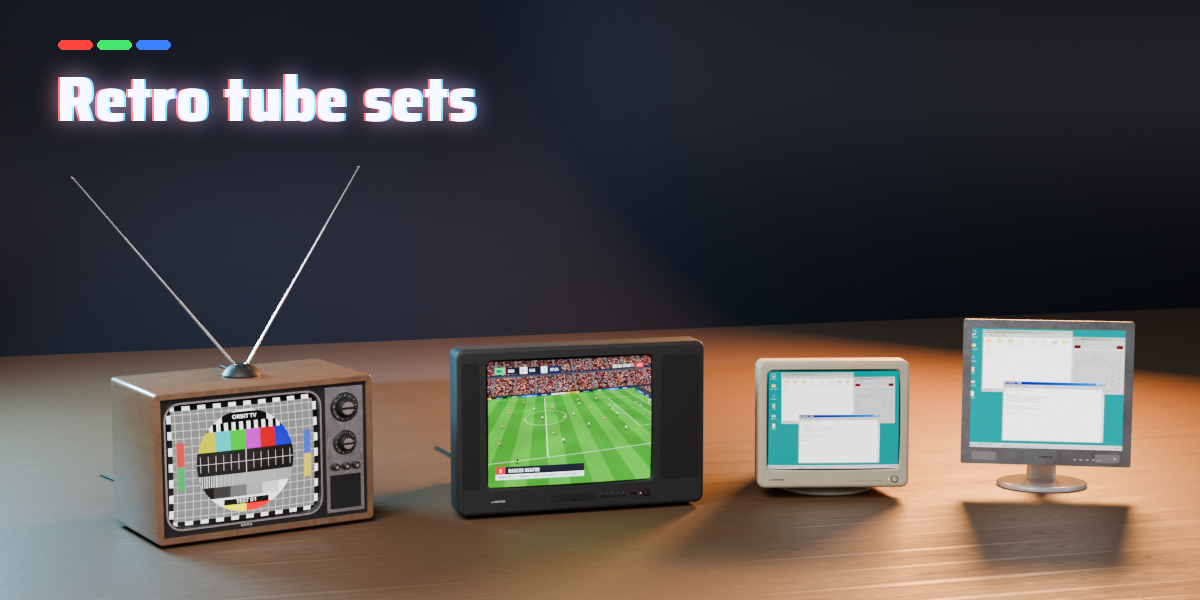
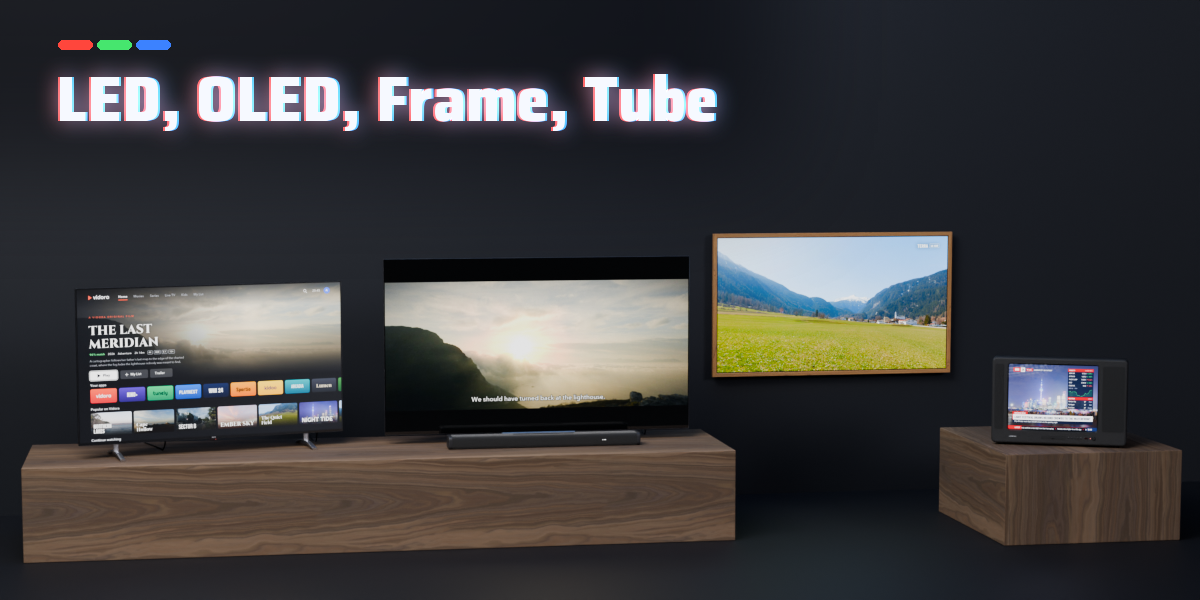
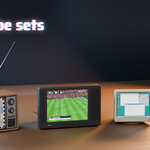
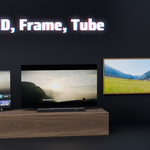
- Televisions: choose LED, OLED, Frame or Tube, a TV stand or the wall bracket, and switch on the Remote and Soundbar (Rabbit Ears on tube TVs). Tube TV Front picks the speaker and knob layout; the Wood finish adds walnut, teak or ebony veneer.
- Surprise Me gives a random monitor or TV, New Look new colors and a new screen; Reset goes back to the picked design.
- Convert to Mesh (Export panel) keeps the result as plain objects for export.
Have questions about this product?
Login to message
| Blender Extension Compatible | Yes |
| Published | 1 day ago |
| Blender Version | 4.2 - 5.2 |
| Extension Type | Add-on |
| Render Engine Used | Cycles, Eevee |
| License | GPL |

Discover more products like this
screen monitor smart TV procedural CRT Oled television display gaming-monitor tv Generator UltraWide