 Reneraki



Install
- In Blender go to Edit > Preferences > Get Extensions.
- Click the small arrow at the top right, then Install from Disk...
- Pick ren_wallpaper_1.3.2.zip (don't unzip it).
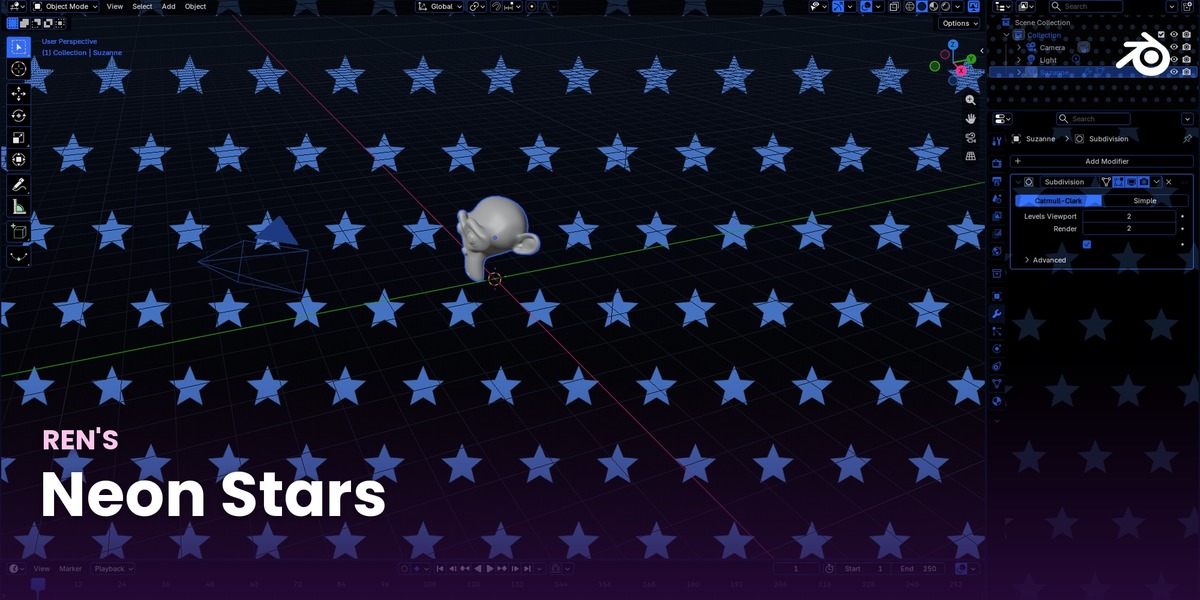
Unzip ren_wallpaper_sample_patterns.zip anywhere you like to get the 18 free patterns.
Where to find it
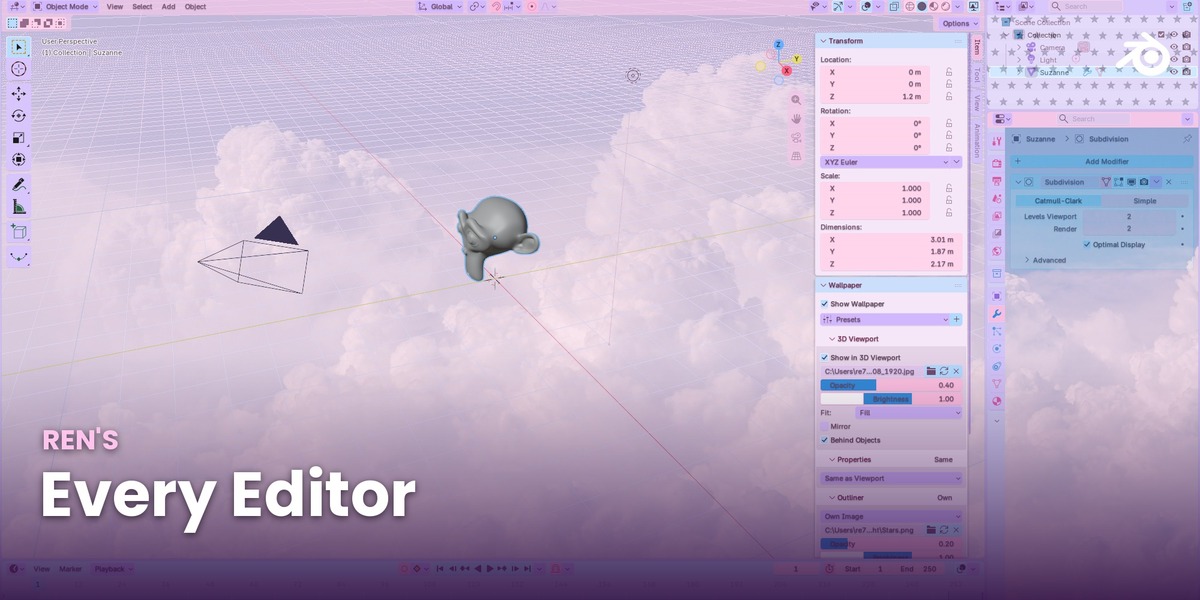
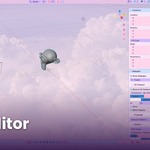
In the 3D Viewport press N, open the View tab and find the Wallpaper panel. The same settings are on the add-on's page in Preferences.
Using it
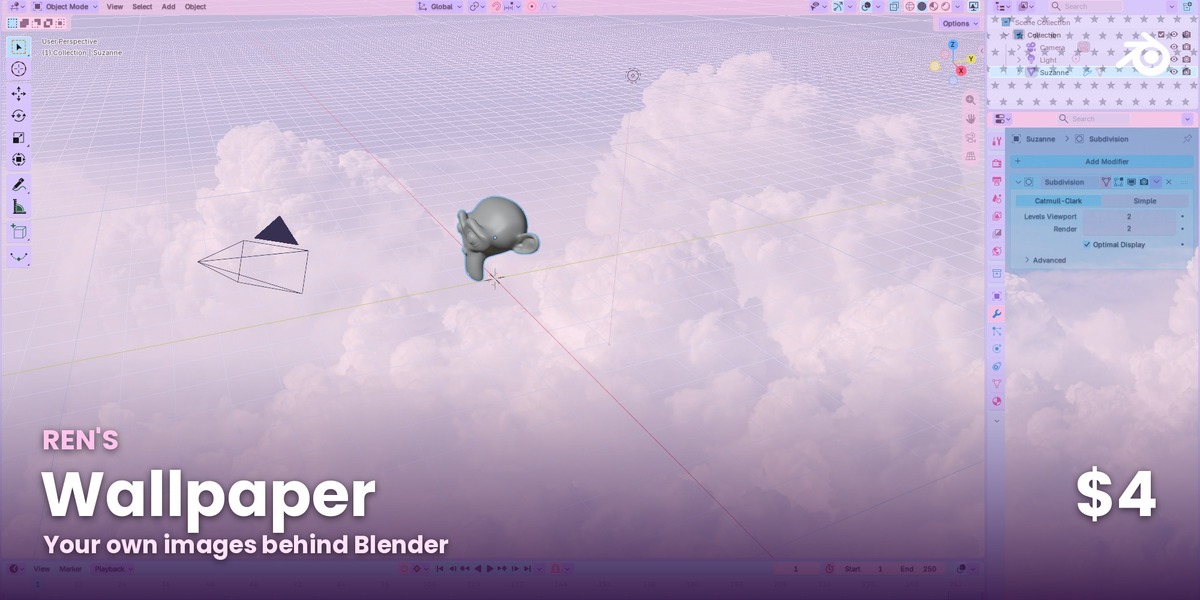
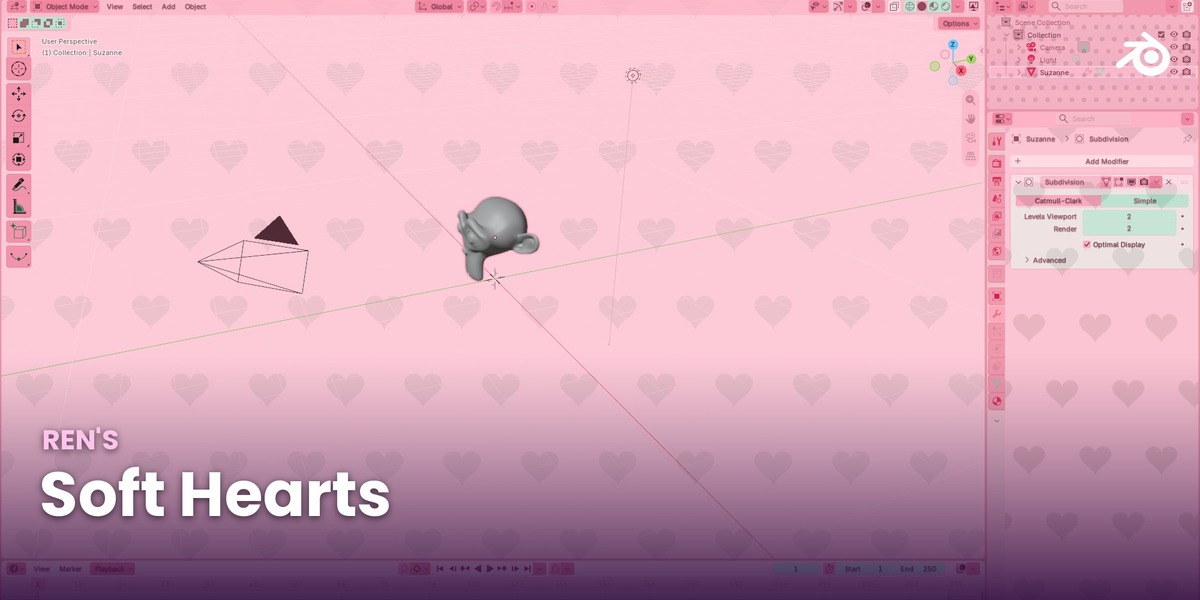
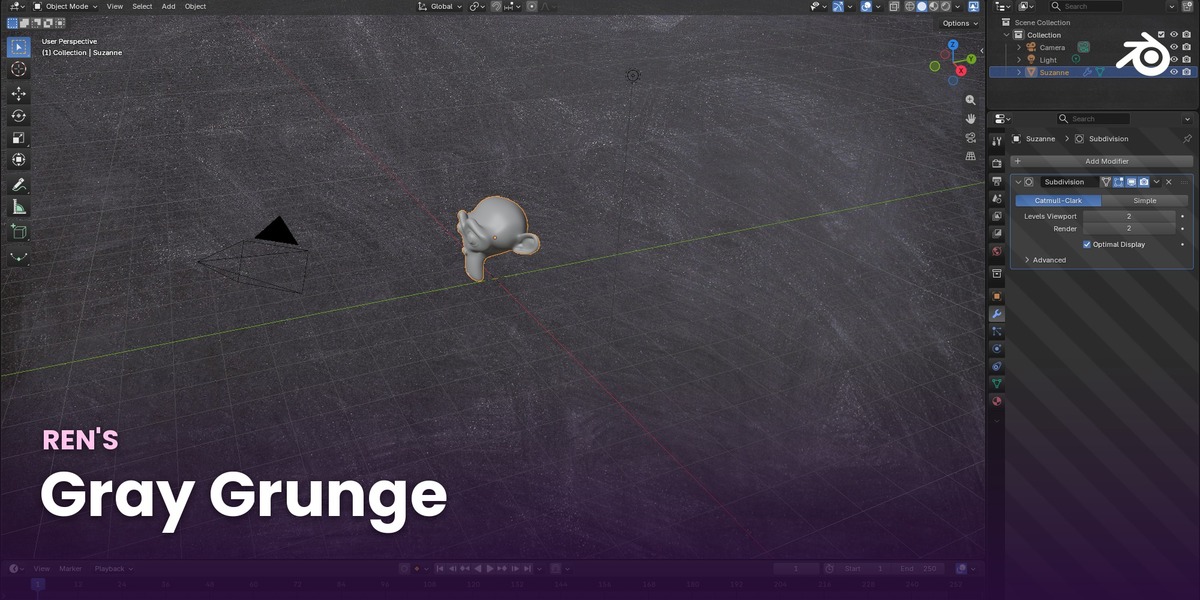
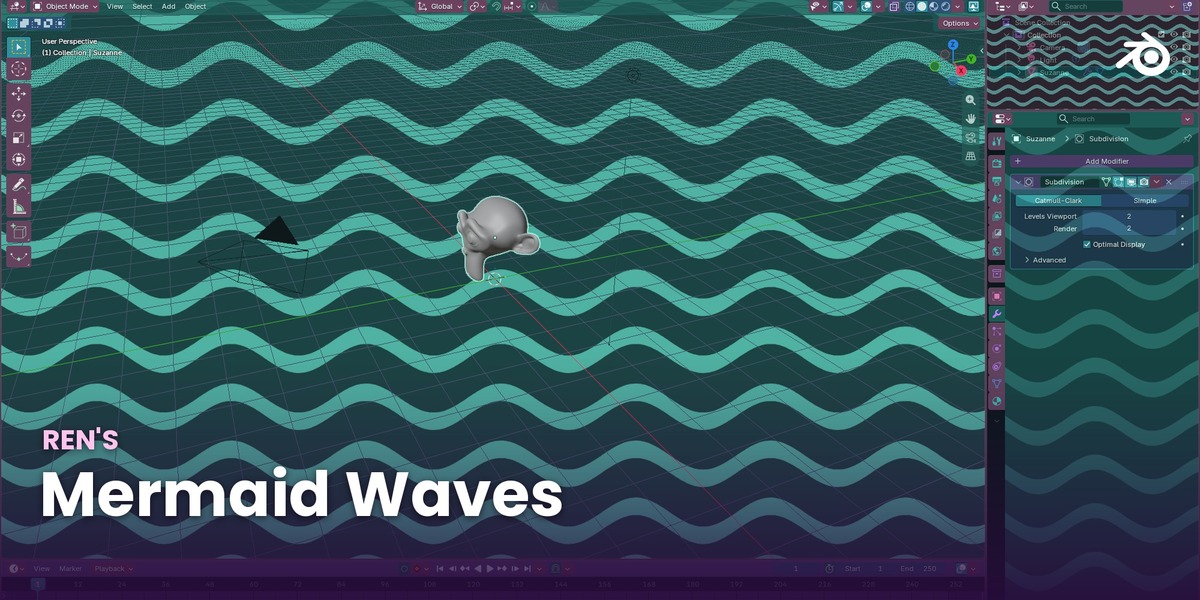
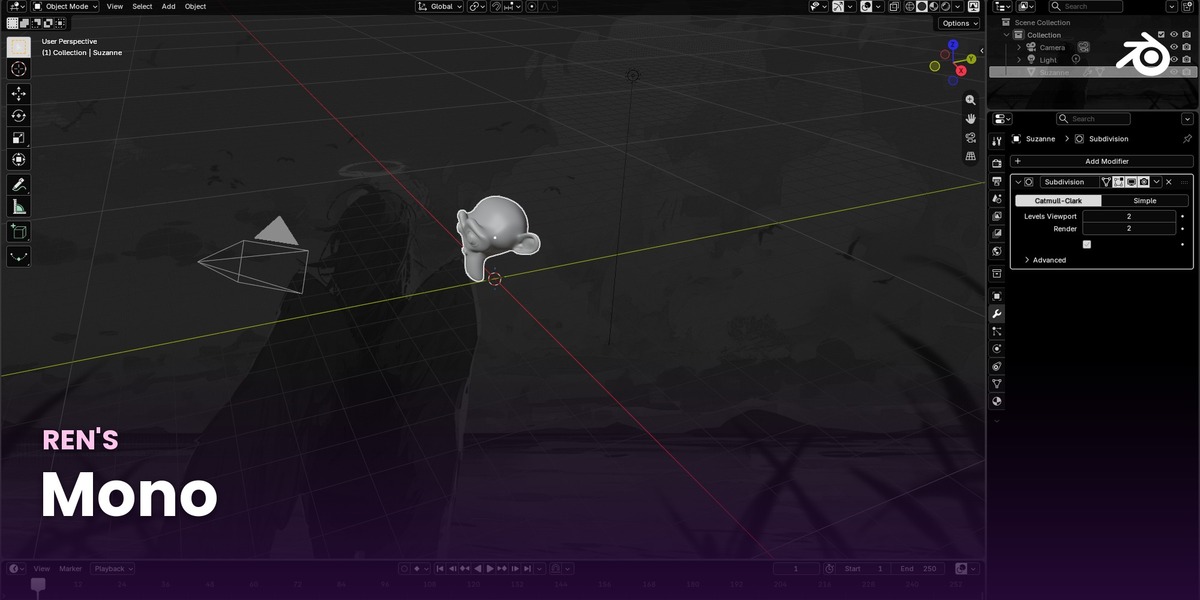
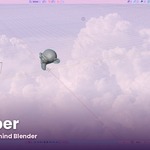
- 3D Viewport: pick an image, then set Opacity, Tint, Brightness and Fit (Fill, Fit or Corner). Behind Objects keeps your scene in front of the picture.
- 360° mode: set Type to 360° and pick a panorama (equirectangular) image, such as a World HDRI (.hdr, .exr or a wide .jpg/.png). It wraps around the scene and turns as you orbit. Use Rotation to turn it, Blur to soften it and Hide Seam (on by default) to blend the edges of images that aren't seamless. It always sits behind your objects.
- Other editors (Properties, Outliner, Node Editors, Image Editor, Text Editor): choose Off, Same as Viewport or Own Image.
- Reload (arrow button) loads the image again after you edit it. X removes it.
- Presets: press + to save the whole setup, pick it from the Presets menu to load it, or use Delete Preset in the same menu.
- The picture button at the right of the 3D Viewport header turns the wallpaper on and off.
Keeping your settings
Wallpaper settings are saved with Blender's Preferences, so they work in every file. If Auto-Save Preferences is turned off, use Save Preferences (in the Preferences menu) to keep them. The panel shows a reminder when auto-save is off.
Tips
- Keep Opacity around 0.1 - 0.3 behind text-heavy editors like Properties and the Outliner.
- The white parts of the patterns take on the Tint colour, so one pattern works with any theme.
Made and tested in Blender 5.3.
Have questions about this product?
Login to message
| Blender Extension Compatible | Yes |
| Published | about 20 hours ago |
| Blender Version | 5.3 |
| Extension Type | Add-on |
| License | GPL |