 minsang ahn


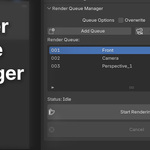
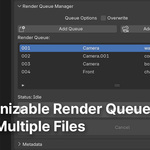
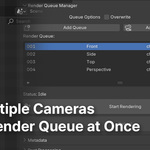
The Render Queue Manager allows users to easily add the current scene to a queue and batch render multiple scenes efficiently. This addon is particularly useful for artists who primarily work with still images in Blender, rather than animation creators.

This addon is located under the Output properties.
Features & Usage
-
Adding to the Queue

- Click the
Add Queuebutton to add the current scene to the render queue.
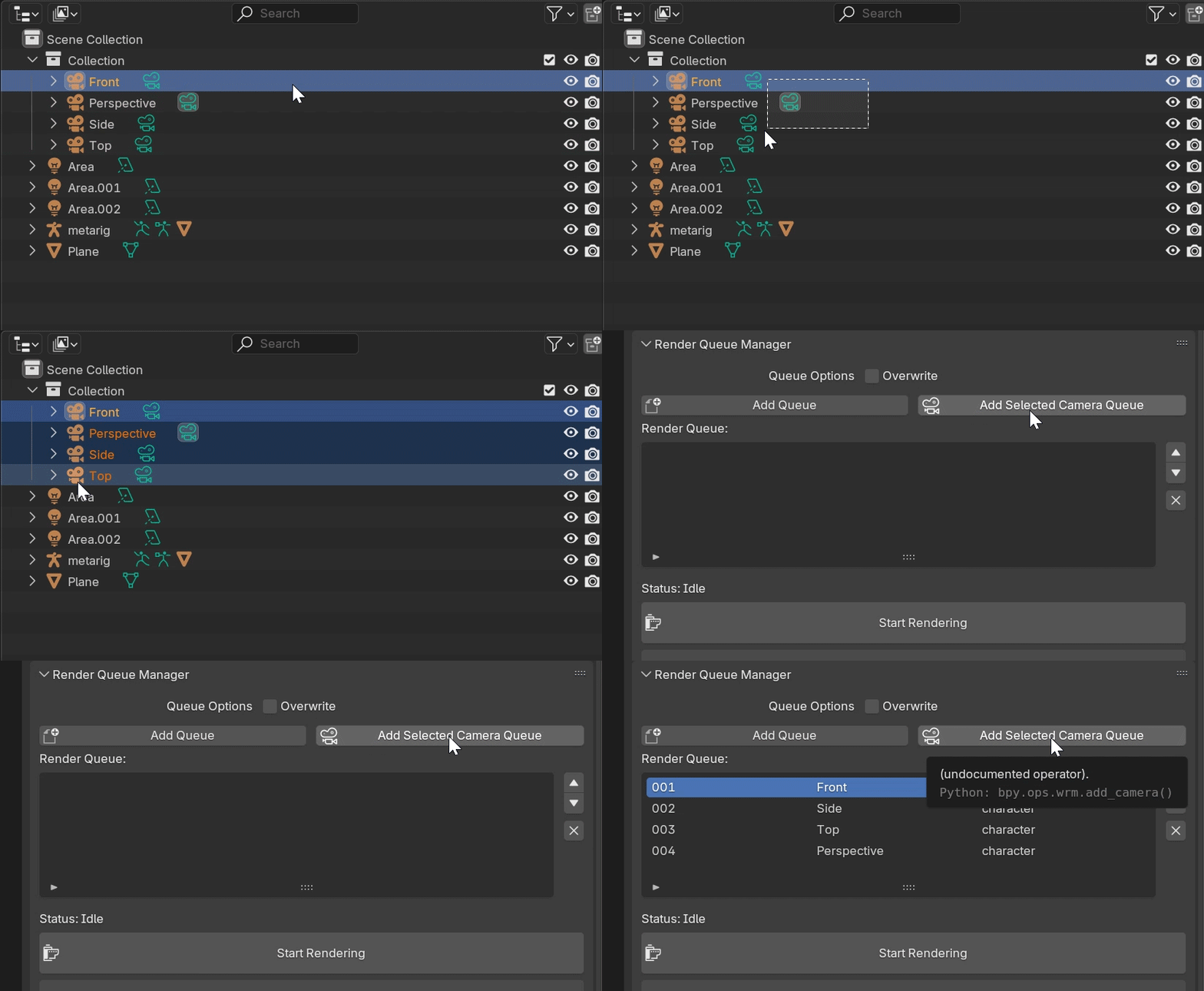
- You can add multiple cameras to the queue at once by clicking the Add Selected Camera Queue button.
- Click the
-
Managing the Queue

- Reorder queued render files or remove specific entries as needed.
-
Starting the Render

- Click
Start Renderingto sequentially render all queued scenes in the background.
- Click
-
Canceling the Render

- Click
Cancel Renderingto stop the process while rendering is in progress.
- Click
-
Saving Output Files
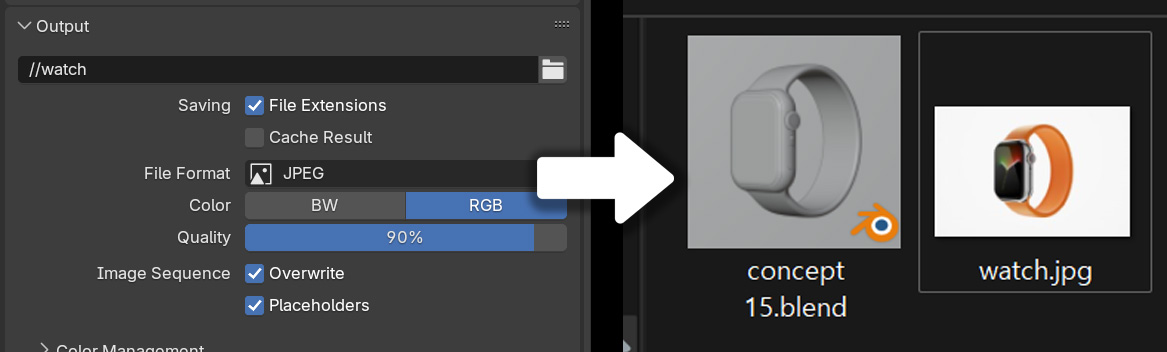
- Rendered images are automatically saved according to the Output settings.
-
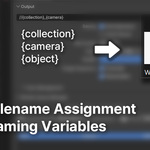
Automatic Filename Assignment
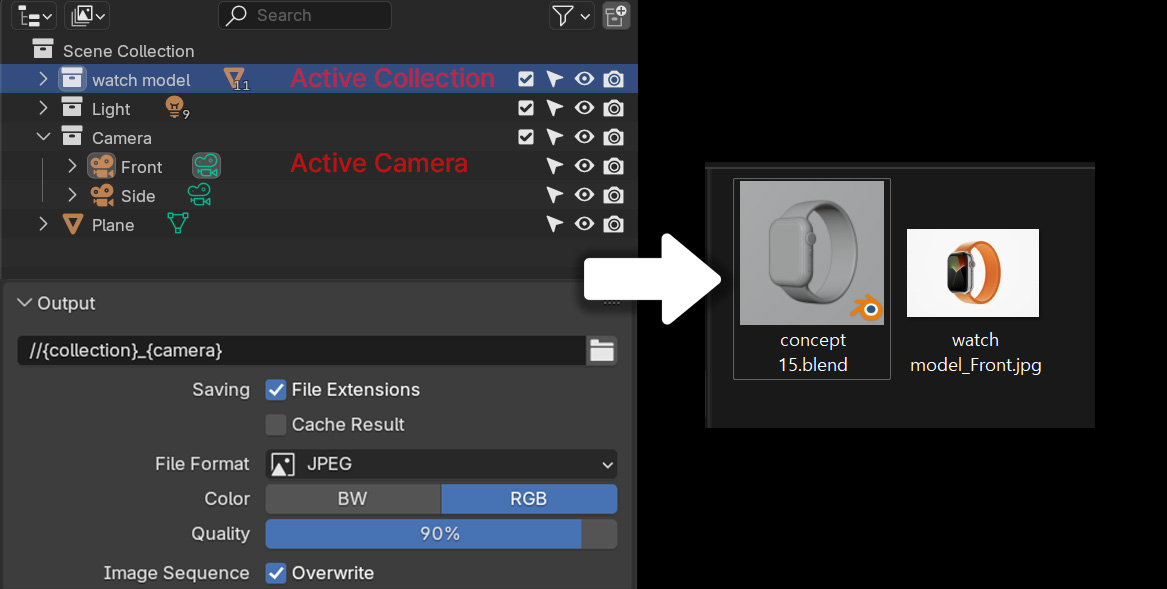
- Use keywords such as
{camera},{collection}, and{object}in the file path to dynamically name output files.
- Use keywords such as
-
Overwrite Settings

- Enable the
Overwritecheckbox to replace existing images or disable it to save new versions with numbered filenames.
- Enable the
-
Optimizing Render Speed
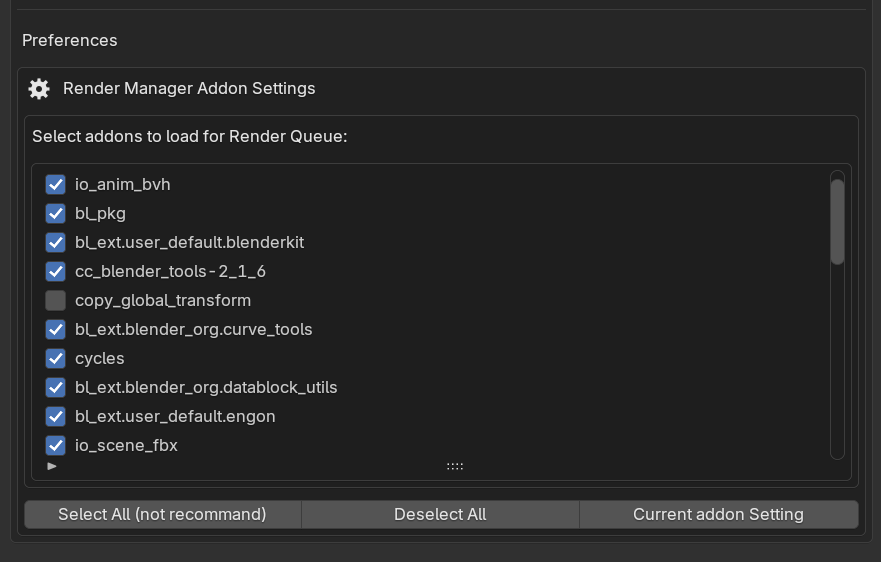
- Disabling unnecessary addons in the settings can improve render queue loading speed.
-
Queue Synchronization Across Files
- Share the queue list across different files, allowing efficient rendering of projects composed of multiple
.blendfiles.
- Share the queue list across different files, allowing efficient rendering of projects composed of multiple
Precautions
-
CLI Rendering Compatibility
- Some addons may interfere with CLI (Command Line Interface) rendering.
- If the queue rendering is not working properly, try disabling unnecessary addons in the settings and run the render again.
-
Limited Testing Environments
- This addon has not been extensively tested across various environments.
- If you encounter any issues, please report your setup and the problem so we can address it promptly.
