Render Time Estimator + Logger — Predict Render Time Before You Hit Render
 NovaStrikes



On this page
Installation
- Download the
.zipfile from your Superhive downloads page - Open Blender → Edit → Preferences → Add-ons
- Click Install from Disk (top-right dropdown in newer Blender versions, or the direct button in older ones)
- Select the downloaded zip file — do not unzip it first
- Find Render Time Estimator + Logger in the add-ons list and enable the checkbox
Requires Blender 4.2 or newer. The add-on will not appear or function correctly on older versions.
Where to find the panel
Once enabled, everything lives in one place:
If you don't see it, confirm the addon is enabled in Preferences, and that you're looking at the Render tab specifically — not Output, View Layer, or Scene.
Using the pre-render estimate
Set up your scene normally
Configure your resolution, samples, frame range, and engine exactly as you'd want for the real render. The estimator reads these settings directly.
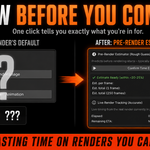
Click "Confirm Time Estimate"
A dialog explains that Blender's UI will briefly pause while two quick test passes run. Click Confirm to proceed.
Wait for the two passes to finish
Blender will pause briefly (usually a few seconds, longer on heavy scenes). This is expected — see "The UI freeze, explained" below for why.
Read your result
For animations, you'll see both "Est. per frame" and "Est. total (N frames)" as separate numbers. For a single still, you'll see one "Est. full render" value. The method used (sample-based or resolution-based) is shown underneath.
Live render tracking
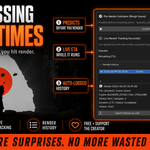
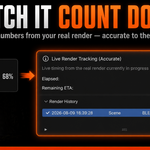
This is separate from the pre-render estimate and requires no setup. Start any real render — F12 for a still, or Render Animation — and the "Live Render Tracking" section updates automatically as it runs.
| Render type | What you'll see |
|---|---|
| Single still frame | Elapsed time while rendering, then "Done (single frame)" on completion |
| Animation / multi-frame | A live "Remaining ETA" that updates after each frame, based on a rolling average of real frame times |
This tracker never causes a freeze — it only reads timing from a render you already started.
Render history & CSV export
Every completed real render (not the pre-render test passes) is logged automatically to the "Render History" section — click to expand it if it's collapsed. Each entry records:
timestamp · scene name · engine · resolution · samples · device · frame range · duration · status · output path
Export History as CSV saves the full log to a file you can open in Excel or Google Sheets.
Clear History permanently deletes the log — you'll be asked to confirm first, since this can't be undone.
Preferences
Found under Edit → Preferences → Add-ons → Render Time Estimator + Logger.
Sample Ratio
Portion of full samples used for Cycles time estimation—default 0.1. Higher values are slower but slightly more representative.
EEVEE Resolution Ratio
Resolution percentage used for EEVEE and adaptive-sampling Cycles estimation. Default 0.25.
Warn Threshold (seconds)
If the estimate is expected to take longer than this, the confirmation dialog is more explicit about the wait.
Auto-log renders / Live ETA toggle
Both on by default. Turn either off if you'd rather run the addon manually without background logging or live tracking.
How accuracy works
The pre-render estimator runs two quick test passes at different sample counts (or resolutions, for EEVEE and adaptive Cycles) and measures the real time each one takes. It then solves for two things separately: the fixed setup cost of a render (scene loading, kernel compile, denoiser init — happens once regardless of quality) and the variable cost that actually scales with samples or resolution. Only the variable part gets extrapolated up to your full settings.
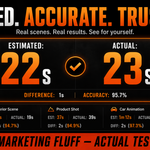
This two-point method is meaningfully more accurate than a naive single-sample guess, especially on fast, simple scenes where fixed overhead would otherwise dominate the estimate. In testing across multiple scenes, results landed anywhere from about 4% to roughly 25% off the real render time.
Real render timing has natural variance from GPU thermal state, background processes, and driver behavior — no estimation method removes that entirely. Treat the number as a genuinely useful prediction, not an exact promise.
The UI freeze, explained
Getting an accurate estimate requires running two real (if reduced-quality) render passes, and Blender's render call blocks the UI while it runs — this is a Blender API limitation, not a bug in this addon specifically.
You'll always see a confirmation dialog before it happens, and it only affects the pre-render estimate — the live tracker during a real render never freezes anything, since it's just reading timing from a render that was already going to happen.
A fully non-blocking version has been explored but not yet shipped safely — Blender's async render path (INVOKE_DEFAULT) triggers a real interactive render rather than a quiet background pass, so this needs a more careful solution. Planned for a future update.
Troubleshooting
"Time estimation not supported for [Engine]"
Only Cycles, EEVEE, and EEVEE Next are supported. Workbench and other render engines aren't covered — switch engines to use the estimator.
Estimate seems way off
Confirm which method was used (shown under the result — sample-based or resolution-based). Very fast scenes (under a few seconds per frame) will naturally have a wider error margin, since fixed overhead is a larger fraction of total time. This is expected, not a malfunction.
My resolution or samples changed after running the estimate
This should not happen — the addon restores your original settings automatically when the estimate finishes. If you see this, please report it via the contact link below along with your Blender version and render engine.
Render History panel isn't showing anything
Check that "Auto-log renders" is enabled in Preferences, and that you've completed at least one real render (not just an estimate) since enabling the addon.
Something else is broken
Reach out via the contact link in Preferences with: your Blender version, render engine, and (if possible) the exact console error text from Blender's system console.
Privacy & data
This addon makes zero network requests. Render history is stored locally in Blender's user config directory on your machine and is never uploaded, synced, or transmitted anywhere.
You can inspect, export, or permanently delete this data anytime from the Render History panel.
Still need help?
Use the Portfolio, GitHub, or Contact links in the addon's Preferences panel, or reach out directly at [email protected].
NovaStrikes · novastrikes.com
-
$1
Support the development of the add-on by purchasing it at full price, or use the coupon code to get it for free
Have questions about this product?
Login to message
| Blender Extension Compatible | Yes |
| Dev Fund Contributor | |
| Published | about 2 months ago |
| Blender Version | 4.0 - 5.2 |
| Extension Type | Add-on |
| Render Engine Used | Cycles, Eevee |
| License | GPL |