 KVD
KVD
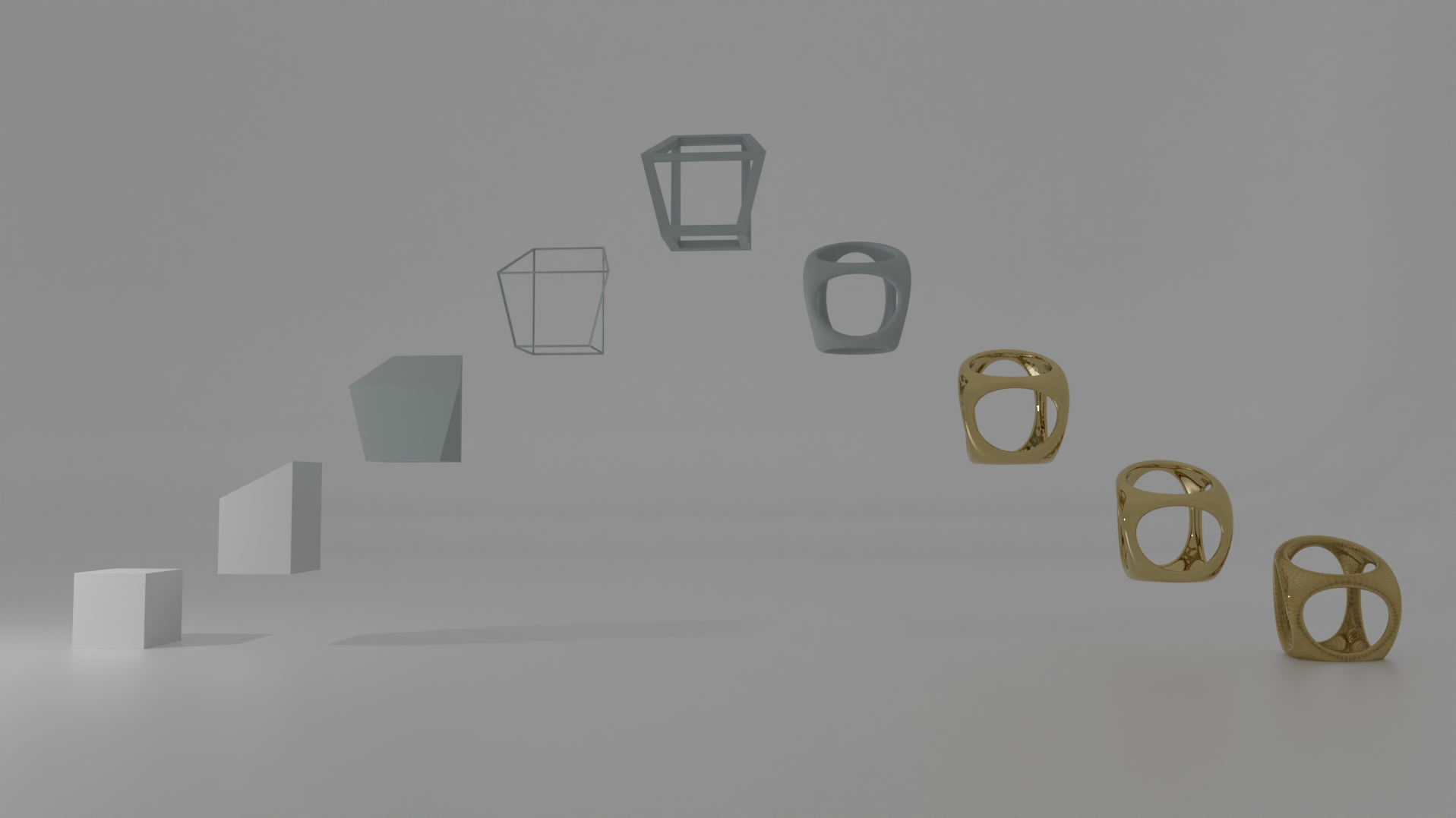
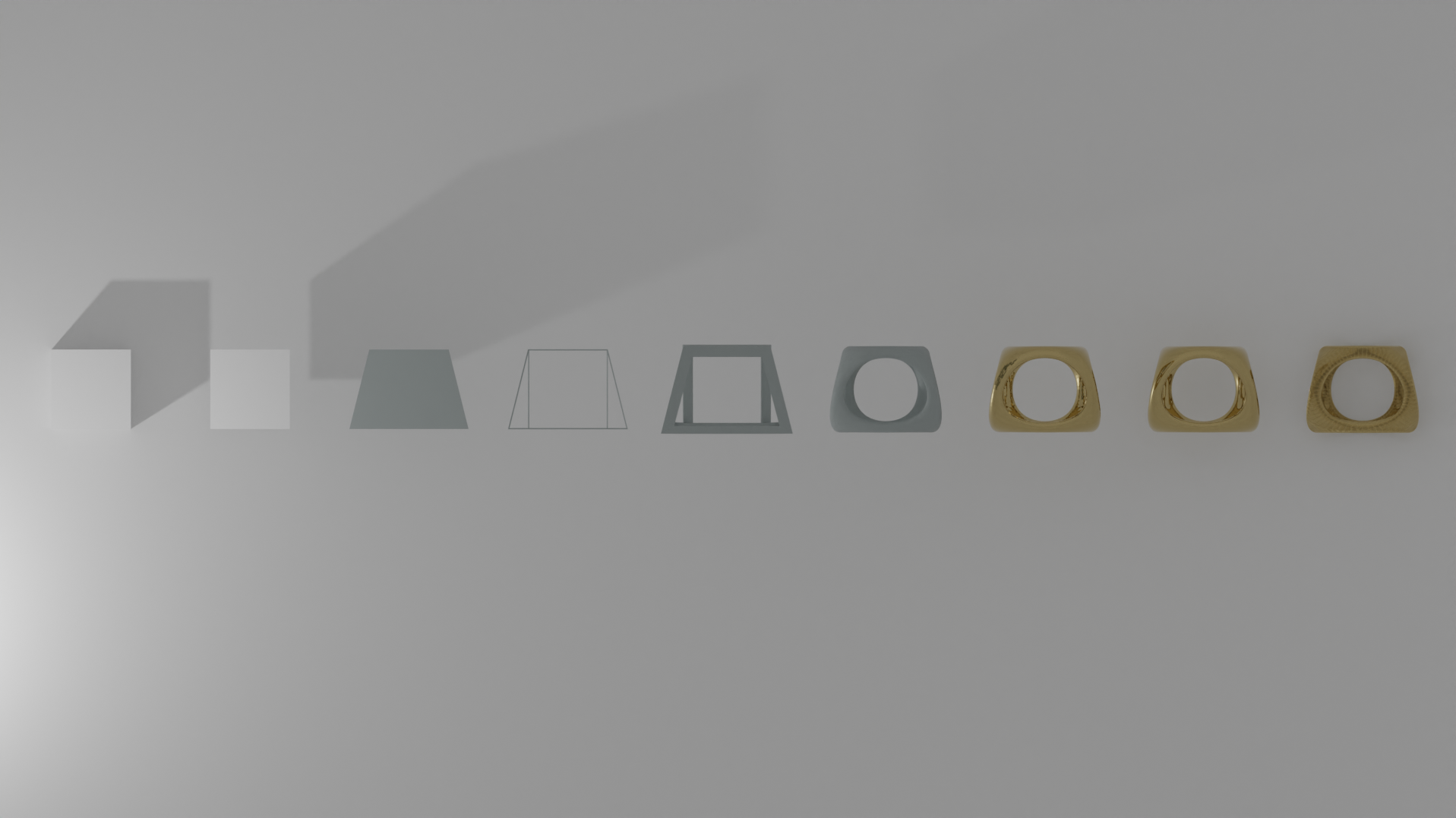
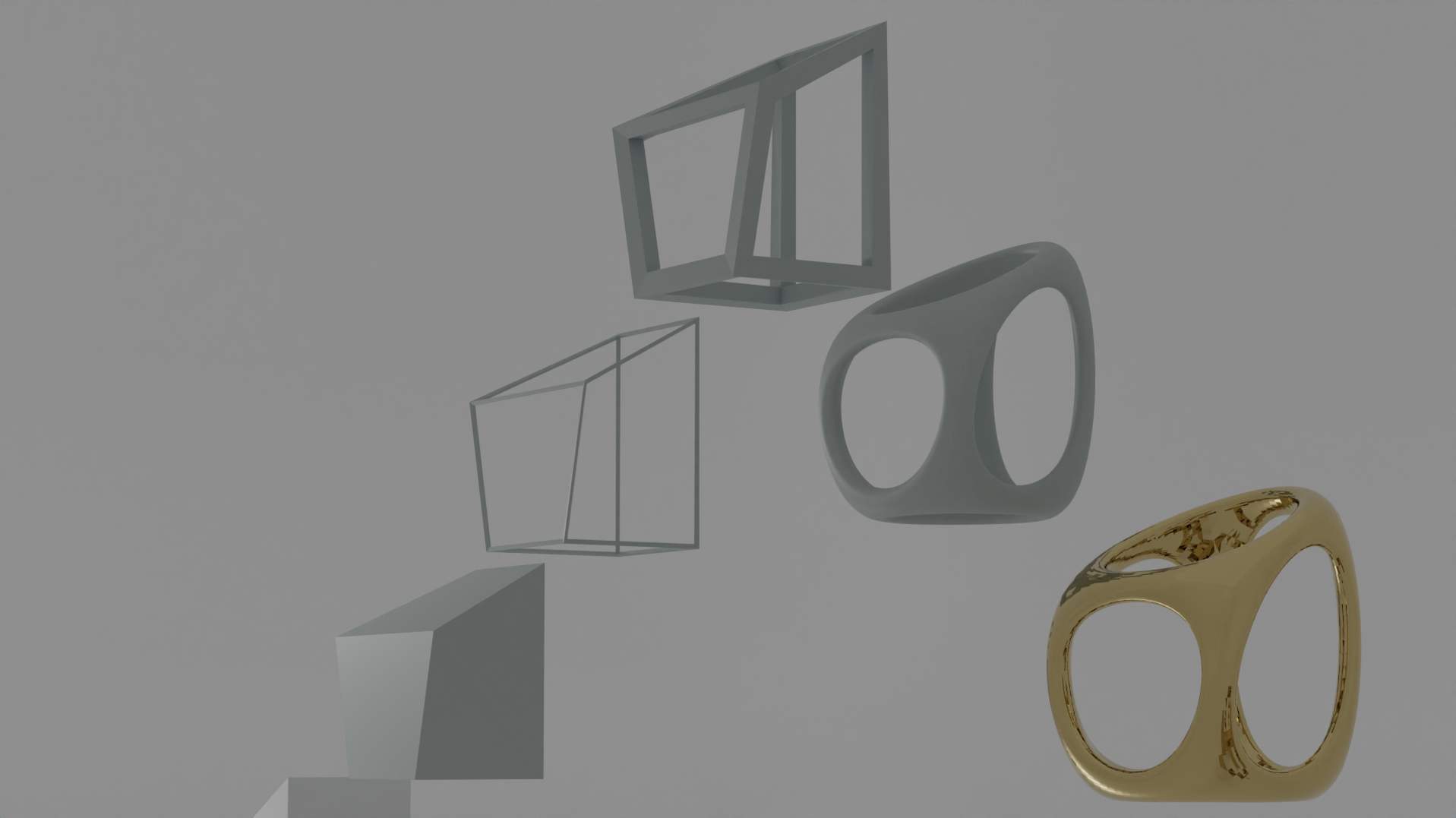
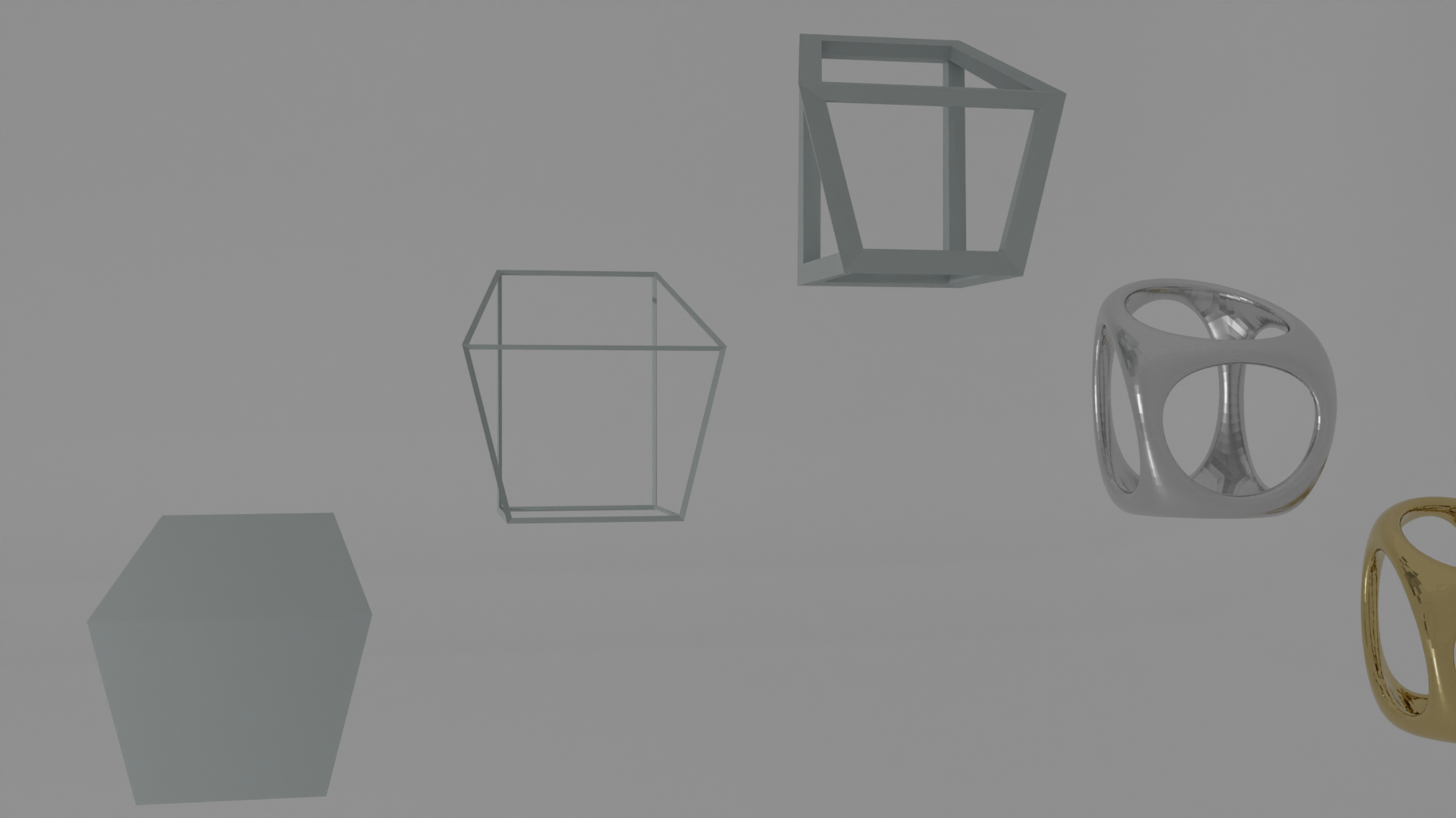
Restore State Add-On:
If you are modelling and you like to save your progress in steps, then this add-on is just the right one for you.
Changing your object in edit or object mode, adding modifiers and even going a few steps back to before you applied the modifiers.
All this is possible now, with buttons in a panel.
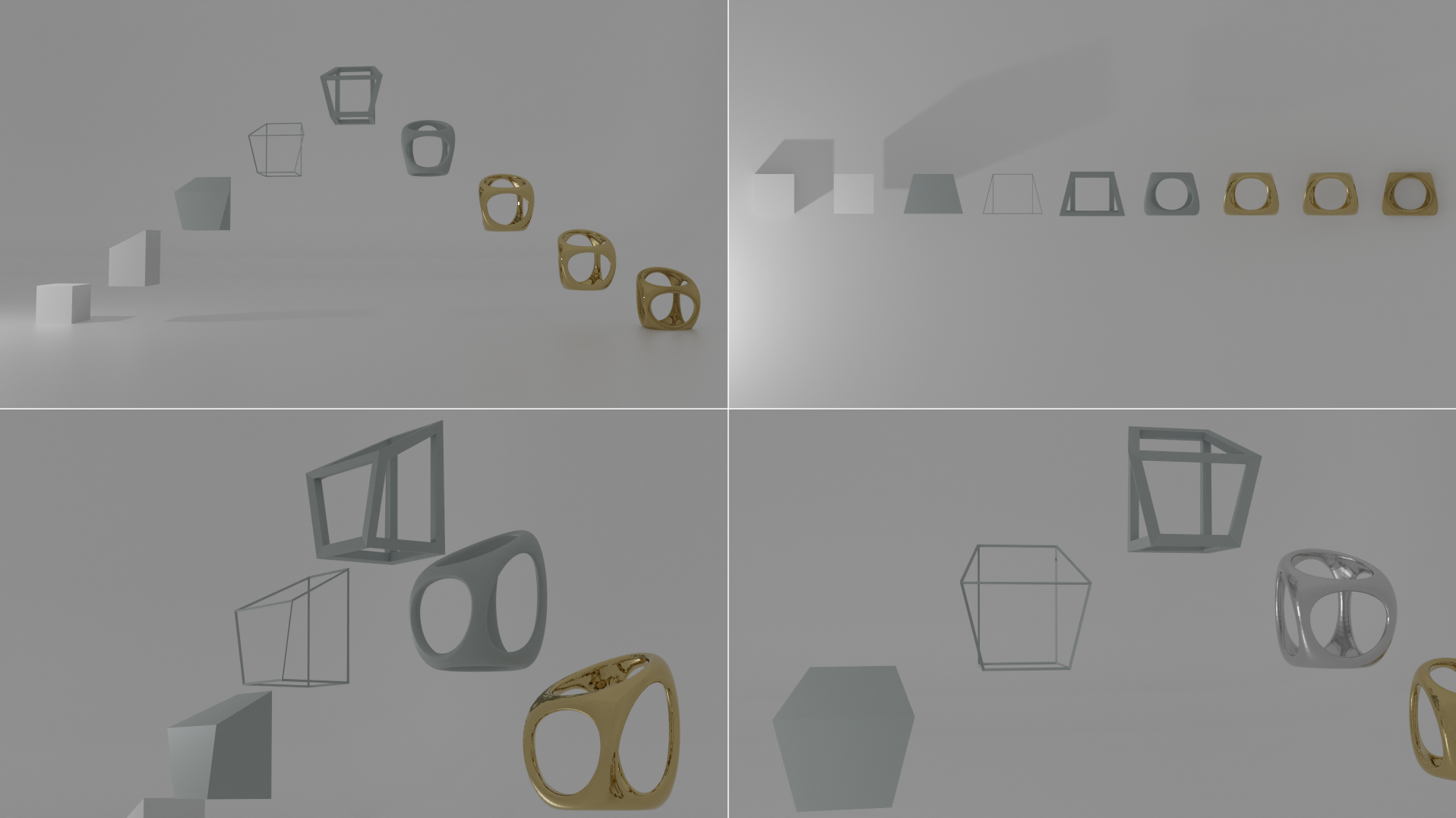
Now with this updated version, you can go back to a state, even when the modifier has been applied.
You can always go back and change the parameters in the modifiers.
Also in this version of the addon, you can add your Geometry node setups to your objects.
You can have different saved states, each with other parameters.
Just remember, that you do not apply or delete the geometry node setup, because this will break your list.
Saving the state:
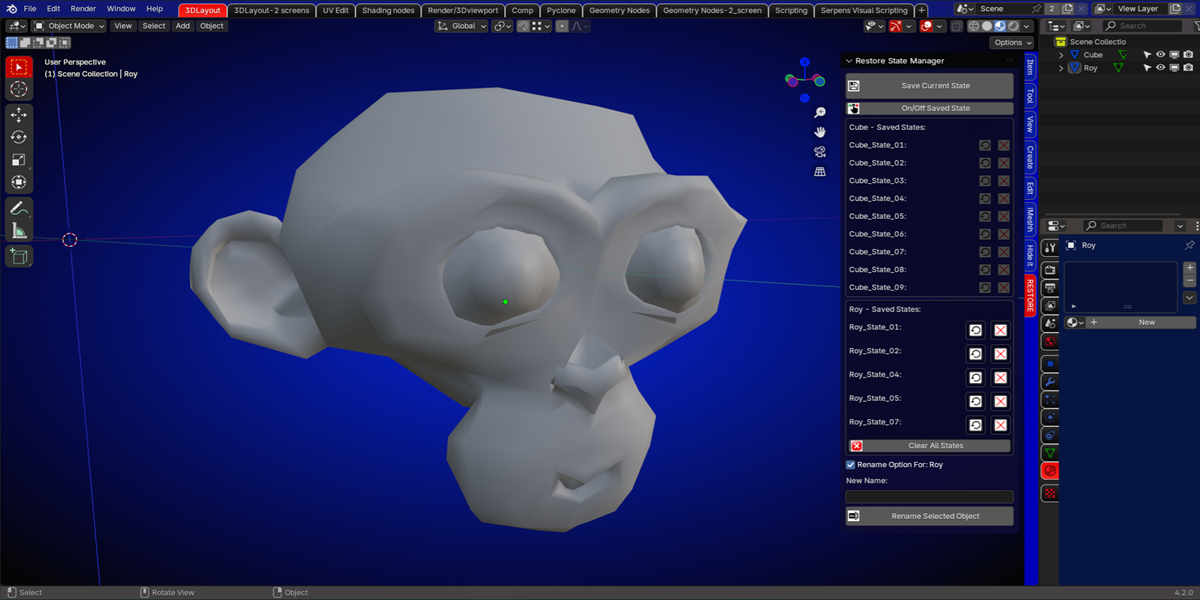
Select your Mesh object and press the 'Save Current State' button.
Your saved state will be displayed in the panel, as the objects name and a state number.
Changing the object in edit mode, and saving the state will add a new state in the panel.
The location and rotation will also be stored when saving.
You add your modifiers to the object, and apply them.
Save your current state and you have another step to go back or to jump to.
Changing a state:
Adding materials can also be saved as a state, and you can always go back to an earlier state if needed, by pressing the 'restore' buttons in the panel
When selecting another object that has no saved states, the 'Restore' and 'Clear' buttons in the panel, become un-selectable.
Saving the current state of the new selected object, will add a new state box in the panel.
Like before, you can make adjustments to your object and save those states.
Going back to a previous state, making some adjustments and saving the new state again to the current state, is so easy.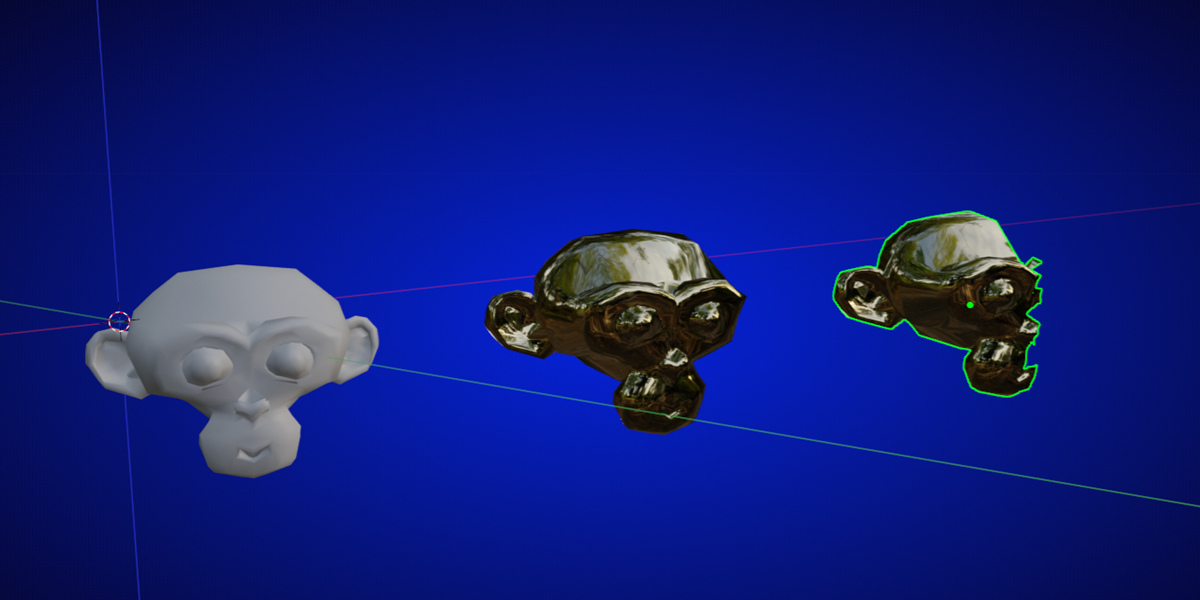
Disabled buttons:
Only a selected object with saved states, will enable the buttons.
The other objects buttons will stay disabled.
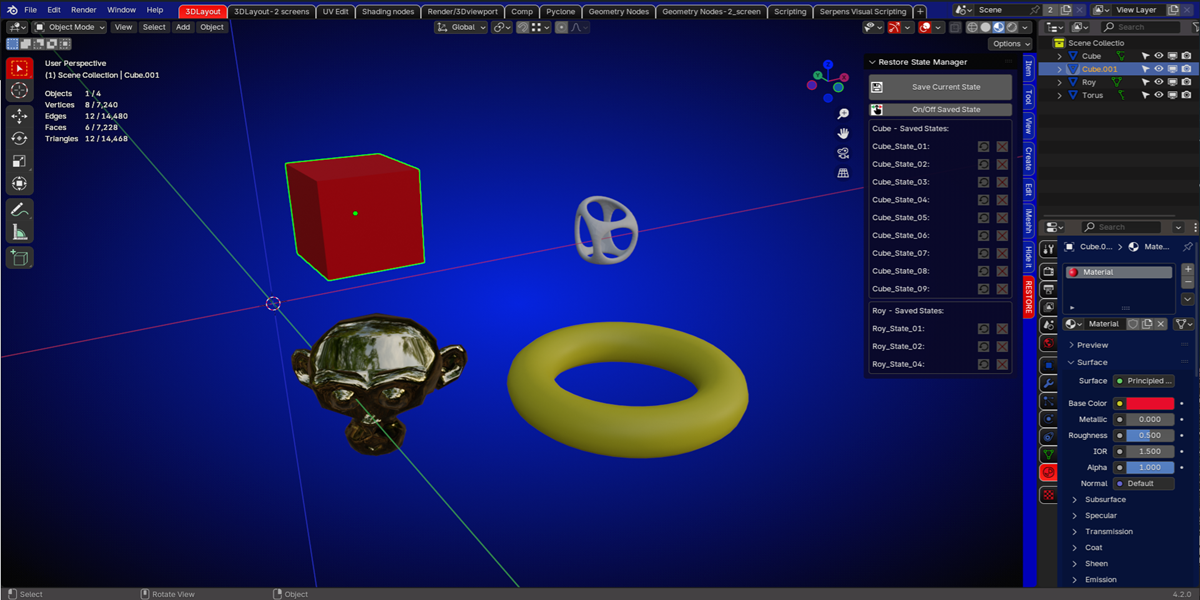
And of course, you can switch from object to object any time to make adjustments.
Clear States:
A state or states that are not needed anymore, can be cleared from the panel.
The last selected state will be the visible state if the 'Clear All States' button is pressed and the name of the object will be removed from the panel.
Toggle button:
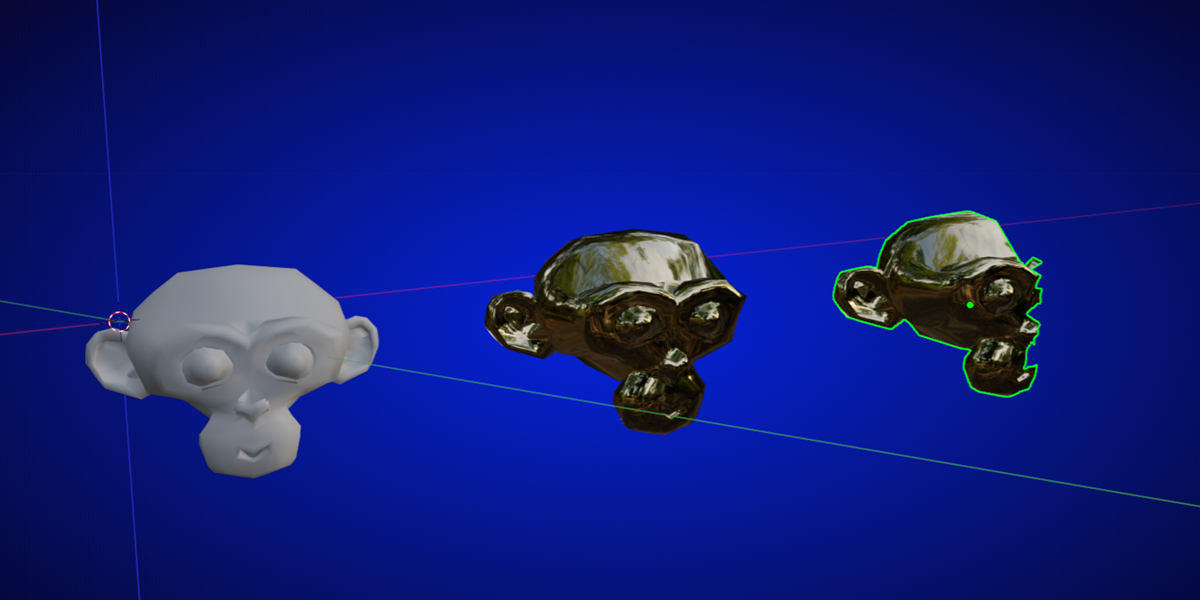
To make objects, that have saved states, more visible, there is a 'toggle' button to show all these objects.
Helpful, if there are a lot of objects in the scene.
They will be displayed as wireframe.
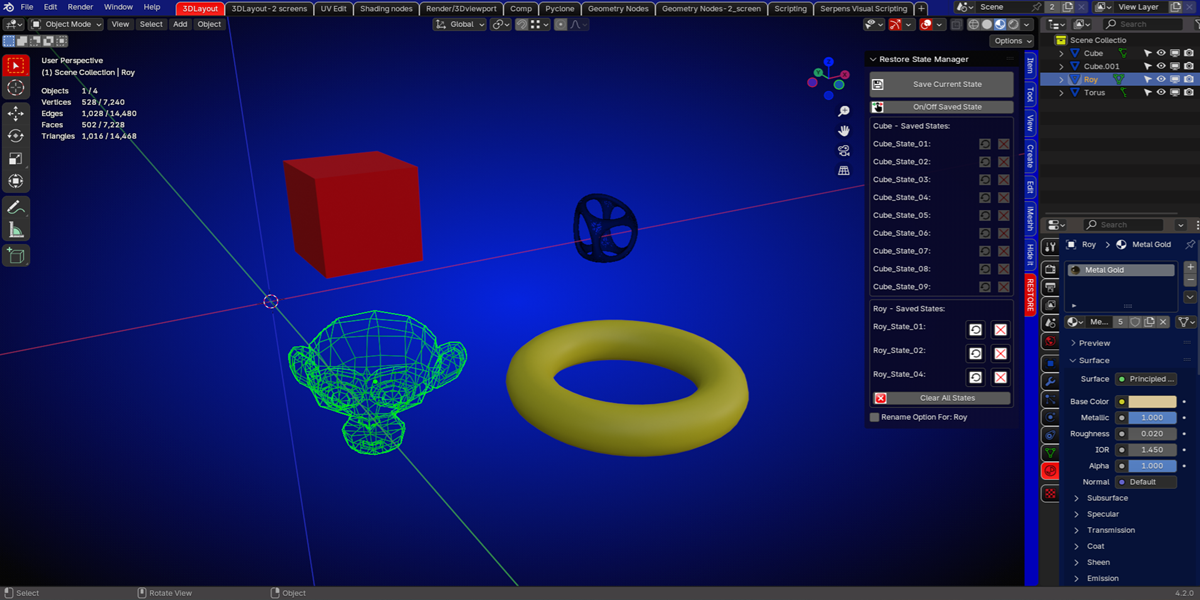
Renaming:
For renaming an object that has saved states, you need to use the 'Rename Option' checkbox in the panel.
By using this, all your saved states will be available again for later if you save your blend file.
And of course, with the new name, the 'Restore' and 'Clear' buttons can be used again.
Changelog V1.0 :
- Initial release
Changelog V2.0 :
- Possibility to add a custom suffix to the state name when it is saved.
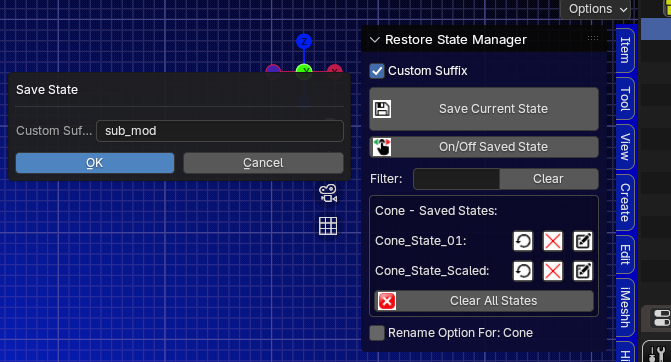
- Added a filter to find your saved state(s) if your list is too big.
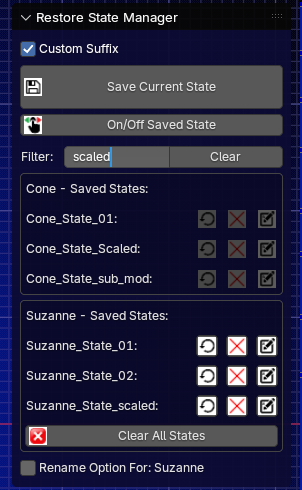
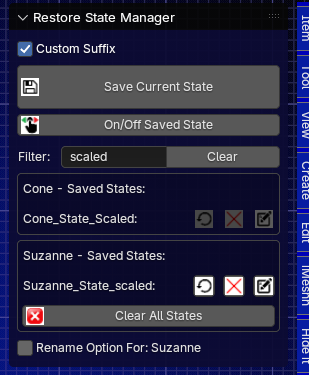
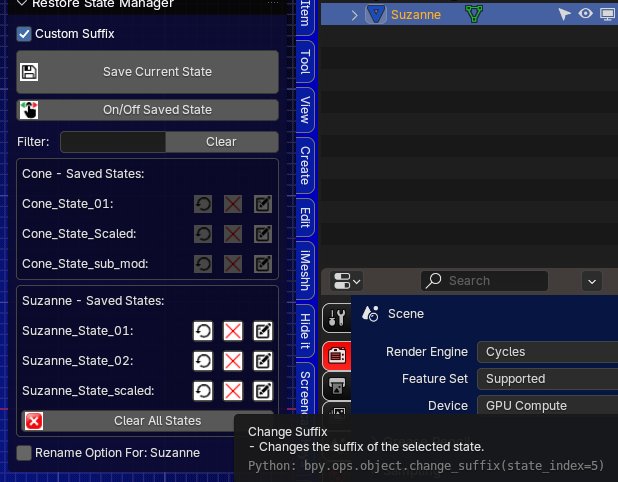
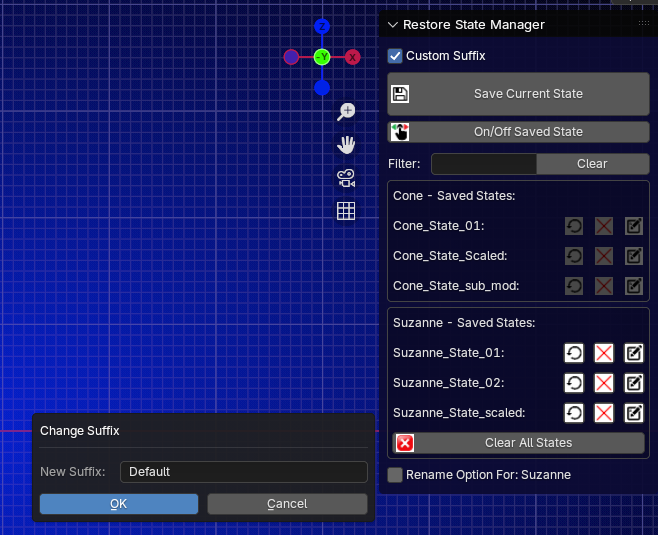
- New button to change the already saved state name (suffix) in the panel.
Changelog V2.1 :
- Bug fix when saving state in edit mode
Changelog V3 :
Totally re-written
- In this updated version, you can go back to a state, even when the modifier has been applied.
- You can always go back and change the parameters in the modifiers.
- Also you can add your Geometry node setups to your objects. You can have different saved states, each with other parameters.
Changelog V3 .1:
-Bug fix when restoring boolean (the Mesh object to use for Boolean operation was not stored)
Changelog v3 .2:
- updated version of the add-on for Blener 5.0+
