 Colin M


Retarget Helper – Quick Workflow Guide
Retarget Helper is a lightweight constraint-based retargeting tool for quickly linking animation between two hierarchies.
It works by:
Defining an Origin (animation source).
Defining a Target (destination rig or object hierarchy).
Creating mapping pairs between objects and/or bones.
Applying transform constraints in bulk.
1. Set Origin & Target
At the top of the panel:
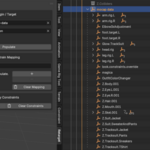
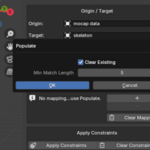
Origin – the animated source object (or armature root).
Target – the destination object (or armature root).
All picker lists and automatic matching are limited to objects and bones under these two roots.
Exclude Meshes (default: enabled)
When enabled, mesh objects under the roots are ignored in lists and auto-populate.
Useful when retargeting between armatures that have skinned meshes attached.
Click Populate to auto-generate mappings based on name similarity (case-insensitive substring matching).
The two root objects themselves are never auto-mapped.
2. Constrain Mapping
This section defines how individual elements connect.
Keyword
All constraints created will be prefixed with this string.
Example: RET_ → constraints like RET_LOC_001.
This is also used by Clear Constraints to safely remove only constraints created by this tool.
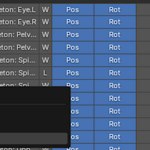
Mapping Rows
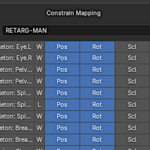
Each row defines:
Origin Slot – source object or bone
Target Slot – destination object or bone
-
W / L / P buttons – transform space
W = World
L = Local
P = Pose (bones only)
Pos / Rot / Scl – which transform channels to copy
Use:
+ to add a mapping manually
– to remove selected row
Clear Mapping to wipe the list
Selections are limited to objects and bones inside the chosen Origin and Target hierarchies.
3. Apply Constraints
Apply Constraints
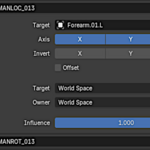
Creates Copy Location / Rotation / Scale constraints on the Target side according to the mapping list and selected spaces.
Clear Constraints
Removes all constraints under the Target hierarchy that start with the defined Keyword.
Includes both object and bone constraints.
Confirmation dialog prevents accidental deletion.
Typical Workflow
Set Origin (animated rig or object hierarchy).
Set Target (destination rig).
Enable Exclude Meshes if retargeting between armatures.
Click Populate.
Review mappings.
Adjust spaces or disable Pos/Rot/Scl as needed.
Set a Keyword.
Click Apply Constraints.
Done.
Notes
Matching is case-insensitive and based on name containment.
Only elements under the chosen roots are considered.
The tool is constraint-based — no baking is performed automatically.
Use Clear Constraints to safely remove previously applied mappings without touching unrelated constraints.
Designed for fast rig-to-rig iteration, mocap cleanup, and animation transfer without complex retarget systems.
Have questions about this product?
Login to message
| Published | 7 months ago |
| Blender Version | 4.0 - 4.4 |
| Extension Type | N/A |
| License | GPL |
