RollFlow
 nogproductions


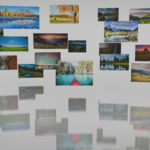
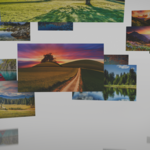
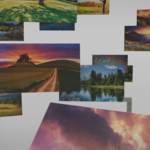
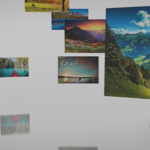
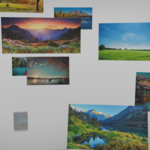
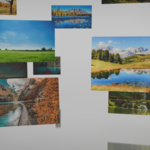
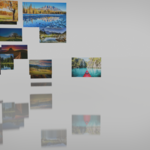
- ⚠ ️ IMPORTANT INFORMATION ABOUT ANIMATIONS ROLLFLOW'S AUTOMATIC ANIMATIONS WORK ONLY WITH CIRCULAR LAYOUTS: Layout Carousel Animation Support Animation Type ✅ FULL SUPPORT Continuous horizontal rotation Ferris Wheel ✅ FULL SUPPORT Continuous vertical rotation Grid ❌ NOT SUPPORTED Use manual animation This means that: •The "Enable Animation" option only works with Carousel and Ferris Wheel •For Grid layouts, you need to create animations manually •The "Animate as Group" button only appears in circular layouts 📋 TABLE OF CONTENTS 1.Overview 2.Installation 3.Getting Started 4.Step-by-Step Workflow 5.Essential Configuration 6.Visual Effects 7.Troubleshooting 8.Professional Tips 🚀 Overview RollFlow is a Blender add-on that transforms photos and videos into interactive 3D layouts. Create impressive presentations with advanced visual effects. Key Features: • ✅3 layout types: Grid, Carousel, Ferris Wheel • ✅Automatic photo and video import • ✅3D Parallax effects • ✅Complete manual rotation control •✅ Automatic animations (Carousel/Ferris Wheel only) • ✅Intuitive interface in Portuguese/English 📥 Installation Portuguese Version 1.Download RollFlow_PT.zip 2.Blender > Edit > Preferences > Add-ons 3.Click Install... and select the ZIP file 4.Enable the checkbox English Version 1.Download RollFlow_EN.py 2.Follow the same steps above 3.Use only ONE version at a time! 🎯 Getting Started Photo Preparation For correct ordering, name files like this: text ✅ CORRECT: 01_photo.jpg, 02_photo.jpg, 03_photo.jpg... ❌ INCORRECT: 1_photo.jpg, 2_photo.jpg... (10 will come before 2) Location in Blender •Right sidebar panel (press •"RollFlow" tab N) 📸 Step-by-Step Workflow STEP 1: Import Media text 🎞 ️ Media ├── Media Folder: [Select] └── Button: "Import Media" STEP 2: Choose Layout Layout Grid Best for Animation Portfolios, grids ❌ Manual Carousel Presentations ✅Automatic Ferris Wheel Dramatic effects ✅Automatic STEP 3: Configure Parameters Common Settings: •Reverse Order: For reverse sequence •Global Scale: Adjusts size of all media •Spacing: Distance between elements Specific Settings: •Grid: Rows and Columns •Carousel: Radius, Height, Tilt •Ferris Wheel: Radius, Base Height, Tilt STEP 4: MANDATORY CONFIGURATION To make photos follow the camera: 1.Select all planes ( A) 2.Add Track To constraint: text Target: [Your Camera] To: -Z Up: Y 3.Apply to all planes For Carousel/Ferris Wheel: text 🎬 Animation (ONLY for circular layouts) ├── Enable Animation: [ ] ├── Speed: 1.0 ✓ ├── Duration: 120 frames └── Direction: Clockwise / Counterclockwise How it works: 1.Layout rotates continuously like a real carousel 2.Speed controls rotation speed 3.Duration defines frames for one complete rotation 4.Not available for Grid layout For Grid (manual animation): 1.Apply layout normally 2.Create manual keyframes for: •Entry position •Individual rotation •Scale effects 3.Use I to insert keyframes 🌌 Visual Effects Parallax (3D Effect) Creates random depth between photos: •Intensity: 0.0-5.0 (recommended: 0.3-1.0) •Seed: Controls random pattern Manual Rotation Adjust angles in X, Y, Z: •X: Side tilt •Y: Front tilt •Z: Spin on own axis •Order: Application sequence ⚙ ️ Advanced Settings
- ️ Advanced Settings ├── Auto-Center Group: [ ] ← Recommended ✓ ├── Preserve Individual Scale: [ ] ← Maintains proportions ✓ ├── Smooth Rotation: [ ] ← Smooth animation ✓ ├── Debug Info: [ ] ← Development only └── Preview Mode: [ ] ← Quick preview 🎬 Practical Examples Example 1: Animated Carousel 1.10 photos named 01.jpg to 10.jpg 2.Layout: Carousel (Radius: 6.0) 3.Add Track To constraint to all 4.Animation: Speed 1.5, Duration 180, Clockwise 5.Parallax: Intensity 0.5 6.Apply Layout 7.Position camera in center Example 2: Portfolio Grid 1.15 sequential photos 2.Layout: Grid (4 rows, 4 columns) 3.Spacing: 2.5 4.Manual animation: Create sequential entry 5.Render as static image Example 3: Dramatic Ferris Wheel 1.8 vertical photos 2.Layout: Ferris Wheel (Radius: 8.0) 3.Tilt: 15° for dynamic effect 4.Animation: Speed 0.8, Counterclockwise 5.Slow camera movement � � Troubleshooting Problem: Animations not working Solution: Check if: • ✅Layout is Carousel or Ferris Wheel • ✅"Enable Animation" option is checked • ✅Not using "Grid" layout Problem: Photos in wrong order Solution: Rename with leading zeros: bash Before: 1.jpg, 2.jpg, 10.jpg After: 01.jpg, 02.jpg, 10.jpg Problem: Photos not facing camera Solution: 1.Select all planes 2.Add Track To constraint 3.Target: Your active camera 4.Configure: To: -Z, Up: Y Problem: Layout not centered Solution: Enable "Auto-Center Group" � � Professional Tips For Videos: •Combine photos and videos in same layout •Videos maintain playback during animations •Adjust scale for different aspect ratios For Rendering: 1.Circular layouts: Render 360° animation 2.Grid: Use smooth camera movement 3.Experiment with different camera angles Performance Optimization: •Preview Mode for quick adjustments •Reduce resolution during testing •Use proxies for long videos 📊 Quick Reference Table Parameter Rows/Columns Radius Height Tilt Grid Carousel Ferris Wheel ✅ ❌ ❌ ❌ ✅ ✅ ❌ ✅ ✅ ❌ ✅ ✅ Auto Animation ❌ ✅ Camera Constraint ✅ ✅ ✅ ✅ � � Useful Shortcuts Action Open panel Shortcut RollFlow Panel N Open/Close Select all A "Select All" Render F12 Insert Keyframe I For manual animation 📁 Recommended Project Structure text MyProject/ ├── assets/ │ ├── photos/ (01.jpg, 02.jpg...) │ └── videos/ (optional) ├── blender/ │ └── rollflow_project.blend └── renders/ ├── animation_sequence/ └── stills/ 🤝 Support Online Documentation: [Documentation URL] Report Bugs: [Issues URL] Community: [Forum/Social media] 📋 Pre-Render Checklist •Photos correctly named (01, 02, 03...) •T rack To constraints applied •Layout applied and centered •Animation configured (if circular) •Camera positioned •Render settings defined ⚠ ️ FINAL REMINDER ROLLFLOW'S AUTOMATIC ANIMATIONS WORK ONLY WITH THESE LAYOUTS: •✅ Carousel - Continuous horizontal rotation •✅ Ferris Wheel - Continuous vertical rotation •❌ Grid - Requires manual animation Choose the appropriate layout for your animation needs! 🎉Have fun creating! RollFlow transforms your photos into memorable 3D experiences.
Have questions about this product?
Login to message
| Published | 10 months ago |
| Blender Version | 4.5 - 5.0 |
| Extension Type | N/A |
| Render Engine Used | Cycles, Eevee |
| License | GPL |
