Scanify - Scan An Entire Drive For Missing Blends
 vfxblender



1. Download the Scanify
download the .zip file.
Do not extract it unless the instructions specifically say to.
2. Open Blender Preferences
-
Launch Blender.
-
Click Edit in the top menu.
-
Select Preferences.
3. Go to the Add-ons Tab
In the Preferences window:
-
Click Add-ons in the left sidebar.
-
Press the Install… button in the top-right.
4. Select the Add-on File
-
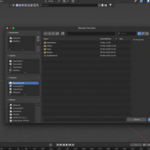
Navigate to the
.zipfile you downloaded. -
Select it.
-
Click Install Add-on.
5. Enable the Add-on
After installation:
-
Blender will add it to the add-ons list.
-
Use the checkbox next to the add-on name to enable it.
6. Save Preferences (Optional but Recommended)
Click ☰ (menu icon) in the lower-left of the Preferences window and choose:
Save Preferences
This keeps the add-on enabled when Blender restarts.
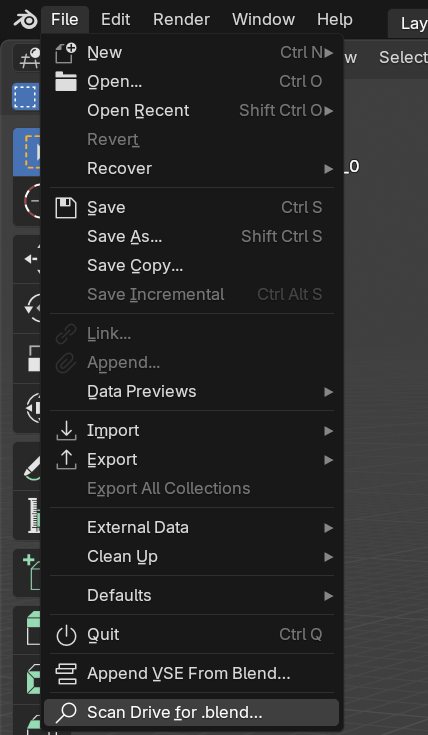
7. Go to File at the top left hand menu. Click on Scan Drive for blend.
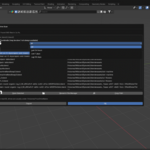
8. A menu should pop up click on which volume you want to scan and hit "Scan drive for Blend"
Optionally you can select a folder which will scan just that folder
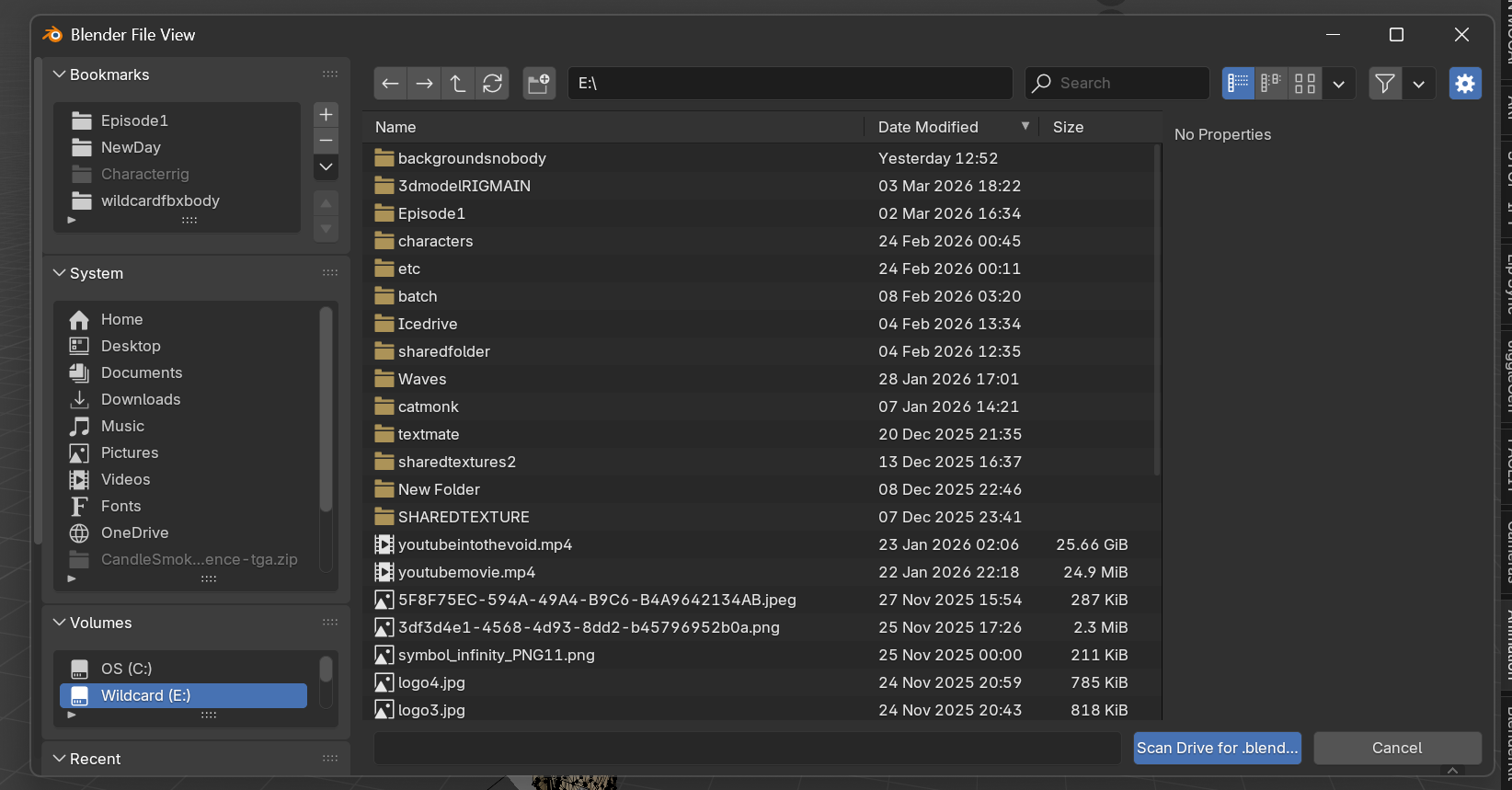
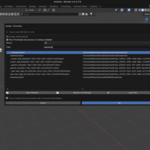
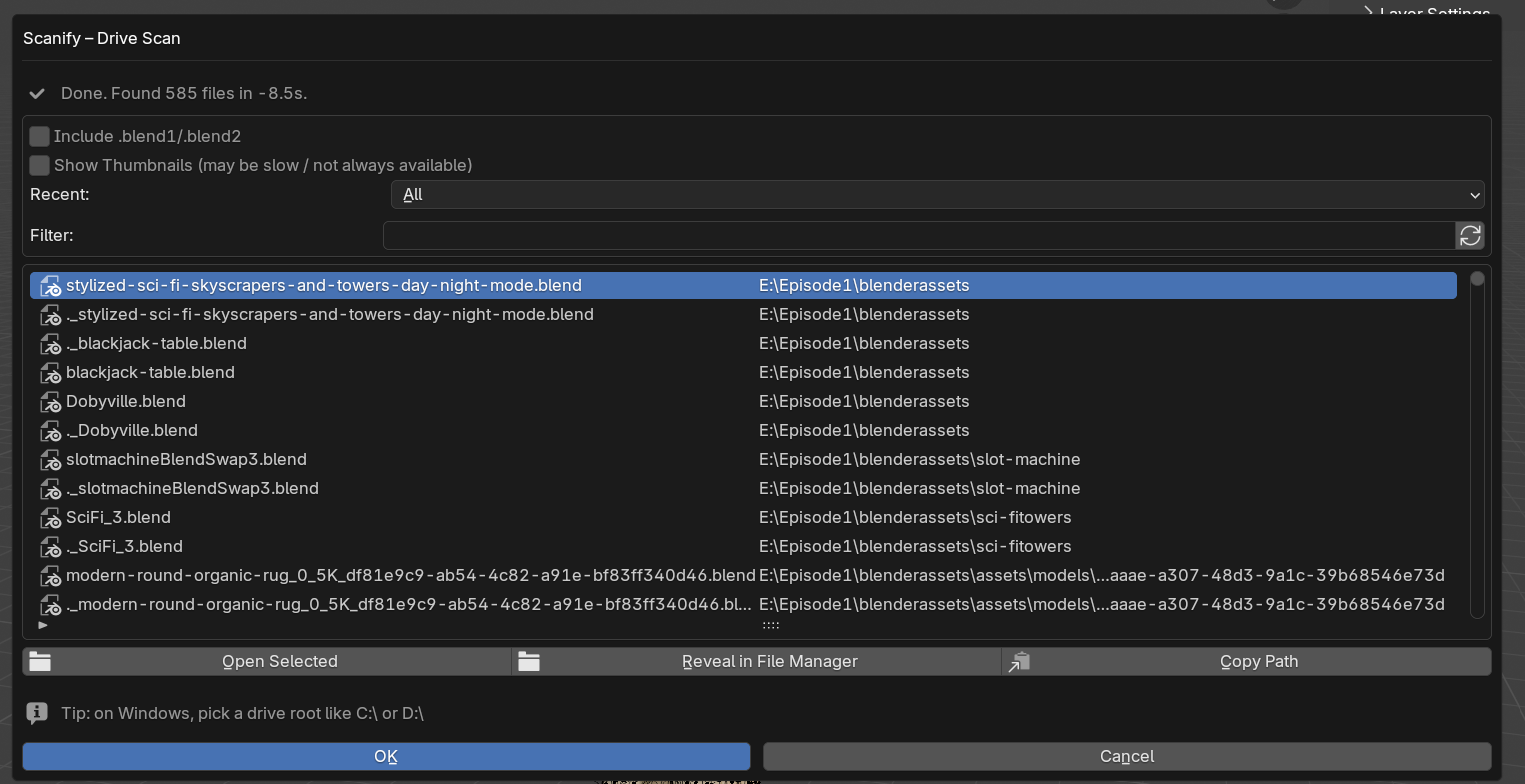
9. A list will pull up. You can slide through all your blend files in the drive.
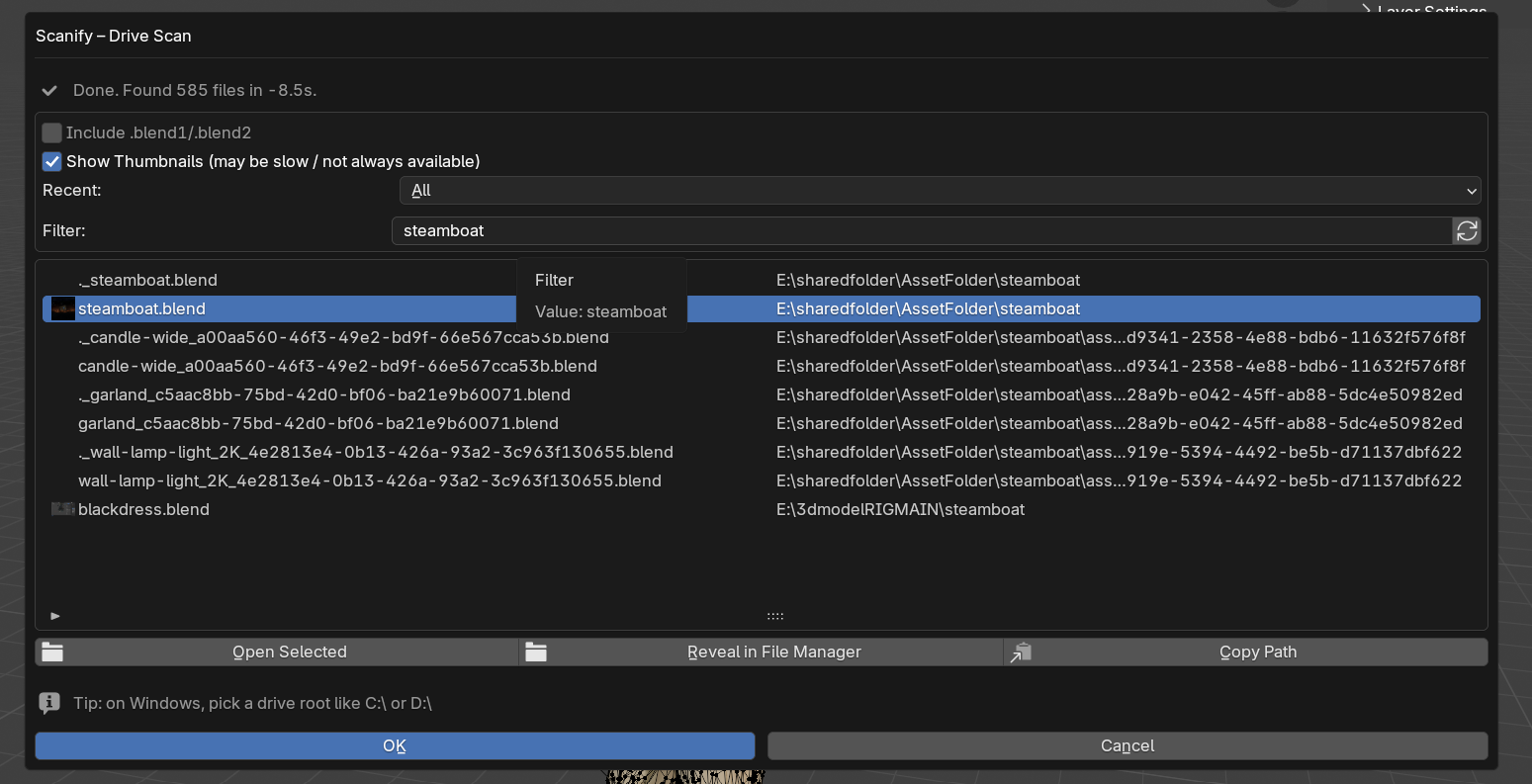
Click "show thumbnails" To help you find the blend.
you can also use the filter to search for a blend name or scroll through the options.
Also you can look up blend by their date of creation.

This is awesome because the default recent open menu in blender has a limit of how many recent blend it shows. Now you can see everything you've done recently with more options.
I hope this plugin saves the day! Have fun blending.
Have questions about this product?
Login to message
| Blender Extension Compatible | Yes |
| Published | 7 months ago |
| Blender Version | 4.5 - 5.2 |
| Extension Type | Add-on |
| Render Engine Used | Arnold, Blender-Internal, Blender-Game-Engine, Cycles, Eevee, Freestyle, Luxrender, Mental-Ray, Octane, Vray, Yafaray |
| License | GPL |